
iTechGuides is reader-supported. When you buy through links on our site, we may earn an affiliate commission. As an Amazon Associate I earn from qualifying purchases. Learn more
A 120 Hz display can still feel laggy because the screen’s refresh rate is only its potential update rate—not a guarantee that every app is producing 120 new frames per second. The operating system may choose a lower rate, an app may render slowly, a power-saving mode may restrict the display, or video playback may stutter because its frame cadence does not match the screen. First identify whether the problem affects the whole phone, one app, or video alone; then check the display and power settings that apply to your exact model.
This is usually a configuration or frame-delivery question, not proof that the panel is defective. A useful diagnosis separates four things: the display’s selected refresh rate, the app’s frame production, the operating system’s scheduling decision, and the cadence of the content itself. Those can disagree even when the phone’s specification says “120 Hz.”
What “120 Hz” does—and does not—mean
Hertz (Hz) measures how many times per second a display can refresh. A 60 Hz screen can refresh up to 60 times per second; a 120 Hz screen can refresh up to 120 times per second. A higher refresh rate can make scrolling and supported animations look smoother, but it does not ensure that new visual information is ready for every refresh.
App frame rate is a separate measure: it describes how often an app produces new frames. A screen can refresh while an app is still showing the same frame, so a 120 Hz panel does not prove that an app is rendering at 120 frames per second. Android lets apps signal a preferred frame rate, but its scheduler weighs other factors and may not honor the request. Android Developers explicitly notes that “there is no guarantee that your app will get the frame rate you request with setFrameRate().”
#1 Best Overall

- TYPE IT IN. TRANSFORM IT FAST: Enhance any shot in seconds on your smartphone by using Photo Assist² with Galaxy AI.³ Add objects, restore details, or apply new styles by simply typing or tapping
- MAKE IT. EDIT IT. SHARE IT: Turn everyday moments into something personal with creative tools built right into your mobile phone, whether it’s a special contact photo, custom wallpaper, an invitation or more³
- FAST. POWERFUL. AI-READY: Power through your day with AI-accelerated performance from our fastest, smoothest and most powerful Galaxy processor yet, built to keep up with everything you do
- RICHER COLOR. SHARPER DETAIL: The ultra-vivid display on Galaxy S26+ automatically makes every image sharper for a more immersive experience
- FIT EVERYONE IN THE SHOT: Group selfies are easier on your Samsung phone with a wider front camera⁴ that captures more of the scene, so no one gets left out of the moment
That distinction is why a high-refresh specification cannot, on its own, diagnose perceived lag. The setting, app behavior, operating system, power mode, and type of content all matter.
Refresh rate, frame rate and responsiveness are different
Refresh rate describes the panel. Frame rate describes how frequently software supplies new images. Responsiveness describes how quickly the phone reacts to your touch and completes work. A phone can have a high refresh setting while an app is busy rendering, waiting on data, or otherwise failing to deliver frames regularly. In that situation, the panel has the capacity for smoother motion, but it cannot create missing frames or make a slow app’s code run faster.
This also explains why two activities on the same handset can look different. A system menu may scroll smoothly while a social-media feed, game, browser page, or video player stutters. The display is shared, but each app has a different rendering path and content workload. Treat the refresh specification as headroom, not as a promise about every screen.
Free tools Windows power users keep installed
One-click scans. No signup required.
First identify where the lag happens
Before changing settings, compare a few different activities. Notice whether the home screen, system menus, and several unrelated apps also stutter, or whether the problem is limited to one app or to video playback. This is a diagnostic clue, not a guaranteed way to identify the cause.
- Lag throughout the interface: Check the display mode and power-saving mode first. If the issue remains across menus and multiple apps, the phone’s system or its selected display behavior may be involved.
- Lag in one app: If other parts of the phone look smooth, the issue may be specific to how that app renders or handles its content. A higher display setting cannot force an app to produce frames more quickly.
- Judder in video only: Treat this separately from slow scrolling or interface response. Video has its own source frame cadence, and converting between that cadence and the display’s refresh rate can make motion look uneven.
Write down the boundaries of the symptom. “The home screen is smooth, but one game is uneven” points to a different next step than “Settings, notifications and every app are choppy.” Likewise, “only pans or camera movement in videos judder” is not the same complaint as delayed touch response. This simple classification prevents you from repeatedly changing a setting that cannot address the actual source.
Check the refresh-rate setting and power mode
On supported Samsung Galaxy phones
Samsung’s US support guidance says that only select Galaxy models offer high refresh rates, and available choices vary by model and, in some cases, screen-resolution combination. On a supported phone, open Settings and search for Motion smoothness. Review the options shown for your device rather than assuming every Galaxy has the same menu or modes.
Samsung describes Standard as 60 Hz, High as a higher fixed refresh rate on supported models, and Adaptive as a mode that varies refresh behavior according to need. Some supported models reach 120 Hz; some listed device classes support 90 Hz. If a resolution combination forces Standard mode, a higher option may not be available until the resolution setting changes.
Rank #2

- USA MARKET ONLY WORK ON TMOBILE MINT TELLO OR ANY UNDER TMOBILE NETWORK PHONE NEEDS A SIM CARD ALREADY ACTIVATED ,OUTSIDE USA WORKS ANY GSM CARRIER SIM GSM FCC ID: 2AFZZPC0AG
- Dual sim (NO MICRO SD) 5G: 5G SA: n1/2/3/5/7/8/20/26/28/38/40/41/66*(70M)/71/77/78/485G NSA: n1/3/5/7/8/20/28/38/40/41/66*(70M)/71/77/784G LTE TDD: B38/40/41/42/484G LTE FDD: B1/2/3/4/5/7/8/18/19/20/26/28/66*(70M)/713G WCDMA: 1/2/4/5/6/8/192G GSM: 2/3/5/8Supports 4x4 MIMO*5G SA/NSA N66(70M) and 4G B66(70M): UL 1710MHz~1780MHz, DL 2110MHz~2180MHz*5G connectivity may vary based on region availability and local operator support.
- 6.59" 1.5K 120Hz ultra-bright AMOLED displayResolution: 2756*1268Contrast ratio: 8,000,000:1Refresh rate: Up to 120Hz*Refresh rate can be adjusted to up to 120Hz for supported apps.Peak brightness: 3500 nits covering 25% display areaHBM brightness: 2000 nitsTypical brightness: 800 nitsTouch sampling rate: Up to 480HzInstant touch sampling rate: 2560Hz*2560Hz instant touch sampling rate is activated under Game Turbo Mode.12-bit color depth, 68 billion colorsDCI-P3 wide color gamut3840Hz PWM dimmingOriginal color PROPro HDR displayWet Touch display 2.0HDR10+TCertifiedTÜV Rheinland Flicker Free CertifiedTÜV Rheinland Circadian Friendly CertifiedDolby VisionCorning Gorilla Glass 7i
- Dimensity 8500-Ultra4nm manufacturing processOcta-core CPU, up to 3.4GHzMali-G720 MC8 GPU / 6500mAh (typ)100W HyperChargeUSB Type-C charging portUp to 27W reverse chargingSupports PD3.0/PD2.0Smart charging
- Wi-Fi Protocol: Wi-Fi 6/ Wi-Fi 5/ Wi-Fi 4 and 802.11a/b/g*Wi-Fi 6 capability may vary based on regional availability and local network support. Wi-Fi connectivity (including Wi-Fi frequency bands, Wi-Fi ratified in IEEE Standard 802.11 specifications) may vary based on regional availability and local network support. The function may be added via OTA when and where applicable.WLAN frequency: 2.4G Wi-Fi | 5G Wi-FiSupports 2x2 MIMO, 8x8 Sounding for MU-MIMO, Wi-Fi Direct, MiracastBluetooth 6.0Supports SBC / AAC / LDAC / LHDC 5.0 / LC3 / ASHA / AuracastNFC -
Also check whether Power saving mode is enabled. Samsung states: “When Power saving mode is enabled the screen will be set to Standard.” If you want to test whether that setting is affecting smoothness, turn it off temporarily and compare the same scrolling or animation. This can increase battery use, so decide whether the difference is worth keeping.
Do not assume that seeing an “Adaptive” label means the phone is constantly running at its maximum. It is intended to vary behavior according to need. Standard can be a useful baseline test, High can provide a fixed higher rate where supported, and Adaptive can trade between the two. The correct choice depends on whether your priority is consistent motion, battery life, or automatic balancing.
On other Android phones
Refresh-rate labels and locations vary by manufacturer, model, and software version. Look in the phone’s display settings for a refresh-rate, motion-smoothness, or display-smoothness control, and check the power or battery settings for a saver mode. Do not assume a menu or option documented for one manufacturer exists on another phone.
Android documentation says battery saver can restrict display refresh to preserve battery. That means a phone capable of a high rate may use a lower one while battery saver is active. If your handset offers a user-facing refresh setting, check what it reports while saver mode is on and off. The precise behavior and available controls depend on the device.
Quick wins for a faster PC:
Repair Windows errors before they cause bigger problemsFix Now →Scan for outdated or missing drivers - takes under a minuteDriver Scan →Availability is also a hardware and resolution question. A phone may advertise a high rate for select configurations while forcing Standard at another resolution. If the high-rate option disappears after changing resolution, that can be an intentional compatibility rule rather than a malfunction. Verify the exact model’s support page instead of comparing its menu with a different Galaxy or Android handset.
Choose a mode that fits the problem
Higher refresh is not always the best setting for every use. The following comparison reflects Samsung’s descriptions for supported Galaxy models; it is not a claim that the same names or behavior apply to every phone.
| Mode | Refresh behavior | Smoothness and battery trade-off | When it may help |
|---|---|---|---|
| Standard | 60 Hz, according to Samsung Support | Samsung identifies this as the battery-saving option; motion may look less smooth than at a higher rate. | When battery life matters more than the smoothest scrolling, or as a baseline test. |
| High | Uses a higher rate on supported models; Samsung lists up to 120 Hz on select models and 90 Hz for some device classes. | Can make supported interface motion look smoother, but Samsung says it uses more battery. | When you want a higher fixed rate and your model offers it. |
| Adaptive | Varies refresh behavior according to need on supported models. | Designed to balance higher refresh when useful with lower use in less demanding situations. | When you want the phone to vary its refresh behavior rather than keep one fixed rate. |
Samsung warns that supported models and resolution combinations affect which modes are available. If a setting is missing, do not treat that alone as evidence of a fault; confirm your model’s capabilities in its manufacturer’s documentation.
Rank #3

- GSM Unlocked: Use your preferred GSM carrier with ease. Compatible with T-Mobile, Metro PCS, and others. Sim card not included. For availability on select networks, please consult your service provider. Note: This device is not compatible with AT&T/Cricket or CDMA networks like Verizon and Sprint.
- Two Screens, More Control: Large 6.78” curved main display for streaming, gaming, and browsing, plus a smaller, rear screen for quick selfies, messages, and music controls.
- Smooth Performance: Handles your favorite apps, games, and multitasking without slowing down, with plenty of space for all your photos and videos.
- Capture Your Best Moments: Triple rear camera and high-quality selfie camera for bright, detailed photos and 4K videos.
- All-Day Battery: Stay powered all day with our 5,000mAh battery, and recharge in a flash with our 66W quick charge technology that tops you up from 0 to 100% in just 20 minutes.
Use the table as a diagnostic comparison, not a promise that one mode will cure every form of lag. If High makes system scrolling look better but a single app remains choppy, the app’s frame production is still the likely boundary. If Adaptive appears smooth in menus but video judder remains, the content cadence may be the limiting factor. If Standard feels identical to High everywhere, the phone may already be receiving frames at a lower rate than either setting can expose.
The Tool Desk
Outbyte PC Repair FREEClear out junk files and repair common Windows errorsFree Scan →Outbyte Driver Updater FREEFix the driver behind crashes, sound loss and screen glitchesFind Drivers →Understand why adaptive refresh does not mean “always 120 Hz”
“Adaptive” can describe a manufacturer’s user-facing mode, but Android’s platform-level adaptive refresh support is a specific capability and is not universal. Android Developers says that this platform feature requires compatible hardware APIs and Android 15 QPR1 or later. On a device that implements the required support, Android can match refresh behavior to rendered content and increase it when necessary.
Those requirements do not mean that every phone running Android 15 QPR1 has the feature, nor that every manufacturer exposes it under the same name. Nor does adaptive behavior promise that all apps will continuously produce frames at the display’s maximum rate. The scheduler still considers multiple factors, and app frame production remains separate from screen refresh.
There are therefore two checks to make: whether the phone has the required hardware and software support, and whether the app is actually delivering frames that benefit from a higher refresh. A newer operating-system version alone is not proof that the user-facing control exists or that every app will use it.
If the problem is video judder
Video can look uneven even when scrolling and menus are smooth. A video is recorded or delivered at a particular frame rate; the display refreshes at its own rate. If the two do not align, playback may need frame conversion, or “pulldown,” to fit the content to the display. Android’s documentation explains that this conversion can result in judder.
Try to distinguish this repeated unevenness during a video from general sluggishness in the interface. Switching to a higher screen refresh rate does not guarantee that every video will play smoothly: it cannot change the source cadence or ensure that the playback path is delivering frames consistently.
A useful test is to leave the display mode unchanged and compare video with ordinary scrolling. If menus and unrelated apps remain smooth while pans, credits, or camera motion in a video look uneven, describe it as video judder when contacting the app or phone maker. Calling every uneven movement “phone lag” can send troubleshooting in the wrong direction. Conversely, if controls, menus and the video player itself respond slowly, investigate the broader system behavior as well.
Rank #4
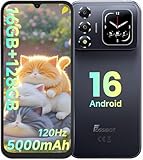
- 📱【6.9" FHD+ 120Hz Display & 1.8" Smart Rear Screen】FOSSiBOT S7 Unlocked Phone features a large 6.9-inch FHD+ display with a smooth 120Hz refresh rate for gaming, streaming, and scrolling. The 1.8-inch smart rear screen provides quick access to notifications, time, music controls, and more, making this smartphone more convenient for daily use.
- 🚀【Android 16 & Octa-Core Processor with 128GB ROM】This Android smartphone runs the latest Android 16 system and a powerful octa-core processor for smooth multitasking. Equipped with up to 16GB RAM (4GB + 12GB virtual RAM), 128GB ROM, and expandable storage up to 2TB via TF card. Dual SIM 4G unlocked mobile phone compatible with T-Mobile. ❌❌Not compatible with AT&T, Cricket, Verizon, or Xfinity Mobile.
- 🔋【5000mAh Battery for All-Day Power】The FOSSiBOT S7 mobile phone is equipped with a 5000mAh battery designed for long-lasting performance. Enjoy up to 670 hours standby time, 28 hours of calling, and up to 22 hours of gaming on a single charge. Perfect for work, travel, entertainment, and everyday communication.
- ✨【Slim 8.5mm Design & Premium Comfortable Grip】Unlike bulky phones, the FOSSiBOT S7 smartphone combines a lightweight 215g body with an ultra-slim 8.5mm profile. The rounded four-corner frame provides a modern appearance and comfortable grip, making it easy to carry in your pocket, backpack, or hand throughout the day.
- 🎁【Fingerprint Unlock, Face ID & Reliable After-Sales Support】This unlocked smartphone supports fingerprint unlocking, face recognition, GPS navigation, and essential daily functions. ❌❌NFC is not supported. Enjoy professional customer support within 24 hours, 30-day hassle-free returns, and a 2-year warranty with replacement service. For details, please refer to the Brand Story section.
A practical troubleshooting sequence
- Reproduce the symptom in more than one place. Scroll the home screen or system settings, try a couple of unrelated apps, and play a video if video is where you notice the problem. Record which activities stutter and which do not; that narrows the next check.
- Inspect the phone’s display mode. On supported Samsung Galaxy phones, open Settings, search for Motion smoothness, and select an available mode appropriate to your preference. On other phones, use the display controls documented for that model. Confirm whether a resolution choice is limiting the options.
- Check power saving. If a saver mode is active, compare behavior with it temporarily disabled. On supported Galaxy phones, Samsung says Power saving mode sets the display to Standard. Android also documents battery saver as a possible refresh-rate restriction. Re-enable power saving if the battery trade-off is more important to you.
- Retest the same activity. Compare the same scroll, animation, app screen, or video before and after the setting change. Changing one relevant setting at a time makes it easier to tell whether it affected the symptom.
- Restart and update using the phone’s normal settings. These are basic troubleshooting checks, not a guaranteed remedy for refresh-rate or frame-scheduling problems. After restarting or installing available system and app updates, repeat the same test.
- Escalate persistent system-wide lag to the phone maker. If stutter remains across the interface after these checks, consult support for the exact model and software version. Display modes and constraints are model-specific; there is no universal setting or accessory established as a fix.
Record the details support will need
Have the exact model name, operating-system version, selected resolution, selected refresh mode, and power-saving state ready. Note whether the issue appears on the home screen, in system menus, in several apps, in one app, or only during video. Include whether changing Standard, High, or Adaptive altered the symptom. These details are more useful than simply reporting that a “120 Hz phone is slow,” because they identify which part of the display and frame path is involved.
What the settings can and cannot fix
- They can change display behavior: Choosing a supported higher or adaptive mode can let the screen refresh more frequently when the phone and content support it.
- They cannot guarantee an app’s frame rate: The operating system may not honor an app’s requested rate, and an app that renders slowly may remain visibly choppy.
- They cannot eliminate every video cadence mismatch: A higher display rate does not guarantee that source video will map evenly to the screen.
- They may trade battery for smoothness: Samsung identifies Standard as the battery-saving option and says High uses more battery.
- They are not universal across models: Available refresh rates, resolution limits, power behavior, and menu labels differ by device.
Common mistakes to avoid
- Assuming the number is a performance guarantee: “120 Hz” describes panel capability, not a guaranteed 120 frames per second in every app.
- Changing several settings at once: If you alter resolution, refresh mode and power settings together, you cannot tell which change affected the symptom. Test one relevant change at a time.
- Using another model’s instructions: Samsung’s menu and supported combinations differ by model. A missing option may be normal for your handset.
- Calling video judder interface lag: A cadence mismatch can persist even when the phone’s menus are smooth.
- Leaving power saving off without considering battery life: Disabling it can be a useful comparison, but Samsung identifies Standard as the battery-saving choice. Keep the setting that fits your priorities.
- Buying an accessory as a first response: A case, screen protector, charger, power bank, cooling device or repair tool is not established as a general solution to frame scheduling or refresh selection. Diagnose the software and content path first.
Do you need to pay for a fix?
No general purchase is supported as a remedy for this symptom. The relevant checks are the phone’s own display, resolution and power settings, followed by normal restart and update steps and, if necessary, model-specific support. Do not buy a replacement panel or performance accessory solely because a high-refresh phone feels uneven; the evidence here does not identify a physical product that fixes app frame production, scheduler decisions or video cadence mismatches.
Outdated Drivers Are Slowing You Down
One free scan finds every outdated or missing driver and matches the right update for your exact hardware.Free scan · exact hardware matchWindows Errors? Fix Them Before They Spread
Repair common Windows errors and clear accumulated junk for a smoother, more stable PC - no reinstall needed.Free scan · no reinstallWhen to seek model-specific support
Contact the phone maker’s support if lag affects the system interface as well as multiple apps, or if the display option expected for your device is unavailable despite checking the correct model-specific instructions. Have the exact model name, operating-system version, and the affected activity ready. Say whether the issue appears everywhere, in one app, or only in video playback; those distinctions help support narrow down whether the question concerns display configuration, app behavior, or media playback.
Independent reader supportYour contribution helps us test, update, and keep practical guides available for everyone.Frequently asked questions
Frequently Asked Questions
Why does my phone feel laggy even with 120 Hz enabled?
A 120 Hz panel is only capable of up to 120 display updates per second. The operating system may select a lower rate, an app may produce frames slowly, battery saver may restrict refresh, or the content may have a cadence that does not map evenly to the display. Check whether the symptom affects the whole interface, one app, or video only.
Does 120 Hz guarantee that every app runs at 120 frames per second?
No. Android allows an app to request a preferred frame rate, but Android Developers says there is no guarantee that the app will receive the rate requested with setFrameRate(). The scheduler considers other factors, and app frame production remains separate from panel refresh.
Why does enabling Power saving make my Galaxy feel less smooth?
Samsung states that when Power saving mode is enabled, the screen is set to Standard. Samsung describes Standard as 60 Hz. Android also documents battery saver as a possible restriction on display refresh. Temporarily disable the saver to compare, then decide whether the battery trade-off is worthwhile.
Recommended Free Tools
What is the difference between Standard, High and Adaptive on Samsung phones?
Samsung describes Standard as 60 Hz, High as a higher fixed rate on supported models, and Adaptive as varying refresh behavior according to need. Select models reach 120 Hz and some device classes support 90 Hz. The choices and behavior depend on the exact model and resolution combination.
Best Value

- ⚡ FOSSIBOT F114 5000mAh long-lasting battery delivers up to 469hrs standby, 33hrs talk time, 9hrs video playback, and 9hrs of gaming. Tired of phones dying at critical moments? Power through demanding work calls, long commutes streaming shows, or weekend gaming sessions without searching for a charger. Engineered for reliable all-day performance, this powerhouse keeps you connected, entertained, and productive from morning till night. Never miss a call, message, or moment of fun again. Upgrade to FOSSIBOT and experience the true freedom of uninterrupted power wherever life takes you.lifestyle.
- 📀 FOSSIBOT F114 Unisoc Octa-core processing meets 28GB total RAM (8GB physical + 20GB extended) and 256GB internal storage, expandable up to a massive 2TB with a TF card. Power through demanding back-to-back video calls and creative multitasking with zero lag and zero crashes. Keep all essential apps, social feeds, and entertainment running seamlessly. Store high-res photos, 4K video projects, and work documents without worry. Whether you're a busy professional or content creator, this combination of octa-core strength, extended memory, and scalable space delivers reliable, responsive performance for your fast-moving lifestyle.
- ⚔️FOSSIBOT F114 Gemini AI Assistant: Your all-in-one AI companion for every task. Core features include Smart Q&A for instant factual answers and photo insights, AI Image Creation that generates custom visuals from text prompts, and an AI Coding Assistant supporting multiple languages to help write, debug, and optimize code efficiently. Whether you're a student researching, a creative brainstorming designs, or a developer streamlining work, this built-in helper is always ready. No separate apps or plugins required—just seamless integration. Experience AI-powered productivity and creativity in one place. Unlock endless possibilities today!
- ⚙ FOSSIBOT F114 First with Android 15, redefining your mobile experience. Enjoy smoother, more intuitive navigation—work emails, streaming shows, or graphics-intensive gaming all feel seamless and responsive. Advanced optimization adapts to your needs: smarter battery management extends your day, enhanced privacy safeguards your data, and fluid animations make multitasking effortless. Store high-res photos, 4K videos, and essential apps with confidence. Whether you're a busy professional, a content creator editing on the fly, or a gamer chasing immersion, FOSSIBOT with Android 15 keeps pace with your fast-moving lifestyle, delivering reliable innovation every time.
- 🛡️FOSSIBOT F114 IP68/IP69K and MIL-STD-810H certified for the harshest environments. Survives 1.5m immersion for 30 minutes, 360° dustproofing, and high-pressure wash resistance—ideal for dusty, wet, or hot job sites. Withstands 1.5m drops, shocks, vibrations, and extreme temperatures. Built tough for construction workers, outdoor adventurers, and first responders who demand reliable connectivity on the go. Your calls, messages, and data stay secure when it matters most. Durable performance where ordinary phones fail. Tackle any challenge with confidence—your rugged partner for every tough day ahead.
Why is the high-refresh option missing from my Galaxy settings?
Samsung says only select models support high refresh, and some model-and-resolution combinations force Standard mode. Check the exact model’s documentation and its current resolution before treating a missing option as a fault.
Why is video juddering when scrolling elsewhere is smooth?
Video has its own source frame cadence. When that cadence and the display refresh rate do not align, playback may use frame conversion or pulldown, which Android says can result in judder. A higher screen setting cannot guarantee that every video cadence will map evenly.
Does Android 15 QPR1 automatically provide adaptive refresh on every phone?
No. Android’s platform adaptive-refresh feature requires Android 15 QPR1 or later plus compatible hardware APIs. Not every phone implements those APIs, and manufacturer labels or controls can differ. The version number alone is not proof that the feature is present.
Do these 3 things before closing this tab:
1Clear out junk files and repair common Windows errors2Scan for outdated or missing drivers - takes under a minute3Repair Windows errors before they cause bigger problemsShould I buy a charger, case or cooling accessory to fix refresh-rate lag?
No general accessory is established as a solution for this problem. First test display mode, resolution limits and power saving, then restart and update through the phone’s normal settings. Seek model-specific support if system-wide lag persists.
What information should I give phone support?
Provide the exact model, operating-system version, selected resolution and refresh mode, whether power saving is active, and where the symptom occurs. Say whether it affects menus and several apps, one app, or only video, and report what happened when you changed one setting at a time.
The Bottom Line
A high-refresh display improves motion only when the phone selects that rate and software supplies frames consistently. Separate system-wide lag from one-app stutter and video judder, check your model’s refresh and resolution controls, test power saving on and off, and remember that Adaptive does not mean permanently maxed out. If the same stutter remains across the interface, give the manufacturer your exact model and software details rather than buying an unproven accessory.
Quick Recap
Product prices and availability are accurate as of the date/time indicated and are subject to change. Any price and availability information displayed on Amazon at the time of purchase will apply.

