
iTechGuides is reader-supported. When you buy through links on our site, we may earn an affiliate commission. As an Amazon Associate I earn from qualifying purchases. Learn more
For clearer or more satisfying headphone playback in Windows 11, start by confirming the correct output device and app volume. Then test audio enhancements, a different device-supported default format, and spatial sound one at a time. These controls are troubleshooting and preference tests—not universal fidelity upgrades. Bluetooth microphone use has additional Windows-version and hardware requirements.
Use this order before changing anything
Windows can send sound to a monitor, dock, USB headset, Bluetooth device, or another output while you are wearing headphones. A wrong selection or a muted app can look like a headphone-quality problem. Work through the checks below, changing one control at a time and replaying the same familiar passage after each change.
- Confirm the intended headphone output and check both system and app volume.
- Test Audio enhancements with the setting off.
- If a problem remains, test another default format that the device supports.
- Compare spatial sound off with Windows Sonic or another available spatial option.
- If Bluetooth playback changes when the microphone is active, verify LE Audio compatibility and test the supported stereo or mono behavior.
Keep a setting only when it solves the specific problem or produces a sound you prefer. Restore the previous value when it does not.
1. Select the actual headphone output
Choose the device in Windows 11
Open Settings > System > Sound. Under Output, select the headphones you are actually using. Microsoft’s audio troubleshooting guidance also says to verify that the selected device is not muted.
#1 Best Overall

- Digital Stereo Sound: Fine-tuned drivers provide enhanced digital audio for music, calls, meetings and more
- Rotating Noise Canceling Mic: Minimizes unwanted background noise for clear conversations; the rotating boom arm can be tucked out of the way when you’re not using it
- Handy In-line Controls: Simple in-line controls on the headset cable let you adjust the volume or mute calls without disruption
- Plug-and-Play USB Computer Headset: Simply plug the USB-A connector into your computer and you’re ready to talk or listen without the need to install software
- Padded Comfort: Comfortable headphones with adjustable headband features swivel-mounted, leatherette ear cushions for hours of comfort and is easy to clean
Next, open Settings > System > Sound > Volume mixer. Check the main system slider and the slider for the affected application. A browser, game, media player, or communication app can have its own low level even when the Windows volume looks normal.
Check the physical and device state
- Reconnect a detachable cable and confirm it is fully seated.
- For USB headphones, try another USB port as a troubleshooting step.
- Check that the device is enabled where Windows lists playback devices.
- If the headphones do not appear at all, suspect a missing, disabled, outdated, or failing driver rather than a sound-quality preference.
Windows 11 users can run the Get Help audio troubleshooter when there is no sound or the device is not detected. Install or reinstall the audio driver supplied by the PC or headphone manufacturer when Windows cannot load the device correctly.
2. Test Audio enhancements
Turn enhancements off for diagnosis
Select the playback device in Settings > System > Sound, then set Audio enhancements to Off. Microsoft notes that processing in this layer can cause or worsen low volume, distortion, or crackling on some devices.
Outdated Drivers Are Slowing You Down
One free scan finds every outdated or missing driver and matches the right update for your exact hardware.Free scan · exact hardware matchWindows Errors? Fix Them Before They Spread
Repair common Windows errors and clear accumulated junk for a smoother, more stable PC - no reinstall needed.Free scan · no reinstallPlay the same section of audio before and after the change. If the sound becomes cleaner or the level returns to normal, leave enhancements off while you investigate drivers or other causes. If the unprocessed sound is less pleasing but the original playback was not faulty, you may prefer to turn them back on.
Rank #2

- Superior Sound and Lightweight : AIAUXAI USB headphones with Microphone is more compact and lightweight than traditional USB headset,adopt the latest innovative technology DAC digital decoder chip,for PC deliver clear audio and effective noise isolation, ideal for office work,business calls, online meetings, gaming, etc
- Comfort Wear : This USB Earbuds with microphone for PC with lightweight design ensures comfort even during long sessions, reducing ear fatigue and providing an excellent in-ear fit.And semi in ear Earphones can keep the ear canal and earphone clean without pain and reduce hearing damage
- Clear Call with In-Line Control : This USB Computer Headphones with an integrated microphone an multi-function button that captures your voice with clarity, ensuring clear communication during calls and conferences.The in-line control button allows you adjust play, pause,volume, mute the mic and other function
- Extra long 2.3M/7.5FT Cable : The 7.5FT earphone cable offer flexibility and freedom of movement,can reach the USB port of desktop PC under desk,and allows you can moving freely while sitting in front of the computer,enough to extend your range of motion in your bedroom, office, living room
- Wide Compatibility : usb earphones for PC compatible with a variety of USB A port devices, including most computers, laptops, gaming consoles, and more.No need for adapters or drivers Just plug the USB headphone in any USB port Computer and enjoy instant connectivity,and they support for Windows 10/Win 11/8.1/8/7 XP,for Mac OS, for Chrome OS,for Linux and other systems,such as for Google Chromebook,for DELL,for HP,for Acer,for ASUS,for Windows Surface 3 pro with a USB A conector
When the control is missing
Some drivers expose their processing in legacy properties instead of the current Settings page. Open the classic sound controls, select the playback device, choose Properties, and look for an Enhancements or Advanced tab. Windows 10 commonly uses Sound Control Panel > Playback > device Properties > Enhancements.
“Off” is therefore a reversible troubleshooting test, not a claim that every enhancement is harmful or that every listener will prefer bypassed processing.
3. Test another default format only when needed
Use a format the device supports
When sound is too quiet or distorted, Microsoft recommends trying another available Default format. In Windows 11, select the device under Settings > System > Sound, open its advanced properties, and use the Default format control. In Windows 10, open Sound Control Panel > Playback > device Properties > Advanced.
What’s actually slowing this PC down?
Pick the symptom - the matching free tool is one click away.
Choose another format listed by Windows, replay the identical material, and compare the result. If the change does not address the problem, return to the earlier format. Do not assume that the highest displayed sample rate or bit depth is automatically better: the available guidance describes a troubleshooting comparison, not a universal optimum or proof that every format difference will be audible.
Rank #3

- Enjoy expansive cinematic sound. Big 50 mm audio drivers deliver an incredible sound experience
- Hear Enemies From All Sides. DTS Headphone:X 2.0 surround sound(1) lets you hear enemies sneaking behind you, special ability cues, and immersive environments. It’s positional clarity that can make the difference between victory and defeat. Experience three-dimensional audio that goes beyond 7.1 channels to make you feel like you’re right in the middle of the action. (1) DTS Headphone:X 2.0 requires Logitech G HUB Software.
- Be Heard Loud and Clear. The big 6 mm boom mic makes sure you’re heard by gaming partners and mutes when flipped up.
- Use One Headset For Most Game Platforms. Your headphones work with your PC or Mac via USB DAC or 3.5 mm cable, mobile devices with 3.5 mm cable or with gaming consoles including PlayStationⓇ 5 and PlayStationⓇ 4 (USB wireless stereo sound only), Nintendo Switch (wireless stereo sound when docked)
- Game for Hours in Comfort. Everything about these headphones is about comfort: The deluxe lightweight leatherette ear cups and headband are made to keep pressure off your ears. Ear cups rotate up to 90 degrees for convenience.
Why available choices differ
Format choices depend on the headphone, its driver, a USB audio interface or dock, and sometimes manufacturer software. A missing option is not a reason to force an unsupported value. Driver updates can change which formats Windows exposes.
4. Treat spatial sound as a content-dependent preference
Enable Windows Sonic for a direct comparison
Microsoft’s path for Windows 10 and Windows 11 is Settings > System > Sound > select the playback device > Device Properties > Spatial sound > Windows Sonic for Headphones. Select Apply if Windows presents that button.
Microsoft describes Windows Sonic as a spatial-sound solution that can enhance movie or gaming experiences. Compare it with spatial sound set to Off using the same film scene, game, or music track. Keep it enabled only if the wider positioning or room effect suits that content and does not introduce an unwanted tonal change.
Other spatial options
Windows also names Dolby Access and DTS Sound Unbound as additional spatial-audio options available through Microsoft Store. Their performance, licensing, and current availability are not established by the Microsoft setup guidance, so treat them as optional software rather than required upgrades. Spatial processing is not a universal music-quality improvement.
Rank #4
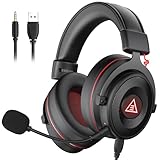
- 【Removable Dual Interfaces Wired Design】 Both USB and 3.5mm audio interfaces with two removable audio cords offer several alternatives and diverse sounds. The wired gaming headset is compatible with most mobile devices, PC, PS4, PS5 and Xbox One. (Note: 7.1 surround sound is only available on PC with a USB cable.)
- 【Immersive 7.1 Virtual Surround Sound】 The 7.1 surround sound creates an immersive gaming experience. Every subtle sound, music, and effect from various directions in the game is more pronounced and detailed for you to identify enemy positions, avoid surprise attacks, and defeat the enemy easily. You're practically immersed in a world of your own.
- 【Detachable Noise-Cancelling Microphone】High-sensitive, unidirectional noise-canceling microphone can effectively reduce background noise and pick up your voice clearly. EKSA E900 Pro gaming headphones for PS4/PS5 console also features a user-friendly one key mic mute switch and volume adjustment for smooth gaming operations. This noise-canceling mic provides specific sound imaging and is great for in-game chat, skype, working, and studying.
- 【All-Day Comfort】The adjustable headband is designed for your comfort in a way that balances weight distribution and reduces clamping force on your head. The soft memory protein earmuffs also help to take away all discomfort that might be associated with lengthy gaming sessions. You won't feel a thing wearing this 7.1 gaming headphone for hours on end.
- 【2-Year Warranty】EKSA gaming headsets are tailored specifically to satisfy our customers. Everything we do is to ensure you have a memorable shopping experience. We offer a 2-Year warranty and an unconditional 30-day money-back guarantee. If you have any requests or suggestions for our products, please do not hesitate to contact us.
5. Understand Bluetooth stereo when the microphone is active
Check the requirements before troubleshooting the sound
Bluetooth headphones can change playback behavior when their microphone is in use. Microsoft’s Windows 11 Bluetooth LE Audio guidance says the stereo-while-microphone-in-use capability requires all of the following conditions:
- Windows 11 version 24H2 or newer, with the updates described by Microsoft at build 26100.4484 or newer.
- Current Bluetooth drivers from the PC manufacturer.
- Integrated Bluetooth LE support built into the PC at the factory.
- Headphones that support Bluetooth LE Audio.
On a compatible system, Windows defaults to stereo for this feature. Bluetooth support alone is not enough: many PCs and headphones use Bluetooth Classic and do not provide the LE Audio capability described here.
If microphone use causes glitches
First establish that both devices and the Windows build meet those conditions. If they do and playback glitches while the microphone is active, Microsoft says to try changing the setting back to mono. This is a compatibility fallback, not a general recommendation for every Bluetooth headset.
Do these 3 things before closing this tab:
1Fix the driver behind crashes, sound loss and screen glitches2Repair Windows errors before they cause bigger problems3Scan for outdated or missing drivers - takes under a minute6. Use Mono audio for the one-headphone situation
Open Settings > Accessibility > Audio and turn on Mono audio when you need both stereo channels combined into one. Microsoft describes this for someone listening through one headphone so that information panned to either side is still audible.
Best Value

- [Wide Compatibility] This professional gaming headset for PC gamers is compatible with PC (Windows 7/8/10), PS4/PS5 console, laptops, and other devices with a USB audio port.(Note: EKSA E1000 is not compatible with game controllers.)
- [Driver-free 7.1 Surround Sound] Enjoy an instant immersive gaming experience with its 7.1 surround sound. EKSA PC gaming headset has a built-in USB audio sound chip and 50mm magnetic neodymium driver that gives you a vivid surrounding sound field. No extra downloads or hassle to get the best experience, just plug and play.
- [Noise Cancelling Microphone] The EKSA gaming headset for PS5 reduces distracting background noise and guarantees loud and crystal-clear communication with its 120° adjustable high-sensitive microphone. The headset’s omnidirectional noise reduction tech allows you to enjoy quality sound when gaming or in-game chats.
- [Comfortable Ergonomic Design] Premium soft memory protein earmuffs ensure ultimate comfort even for a prolonged period. In addition, there’s absolute comfort during lengthy gaming sessions with an adjustable headband designed for balanced weight distribution and reduced clamping force. Short cables are also not your problem anymore as its 2.2m extremely durable cable allows you to enjoy your game with no boundary.
- [2 Years Warranty] EKSA gaming headsets are under strict quality inspection on each production line. We offer 24-hour customer support and a 2-year warranty. We will make our most incredible effort to take responsibility for your shopping experience.
Mono audio is an accessibility setting, not a sound-quality enhancement for two-ear listening. Leave it off for normal stereo playback unless you specifically need channel combining.
Choose the right test for the symptom
| Symptom or choice | First comparison | What a useful result means |
|---|---|---|
| Low or quiet sound | Correct output and app sliders, then Audio enhancements Off | The issue may be routing, a per-app level, or processing; continue with format and driver checks if needed. |
| Distortion or crackling | Audio enhancements Off, then another available default format | One of the processing or format paths may be aggravating the device; a driver check is the next escalation. |
| Movies or games sound flat | Spatial sound Off versus Windows Sonic | Choose the mode that fits the content and your preference rather than assuming spatial processing is more accurate. |
| Bluetooth audio degrades during microphone use | Verify LE Audio requirements, then test supported stereo and mono behavior | Compatibility and driver support determine whether stereo is available without glitches. |
| Listening with one headphone | Mono audio On versus Off | Mono combines both channels so neither side’s content is lost. |
Troubleshoot by failure mode
Headphones are too quiet
- In Settings > System > Sound, confirm the headphone output and that it is not muted.
- In Volume mixer, raise both the system and affected-app levels.
- Test Audio enhancements set to Off.
- Try another device-supported Default format.
- Update or reinstall the audio driver from the PC or headphone manufacturer if the problem persists.
Audio is crackling or distorted
Run the enhancements-off and alternate-format comparisons first. If neither helps, update or reinstall the manufacturer’s driver. Microsoft also suggests restarting the Windows Audio and Windows Audio Endpoint Builder services when necessary.
There is no sound
Verify output selection, mute state, cable or USB connection, and device enablement. Run the Windows 11 Get Help audio troubleshooter. If Windows cannot detect the headphones, investigate the driver before changing listening preferences.
Recommended Free Tools
The problem appears only with Bluetooth microphone use
Check the Windows 11 version and build, PC Bluetooth LE support, manufacturer driver, and headphone LE Audio support. On a compatible setup with glitches, test mono as Microsoft recommends; do not expect the control on unsupported Bluetooth hardware.
Windows 10 path and support status
Several controls use the older Sound Control Panel in Windows 10: Playback > device Properties > Enhancements and Advanced contain the corresponding tests. Spatial sound follows Settings > System > Sound > playback device > Device Properties > Spatial sound.
Microsoft Support states that Windows 10 support ended on October 14, 2025. The paths may still be useful on an existing installation, but current driver and feature behavior is more relevant to Windows 11, especially for Bluetooth LE Audio.
A disciplined listening method
- Choose one familiar track, film scene, or game section that exposes the problem.
- Record the current output device, volume, enhancement state, format, spatial setting, and Bluetooth microphone state.
- Change one setting only.
- Replay the same passage at the same approximate level.
- Keep the change only when it fixes the stated symptom or is clearly preferable for that content.
- Undo it before testing the next variable if you want an unambiguous comparison.
This method separates routing faults from processing preferences and prevents several simultaneous changes from hiding the setting that actually mattered.
Quick Recap
Product prices and availability are accurate as of the date/time indicated and are subject to change. Any price and availability information displayed on Amazon at the time of purchase will apply.

