
Free tools Windows power users keep installed
One-click scans. No signup required.
iTechGuides is reader-supported. When you buy through links on our site, we may earn an affiliate commission. As an Amazon Associate I earn from qualifying purchases. Learn more
For Home Assistant’s Zigbee Home Automation (ZHA), the most reliable approach is usually to keep the default Zigbee channel and fix the physical network first. Move the coordinator away from USB 3.x and radio interference, use a current supported coordinator and firmware, add compatible mains-powered routers, and pair devices where they will live. Change the channel only when you have a specific interference or compatibility reason. ZHA’s official documentation gives these as troubleshooting recommendations, not as measured percentage improvements for any single setting.
What to change first when ZHA devices are unreliable
Different symptoms point to different remedies. A device that will not join has a different likely cause from one that joins but disappears overnight. Use the least disruptive test that matches the failure you see.
| Observed problem | Likely causes to investigate | First action | Disruption |
|---|---|---|---|
| Pairing fails or times out | Interference near the coordinator, poor placement, unsupported channel, or a device too far from the coordinator | Move the coordinator with a shielded USB extension, use USB 2.0, and pair the device at its final location | Low |
| Devices drop out intermittently | Weak mesh coverage, routers that are switched off, radio interference, or outdated coordinator firmware | Keep mains-powered routers on, improve coordinator placement, update firmware, then inspect the topology map | Low to moderate |
| Weak coverage in one area | Too few routers or routers placed where they cannot relay traffic | Add compatible, always-powered Zigbee plugs or repeaters between the coordinator and the weak area | Moderate |
| Coordinator communication errors | Obsolete hardware, old firmware, USB noise, or an unsuitable adapter orientation | Check supported hardware and firmware, change the USB connection and orientation, and review ZHA logs | Low to moderate |
| Problems began after a Wi-Fi change | 2.4 GHz Wi-Fi overlap with the Zigbee channel | Try a static Wi-Fi channel on the router or access point before moving the Zigbee network | Low |
Home Assistant does not publish a controlled, head-to-head test showing that one of these changes produces a fixed reliability gain. Treat each adjustment as a diagnostic trial: make one meaningful change, observe the network, and keep it only if the symptom improves.
Windows Errors? Fix Them Before They Spread
Repair common Windows errors and clear accumulated junk for a smoother, more stable PC - no reinstall needed.Free scan · no reinstallCrashes, No Sound, or Screen Glitches?
Random freezes, missing sound and display glitches usually trace back to one bad driver. Find and replace yours safely.Free scan · under a minuteKeep the default Zigbee channel unless there is a clear reason to move
ZHA shows the active channel at Settings > Connectivity > Zigbee > Network information. The current Home Assistant guidance recommends leaving the default channel in place unless you have a specific reason to change it. A channel move can create more disruption than it solves when the real problem is USB noise, a poorly placed coordinator, or a missing router.
#1 Best Overall
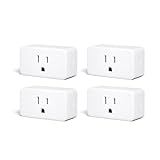
- ZIGBEE 3.0 STANDARD: Works with compatible Zigbee hubs or Echo devices with Zigbee hub built-in. Such as Echo (4th Gen), Echo Plus (1st Gen and 2nd Gen), Echo Show 8 Gen3, Echo Show 10 (Gen2 and Gen3).Echo Studio, Eero 6, Eero Pro 6, Home Assistant, SmartThings 2015/2018, Aeotec, Hubitat, Homey Bridge, Homey Pro, Third Reality Hub Gen Plus and Third Reality Smart Bridge. Zigbee Hub Required.
- EASY SETUP and COMPATIBLE DESIGN: Maximize efficiency and convenience with space-saving design that won’t occupy the adjacent socket. Super easy setup with Compatible Echo Devices, just plug the Smart Plug in the wall outlet and say “Alexa, discover my devices” , then it will automatically find the plug. Please get in touch with us when you meet any problems or need further support.
- REAL-TIME ENERGY MONITORING: Monitor current consumption of your plug-in devices, effectively save energy and reduce waste. This function supported by Home Assistant, SmartThings, Hubitat and THIRDREALITY smart hub Gen2.
- SAFETY SETTING: In order to ensure your home safety, we also realize the function of restoring status that means users can customize on/off state after powered on again. Currently THIRDREALITY Hub Gen2 and Home Assistant (ZHA and ZigBee2MQTT) support this function.
- REMOTE CONTROL & VOICE CONTROL: Easily control your home appliances anytime, anywhere, no limited of time and distance. When Smart Plugs connect with compatible Amazon Alexa Echo Devices or other ZigBee hubs that can work with Alexa or Google Home, then you can free your hands, just delivering voice commands to turn on/off your plugs.
How Zigbee channels relate to Wi-Fi
Zigbee uses channels 11 through 26 in the 2.4 GHz band. Your Wi-Fi access points also use this band, so a busy or overlapping Wi-Fi channel can raise the noise floor for Zigbee. Before changing ZHA, try assigning a static 2.4 GHz Wi-Fi channel on the router or access points. This is generally easier to reverse and does not require every Zigbee device to find the network again.
When a Zigbee channel change is justified, choose a channel that every device supports. Home Assistant’s general recommendation is channel 15, 20, or 25 because these choices tend to reduce interoperability problems. Actual support varies by device hardware and firmware, so check the specifications of unusual or older devices before committing.
What the Smart channel option actually does
ZHA’s channel picker has a Smart option. It performs one scan and selects a channel, preferring 15, 20, or 25. Smart is not continuous interference monitoring: it does not watch the spectrum after the scan and it does not automatically move the network when interference appears later. A one-time result can also become less useful if you subsequently change Wi-Fi channels, add a nearby access point, or move the coordinator.
Plan for reconnection time before changing channels
All devices must use a channel supported by the network and their own radios. After a channel change, devices may take up to an hour to reconnect. Power-cycling mains-powered end devices can speed reconnection, but battery devices may still need time to check in or be manually awakened according to their manufacturer’s procedure. Do not start a channel migration immediately before an event when lights, locks, alarms, or sensors must be available.
Rank #2

- Zigbee 3.0 Standard: Works seamlessly with compatible Zigbee hubs and Echo devices with built-in Zigbee hubs, such as Echo (4th Gen), Echo Plus (1st & 2nd Gen), Echo Show 8 Gen3, Echo Show 10 (Gen2 & Gen3), Echo Studio, Eero 6, Eero Pro 6, Home Assistant(ZHA &Z2M), SmartThings 2015/2018, Aeotec, Hubitat, Homey Bridge/Pro, and THIRDREALITY Hub/Smart Bridge. A Zigbee hub is required.
- Reliable Performance & Zigbee Repeater: Equipped with an upgraded Zigbee chip for smooth operation, an enhanced RF module for stronger signal stability, and an optimized router relay algorithm — extending communication range and expanding your smart home Zigbee Mesh network coverage.
- Precise Real-Time Power Monitoring: Tracks the power consumption of connected devices to help save energy. Calibrated for ±1% detection accuracy and supported by Home Assistant, SmartThings, Hubitat, THIRDREALITY Smart Hub Gen 2, and Bridge MZ1. Supports seamless, always-on OTA updates on compatible platforms(Home Assistant, Hubitat,Third Reality) — no interruptions, no downtime.
- Easy Setup & Versatile Control: Space-saving design avoids blocking adjacent sockets. Control home appliances anytime, anywhere, without time or distance limits. When paired with compatible Amazon Alexa Echo devices or other Zigbee hubs that work with Alexa/Google Home, you can enjoy hands-free control by issuing voice commands to turn plugs on/off.
- Safety Setting: For home safety, it features customizable power-on status restoration — users can set the desired on/off state after reconnection. Currently supported by THIRDREALITY Hub Gen2 and Home Assistant.
Reduce interference around the coordinator
The coordinator is the radio’s first point of contact with your host computer. A perfectly chosen Zigbee channel can still perform poorly when the adapter is beside a noisy USB port, a Wi-Fi access point, a power supply, or an appliance. Home Assistant identifies USB 3.x ports, unshielded USB 3.x devices and cables, nearby Wi-Fi equipment, electrical wiring, power supplies, and household appliances as possible interference sources.
Use a better USB connection
- Unplug the coordinator from a USB 3.x port and try a USB 2.0 port if one is available.
- If the host has only USB 3.x ports, connect the coordinator through a powered USB 2.0 hub.
- Use a long, adequately shielded USB extension cable so the radio is physically separated from the computer and its high-speed electronics.
- After moving it, restart or reload ZHA and test joining and normal traffic before making another change.
The documentation does not specify a guaranteed cable length or a universal separation distance. The useful test is whether moving the adapter away from the noise source changes the behavior in your installation.
Choose a location and orientation deliberately
Place the coordinator away from large obstacles and sources of electrical noise. A position near the middle of the home often gives a more balanced path to rooms on opposite sides, but the best location depends on walls, floors, appliances, and the location of your routers. Try more than one adapter or antenna orientation; a small rotation can change how the radio couples through nearby materials. Record the original position so you can undo a change that makes another area worse.
What’s actually slowing this PC down?
Pick the symptom - the matching free tool is one click away.
Build a mesh with reliable, always-powered routers
Zigbee is a mesh network. Mains-powered devices such as many smart plugs and bulbs can operate as routers, relaying messages between the coordinator and battery-powered end devices. Additional routers can improve coverage and increase the number of devices the mesh can support, but adding any router is not automatically beneficial.
Rank #3

- ZIGBEE 3.0 STANDARD: Works with compatible Zigbee hubs or Echo devices with Zigbee hub built-in. Such as Echo (4th Gen), Echo Plus (1st Gen and 2nd Gen), Echo Show 8 Gen3, Echo Show 10 (Gen2 and Gen3).Echo Studio, Eero 6, Eero Pro 6, Home Assistant, SmartThings 2015/2018, Aeotec, Hubitat, Homey Bridge, Homey Pro, Third reality Hub and Third Reality Smart Bridge. Zigbee Hub Required.
- EASY SETUP and COMPATIBLE DESIGN: Maximize efficiency and convenience with space-saving design that won’t occupy the adjacent socket. Super easy setup with Compatible Echo Devices, just plug the Smart Plug in the wall outlet and say “Alexa, discover my devices” , then it will automatically find the plug. Please get in touch with us when you meet any problems or need further support.
- REAL-TIME POWER MONITORING: Monitor current consumption of your plug-in devices, effectively save energy and reduce waste. This function supported by Home Assistant, SmartThings, Hubitat and THIRDREALITY smart hub Gen2.
- SAFETY SETTING: In order to ensure your home safety, we also realize the function of restoring status that means users can customize on/off state after powered on again. Currently THIRDREALITY Hub Gen and Home Assistant support this function.
- REMOTE CONTROL & VOICE CONTROL: Easily control your home appliances anytime, anywhere, no limited of time and distance. When Smart Plugs connect with compatible Amazon Alexa Echo Devices or other ZigBee hubs that can work with Alexa or Google Home, then you can free your hands, just delivering voice commands to turn on/off your plugs.
Place routers where they create a path
Install a router between the coordinator and a weak or distant area rather than clustering every router beside the coordinator. Keep each router powered continuously. A plug that is regularly switched off is not dependable network infrastructure; when it disappears, devices that used its route may become unavailable until the mesh heals.
Pair devices at their final location
Pairing a sensor or bulb next to the coordinator and then carrying it to another floor can leave it with a degraded route. Join the device as close as practical to where it will operate, with the intended routers already powered. This gives the network a better chance to select a suitable parent from the start. If you must pair near the coordinator, allow the mesh time to settle after moving the device and verify its links in the topology view.
Check compatibility instead of assuming every router works
Router behavior varies by manufacturer, firmware, and device generation. Home Assistant specifically notes problems reported by Xiaomi and Aqara devices with some router families, including Centralite, General Electric, Iris, Ledvance/OSRAM, LIGHTIFY/Sylvania, Orvibo, PEQ, Securifi, and SmartThings/Samsung. This is not a universal incompatibility list: a particular model may work while another model from the same family does not. If a device repeatedly drops after you add a router, test it with that router removed or relocated and consult the device and ZHA compatibility information.
Keep coordinator hardware and firmware current
Home Assistant warns that obsolete coordinator hardware or old firmware can prevent reliable operation. Confirm that your adapter is supported by the current ZHA documentation and install the latest coordinator firmware supplied for that exact model. Firmware intended for a different chipset or radio variant can make matters worse, so follow the adapter maker’s upgrade procedure and retain a backup of your configuration where available.
Rank #4
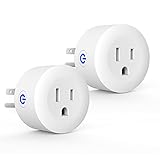
- Why Zigbee?: Have a bunch of devices on your Wifi network?Overcrowded home Wifi network, internet becomging less stable?No worries! Hub + Zigbee, Very responsive, fast switching, more stable and Truly Plug and Play
- Easy To Install and Wide Compatible: No third party app required. ZigBee smart plugs that work with Amazon Alexa and Google Home via a compatible bridge. Compatible with Echo Show 8, Echo Show 8 (3rd Gen), Echo Show 10, Echo Show 10 (3rd Gen), Echo Hub, Echo (Gen 4), Echo Plus2, Echo Studio, Hubitat, SmartThings 2015/2018, Other Alexa devices need a bridge. (Hub Required). NOTES: Does not work with Smartthings (1st), Tuya Hub, Sonoff hub
- Quality: Our zigbee smart outlet block use PC fireproof material, double insulation, 750 ℃ thermo-resistant and flame retardant. Double security protection, leakage protection,high network security.
- Smart Control: Alexa smart plug works with Amazon Alexa and Google home devices for complete voice control, remote control and Intelligent timing
- What You Get: 2 x ZigBee Mini outlet, 1 x User Manual.Support worry-free warranty, 30 days free return, 12 months replacement/refund for manufacturer defective items. easy-to-reach customer service within 24 hours, plus lifetime technical support
For a new Zigbee network, the current official ZHA page recommends Home Assistant Connect ZBT-2. Connect ZBT-1 is discontinued but remains supported. That distinction matters when deciding whether to replace an existing coordinator: a discontinued unit is not automatically unusable, but an adapter that is unsupported, unstable, or impossible to update is a stronger replacement candidate.
When replacement is a reasonable next step
- The adapter is not on ZHA’s supported hardware list.
- Its firmware is obsolete and no supported update exists.
- Changing USB ports, extension cables, placement, and Wi-Fi conditions does not resolve coordinator errors.
- The radio or connector is physically damaged.
Replace hardware after the lower-disruption placement and interference tests. A new coordinator cannot compensate for a mesh with no routers or for a device that is incompatible with the chosen channel.
Independent reader supportYour contribution helps us test, update, and keep practical guides available for everyone.Use the topology map and logs before guessing
ZHA provides a topology visualization that can show how devices are connected and where reported links appear weak. Use it to identify a room with no usable route, a battery device attached through an unexpected router, or a router that has no children. Treat the map as evidence for the next test, not as a laboratory-grade signal meter.
Do these 3 things before closing this tab:
1Clear out junk files and repair common Windows errors2Scan for outdated or missing drivers - takes under a minute3Repair Windows errors before they cause bigger problemsInterpret RSSI and LQI cautiously
RSSI and LQI values depend on the device’s Zigbee stack. Reported LQI can also be modified as a message travels through the mesh. Values therefore are not uniform measurements that can be compared directly across every model or used as a guaranteed prediction of reliability. Look for patterns over time and within the same device: repeated failures, a link that disappears, or a room whose devices all have poor paths are more useful than one isolated number.
Collect logs that match the symptom
When a device drops, note the time, the device name, its power source, and any action that preceded the failure. Then inspect ZHA logs for join failures, communication timeouts, or coordinator errors. Correlate those entries with topology changes and with Wi-Fi or USB changes. This prevents a channel change from masking a problem that is actually caused by a failing router or a noisy host port.
A practical troubleshooting sequence
- Define the failure. Decide whether you are fixing pairing, intermittent dropouts, a dead spot, or coordinator errors.
- Check the current channel. Open Settings > Connectivity > Zigbee > Network information and record it. Leave the default in place unless interference or device support gives you a specific reason to move.
- Separate the coordinator from noise. Try USB 2.0, a shielded extension, or a powered USB 2.0 hub; move the adapter away from the host, access points, wiring, and appliances.
- Stabilize Wi-Fi. If the issue follows 2.4 GHz activity, set a static Wi-Fi channel and observe the Zigbee network before changing Zigbee channels.
- Verify the mesh. Ensure routers are compatible, positioned between the coordinator and weak areas, and never routinely powered off.
- Re-pair strategically. Join a problem device near its final location with the intended routers active.
- Verify hardware and firmware. Confirm coordinator support and update its firmware using the correct package for the adapter.
- Inspect topology and logs. Look for recurring weak paths, missing routers, and error patterns; make one targeted change at a time.
- Change the Zigbee channel only if evidence remains. Choose a channel supported by all devices, understand that Smart is a one-time scan, and plan for reconnection delays of up to an hour.
What not to infer from a reliability problem
- A poor link does not prove that the Zigbee channel alone is wrong; USB 3.x noise and placement are common alternatives.
- A high or low LQI value is not a universal cross-brand score.
- Adding more routers does not guarantee improvement if they are incompatible, poorly placed, or switched off.
- A discontinued coordinator is not automatically unsupported; check its current ZHA status and firmware options.
- The Smart channel choice is not an automatic channel-management system.
Choosing the least disruptive remedy
For most homes, the order of operations is clear: physical placement and Wi-Fi adjustments are easiest to trial, adding an always-powered compatible router addresses coverage, firmware maintenance addresses coordinator faults, and a channel migration is reserved for a demonstrated interference or compatibility issue. Replacing the coordinator is the later hardware option when the existing adapter or firmware is obsolete or persistently unreliable. This sequence limits unnecessary re-pairing while still giving you a way to isolate difficult problems.
Quick Recap
Product prices and availability are accurate as of the date/time indicated and are subject to change. Any price and availability information displayed on Amazon at the time of purchase will apply.

