
Free tools Windows power users keep installed
One-click scans. No signup required.
iTechGuides is reader-supported. When you buy through links on our site, we may earn an affiliate commission. As an Amazon Associate I earn from qualifying purchases. Learn more
Start with the settings that determine whether your Forerunner can interpret your data correctly: your personal profile, watch fit, activity profile, workout data screens, notifications, and display or battery behavior. Do not begin by changing every training feature. A correctly fitted watch recording the correct activity is more useful than a heavily customized watch with the wrong context.
Garmin uses different menus and available options across Forerunner models and software versions. The instructions below describe the setting to find and the decision to make; use your model’s manual when the label or menu location differs.
Before changing anything, identify your exact Forerunner
Forerunner models do not share one universal settings menu. A Forerunner 165, 265, and 965 can expose different activity, display, satellite, and notification controls, and a firmware update can change labels. Look at the model name on the watch or in the Garmin Connect app, then open the model-specific manual or support guide before following a button sequence.
What’s actually slowing this PC down?
Pick the symptom - the matching free tool is one click away.
Charge the watch, install any available software update, and pair it with your phone before personalizing it. Pairing first matters because phone notifications, synchronization, and some profile values depend on the connection. If a menu item mentioned here is absent, that normally means the model does not offer that control in the same form—not that the watch is malfunctioning.
#1 Best Overall

- Easy-to-use running smartwatch with built-in GPS for pace/distance and wrist-based heart rate; brilliant AMOLED touchscreen display with traditional button controls; lightweight design in 43 mm size
- Up to 11 days of battery life in smartwatch mode and up to 19 hours in GPS mode
- Reach your goals with personalized daily suggested workouts that adapt based on performance and recovery; use Garmin Coach and race adaptive training plans to get workout suggestions for specific events
- 25+ built-in activity profiles include running, cycling, HIIT, strength and more
- As soon as you wake up, get your morning report with an overview of your sleep, recovery and training outlook alongside weather and HRV status (data presented is intended to be a close estimation of metrics tracked)
1. Correct your personal profile and wear the watch properly
Review the profile values used for calculations
Open the user profile in the watch or Garmin Connect and check every personal value it requests. Garmin says accurate profile information helps its heart-rate interpretation. A wrong value can affect how the watch evaluates effort and related calculations, so correct obvious errors before judging the quality of a workout.
Do not treat a corrected profile as a guarantee of medical accuracy. It improves the assumptions behind the software; it cannot remove the limitations of wrist-based optical sensing.
Set the fit for a clean optical signal
- Place the watch on bare skin, just above the wrist bone rather than directly on the joint.
- Tighten the band enough that the sensor remains in contact while you move. A loose band allows a gap and lets motion disturb the signal.
- Avoid extreme tightness. Excessive pressure can restrict blood flow and make the watch uncomfortable during a long session.
- Wipe the optical sensor periodically. Sunscreen, lotion, sweat, and dirt can interfere with contact and light transmission.
Wear the watch consistently when comparing workouts. Moving it from one wrist position to another introduces a fit change that can look like a change in your heart rate.
2. Select the activity profile that matches what you are doing
Choose the activity profile before pressing Start. Use Running for a run, Cycling for a ride, Pool Swim for pool work, and the closest available profile for another activity. Garmin explains that calculations differ by activity type; recording a workout under a mismatched profile can produce errors.
This choice is more important for a beginner than enabling advanced training features. The profile tells the watch which sensors, distance assumptions, alerts, and summaries are relevant. If you switch from a run to a walk or indoor workout, change the profile rather than editing the activity afterward.
Rank #2

- Easy-to-use running watch monitors heart rate (this is not a medical device) at the wrist and uses GPS to track how far, how fast and where you’ve run.Special Feature:Bluetooth.
- Battery life: up to 2 weeks in smartwatch mode; up to 20 hours in GPS mode
- Plan your race day strategy with the PacePro feature (not compatible with on-device courses), which offers GPS-based pace guidance for a selected course or distance
- Run your best with helpful training tools, including race time predictions and finish time estimates
- Track all the ways you move with built-in activity profiles for running, cycling, track run, virtual run, pool swim, Pilates, HIIT, breathwork and more
A reliable pre-start check
- Confirm the activity name on the start screen.
- Wait for the watch to acquire the expected GPS signal when the activity uses outdoor positioning.
- Check that the displayed data fields belong to that profile; each profile can have its own screens.
- Start the activity only after the watch shows the status you expect.
3. Simplify the workout data screens
Customize the data screens for each activity so the numbers you actually need are visible without scrolling. Garmin’s Forerunner starter guidance treats custom data screens as a basic setup task. Exact labels and navigation vary, but the pattern is generally to open the activity’s settings, choose Data Screens, select a screen or layout, and assign fields.
A practical first layout
For an outdoor run, begin with a small set such as elapsed time, distance, and current pace. These are editorial recommendations, not a Garmin-required configuration. Add heart rate if you use it during training, but avoid filling every available slot: tiny text and constant scrolling make a screen less useful while moving.
Outdated Drivers Are Slowing You Down
One free scan finds every outdated or missing driver and matches the right update for your exact hardware.Free scan · exact hardware matchPC Slower Than It Used to Be?
A free scan shows the junk files, broken settings and background clutter dragging Windows down - then fixes them in one click.Free scan · Windows 10 & 11Create a second screen only when it serves a distinct purpose—for example, lap information or a workout target. Keep the first screen readable at a glance. If your model offers different layouts for different activities, configure them separately rather than forcing a running screen onto cycling or walking.
How to find the control on different models
On some Forerunners, you reach data screens by holding the Menu button from the activity list; on others, you enter the activity profile and then its settings. The 165, 265, and 965 starter materials all document custom-screen setup, but the wording and button path are model-specific. Follow the screen labels shown on your watch instead of assuming another Forerunner’s path applies.
4. Choose GPS and display settings with battery life in mind
Satellite mode, screen behavior, sensors, music, and phone connectivity all change runtime. Garmin’s battery figures are model-specific estimates measured under stated assumptions, not guarantees for every configuration. Select the least demanding option that still meets the tracking needs of the activity.
Rank #3

- Easy-to-use running smartwatch with built-in GPS for pace/distance and wrist-based heart rate; brilliant AMOLED touchscreen display with traditional button controls; lightweight design in 43 mm size
- Up to 11 days of battery life in smartwatch mode and up to 19 hours in GPS mode
- Reach your goals with personalized daily suggested workouts that adapt based on performance and recovery; use Garmin Coach and race adaptive training plans to get workout suggestions for specific events
- 25+ built-in activity profiles include running, cycling, HIIT, strength and more
- As soon as you wake up, get your morning report with an overview of your sleep, recovery and training outlook alongside weather and HRV status (data presented is intended to be a close estimation of metrics tracked)
Forerunner 265: published examples
| Mode or configuration | Garmin’s estimate | What the estimate assumes |
|---|---|---|
| Smartwatch mode | Up to 13 days | Garmin’s stated default display assumptions on its current support page |
| Smartwatch mode with display always on | Up to 5 days | Always-on display enabled |
| GPS-only activity, no music | Up to 20 hours | GPS-only satellite mode and no music |
| SatIQ (AutoSelect), no music | Up to 16 hours | SatIQ (AutoSelect) satellite mode and no music |
| All Systems + Multi-Band, no music | Up to 14 hours | All Systems + Multi-Band satellite mode and no music |
Using the display more often, enabling additional sensors, listening to music, or spending more time in a satellite mode can reduce the result. The figures are useful for comparing choices on an 265, not for predicting the runtime of another Forerunner.
Recommended Free Tools
Forerunner 165 series: a different baseline
| Mode | Garmin’s estimate | Qualification |
|---|---|---|
| Smartwatch mode | Up to 11 days | Garmin’s stated default assumptions on its current support page |
| GPS-only activity, no music | Up to 19 hours | GPS-only tracking without music |
The 165-series battery guidance also says Battery Saver disables functions such as the phone connection and wrist heart rate. Use it when extending runtime matters more than continuous connectivity or those measurements; do not enable it immediately before a workout that depends on those functions.
Make the display choice deliberately
An always-on display is convenient for checking a workout or the time without raising your wrist, but Garmin’s 265 estimate shows the substantial battery trade-off. If you rarely need constant visibility, a gesture-activated or timed display can preserve charge. The exact options depend on the model and display hardware.
Match satellite mode to the activity
GPS-only is usually the simplest choice when ordinary outdoor positioning is sufficient. SatIQ (AutoSelect) and All Systems + Multi-Band can be appropriate when your model supports them and the environment or route demands more robust positioning, but they consume more power. Check the satellite choices offered by your exact watch and firmware; do not assume that a mode listed for the 265 exists on a 165 or 965 in the same way.
5. Decide which phone notifications should reach the watch
Notification delivery has two separate control points: the phone’s notification permissions and the watch’s smart-notification settings. Both must allow an alert for it to appear on the Forerunner.
The Tool Desk
Outbyte Driver Updater FREEFix the driver behind crashes, sound loss and screen glitchesFind Drivers →Outbyte PC Repair FREERepair Windows errors before they cause bigger problemsFix Now →Rank #4
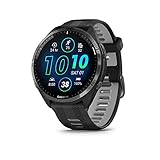
- Brilliant AMOLED touchscreen display with traditional button controls and lightweight titanium bezel
- Battery life: up to 23 days of battery life in smartwatch mode, up to 31 hours in GPS mode
- Confidently run any route using full-color, built-in maps and multi-band GPS
- Training readiness score is based on sleep quality, recovery, training load and HRV status to determine if you’re primed to go hard and reap the rewards (data presented is intended to be a close estimation of metrics tracked)
- Plan race strategy with personalized daily suggested workouts based on the race and course that you input into the Garmin Connect app and then view the race widget on your watch; daily suggested workouts adapt after every run to match performance and recovery
A low-noise beginner setup
- On the phone, permit notifications for the calls and messaging apps you genuinely need.
- In the watch’s smart-notification or phone-notification settings, enable the categories you want displayed.
- Turn off high-volume app alerts that do not require an immediate response.
- Send yourself a test message and make a test call to confirm that the selected alerts arrive.
Keeping calls and essential messages while suppressing promotional or social alerts is a reasonable starting preference, not a Garmin rule. Available categories and controls depend on the watch and phone configuration. If alerts stop after a phone update, recheck both the phone permission and the watch setting rather than changing unrelated activity options.
6. Set realistic expectations for wrist heart rate
Why readings can fluctuate
Garmin’s optical sensor shines light into the skin and estimates heart rate from changes in blood volume. Movement, muscle flexing, and a shifting watch make that signal harder to read. Cold conditions and starting hard before warming up can also produce poor readings. Activities involving forceful gripping or repeated wrist flexion are especially challenging for a wrist sensor.
For a cold morning, Garmin recommends warming up for about 10 minutes. Combine that warm-up with the correct activity profile and the snug, above-the-wrist fit described earlier. If a reading suddenly spikes or drops, inspect fit and conditions before assuming your physiology changed.
When a chest strap is worth considering
A heart-rate strap is optional, not a required beginner purchase. It can make sense when an activity repeatedly interferes with wrist sensing or when heart-rate accuracy is critical to your training. Garmin lists the HRM-Pro Plus among its heart-rate monitors and includes Forerunner 165, 265, and 965 series in compatibility guidance, but you must verify your exact watch model and desired features in the relevant manual before buying or pairing one.
Do these 3 things before closing this tab:
1Scan for outdated or missing drivers - takes under a minute2Clear out junk files and repair common Windows errors3Fix the driver behind crashes, sound loss and screen glitches“Garmin watches are not medical devices, and the data provided by them is not intended to be utilized for medical purposes and is not intended to diagnose, treat, cure, or prevent any disease.”
Best Value
 Garmin Forerunner® 265S, Running Smartwatch, 42mm, Whitestone/Neo Tropic
- Brilliant AMOLED touchscreen display with traditional button controls; lightweight design in 42 mm for smaller wrists
- Up to 15 days of battery life in smartwatch mode and up to 24 hours in GPS mode
- As soon as you wake up, get your morning report with an overview of your sleep, recovery and training outlook alongside HRV status, training readiness and weather (data presented is intended to be a close estimation of metrics tracked)
- Plan race strategy with personalized daily suggested workouts based on the race and course that you input into the Garmin Connect app and then view the race widget on your watch; daily suggested workouts adapt after every run to match performance and recovery
- Training readiness score is based on sleep quality, recovery, training load and HRV status to determine if you’re primed to go hard and get the most out of your workout (data presented is intended to be a close estimation of metrics tracked)
Use the watch’s heart-rate data as an estimate for fitness and activity context, not as a diagnosis or a substitute for clinical equipment.
Independent reader supportYour contribution helps us test, update, and keep practical guides available for everyone.7. A model-aware way to apply these changes
| Example model | What to verify first | Why the model check matters |
|---|---|---|
| Forerunner 165 series | Battery Saver behavior, GPS-only runtime, notification controls, and the available activity screens | Garmin’s published estimates and Battery Saver behavior differ from other series |
| Forerunner 265 | Display mode, GPS-only versus SatIQ or All Systems + Multi-Band, and per-activity data screens | Garmin publishes separate runtime estimates for these display and satellite choices |
| Forerunner 965 | The model’s current data-screen, satellite, display, and notification labels | Starter guidance covers custom screens, but menu paths and available options are model-specific |
Use the table as a prompt for what to inspect, not as a promise that every listed option appears on every software version.
Troubleshoot the four problems beginners see most often
Heart rate looks erratic
- Stop and refit the watch above the wrist bone so the sensor has continuous skin contact.
- Clean the sensor and remove lotion or sunscreen residue.
- Consider cold, insufficient warm-up, gripping, or repeated wrist flexion as possible causes.
- Confirm that the activity profile matches the workout.
- If accurate heart rate remains essential, check compatibility for a chest strap.
The battery falls much faster than the advertised number
- Compare your setup with the estimate’s assumptions: display behavior, satellite mode, music, and connected features.
- Check whether a high-demand satellite mode or always-on display is enabled.
- Use Battery Saver only when you accept its loss of phone connection and wrist-heart-rate functionality.
- Compare against the estimate for your exact model, not another Forerunner.
Notifications do not arrive
- Verify the phone app is allowed to send notifications.
- Verify the corresponding smart-notification category is enabled on the watch.
- Confirm the watch is paired and connected.
- Test with a new message or call after changing one setting at a time.
Pace, distance, or summaries look wrong
- Check that you selected the correct activity profile before starting.
- For outdoor activities, wait for the expected GPS status before recording.
- Review the profile’s data screens so you are reading the intended field.
- Do not compare a GPS workout with an indoor profile as if they used identical calculations.
The order that makes the most sense for a first week
- Identify the model and update or pair it with your phone.
- Correct the personal profile and establish a comfortable, snug fit.
- Choose the right activity profile before each workout.
- Configure a readable first data screen for the activities you actually do.
- Set notifications to a deliberate, manageable level on both phone and watch.
- Choose display and satellite settings according to whether visibility, positioning detail, or battery runtime is the priority.
- Evaluate wrist-heart-rate behavior across normal and difficult conditions before deciding whether an external strap is necessary.
Frequently Asked Questions
Do I need to change advanced training settings on day one?
No. Start with profile accuracy, fit, activity selection, readable data screens, notifications, and power behavior. Add advanced training features only after you understand the basic records your watch is producing.
Quick wins for a faster PC:
Clear out junk files and repair common Windows errorsFree Scan →Fix the driver behind crashes, sound loss and screen glitchesFind Drivers →Repair Windows errors before they cause bigger problemsFix Now →Is a Garmin heart-rate chest strap required for normal running?
No. Wrist sensing is sufficient for many users. A compatible strap is an optional solution for activities that disturb wrist readings or for training where heart-rate accuracy is especially important.
Why do two Forerunner watches show different battery numbers?
Battery estimates are model-specific and depend on display, satellite mode, music, connectivity, and Garmin’s stated test assumptions. Compare the estimate for your exact model and configuration.
Quick Recap
Product prices and availability are accurate as of the date/time indicated and are subject to change. Any price and availability information displayed on Amazon at the time of purchase will apply.

