
iTechGuides is reader-supported. When you buy through links on our site, we may earn an affiliate commission. As an Amazon Associate I earn from qualifying purchases. Learn more
The safest way to buy an OLED gaming TV is to start with the signal your console or PC must deliver, then verify that the exact television, input, cable path and game support it. Check native refresh rate and supported timings first; then confirm variable refresh rate (VRR), Auto Low Latency Mode (ALLM), measured input lag, usable HDMI inputs, HDR behavior, room brightness, burn-in terms and warranty coverage.
Do not treat “OLED,” “HDMI 2.1” or “4K 120Hz” as complete specifications. Those labels describe a panel or feature family, not every resolution, refresh rate, port, VRR range or regional model implementation.
1. Define the gaming setup before comparing televisions
A television can only display the signal supplied by the entire chain: source device, game, cable, any receiver or soundbar, and the selected TV input. Write down what you actually intend to connect before looking at model names.
What’s actually slowing this PC down?
Pick the symptom - the matching free tool is one click away.
Identify every source
- A game console used for most play.
- A gaming PC, including its graphics output and the resolutions you use.
- A second console or another computer that may remain connected.
- An AV receiver, soundbar or other device that may occupy an HDMI input.
For each source, record the target resolution and frame rate. A 4K/120Hz requirement is meaningful only when the source, game, TV input and cable path can all deliver that combination. A television advertised as 120Hz cannot make a game render at 120 frames per second, and a game capable of 120 frames per second cannot overcome a TV input limited to a lower timing.
#1 Best Overall

- Alpha 9 AI Processor Gen8: This processor is the brains behind a truly unforgettable TV experience. You'll get personalized smooth, vivid picture no matter what you watch. AI Super Upscaling technology automatically enhances picture quality whether you're watching sports, movies, or a late-night favorite. Everything looks and sounds incredible on a LG OLED TV
- OLED Technology with Self-Lit Pixels: LG's flagship OLED technology creates an incredible watching experience and stellar picture quality with deep black levels and accurate color technology on over 8.3 million self-lit smart pixels, even in bright rooms
- Dolby Vision, Dolby Atmos, Filmmaker Mode: Experience the magic of the big screen right from your couch. Loaded with Dolby Vision for extraordinary color, contrast and brightness, plus Dolby Atmos for sound you can feel all around you. Land in the center of the action with FILMMAKER MODE, allowing you to see films just as the director intended
- Advanced Gaming Features: Packed with gaming features, this LG OLED evo Series comes with everything you need to win. Experience crisp, smooth imagery from a 0.1ms response time and up to 144Hz refresh rate to let you game at blinding speed without any blurring or tearing to keep up with the fastest games. All LG OLED TVs have NVIDIA G-Sync, AMD FreeSync Premium and VRR to further improve gaming quality. Four HDMI 2.1 inputs allow you to plug in all the devices you need. Whether you game on consoles or on the cloud, the LG Game Dashboard and Game Optimizer put all the control at your fingertips
- Personalized Picture and Sound Wizard: Set your personalized picture and audio settings. The Personalized Picture & Sound Wizard uses AI technology to analyze your favorite images and sound clips to create a personalized picture and audio experiences tailored for you
Separate output capability from game behavior
Some games offer a high-frame-rate mode at reduced visual settings; others prioritize image quality at a lower frame rate. Your buying target should reflect the modes you will actually use, not the highest number printed on a box. PC buyers should list the resolutions and refresh rates they expect at the desktop as well as in games, because a television may support different timings in PC mode than it does with a console.
Check regional and size-specific specifications
Read the support table for the exact screen size and country version. A product-family page can combine features that vary by size or region. LG’s UK product page for its 2025 C5, for example, lists four HDMI 2.1 ports with 4K 120Hz, VRR and ALLM support. That is a useful example of how to read a specification page, not proof that every C5 version, every size or every OLED television has the same port behavior.
2. Verify native refresh rate and supported timings
Refresh rate is the number of times the panel can update each second. For gaming, the important question is not simply whether a set says “120Hz,” but which input timings it accepts and at which resolutions.
Native refresh rate versus marketing language
Look for a native panel refresh rate and a list of accepted signals. Processing features that create smoother-looking video are not the same as a panel accepting a higher gaming input. Confirm that the desired resolution and refresh rate are available on the input you will use, with the picture mode required for low latency.
PC timing checks
PC users should verify support for the exact output selected in the graphics driver. Check 4K and ultrawide modes separately if you plan to use both. Also check whether chroma, color depth or HDR changes the maximum refresh rate. The advertised maximum may apply only to a particular resolution, color format or port.
Console timing checks
On a console, open its video-output test after connecting the TV. Confirm that the console recognizes the intended resolution, high-refresh option and HDR capability. If a setting disappears, test another HDMI input and bypass intermediate equipment temporarily; the restriction may be in the receiver or cable path rather than the panel.
3. Understand VRR and ALLM
What VRR does
Variable refresh rate synchronizes the display’s refresh behavior with changing frame delivery from the game source. When frame times vary, VRR is intended to reduce judder and tearing compared with a fixed refresh schedule. It is especially useful when a game fluctuates around its target frame rate.
VRR is not a guarantee that every input, resolution or refresh rate will work. Check the supported VRR format and operating range for the exact model, then confirm that your source supports a compatible format. A TV can advertise VRR while offering it only on selected inputs or only within a particular timing range.
What ALLM does
Auto Low Latency Mode lets a compatible source request that the display switch to a low-latency mode. HDMI Licensing Administrator, Inc. describes it this way: “ALLM lets a game console, PC or other device send a signal to the display which will cause it to automatically switch to a low-latency, low-lag mode for gaming.”
Rank #2

- 4K UltraHD Resolution: Experience incredible detail with 4X the resolution of 1080p Full HDTVs
- QLED (Quantum Dot Technology): Rich, vibrant colors covering nearly the entire DCI-P3 color space to bring images to lifeQLED – Quantum Dot Technology: Rich, vibrant colors covering nearly the entire DCI-P3 color space to bring images to life
- 120Hz Panel Refresh Rate: Watch action-packed movies, fast-paced video games, and live sports with an ultra-smooth viewing experience, free of motion blur
- TCL AIPQ Pro Processor: Powerful, advanced processor that intelligently optimizes the color, contrast, and clarity for an unrivaled 4K HDR experience
- Dolby Atmos Audio: Advanced spatial audio processing can be found in movies, TV shows, and video games
ALLM is a convenience signal, not a measurement of response time. Low-latency modes may disable some picture processing. If you regularly switch between games and films, check whether the TV returns to your preferred picture mode automatically and whether you can override ALLM when you want video processing.
Check the complete feature combination
Ask the manufacturer documentation four separate questions: Which inputs support VRR? Which resolutions and refresh rates can use it? What is the VRR range? Does ALLM work on the same inputs and signals? A single “HDMI 2.1” label does not answer all four.
Recommended Free Tools
4. Count usable HDMI inputs, not just the sockets
Make a connection map before buying. Count each device that will stay connected and mark which ones require the full gaming signal.
| Device | Signal requirement to record | Connection question |
|---|---|---|
| Main console | Resolution, maximum frame rate, VRR and HDR | Does the chosen TV input support the combination? |
| Gaming PC | Resolution, refresh rate, HDR and VRR format | Are the exact PC timings listed? |
| Second console or PC | Whether it needs the same high-bandwidth mode | Will another full-feature input be available? |
| Receiver or soundbar | Audio-return requirement and video pass-through | Does routing through it limit the gaming signal? |
Some televisions have several HDMI sockets but only certain inputs support the signal you need. Confirm the port map in the manual or specification table. Audio equipment connected through eARC can also affect which inputs remain convenient for direct gaming connections. If a receiver cannot pass the required video timing, connect the source directly to the TV and send audio back through eARC, provided the equipment supports that arrangement.
5. Treat input lag as a measured comparison
Low input lag is a primary gaming criterion, but it is meaningful only when measurements use the settings you will use. Compare independent measurements taken at the same resolution, refresh rate, HDR state and game mode. A figure measured at 1080p/60Hz cannot be assumed to describe 4K/120Hz operation.
Do not rank televisions from a manufacturer’s phrase such as “low latency” alone. If a review reports several timings, record the one matching your setup and note whether VRR changes the result. No comparable latency table for current models is established, so no universal millisecond ranking should be inferred.
Check the settings that affect latency
- Game or low-latency picture mode.
- ALLM behavior when the source changes modes.
- Motion interpolation, noise reduction and other processing that may add delay.
- HDR and color settings, which can use a different processing path.
- Whether VRR remains active at the chosen resolution and refresh rate.
6. Match brightness, reflections and size to the room
OLED is a display technology, not a promise that every model will look equally bright in every room. Compare the actual television’s brightness behavior and screen finish under lighting similar to your own.
Room-light questions
- Does daylight fall directly on the screen?
- Are there lamps or windows that will appear in dark scenes?
- Can you control the room during daytime gaming?
- Will a glossy or reflective finish be distracting from your seating position?
For a bright room or substantial daytime use, require current model measurements and a realistic evaluation under comparable lighting. No consistent brightness and reflection dataset for ranking current OLED candidates is published, so “OLED” alone is not enough to select a television for a particular room.
Choose size from distance and game type
Measure your seating distance and consider the games you play. A larger screen can make distant targets easier to see, but it also magnifies compression, low-resolution output and interface elements. A smaller screen may be easier to scan at a close desk distance. Use the same viewing position when comparing candidates; showroom distance can make size and brightness impressions misleading.
Rank #3
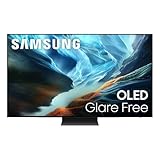
- OLED HDR+ WITH GLARE FREE*: Experience incredible brightness and deep contrast. Advanced AI enhances details, while Glare Free technology eliminates distracting reflections.*
- NQ4 AI GEN3 PROCESSOR: Powered by 128 neural networks to deliver AI-enhanced picture and sound, resulting in an exceptional 4K experience for streaming, gaming, live sports and more.*
- ULTIMATE GAMING PACK*: Conquer the competition with ultra-smooth, tear-free, low-latency gameplay and real-time responsiveness. Unlock the ultimate gaming experience with the powerful combination of Motion Xcelerator 165Hz with NVIDIA G-SYNC or AMD FreeSync Premium Pro.*
- 4K AI UPSCALING PRO: See impressive details on screen. Our AI processor upscales everything you watch to 4K using 128 AI neural networks and ensures incredibly sharp and smooth picture quality.*
- AI MOTION ENHANCER PRO: The AI processor smooths the motion of fast-moving balls and text, reducing blur and flickering, so you don't lose sight of the action.*
7. Check HDR format support without assuming identical results
HDR support is a combination of the source, game, TV processing and selected picture mode. Confirm which HDR formats the television accepts and whether they work on the inputs used for gaming. Also check whether the format is available at the high-refresh timing you want.
Do these 3 things before closing this tab:
1Repair Windows errors before they cause bigger problems2Fix the driver behind crashes, sound loss and screen glitches3Clear out junk files and repair common Windows errorsTwo televisions can list the same HDR format while differing in peak brightness, tone mapping, highlight detail and performance in a bright room. Compare measurements for the exact models where available, and avoid treating a format logo as a picture-quality ranking.
8. Understand burn-in precautions and warranty limits
Static elements such as game HUDs, channel logos and PC desktop bars make usage pattern relevant to image-retention risk. LG says its screen-protection features help reduce burn-in risk. “Help reduce” is not a guarantee that retention cannot occur, and it does not establish that a warranty covers every case.
Practical risk reduction
- Use the television’s panel-care and screen-protection features as intended.
- Vary content when practical instead of leaving one static interface displayed for long periods.
- Do not disable protective functions without understanding the trade-off.
- Use a screensaver or display timeout when a gaming PC is idle.
No reliable risk percentage or comparative lifespan statistic is established here. Read the warranty for your country and exact model, paying particular attention to exclusions for image retention, commercial use, operating hours and required maintenance cycles. Keep the purchase receipt and model number.
9. Decide whether you need a new HDMI cable
HDMI Licensing Administrator identifies Ultra High Speed HDMI cables as supporting 48Gbps bandwidth for uncompressed HDMI 2.1 features. That does not mean every setup needs a new cable.
Free tools Windows power users keep installed
One-click scans. No signup required.
Test the existing cable first
Connect the source directly to the TV and enable the desired resolution, refresh rate, VRR and HDR. Look for black screens, dropouts, sparkles, intermittent audio or a setting that repeatedly reverts. If the signal is stable, replacing the cable adds no gaming feature.
Replace only when the path requires it
If the desired signal is unstable, use a properly certified Ultra High Speed HDMI cable suitable for the required run. Long or tightly bent runs can be more sensitive to installation quality. A cable cannot add VRR, ALLM or a missing input capability to a TV or source; it can only carry a signal that the other equipment supports.
10. Include audio and eARC in the connection plan
Gaming specifications are often evaluated separately from sound, but audio routing can determine which HDMI ports remain available. Decide whether the console or PC connects directly to the TV and returns audio through eARC, or whether the source passes through a receiver.
Check the TV’s eARC port location, the receiver’s video pass-through limits and whether the receiver supports the same resolution, refresh rate, VRR and ALLM combination. Direct video connection is often the simpler troubleshooting path when an intermediate device causes a signal restriction.
Rank #4
- OLED HDR+ WITH GLARE FREE*: Experience incredible brightness and deep contrast. Advanced AI enhances details, while Glare Free technology eliminates distracting reflections.*
- NQ4 AI GEN3 PROCESSOR: Powered by 128 neural networks to deliver AI-enhanced picture and sound, resulting in an exceptional 4K experience for streaming, gaming, live sports and more.*
- ULTIMATE GAMING PACK*: Conquer the competition with ultra-smooth, tear-free, low-latency gameplay and real-time responsiveness. Unlock the ultimate gaming experience with the powerful combination of Motion Xcelerator 165Hz with NVIDIA G-SYNC or AMD FreeSync Premium Pro.*
- 4K AI UPSCALING PRO: See impressive details on screen. Our AI processor upscales everything you watch to 4K using 128 AI neural networks and ensures incredibly sharp and smooth picture quality.*
- AI MOTION ENHANCER PRO: The AI processor smooths the motion of fast-moving balls and text, reducing blur and flickering, so you don't lose sight of the action.*
11. Compare candidate televisions with one worksheet
Use exact model and size numbers rather than comparing product families. Record the evidence in one table so a feature in one column does not hide a limitation in another.
| Comparison axis | What to record | Why it matters |
|---|---|---|
| Price and size | Current price, currency, screen size and country | Prices and availability vary by market and promotion. |
| Native refresh rate | Panel rate and supported timings | Shows whether the desired source signal is accepted. |
| VRR | Format, range, inputs and resolution limits | Determines when synchronization works. |
| ALLM | Supported inputs and mode behavior | Controls automatic low-latency switching. |
| Input lag | Independent measurement at your target setting | Enables a fair comparison. |
| Gaming inputs | Number of ports supporting the required signal | Prevents constant cable swapping. |
| HDR | Accepted formats and measured picture behavior | Format support alone does not describe brightness or tone mapping. |
| Room performance | Brightness, reflection handling and viewing conditions | Determines whether the screen suits the room. |
| Protection and warranty | Panel-care features, exclusions and service terms | Clarifies image-retention risk and coverage. |
| Accessories | Existing cable capability and required replacements | Avoids unnecessary purchases and connection failures. |
Where a specification is not stated for a particular candidate, record “not stated” and seek the model manual rather than filling the cell with an assumption.
12. Follow this purchase and setup sequence
- Write the source list. Include every console, PC, receiver and soundbar that will remain connected.
- Set the target signal. For each gaming source, note the resolution, frame rate, HDR requirement and VRR requirement.
- Shortlist exact regional SKUs. Record screen size and country, not just a model family.
- Read the input table. Mark which HDMI ports support the target combination and where eARC is located.
- Verify PC timings or console tests. Confirm the actual output options after connecting the source.
- Check independent latency measurements. Match the measurement to your resolution, refresh rate and game mode.
- Evaluate the room. Compare screen size, reflections and brightness under similar lighting.
- Read warranty exclusions. Look specifically for image-retention language and regional conditions.
- Test the installed signal. Connect the source directly, enable the intended mode and confirm VRR, HDR and high refresh operation.
- Add a cable only if needed. Replace an inadequate or unstable cable with a certified one appropriate to the run.
13. Troubleshoot the most common failures
The TV shows only 60Hz
Confirm that the source is set to the high-refresh mode, the game offers that mode and the selected HDMI input supports it. Bypass a receiver or switch, test another input listed for high-bandwidth gaming and check the cable. On a PC, verify the chosen resolution and color settings; a combination that exceeds the link’s capability can reduce the available refresh rate.
VRR is missing or flickers
Enable VRR on both source and TV, then check whether the selected resolution is within the documented VRR range. Test direct connection and another certified cable. If the problem occurs only in one game, compare that game’s frame-rate mode with another title before assuming the panel is defective.
The Tool Desk
Outbyte Driver Updater FREEFix the driver behind crashes, sound loss and screen glitchesFind Drivers →Outbyte PC Repair FREERepair Windows errors before they cause bigger problemsFix Now →ALLM does not change picture mode
Confirm that the source sends an ALLM signal and that the TV allows automatic mode switching. Some picture processing may be disabled in low-latency mode, and manual overrides can prevent the expected transition.
Audio works but the video signal is limited
The receiver or soundbar may not pass the required resolution, refresh rate, VRR or ALLM signal. Connect the gaming source directly to the TV and use eARC for audio if the equipment supports it.
The PC image is cropped or text looks soft
Use the TV’s PC input labeling or PC picture mode where applicable, select the native resolution and check the graphics driver’s scaling and chroma settings. Verify the exact PC timing in the television documentation rather than assuming a console profile applies.
14. Make the final decision
Choose the OLED TV that supports your real source signal on enough usable inputs, has independently measured latency at your settings, offers the VRR and ALLM behavior you need, and fits your room and viewing distance. Then confirm HDR behavior, panel-care controls, warranty exclusions and cable requirements for the exact regional model.
Windows Errors? Fix Them Before They Spread
Repair common Windows errors and clear accumulated junk for a smoother, more stable PC - no reinstall needed.Free scan · no reinstallOutdated Drivers Are Slowing You Down
One free scan finds every outdated or missing driver and matches the right update for your exact hardware.Free scan · exact hardware matchPaying more between tiers is not automatically justified by the OLED label or by a longer feature list. The meaningful upgrade is the one that solves a constraint in your setup: an additional full-feature HDMI input, a supported timing your current TV lacks, better performance in your room, or warranty terms that match your usage.
Quick Recap
Product prices and availability are accurate as of the date/time indicated and are subject to change. Any price and availability information displayed on Amazon at the time of purchase will apply.

