
Do these 3 things before closing this tab:
1Fix the driver behind crashes, sound loss and screen glitches2Repair Windows errors before they cause bigger problems3Scan for outdated or missing drivers - takes under a minuteiTechGuides is reader-supported. When you buy through links on our site, we may earn an affiliate commission. As an Amazon Associate I earn from qualifying purchases. Learn more
For most RTX 5090 owners, buy a 4K 240Hz OLED gaming monitor. It matches the card’s ability to target 4K at very high frame rates, including NVIDIA’s 4K 240Hz positioning for DLSS 4 with Multi Frame Generation. Choose an ultrawide instead if immersion and side-by-side desktop space matter more than maximum vertical sharpness. Choose a 1440p high-refresh display if competitive games and the lowest possible render workload are your priority.
The right choice still depends on your games, viewing distance, panel preferences, and connection standard. The RTX 5090 can drive far more than one fixed monitor configuration, so buying the most expensive panel without checking its inputs, variable-refresh support, HDR behavior, and warranty can leave performance unused.
The short answer: which RTX 5090 monitor fits you?
| Monitor type | Best for | Main advantage | Main compromise |
|---|---|---|---|
| 4K 240Hz OLED | Single-player AAA games, ray tracing, premium image quality | Highest standard 16:9 detail with a 240Hz ceiling | Higher cost and the need to evaluate OLED burn-in coverage, brightness and warranty terms |
| Ultrawide gaming monitor | Immersion, wide field of view and multitasking | More horizontal workspace for games and desktop apps | Less vertical resolution than 4K 16:9 and uneven game support for unusual aspect ratios |
| 1440p high-refresh monitor | Esports and users who prioritize frame rate over pixel density | Lower rendering demand makes very high refresh easier to sustain | Text and game detail are less sharp than 4K at the same screen size |
If you are undecided, start with a 4K 240Hz OLED in a size that suits your desk. It gives the RTX 5090 a demanding workload while retaining broad 16:9 game compatibility. An ultrawide or 1440p display is a deliberate preference choice, not a requirement imposed by the graphics card.
What’s actually slowing this PC down?
Pick the symptom - the matching free tool is one click away.
What the RTX 5090 can actually drive
The RTX 5090 has 32GB of GDDR7 memory and supports DisplayPort 2.1b with UHBR20, as well as HDMI 2.1b. NVIDIA lists support for up to 4K at 480Hz or 8K at 165Hz with Display Stream Compression (DSC) over DisplayPort 2.1b UHBR20. NVIDIA also lists four independent 4K 165Hz displays. These are interface and display-support ceilings, not promises that every game will render at those rates.
#1 Best Overall

- High-Performance Display Specifications: 26.5-inch 4K (3840 x 2160) QD-OLED gaming monitor with 240Hz refresh rate and 0.03ms response time
- Advanced QD-OLED Technology: Latest 4th-gen QD-OLED technology delivers sharper imagery and crystal-clear text, a longer lifespan over previous-gen OLEDs
- Enhanced Viewing Comfort: OLED Anti-Flicker 2.0 technology includes a new luminance compensation algorithm that reduces flicker by 20% compared to previous-gen panels, ensuring comfortable viewing
- Intelligent Burn-In Protection: New ASUS OLED Care Pro functions with Neo Proximity Sensor that precisely detects when the user is away, switching to a black screen to reduce the risk of burn-in
- Comprehensive Connectivity Options: Extensive connectivity options include DisplayPort 2.1a UHBR20 with full 80Gbps bandwidth, USB-C (90W PD), HDMI 2.1, and a tripod socket
| RTX 5090 specification | Value and qualification |
|---|---|
| Graphics memory | 32GB GDDR7, according to NVIDIA’s 2025 launch material |
| Display outputs | DisplayPort 2.1b with UHBR20 and HDMI 2.1b on NVIDIA’s specification |
| Maximum listed display support | Up to 4K 480Hz or 8K 165Hz with DSC over DisplayPort 2.1b UHBR20 |
| Multiple-display support | Four independent 4K 165Hz displays listed by NVIDIA |
| Total graphics power | 575W for the reference design; add-in-card requirements can differ |
| Recommended system power | 1,000W in NVIDIA’s specified configuration; the card maker’s requirement should take precedence for a particular model |
Individual cards can expose a different physical layout. For example, MSI’s RTX 5090 32G Vanguard SOC specification lists three DisplayPort 2.1b outputs and one HDMI 2.1b output. Check the exact card in your PC rather than assuming every manufacturer uses the same connector arrangement.
NVIDIA described the architecture this way: “Blackwell has also been enhanced with PCIe Gen5 and DisplayPort 2.1b, driving displays up to 8K 165Hz.” That statement describes the platform’s display capability. It does not mean an 8K game will automatically run at 165 frames per second, nor does it establish a particular monitor’s brightness, HDR quality or warranty.
Is 4K 240Hz worth it with an RTX 5090?
It is worth it when you want a premium 16:9 display and play a mixture of demanding games, fast action titles and desktop applications. A 4K panel renders 3,840 by 2,160 pixels, so it provides substantially more image detail than 1440p at the same size. A 240Hz refresh rate gives the display a 4.17-millisecond frame interval, leaving room for smooth motion when the game can deliver high frame rates.
The Tool Desk
Outbyte PC Repair FREERepair Windows errors before they cause bigger problemsFix Now →Outbyte Driver Updater FREEFix the driver behind crashes, sound loss and screen glitchesFind Drivers →Where DLSS 4 changes the calculation
NVIDIA’s launch announcement positions DLSS 4 with Multi Frame Generation as a way for RTX 5090 owners to play at 4K 240Hz/FPS with full ray tracing and maximum settings. Multi Frame Generation creates additional displayed frames from rendered frames, so the number shown by an in-game counter can exceed the rate at which the GPU renders complete frames. Responsiveness still depends on the game’s base render rate, input latency, reflex or latency settings, and the implementation of DLSS.
Rank #2

- Dual Mode Display Technology: 32-inch 4K (3840 x 2160) WOLED gaming monitor with versatile dual mode (4K @ 240 Hz or FHD @ 480 Hz)
- ROG-Exclusive OLED Anti-Flicker Technology: Helps reduce the flicker during refresh-rate fluctuations for more comfortable viewing during extended gaming sessions
- Advanced AI Assistant Features: Provides dynamic AI Crosshair, AI Sniper, and AI Visual functions for improved gaming experiences
- Uniform Brightness Setting: Optional uniform brightness setting ensures consistent luminance levels across the entire display
- DisplayWidget Center Software: Allows users to easily access OLED Care functions and adjust monitor settings using a mouse
For that reason, treat 4K 240Hz as a capability target rather than a universal guarantee. A supported game with suitable settings may approach the panel’s refresh ceiling, while a title without the required upscaling or frame-generation support may run at a much lower rate. Variable refresh rate (VRR) is valuable because it keeps the monitor synchronized when frame delivery fluctuates below 240Hz.
When a slower 4K monitor is the better purchase
A 4K 144Hz or 165Hz monitor can be sensible if you mainly play cinematic games, do creative work, or prefer to spend less on the panel. The RTX 5090’s display outputs support these rates comfortably, and a lower refresh target reduces the need to chase every last frame. The trade-off is that you give up headroom for high-frame-rate competitive play and for future games that can make better use of 240Hz.
Should you choose an ultrawide instead of 4K OLED?
Choose an ultrawide when your priorities are immersion, a wider field of view and a single continuous desktop for multiple windows. The extra horizontal space is useful for a game beside a chat or browser window, for timeline-based creative applications, and for spreadsheets that are awkward on a conventional 16:9 panel.
Crashes, No Sound, or Screen Glitches?
Random freezes, missing sound and display glitches usually trace back to one bad driver. Find and replace yours safely.Free scan · under a minuteWindows Errors? Fix Them Before They Spread
Repair common Windows errors and clear accumulated junk for a smoother, more stable PC - no reinstall needed.Free scan · no reinstallResolution and rendering trade-offs
Ultrawide monitors trade some vertical resolution for width. A 21:9 model can feel more expansive than 16:9, but its total pixel count varies by model, so do not assume every ultrawide is easier or harder to render than 4K. Compare the actual resolution printed in the monitor’s specifications. A high-resolution ultrawide can still be demanding for the GPU, while a lower-resolution model may leave more performance available for very high refresh rates.
Rank #3

- 31.5" UHD (3840 x 2160) QD-OLED panel
- High 240Hz refresh rate, ultra-low 0.03ms GtG response time
- 1.07 billion colours (10-bit) with incredible gamut (DCI-P3 99%) & accuracy (ΔE ≤2)
- VESA DisplayHDR True Black 400 certified
- OLED Care 2.0 & MSI Gaming Intelligence AI
Game compatibility
Many modern PC games support common ultrawide formats, but support is not universal. Some games may show black bars, crop the image, or limit the field of view. Competitive titles can also treat a wider field of view differently from a standard 16:9 presentation. Before buying, check the games you play most often and verify that their ultrawide mode behaves as you expect.
When ultrawide is the wrong fit
Stay with 16:9 if you want the broadest compatibility, straightforward 4K support, or a second monitor in a conventional layout. A 16:9 4K screen also gives more vertical pixels for documents and web pages than many horizontal-focused ultrawides.
When a 1440p high-refresh monitor makes more sense
A 1440p high-refresh display is the specialist choice for esports-focused buyers. Lower resolution reduces the number of pixels the GPU must render, making it easier to sustain very high frame rates and to keep frame times low. If your main games are competitive shooters or other titles where rapid motion and input response matter more than fine texture detail, that can be a better experience than a 4K panel running well below its maximum refresh.
What you give up
At the same physical size, 1440p is less dense than 4K. Fine text, distant game objects and high-resolution textures will not look as sharp. The RTX 5090 is powerful enough that a 1440p monitor can also leave substantial graphics performance unused in visually demanding games, unless you deliberately target very high refresh rates or use demanding image-quality settings.
Rank #4
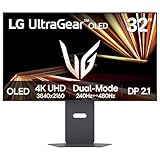
- Dual Mode: 4K UHD 240Hz or Full HD 480Hz - LG UltraGear OLED is a VESA Certified Dual Mode gaming monitor. This innovation allows gamers to experience graphically rich, story-driven games in 4K/UHD at up to 240Hz or switch to Full HD at up to 480Hz for fast-paced FPS, MOBA or racing games via hotkey.
- Leave Lag Behind with 0.03ms Response Time - Enjoy smoother scenes with less lag or ghosting thanks to LG UltraGear OLED's nearly instantaneous 0.03ms (GtG) response time.
- NVIDIA G-SYNC Compatible and AMD FreeSync Premium Pro - Officially validated by NVIDIA as G-SYNC Compatible and equipped with AMD FreeSync Premium Pro means this UltraGear provides smooth, fast action that reduces screen tearing and stutter. Never miss a frame of the action as you clinch your victories.
- Bright OLED Gaming - This UltraGear features Micro Lens Array+ technology. So with a typical brightness of 275 nits and a peak brightness of up to 1300 nits, this monitor is UltraGear's brightest OLED gaming display.
- VESA DisplayHDR True Black 400 & 1.5M:1 Contrast Ratio - VESA DisplayHDR True Black 400 certified means this monitor meets industry standards for brightness as well as deep, rich black color expression. With a 1.5M:1 contrast ration, the benefit for gaming impeccable color and image detail in dark scenes for a stunning visual experience.
How to choose the refresh target
Compare the monitor’s native refresh rate, VRR range and response-time behavior rather than relying on a headline number alone. A very high refresh rate is useful only when your games and settings can produce frame rates in that range. Make sure the monitor’s input supports the chosen resolution and refresh combination; HDMI 2.1b or DisplayPort 2.1b may be required for the highest modes.
Panel type, HDR and OLED ownership concerns
OLED is the premium image-quality option in this recommendation because each pixel can be controlled independently, enabling strong contrast and fast pixel transitions. The practical buying decision is more complicated than choosing “OLED” from a product title.
Check brightness and HDR behavior
Brightness figures can vary by measurement mode, window size and duration. Compare a monitor’s published sustained and peak HDR behavior, its tone-mapping controls, and whether the manufacturer specifies a true HDR mode. Do not infer HDR quality from the presence of an HDR label alone.
Check burn-in protection and warranty language
Static desktop elements, taskbars and application controls can increase the risk of image retention over long periods. Manufacturers use different pixel-refresh routines, screen savers and warranty exclusions. Read the current model’s burn-in policy, warranty duration, replacement terms and required maintenance steps before purchase. Long-term OLED reliability and current warranty coverage are model-specific, so they cannot be generalized from the RTX 5090 specification.
Best Value

- Immersive 4K QD-OLED Display: 32-inch 4K (3840 x 2160) QD-OLED gaming monitor with 240 Hz refresh rate and 0.03 ms (GTG) response time for immersive gaming
- Advanced Heat Management System: Highly efficient custom heatsink, advanced airflow design, and graphene film for better heat management to reduce the risk of burn-in
- Exceptional HDR Performance: VESA DisplayHDR 400 True Black compliance, 99% DCI-P3 gamut, true 10-bit, and Delta E < 2 color difference for astonishing HDR performance
- Uniform Brightness Setting: Optional uniform brightness setting ensures consistent luminance levels across the entire display
- Convenient Monitor Control: DisplayWidget Center allows users to access OLED Care functions, as well as adjust monitor settings with a mouse
Consider your daily mix
OLED is a strong fit for a gaming-first machine that also uses the display for normal desktop work. If the monitor will show static spreadsheets, development tools or dashboards for many hours every day, weigh those habits against the manufacturer’s burn-in guidance and consider whether a non-OLED panel better matches your risk tolerance.
Independent reader supportYour contribution helps us test, update, and keep practical guides available for everyone.Do you need DisplayPort 2.1 for an RTX 5090?
You need a suitable high-bandwidth connection when you want the monitor’s highest resolution and refresh combination. DisplayPort 2.1b with UHBR20 is the clearest match for the RTX 5090’s listed top-end support. HDMI 2.1b can also carry modern high-resolution, high-refresh modes, but the exact limit depends on the monitor, cable and selected timing.
When DSC is involved
NVIDIA lists 4K 480Hz and 8K 165Hz with DSC over DisplayPort 2.1b UHBR20. DSC is a display-stream compression method designed to fit demanding modes within available link bandwidth while remaining visually lossless in normal use. A monitor may require DSC for its highest advertised refresh, so check whether DSC must be enabled in the monitor menu or driver.
Cable and port checklist
- Confirm that the monitor has the input standard needed for its maximum resolution and refresh mode.
- Use a certified DisplayPort 2.1 UHBR20 cable when the monitor specifies UHBR20 for its top mode.
- Connect the cable directly to the RTX 5090 rather than routing it through a dock, adapter or older receiver.
- After connecting, open the operating system’s advanced display settings and select the monitor’s native resolution and highest available refresh rate.
- If the advertised mode is missing, test another cable, disable an intermediate device, and check whether DSC or a monitor firmware setting is required.
How to set up an RTX 5090 monitor correctly
- Install the monitor and connect it to the graphics card. Use DisplayPort 2.1b or HDMI 2.1b as appropriate for the monitor’s highest mode. Do not use the motherboard’s video output for a display intended to run from the RTX 5090.
- Set the native resolution and refresh rate. In Windows, open Settings, select System, then Display, choose the monitor, and open Advanced display. Select the native resolution and the highest refresh rate that remains stable.
- Enable VRR. Turn on the monitor’s Adaptive-Sync, FreeSync-compatible or G-SYNC-compatible option if provided, then enable the corresponding variable-refresh setting in the graphics driver. The available label depends on the monitor and driver.
- Configure HDR deliberately. Enable HDR in the operating system only after selecting the monitor’s HDR mode. Calibrate the display using the operating system’s HDR calibration tool when available, and compare SDR desktop behavior so that normal applications do not look washed out.
- Choose game settings for the target. At 4K, use the game’s supported upscaling and ray-tracing options when you want to approach 240Hz. For esports, prioritize a stable frame time and low latency over settings that create large frame-rate swings.
- Verify the result in the games you actually play. Check frame rate, frame-time consistency and input response in several titles. A benchmark or menu counter cannot establish how every game will behave at 4K 240Hz.
Buying checklist for the final monitor
- Resolution: 4K for maximum 16:9 detail, ultrawide for horizontal workspace, or 1440p for lower render demand.
- Refresh rate: 240Hz is the premium RTX 5090 target; choose a lower rate only when it matches your games and budget priorities.
- VRR range: Verify the supported range, not just the maximum refresh number.
- Inputs: Confirm DisplayPort 2.1b/UHBR20 or HDMI 2.1b support for the mode you intend to use.
- DSC: Check whether the monitor requires it for its highest resolution and refresh combination.
- Panel and HDR: Compare OLED behavior, brightness measurements, HDR modes and viewing environment.
- Warranty: Read burn-in coverage and exclusions for OLED models, plus the replacement process.
- Ergonomics: Check stand adjustment, VESA compatibility, viewing distance and desk depth before ordering.
- Graphics-card fit: Confirm the actual port layout on your RTX 5090 model; add-in cards can differ from the reference design.
Price, stock and regional availability
Current monitor prices, inventory and regional availability change frequently and are not established by the RTX 5090 specifications. Treat any price shown on a retailer or manufacturer page as time- and region-specific. Before buying, verify the exact model number, included cable, return policy, dead-pixel policy and warranty terms, particularly for OLED burn-in.
The RTX 5090 itself is a high-power card: NVIDIA lists 575W total graphics power and a 1,000W recommended system power in its specified configuration. Those figures concern the graphics card and system, not the monitor, but they are relevant when planning a complete upgrade. The add-in-card maker’s power and connector requirements take precedence for your particular board.
Final decision framework
Buy a 4K 240Hz OLED when you want one premium 16:9 screen for demanding games, ray tracing and general use, and you are comfortable reviewing OLED warranty and burn-in terms. Buy an ultrawide when a wide field of view and side-by-side work are more valuable than maximum vertical pixel density, after checking your games’ aspect-ratio support. Buy a 1440p high-refresh monitor when competitive performance and very high frame rates outweigh 4K detail.
Quick Recap
Product prices and availability are accurate as of the date/time indicated and are subject to change. Any price and availability information displayed on Amazon at the time of purchase will apply.

