
Do these 3 things before closing this tab:
1Fix the driver behind crashes, sound loss and screen glitches2Repair Windows errors before they cause bigger problems3Scan for outdated or missing drivers - takes under a minuteiTechGuides is reader-supported. When you buy through links on our site, we may earn an affiliate commission. As an Amazon Associate I earn from qualifying purchases. Learn more
A custom PS Vita dashboard runs on a Vita with the HENkaku homebrew environment and taiHEN framework enabled. Your firmware determines the exploit route: 3.60 normally uses HENkaku, 3.65 can use Ensō where supported, 3.65–3.74 uses the h-encore family, and 3.69–3.70 also has Trinity as a documented path. After the exploit layer is active, VitaDeploy helps bootstrap the system, VitaShell transfers files and installs VPK packages, and the dashboard itself must document compatibility with your firmware and installation format.
Start with the firmware version
Open Settings on the Vita and note the complete system-software version before choosing any files. The exploit and persistence options are firmware-specific; installing a package intended for a different range can leave the dashboard unavailable or prevent it from loading.
| Vita firmware | Documented exploit or activation route | What it means for a dashboard |
|---|---|---|
| 3.60 | Classic HENkaku; Ensō can provide persistent activation at boot. | Use the 3.60 installation instructions and verify that the dashboard supports 3.60. |
| 3.65 | Ensō is available when the device cannot be downgraded to 3.60. | Some homebrew written only for 3.60 may not work, so check the dashboard’s stated support. |
| 3.65–3.68 | h-encore. | Install the 3.65–3.68 exploit family before installing dashboard software. |
| 3.69–3.74 | h-encore²; Trinity is also listed as a known path for 3.69–3.70. | Use a package and instructions that explicitly cover your exact firmware, especially when choosing between documented exploit paths. |
The ranges overlap because they describe different parts of the setup. Ensō is a boot-time persistence option on supported firmware, while h-encore, h-encore² and Trinity describe exploit routes used to establish the homebrew environment. A dashboard package does not replace those prerequisites.
Free tools Windows power users keep installed
One-click scans. No signup required.
What the homebrew stack does
Think of the setup as layers. The exploit opens the way into homebrew, taiHEN supplies the custom-firmware framework, VitaDeploy provides a practical bootstrap toolbox, and VitaShell performs file management and VPK installation. The dashboard is the final application or plugin installed on top of those layers.
#1 Best Overall

- Read It Before Buying: The SD2Vita is a third-party memory card adapter. It requires you to currently be on an unlocked 3.60 firmware, such as HENkaku/Ensō, and is also supports 3.60+ firmware 3.65-3.72, which has been released. Note: Please insert it into the game card slot as if it were a PS Vita game cartridge. (Not suitable for the memory card slot)
- Perfect Fit & Seamless Experience: 1:1 precision molding with PS Vita game cartridge. It’s easy to insert and remove without any sticking or popping out. The precise molding ensures smooth operation, but please insert or remove the card slowly to avoid bending or breaking the internal pins
- Wide Compatibility: This PS Vita memory card adapter is compatible with all PlayStation Vita models, including PS Vita 1000, 2000, and PlayStation TV (PSTV). It provides fast game loading with no delays, making it a perfect upgrade for passionate gamers
- Meets All Your Gaming Needs: The included 128GB micro SD card offers lightning-fast read speeds of up to 140MB/s, so you won’t need to spend extra money on additional memory cards. Start your gaming experience right away! Latest version 6.0 SD2VITA microSD card adapter supports any standard microSD card (up to 512GB) to replace expensive PS Vita official memory cards. Enjoy faster loading speeds—20% to 30% faster than the original PS Vita game card
- Never Worry About Running Out of Storage: Sunloy high-speed TF cards feature Class 10, U3, V30, UHS-I, and A1 speed ratings—delivering ultra-fast transfer speeds with exceptional stability. Perfect for storing games, high-res photos, and full HD/4K UHD videos recording. Compatible with smartphones, tablets, cameras, GoPro, laptops, drones, dash cams, DSLRs, computers, security camera, Nintendo Switch, PS Vita, and other portable gaming consoles
HENkaku and taiHEN
HENkaku is the enabling homebrew environment. taiHEN is the framework that loads the custom-firmware components and plugins; its project documentation describes it as “a CFW framework for PS Vita™.” A dashboard that depends on taiHEN is therefore not a standalone replacement for the exploit. The Vita must already be running the HENkaku/taiHEN layer before the dashboard can load.
VitaDeploy
VitaDeploy is the toolbox used to continue from the initial exploit into a usable custom-firmware installation. The browser bootstrap menu can install it, after which it helps you obtain or configure the remaining components. Keep it available even after the dashboard works: it is useful when you need to repair, refresh or change the homebrew setup.
VitaShell
VitaShell is the file manager used by the documented Ensō procedures. It supports transferring files over FTP or USB and installing VPK packages. A dashboard distributed as a VPK normally reaches the Vita through VitaShell; a plugin-based dashboard may instead require copying files and editing the taiHEN configuration according to that project’s own instructions.
Ensō persistence
Ensō is optional where supported. The Vita Hacks documentation describes it as a complete custom-firmware solution that runs an exploit at boot, setting up HENkaku without manually triggering an exploit after every reboot. It changes the boot process, so treat it as a permanent-modification step: confirm the firmware and model, follow the matching guide exactly, and do not interrupt the installation. If your firmware or model is not supported, use the non-persistent exploit route instead of forcing Ensō.
Rank #2
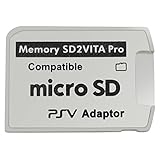
- Read This Before Buying: sd2vita is a third party memory card adapter which requires you to currently be on an unlocked 3.60 firmware like HENkaku/ Ensō, also supports 3.60+ firmware 3.65-3.68, which has been released
- sd2vita can’t be used as ps vita memory card, it doesn’t fit the memory card slot, put this in your game card slot as the PSV game cartridge
- Latest Version 5.0 SD2VITA microSD card adapter, you can replace the expensive PS Vita memory card with any microSD card up to 256GB, loading speed is 20% - 30% faster than original game card
- 1:1 precise molding from the PS Vita game cartridge, easy to push in and eject, no stuck or stick out problem as the sd2vita 3.0 version or lower, perfect fit in your PS Vita
- Fully compatible with all Playstation Vita devices – PS Vita 1000/ 2000/ PlayStation TV
Step-by-step setup before installing a dashboard
- Record the model and firmware. Write down the firmware shown in Settings and whether the console is a PS Vita 1000, PS Vita 2000 or PS TV. Storage requirements differ by model, and the exploit choice depends on the firmware range.
- Open the Vita browser. Enter jailbreak.psp2.dev and use the HENlo flow to install HENkaku. Follow the page’s on-screen prompts for the exact firmware detected by the browser.
- Install VitaDeploy from the bootstrap menu. The initial HENlo process exposes the bootstrap options; select VitaDeploy and allow it to finish before starting another installation.
- Confirm that VitaShell is present. VitaShell is the transfer and package-installation tool used by the Ensō guides. If it is missing, install it through the supported bootstrap path before attempting to copy a dashboard.
- Choose the persistence option only after checking support. On supported firmware, Ensō can arrange boot-time activation. On unsupported firmware, leave the setup non-persistent and plan to trigger the documented exploit after a reboot.
- Read the dashboard project’s requirements. Identify whether it is a VPK application, a taiHEN plugin, or another documented homebrew format. Note the supported firmware, required dependencies and any configuration-file changes before copying files.
- Transfer the package. Use VitaShell’s FTP capability with a computer-side FTP client, or connect over USB. The standard destination in the setup notes is
ux0:data; use another location only when the dashboard’s documentation explicitly specifies one. - Install or configure it in VitaShell. For a VPK, open the file in VitaShell and use its install command. For a plugin, copy the files and make only the configuration edits documented by the project. Do not rename files or improvise taiHEN entries.
- Check compatibility before rebooting. Confirm that the dashboard version supports the installed firmware and that every dependency is present. Reboot only after the installation reports completion and any required configuration has been saved.
The browser step establishes HENkaku; VitaDeploy and VitaShell make the rest manageable. Installing a dashboard before that foundation is active is the usual reason a VPK appears to install but does nothing.
Storage and hardware requirements by model
| Hardware | Storage point established by the setup guides | Practical implication |
|---|---|---|
| PS Vita 1000 | An official Sony memory card is required unless internal memory has been unlocked. | Have the required card available before beginning file transfers, or verify that internal memory has already been unlocked. |
| PS Vita 2000 | Requirements can differ from the 1000 model. | Use instructions written for the 2000 rather than copying the 1000 storage procedure. |
| PS TV | Requirements can differ from handheld Vita models. | Confirm PS TV-specific storage and exploit instructions before transferring the dashboard. |
FTP and USB are both supported transfer methods in the VitaShell-based procedures. FTP is convenient when the Vita and computer are on the same network; USB avoids network configuration. In either case, place the dashboard package in ux0:data unless its documentation names a different path.
The memory-card condition is specifically important for the PS Vita 1000. Do not assume that a 1000 can use the same storage arrangement as a 2000 or PS TV, and do not buy or format a card until you have identified the model and checked the instructions for that model.
Choosing the right exploit route
Firmware 3.60
Use the classic HENkaku route. The 3.60 Ensō instructions list an FTP client, Ensō and VitaShell among the requirements, which reflects the normal workflow: establish HENkaku, install the file-management tools, then decide whether boot-time persistence is worth the additional modification. A dashboard that targets 3.60 should install cleanly once taiHEN and VitaShell are working.
Rank #3

- The Official PlayStation Vita Memory Card
- Required for most game play on PS Vita
- Store game saves, PSN downloads, and personal media
- Save up to : 8 to 16 full PlayStation Vita games, 24 movies, 9,136 songs, or 6,400 photos
Firmware 3.65
Ensō is available when the device cannot be downgraded to 3.60. However, compatibility is not identical across firmware versions: some homebrew written only for 3.60 may fail on 3.65. Before installing a dashboard, look for an explicit 3.65 statement rather than assuming that a 3.60-only release will work.
Firmware 3.65–3.68
The documented exploit family for this range is h-encore. Complete the h-encore setup, install VitaDeploy and VitaShell, and then use the dashboard’s own package instructions. If the dashboard requires a plugin, verify that its taiHEN configuration supports this firmware range.
Firmware 3.69–3.70
h-encore² covers this range, and VitaSDK lists Trinity as a known exploit path for 3.69–3.70. These are alternative documented routes, not reasons to combine files from different guides. Pick one current procedure, finish its prerequisites, and install only the dashboard build that names your firmware.
Windows Errors? Fix Them Before They Spread
Repair common Windows errors and clear accumulated junk for a smoother, more stable PC - no reinstall needed.Free scan · no reinstallCrashes, No Sound, or Screen Glitches?
Random freezes, missing sound and display glitches usually trace back to one bad driver. Find and replace yours safely.Free scan · under a minuteFirmware 3.71–3.74
h-encore² is the documented exploit family for 3.69–3.74. Because Ensō support and 3.60-only homebrew assumptions do not automatically carry forward, treat 3.71–3.74 as a separate compatibility target. A dashboard author must state support for this range; an installation that works on 3.60 is not proof of support here.
Rank #4

- Read It Before Buying: The SD2Vita is a third-party memory card adapter. It requires you to currently be on an unlocked 3.60 firmware, such as HENkaku/Ensō, and is also supports 3.60+ firmware 3.65-3.72, which has been released. Note: Please insert it into the game card slot as if it were a PS Vita game cartridge. (Not suitable for the memory card slot)
- Perfect Fit & Seamless Experience: 1:1 precision molding with PS Vita game cartridge. It’s easy to insert and remove without any sticking or popping out. The precise molding ensures smooth operation, but please insert or remove the card slowly to avoid bending or breaking the internal pins
- Wide Compatibility: This PS Vita memory card adapter is compatible with all PlayStation Vita models, including PS Vita 1000, 2000, and PlayStation TV (PSTV). It provides fast game loading with no delays, making it a perfect upgrade for passionate gamers
- Meets All Your Gaming Needs: The included 64GB micro SD card offers lightning-fast read speeds of up to 80MB/s, so you won’t need to spend extra money on additional memory cards. Start your gaming experience right away! Latest version 6.0 SD2VITA microSD card adapter supports any standard microSD card (up to 512GB) to replace expensive PS Vita official memory cards. Enjoy faster loading speeds—20% to 30% faster than the original PS Vita game card
- Never Worry About Running Out of Storage: Sunloy high-speed TF cards feature Class 10, U3, V30, UHS-I, and A1 speed ratings —delivering ultra-fast transfer speeds with exceptional stability. Perfect for storing games, high-resolution photos, recording and storing full HD/4K videos, and other data types. It’s compatible with smartphones, tablets, cameras, GoPro/action cameras, laptops, desktop PCs, DSLR cameras, drones, Nintendo Switch, PlayStation Vita, and other portable gaming consoles
Dashboard package formats and dependency checks
There is no single universal “custom dashboard” package. Projects can distribute an application VPK, a taiHEN plugin, or another homebrew format. The installation steps, storage location and reboot behavior depend on that format.
When the dashboard is a VPK
- Confirm the VPK’s stated firmware range and required framework.
- Copy the file to
ux0:datawith FTP or USB, unless the project specifies another location. - Open the VPK in VitaShell and use the install option.
- Wait for the installation to complete, then check that the application appears where the project says it should.
When the dashboard is a plugin
- Identify the plugin file and the required taiHEN configuration entry.
- Use the project’s specified location and load order; do not guess a path from another plugin.
- Keep a copy of the original configuration before editing it so you can remove the new entry if the system stops loading the dashboard.
- Reboot only after checking that the plugin supports your exact firmware and that every dependency is installed.
When the format is not stated clearly
Stop before copying files. A dashboard that does not identify its format, firmware support and dependencies is not ready for a blind installation. Look for a release note or readme that answers those questions; otherwise, you cannot reliably decide whether VitaShell installation or taiHEN configuration is required.
Persistence, reboot behavior and risk
Without a persistent boot solution, a reboot can require you to trigger the documented exploit again before taiHEN-based homebrew and the dashboard are available. Ensō addresses that inconvenience on supported firmware by running the exploit at boot. It is not a universal add-on: support depends on firmware and device compatibility.
Recommended Free Tools
Because Ensō changes boot-time behavior, verify the version twice and use the matching guide. Keep the non-persistent route available until the dashboard has been tested. If a dashboard is incompatible, removing its VPK or plugin is simpler before adding a boot-time modification.
Best Value

- The memory card expands the storage capacity and multimedia capabilities for Sony PlayStation Vita handheld system.
- This memory card can store save data for games, songs, photos, movies, and games for PlayStation Vita, depending on the file sizes.
- You can transfer files from other devices or download directly from internet.
- Required for most game play for PS Vita system. Store game saves, game downloads, and personal media. Provide storage for up to: 4-8 full games for PS Vita system, or 12 movies, or 4500 songs, or 3200 photos
- Compatible with: All Sony PS Vita PSV 1000 / 2000 consoles (PCH-1000 / PCH-2000)
Do not confuse a dashboard’s ability to launch once with a persistent installation. A VPK can appear in the application list while the underlying exploit environment still requires manual activation after each reboot.
Independent reader supportYour contribution helps us test, update, and keep practical guides available for everyone.Common failure symptoms and fixes
| Symptom | Likely cause | Action |
|---|---|---|
| The browser step does not produce the expected HENkaku or bootstrap result. | The exploit route does not match the firmware, or the browser process was not completed. | Recheck the exact version in Settings and use the route assigned to that range; do not install files from another firmware guide. |
| VitaShell cannot see the transferred VPK. | The file was copied to a different location or the transfer did not finish. | Reconnect with FTP or USB, place the file in ux0:data unless instructed otherwise, and verify the filename and completed transfer. |
| The VPK installs but the dashboard does not appear or launch. | The package targets another firmware, expects a plugin, or has an unmet dependency. | Read the dashboard’s requirements, confirm taiHEN and VitaShell are active, and remove the incompatible package before trying a supported build. |
| A 3.60 dashboard fails on 3.65. | Some homebrew is written only for 3.60. | Find a release that explicitly supports 3.65 or use a different dashboard; do not assume the minor version is interchangeable. |
| The dashboard disappears after reboot. | The exploit environment was not persistent. | Trigger the documented exploit again, or install Ensō only if your exact firmware and model are supported. |
| A PS Vita 1000 cannot access the intended storage. | The required official memory card is absent and internal memory has not been unlocked. | Install the required card or complete the documented internal-memory setup before transferring files. |
| The system behaves unexpectedly after a plugin change. | A taiHEN configuration entry, load order or plugin version is wrong. | Undo the last configuration change using VitaShell and the project’s recovery instructions, then boot with the previously working configuration. |
What to verify before selecting a dashboard project
- Firmware support: the release should name your exact version or a range that includes it.
- Exploit assumptions: confirm whether it expects HENkaku/taiHEN, h-encore, h-encore² or another documented route.
- Persistence: determine whether the dashboard works after a normal exploit activation or requires Ensō at boot.
- Package format: identify VPK, plugin or another format before transferring anything.
- Dependencies: check for VitaShell, VitaDeploy, taiHEN plugins and configuration entries.
- Storage path: confirm whether
ux0:datais correct for the release and for your model. - Model coverage: verify whether the instructions apply to PS Vita 1000, PS Vita 2000 or PS TV.
- Removal method: make sure the documentation explains how to uninstall the dashboard or disable its plugin if it fails.
These checks matter more than the dashboard’s name. The available technical documentation establishes the firmware and framework prerequisites, but it does not identify one package that is guaranteed to work on every Vita model and firmware.
A safe decision sequence
- Identify the exact firmware and hardware model.
- Select the matching exploit family from the firmware table.
- Use HENlo to establish HENkaku, then install VitaDeploy from the bootstrap menu.
- Install or confirm VitaShell and test a transfer over FTP or USB.
- Decide whether you need Ensō persistence and verify that it supports your firmware and model.
- Choose a dashboard whose documentation states the firmware, format and dependencies.
- Transfer the package to
ux0:dataor its documented destination. - Install the VPK or configure the plugin in VitaShell.
- Test the dashboard before making any additional boot or plugin changes.
If any step is ambiguous, pause at that step rather than compensating with files from another firmware guide. The exploit layer, storage arrangement and dashboard package all have to agree.
Maintenance after installation
Keep VitaDeploy and VitaShell installed even when the dashboard becomes your primary interface. VitaShell is the practical recovery point for replacing a VPK, removing a plugin or transferring an updated release. Keep the dashboard’s original documentation with the installed version so that a future firmware change does not leave you guessing about compatibility.
When updating, change one component at a time: first confirm the exploit environment, then update the dashboard package or plugin, and only afterward consider a persistence change. If the new build fails, reverting the last changed component gives you a clear recovery path.
Do not treat a firmware update as a routine dashboard update. The firmware decision tree can change the exploit family, Ensō availability and compatibility with 3.60-oriented homebrew. Recheck all three before changing system software.
Bottom line for a custom PS Vita dashboard
The minimum practical foundation is a firmware-appropriate HENkaku exploit, taiHEN, VitaDeploy and VitaShell. Use HENkaku on 3.60, the documented Ensō option on supported 3.65 systems, h-encore on 3.65–3.68, and h-encore² on 3.69–3.74; Trinity is a documented option for 3.69–3.70. Transfer the dashboard through FTP or USB, install its VPK or configure its plugin exactly as documented, and account for the PS Vita 1000 memory-card requirement. Ensō can make activation persistent, but only after you have confirmed exact firmware and model support.
What’s actually slowing this PC down?
Pick the symptom - the matching free tool is one click away.
Quick Recap
Product prices and availability are accurate as of the date/time indicated and are subject to change. Any price and availability information displayed on Amazon at the time of purchase will apply.

