
iTechGuides is reader-supported. When you buy through links on our site, we may earn an affiliate commission. As an Amazon Associate I earn from qualifying purchases. Learn more
To improve UniFi WiFi speed, first find out whether the limit is one client, weak signal, radio congestion, a wireless mesh hop, the AP’s wired link, or your internet connection. Measure the affected device in the problem location, compare it with a test near the AP, then change one factor at a time. Wider channels and new hardware are not automatic fixes.
Start with a repeatable speed test
Note which device is slow, where it is, and whether the problem affects internet access, local transfers, latency, or connectivity. Test the same device near its serving AP and in the problem area under similar conditions. Then compare with another client. If only one device is slow, investigate that client before changing the whole network.

WiFiman can run a speed test. When connected to a network managed by a UniFi Cloud Gateway, it can also show signal strength and channel width. These checks help separate a weak WiFi link from a wider network or internet bottleneck; they do not identify every cause by themselves. See Ubiquiti’s WiFiman guide.
What’s actually slowing this PC down?
Pick the symptom - the matching free tool is one click away.
Check the client’s WiFi link before changing the AP
In UniFi Network, inspect the affected client’s band, signal strength, maximum PHY rate, and current Tx/Rx rates. Compare those details with the client’s capabilities: supported bands, WiFi generation, MIMO streams, and channel width. Update the client’s WiFi driver where relevant.
#1 Best Overall

- Create a reliable wireless business network with this wireless access point that features a high-speed data transfer rate
- 3 Gbit/s wireless transmission speed provides high and efficient communication with maximum efficiency
- IEEE 802.11 a/b/g/n/ac/ax wireless LAN standard ensures trouble-free and convenient connectivity
- Gigabit Ethernet port for ultra-fast wired network speeds
- PoE+ port to receive data and power of up to 25.5W through a single cable in places where a power outlet is not available
PHY rate is the theoretical link rate, not the speed an app or internet speed test will show. Ubiquiti says actual throughput is typically about 50–60% lower than maximum PHY rate. This is vendor guidance, not a guaranteed conversion formula. Likewise, a 1 Gbps internet plan does not mean every WiFi client will reach 1 Gbps; Ubiquiti offers 150–600 Mbps, depending on the client, as an illustrative range rather than a performance guarantee. See Maximizing Wireless Speeds.
Improve weak signal and AP placement
Retest close to the AP. If performance improves substantially, coverage or signal quality is likely part of the problem. Ubiquiti’s speed guidance targets about -60 dBm or better for maximum performance and recommends -50 dBm or better; its connectivity guidance says about -70 dBm or better is needed for stable connections. These are different targets, not promises of a particular speed. For the client’s reading, values closer to zero indicate a stronger signal.
Rank #2

- Four stream 802.11AC Wave2 technology
- Supports 200+ concurrent users
- 802.3af PoE compatibility
- Optional covers (sold separately) allow the Unifi nanohd AP TO discreetyly blend into its setting
If signal remains weak where the device needs to work, consider repositioning an AP or adding coverage. A wired AP uplink is preferable where practical. Ubiquiti estimates that wireless meshing can reduce performance by about 50% per hop, particularly in high-interference conditions; actual results depend on the environment. Check whether the client is attached to the expected AP rather than assuming it has roamed to the nearest one. Roaming decisions depend on the client and the signals it sees. Ubiquiti’s connectivity and latency guidance and WiFi troubleshooting guide cover these checks.
Look for interference and high airtime
A strong signal can still perform poorly if a radio channel is busy or interference forces clients to wait or retransmit. Use the UniFi radios environment or airtime tools to check channel utilization and interference. When choosing between similarly clear channels, Ubiquiti advises favoring the one with lower utilization. On 2.4 GHz, it recommends channels 1, 6, and 11; where possible, nearby APs should use different channels.
Rank #3
Channel AI analyzes the environment and recommends channel choices. Ubiquiti says it does not change channel width or transmit power, and that applying its channel plan does not affect active clients. It can simplify channel selection, but inspect the result against local conditions. See UniFi Channel AI and Automated WiFi Optimization and Ubiquiti’s high-airtime troubleshooting guide.
Use DFS channels only if interruptions are acceptable
Some 5 GHz DFS channels may be less congested, but access points must stop broadcasting on a channel when radar is detected. Depending on the country and channel, entering a DFS channel can involve a 1–10 minute wait; a channel where radar is detected may be unavailable for at least 30 minutes. Local rules and supported channels vary. DFS is therefore a situational option, not a universal speed setting. Details are in Ubiquiti’s DFS Channels guide.
Rank #4

- FREE Omada Essential Platform Centralized Remote Management: Unlock numerous advanced features by integrating with Omada Cloud Management Platform, such as network monitoring, remote network configuration, AI features, ZTP (Zero Touch Provisioning) etc. More possibilities you can find with your network management
- Dual-Band 4-Stream Wi-Fi 7: Up to 5.0 Gbps, 4324 Mbps on 5 GHz + 688 Mbps on 2.4 GHz. Powered by Wi-Fi 7 technology, enjoy faster speeds with Multi-Link Operation, increased reliability with Multi-RUs, and 120% more data capacity with 4K-QAM, delivering enhanced performance for all your devices
- Future Proof 2.5G Port: Equipped with a 2.5 Gigabit Ethernet port to support high-speed networking and future broadband upgrades-no hardware replacement required when switching to multi-gig internet plans
- Abundant Networking Features Available to Develop: Network monitoring, VLAN segmenting, Bandwidth management, Schedule Setup, Security features, PPSK all seated and right there waiting to be developed for you
- Premium WiFi Experience: Seamless roaming, Mesh, Airtime fairness and other business level wifi experience features are provided here
Choose channel width and transmit power for the environment
Channel width trades spectrum use against the potential to carry more data at once. Wider is not automatically faster: it can be harder to find clean spectrum, especially where many networks or APs are nearby. Ubiquiti’s speed-first starting points are 20 MHz on 2.4 GHz, 80 MHz on 5 GHz, and 160 or 320 MHz on 6 GHz only when the AP, client, and local rules support it.
| Environment or band | Ubiquiti starting point | What to keep in mind |
|---|---|---|
| 2.4 GHz | 20 MHz | Use channels 1, 6, or 11 where applicable; congestion may limit performance. |
| 5 GHz, lower-density residential | 80 MHz; high transmit power unless APs are close together | Test stability and nearby-channel conditions rather than assuming the widest clean channel is available. |
| 5 GHz, high-density | 40 MHz; medium transmit power | Narrower channels and lower power can help limit interference among APs. |
| 6 GHz | 160 or 320 MHz, when supported | 320 MHz is not supported by every client or AP; wider channels do not help devices that lack support. |
These are starting points, not guarantees. If a change worsens latency, stability, or coverage, revert it; Ubiquiti advises prioritizing reliable connectivity over speed-oriented settings that degrade service. Its connectivity guidance distinguishes lower-density residential and high-density deployments.
Best Value
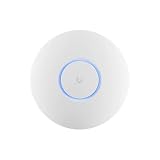
- Ubiquiti U6+ AP WiFi6 access point for network expansion
- Features 1xGbE PoE connection with dual-display support
- 2x2 dual-band technology for optimal wireless coverage
Separate WiFi limits from mesh, cable, AP, and internet limits
Consider the scope of the slowdown. One client points first toward that client or its local signal. Several clients on one AP suggest checking that AP’s airtime, client load, and uplink. Multiple APs or wired devices affected too suggest looking beyond WiFi, including the gateway, switch, WAN, and internet service.
- Wireless mesh: Check whether the AP uses a wireless uplink and how many hops separate it from a wired connection. A wired backhaul avoids the performance cost of relaying traffic over WiFi where installation is practical.
- AP or switch link: Check the negotiated link speed and inspect the cable and connectors for damage or degradation before replacing anything. Ubiquiti identifies a degraded AP cable as a possible bandwidth bottleneck.
- Capacity and airtime: If many active clients compete on one AP, use utilization and client diagnostics to determine whether load distribution or additional capacity is justified.
- Upstream connection: Compare wired and wireless results and check the gateway and WAN path. A WiFi speed test cannot exceed a limiting internet connection, and an internet plan’s advertised rate is not a WiFi throughput promise.
Ubiquiti’s speed guidance covers AP cabling and upstream bottlenecks. Consider a new AP only when measurements point to a coverage or capacity problem and the existing network can support the intended setup.
Treat SSID features as troubleshooting controls
SSID and roaming settings can affect particular clients, but none is a universal speed switch. Change one setting at a time, retest the affected device, and undo changes that cause incompatibility or worse performance.
Recommended Free Tools
- Band steering: Encourages compatible clients toward 5 GHz; it cannot make a client support a band or guarantee that the client will choose it.
- Fast roaming/BSS transition: Can help clients move among multiple APs, but older devices may have compatibility problems.
- Multicast enhancement: May improve reliability for streaming or discovery traffic; some smart-home devices may work better with it disabled.
- Minimum data rates and DTIM: Affect airtime, roaming, and support for legacy or IoT devices. Adjust them only to address a diagnosed issue.
Ubiquiti describes the effects and trade-offs in its UniFi WiFi SSID and AP Settings Overview.
Check 6 GHz compatibility before tuning it
6 GHz requires a compatible WiFi 6E or WiFi 7 UniFi AP, a compatible client, and regional support. Ubiquiti’s setup guidance requires WPA3 and Protected Management Frames. A client may stay connected on 6 GHz with less coverage than it would have on 5 GHz, so check both stability and AP placement. If a particular client is unreliable, consider disabling 6 GHz for that device only as a last resort. A wider channel cannot benefit a client that does not support it. See Getting Started with 6 GHz.
Quick Recap
Use a one-change-at-a-time diagnosis
- Record the affected client, location, symptom, serving AP, band, signal, PHY rate, and current Tx/Rx rates.
- Compare that client near the AP and in the problem area; check whether other clients or wired devices share the slowdown.
- If only one client is affected, verify its WiFi capabilities and driver before changing AP-wide settings.
- If location matters, address signal and AP placement; check for a wireless mesh hop and prefer wired backhaul where practical.
- If signal is strong but performance remains poor, inspect channel interference, utilization, and airtime before changing width or power.
- If multiple clients on one AP are affected, check AP load and negotiated uplink speed, including cable condition. If wired devices are slow too, investigate the upstream path.
- Make one configuration change, repeat the same tests, and keep the change only if it improves the relevant result without harming stability or latency.
Product prices and availability are accurate as of the date/time indicated and are subject to change. Any price and availability information displayed on Amazon at the time of purchase will apply.

