
Do these 3 things before closing this tab:
1Clear out junk files and repair common Windows errors2Fix the driver behind crashes, sound loss and screen glitches3Repair Windows errors before they cause bigger problemsiTechGuides is reader-supported. When you buy through links on our site, we may earn an affiliate commission. As an Amazon Associate I earn from qualifying purchases. Learn more
If your TV will not turn on, first press the power button on the TV itself, then check its power connection and try a working wall outlet. These checks help separate a remote problem or interrupted power from a TV fault. If the set turns on but has sound and no picture, that is a different symptom; follow the relevant model-specific guidance rather than treating it as a simple no-power problem.
First, check whether the TV has power
Try the TV’s own power button
Use the physical power button on the television, not the remote. Its location varies by model; check the TV’s manual if you cannot find it. Sony’s Help Guide for a TV that does not turn on recommends this check. If the TV starts with its own button, troubleshoot the remote instead of assuming the TV has no power.
Check the cord and outlet
Make sure the power cord is firmly connected at the TV and the wall. Then test a different wall outlet that you know works. For a Roku TV, connect it directly to the wall rather than through a power strip or extension cord. If it is plugged into a GFCI outlet and power may have been interrupted, press that outlet’s Reset button. These are among Roku’s recommended checks in its Roku TV power and picture troubleshooting guide, last updated June 26, 2026.
Recommended Free Tools
Try a reversible power reset
Sony and BRAVIA TVs
Unplug the TV’s power cord from the outlet and leave it disconnected for two minutes. Reconnect it, then wait 10–20 seconds for the TV to initialize before pressing power again. Sony’s Help Guide describes this sequence; instructions can vary by model and platform, so confirm that the guide applies to your exact TV.
#1 Best Overall

- Compatible devices - Roku TV models ONLY
- NOT compatible devices - Roku Streaming Players, Roku Audio, or other smart TVs
- Made by Roku for Roku TV - Stream easy with an official Roku remote, designed to work seamlessly with your Roku TV.
- No juggling remotes - Power up your Roku TV, adjust the volume, mute, and control your streaming with an official Roku remote.
- Simple setup - Ready to control your Roku TV in just one step. Comes with pre-installed batteries.
Other brands and models
Do not assume the Sony reset timing or any Roku-specific reset procedure applies to every television. For other models, use the manufacturer’s instructions for the exact model. Avoid opening the TV or attempting internal repairs: a no-power symptom alone does not establish which component, if any, has failed.
Roku TV factory reset: use it only as a later step
A factory reset is not the same as unplugging the TV. Roku says a factory reset removes personalized information and means you must complete Guided Setup again. Use it only after the basic power checks and only if the reset instructions match your TV’s design.
Rank #2

- PACKAGE INCLUDED: Pack of 2 remote. Two-pack remote control can solve your home backup remote control needs. Infrared remote no pairing or programming needed. Just Insert 2 Pcs*AAA batteries to get it work (Batteries and manual are not included)
- EXACT COMPATIBILITY: Acoyer universal remote control only for Roku Series TVs, Compatible with TCL Roku TVs, Hisense Roku TVs, Onn Roku TVs, Sharp Roku TVs, Element Roku TVs, Westinghouse Roku TVs, Philips Roku TVs, Insignia Roku TVs, JVC Roku TVs, RCA Roku TVs, Hitachi Roku TVs and Sanyo Roku TVs Series.
- NOT APPLICABLE: TV Remote is NOT Compatible with Roku Stick/Streaming Stick/ Box(1/2/3/4(HD/LT/XS/XD))/ Ultra/ Express/ Premiere/ Player. NOT Compatible with TCL TV, Hisense TV, Onn TV, Sharp TV, Element TV, Westinghouse TV, Philips TV, Insignia TV, JVC TV, RCA TV, Hitachi TV and Sanyo TVs.
- SHORTCUT BUTTONS: Get to favorite apps quickly with shortcut buttons and it have 4 shortcuts buttons. Precisely control far from 10 meters/30 feet and it supports over total 160,000 clicks for all buttons via approved tests.
- AFTER SALE SERVICE: Acoyer remote controls with an unlimited return and refund service in 1-year warranty. If you have any questions or concerns regarding your order, please feel to reach out to us.
- Some Roku TVs have a recessed Reset button on the back. Roku’s instructions say to press and hold it for approximately 12 seconds with a straightened paper clip or ball-point pen.
- Roku Pro Series TVs use a different two-button method.
- Some Roku TVs without a Reset button use a 10-second hold of the TV’s power button.
These methods are not universal. Follow the current Roku instructions for your TV and do not try a method just because the buttons appear similar.
Find the right help for Insignia and onn TVs
Insignia and onn sell Roku TVs, but not every television from either brand uses Roku TV software. Do not apply Roku’s reset steps to an Insignia or onn Fire TV or another operating-system variant without confirming they fit that model.
Rank #3

- No Setup Required: the remote control replacement for Roku TV which can solve your home backup remote control needs. Simply Insert 2 AAA batteries (Not included) , then turn on your device and it will automatically pair, perfectly replacing your original remote control
- Upgrade Material: our remote replacement is made of high quality ABS and silicone, ABS improves durability, can be used for a long time, and also keeps you and your children away from harm
- Completely Compatible: the replacement remote controls only for roku series TVs, compatible with TCL Roku TVs, Hisense Roku TVs, Onn Roku TVs, Sharp Roku TVs, Philips Roku TVs
- Notice: Only for roku tv, not for roku stick/roku box 1/2/3/4(HD/LT/XS/XD), not for roku ultra/roku express/roku premiere and roku player
- Key Features: Get to favorite apps quickly with 8 shortcut buttons for Disney, Netflix, YouTube, Hulu, Primevideo sling, Apple TV+ and VUDU. Strongest signal by mature infrared technology, farther transmitting distance, stable performance, following the movement of the tv page without obvious delay
- Find the model number on the TV’s rear panel. On a Roku TV, you may also find it under Settings > System > About, if the TV can be accessed.
- Use Roku’s TV manufacturer support directory, last updated October 6, 2026, to locate the support route for Insignia or onn Roku TVs.
- For non-Roku models, go to the manufacturer’s support page and search using the exact model number.
The directory identifies support routes; it is not a universal troubleshooting guide for every Insignia or onn television.
Independent reader supportYour contribution helps us test, update, and keep practical guides available for everyone.When to contact support or arrange repair
If the TV still will not turn on after the safe checks that apply to its model, contact the manufacturer or arrange service. Sony says a continuing power issue may require repair, while Roku directs users to the TV manufacturer if its troubleshooting steps do not resolve the problem. Roku also distinguishes a TV that will not power on from one that has no picture but still plays sound. For either unresolved symptom, its guidance is to contact the manufacturer.
Rank #4
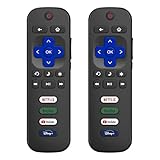
- 【Only for Roku Smart TVs】Only work with Smart TVs that have Roku built-in. Compatible with TCL Roku TVs, Onn Roku TVs, Hisense Roku TVs, Sharp Roku TVs, Westinghouse Roku TVs, Philips Roku TVs, Insignia Roku TVs, JVC Roku TVs, RCA Roku TVs, Hitachi Roku TVs and Sanyo Roku TVs Series.
- 【Not for Roku Stick or Box】Not for Roku Stick, Not for Roku Box, Not for Roku Express/Ultra.【Not for Voice Command】Not for Voice Search/Headphone. Only work with Roku Smart TVs, and NOT compatible with regular TCL/Hisense/Onn/Sharp/Philips/Insignia TV.
- 【No Programming Required】Works immediately after inserting 2*AAA batteries. (Batteries are not included). No pairing or programming required.
- 【Two Remotes, One Price】Two remotes are included in the package. For over 35 years, we've been dedicated to manufacturing high-quality remotes for millions of Americans.
- 【Four Shortcut Buttons】Quickly access your favorite apps with four dedicated shortcut buttons — Disney+, Netflix, YouTube, and Hulu. Enjoy precise control from up to 40 feet away. All buttons are tested to withstand over 200,000 clicks/10 years for long-lasting durability.
Describe what you tested: whether the TV’s physical button worked, which outlet you tried, and whether the set produces sound or any picture. These observations help support staff determine the appropriate next steps without guessing at an internal fault.
Quick wins for a faster PC:
Repair Windows errors before they cause bigger problemsFix Now →Scan for outdated or missing drivers - takes under a minuteDriver Scan →Clear out junk files and repair common Windows errorsFree Scan →Quick Recap
Best Value

- Compatible Devices: Universal remote only for Roku TV, Compatible with Roku TV models, TCL Roku TV, Onn Roku TV, Hisense Roku TV, Westinghouse Roku TV, Sharp Roku TV, Philips Roku TV, JVC Roku TV, RCA Roku TV, Insignia Roku TV, Element Roku TV, or Sanyo Roku TV.
- NOT Compatible Devices: NOT Compatible with Roku players or Roku audio devices, NOT Compatible with TCL TV, Onn TV, Hisense TV, Westinghouse TV, Sharp TV, Philips TV, JVC TV, RCA TV, Insignia TV, Element TV, or Sanyo TV.
- Easy to Use: No setup or programming needed—just insert 2 AAA batteries to use (batteries not included).
- Pre-set Channel Shortcuts: Get instant access to your favorite streaming apps with a single click.
- What You Get: IDGPUW replacement remote for roku tv*3, user manual*3, and Industry-Leading 1-Year IDGPUW Care, plus Lifetime Technical Support.
Product prices and availability are accurate as of the date/time indicated and are subject to change. Any price and availability information displayed on Amazon at the time of purchase will apply.

