
Do these 3 things before closing this tab:
1Fix the driver behind crashes, sound loss and screen glitches2Clear out junk files and repair common Windows errors3Scan for outdated or missing drivers - takes under a minuteiTechGuides is reader-supported. When you buy through links on our site, we may earn an affiliate commission. As an Amazon Associate I earn from qualifying purchases. Learn more
Yes—a TV and soundbar can connect over Bluetooth if both support Bluetooth audio pairing. Put the soundbar in pairing mode, then select it from the TV’s sound-output or Bluetooth menu. For a wired connection, check for HDMI ARC/eARC first; optical is a fallback when both devices have optical ports. The exact options and supported audio formats depend on the models.
Can any Bluetooth soundbar pair with any TV?
No. A soundbar’s ability to pair with a phone does not establish that a particular TV can send audio to it over Bluetooth. Check the TV’s sound-output options and the manuals for both devices for support for TV-to-soundbar Bluetooth audio. Menus and available features vary by model. LG’s Bluetooth guidance and Samsung’s setup instructions describe manufacturer-specific steps, not one universal menu path.
How to connect a soundbar to a TV by Bluetooth
- Check both manuals to confirm that the TV supports Bluetooth audio output and the soundbar supports pairing with a TV.
- Put the soundbar into Bluetooth pairing mode.
- On the TV, open the Sound or Sound Output menu and choose Bluetooth devices or the equivalent wireless-speaker option.
- Select the soundbar in the available-device list and set it as the TV’s audio output.
Menu names differ by TV brand and model. LG’s guidance, for example, lists different routes for different webOS generations. A nearby phone or tablet that was previously paired with the soundbar may connect automatically; temporarily disconnect it if the TV cannot find the soundbar. If pairing succeeds but audio does not play, confirm that the TV still has the soundbar selected as its output. LG’s support guidance describes both model-specific menus and automatic connection to previously paired devices.
The Tool Desk
Outbyte PC Repair FREEClear out junk files and repair common Windows errorsFree Scan →Outbyte Driver Updater FREEFix the driver behind crashes, sound loss and screen glitchesFind Drivers →Bluetooth, HDMI ARC/eARC, optical and analog compared
| Connection | Basic setup | What to consider |
|---|---|---|
| Bluetooth | Pair the soundbar, then select it in the TV’s sound-output menu. | No cable is needed, but both devices must support TV-to-soundbar Bluetooth audio. Features and format support vary. Sony notes restrictions in its documented Bluetooth setup; these should not be assumed to apply to every model. |
| HDMI ARC/eARC | Connect the TV’s labelled HDMI ARC/eARC port to the soundbar’s corresponding TV ARC/eARC port. | A regular HDMI port is not enough for audio return. The connection’s available formats depend on the devices and the signal path. |
| Optical digital audio | Connect the TV’s optical audio output to the soundbar’s optical input. | A wired fallback if both devices have optical ports. Format support can be more limited than HDMI; Samsung says optical cannot carry some higher-bitrate formats, including Dolby Digital Plus. |
| Analog audio | Use only compatible analog jacks described in both manuals. | Connectors and capabilities depend on the devices; check the manuals before relying on this option. |
Samsung describes HDMI as its best-quality cable connection, but the supported formats still depend on the exact equipment. Its comparison below is specific to the connection categories in Samsung UK’s setup guidance, updated 11 August 2026—not a universal guarantee for other brands or models. See Samsung’s setup guide.
#1 Best Overall
![192KHz HDMI ARC to Optical Audio Adapter, HDMI ARC Cable for Soundbar to TV, Plug & Play Optical Audio to HDMI A RC Converter, Optical Audio Splitter Support for PCM/LPCM/Dolby 5.1/DTS 5.1[No CEC]](https://m.media-amazon.com/images/I/31K-FVSFFsL._SL160_.jpg)
- HDMI ARC to Optical Audio Converter for Clear Sound: This HDMI to optical audio adapter extracts high-quality digital audio from your TV's HDMI ARC port and converts it to optical outputs, enabling seamless connections to soundbars, home theater systems, and amplifiers. The ARC audio converter Only for TV with “ARC” interface, Not for “HDMI eARC”or "HDMI " interface
- Audio Formats Setting: Experience immersive audio with support for PCM, LPCM Dolby 5.1 or DTS 5.1 surround sound formats. This optical to HDMI converter delivers theater-quality audio to your sound system, ensuring every movie, game, or show sounds crisp and dynamic. If using Dolby 5.1 or DTS 5.1 audio formats, the sound system also need support Dolby Audio or DTS.
- Plug & Play: Enjoy pristine sound with a 192KHz/24-bit sampling rate for minimal signal loss. This HDMI eARC to optical adapter requires no drivers or software—simply connect the included HDMI ARC cable, plug in the USB for power, and your system is ready to go. The HDMI ARC port features two LED indicators: POWER/INPUT. When the USB port is connected to a power source, the “Power” indicator will illuminate. When the HDMI ARC port is connected to a TV, the “Input” indicator will illuminate.
- Wide Compatibility: This sleek HDMI audio extractor works with most TVs featuring HDMI ARC ports from brands like Samsung, Sony, and more. Its compact build saves space and integrates neatly into your entertainment setup. We've implemented specialized zero-latency synchronization optimization in ARC mode, ensuring perfect audio-visual synchronization at all times to fully meet your everyday viewing needs! NOTE: LG TVs are not supported! LG TVs are not supported!
- Note on Setup & CEC Functionality: 1. Ensure Your HDTV support ARC function. 2. Connect the ARC Audio Converter's USB cable to your TV's USB port or another device's USB port. 3. Ensure the HDMI cable is connected to the HDTV ARC interface 4. Ensure your TV’s audio output is set to PCM, LPCM, Dolby 5.1, or DTS 5.1. Refer to the TV's user manual for setup. 5. Note that volume control via TV remote may not work over optical output; use your sound system’s remote instead. To adjust the volume using the TV remote control, both the TV and soundbar must support CEC functionality.
| Audio format in Samsung UK’s table | eARC | HDMI | Optical | Bluetooth |
|---|---|---|---|---|
| Dolby TrueHD, including uncompressed Dolby Atmos | Yes | No | No | No |
| Dolby Digital Plus, including compressed Dolby Atmos | Yes | Yes | No | No |
| Dolby Digital 5.1 | Yes | Yes | Yes | Yes |
| Dolby Digital | Yes | Yes | Yes | Yes |
These entries reflect Samsung’s published table, not every implementation. Confirm the format support in the manuals for the TV, soundbar and any source device in the signal path before choosing a connection for a particular audio format.
How to connect with HDMI ARC or eARC
- Find the HDMI port on the TV labelled ARC or eARC and the corresponding TV ARC/eARC port on the soundbar.
- Connect those ports with an HDMI cable. Samsung recommends a cable labelled “High Speed” or “High Speed with Ethernet” in its setup instructions; check the supplied cable and both manuals before buying another.
- Select the matching HDMI input on the soundbar, then select the soundbar under the TV’s Sound Output menu.
Using an ordinary HDMI port instead of the labelled ARC/eARC port will not provide audio return through ARC/eARC. LG confirms the need to use the ARC/eARC port; exact labels and features vary by product.
Rank #2
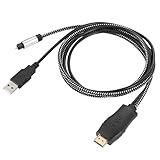
- HDMI eARC to Optical Cable(1.05m/41in): The eARC Audio Extractor connects to an eARC or ARC-compatible TV, allowing the TV's audio to be transmitted to a sound system via the converter's built-in optical SPDIF digital audio cable. The eARC audio converter Only for TV with “eARC” or ''ARC'' interface. Please make sure your TV supports the ARC feature and set the audio output to “ARC/EARC” and set the audio format to PCM
- Plug and Play: This eARC/ARC audio converter eliminates the need for additional cables or conventers, and serves as a bridge between the TV and sound system. Plug-and-Play. Easy to install and use. It is ideal for home theaters, meeting, conference rooms, and other settings.【Length Confirmation: This cable is 3 ft (approx. 41 inches) long. Please measure the distance between your TV and audio equipment.】
- Clear Sound Quality: Supports 24-bit/192kHz audio sampling rate. Ensures pure sound quality. Make the eARC Audio Connector a convenient option for your home entertainment by seamlessly connecting your TV to your soundbar
- Audio Formats Setting: Compatible with multiple audio Formats. Set the TV Audio Formats to PCM, Dolby 5.1 or DTS 5.1. Bringing you high-quality audio for an immersive entertainment experience. If using Dolby 5.1 or DTS 5.1 audio formats, the sound system also need support Dolby Audio or DTS
- Note: The optical connections do NOT support CEC volume control. Please adjust volume directly on your soundbar. Connect the eARC/ARC audio converter's USB cable to your TV's USB port or another USB-compatible port. LED indicator will lights up when HD interface is connected. Using eARC/ARC Audio Adapter Setting up the TV(1.Insert the HD plug of the eARC/ARC Audio Converter into the TV's eARC or ARC interface of the TV set. 2. Set the TV's audio output to ARC or eARC 3.Set Audio Format to PCM. 4.Turn on CEC 4.Refer to the TV's user manual for setup
How to connect with optical audio
- Connect the TV’s optical digital audio output to the soundbar’s optical input.
- Select the optical input on the soundbar. Samsung’s instructions call this DIGITAL AUDIO IN (D.IN.).
- If the TV does not switch automatically, select Audio Out/Optical or the equivalent in the TV’s sound settings.
Input and menu names vary, so use the labels and manuals for your devices. Optical is useful when both products have the required jacks, but it does not carry every format supported by some HDMI connections.
What’s actually slowing this PC down?
Pick the symptom - the matching free tool is one click away.
Which connection should you choose?
- Choose Bluetooth if both devices support TV audio pairing and avoiding a cable matters more than relying on a wired connection. The manuals determine which features are available.
- Check HDMI ARC/eARC first if you want a wired connection and both devices have matching labelled ports. Confirm the format support you need in the manuals.
- Use optical as a fallback if ARC/eARC is unavailable but both devices have optical ports, keeping its format limitations in mind.
- Consider analog only when both devices have compatible jacks and their manuals specify how to use them.
Bluetooth range, audio delay, codecs, remote-control behavior and lip-sync performance are not established uniformly across the models covered by manufacturer support guidance. Check the documentation for your exact TV and soundbar rather than assuming a result based on the connection type alone.
Quick Recap
Rank #4

- [📺eSynic Professional ARC/eARC Audio Extractor]----:Our eSynic Professional eARC/ARC to Optical Audio Extractor Support eARC/ARC Input to Optical Output Perfect for HDTV Input to Optical Soundbar/Wireless Headphones/Home Theateretc Output [Only Support HDTV Input& Only for ARC/eARC Interface]
- [🎵Support 192KHz High Sampling Rate] ----:Our eSynic eARC/ARC to Optical Converter Supports High Sampling Rate up to 24bit/192KHz, Ensuring Clean Sound Quality.By Seamlessly Connecting the TV to the Speaker Bar, This HDMI Audio Converter Makes the eARC/ARC Audio Extractor an Indispensable Upgrade for Home Entertainment Systems.
- [🔄Support High Quality Audio Formats]---:Our eSynic Professional eARC/ARC Audio Converter Supports PCM 2.0, Dolby 5.1 and DTS 5.1 Audio Formats to Provide You with High Quality Audio for an Immersive Entertainment Experience.Equipped with 5.1 Channel and 2.0 Channel Audio Signal Indicators, It is Convenient for You to Accurately Understand the Working Status of the Product and Improve the You Experience.
- [🔌 + ⚡Plug and Play]---: Our eSynic Professional ARC to Optical Audio Adapter Work With USB Power supply No Software or Drivers are Required. Its Advanced Audio Processing Technology Efficiently and Cleanly Extracts Audio Signals from HDTV (ARC/eARC) Ports, Minimizing Potential Interference or Distortion and Providing You with a Smooth, Lag-free and High-quality Audio Experience.
- [*✨Widely Applications*]----:Our eSynic Independent Innovation Research and Development eARC/ARC to Optical Converter has a Wide Range of Compatibility, and can be Used with HDTVS to Soundbars, Wireless TV Headphones, and Home Theater. (However, it Should be Noted that Due to the Characteristics of the Optical Interface, the Product Does Not Support CEC Remote Volume Control.)
Rank #3

- TV HDMI eARC/ARC Audio Extractor: Extracts audio from your TV's eARC or ARC-enabled HDMI port and outputs it via Optical (Toslink/SPDIF) to soundbars, amplifiers, wireless headphones, or home theater systems —— Not Reversible, Converts audio output to Optical only | 📌Use correct HDMI port (No standard HDMI) | 📌Adjust TV volume via audio device.
- High-Resolution Audio Support: Achieves a 192kHz/24-bit sampling rate, ensuring high-fidelity, lossless audio transmission. Compatible with PCM 2.0, Dolby 5.1, and DTS 5.1 formats, delivering immersive and detailed sound.
- eARC Upgrade for Better Audio Performance: eARC provides significantly higher bandwidth than ARC, supporting lossless audio formats such as Dolby 5.1, DTS 5.1, providing a superior audio experience for your home theater system.
- LED Audio Status Indicators: Includes LED indicators for 5.1-channel and 2.0-channel audio output, allowing you to easily monitor the audio mode in real-time for a seamless experience.
- Aluminum Alloy Housing: Delivers enhanced Electromagnetic shielding and Heat dissipation. Durable design ensures reliability in environments with multiple electronic devices, supporting stable signal integrity and consistent, professional-grade audio performance.
Product prices and availability are accurate as of the date/time indicated and are subject to change. Any price and availability information displayed on Amazon at the time of purchase will apply.

