
Do these 3 things before closing this tab:
1Fix the driver behind crashes, sound loss and screen glitches2Repair Windows errors before they cause bigger problems3Scan for outdated or missing drivers - takes under a minuteiTechGuides is reader-supported. When you buy through links on our site, we may earn an affiliate commission. As an Amazon Associate I earn from qualifying purchases. Learn more
The best starting setup for Tomb Raider I–III Remastered is Modern Controls, the look direction that feels natural to you, HD/Modern Graphics Mode with the new brightness slider, and pickup highlighting when an item is difficult to see. Switch to Tank Controls and Classic Graphics when you want the original movement model and presentation. You can change the control and graphics choices without restarting a level, so there is no need to commit permanently.
The recommendations below account for the original trilogy’s deliberate movement, the modern camera option, and changes introduced through Update 4 and Challenge Mode Patch 3 on August 20, 2026. Menu wording and which options appear can vary by platform, so install the latest patch before troubleshooting a setting that behaves incorrectly.
Start with the movement model that matches how you play
The most consequential setting is the control scheme. Modern Controls use the right stick for full camera control and move Lara relative to the camera. Tank Controls preserve the original directional model, where Lara turns and moves according to her facing rather than the camera. Neither is universally superior: Modern is easier to learn if you expect contemporary third-person controls, while Tank remains valuable for the precise, deliberate traversal that defines the classic games.
The Tool Desk
Outbyte PC Repair FREERepair Windows errors before they cause bigger problemsFix Now →Outbyte Driver Updater FREEScan for outdated or missing drivers - takes under a minuteDriver Scan →| Setting | Movement and camera behavior | Best fit | Trade-off |
|---|---|---|---|
| Modern Controls | Right stick provides free camera control; Lara moves in relation to the camera | Players who want camera-relative movement, easier exploration and familiar modern handling | Some classic jumps and positioning can feel less predictable until you learn to align the camera |
| Tank Controls | Lara follows the original directional model; turning is deliberate and tied to her facing | Players seeking the original precision, rhythm and grid-like traversal | Turning takes longer, and camera management requires more manual correction |
When Modern Controls are the better choice
Choose Modern Controls if you normally play third-person action games with the right stick controlling the view. You can circle a room while keeping an object in sight, make small camera corrections before a jump and steer Lara without first rotating her body to the desired direction. This is particularly helpful in unfamiliar rooms and during combat, where maintaining a target in view matters more than reproducing the 1990s input model.
#1 Best Overall

- Solve Ancient Mysteries: Uncover treasures of the ancient world by solving puzzles and unravelling mysteries lost to the ravages of time.
- Globe-trotting Adventure: Follow Lara Croft around the world and face off against deadly foes and dangerous myths.
- Lovingly Restored: Experience the classics boasting upgraded graphics, with the option to switch to the original polygon look at any time.
- Languages: Voice: English, French, German, Japanese, Russian; Subtitles: English, French, German, Italian, Spanish, Italian, Portuguese, Dutch, Russian, Czech, Danish, Finnish, Greek, Hungarian, Polish, Brazilian Portuguese, Swedish, Turkish, Ukrainian, Slovak, Japanese, Simplified Chinese.
The modern scheme is inspired by the control approach used in the Legend, Anniversary and Underworld era, according to the official PlayStation feature article. It is still an interpretation of the original games rather than a replacement for their level design, so practice camera alignment in a safe area before attempting a difficult platforming sequence.
When Tank Controls are the better choice
Tank Controls are the right choice when you value consistent, intentional steps over fluid camera-relative movement. Lara’s direction is easier to reason about once you understand her facing, and the scheme can make narrow ledges, block-sized jumps and timing-based traversal feel more repeatable. It also preserves the original games’ muscle memory for returning players.
The classic scheme remains available through a menu toggle. If a room feels harder with Modern Controls, switch modes rather than changing several other settings at once; that isolates whether the movement model is the real issue.
What’s actually slowing this PC down?
Pick the symptom - the matching free tool is one click away.
Set inversion deliberately, then test it before playing seriously
Look inversion is a personal preference, but it can feel “wrong” when the control scheme changes. After selecting Modern or Tank Controls, enter a safe area and test the look direction with the camera at a neutral angle. Move the right stick up and down, then pan left and right. If the vertical response is opposite to what you expect, change the inverse-look or inverse-controller option and test again.
- Select the control scheme in the game’s controls or options menu.
- Find the look or controller inversion setting and change only the vertical direction first.
- Return to gameplay and rotate the camera around Lara, then make a short movement and a simple jump.
- Keep the setting only after the camera responds consistently while Lara is standing, moving and aiming.
Update 4 corrected an inversion problem that occurred while holding the Look button with Tank Controls. Challenge Mode Patch 3, released August 20, 2026, also fixed inverse-controller settings more broadly. If inversion still appears reversed, apply the latest update, fully restart the game and retest the option in both normal movement and Look mode. A setting that behaves correctly in one mode but not the other may indicate an outdated build rather than an incorrect preference.
Rank #2
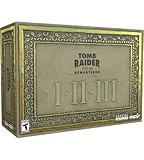
- For the first time ever, play the complete Tomb Raider I-III trilogy experience with all expansions and secret levels on modern platforms in this definitive collection.
- Physical Copy of Tomb Raider I-III Remastered for Playstation 5
- Tomb Raider I-III Remastered Collector's Edition Box
- Classic Lara Croft Pistol Replicas in Lit Shadowbox
- Polygonal Figures - In-Game Accurate Models from Each Title
Choose HD/Modern or Classic Graphics without locking yourself in
The graphics toggle lets you switch between the modern and original presentations during gameplay. It also works in Photo Mode, so you can compare a scene without leaving the level. Use this as a practical way to decide which presentation helps you read the environment instead of treating the choice as permanent.
What changes in HD/Modern Graphics Mode
The modern presentation adds updated models for Lara, enemies and environments, along with new baked and real-time lighting, textures and visual effects. These changes can make geometry and interactive objects easier to distinguish, but they also alter the mood and contrast of some rooms. A brighter or more detailed scene is not automatically easier to navigate; adjust brightness separately when dark areas remain difficult to read.
When Classic Graphics are preferable
Classic Graphics are the better fit if you want the original textures, lighting balance and atmosphere. They are also useful when a modern effect makes an edge, switch or platform harder for you to identify. The toggle is available during play, allowing a quick side-by-side check before you decide which mode to keep for a level.
Challenge Mode Patch 3 documents 60 frames per second in Classic Graphics Mode on the platforms covered by that update. The note does not provide a universal performance benchmark for every platform or mode, so treat 60 FPS as the published Classic-mode behavior for supported builds rather than a guarantee that every configuration renders every mode at that rate.
Improve visibility with brightness and pickup highlighting
If dark rooms or small objects are slowing you down, change visibility settings before altering the control scheme. Patch 3 added a brightness slider for all three games, with the best results intended for HD Graphics Mode. Raise it gradually until floor edges, doorways and climbable surfaces are distinguishable without washing out the scene.
Rank #3

- THE ORIGINAL TOMB RAIDER TRILOGY REMASTERED – Experience Lara Croft's legendary adventures with Tomb Raider I–III Remastered, including all original expansions and secret levels: Unfinished Business, Golden Mask, and The Lost Artifact in one definitive PC collection.
- MODERN GRAPHICS OR ORIGINAL POLYGON MODE – Explore iconic tombs and ancient ruins with enhanced visuals while enjoying the freedom to switch to the original classic polygon graphics whenever you choose.
- DISCOVER LOST TREASURES AND ANCIENT MYSTERIES – Travel across the globe as Lara Croft, solve intricate environmental puzzles, uncover hidden secrets, and battle dangerous enemies inspired by myths and forgotten civilizations.
- PREMIUM COLLECTOR'S ITEMS INCLUDED – This Collector's Edition features the PC game, a collectible presentation box, classic Lara Croft pistol replicas displayed in a lit shadowbox, three polygonal character figures, three 12 x 16-inch posters, premium trading cards, the official soundtrack, and a collectible SteelBook case.
- CELEBRATE A GAMING ICON – Perfect for longtime Tomb Raider fans, retro gaming enthusiasts, and collectors seeking an exclusive edition packed with premium display pieces and memorabilia honoring Lara Croft's original adventures.
- Switch to HD/Modern Graphics Mode.
- Open the display or graphics options and locate the brightness slider.
- Increase brightness one step at a time while looking at a dark room, not a bright outdoor area.
- Return to the same room after saving the setting; use the lowest level that reveals the details you need.
Patch 3 also added pickup highlighting in HD Graphics Mode. Turn it on when keys, ammunition or other small pickups blend into the environment. Leave it off if you prefer to search visually and want a cleaner classic-style presentation. The highlight is an accessibility and navigation aid, not a change to item placement or puzzle logic.
An official March 12, 2024 patch had already improved visibility in dim areas by updating lighting and making pickup items more visible. It also corrected disappearing textures. If a texture vanishes or a pickup is suddenly harder to see, confirm that the game is updated before assuming your brightness choice caused the problem.
Decide whether boss health bars belong in your HUD
Update 4 made boss health bars optional. Turn them on for a first playthrough if you want immediate feedback about whether attacks are working and how much longer a fight may last. Turn them off if you prefer a minimal HUD and want to judge progress from the boss’s animation and behavior.
This option changes information on screen, not enemy strength, timing or damage. If you are learning a boss pattern, enabling the bars temporarily can help you separate a failed strategy from an attack that simply does too little damage; disable them later if you want a less assisted presentation.
Use Photo Mode to compare lighting and models
Photo Mode can freeze gameplay, pose Lara and switch between Classic and modern graphics. It is therefore more than a screenshot tool: it provides a controlled way to inspect how lighting, models and effects change in the same frame.
Rank #4

- Tomb Raider I, II & III Remastered /Switch
- Pause the game and open Photo Mode.
- Freeze a scene that contains the surface, pickup or lighting effect you want to inspect.
- Toggle between modern and Classic Graphics while the frame is frozen.
- Adjust the camera or Lara’s pose if you need to examine an edge, texture or shadow from another angle.
- Exit Photo Mode and keep the presentation that makes the level easiest for you to read.
A practical setup sequence for a new playthrough
Changing one category at a time avoids confusing a camera problem with a visibility problem. Use this order when starting a game or after installing a patch.
- Update first. Install the latest available game update. Update 4 addressed Modern-control aiming, turning and sprinting, while Patch 3 addressed brightness, pickup highlighting and inverse-controller behavior.
- Choose movement. Start with Modern Controls for camera-relative movement, or Tank Controls if classic precision is your priority.
- Calibrate inversion. Test vertical look and Look-button behavior in a safe room before entering combat or a difficult traversal section.
- Choose graphics. Use HD/Modern Graphics for updated models, lighting and effects; use Classic Graphics for the original visual style.
- Set brightness. In HD/Modern mode, raise the slider only enough to reveal dark-room details.
- Choose pickup highlighting. Enable it when small items disappear into the scenery; disable it for an unassisted search.
- Choose boss bars. Keep them on while learning encounters, or turn them off for a cleaner HUD.
- Verify in Photo Mode. Compare the two graphics presentations in a frozen scene and confirm that your chosen mode shows the details you care about.
Recommended presets by player preference
| Player priority | Controls | Graphics | Visibility aids | HUD |
|---|---|---|---|---|
| Modern third-person handling | Modern Controls | HD/Modern | Brightness adjusted; pickup highlighting as needed | Boss bars on while learning |
| Original movement precision | Tank Controls | Classic or HD/Modern according to readability | Brightness is most useful in HD/Modern; highlighting optional | Boss bars optional |
| Classic presentation | Tank Controls | Classic Graphics | Visual search without highlighting | Boss bars off for a minimal HUD |
| Low-visibility rooms | Either scheme | HD/Modern | Brightness slider and pickup highlighting enabled | Boss bars based on combat preference |
Troubleshoot the most common setting problems
The camera moves opposite to your expectation
Check vertical inversion after confirming which control scheme is active. Test both ordinary right-stick look and the Look button with Tank Controls, because Update 4 specifically fixed a problem in that combination. If the behavior remains inconsistent, restart after installing the latest patch and test again before changing other controls.
A dark room is still hard to read
Use HD/Modern Graphics Mode, then adjust the brightness slider while standing in the affected room. The slider was designed primarily for HD Graphics Mode. Also check whether a missing texture or visual artifact is present; the March 12, 2024 update corrected disappearing textures that could make surfaces and items appear absent.
Pickups blend into the environment
Enable pickup highlighting in HD Graphics Mode. If you want the original presentation, compare the same location in Classic Graphics and use deliberate camera sweeps and lighting changes instead of assuming the item is missing.
Quick wins for a faster PC:
Fix the driver behind crashes, sound loss and screen glitchesFind Drivers →Repair Windows errors before they cause bigger problemsFix Now →Modern Controls make a familiar jump unreliable
Switch temporarily to Tank Controls and align Lara’s facing before the jump. Classic levels were built around the original directional model, and a deliberate turn can be easier to reproduce than a camera-relative correction. You can switch back after the traversal section.
Classic mode does not appear to run at 60 FPS
Patch 3 documents 60 FPS in Classic Graphics Mode for the platforms it covers. Confirm that the patch is installed and that Classic Graphics is actually selected. Because the published note does not establish one frame-rate behavior for every platform, a different result may be platform-specific rather than a faulty setting.
Bottom line: change settings by problem, not by habit
Use Modern Controls when camera-relative movement and right-stick viewing remove friction; use Tank Controls when deliberate, original-style positioning matters more. Test inversion immediately after changing modes. For visibility, HD/Modern Graphics with a restrained brightness increase and optional pickup highlighting is the most useful combination. Choose Classic Graphics when the original lighting and textures are part of the experience you want, and use Photo Mode to compare both presentations before committing. Boss health bars are a personal HUD choice, while current patches make all of these options more reliable than the launch release.
Quick Recap
Product prices and availability are accurate as of the date/time indicated and are subject to change. Any price and availability information displayed on Amazon at the time of purchase will apply.
Recommended Free Tools

