
Windows Errors? Fix Them Before They Spread
Repair common Windows errors and clear accumulated junk for a smoother, more stable PC - no reinstall needed.Free scan · no reinstallCrashes, No Sound, or Screen Glitches?
Random freezes, missing sound and display glitches usually trace back to one bad driver. Find and replace yours safely.Free scan · under a minuteiTechGuides is reader-supported. When you buy through links on our site, we may earn an affiliate commission. As an Amazon Associate I earn from qualifying purchases. Learn more
Time Management Tools Compared: Reclaim, Clockwise & Clockify leads to two different recommendations: choose Reclaim to automatically schedule tasks, routines, focus time, and meetings; choose Clockify to record hours, bill clients, and report on projects. Clockwise is no longer a live option: Reclaim says Clockwise ended service on March 27, 2026.
That distinction matters more than a conventional feature checklist. Reclaim plans when work should happen, while Clockify records where time went after work happens. The products can complement each other, but neither is a complete replacement for the other.
Key takeaways
- Reclaim is the better fit for automatic calendar optimization, protected focus time, flexible routines, and task scheduling.
- Clockify is the better fit for timers, manual time entries, billable hours, project budgets, timesheets, expenses, and reports.
- Reclaim’s documentation says Clockwise officially ended service on March 27, 2026, so Clockwise should be treated as migration context rather than a current product.
- Clockify’s pricing page displayed a free tier for up to five users and paid U.S. plans from $3.99 per user per month with annual billing when checked on August 18, 2026.
- Reclaim and Clockify may be used together when a team needs both forward-looking calendar planning and retrospective time reporting, although this is a practical combination rather than a verified native integration.
What is the difference between Reclaim, Clockwise, and Clockify?
Reclaim and Clockwise belonged primarily to the calendar-optimization category, while Clockify is primarily a time-tracking, billing, and project-reporting platform. Reclaim tries to place flexible work into future calendar openings; Clockify asks users to record the time they actually spend.
Recommended Free Tools
| Need | Best fit |
|---|---|
| Automatically place tasks into available calendar time | Reclaim |
| Protect a weekly focus-time target | Reclaim |
| Reschedule flexible recurring routines when meetings move | Reclaim |
| Find mutually acceptable meeting times | Reclaim |
| Record hours spent for clients, projects, or tasks | Clockify |
| Track billable time and generate reports | Clockify |
| Manage timesheets, estimates, expenses, and invoice-related workflows | Clockify |
| Replace a former Clockwise workflow | Reclaim or another current calendar assistant |
The simplest decision rule is: choose Reclaim when the question is “When should this work happen?” Choose Clockify when the question is “How much time did this work take?”
#1 Best Overall

- Atomic Clock Digital - The clock has a built-in receiver that automatically synchronizes itself with WWVB radio broadcast, which will set and update time automatically every midnight, no need to set manually. It has four time zones selectable: EST, PST, MST, CST.
- Digital Wall Clock Battery Operated - This digital clock is supported by 3xAAA battery (Not included). No wires make it can be placed anywhere; and the low battery symbol reminds you to replace the battery in time to avoid getting the wrong time due to low power.
- Digital Wall Clock Large Display - The LCD screen measures 6.2 in x 3.7 in and it displays time, indoor temperature, day and date. Each section is showed separately, allows you to read the content easily and quickly.
- Atomic Clock with Auto DST - With DST on, the time would go forward or backward one hour automatically in daylight saving time, no worry about time changing on that day. If for no need, it could also be turned off, then “AUTO DST” disappears from screen.
- Digital Alarm Clock - The alarm could be turned on or off according to your need, just click the button to set. When alarm is set on, there is a bell icon staying on screen. The icon will disappear if alarm is set off. When alarm goes off, just click any button to stop it on the day.
Reclaim vs. Clockify at a glance
Reclaim is a proactive scheduling tool, while Clockify is a retrospective measurement tool. The comparison below evaluates each product by user outcome rather than by an artificially equal feature checklist.
| Criterion | Reclaim | Clockify | Clockwise |
|---|---|---|---|
| Primary job | Plan and protect future time | Record and analyze time | Formerly optimized calendars |
| Automatic calendar scheduling | Core capability | Not the core product | Historically core |
| Task-to-calendar scheduling | Yes | Not the main workflow | Historically limited or different |
| Flexible recurring routines | Habits | Not the main workflow | Flexible holds and routines historically |
| Focus-time protection | Yes | Reports time spent but does not primarily defend it | Historically yes |
| Time tracking | Time-analysis features | Core capability | Not a current product |
| Billable hours and invoicing | Not its main strength | Strong fit | Not available as a current product |
| Project and client tracking | Through tasks and integrations | Core capability | Not available as a current product |
| Team administration | Paid tiers | Strong on higher tiers | Shut down |
| Google Calendar and Outlook | Both supported according to Reclaim migration material | Check current integration requirements separately | Historical |
| Best for | Calendar-overloaded knowledge workers | Freelancers, agencies, service teams, and operations teams | Former users seeking migration context |
What does Reclaim do well?
Reclaim automatically schedules flexible work around existing calendar commitments. Reclaim’s feature documentation describes Tasks, Habits, Focus Time, and other scheduling features as ways to reserve and defend time rather than merely document it afterward.
Tasks reserve work before deadlines
Reclaim Tasks let a user provide a task, duration, priority, and deadline so Reclaim can reserve work time on the calendar. The important benefit is proactive allocation: a deadline-driven task receives calendar space before the due date instead of remaining only in a task list.
Focus Time protects a weekly target
Reclaim Focus Time dynamically defends a weekly focus-time goal. The tool can move flexible blocks as the schedule changes, subject to the user’s rules and available calendar space. Focus Time is therefore different from a Clockify report showing that focused work happened; Focus Time attempts to make that work possible in advance.
Habits handle recurring routines
Reclaim Habits are designed for recurring routines that need to flex around meetings and other commitments. A routine such as exercise, planning, or learning can move within its permitted scheduling rules instead of being permanently fixed to one time.
Smart Meetings, buffers, and Scheduling Links
Reclaim also includes Smart Meetings for finding workable meeting times, Buffer Time for protecting breaks after meetings, and Scheduling Links for allowing others to book according to availability rules. These features address the hidden cost of meetings: transition time, fragmented calendars, and repeated scheduling coordination.
Calendar Sync and integrations
Reclaim supports calendar synchronization across calendars and documents integrations involving services such as Google Tasks, Todoist, Asana, ClickUp, Jira, Linear, Slack, Zoom, Google Meet, Google Calendar, and Outlook. Integration availability can depend on the plan and may change, so verify the current Reclaim pricing and integration information before choosing a plan.
For teams, Reclaim documents analytics, out-of-office coordination, and delegated access for assistants and administrators. Those capabilities make Reclaim more relevant to managers and executive-support workflows than a purely personal calendar app.
What changed in Reclaim 2.0?
Reclaim’s current documentation distinguishes the older Reclaim 1.0 experience from the newer Reclaim 2.0 experience. The Reclaim 2.0 overview describes a redesigned product with an in-app assistant that can help identify conflicts, protect meaningful work, balance meetings with tasks, and preview calendar changes before applying them.
Readers should not assume that every Reclaim account displays identical menus or workflows. Some users may still be on Reclaim 1.0, and migration instructions written for former Clockwise users may reference the older product experience. Before following a step-by-step guide, check which Reclaim generation the account uses.
Rank #2

- 【Large LED Display】The 11" corded wall clock features full-screen time display and large bright numbers, easy to read. Here are all the features that you might expect for a digital wall clock: Time, Date, Week, Temp or Humidity. ATTENTION: Must be plugged in to work. Not battery operated.
- 【Auto Dimming】You can manually adjust the brightness by 10-levels. The digital wall clock has an auto dimming function; When turned on, the brightness will auto decrease at night, not to disturb your sleep.
- 【Time & Calendar Alternation】The digital wall clock's time and calendar can be set to alternating display mode.
- 【Memory Function】The wall clock also has a time memory function, no need to reset after power outage (2*AAA batteries need to be installed in advance).
- 【Remote Control & DST】All the settings and operations of the big wall clock do not need to be removed, but can be easily done with the remote control(2*AAA batteries need to be installed). You can easily change DST time in March and November using the remote.
Who should use Reclaim?
Reclaim is a strong candidate for a knowledge worker, manager, consultant, or small team whose main problem is meeting overload and constantly rearranged work. Reclaim is especially relevant when work is deadline-driven but flexible, because flexible tasks and routines can be scheduled around immovable commitments.
- Choose Reclaim if meetings repeatedly consume the time intended for important work.
- Choose Reclaim if tasks should appear on the calendar automatically instead of remaining in a separate task list.
- Choose Reclaim if recurring routines need to move without being forgotten.
- Choose Reclaim if a team wants a shared approach to focus time, scheduling links, meeting buffers, or out-of-office coordination.
- Choose Reclaim if you need a current calendar assistant after Clockwise.
Reclaim is less suitable when the primary requirement is an audited timesheet, client invoice, attendance record, labor-cost report, or detailed project accounting. A scheduled block represents intended allocation; it does not automatically prove that the user completed the work during that block.
What are Reclaim’s limitations?
Reclaim works best when the calendar is accurate and the user supplies realistic priorities, working hours, availability windows, deadlines, and event rules. Calendar automation becomes confusing when the calendar contains stale, tentative, duplicated, or incorrectly categorized events.
- Unrealistic task estimates can cause constant rescheduling or insufficient work blocks.
- Conflicting priority rules can produce results that do not match the user’s intuition.
- Too many flexible commitments can leave too little genuinely flexible space.
- Repeatedly moved blocks can create notification fatigue.
- Multiple calendars can create duplicate or ambiguous availability.
- A scheduled block can be mistaken for completed work.
- The free plan has a limited scheduling horizon and limited calendar-sync or integration allowances.
- Reclaim’s documentation is split between 1.0 and 2.0, so interface names and workflows may differ.
Reclaim also notes in its Clockwise migration FAQ that a Chrome extension was not currently available. Former Clockwise users should therefore check feature-by-feature rather than assume that every old workflow has a one-to-one replacement.
A safer rollout is to begin with a small number of high-priority tasks, realistic durations, explicit working hours, and a short scheduling horizon. Review the resulting calendar before enabling broad automation across every routine and project.
What does Clockify do well?
Clockify records time against projects, clients, tasks, and tags through a start/stop timer or manual entries. Clockify’s current plan comparison covers time tracking, projects, reporting, billing, scheduling, expenses, data regions, SSO, SCIM, and audit capabilities across its tiers.
Timers and manual entries
A user can start and stop a timer while working or enter time manually afterward. The workflow is useful for freelancers and service teams that need to associate hours with a client, project, task, or billable category.
Projects, estimates, reports, and billing
Clockify supports projects, clients, tags, billable and nonbillable time, timesheets, reports, time estimates, project budgets, expenses, receipts, and invoice-related workflows. These capabilities answer questions such as how many hours a project consumed, whether a budget is approaching its limit, and which client work is billable.
Team scheduling and administration
Clockify’s higher-tier capabilities include team scheduling and assignments, time-off management, kiosk use, data-region selection, SSO, SCIM, custom subdomains, control accounts, and audit logs. Kiosk mode can be relevant to on-site or limited-seat workers, but kiosk pricing should not be confused with ordinary full-seat pricing.
Quick wins for a faster PC:
Scan for outdated or missing drivers - takes under a minuteDriver Scan →Clear out junk files and repair common Windows errorsFree Scan →Fix the driver behind crashes, sound loss and screen glitchesFind Drivers →Clockify is therefore more appropriate than Reclaim for agencies, consultants, contractors, and operational teams that need records suitable for reporting, billing, or administrative review.
Rank #3

- Small & Compact Plug-in Alarm Clock for Every Room: Perfect for modern homes ditching cable boxes—place it under your living room TV to replace the lost clock display, or use it as a sleek bedside alarm in the bedroom. Also ideal for home offices, gyms, or dorm desks.
- 3-in-1 Multispace Display: Stay organized with a bright, easy-to-read display showing time, date, and indoor temperature—no more switching apps or devices.Its compact design fits seamlessly into any space, keeping you on schedule whether you’re streaming, working, or sweating.
- Adjustable Brightness for Day & Night: Adjust screen brightness in 4 levels+OFF with a single touch of the top-mounted button—no confusing menus. Keep it dim for a distraction-free bedroom at night or boost it for clear visibility in bright gyms or sunlit home offices.
- Plug-in Power Clock: This alarm runs on AC power (cable included), ensuring it’s always on and accurate.
- Sleek, User-Friendly Design:Designed with simplicity in mind: a single top button controls brightness, while the clean, modern look complements any decor—from minimalist living rooms to industrial-style home gyms. Its intuitive interface works for all ages.
Who should use Clockify?
Clockify is the better choice when the user needs to prove how time was spent rather than automatically decide when time should be spent.
- Choose Clockify if you bill clients by the hour.
- Choose Clockify if managers need timesheets, project budgets, estimates, assignments, or labor-cost reporting.
- Choose Clockify if expenses, receipts, billable versus nonbillable categories, or invoice workflows matter.
- Choose Clockify if an organization needs kiosk access, time-off workflows, audit trails, SSO, SCIM, or data-region options.
- Choose Clockify if project and client reporting is more important than automatic focus-time protection.
Clockify is not primarily a calendar optimizer. Clockify can show recorded hours, but Clockify does not fundamentally decide that a task should occupy Tuesday at 10 a.m. or defend a weekly focus-time goal.
How much does Clockify cost?
Clockify’s pricing page displayed the following U.S.-region prices on August 18, 2026. Prices are per user or seat, annual and monthly billing differ, and the live pricing page should be checked immediately before purchase.
What’s actually slowing this PC down?
Pick the symptom - the matching free tool is one click away.
| Plan | Annual-billing display | Monthly-billing display | Positioning |
|---|---|---|---|
| Free | Free | Free | Core time tracking; comparison showed up to five users |
| Basic | $3.99/user/month | $4.99/user/month | Administration |
| Standard | $5.49/user/month | $6.99/user/month | Timesheeting and billing |
| Pro | $7.99/user/month | $9.99/user/month | Profit and productivity |
| Enterprise | $11.99/user/month | $14.99/user/month | Control and security |
| Productivity Suite | $12.99/user/month | $15.99/user/month | Clockify plus team communication and project management |
The free-plan limit deserves particular attention. The current comparison showed up to five users for the free tier, while paid tiers included unlimited users. Older articles may describe Clockify’s free offering differently, so do not rely on an undated “unlimited free users” claim.
Clockify also states that active or invited users listed on the Team page occupy paid seats, while deactivated users do not. A team should audit invitations and deactivated accounts before estimating its monthly bill. A low advertised per-seat price can produce a materially different total when many users are invited.
Advanced reports, billing, administration, data-region selection, SSO, SCIM, and audit functions may require paid tiers. Kiosk-only seats have their own pricing treatment and should be evaluated separately from ordinary seats.
What are Clockify’s limitations?
Clockify depends on accurate timers, manual entries, or configured automation. Users can forget to start or stop timers, and correcting incomplete entries can become a second administrative task.
- Clockify does not primarily decide when future work should happen.
- Manual corrections can reduce the reliability of reports.
- Teams may incorrectly treat tracked hours as a direct measure of employee performance.
- Invited users can create unexpected seat costs.
- Free-tier limits may appear only after a team has built a workflow around the product.
- Incorrect billable and nonbillable settings can distort reports and invoices.
- Historical exports, billing records, and data migration should be considered before changing plans.
Recorded hours are evidence about logged activity, not a complete measure of productivity or outcomes. A team should combine time reports with deliverables, quality, deadlines, and client results rather than rewarding raw hours alone.
What happened to Clockwise?
Clockwise should not be presented as a current third option. Reclaim’s migration documentation says that Clockwise officially shut down and ended services on March 27, 2026. Because the shutdown date is supported here by Reclaim, a company that promotes migration to its own product, readers should treat the statement as vendor-attributed information and verify any later developments independently.
Clockwise’s historical workflows included focus-time protection, flexible meetings, flexible holds, Scheduling Links, calendar synchronization, team analytics, meeting breaks, and Slack status synchronization. Reclaim’s migration FAQ maps those workflows to Focus Time, Smart Meetings, Habits, Tasks, Scheduling Links, Calendar Sync, Team Stats, Buffer Time, and Slack Status Sync. These are vendor-provided equivalents, not proof that the user experience is identical.
Rank #4
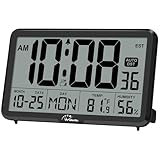
- Digital Wall Clocks, with Temperature and Humidity - These digital wall clocks are equipped with sensors help you master the most accurate indoor temperature and humidity and create the most comfortable indoor environment.
- Wall Clocks Battery Operated, Autoset: Once you insert three AA batteries(Not included), it will automatically set the correct time. You just need to select the time zone. It also has a Memory BATTERY in case of a power outage, in which case it will retain the correct time and date when the power returns.(non-atomic clock)
- Digital Clock Large Display: Wall clock or table clock with large number display, this desk alarm clock with 8 minutes snooze has been designed with absolute simplicity in mind, so you can operate and read it without any more ado
- Desk Clock, Accurate Date and Time: The wall clock set calendar, timer and alarm clock in one, accurate dates and times will keep you from missing important meetings and appointments
- Wall Clock for Livingroom Decor: 12 or 24 Hours display formats; 8 time zones to choose and an option to turn daylight savings time on or off; temperature display in Celsius or Fahrenheit; accurate date and time. These digital wall clocks work well for office, bathroom or kitchen decor.(no backlight)
Former Clockwise users should export their data and request historical data before it becomes unavailable. Reclaim says data is not transferred automatically; the user must take explicit action. The migration guide also refers to Reclaim 1.0 workflows, while Reclaim 2.0 has a separate product experience.
The Tool Desk
Outbyte Driver Updater FREEFix the driver behind crashes, sound loss and screen glitchesFind Drivers →Outbyte PC Repair FREEClear out junk files and repair common Windows errorsFree Scan →Reclaim documented a 100% price-match guarantee for migrating Clockwise accounts for 12 months, but the stated offer deadline was June 30, 2026. That deadline had passed by August 18, 2026, so the offer should not be advertised as active without direct confirmation from Reclaim.
| Former Clockwise workflow | Vendor-described Reclaim equivalent | Important caveat |
|---|---|---|
| Focus time | Focus Time | Equivalent mapping is supplied by Reclaim |
| Flexible meetings | Smart Meetings | Confirm rules and interface in the current account |
| Flexible holds and routines | Habits or Tasks | Not necessarily identical behavior |
| Scheduling Links | Scheduling Links | Check current plan availability |
| Calendar synchronization | Calendar Sync | Review calendars and duplicate events during migration |
| Team analytics | Team Stats | Metrics and reports may differ |
| Meeting breaks | Buffer Time | Configure buffers explicitly |
| Slack status synchronization | Slack Status Sync | Verify current integration access |
Which tool should you choose for your situation?
| Situation | Recommendation | Reason |
|---|---|---|
| Individual with too many meetings | Reclaim | It can protect focus time and schedule flexible tasks around meetings. |
| Freelancer billing clients | Clockify | It records billable hours against clients and projects and supports reporting. |
| Agency with project budgets | Clockify | Estimates, budgets, reports, billing, and expenses are central requirements. |
| Manager protecting team focus time | Reclaim | Calendar-based focus and meeting coordination address the planning problem. |
| Hybrid team needing planned and actual hours | Reclaim plus Clockify | Reclaim allocates future time; Clockify records actual time. Integration and workflow complexity must be assessed. |
| Former Clockwise customer | Evaluate Reclaim and other current calendar assistants | Clockwise is no longer a live signup option, and migration mappings are not guaranteed one-to-one. |
| Small business needing attendance or kiosk workflows | Clockify | Kiosk, time-off, administration, and reporting features are closer to the requirement. |
Can Reclaim and Clockify be used together?
Reclaim and Clockify can be used together when a team needs both calendar planning and actual-time reporting. Reclaim can place tasks, focus blocks, and routines on the calendar, while Clockify can record billable or project time against clients and work categories.
This combination should be treated as a workflow decision, not as a verified native integration claim. Teams need clear rules for whether a Reclaim calendar block must also become a Clockify entry, how interruptions are corrected, and which system is authoritative for deadlines, utilization, billing, and project budgets.
The combined setup is most defensible when the value of accurate project or billing records justifies the additional data entry and administration. It is unnecessary complexity for an individual who only wants protected focus time or for a freelancer who only needs simple time entries.
Free tools Windows power users keep installed
One-click scans. No signup required.
How should you test either tool before committing?
- Define the problem in one sentence. Write either “I cannot find time for important work” or “I cannot document where project time went.” The first points toward Reclaim; the second points toward Clockify.
- Audit the inputs. For Reclaim, clean stale events, duplicate calendars, working hours, priorities, deadlines, and task estimates. For Clockify, define projects, clients, tasks, tags, billable rules, and user roles.
- Start small. In Reclaim, schedule a few high-priority tasks and routines rather than every commitment. In Clockify, test one project and one reporting period before building a complex taxonomy.
- Check the output against reality. A Reclaim schedule should leave usable work blocks without excessive movement. A Clockify report should distinguish billable, nonbillable, project, and corrected time accurately.
- Calculate the real team cost. Include annual versus monthly billing, active and invited users, free-tier limits, kiosk-only seats, and any required paid administration or security features.
- Plan for export and cancellation. Confirm how calendar rules, time entries, reports, and billing records will be retained if the subscription changes.
What should you do if calendar automation behaves badly?
When Reclaim repeatedly moves work or creates unexpected blocks, first inspect calendar accuracy, task duration, priority, deadline, working hours, availability windows, and event-protection rules. Duplicate calendars and overly broad “flexible” settings are common sources of confusing availability.
- Protect immovable personal and recurring commitments explicitly.
- Reduce the number of flexible tasks and routines.
- Replace optimistic estimates with realistic durations.
- Use a shorter scheduling horizon while testing.
- Review proposed changes before expanding automation.
- Do not treat a scheduled block as proof that the work was completed.
What should you do if Clockify reports are inaccurate?
When Clockify reports do not match reality, inspect forgotten timers, manual corrections, project and client assignments, billable settings, tags, time zones, and user status. Establish a simple correction process before adding more categories.
- Require users to stop timers when changing projects or clients.
- Use a consistent rule for rounding and manual corrections.
- Separate billable and nonbillable work at the entry stage.
- Review reports against project budgets and deliverables.
- Remove or deactivate users who should not occupy paid seats.
- Use tracked hours as an operational input, not as the sole measure of performance.
Are either of these tools a complete productivity platform?
Neither Reclaim nor Clockify should be treated as a complete replacement for project management, payroll, HR, workforce monitoring, knowledge management, or a full task-management system. Reclaim focuses on calendar allocation; Clockify focuses on time records and related project or billing workflows.
A team that needs automatic activity capture, payroll, attendance, deep notes, habit coaching, comprehensive project management, invoicing, and calendar optimization in one system may need a broader platform or several integrated tools. Alternatives such as Toggl Track, Harvest, Hubstaff, Motion, Sunsama, Akiflow, or Jibble may be worth separate research, but current prices and detailed feature claims for those products were not verified in this comparison.
Do these 3 things before closing this tab:
1Repair Windows errors before they cause bigger problems2Scan for outdated or missing drivers - takes under a minute3Clear out junk files and repair common Windows errorsPricing and buying advice
Compare the billing unit and required capability, not just the lowest advertised plan. Reclaim’s pricing page displayed monthly per-seat prices of $12 for Starter and $18 for Business, with Enterprise available by contact, alongside a free Lite plan when the dossier was checked. Reclaim’s pricing, scheduling ranges, integrations, and promotions can change, so confirm the live Reclaim plans and prices before purchase.
Best Value
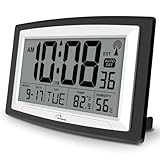
- Atomic Digital Clock Auto Set (No back light) - Using radio frequencies broadcast from NIST’s Colorado , the clock will automatically set to the correct time. Automatically adjusts to Daylight Savings Time while set the DST on.
- Atomic Wall Clocks Battery Operated with Alarm - This digital calendar alarm day clock required 3 “AA” long life batteries (Not included) for operation, no redundant wires, easy to use. Turn on the alarm clock before going to bed, it will wake you up in the morning.
- Clock with Temperature and Humidity - Excellent wall clocks for living room, office, bathroom decor,etc. Help you monitor indoor temperature and humidity to avoid cold. 12/24 hours formats with clear Hours, Minutes and Seconds display; 4 Time Zone to choose.
- Atomic Clock Large Display for seniors - WallarGe atomic clock has been designed with absolute simplicity in mind, you can also set it manually without any more ado. Wall clock or desk clock, large and clear digital display, easy to read.
- Digital Wall Clock with Accurate Date and Time - This digital calendar alarm day clock can help you keep track of dates, days of the week and times to avoid missing any important meetings, appointments or anniversaries, work well for work, study or travel schedule.
Clockify’s displayed U.S. prices on August 18, 2026 ranged from free for the comparison’s up-to-five-user Free tier to $14.99 per user per month for Enterprise with monthly billing, with lower displayed rates for annual billing. Active and invited users can occupy paid seats, and advanced administration, security, billing, and reporting features may require a paid plan.
Do not use the former Clockwise migration price-match offer as a buying incentive without confirmation. Reclaim’s documented deadline was June 30, 2026, and the deadline had passed by the date of the supplied pricing research.
Final recommendation
Need to decide when work happens? Choose Reclaim. Reclaim is built to schedule and protect future tasks, routines, focus blocks, buffers, and meetings.
The Tool Desk
Outbyte PC Repair FREEClear out junk files and repair common Windows errorsFree Scan →Outbyte Driver Updater FREEScan for outdated or missing drivers - takes under a minuteDriver Scan →Need to prove how time was spent? Choose Clockify. Clockify is built for timers, time entries, clients, projects, billable work, reports, estimates, expenses, and team controls.
Looking for Clockwise today? Do not sign up for Clockwise. Reclaim’s migration documentation says Clockwise ended service on March 27, 2026; evaluate Reclaim or another currently available calendar assistant, export historical data where possible, and verify feature and pricing differences before migrating.
Frequently Asked Questions
Is Reclaim a replacement for Clockify?
Reclaim is not a like-for-like replacement for Clockify. Reclaim schedules and protects future calendar time, while Clockify records time spent on projects, clients, and tasks for reporting or billing.
Is Clockwise still available?
Clockwise should not be treated as a current product. Reclaim’s migration documentation says Clockwise ended service on March 27, 2026; former users should export data and evaluate current calendar-assistant alternatives.
Can Reclaim and Clockify be used together?
Yes, Reclaim and Clockify can be combined when a team needs Reclaim for calendar planning and Clockify for actual-time reporting. The combination adds workflow complexity, and a native integration was not verified in this comparison.
What is Clockify’s current free-user limit?
Clockify’s pricing comparison showed up to five users on the Free tier when checked on August 18, 2026. Because plan limits can change, verify the live pricing page before building a team workflow around the limit.
The Bottom Line
Bottom line: Reclaim and Clockify solve opposite halves of time management. Reclaim helps decide when work should happen; Clockify helps document where time went. Clockwise is historical migration context, not a current buying option.
Quick Recap
Product prices and availability are accurate as of the date/time indicated and are subject to change. Any price and availability information displayed on Amazon at the time of purchase will apply.
Quick wins for a faster PC:
Scan for outdated or missing drivers - takes under a minuteDriver Scan →Clear out junk files and repair common Windows errorsFree Scan →Fix the driver behind crashes, sound loss and screen glitchesFind Drivers →
