
iTechGuides is reader-supported. When you buy through links on our site, we may earn an affiliate commission. As an Amazon Associate I earn from qualifying purchases. Learn more
If your Tapo robot vacuum will not recharge or cannot find its dock, start with the dock’s power and the robot’s switch, then clean the charging contacts and black recharge sensors. Next, place the dock on a hard, level floor with the required clearances, start a new run from the dock so the map has a reliable reference, and remove obstacles from the return route. A close-range docking test separates navigation problems from a failed dock, sensor, charging assembly or battery. Menus and controls vary by RV model, so use the exact model manual before resetting or replacing anything.
Identify the failure before changing settings
“Not charging” and “not finding the dock” are related but different symptoms. A robot that reaches the dock and aligns with it has a navigation success; if its battery level does not rise, investigate power, contacts, sensors or the charging hardware. A robot that never reaches the dock has a navigation, map, placement or obstruction problem. A robot that approaches, bumps the dock and leaves may have a sensor-alignment or contact issue.
| What you observe | Most useful first checks |
|---|---|
| Dock LED is dark or the robot shows no charging indication | Power adapter at both ends, dock outlet, robot power switch, then dry-contact cleaning |
| Robot touches the dock but battery percentage does not increase | Spring contacts, robot charging contacts, recharge sensors and protective film |
| Robot finishes cleaning but cannot locate the dock | Dock placement, clear route, map reference and whether the run began at the dock |
| Robot stops before reaching the dock | Chairs, boxes, clothes, toys, bags, wires and other snags along the return path |
| Close-range test still fails after all checks | Exact-model support; a dock supply, charging assembly, sensor or battery may need service |
The instructions below apply broadly to Tapo RV and RVA models, but button layouts, map tools and dock hardware differ by model and region. Find the model label on the robot or dock and keep the exact model number and hardware version available.
What’s actually slowing this PC down?
Pick the symptom - the matching free tool is one click away.
1. Verify dock power and the robot’s switch
Check the dock indicator
Remove the robot from the dock and look for the dock indicator or LED described in your model’s guide. A dark indicator can mean the dock is not receiving power, the adapter is loose or the model uses a different indicator behavior. Do not assume the robot is charging simply because it is physically touching the dock.
#1 Best Overall

- 10x GRIP-ROOT WEAVE - TRAP MORE, WORK LESS: Ultra-absorbent microfiber towels for car Grip Root weave works like PLANT ROOT FOLLICLES, sucking up & LOCKING AWAY 8x to 10x its weight in liquid, particulates, moisture, grime and dirt in far LESS TIME than traditional ‘Heavy Duty’ Cleaning Rags. Each towel features a 2.5mm thick design, providing enhanced durability and better grip during use.
- WON’T LINT, SCRATCH, PILL, SWIRL, SHED, or BLEED like thin, cheaply made microfiber towels for cars. RAPID DRY release layers make these the ideal microfiber towels for cars, creating that spectacular, SWIRL-FREE MIRROR SHINE with our cleaning rags. With a solid 2.5mm thickness, these towels are built to prevent damage while ensuring optimal performance.
- LASTS 1200+ WASHES - That’s 3.27 YEARS worth of use in this 12-pack of COMMERCIAL GRADE 300 GSM Reuseable Cleaning Cloth. The 2.5mm thickness and OVERLOCK BRAIDED STITCHING makes the ideal SUSTAINABLE SOLUTION for cleaning every SURFACE, crack, and CREVICE in your home, garage, or office.
- SOAK IT UP FASTER - 4X’s MORE ABSORBENT than COTTON cloths, these are the microfiber cleaning cloth for cars to get if you want an ALL PURPOSE cleaning towel, crafted with 2.5mm thickness to scoop up your messes, oils, and liquids FASTER than a SPONGE
- UNRIVALED POWER - TEST THIS GRIP-ROOT technology risk-free for 30 full days. With a 2.5mm thick design, it LOCKS AWAY dirt, dust, grime, spills, and messes better than any other high-performance cleaning rags you’ve tried.
Reseat the adapter
- Unplug the adapter from the wall outlet.
- Reconnect it firmly to the dock, then reconnect the wall end.
- Check the cable for cuts, crushed sections or a loose connector.
- Observe the dock indicator again.
Use the adapter supplied for that dock. Substituting an adapter with a different voltage, polarity or connector can damage the charging system.
Confirm the robot is on
Some models have a physical power switch. The RV10 guide specifically directs owners to check that switch; newer series use different controls. Turn the robot on according to its own manual before testing the dock. If the robot was switched off, it cannot respond to the dock or report a charging state in the app.
2. Clean the charging contacts and recharge sensors
Why both surfaces matter
Charging requires two things: the robot must detect the dock and align with it, and the electrical contacts must touch cleanly. TP-Link describes the optical part this way: “The robot vacuum uses the recharge sensor (the black part on the front) to detect signals emitted by the charging dock to locate it and recharge.” Dust, residue or a remaining protective film can interfere with either stage.
Dry-clean the parts
- Turn the robot off if your model permits it.
- Use a clean, dry cloth; a dry microfiber cloth is suitable.
- Wipe the dock’s spring contacts.
- Wipe the matching charging contacts on the underside or front of the robot.
- Wipe the black recharge sensor on the robot’s bumper.
- Wipe the matching sensor area on the dock.
- Inspect for transparent protective film and remove it completely if present.
Do not spray cleaner, water or lubricant onto the contacts or sensors. Moisture can create corrosion or an electrical fault. If a spring contact is stuck, bent or visibly damaged, do not force it; note the condition for support.
3. Put the dock where the robot can align with it
Use a hard, level surface
Set the dock on a flat, hard floor. Carpet can let the dock sink or tilt, changing the height and angle at which the robot approaches the contacts. The dock should sit firmly against a wall rather than move when the robot nudges it.
Respect the clear approach area
Leave at least 1.5 metres of open space in front of the dock and 0.5 metres on each side. These are clearance recommendations from TP-Link’s recharge guidance, not a guarantee that every room layout will work. A central, spacious position is preferable in a large home because it gives the robot a shorter, less obstructed route from different rooms.
Avoid optical and reflective interference
Keep the dock away from direct sunlight and glossy surfaces such as glass or mirrors. Bright light and reflections can interfere with the dock’s optical signals or the robot’s ability to recognize the approach. Move decorative panels, reflective mats and similar objects if they sit beside or opposite the dock.
Windows Errors? Fix Them Before They Spread
Repair common Windows errors and clear accumulated junk for a smoother, more stable PC - no reinstall needed.Free scan · no reinstallCrashes, No Sound, or Screen Glitches?
Random freezes, missing sound and display glitches usually trace back to one bad driver. Find and replace yours safely.Free scan · under a minuteRank #2

- Microfiber 16 x 12-inch cleaning cloth (24-pack); ideal for cleaning cars, trucks, boats, and more
- Ultra-soft and non-abrasive car drying towels; will not scratch paints, vinyl, glass, finishes, or other surfaces
- Effectively cleans either dry or with liquid cleaners for streak-free results and a lint-free shine
- Durable and absorbent; soak up 8 times their own weight
- Can be reused hundreds of times
After moving the dock, leave it in that position for mapping. Repeatedly relocating it can make an existing map inaccurate even when the physical placement is good.
4. Re-establish the dock reference in the Tapo map
Always begin a run from the dock
Start every cleaning run with the robot seated at the dock or immediately leaving it from the dock. The app records the dock’s location during this process, and the map should display a dock icon. Starting from another room can leave the robot without a dependable reference for the return trip.
Check for map distortion
Overlapping maps, rotated layouts or other misalignment can cause the robot to calculate a route to the wrong position. If the displayed rooms do not match the home, stop relying on that map for return tests. Follow the exact model’s instructions for rebuilding or restoring it rather than deleting maps at random.
Lock or back up the map where supported
Most models provide Tapo App > Map > Map Management > Lock. Map Lock helps prevent accidental edits after a successful map has been created. RV30 and RV30C do not provide Map Lock; those models use Backup & Restore instead. The RV20 Max Plus manual also requires starting from the dock and confirming that the dock icon appears on the map.
App labels and availability can change with firmware, app version and region. If a menu is absent, do not substitute a reset from another RV series; open the manual for the exact model and hardware version.
5. Clear the return route and perform a close-range test
Remove common snags
Before a navigation test, clear chairs, boxes, clothing, toys, plastic bags, wires and any low object that can catch a wheel or brush. Also clear the space immediately in front of and beside the dock. A robot can map around an object during one run and meet it in a different position during the return trip.
Test from near the dock
- Confirm the dock is powered and the contacts and sensors are dry and clean.
- Place the robot a short distance in front of the dock, facing it as squarely as practical.
- Start the return-to-dock command in the Tapo app or with the model’s physical control.
- Watch whether it detects the dock, aligns, touches the contacts and shows a charging state.
A successful close test points to a route, map or room-layout problem rather than an immediate charging failure. If the robot cannot dock even from nearby, repeat the contact and sensor inspection and then move to model-specific support.
Rank #3
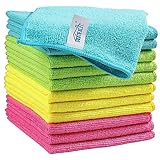
- Effective Streak-Free Cleaning: Clean kitchen countertops, windows, mirrors, bathroom surfaces, stainless steel, car interiors, glass, and other delicate surfaces with just water or your favorite cleaner—these microfiber cloths deliver streak-free, neat results with minimal effort, making daily cleanup fast and simple
- Lint-Free & Scratch-Safe: Soft to the touch and completely lint-free, these cloths won't scratch or damage delicate finishes like glass, ceramic, coated metals, car paint, or polished surfaces—clean with confidence on everything from household appliances to auto trim and electronics screens
- Ultra-Absorbent for Spills, Polishing & Drying: Designed to quickly soak up liquids, grease, and grime, making them ideal for drying dishes, wiping spills, polishing stainless steel, buffing car surfaces, and tackling everyday messes around the house, garage, or workshop—efficient cleaning without extra effort
- Reusable, Washable & Long-lasting: Machine washable and reusable hundreds of times with reinforced edges that hold up wash after wash—a durable replacement for disposable paper towels that cuts down on waste and repeat purchases for families, pet owners, detailers, and busy households
- Versatile Across Home, Auto & Beyond: Equally suited for general household cleaning, interior car detailing, exterior buffing, polishing wheels, wiping down tools, workshop surfaces, electronics, eyeglasses, screens, and more—simply rinse after use or toss in the washing machine; a practical all-around choice for homes, garages, shops, and small businesses
Use the result to choose the next remedy
| Close-range result | Likely area | Next action |
|---|---|---|
| Robot detects the dock and battery begins rising | Long route, map reference or an obstacle | Keep the dock fixed, start runs there, repair map alignment and clear the route |
| Robot reaches the dock but repeatedly backs away | Dirty or misaligned contacts, sensor obstruction or a tilted dock | Repeat dry cleaning, remove film, level the dock and inspect for bent contacts |
| Robot aligns but no charging indication appears | Dock power delivery, contact circuit or charging assembly | Verify adapter and LED again, then contact support with the test result |
| Robot does not recognize the dock at close range | Recharge sensor, dock signal or model-specific control | Use the exact manual and support channel; do not apply another model’s reset sequence |
| Robot cannot approach because of furniture or a narrow passage | Physical route | Move the obstruction or relocate the dock to a compliant, open position |
Run a controlled diagnostic instead of changing several things at once
Changing the dock, deleting the map and resetting the robot in one session makes it difficult to identify the cause. Use a repeatable order: first verify the LED and adapter, then clean the contacts and sensors, then measure the dock’s open area, then inspect the map, and finally perform the close-range test. After each change, make one return attempt and record what happened.
Note four observations in the Tapo app or on paper: whether the dock LED is lit, whether the robot recognizes the dock, whether it physically touches the contacts, and whether the battery indication changes. These observations distinguish a navigation fault from a charging fault more reliably than an error message alone. If the robot works only when placed close to the dock, leave the dock in its compliant position and concentrate on the route and map rather than replacing charging parts.
Map recovery without losing a useful reference
If the map is rotated, overlapped or otherwise shifted, first confirm that the dock itself has not moved. A good physical location cannot compensate for a map that places the dock elsewhere. Start a fresh run from the dock and check that the app displays the dock icon. On models with Map Lock, lock the corrected map once it matches the home. On RV30 and RV30C, use Backup & Restore instead because Map Lock is not available.
A missing menu is not proof that the feature was removed from every Tapo vacuum. Firmware, app version, region and model all affect the available controls. Consult the exact manual rather than importing instructions for an RV30, RV10 or another series. Avoid deleting a working map until you know how your model rebuilds or restores it.
Common mistakes that make docking worse
- Assuming contact equals charging: The robot can touch the dock while dirty contacts, a sensor problem or a powered-off dock prevents charging.
- Using a wet cloth or household spray: TP-Link’s cleaning direction is a dry cloth; moisture and residue can damage contacts or obscure sensors.
- Leaving the dock on soft carpet: A sinking or tilted dock can prevent reliable alignment.
- Moving the dock after every failed run: Frequent moves create a mismatch between the physical dock and the stored map.
- Starting tests in the middle of the house: The app may not record a dependable dock reference.
- Applying a different model’s reset: Power switches, map tools and recovery steps vary across RV and RVA models.
Model-specific cautions before a reset or map change
RV10
The RV10 guide calls out the dock LED, adapter and a left-side physical power switch. Use those instructions for the RV10 rather than assuming the buttons or switch match a newer series.
Quick wins for a faster PC:
Clear out junk files and repair common Windows errorsFree Scan →Fix the driver behind crashes, sound loss and screen glitchesFind Drivers →Repair Windows errors before they cause bigger problemsFix Now →RV20 Max Plus
The manual requires a cleaning run to start from the dock and the dock icon to appear on the map. If that icon is missing, correct the map reference before judging the return-navigation performance.
RV30 and RV30C
These models lack Map Lock and instead provide Backup & Restore. Preserve a known-good map with that feature before experimenting with map changes.
Rank #4

- Unparalleled Cleaning Performance: Our microfiber towels provide outstanding water absorption and adhesion; effortlessly absorb dirt and liquid, delivering exceptional cleaning results that will leave your car looking brand new
- No Scratching: Made from incredibly soft fabric; provides gentle care for your car; delicately wipes surfaces without scratching or damaging the paint, restoring your car's shine
- Super Absorbent: Ideal for drying your car quickly; designed to rapidly soak up water and moisture; perfect for wiping down surfaces and ensuring a streak-free, spotless finish after washing your vehicle
- Versatile Applications: Suitable for various applications; ideal for exterior car care; also effective for household cleaning, such as wiping furniture, kitchen utensils, and glass surfaces
- Easy to Clean and Long-lasting: Designed to withstand repeated use and washing; maintains performance and quality after multiple washes; machine washable and quick-drying for convenient and efficient cleaning
Other RV and RVA models
Controls, sensor locations, dock designs and app menus can vary. Identify the exact model and hardware version before firmware work, a factory reset, map deletion or any part replacement. A procedure that is safe for one series may be unavailable or inappropriate for another.
Independent reader supportYour contribution helps us test, update, and keep practical guides available for everyone.When basic checks do not restore charging
Contact TP-Link/Tapo support after you have verified power, cleaned the contacts and sensors, positioned the dock correctly, cleared the route and completed a close-range test. Have the following information ready:
Do these 3 things before closing this tab:
1Repair Windows errors before they cause bigger problems2Scan for outdated or missing drivers - takes under a minute3Clear out junk files and repair common Windows errors- Exact RV or RVA model and hardware version
- Robot and dock serial or MAC information, if requested
- Router model
- Whether the dock LED is on
- Whether the robot reaches and physically touches the dock
- Whether the battery indicator changes during the close-range test
- What cleaning, placement and map steps you completed
Persistent failure after those checks may indicate a failed dock power supply, charging assembly, recharge sensor or battery. The official guidance does not provide one universal, user-performed battery-replacement procedure for all Tapo models, so do not open the robot or install a battery based on instructions for a different series. Use the exact-model support page or manual and follow the service recommendation for your region.
TP-Link’s published material does not establish one universal repair price or replacement-part cost for every RV and RVA model. Pricing, warranty handling and parts availability depend on the model and region. Ask support whether the diagnosis calls for a dock, adapter, sensor, charging assembly or battery service before ordering anything, and verify compatibility by exact model and hardware version.
Prevent the problem from returning
- Keep the dock on the same hard, level surface with the specified open area.
- Do not place it in direct sun or beside reflective glass and mirrors.
- Keep the approach free of loose cables, bags, clothing and toys.
- Wipe contacts and sensor windows with a dry cloth whenever dust is visible.
- Begin routine cleaning from the dock so the app retains a reliable reference.
- Use Map Lock, or Backup & Restore on RV30/RV30C, after creating a correct map.
- Confirm the exact model before following a reset, firmware or map procedure.
Support menus, firmware and model lists can change. The manufacturer guidance used for these steps was accessed on 2026-10-16 UTC; check the current exact-model support page for regional or version-specific changes.
Frequently Asked Questions
Why does my Tapo robot touch the dock but not charge?
A physical touch does not prove that the charging circuit is working. Check the dock LED and adapter, then dry-clean the dock spring contacts, robot charging contacts and both recharge sensors. Remove any protective film and make sure the dock is level. If the robot aligns but the battery still does not rise in a close-range test, contact TP-Link/Tapo support.
How much space should be left around a Tapo charging dock?
TP-Link recommends at least 1.5 metres of open space in front and 0.5 metres on each side. Use a flat, hard floor against a wall, away from direct sunlight and glossy surfaces such as glass or mirrors.
Best Value

- Super Absorbent: Experience the excellent quality of AIDEA all-purpose microfiber cleaning cloths; made from premium materials; offering exceptional absorbency and quickly wicking away water to keep you dry; ideal for swiftly and safely removing dirt, grime, and liquids
- Soft & Lint-Free: Our ultra-soft and non-abrasive microfiber towels ensure a scratch-free cleaning experience on surfaces, paint, glass, and coatings; effective in tackling the toughest grease, grime, and dirt; suitable for cleaning kitchens or cars; leaving surfaces shiny and pristine
- Remarkable Durability and Reusability: These microfiber dusting cloths can be washed and reused hundreds of times; resistant to shrinking, falling apart, or losing cleaning power; designed for long-term use
- Easy Care and Use: The shop towels available in five different colors for easy color coding of cleaning tasks; designed with premium fabrics that prevent scratching; ideal for polishing and drying without damaging surfaces; keeps your car shiny and intact
- Versatile: AIDEA cleaning rags are perfect for a variety of tasks; effective with just plain water; suitable for use in kitchens, bathrooms, and for dusting; an essential tool for any cleaning routine
Why can the vacuum find the dock from nearby but not after cleaning?
The long return route may be blocked, or the map may have a wrong dock reference. Clear chairs, boxes, clothing, toys, plastic bags, wires and other snags. Keep the dock fixed, start every run from it and confirm that the Tapo app shows the dock icon.
Should I delete the Tapo map when the robot gets lost?
Not immediately. First check that the dock has not moved and that the map is not overlapping or rotated. Follow the exact model’s map-rebuild or restore procedure. Most models offer Map Lock; RV30 and RV30C use Backup & Restore instead.
Can I use another Tapo model’s reset or battery instructions?
No. Power switches, app menus, map tools and dock hardware vary by RV and RVA model and region. Identify the exact model and hardware version and use its manual or support page before resetting, deleting a map or replacing a part.
Free tools Windows power users keep installed
One-click scans. No signup required.
Could the battery be dead if the robot will not recharge?
It is possible, but verify dock power, contacts, sensors, placement, route and the close-range test first. TP-Link does not provide one universal user battery-replacement procedure for all Tapo models, so have support diagnose the battery or charging assembly.
What information will TP-Link support ask for?
Have the exact model and hardware version, robot and dock serial or MAC information if requested, router model, dock-LED status, whether the robot touches the dock, whether the battery changes in a close-range test, and the troubleshooting steps you completed.
The Bottom Line
Verify power, clean the contacts and black recharge sensors, and place the dock on a hard floor with 1.5 m in front and 0.5 m at the sides. Start runs from the dock, protect the map reference, clear the return route and perform a close-range test. If charging still fails, stop applying generic resets and use the exact-model Tapo manual or support channel.
Quick Recap
Product prices and availability are accurate as of the date/time indicated and are subject to change. Any price and availability information displayed on Amazon at the time of purchase will apply.
Recommended Free Tools

