
Quick wins for a faster PC:
Scan for outdated or missing drivers - takes under a minuteDriver Scan →Clear out junk files and repair common Windows errorsFree Scan →iTechGuides is reader-supported. When you buy through links on our site, we may earn an affiliate commission. As an Amazon Associate I earn from qualifying purchases. Learn more
For a selected area, press Windows key + Shift + S, choose a snip mode, and select what you want to capture. For a full-screen or active-window capture, use Print Screen or Alt + Print Screen and paste the image where you need it. Windows shortcuts can vary with keyboard hardware and settings, and Acer Aspire 5 keyboard layouts differ by model.
Choose the screenshot method for what you need
| What to capture | Method | Where the image goes |
|---|---|---|
| A rectangular or freeform area | Windows key + Shift + S | Snipping Tool; edit, save, or share the capture there. Microsoft Support |
| A window | Open Snipping Tool and choose its window mode, or use Windows key + Shift + S and select the window mode | Snipping Tool. Microsoft Support |
| The full screen copied for pasting | Print Screen (PrtSc or PrtScn) | Clipboard; paste with Ctrl + V into an image editor, document, or message. Microsoft Support |
| Only the active window copied for pasting | Alt + Print Screen | Clipboard; paste with Ctrl + V. Microsoft Support |
| A full-screen capture saved directly | Windows key + PrtScn, if supported by your laptop | File Explorer > Pictures > Screenshots. Microsoft Support |
How to capture part of the screen with Snipping Tool
- Press Windows key + Shift + S. The screen dims and the Snipping Tool capture overlay appears.
- Choose the capture mode. Snipping Tool offers freeform, rectangular, window, and full-screen snips.
- Select the area or window to capture. The snip is copied to the Snipping Tool window, where you can edit, save, or share it. Microsoft Support
Capture a menu that closes when you click elsewhere
Open Snipping Tool before opening the menu, then set a delay of 1–5 seconds. The delay gives you time to open the menu before the capture begins. Microsoft Support
Take a full-screen or active-window screenshot
Copy the entire screen
Press Print Screen (often labeled PrtSc or PrtScn). The screenshot is copied to the clipboard rather than automatically saved as a file. Open the app where you want it and press Ctrl + V.
Free tools Windows power users keep installed
One-click scans. No signup required.
Copy just the active window
Click the window you want to capture so it is active, then press Alt + Print Screen. Paste the copied image into your destination app with Ctrl + V. Microsoft Support
#1 Best Overall

- 【Unleash Powerful Performance】Elevate your experience with the Acer Aspire 5 Laptop featuring an Intel Core i5-13420H processor. Boasting an impressive 8 cores, a lightning-fast clock speed of up to 4.6GHz, and a massive 12MB cache, this laptop is a powerhouse for gamers and content creators alike.
- 【15.6" Touchscreen FHD IPS Display】 15.6" FHD IPS (1920x1080) Anti Glare Display with 85% screen-to-body ratio, 16:9 aspect ratio, and mirco-edge. Bring you an appealing and vibrant 15.6 display that delivers stunning color accuracy and detailed image quality. It also helps reduce the onset of eye blemishes from long hours at work, thanks to its eye-friendly screen that delivers great image quality and saves you from discomfort.
- 【8GB LPDDR5 RAM + 512GB PCIe SSD Storage】16GB high-bandwidth LPDDR5 RAM to smoothly run multiple applications and browser tabs all at once; 1TB PCIe M.2 Solid State Drive allows to fast bootup and speedy data transfer
- Enhanced Productivity - Heighten your efficiency with the integrated keypad, perfect for numerical and calculation-based tasks. Streamline data input and reduce reliance on external peripherals, guaranteeing a smoother workflow
- 【Windows 11 Pro】This latest version of Windows comes with a host of new features and enhancements, including a refreshed design, improved multitasking capabilities, and enhanced security features.
Save a full-screen capture to a folder
Press Windows key + PrtScn, if your keyboard and Windows settings support the shortcut. Look in File Explorer > Pictures > Screenshots. Microsoft Support
What if your Aspire 5 keyboard has no Print Screen key?
Microsoft lists Fn + Windows key + Space Bar as an alternative on devices without a Print Screen button. Microsoft Support Aspire 5 keyboard layouts vary, and the exact key location or Fn-layer behavior is not established for every model. Check the legends printed on your keyboard. If the shortcut is unavailable or does not work, use Windows key + Shift + S to open Snipping Tool.
Rank #2

- 【Unleash Powerful Performance】Elevate your experience with the Acer Aspire 5 Laptop featuring an Intel Core i5-13420H processor. Boasting an impressive 8 cores, a lightning-fast clock speed of up to 4.6GHz, and a massive 12MB cache, this laptop is a powerhouse for gamers and content creators alike.
- 【15.6" Touchscreen FHD IPS Display】 15.6" FHD IPS (1920x1080) Anti Glare Display with 85% screen-to-body ratio, 16:9 aspect ratio, and mirco-edge. Bring you an appealing and vibrant 15.6 display that delivers stunning color accuracy and detailed image quality. It also helps reduce the onset of eye blemishes from long hours at work, thanks to its eye-friendly screen that delivers great image quality and saves you from discomfort.
- 【8GB LPDDR5 RAM + 512GB PCIe SSD Storage】16GB high-bandwidth LPDDR5 RAM to smoothly run multiple applications and browser tabs all at once; 1TB PCIe M.2 Solid State Drive allows to fast bootup and speedy data transfer
- Enhanced Productivity - Heighten your efficiency with the integrated keypad, perfect for numerical and calculation-based tasks. Streamline data input and reduce reliance on external peripherals, guaranteeing a smoother workflow
- 【Windows 11 Home】This latest version of Windows comes with a host of new features and enhancements, including a refreshed design, improved multitasking capabilities, and enhanced security features.
Where does the screenshot go?
- Windows key + Shift + S: the capture is copied to the Snipping Tool window, where you can edit and save it. It is not the same as an automatic save to Pictures.
- Print Screen or Alt + Print Screen: the capture is copied to the clipboard. Paste it into another app with Ctrl + V.
- Windows key + PrtScn: if the shortcut works on your device, check Pictures > Screenshots.
These instructions cover Windows 10 and Windows 11 screenshot tools and shortcuts. Microsoft documents the Windows behavior; it does not establish one identical keyboard layout or shortcut response for every Acer Aspire 5 model.
Quick Recap
Best Value
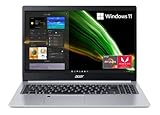
- Powerful Productivity: AMD Ryzen 3 3350U delivers desktop-class performance and amazing battery life in a slim notebook. With Precision Boost, get up to 3.5GHz for your high-demand applications.Voltage:240.0 volts.Control method:touch
- Maximized Visuals: See even more on the stunning 15.6" Full HD display with 82.58% screen-to-body, 16:9 aspect ratio and narrow bezels
- Backlit Keyboard and Fingerprint Reader: Biometric fingerprint reader and Windows Hello sign-in options help keep your Acer PC secure
- Internal Specifications: 4GB DDR4 on-board memory (1 slot available); 128GB NVMe solid-state drive storage (1 hard drive bay available) to store your files and media
- Acer's Purified.Voice technology, features enhanced digital signal processing to cancel out background noise, improve speech accuracy and far-field pickup, which not only makes calls clearer, but makes talking to Alexa easier than before.
Rank #4

- Exceptional Performance and Productivity: Experience smooth and responsive performance powered by an Intel Core 3 processor N355, 8GB memory and fast 128GB UFS storage. Enjoy extended productivity thanks to exceptional battery life and the support of Copilot, your everyday AI companion
- Copilot in Windows - your AI Assistant: Do more, quicker than ever across multiple applications with the centralized generative AI assistance of Copilot in Windows Accessible with a single touch of the Copilot Key
- Immersive Visuals: With its narrow bezel design the 15.6" 1080p Full HD IPS display is perfect for casual web browsing and watching movies or streaming, allowing for a sharp, detailed view of what's in front of you. And with Acer BluelightShield, lower the levels of blue light to lessen the negative effects of blue light exposure.
- User-Friendly by Design: Seamlessly connect or charge your devices through dual full-function USB Type-C ports, while Wi-Fi 6 and HDMI 2.1 connectivity enhance your digital experiences to be faster, smoother, and more enjoyable.
- Unlock More with AcerSense: Intuitive device control is available at the touch of a button with AcerSense, which manages battery life, storage, and apps for optimal performance. Acer TNR solution and Acer PurifiedVoice enhance your video calling experience to a new level of clarity and quality.
Rank #3
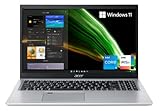
- Great performance meets long battery life with the Intel Core i5-1135G7 Processor - up to 4.20 GHz, 4 cores, 8 threads, 8 MB Intel Smart Cache
- 15.6" Full HD (1920 x 1080) IPS Widescreen LED-backlit Display | Intel Iris Xe Graphics
- 8GB DDR4 Memory (Expandable to 20GB) and 256GB NVMe SSD
- 1 - USB 3.2 (Type-C) Gen 1 port (up to 5 Gbps) | 2 - USB 3.2 Gen 1 Port (one with Power-off Charging) | 1 - USB 2.0 Port | 1 - HDMI Port with HDCP support
- Wi-Fi 6 | Acer Fingerprint Reader | Backlit Keyboard | Up to 8.5 Hours Battery Life | Comes with Windows 11
Product prices and availability are accurate as of the date/time indicated and are subject to change. Any price and availability information displayed on Amazon at the time of purchase will apply.

