
iTechGuides is reader-supported. When you buy through links on our site, we may earn an affiliate commission. As an Amazon Associate I earn from qualifying purchases. Learn more
For dependable 4K performance and future upgrades, choose a suitably configured gaming PC. Steam Machine is the better fit when you value a compact box, couch-friendly SteamOS, and simple TV integration more than maximum graphics settings. Its “up to 4K” claim uses AMD FSR upscaling, and Valve sets 1080p as the default game resolution for Steam Machine and for Steam Machine Verified testing. A 4K signal from the box therefore does not guarantee native 4K rendering at high settings and 60 frames per second in every game.
What “4K gaming” means on Steam Machine
A television or monitor can receive a 3840×2160 output signal even when the game was rendered internally at a lower resolution. The system reconstructs or enlarges that lower-resolution image before sending it to the display. This distinction matters more on a fixed-hardware device such as Steam Machine, where the graphics processor has a defined performance ceiling.
Valve’s product listing describes Steam Machine as a compact SteamOS gaming device with a discrete, semi-custom AMD desktop-class CPU and GPU and advertises “Up to 4K gaming with FSR 4.1.” FSR is the upscaling technology that lets the game render fewer pixels internally and then produce a 4K output. Depending on the game, the selected quality mode and the desired frame rate, the internal image may be 1080p, an intermediate resolution or something closer to 4K.
Valve’s support guidance is unusually clear about the default: “1080p is the system default game resolution on Steam Machine (labeled ‘Default’ in the Display dropdown menu) to ensure a good gameplay experience out of the box, and that’s the resolution we use for Steam Machine Verified testing.” That does not mean Steam Machine cannot output 4K. It means the baseline used for setup and compatibility verification prioritizes a lower internal workload.
#1 Best Overall

- Effortless Gaming: MEK from ZOTAC comes with all hardware and Windows 11 Home pre-installed. Crafted in the USA, simply unbox, plug in, power up, and dive into your favorite games with ease. Backed by a 1-Year Complete System Warranty and 3-Year GPU Warranty — no registration required.
- Heart of the MEK: the ZOTAC GAMING GeForce RTX 5060 Twin Edge OC White Edition 8GB GDDR7 uses NVIDIA Blackwell architecture with DLSS 4 Multi Frame Generation and real-time ray tracing — delivering smooth 1080p and 1440p gaming performance with AI-driven frame rates and next-gen visual fidelity at an accessible price point.
- Powerful Processor: the AMD Ryzen 5 9600X AM5 Desktop CPU delivers up to 5.4GHz with 6 cores, 12 threads, and 32MB L3 Cache — pairing efficiently with the RTX 5060 for smooth high-FPS gaming, everyday multitasking, and content creation at a compelling value.
- Well-Rounded: 16GB DDR5-5200MHz RAM, 1TB NVMe M.2 SSD, and 650W 80+ Gold PSU provide quick loading times and stable power. Connections: HDMI 2.1, DisplayPort 1.4a (up to 4 displays), USB 3.2 Gen 2 (10Gbps), WiFi 6E, Bluetooth 5.3, 5-Gigabit LAN, 7.1 HD Audio.
- Smart Design & Warranty Support: MEK features a clean white build with a Seamless Tempered Glass panel, white RTX 5060 Twin Edge OC GPU, Tower CPU Air Cooler with temperature display, 120mm fans, easy-clean magnetic grill, and a built-in digital display showing live system information and ambient temperature. Warranty service is provided through ZOTAC USA. Return shipping after warranty service is available only for U.S. addresses.
Valve’s FAQ, quoted by PC Gamer in February 2026, says that in its testing “the majority of Steam titles play great at 4K 60 fps with FSR on Steam Machine.” The same explanation says some games need more aggressive upscaling and that a lower frame rate with variable refresh rate (VRR) can be preferable while keeping a 1080p internal resolution. Valve engineer Yazan Aldehayyat described the engineering target as enough performance to play every Steam game at 4K60 when “you do some sort of upscaling like FSR.” Both statements include upscaling; neither promises native 4K60 in every title.
Steam Machine and gaming PC: the fundamental difference
| Factor | Steam Machine | Gaming PC |
|---|---|---|
| Processor | Semi-custom AMD Zen 4 CPU with six cores and 12 threads, according to PC Gamer’s 2026 review | Selected desktop processor; performance and core count depend on the configuration |
| Graphics hardware | Semi-custom AMD RDNA 3 GPU with 28 compute units and 8 GB of dedicated GDDR6 VRAM | Discrete GPU chosen by the buyer or system builder; model, VRAM and power vary |
| Memory | 16 GB system RAM in the reviewed hardware | Capacity and upgrade path depend on the motherboard and system configuration |
| Operating system | SteamOS with a big-screen interface designed for controller use | Usually Windows or Linux, with broader software and hardware choices |
| Form factor | Compact, console-like chassis intended for living-room placement | Desktop enclosure sizes range from small form factor to full tower |
| Upgrade choice | Fixed semi-custom CPU/GPU platform; component replacement options are more limited than on a standard desktop | Parts such as the GPU, storage, memory and sometimes the CPU can be replaced or expanded |
| 4K approach | Valve’s “up to 4K” positioning relies on FSR; 1080p is the default game resolution for Verified testing | Native 4K, conventional upscaling or frame-generation choices depend on the selected GPU and game |
The desktop column is intentionally configuration-dependent. A $700 office-style tower with an entry-level graphics card and a high-end 4K gaming desktop are both “gaming PCs,” but they will not deliver the same experience. The meaningful comparison is between Steam Machine and a PC with a discrete GPU selected for your target games, resolution and refresh rate.
How fast is Steam Machine at 4K?
Independent testing shows why a single “4K” label is not enough to predict performance. TechRadar’s 2026 review measured large swings when it changed presets in the same games:
What’s actually slowing this PC down?
Pick the symptom - the matching free tool is one click away.
| Game and test condition | Average result reported by TechRadar |
|---|---|
| Cyberpunk 2077, 4K Ultra | 17 fps |
| Cyberpunk 2077, 4K Low | 38 fps |
| Total War: Warhammer III, 4K Ultra | 24 fps |
| Total War: Warhammer III, 4K Low | 35 fps |
| Cyberpunk 2077, 4K with Ultra ray tracing and balanced upscaling | 10 fps |
These are reviewer measurements from a particular test setup, not guarantees for every Steam Machine, game patch or display mode. They do establish the practical pattern: demanding games, ultra presets and ray tracing can overwhelm the hardware at a 4K output, while reducing settings and using upscaling can make a much higher frame rate possible.
Frame-rate averages also do not tell the whole story. A game can average 60 fps yet feel uneven if frame times spike during traversal, shader compilation or busy scenes. Use the in-game frame-time graph when available, and judge the result in the scenes you actually play. VRR can smooth moderate fluctuations, but it cannot turn a 17-fps workload into a 60-fps experience.
What a gaming PC changes for 4K
More graphics headroom
A desktop lets you select a graphics card with the rasterization, ray-tracing performance and VRAM capacity appropriate to your monitor. You can target native 4K, choose a quality upscaling mode, or reserve enough headroom for a high-refresh 4K display. Steam Machine’s semi-custom GPU cannot be replaced with a faster card when a new game exceeds its limits.
Control over the entire platform
With a PC, you choose the processor, memory capacity, storage and cooling system as well as the GPU. That makes it easier to balance a fast graphics card with a CPU that will not bottleneck simulation-heavy games. You can also add storage or memory later if the motherboard and case provide suitable slots.
Recommended Free Tools
More software flexibility
SteamOS offers a streamlined console-like experience, but a conventional desktop operating system supports a wider range of launchers, creative applications, mods, utilities and peripherals. Compatibility varies by game and anti-cheat system on any operating system, so check the titles you play rather than assuming every Windows release behaves identically on SteamOS or Linux.
Where Steam Machine is the better choice
Living-room simplicity
Tom’s Guide highlights HDMI-CEC television control, startup with the Steam Controller and a big-screen SteamOS interface. HDMI-CEC can let the television switch inputs or respond to power commands through the connected device, depending on the TV’s CEC implementation. The result is closer to a console routine: turn on the TV, select the Steam Machine input and navigate with a controller rather than a keyboard and mouse.
Compact placement
The compact chassis is easier to place beside a television than a large tower. This is a practical advantage for apartments, media cabinets and shared rooms. You should still leave the ventilation openings unobstructed and follow the manufacturer’s placement guidance; no universal noise or power advantage is established, so do not assume a smaller enclosure is automatically quieter or more efficient.
Less initial tuning
SteamOS presents a controller-oriented interface and a curated device experience. A similarly priced PC may offer stronger performance, but Tom’s Guide notes that it can require more adjustment of graphics settings. If you prefer to spend less time selecting drivers, launchers and display options, the Steam Machine workflow has value even when a desktop wins the benchmark.
Rank #2
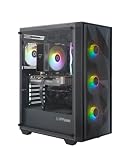
- Effortless Gaming: MEK from ZOTAC comes with all hardware and Windows 11 Home pre-installed. Crafted in the USA, simply unbox, plug in, power up, and dive into your favorite games with ease. Backed by a 1-Year Complete System Warranty and 3-Year GPU Warranty — no registration required.
- Heart of the MEK: the ZOTAC GAMING GeForce RTX 5060 8GB GDDR7 uses NVIDIA Blackwell architecture with DLSS 4 Multi Frame Generation and real-time ray tracing — delivering smooth 1080p gaming performance with AI-driven frame rates and next-gen visual fidelity at an accessible price point.
- Powerful Processor: the AMD Ryzen 5 5500 AM4 Desktop CPU delivers up to 4.2GHz with 6 cores, 12 threads, and 16MB L3 Cache — pairing efficiently with the RTX 5060 for smooth 1080p gaming, everyday multitasking, and content creation at a compelling value.
- Well-Rounded: 16GB DDR4-3200MHz RAM, 1TB NVMe M.2 SSD, and 650W 80+ Gold PSU provide quick loading times and stable power. Connections: HDMI 2.1b, DisplayPort 2.1b (up to 4 displays), USB 3.2, WiFi 6E, Bluetooth 5.2, 7.1 HD Audio.
- Smart Design & Warranty Support: MEK features a compact build with a Seamless Tempered Glass panel, Tower CPU Cooler with direct heatpipe contact, front RGB fans, easy-clean magnetic grill, and a built-in always-on digital display showing live system information and ambient temperature. Warranty service is provided through ZOTAC USA. Return shipping after warranty service is available only for U.S. addresses.
Where a gaming PC is the better choice
Native 4K and high settings
If your requirement is native 3840×2160 rendering with high or ultra settings, especially with ray tracing, a desktop with an appropriately powerful discrete GPU is the safer route. Steam Machine’s tested 10-fps result in Cyberpunk 2077 with 4K Ultra ray tracing and balanced upscaling illustrates how quickly that combination can become impractical on the compact hardware.
High-refresh 4K displays
A 120 Hz or faster 4K monitor creates a much larger performance requirement than a 60 Hz television. The PC gives you more options to select a GPU that can feed that display, lower selected settings without abandoning the target refresh rate, or replace the GPU later. Steam Machine can use a high-refresh display, but its fixed GPU means you must accept the frame-rate ceiling of each game.
Long-term upgrades
Games grow more demanding, and new rendering features can increase VRAM and compute requirements. A desktop lets you replace the graphics card, add storage and, on compatible platforms, increase memory or change the processor. Steam Machine’s compact, semi-custom design favors a stable appliance experience over a broad upgrade path.
Price: compare the complete setup, not a headline number
A fair comparison includes the hardware needed to play in the room where you will use it. Count the computer, storage, controller, operating-system requirements, display and any adapters or cables. If you already own a 4K TV and a controller, the totals differ from a new desk setup that also needs a monitor, keyboard and mouse.
Free tools Windows power users keep installed
One-click scans. No signup required.
PC Gamer reported finding 1 TB desktops equipped with an RTX 5060 for under $1,000 during its 2026 review period. That is a historical market example, not a current offer or a guaranteed value benchmark. Prices, stock, included memory, power supplies and warranties change by region and retailer. Before buying, verify the exact GPU model and VRAM, SSD capacity, processor, power supply, warranty and final delivered price.
No current region-specific Steam Machine price or availability is established. Treat Steam Machine pricing and stock as volatile, and do not conclude that either platform is cheaper without checking both complete configurations at the same time.
How to configure Steam Machine for a 4K TV
- Connect directly to the display. Use a suitable HDMI connection from Steam Machine to the 4K television or monitor. If an AV receiver or switch is in the chain, confirm that it supports the resolution and refresh rate you intend to use.
- Enable the TV’s gaming mode. Use the television’s picture menu to reduce processing latency. The exact label differs by manufacturer, so select the mode intended for game input.
- Check HDMI-CEC and VRR. Turn on HDMI-CEC if you want device-based power and input control. Enable VRR on both the display and SteamOS when supported, then confirm that the display reports an active variable-refresh signal.
- Open the Display settings. Valve labels 1080p as “Default” in the Display dropdown. Start there if you want the out-of-box behavior used for Steam Machine Verified testing, then select a 4K output when your display and cable support it.
- Set the game’s internal resolution and upscaler. Do not rely only on the desktop output setting. In each game, choose the render resolution, FSR mode and sharpening controls separately. A 4K output with 1080p internal rendering is a different workload from native 4K.
- Set a realistic frame-rate target. For a 60-Hz TV, begin with a 60-fps cap or a lower cap that the game can hold consistently. If demanding scenes cause frequent drops, lower ray tracing and volumetric effects before sacrificing the entire image quality preset.
- Test a demanding scene. Walk through a busy area, drive through a city or load a large battle—whichever stresses the game. Watch frame pacing, not just the average counter, and adjust one setting at a time.
How to choose and configure a 4K gaming PC
Choose the target before the parts
- For 4K at approximately 60 fps with upscaling, select a discrete GPU class that has enough performance and VRAM for your games and preferred effects.
- For native 4K, ultra settings or heavy ray tracing, budget for a substantially faster GPU than an entry-level 4K-output system.
- For 4K at 120 Hz or higher, treat refresh rate as a primary specification rather than an optional feature.
Verify the prebuilt specification
Do not stop at a listing that says “4K ready.” Confirm the exact graphics-card model, VRAM, processor, system memory, SSD capacity, power-supply rating, cooling arrangement and warranty. Two desktops with the same marketing tier can have different sustained performance if one uses a lower-power GPU or restricted airflow.
Plan the living-room interface
Windows or Linux can drive a TV, and a PC controller can provide a console-like input method, but the desktop may still require a keyboard and mouse for updates, launcher authentication and troubleshooting. Steam’s big-picture interface can reduce that friction after setup; it does not remove the broader maintenance responsibilities of a general-purpose computer.
Outdated Drivers Are Slowing You Down
One free scan finds every outdated or missing driver and matches the right update for your exact hardware.Free scan · exact hardware matchWindows Errors? Fix Them Before They Spread
Repair common Windows errors and clear accumulated junk for a smoother, more stable PC - no reinstall needed.Free scan · no reinstallGraphics settings that matter most at 4K
Upscaling mode
Upscaling usually delivers the largest performance gain because it reduces the number of pixels rendered internally. More aggressive modes improve frame rate at the cost of detail, fine foliage stability and sometimes motion clarity. Compare modes while moving the camera; a still screenshot can hide shimmer and reconstruction artifacts.
Ray tracing
Ray tracing can be one of the most expensive options in a game. TechRadar’s 10-fps result for Cyberpunk 2077 at 4K with Ultra ray tracing and balanced upscaling shows that even an upscaler may not offset the cost on Steam Machine. If you prioritize a stable frame rate, reduce or disable ray tracing before lowering every other setting.
Presets and individual options
Ultra presets often spend substantial performance on shadows, reflections, volumetric effects and distant detail that are difficult to distinguish during play. Start with a high or medium preset, then raise the options that matter most to you. Use a frame-time overlay or built-in benchmark where available, but confirm the result in real gameplay.
Rank #3

- High-FPS Gaming PC Performance: AMD Ryzen 7 8700F and GeForce RTX 5060 Ti 8GB give this KOTIN gaming desktop the speed for 1080p and 1440p PC gaming, esports, AAA titles, streaming, and creative work, with DLSS 4 and ray tracing support for smoother, more detailed visuals.
- 32GB DDR5 Memory + 1TB Gen4 NVMe SSD: 32GB DDR5 keeps multitasking, browser tabs, streaming apps, and game launchers responsive, while the 1TB PCIe Gen4 NVMe SSD helps shorten boot times, load games faster, and store your favorite titles, work files, and media.
- Cool, Clean Gaming Tower Build: A CPU air cooler with 6 copper heat pipes and a digital temperature display works with five 120mm ARGB fans to support stable airflow during long sessions, giving this desktop computer a modern gaming setup look without sacrificing everyday practicality.
- WiFi 7, Gold PSU & Upgrade Ready: WiFi 7 and Bluetooth help reduce cable clutter and support low-latency online play. A 650W 80 PLUS Gold power supply, four DDR5 DIMM slots, and three M.2 SSD slots give this prebuilt gaming PC room for future memory and storage upgrades.
- Plug & Play Windows 11 Desktop: Professionally assembled and tested in the USA, this KOTIN gaming desktop arrives with Windows 11 Home pre-installed, so you can connect your monitor, keyboard, and mouse and start playing quickly. Includes a 1-year limited warranty and free technical support.
Frame generation and latency
Frame-generation features can increase displayed frame rates by inserting generated frames, but they do not provide the same input response as a natively rendered frame. Evaluate base frame rate, latency and visual stability together. Steam Machine is described with FSR upscaling; no universal frame-generation result is established for every title.
The Tool Desk
Outbyte Driver Updater FREEScan for outdated or missing drivers - takes under a minuteDriver Scan →Outbyte PC Repair FREEClear out junk files and repair common Windows errorsFree Scan →Compatibility and maintenance trade-offs
Steam Machine’s SteamOS integration is strongest when your library consists of games that run well through the platform’s supported compatibility layers and controller interface. Check each important title’s current Steam compatibility information, especially games with kernel-level anti-cheat, non-Steam launchers or unusual peripherals.
A desktop offers broader operating-system choice and easier access to tools, mods and launchers, but you become responsible for driver updates, Windows or Linux maintenance, background software and troubleshooting. Neither platform eliminates compatibility work; they place it in different parts of the ownership experience.
Storage deserves attention on both systems. Modern games can consume large portions of a 1 TB drive, and a full SSD can reduce room for updates. Confirm whether the chosen system permits a second drive or replacement SSD, and include that expansion cost when comparing a compact appliance with a desktop tower.
A decision framework for your use case
Choose Steam Machine when most of these are true
- Your primary display is a 4K television viewed from the couch.
- You value a compact enclosure and controller-first SteamOS interface.
- You are comfortable with 1080p internal rendering and FSR upscaling when a game needs it.
- A stable 30–60 fps experience is acceptable when native 4K or ray tracing is too demanding.
- You prefer a fixed appliance and do not expect to replace the graphics hardware.
Choose a gaming PC when most of these are true
- Native 4K, high settings or ray tracing is a firm requirement.
- You want 4K at 120 Hz or another high-refresh target.
- You play demanding releases where 17–38 fps at 4K settings would be unacceptable.
- You want to upgrade the GPU, storage or memory instead of replacing the whole system.
- You need broad launcher, mod, application and peripheral compatibility.
Common buying mistakes
Mistaking output resolution for render resolution
Check the game’s internal-resolution and upscaling settings. A 4K label in the operating system or television information panel only confirms the signal being sent to the display.
Quick wins for a faster PC:
Scan for outdated or missing drivers - takes under a minuteDriver Scan →Repair Windows errors before they cause bigger problemsFix Now →Using one benchmark as a universal answer
The TechRadar results differ by game, preset and ray-tracing mode. Compare the titles you actually play, using the same scene, settings, upscaler and frame-rate metric on each system.
Ignoring frame pacing
An average frame rate can conceal stutter. Test traversal and combat, enable VRR when available and use a frame-time graph rather than relying on a single average number.
Comparing incomplete prices
Include storage, controller, display, cables, operating-system needs and upgrade costs. Historical sub-$1,000 RTX 5060 desktop listings are useful context, not live pricing.
Assuming compact means silent
Chassis size alone does not establish noise or power draw. Look for measured figures for the exact model if acoustics or electricity use are important to your purchase.
Verdict: which is better for 4K gaming?
A gaming PC is the safer recommendation for readers who define 4K gaming as high image quality, substantial frame-rate headroom, ray tracing and the ability to upgrade. Select the complete configuration around your target refresh rate rather than buying on a “4K ready” label.
Steam Machine is the more attractive choice for a console-like living-room experience. Its compact design, SteamOS big-screen interface, HDMI-CEC conveniences and controller startup can outweigh lower settings for players who want to sit on the couch and launch Steam games with minimal setup. Plan on using FSR and, in demanding titles, a lower internal resolution or frame rate. The evidence supports “up to 4K” output with upscaling—not a blanket promise of native 4K60 at high settings.
Before purchasing either platform, write down three requirements: the games you play, the refresh rate of your display and whether upgrades matter to you. Those answers usually decide the platform more reliably than the word “4K” on a product page.
Quick Recap
Product prices and availability are accurate as of the date/time indicated and are subject to change. Any price and availability information displayed on Amazon at the time of purchase will apply.
Do these 3 things before closing this tab:
1Fix the driver behind crashes, sound loss and screen glitches2Repair Windows errors before they cause bigger problems3Scan for outdated or missing drivers - takes under a minute
