
Do these 3 things before closing this tab:
1Scan for outdated or missing drivers - takes under a minute2Repair Windows errors before they cause bigger problems3Fix the driver behind crashes, sound loss and screen glitchesiTechGuides is reader-supported. When you buy through links on our site, we may earn an affiliate commission. As an Amazon Associate I earn from qualifying purchases. Learn more
Start with a neutral picture preset, then review energy, privacy, voice, and app-permission controls on every input and user profile. Smart TVs do not have one universal settings menu: labels and behavior change by model, software version, connected input, and region. Use the paths below as signposts, confirm the wording on your set, and check the result in the room where you watch.
What should you change first?
Make changes in this order so one feature does not undo another:
- Choose a neutral, cinema, movie, or filmmaker-style picture preset.
- Disable or reduce automatic energy controls if they make the picture uncomfortably dim; otherwise leave them enabled for lower consumption.
- Set brightness, contrast, color temperature, sharpness, and motion processing for the specific input you are watching.
- Review tracking, advertising, voice, location, diagnostics, and app permissions on the TV platform.
- Remove apps you no longer use, set a shut-off timer, and put the TV and accessories on a smart power strip.
This is a practical baseline, not a measured professional calibration. Official guidance documents the interaction between presets, brightness, and energy controls, but it does not establish one numeric recipe that is correct for every panel, room, or source.
How do you calibrate a smart TV without a meter?
1. Begin with a neutral preset
Open the picture menu and select Movie, Cinema, Filmmaker, or another manufacturer preset intended to avoid exaggerated showroom color. ENERGY STAR defines a preset picture setting as a manufacturer-defined selectable mode. Treat the preset as a starting point, not proof that the set is professionally calibrated.
#1 Best Overall

- All features of the first edition disc
- 3D stereoscopic calibration and evaluation patterns
- Audio tests for speaker setup, calibration, and A/V sync
- Motion patterns to evaluate 120Hz and 240Hz interpolation modes
- More patterns for the advanced user or professional calibrator
Turn off retail or demonstration modes if they are enabled. Those modes are designed for bright stores and commonly push brightness, color, and sharpening beyond what is comfortable at home.
2. Adjust the controls that have the largest effect
- Brightness: Set it high enough that dark detail is visible without turning black areas gray. A change in room lighting can justify a different setting.
- Contrast: Increase it only until bright detail remains distinguishable; an overly high value can clip clouds, faces, or white subtitles.
- Color temperature: A warm or neutral option is usually closer to film and broadcast mastering than a very cool, blue-tinted option.
- Sharpness: Reduce artificial edge enhancement if you see halos around text or objects. High-definition sources generally need little added sharpness.
- Motion processing: Use the lowest level that prevents distracting blur for sports or games. Film and scripted television may look unnaturally smooth when strong interpolation is enabled.
3. Repeat the check for each input
Picture settings can be stored separately for digital broadcasts, HDMI devices, apps, and game inputs. A change that fixes a streaming app may not change a cable box or console. Switch to each source you actually use, verify the preset and brightness, and save the settings there.
4. Recheck after software updates or mode changes
Firmware updates, automatic picture modes, HDR, game mode, and ambient-light features can load a different profile. If a familiar program suddenly looks brighter, darker, cooler, or smoother, inspect the active input and picture mode before changing every slider.
What’s actually slowing this PC down?
Pick the symptom - the matching free tool is one click away.
Why does the picture keep dimming?
The most common cause is an energy-saving or adaptive-brightness feature, not a failing panel. Energy controls intentionally lower light output, and their effect can vary with room brightness or the content on screen.
LG example: turn off Energy Saving and restore a normal picture mode
On affected LG models, the documented path is Settings → All Settings → Picture (or, on newer webOS versions, General → OLED Care → Device Self Care) → Energy Saving. Disable or reduce the energy option, then select Standard Picture if the image remains unexpectedly dark. The exact menu can differ by model and webOS release.
LG also notes that picture settings may differ between digital broadcast and HDMI inputs. Test the source that looks dim rather than assuming the global setting changed. If only one input is affected, adjust that input’s picture profile.
Rank #2

- 8-brush carbon fiber system removes static build-upUser-friendly on-screen menu and instructionsDolby Digital 5.1 calibration and diagnostic systemTakes the guesswork out of system set-up
Other causes to check
- Ambient-light or adaptive-brightness control: The set may lower output in a dark room or raise it near a window.
- HDR or Dolby Vision mode: HDR uses a different picture profile and tone-mapping behavior than standard dynamic range.
- Presence or ambient display features: Motion detection can trigger dimming or an idle display state.
- Heat and protection behavior: Some OLED models reduce brightness during sustained high-output scenes to protect the panel.
- Content mastering: A dark program can be mastered that way; compare several sources before changing settings.
DOE recommends using ENERGY STAR preset picture settings as much as possible for continued savings. Vivid, sports, and cinema choices alter brightness and contrast, so there is an unavoidable trade-off between a brighter image and lower energy use.
Quick wins for a faster PC:
Repair Windows errors before they cause bigger problemsFix Now →Scan for outdated or missing drivers - takes under a minuteDriver Scan →Clear out junk files and repair common Windows errorsFree Scan →Which picture and energy settings are the best compromise?
| Control or choice | Picture effect | Energy or usability trade-off |
|---|---|---|
| Neutral/movie/filmmaker preset | Usually less exaggerated color and sharpening than vivid or store modes | Often a sensible baseline; exact behavior is manufacturer-defined |
| Vivid or sports preset | Higher apparent brightness and contrast | Can consume more power and obscure subtle detail |
| Energy Saving | Reduces brightness, sometimes dynamically | Lower consumption; may look too dim in a bright room |
| Automatic brightness or ambient-light control | Changes output as room light changes | Convenient and potentially efficient; less consistent from scene to scene |
| Motion processing | Smoother movement, especially for sports | May create a “soap opera” appearance and uses additional processing |
| Game mode | Reduces processing delay for interactive content | May disable some image enhancements and use a separate profile |
ENERGY STAR reports that certified televisions are, on average, about 34% more energy efficient than conventional models, saving energy in sleep, idle, and on modes. Certification also requires 0.5 watts or less in Sleep Mode; on-mode limits vary with screen area. Those are program-level requirements and averages, not a promise that every household will save a fixed amount of money.
How can you reduce smart TV energy use?
Use automatic controls when their visual effect is acceptable
Leave energy-saving or automatic-brightness controls enabled if the resulting picture remains comfortable. If the screen becomes too dark, reduce the feature rather than immediately switching to the brightest preset. ENERGY STAR’s preset settings are intended to balance viewing quality and energy use.
Set an idle or shut-off timer
On Google TV, a documented path for the shut-off control is Settings → System → Power & Energy → Shut-Off Timer. Choose a duration that fits your habits. Menu names and available timers vary by device and software version.
Understand presence sensing and Ambient Display
Google documents that Ambient Display can use radar-based motion detection and dim the screen in dark rooms. Presence sensing may react to moving objects, pets, curtains, or activity behind walls and windows. If the screen dims or wakes unexpectedly, temporarily disable presence sensing or reposition the device to determine whether the room is triggering it.
Presence features have two implications: they change standby behavior and they establish a privacy expectation that the television is observing motion in its surroundings. Read the feature description and decide whether the convenience is worth that trade-off.
Rank #3
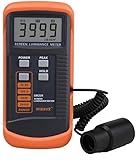
- SM208 Screen Brightness Meter Screen Brightness luminance meter 0.01-39990cd/m2 SM208 Mini light probe
Control standby power for the whole system
A television can be asleep while a soundbar, game console, set-top box, and streaming accessory continue drawing power. DOE recommends plugging the TV and its components into a smart power strip so connected equipment can be disconnected when the system is not in use. No universal household dollar or kilowatt-hour saving applies because equipment, schedules, and electricity rates differ.
How do you stop a smart TV from tracking you?
The FTC’s guidance is direct: find the television’s tracking settings and change them to match your privacy preferences. Also remove apps you do not use; they may collect behavioral data even when you are not actively opening them.
Review the TV platform’s privacy dashboard
Open the system settings and look for labels such as Privacy, Ads, Viewing Data, Automatic Content Recognition, Diagnostics, or Usage Data. Disable personalized advertising, viewing-data collection, or content-recognition features when the controls are available and you do not want them. Some services require a separate opt-out during setup or after an account change.
Windows Errors? Fix Them Before They Spread
Repair common Windows errors and clear accumulated junk for a smoother, more stable PC - no reinstall needed.Free scan · no reinstallCrashes, No Sound, or Screen Glitches?
Random freezes, missing sound and display glitches usually trace back to one bad driver. Find and replace yours safely.Free scan · under a minuteGoogle TV documentation identifies several categories that may be used by Google TV services, including location, watchlist and watch activity, approximate location, user and device IDs, app interactions, installed apps, crash logs, diagnostics, analytics, advertising or marketing for TV devices, and personalization-related processing. The precise controls depend on the device, account, region, and software version.
Check app-level permissions
The FTC recommends reviewing privacy settings and permissions on internet-connected televisions and streaming devices and turning off unnecessary access where possible. For each installed app, inspect permissions for location, microphone, nearby devices, storage, contacts, and diagnostics. Deny access that is not needed for the app’s core function, then test playback or casting; some features may stop working when a permission is removed.
Remove unused apps and accounts
- Open the installed-apps list and uninstall services nobody uses.
- Sign out of accounts on apps you are removing or no longer sharing.
- Delete saved profiles, watchlists, or voice profiles when the platform offers that option.
- Review the account’s privacy controls on a phone or computer as well as on the TV; some advertising and activity settings are managed centrally.
What should you know about microphones, voice control, and ACR?
Voice activation is not identical on every model
LG states that speech-to-text processing begins only after a supported wake-word interaction or a voice-button activation. If Hands-free Voice Control is enabled, the television may monitor for the wake word while in standby. Disable hands-free listening, the wake-word feature, or the microphone switch if you do not want that standby behavior. A physical microphone indicator or switch, when present, is useful confirmation but is not a substitute for checking the software setting.
Rank #4

- Laser lens cleaner for DVD players having issues with discs that load slowly, skip, or freeze during playback
- Included Home Theater Sound Calibration Tools help maintain ideal audio playback settings, with on-screen and voice instructions available in English, French and Spanish
- Cleaning the laser lens can extend the life of the DVD player while improving sound and image quality
- Cleaning the laser lens can extend the life of the DVD player while improving sound and image quality
- Safe for DVD players, Computers (DVD), XBOX/XBOX360 and PS1/2 game systems. Not intended for use with Blu-Ray players, WiiU, XBOX ONE or PS3/PS4
Automatic content recognition has a separate purpose
LG says its ACR services may process content-identification fingerprints together with device, content-source, network, and consent information. ACR is about identifying what is displayed, not merely transcribing a spoken command. Review its consent and opt-out controls separately from voice settings.
How should you compare smart TV settings or platforms?
| Comparison axis | Questions to ask | Why it matters |
|---|---|---|
| Picture consistency | Are settings stored per input? Do adaptive controls alter brightness? | Prevents one source from looking correct while another is too dark, bright, or overprocessed. |
| Privacy control surface | Can you opt out of tracking or ACR, control location, disable hands-free voice, and remove apps? | Determines how much data and ambient information the platform can collect. |
| Energy behavior | What happens in sleep and idle modes? Are automatic brightness, presence sensing, and shut-off timers configurable? | Shows whether lower consumption requires a visible change or unexpected motion detection. |
| Platform usability | Are labels clear? Do updates move settings? Are controls present on your exact model and regional software? | A technically available control is not useful if it is hidden, renamed, or unavailable on your device. |
Compare the exact model and software version, not only the television brand or operating-system name. A feature documented for one generation may be absent, renamed, or placed under a different submenu on another.
Troubleshooting checklist
- Picture is dim only on one source: Switch to that input and adjust its picture mode; settings may be stored separately.
- Picture dims in a dark room: Check Energy Saving, ambient-light, adaptive-brightness, and Ambient Display controls.
- Picture changes during bright scenes: Look for automatic contrast, tone mapping, or panel-protection behavior.
- TV wakes or dims when nobody touches it: Test presence sensing, radar detection, timers, pets, curtains, and movement behind walls or windows.
- Apps request more access than expected: Deny nonessential permissions, test the app, and uninstall it if the core function requires intrusive access.
- Voice privacy is a concern: Disable hands-free wake-word listening and inspect microphone and voice-history settings.
- Settings disappeared after an update: Search the current menus for Privacy, Power & Energy, Picture, Voice, ACR, or Device Care; labels can move between releases.
Frequently asked questions
Is professional calibration necessary?
No for ordinary viewing. A neutral preset and careful adjustment for your room and inputs provide a practical baseline. Professional calibration is a separate service using measurement equipment; the official guidance here does not define universal numeric values.
Should Energy Saving always be turned off?
No. Keep it enabled when the reduced brightness is acceptable. Disable or reduce it only when it makes the image uncomfortably dark, then check whether a standard picture preset restores a sensible level.
Does deleting an app erase all data it already collected?
Not necessarily. Uninstalling prevents further activity from that installation, but account history and previously collected data may be managed through the service’s privacy dashboard or account controls.
Recommended Free Tools
Can a TV’s radar presence sensor see through walls?
Google notes that moving objects, pets, curtains, or activity behind walls and windows can trigger presence sensing. Verify the behavior in your own room and turn the feature off if its responses or privacy implications are unacceptable.
Why is there no single best smart TV settings path?
Manufacturers change menu labels and locations by model, software version, input, and region. Use the labeled paths as examples, then confirm the equivalent control on your exact set.
Quick Recap
Product prices and availability are accurate as of the date/time indicated and are subject to change. Any price and availability information displayed on Amazon at the time of purchase will apply.

