
iTechGuides is reader-supported. When you buy through links on our site, we may earn an affiliate commission. As an Amazon Associate I earn from qualifying purchases. Learn more
For repeated commands in one room, a dedicated smart speaker is usually more convenient. It is always powered, can hear you while your phone is elsewhere, and combines hands-free control with room-filling audio and compatible smart-home devices. For commands while you are moving, a phone assistant is the better fit because the phone travels with you and can show maps, messages, app results, and other visual information.
There is no reliable evidence in the available sources that either form factor is universally faster, more accurate, or better at recognizing speech. Choose according to where you issue commands, which assistant ecosystem your household already uses, the need for a screen, and the privacy controls you are willing to manage.
What you are comparing
A phone voice assistant is software on a device you already carry. Depending on the phone and settings, it can answer questions, start timers, send messages, control music, run routines, and open apps. Its defining advantage is access: the assistant is available in the kitchen, car, garden, office, or while travelling because the phone moves with you.
Quick wins for a faster PC:
Clear out junk files and repair common Windows errorsFree Scan →Scan for outdated or missing drivers - takes under a minuteDriver Scan →A smart speaker is a stationary microphone-and-speaker device connected to your home network and an assistant service. General-purpose assistants support music, information requests, smart-home control, and daily routines. The European Commission’s 2022 report on consumer Internet of Things devices describes these broad assistant functions and highlights the importance of integration and interoperability between ecosystems.
#1 Best Overall

- Meet Echo Dot Max: Experience rich room-filling sound that automatically adapts to your space and fine-tunes playback. Features a built-in smart home hub and Omnisense technology for highly personalized experiences.
- Music to your ears: With nearly 3x the bass versus Echo Dot (2022 release), it fits beautifully in any space, delivering your personal sound stage with deep bass and enhanced clarity. Listen to streaming services, such as Amazon Music, Apple Music, Spotify, and SiriusXM. Encore!
- Do more with device pairing: Connect compatible Echo smart speakers and smart displays in different rooms, or pair with a second Echo Dot Max to enjoy even richer sound
- Simple smart home control: Set routines, pair and control lights, locks, and thousands of smart home devices that work with Alexa without needing a separate smart home hub. With Omnisense technology, you can activate routines via temperature or presence detection.
- Say goodbye to drop-offs and buffering - With eero Built-in, Echo Dot Max doubles as a mesh wifi extender, adding up to 1,000 sq. ft. of wifi coverage to your existing eero network.
Why a smart speaker feels different
A speaker is ready for spoken interaction in its assigned room. You do not need to find the phone, unlock it, or hold it near your face. That makes a noticeable difference for short, repeated actions such as setting a cooking timer, turning lights off, checking the weather, or playing background music. A compatible speaker can also send commands to lights, plugs, thermostats, or other connected devices associated with the same household account.
Why a phone assistant remains useful
The phone adds a display, a keyboard, cellular connectivity, location services, cameras, and direct access to installed apps. Voice is convenient for starting a route or sending a message, but the screen is essential when you need to inspect a map, compare several search results, read a long answer, choose a song, or correct a transcription. The phone also avoids buying and powering another device.
Smart speaker vs. phone assistant at a glance
| Decision factor | Smart speaker | Phone voice assistant |
|---|---|---|
| Where it works best | A fixed room where commands recur | While moving, travelling, or away from home |
| Hands-free convenience | High in the room where it is installed; no phone handling required | Convenient when the phone is already with you; may require picking it up or using a wake phrase |
| Need for a screen | Usually no screen, so spoken answers are the main output | Full phone display for maps, messages, app controls, lists, and visual results |
| Audio | Designed for room audio, alarms, timers, and music playback | Uses the phone or a connected audio device; best when you need personal, portable listening |
| Smart-home control | Convenient for shared, room-based control of compatible devices | Useful anywhere, but the command depends on the phone’s connection and app setup |
| Portability | Limited; it normally stays plugged in and on the home network | Travels with you and can work over mobile data where supported |
| Privacy controls | Physical microphone controls and service-level recording/activity settings vary by assistant | Phone permissions, lock-screen settings, activation controls, and assistant activity settings vary by platform |
| Extra hardware | Requires a separate speaker, power, Wi-Fi, and an account | Uses hardware you may already own; still requires an account and configured permissions |
Which everyday commands suit each device?
Timers, alarms, and reminders
A smart speaker is the natural choice when your hands are occupied. Say a timer while cooking, start another timer for laundry, or ask for a reminder from across the room. Spoken confirmation and an audible alarm mean you do not need to look at a display.
Use the phone when the reminder needs context that you will later inspect, such as a calendar event, a location-based reminder, or a long checklist. The phone’s screen lets you verify the exact time, date, repeat pattern, and wording. If you often set timers in several rooms, a phone also avoids shouting toward a single microphone.
Music and podcasts
A smart speaker is convenient for shared listening. A short command can start a playlist, pause playback, change volume, or move audio to a compatible room. Its placement and speaker design are intended for room audio rather than private listening.
The phone is better when you want to browse a catalog, read episode descriptions, queue several items, select a specific version, or switch between headphones and speakers. Voice control can start playback, but the display is faster for exploring unfamiliar content.
Smart-home controls
For lights, plugs, thermostats, or routines in a fixed home, a speaker provides a simple shared interface. A person entering the room can ask for a light to be turned on without knowing which app or menu controls it. This works only when the device, assistant account, network, and command are compatible.
Crashes, No Sound, or Screen Glitches?
Random freezes, missing sound and display glitches usually trace back to one bad driver. Find and replace yours safely.Free scan · under a minutePC Slower Than It Used to Be?
A free scan shows the junk files, broken settings and background clutter dragging Windows down - then fixes them in one click.Free scan · Windows 10 & 11Rank #2
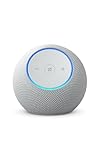
- Meet Echo Dot Max: Experience rich room-filling sound that automatically adapts to your space and fine-tunes playback. Features a built-in smart home hub and Omnisense technology for highly personalized experiences.
- Music to your ears: With nearly 3x the bass versus Echo Dot (2022 release), it fits beautifully in any space, delivering your personal sound stage with deep bass and enhanced clarity. Listen to streaming services, such as Amazon Music, Apple Music, Spotify, and SiriusXM. Encore!
- Do more with device pairing: Connect compatible Echo smart speakers and smart displays in different rooms, or pair with a second Echo Dot Max to enjoy even richer sound
- Simple smart home control: Set routines, pair and control lights, locks, and thousands of smart home devices that work with Alexa without needing a separate smart home hub. With Omnisense technology, you can activate routines via temperature or presence detection.
- Say goodbye to drop-offs and buffering: With eero Built-in, Echo Dot Max doubles as a mesh wifi extender, adding up to 1,000 sq. ft. of wifi coverage to your existing eero network.
A phone is more flexible for setup and troubleshooting. The app can show device status, expose controls that have no natural spoken phrase, and let you operate the home from outside the room when remote access is supported. It is also the safer fallback when a spoken command could affect the wrong device.
Information and quick questions
Both form factors handle short spoken questions such as weather, time, conversions, or a brief fact. A speaker is convenient when you are working with your hands or moving around the room. A phone is preferable when the answer may be ambiguous, lengthy, visual, or worth saving. You can read the result, open a source, copy text, or refine the question without repeating the entire exchange.
Messages, calls, and navigation
A phone has the advantage for personal communication and travel. It already contains contacts, messaging apps, location data, and a map display. The assistant can begin a call or route, while the screen confirms the recipient and lets you review directions.
A speaker can be useful for household announcements or supported calling features, but its stationary location and account configuration make it less suitable for private, mobile conversations. Check the service’s contact, calling, and household-sharing settings before enabling those features.
Do these 3 things before closing this tab:
1Repair Windows errors before they cause bigger problems2Fix the driver behind crashes, sound loss and screen glitches3Clear out junk files and repair common Windows errorsRoutines and multi-step commands
Both devices can trigger routines when the assistant and connected services support them. A speaker is excellent for a repeated spoken phrase such as a morning or bedtime routine in one room. A phone is better for routines that depend on your location, calendar, notifications, or apps on the handset. Create only the routines you can explain and test; a compact spoken phrase can otherwise hide several actions.
Choose the assistant ecosystem before choosing the hardware
The assistant on the speaker should normally match the assistant you already use on your phone or tablet. TechRadar’s September 24, 2026 smart-speaker guide makes this the starting point for choosing a speaker, and the European Commission’s IoT report explains why interoperability matters: devices, accounts, and services must be able to work together for a smooth experience.
Matching ecosystems reduces duplicate accounts and avoids learning two sets of wake phrases and command names. It does not guarantee that every phone feature, music service, smart-home product, or routine will be available on the speaker. Check the individual device and service compatibility pages for your region before buying.
Rank #3

- Meet Echo Dot Max: Experience rich room-filling sound that automatically adapts to your space and fine-tunes playback. Features a built-in smart home hub and Omnisense technology for highly personalized experiences.
- Music to your ears: With nearly 3x the bass versus Echo Dot (2022 release), it fits beautifully in any space, delivering your personal sound stage with deep bass and enhanced clarity. Listen to streaming services, such as Amazon Music, Apple Music, Spotify, and SiriusXM. Encore!
- Do more with device pairing: Connect compatible Echo smart speakers and smart displays in different rooms, or pair with a second Echo Dot Max to enjoy even richer sound
- Simple smart home control: Set routines, pair and control lights, locks, and thousands of smart home devices that work with Alexa without needing a separate smart home hub. With Omnisense technology, you can activate routines via temperature or presence detection.
- Say goodbye to drop-offs and buffering: With eero Built-in, Echo Dot Max doubles as a mesh wifi extender, adding up to 1,000 sq. ft. of wifi coverage to your existing eero network.
Questions to answer first
- Which assistant is already enabled on your phone?
- Which account owns your music, calendar, contacts, and smart-home devices?
- Are the lights, plugs, thermostats, and other devices certified or listed for that assistant?
- Does the household need separate voice profiles, shared calendars, or personal results?
- Will commands need to work outside the home, where the speaker is not available?
Privacy: microphones, activation, and stored requests
Both devices rely on microphones and an activation mechanism. The privacy difference is mainly one of placement and controls: a speaker is a microphone left in a room, while a phone is a microphone you carry and can usually lock, put away, or leave elsewhere.
Free tools Windows power users keep installed
One-click scans. No signup required.
How Google describes Assistant activation
Google’s official help page, “How Google Assistant is designed for your privacy,” says: “Google Assistant is designed to wait in standby mode until it detects an activation, like when it hears ‘Hey Google.’” The same page warns that an activation can happen accidentally: “This can also happen if there’s a noise that sounds like ‘Hey Google’ or an unintended manual activation.”
Review the activation, microphone, and activity controls for the specific phone or speaker. Google documents options to mute a device or disable voice activation, along with controls for reviewing and managing Assistant activity. The exact menu names and available settings can vary by product and account.
How Alexa documents false wakes and recordings
Amazon’s Alexa help documentation explains that a false wake can occur when another word or sound resembles the wake word. Echo devices indicate when audio is being recorded and streamed to the cloud, and Alexa lets users review and delete recordings and text requests. Deleting data can reduce personalization and affect features such as Voice ID, so treat deletion as a privacy choice with a functional trade-off.
Practical privacy settings for either device
- Identify the physical microphone control and learn what its indicator means. Test the control rather than assuming a light or button has the same behavior on every model.
- Turn off voice activation or mute the microphone when conversations in the room should not be processed.
- Review the assistant’s activity history and set an automatic deletion period if the service offers one.
- Check lock-screen and personal-results settings on the phone so another person cannot request private calendar, contact, or message information.
- Use separate household profiles or voice matching only when you understand what data each profile can access.
- Explain to guests that the speaker is voice-activated and show them the mute control.
How to set up a smart speaker for reliable everyday use
- Pick the ecosystem. Choose the assistant already connected to your phone and smart-home accounts unless you have a specific reason to change.
- Place the speaker deliberately. Put it near a power outlet, within dependable Wi-Fi coverage, and where its microphone is not blocked by a cabinet, television, or constant noise. Keep it away from water and excessive heat.
- Install the manufacturer’s companion app. Sign in with the account that owns your music and connected devices, then follow the app’s steps to join the home network.
- Assign a room and household. Room names make commands such as turning on the kitchen lights less ambiguous and help multi-room audio work as intended.
- Configure personal features. Add supported music services, calendars, contacts, voice profiles, and routines. Skip any feature you cannot secure or do not need.
- Set privacy controls immediately. Locate the microphone mute switch, activation settings, activity history, and recording-deletion controls before inviting others to use the device.
- Test representative commands. Try a timer, a music request, a weather question, and one smart-home action from the normal place where you will speak. Confirm the response and the physical mute indicator.
How to prepare a phone assistant
- Enable the assistant. Open the phone’s assistant or voice settings and turn on the features you actually intend to use.
- Grant only necessary permissions. Review microphone, contacts, calendar, location, notification, and Bluetooth permissions individually. Denying a permission may disable a feature, but granting everything is not required for basic timers or questions.
- Choose activation behavior. Decide whether you want a wake phrase, a button or gesture, or manual activation. Test it with the phone locked and unlocked, because lock-screen behavior can differ.
- Configure personal results. Set how the assistant handles messages, contacts, calendar information, and notifications when the phone is locked or connected to a car.
- Check connectivity assumptions. Some commands need Wi-Fi or mobile data; downloaded alarms and basic phone functions may behave differently when offline. Test the situations in which you expect to use the assistant.
- Use the screen to verify sensitive actions. Confirm a recipient, route, purchase, or smart-home device on the display before completing an action that could have consequences.
A current example of the dedicated-speaker approach
The Amazon Echo Dot Max is one supported physical example. TechRadar’s September 24, 2026 guide lists it as an Alexa speaker for everyday questions, timers, and compatible smart-home controls, and notes a physical microphone-mute control. It is an example of the room-focused category, not evidence that it is universally better than a phone or every other speaker. Check the live listing, regional model availability, current specifications, and software support before purchasing.
The Tool Desk
Outbyte Driver Updater FREEScan for outdated or missing drivers - takes under a minuteDriver Scan →Outbyte PC Repair FREERepair Windows errors before they cause bigger problemsFix Now →Requirements and trade-offs
What a speaker adds
- A separate hardware purchase and a permanent power connection.
- Dependence on home Wi-Fi for many cloud-based assistant functions.
- An additional microphone in the room, with its own activation and history settings.
- Shared convenience for household routines, room audio, and compatible devices.
What a phone adds
- No dedicated speaker purchase when you already own a suitable phone.
- Portability, a display, mobile connectivity, and direct access to apps.
- More opportunities to review or correct a command visually before acting.
- Less convenient room-wide access when the phone is in another room, in a bag, or charging.
No current price comparison is established here. Your actual cost depends on the speaker model, region, promotions, existing phone, subscriptions, and the smart-home devices you already own.
Common problems and how to fix them
The assistant does not respond
- Check whether the microphone is muted and whether the device shows power or network status.
- Move closer for a test, then reposition the speaker away from obstructions or competing noise.
- Confirm the phone or speaker is connected to the intended Wi-Fi network and that the assistant service is available.
- Restart the device and repeat a simple timer command before testing a complex routine.
The wrong device answers
Multiple phones and speakers can hear the same wake phrase. Give speakers distinct room assignments, avoid placing them close together, and review which device is selected for music or smart-home output. On a phone, use the activation method that targets the handset rather than speaking toward a nearby speaker.
Rank #4

- Your favorite music and content – Play music, audiobooks, and podcasts from Amazon Music, Apple Music, Spotify and others or via Bluetooth throughout your home.
- Alexa is happy to help – Ask Alexa for weather updates and to set hands-free timers, get answers to your questions and even hear jokes. Need a few extra minutes in the morning? Just tap your Echo Dot to snooze your alarm.
- Keep your home comfortable – Control compatible smart home devices with your voice and routines triggered by built-in motion or indoor temperature sensors. Create routines to automatically turn on lights when you walk into a room, or start a fan if the inside temperature goes above your comfort zone.
- Do more with device pairing – Fill your home with music using compatible Echo devices in different rooms, or create a home theatre system with Fire TV.
- Say goodbye to drop-offs and buffering - With eero Built-in, Echo Dot doubles as a mesh wifi extender, adding up to 1,000 sq. ft. of wifi coverage to your existing eero network.
A smart-home command fails
Verify that the device is online, linked to the same assistant account, assigned to the correct room, and named with an unambiguous phrase. Try the manufacturer’s app to distinguish an assistant-language problem from a network or device problem. Rename duplicate devices instead of relying on vague names such as “light” or “plug.”
The assistant mishears a request
Shorten the command, use the configured device or room name, and avoid speaking over music or another person. If the action is sensitive, use the phone screen to confirm the transcription. The available sources do not provide a controlled phone-versus-speaker accuracy test, so a single misheard command is not evidence that one form factor is generally more accurate.
You are concerned about accidental activation
Use the physical mute control or disable voice activation, then review and delete stored activity according to the assistant’s documentation. Remember that deletion can remove personalization or voice-profile features, and that a muted speaker will not hear timers or spoken commands until it is unmuted.
A decision framework for your household
Choose a smart speaker when most of the following are true:
- You issue timers, music, or light-control commands repeatedly in one room.
- Your hands are often occupied or your phone is normally elsewhere.
- Several people need a shared, spoken interface.
- You want room audio and have compatible smart-home devices.
- You are comfortable managing an always-powered microphone and its history settings.
Choose the phone assistant when most of the following are true:
- You need commands while walking, commuting, travelling, or outside the home.
- You regularly need maps, messages, app screens, long answers, or visual confirmation.
- You want to avoid buying another device or adding a microphone to a room.
- Your commands depend on location, mobile data, phone notifications, or installed apps.
- You prefer one personal device rather than a shared household interface.
Many households use both: the phone for mobile, visual, and personal tasks, and a speaker for quick, shared, room-based commands. Keep the ecosystems aligned where possible, and apply the stricter privacy settings to whichever device spends the most time near private conversations.
Recommended Free Tools
Quick Recap
Product prices and availability are accurate as of the date/time indicated and are subject to change. Any price and availability information displayed on Amazon at the time of purchase will apply.

