
Free tools Windows power users keep installed
One-click scans. No signup required.
iTechGuides is reader-supported. When you buy through links on our site, we may earn an affiliate commission. As an Amazon Associate I earn from qualifying purchases. Learn more
Samsung Internet’s ad blockers filter content in Samsung Browser; Android Private DNS configures how Android handles DNS lookups. Private DNS protects DNS questions and answers, but it does not remove ads by itself. A DNS provider may filter requests to selected ad or tracking domains, but that filtering depends on the provider and can miss ads delivered from the same domain as wanted content. Choose the browser’s Ad blockers feature for filtering in Samsung Browser; consider Private DNS for DNS privacy or provider-defined domain filtering that may apply to other apps using the system resolver.
What is the difference?
The two settings act at different layers. Samsung Browser’s Ad blockers feature enables separate apps that provide content filters to the browser. Android’s Private DNS is a system network setting that selects how DNS resolution is handled. It can secure DNS questions and answers, and a chosen provider may also filter some domains. Neither setting is a universal switch that guarantees every ad will disappear from every app.

That distinction matters because an ad can be handled as page content in a browser, or it can be reached through a domain lookup. A browser content blocker can work with the page and its requests in Samsung Browser. DNS filtering acts on domain lookups; it does not inspect and remove visual page elements. If wanted content and an ad come from the same domain, a DNS filter may not be able to block just the ad without affecting the wanted content.
What’s actually slowing this PC down?
Pick the symptom - the matching free tool is one click away.
Samsung describes Ad blockers as a feature in Samsung Browser, and its developer documentation explains that separate apps supply the filtering lists. Android Private DNS is a device-level setting, but the filtering outcome depends on the resolver chosen and the DNS requests that use it. Neither product description establishes a measured blocking rate, speed gain, or quantity of data saved.
#1 Best Overall

- ✨ Absolutely Safe: Features an internal physical data line cut design, permanently disconnecting the data pins in the USB interface, leaving only the power pathway, effectively eliminating the risk of data leakage.
- ⚡ Fast Charging Without Slowdown:The usb data blocker Adapter supports charging up to 100W and is compatible with multiple fast charging protocols. Charging speed is the same as the original charger, ensuring both safety and efficiency.
- 🔗 Wide Compatibility: Suitable for all devices that use various charging interfaces. Whether it’s iPhone, Android phones, iPad, tablets, Bluetooth headsets, or power banks, just plug and play.
- 👌 Compact and Portable: The lightest model weighs only 2.2g, as compact as a USB drive. Protects safe charging anytime, anywhere.
- 🎯 Plug and Play: No drivers, no apps, no complicated setup required. Simply insert into a public USB port and connect your charging cable to start safe charging.
In short, the Samsung option is about filtering within a particular browser, while Private DNS is about how the device handles DNS. The fact that a DNS setting is system-level does not make it a system-wide content blocker. Conversely, a browser blocker may filter page content more directly in its supported browser, but that does not make it a setting for every app on the phone.
What Samsung Browser’s Ad blockers do
Samsung’s US support instructions call the feature Ad blockers. From Samsung Browser, you can install a listed blocker and control it with a switch. The browser supports those separate apps as content-blocking extensions; Samsung Internet does not itself provide the filtering lists, according to Samsung’s developer documentation.
In practical terms, this is the option to investigate when your goal is a cleaner browsing experience in Samsung Browser. It is not a setting that automatically blocks content in every browser or app on the phone. The blocker’s filtering is tied to the browser feature that uses it.
Recommended Free Tools
Samsung says blockers may reduce clutter, speed up loading, and save data. Those are potential benefits, not guaranteed results for every site or device. The official material reviewed does not provide a head-to-head measurement or a specific percentage of ads blocked, seconds saved, or data reduced. Results depend on the blocker, its filters, and the pages you visit.
It is also important to distinguish Samsung’s browser support from the individual blocker’s service. Samsung supplies the browser feature and lists available blocker apps, but separate apps supply the filtering lists. The blocker selected, its current availability, and the filters it provides all matter to the result. Samsung says some listed blockers are free and some cost money; there is no single price for the feature as a whole in its instructions.
Because this feature is browser-specific, enabling it is not evidence that another browser or a non-browser app is filtering the same content. If the goal is fewer ads only while browsing with Samsung Browser, this focused scope may be exactly what you want. If the goal is domain filtering for more than one app, that is a different use case and depends on a DNS provider and each app’s use of the system resolver.
What Android Private DNS does—and does not do
Android’s Private DNS setting offers three modes: Off, Automatic, and Private DNS provider hostname. Google recommends leaving Private DNS on where supported. Its Android Help documentation says, “Private DNS helps secure only DNS questions and answers. It can’t protect anything else.” See Google’s guide to advanced network settings for the current consumer-facing instructions.
Private DNS is therefore not an ad blocker on its own. It secures DNS questions and answers, but does not remove an ad from a page, hide a page element, or promise protection for content beyond DNS. If you enter a hostname for a DNS provider whose service filters known advertising or tracking domains, lookups to some of those domains may be filtered. That result comes from the provider’s service and rules—not from a built-in Android ad-filtering list.
A provider’s domain filtering can have gaps. DNS works at the domain level: if an advertisement and wanted content are served from the same domain, blocking that domain can disrupt both. A request can also fall outside a provider’s filtering rules. For these reasons, Private DNS filtering should not be treated as equivalent to a browser content blocker or as a promise that ads will be removed from all apps.
The scope can be broader than one browser, but it is not unlimited. A selected resolver can affect domain lookups from other apps that use the system resolver, on networks where Private DNS works. The setting does not establish that every app uses that resolver for every request, nor does it block page elements in those apps. The provider’s filtering policy and the app’s DNS behavior determine what you see.
The three choices should not be confused with three levels of ad blocking. Off disables Private DNS. Automatic and Private DNS provider hostname are Android’s other available choices; the hostname option lets you specify a provider, but it does not itself define the provider’s filtering rules. If filtering matters to you, check the provider’s current service information rather than assuming that any hostname blocks ads.
Google’s statement about protection being limited to DNS questions and answers is a useful boundary for expectations. Private DNS is not a general promise of privacy for all device traffic, nor does it replace a content filter in Samsung Browser. The setting may secure DNS handling while a selected provider separately offers domain filtering, but those are distinct functions.
Side-by-side comparison
| Question | Samsung Browser Ad blockers | Android Private DNS |
|---|---|---|
| Where does it operate? | In Samsung Browser, through a separately installed blocker app that supplies filters. | At the Android DNS-setting level; it selects automatic DNS handling or a provider hostname. |
| What is its primary purpose? | Content filtering in Samsung Browser. | DNS handling and protection of DNS questions and answers; provider filtering may add domain blocking. |
| Does it block every ad? | No such guarantee is established by Samsung’s materials. | No. DNS filtering depends on the provider and cannot guarantee removal of every ad or page element. |
| Does it work in other apps? | Not by design; the feature is for Samsung Browser. | Provider filtering may affect DNS lookups by other apps using the system resolver, but scope and results vary. |
| What do you install or select? | A listed blocker app inside Samsung Browser’s Ad blockers menu. | A Private DNS mode, optionally including a provider hostname you have verified. |
| What is the key limitation? | Browser-specific coverage and blocker-dependent filters. | DNS-domain filtering cannot selectively remove every ad, especially when ads share domains with wanted content. |
| Is there one fixed cost? | No. Samsung says listed blocker apps may be free or paid. | Private DNS is an Android system setting; filtering, if offered, is determined by the selected provider. |
| Does it promise a speed or data result? | No specific measured result is given in Samsung’s support materials. | No specific ad-blocking, speed, or data-saving result is promised by Android’s Private DNS setting. |
The comparison is not a contest between two equivalent ad-blocking products. Samsung Browser’s feature is a browser content-filtering option. Private DNS is a DNS configuration that can be paired with a provider’s domain filtering. The right choice depends on what you want to affect: pages in Samsung Browser, DNS questions and answers, or provider-filtered domain lookups that may be made by several apps.
Enable a blocker in Samsung Browser
- Open Samsung Browser on your Galaxy phone or tablet.
- Open Tools. Tap the three-vertical-dots icon.
- Tap Ad blockers. The available listed apps can change over time.
- Install a listed blocker that is available for your device and suits your needs. Samsung says some listed blockers are free and some cost money.
- Check its switch. Samsung’s support guide says installation automatically turns on the blocker; use the switch in Ad blockers to manage it afterward.
Samsung’s current US instructions are on its Use Ad blockers in Samsung Browser on your Galaxy phone or tablet support page. If your menu differs, the precise labels or listed apps may have changed with the browser or device software. Confirm that you are in Samsung Browser rather than another browser before looking for this menu.
Rank #3
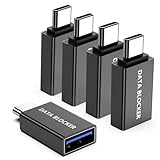
- ✨ Absolutely Safe: Features an internal physical data line cut design, permanently disconnecting the data pins in the USB interface, leaving only the power pathway, effectively eliminating the risk of data leakage.
- ⚡ Fast Charging Without Slowdown: usb-c to usb-a data blocker Adapter supports charging up to 100W and is compatible with multiple fast charging protocols. Charging speed is the same as the original charger, ensuring both safety and efficiency.
- 🔗 Wide Compatibility: Suitable for all devices that use various charging interfaces. Whether it’s iPhone, Android phones, iPad, tablets, Bluetooth headsets, or power banks, just plug and play.
- 👌 Compact and Portable: The usb-c male to usb-a female data blocker Adapter weighs only 3.95 grams, as compact as a USB drive. Protects safe charging anytime, anywhere.
- 🎯 Plug and Play: No drivers, no apps, no complicated setup required. Simply insert into a public USB port and connect your charging cable to start safe charging.
Before installing, check which listed blocker is currently available and whether it fits your needs. Do not assume that all choices have the same cost or filters: Samsung’s guide notes that some are free and others cost money, while the separate apps provide the lists. Installation and the switch are the steps Samsung documents for turning the feature on and managing it. If you later want to stop using it, return to Ad blockers and use the switch.
After enabling a blocker, evaluate it on the pages where you want less clutter. Samsung describes possible benefits, but does not publish a universal blocking percentage or guarantee that every site will look the same. A remaining ad does not by itself show that the menu setting is off; the individual blocker’s lists and the page’s content affect what can be filtered.
Set Android Private DNS
- Open Android Settings.
- Go to Network & internet > Private DNS. Manufacturer menus vary. If you do not see that path, use Settings search for “Private DNS,” as Google advises.
- Choose a mode. Select Off, Automatic, or Private DNS provider hostname.
- If selecting a provider hostname, enter the provider’s current hostname and save. Verify the hostname and the provider’s filtering behavior and privacy policy directly with that provider before using it.
Google’s help page covers the consumer setting at Manage advanced network settings on your Android phone. Do not assume that a hostname automatically includes ad filtering: Private DNS is the configuration mechanism, while any domain-filtering rules are a service choice made by the resolver provider.
Take care to enter the provider hostname exactly as the provider currently specifies it. The setting’s label asks for a provider hostname, not a general promise that Android will apply an ad list. Before choosing one, confirm that it is the provider’s current hostname, read what domains or categories its filtering covers, and review the provider’s privacy policy and limitations. Those details can change, so an old recommendation may not describe a provider’s current behavior.
If your Settings screen looks different, this does not necessarily mean the feature is absent. Google notes that users can search Settings for “Private DNS” when the listed path is not present, and Android menu wording can vary by manufacturer and software version. Follow the consumer instructions for your device rather than assuming Samsung’s labels match the exact path shown on another Android phone.
Do these 3 things before closing this tab:
1Fix the driver behind crashes, sound loss and screen glitches2Repair Windows errors before they cause bigger problems3Scan for outdated or missing drivers - takes under a minuteWhich option fits your goal?
You want fewer ads in Samsung Browser
Start with Samsung Browser’s Ad blockers menu. It is the option specifically designed for filtering content in that browser. Install and enable a listed blocker, then judge the result on the sites you actually use. If an ad remains, that does not necessarily mean the setting failed: the blocker’s filters may not cover that request, or the ad may be delivered in a way the filter does not remove.
This is also the most direct choice if your main concern is the appearance of pages in Samsung Browser rather than DNS privacy or filtering requests from other apps. Remember that the blocker is a separate app and its filters are not supplied by Samsung Internet itself. Check its current availability and cost in the browser’s list, and avoid treating Samsung’s qualitative statements about potential benefits as a performance guarantee.
Rank #4

- Removes all ads in Qizzle free version
- optimized layouts for wide range of Android devices (phones and tablets)
- fun and instructive topics
- exclusive settings include next letter hint and capitalization
- online leaderboards
You want DNS questions and answers secured
Review Android Private DNS and its available modes. Google recommends keeping it on where supported, and the setting’s documented protection is limited to DNS questions and answers. A provider hostname is not required to understand that distinction: Automatic is one of Android’s available modes, while Off disables Private DNS.
For this goal, separate DNS protection from ad removal. Google’s wording is explicit about the limited scope: Private DNS helps secure only DNS questions and answers and cannot protect anything else. It should not be presented as a substitute for a browser content blocker or as broad protection for all of a device’s activity.
The Tool Desk
Outbyte PC Repair FREERepair Windows errors before they cause bigger problemsFix Now →Outbyte Driver Updater FREEFix the driver behind crashes, sound loss and screen glitchesFind Drivers →You want provider-based filtering that may reach multiple apps
Choose a provider only after checking its current hostname, filtering rules, privacy policy, and limitations. A provider that filters domains may affect requests from multiple apps that use Android’s system resolver, but the result is not equivalent to filtering page content in every app. Do not expect DNS filtering to distinguish an ad from wanted content when both depend on the same domain.
In this case the provider matters as much as the Android setting. Android supplies the choice to configure a provider hostname; it does not define that provider’s advertising or tracking lists. Check what the provider says it filters and do not assume that all DNS services offer the same policy. The possible scope across apps is also conditional: it concerns apps whose DNS lookups use the system resolver, not a guarantee that every app request is filtered.
You want both kinds of protection
The options address different layers, so they can serve separate goals: a blocker for content filtering in Samsung Browser and Private DNS for DNS handling. Using one does not turn on the other, and neither guarantees that every ad or tracker is blocked. Assess each setting by its own scope rather than treating the combination as a universal ad-removal feature.
Using both therefore means enabling each independently and keeping its limitation in mind. The Samsung blocker remains a Samsung Browser feature; Private DNS remains DNS configuration whose possible filtering comes from the selected provider. A combination may address different kinds of requests, but the documented features do not promise complete ad removal or a measured improvement in speed or data use.
Version and device context
Google’s Android Enterprise Security Paper says Android 9.0 and later includes built-in DNS-over-TLS support. The 2020 paper also describes administrator capabilities in Android 10 for configuring DNS-over-TLS and preventing users from changing DNS settings. Those details provide version context; for consumer setup, Google’s current Android Help instructions are the more directly relevant guide. They do not mean that every phone presents the same Settings path or labels.
Best Value
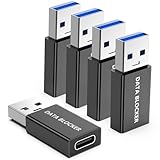
- ✨ Absolutely Safe: Features an internal physical data line cut design, permanently disconnecting the data pins in the USB interface, leaving only the power pathway, effectively eliminating the risk of data leakage.
- ⚡ Fast Charging Without Slowdown:The USB-A to usb-c data blocker Adapter supports charging up to 100W and is compatible with multiple fast charging protocols. Charging speed is the same as the original charger, ensuring both safety and efficiency.
- 🔗 Wide Compatibility: Suitable for all devices that use various charging interfaces. Whether it’s iPhone, Android phones, iPad, tablets, Bluetooth headsets, or power banks, just plug and play.
- 👌 Compact and Portable: The model weighs only 5.0 grams, as compact as a USB drive. Protects safe charging anytime, anywhere.
- 🎯 Plug and Play: No drivers, no apps, no complicated setup required. Simply insert into a public USB port and connect your charging cable to start safe charging.
The Android 10 administrator details are about managed-device capabilities, not a separate consumer ad-blocking feature. They should not be read as an indication that a user’s phone has a particular provider filter enabled. For a consumer deciding what to tap, the current Android Help page explains the available Private DNS modes and settings path.
Samsung’s support page is for US Galaxy phones and tablets, while the browser’s available blockers and interface can change. Android Settings labels and menu locations can vary by manufacturer and software version. If the directions do not match your device, searching Settings for “Private DNS” is Google’s suggested fallback; for the browser feature, use Samsung’s current support instructions for your device and region.
Common misunderstandings
- “Private DNS is Android’s built-in ad blocker.” It is a DNS setting. Filtering, if any, comes from the selected provider, and it does not remove arbitrary page elements.
- “Samsung Browser’s blocker protects every app.” Its intended scope is Samsung Browser. It should not be assumed to filter another browser or other apps.
- “A provider hostname guarantees ad blocking.” The hostname selects a resolver; whether and how it filters domains depends on that provider’s current service.
- “If a page still shows an ad, nothing is working.” Neither approach promises universal blocking. A blocker may not match the request, and DNS filtering may not block an ad’s domain or may be unable to separate it from wanted content.
- “The feature promises a specific speed or data improvement.” Samsung describes possible benefits, but the official sources cited here do not establish comparative measurements or a guaranteed amount of savings.
- “The two features are competing versions of the same switch.” They operate at different layers and can be used for different purposes. Browser content filtering and DNS handling are not interchangeable.
- “Any Android app will use the selected DNS provider for every request.” The potential cross-app effect applies to lookups made through the system resolver. It does not guarantee that every app or request uses it.
- “A free blocker or DNS provider must have the same coverage as a paid one.” Samsung notes that listed browser blockers may be free or paid, but that does not establish identical filtering. Check the individual app’s current details rather than assuming coverage or price.
Sources and what they establish
- Samsung Support (US): Use Ad blockers in Samsung Browser on your Galaxy phone or tablet gives the browser menu path and explains how to install and manage listed blockers.
- Samsung Developer: Samsung Browser for Android describes the browser’s support for separate content-blocking apps that supply filters.
- Google Android Help: Manage advanced network settings on your Android phone describes Private DNS modes, the Settings path, and the scope of its protection.
- Google / Android: Android Enterprise Security Paper (2020) provides the cited Android 9 and Android 10 DNS-over-TLS context.
Frequently Asked Questions
Does Samsung Internet ad blocking work outside the browser?
No. Samsung Browser’s Ad blockers feature enables separate apps that supply content filters to Samsung Browser. It is not designed as a setting for other browsers or apps.
Outdated Drivers Are Slowing You Down
One free scan finds every outdated or missing driver and matches the right update for your exact hardware.Free scan · exact hardware matchWindows Errors? Fix Them Before They Spread
Repair common Windows errors and clear accumulated junk for a smoother, more stable PC - no reinstall needed.Free scan · no reinstallDoes Android Private DNS block ads automatically?
No. Private DNS secures DNS questions and answers. Domain filtering is a separate service choice: a DNS provider may filter some ad or tracking domains, but Android does not promise universal ad blocking.
Can Private DNS filter ads in other apps?
A filtering provider may affect domain lookups from other apps that use Android’s system resolver, where Private DNS works. This is not a guarantee that every app or request uses that resolver, and DNS filtering does not remove visual page elements.
Can I use Samsung Browser Ad blockers and Private DNS together?
Yes, they address different layers and are configured separately. The blocker filters content in Samsung Browser; Private DNS handles DNS resolution and may apply provider-defined domain filtering. Neither guarantees that every ad will be blocked.
Do Samsung Browser ad blockers cost money?
Samsung says some listed blocker apps are free and some cost money. Check the current listing for availability and cost; the apps, rather than Samsung Internet itself, supply the filtering lists.
Quick wins for a faster PC:
Scan for outdated or missing drivers - takes under a minuteDriver Scan →Repair Windows errors before they cause bigger problemsFix Now →Fix the driver behind crashes, sound loss and screen glitchesFind Drivers →The Bottom Line
Bottom line: Use Samsung Browser’s Ad blockers feature when you want content filtering in Samsung Browser. Use Android Private DNS for DNS handling and, if you choose a provider that offers it, possible domain filtering across lookups from apps using the system resolver. Private DNS is not an ad blocker by itself, and neither option promises that every ad will disappear.
Quick Recap
Product prices and availability are accurate as of the date/time indicated and are subject to change. Any price and availability information displayed on Amazon at the time of purchase will apply.

