
iTechGuides is reader-supported. When you buy through links on our site, we may earn an affiliate commission. As an Amazon Associate I earn from qualifying purchases. Learn more
The safest first-day order for a Galaxy S25 FE is: identify the exact SM-S731 regional model, connect to trusted Wi‑Fi, update the phone and its app stores, secure the lock screen, review permissions and backups, then tune display, battery, notifications and accessories. Finish by testing calls, data, wireless connections, payments, cameras, charging and backup before you erase the old phone.
Menu names can differ between One UI releases and between regional or carrier editions. Use the labels shown on your phone, but keep the sequence below: updates and account recovery should be in place before you spend time customizing the device.
1. Identify your exact Galaxy S25 FE model
Open Settings > About phone and record the model number beginning with SM-S731. The final letter matters. Samsung publishes separate manuals and update tracks for variants such as SM-S731B and SM-S731U, as well as other regional and carrier versions. That can change menu wording, available features and when an update appears.
The Tool Desk
Outbyte Driver Updater FREEFix the driver behind crashes, sound loss and screen glitchesFind Drivers →Outbyte PC Repair FREERepair Windows errors before they cause bigger problemsFix Now →Record these details
- Model number, including its regional suffix.
- Software build number and Android version.
- Security-patch date.
- Carrier name, if the phone is carrier-supplied.
Keep this note for future troubleshooting and accessory purchases. Instructions written for another S25 FE variant may not match your screens, and an unlocked model may receive firmware at a different time from a carrier edition.
#1 Best Overall
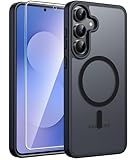
- Compatibility: This case Fit for Samsung Galaxy S26 FE (6.7 inch, 2026) and Samsung Galaxy S25 FE (6.7 inch, 2025). Please confirm your phone moderl before purchasing
- Strong Magnetic Charging: This Galaxy S26 FE / S25 FE Case has built with 38 super-strong N52 magnets, delivering 2400 gf magnetic attraction—over 7× stronger than standard cases. Ensures a secure, stable connection to Magnetic chargers, car mounts, and wireless charging stands. Perfectly aligned for fast, stable charging every time
- Tempered Glass Screen Protector: This Samsung Galaxy S26 FE / S25 FE Case includes 1× premium tempered glass screen protector that preserves original touch sensitivity and HD clarity. Offers reliable scratch and drop defense for your phone's Screen, without compromising responsiveness or display quality
- Translucent Matte Back: This Samsung S26 FE / S25 FE Case crafted from high-quality matte TPU and translucent PC, this case reveals the phone logo with an elegant, refined finish. The frosted texture delivers a comfortable, non-slip grip, while the nano antioxidant layer effectively resists stains, sweat, and minor scratches—keeping your case clean and clear longer
- 14FT Military Grade Drop Protection: S26 FE / S25 FE Case has rigid polycarbonate backplate paired with flexible, shock-absorbing TPU bumpers around the edges, plus 4 built-in corner airbags. Provides comprehensive protection against accidental drops, bumps, and impacts
2. Start on a trusted network and complete accounts deliberately
Connect before restoring
Join a trusted Wi‑Fi network before downloading updates or moving a large photo library. Confirm the network name and password rather than relying on an unsecured hotspot. Finish Google and Samsung account sign-in only after you have checked that the connection is legitimate.
Review setup choices instead of accepting every default
During account setup, read the backup and device-finding options. Enable the backup and device-location tools offered by the setup flow unless you have a specific reason not to. These services are most useful when they are configured before a loss, theft or failed transfer, not afterward. Wording varies by One UI release, so the switch may not use exactly the same label shown in a guide for another software version.
Use an account email and recovery method you can reach independently of the phone. If the S25 FE is your only authenticator or recovery device, add another approved recovery method before you leave the setup screens.
Crashes, No Sound, or Screen Glitches?
Random freezes, missing sound and display glitches usually trace back to one bad driver. Find and replace yours safely.Free scan · under a minuteWindows Errors? Fix Them Before They Spread
Repair common Windows errors and clear accumulated junk for a smoother, more stable PC - no reinstall needed.Free scan · no reinstall3. Update the phone before restoring your full data set
Install the system update
- Open Settings > Software update.
- Choose Download and install or the equivalent check-for-updates command.
- Install any available update while connected to Wi‑Fi and with sufficient battery, or while plugged in.
- Restart when requested, then return to the same screen and confirm the installed build and security-patch date.
Samsung’s software-update notice says, “To get the best from your device, please keep your device up to date and regularly check for software updates.” The update history for SM-S731B lists Android 16 builds and security patches, but that does not mean every region or carrier receives the same build on the same day. Do not treat the SM-S731B history as a release promise for an SM-S731U or another suffix.
Update the other update channels
- Check the Google Play system update entry in the phone’s security or software settings and install it if offered.
- Open Galaxy Store, go to its updates area and update Samsung apps.
- After the restart, check again for updates that were blocked by the first installation.
Updating before a full restore reduces the chance that an older app, migration utility or security component interferes with the current software. It also gives you a clean build number to report if support is needed.
4. Build a strong lock screen before adding convenience unlocks
Choose the primary credential
Set a long PIN or a password under the lock-screen security settings. A longer credential resists guessing better than a short, easily observed code. Store it in a secure password manager or another protected record; do not make the phone dependent on a credential you cannot recover.
Rank #2
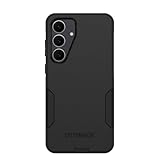
- Compatible with Samsung Galaxy S25 FE
- Rugged Multi-Layer Defense: Featuring dual-layer construction with a rigid shell and internal rubber layer, our case exceeds 3X military drop standards (MIL-STD-810G 516.6), crafted from over 35% recycled plastic for eco-conscious resilience.
- Secure Grip, Streamlined Protection: Rely on the OtterBox legacy with Commuter Series—total protection with rubber-gripped edges for a secure hold. It's a slim, easy-to-install case providing durable quality and a precise fit for hassle-free defense
- Wireless Charging Compatible: Its slim profile is pocket-friendly, offering protection and ease for your on-the-go lifestyle
- Rugged design fights off scratches
Add fingerprints, then decide about face recognition
Enroll fingerprints after the primary credential is active. Register the finger or fingers you actually use, including a second finger if your grip changes when the phone is on a desk or in a car. Fingerprint unlock is a convenience layer; the PIN or password remains essential after a restart and for some sensitive actions.
What’s actually slowing this PC down?
Pick the symptom - the matching free tool is one click away.
Face recognition can make unlocking faster, but it changes the convenience-versus-security balance. Add it only if that trade-off suits your surroundings and the kind of information kept on the phone. You can remove it later without deleting fingerprint data or changing the primary credential.
Hide sensitive lock-screen previews
Open the notification settings for the lock screen and disable message content previews if private text could be visible to someone holding or seeing the locked phone. You can keep the notification indicator while hiding its details. Check this setting again after major One UI updates because labels and layout can move.
5. Audit privacy, permissions and security scanning
Review high-impact permissions first
Open the privacy or permission manager and inspect each app’s access to:
- Location, including any “always” or background access.
- Microphone and camera.
- Nearby devices and Bluetooth-related discovery.
- Contacts, photos, files and calendar data.
- Notification access and other special access controls.
Remove a permission when the app’s core function does not require it. If an app stops working, grant the narrowest access that restores the needed feature rather than returning every permission at once. For location, use the least persistent option that still supports the app’s purpose.
Recommended Free Tools
Check advertising and privacy controls
Review the phone’s privacy dashboard and advertising or personalization controls. These settings affect how activity is used for personalization; changing them can alter recommendations without disabling the underlying app.
Rank #3

- [Compatibility]: Compatible with Samsung Galaxy S25 FE (2025) Only.
- [Built-in Screen Protector]: Guards against scratches without compromising sensitivity.
- [Kickstand Feature]: Built-in Kickstand supports portrait and landscape hands-free viewing.
- [20 Foot Drop Tested]: Multi-layered TPU and Polycarbonate materials create ultimate drop protection.
- [Rotatable Holster]: Experience user-friendly convenience with an included detachable rotating holster.
Leave protective scanning enabled
Keep Google Play Protect and Samsung’s security scanning enabled. They provide a baseline check for potentially harmful software. Turn either off only for a specific, informed troubleshooting step, and turn it back on immediately afterward. A claim that disabling scanning improves battery life is not an established measurement for the S25 FE.
6. Configure backup and migration without losing the old copy
Verify what will be backed up
Open the backup controls for both your Google and Samsung accounts and inspect the categories selected. Confirm that contacts, device settings, messages, call history and other important data are included where the service supports them. Photos may use a separate photo-backup setting, so check that independently.
Transfer in a controlled order
- Use the account or transfer flow offered during setup to move the essentials.
- Restore only the apps and data you need immediately; a clean app list makes permission and notification review easier.
- Open the restored apps that matter most and sign in again when required.
- Verify photos, contacts, messages and authenticator codes on the S25 FE.
- Keep the previous phone powered and available until every critical item has been checked.
Authenticator codes deserve special attention: some authenticator apps require an explicit export, cloud sync or account re-enrollment rather than a simple app download. Do not wipe the old phone until you have completed the method supported by your authenticator.
7. Set the display for comfort, visibility and battery priorities
Go to Settings > Display and make these choices in order:
- Select light or dark mode for your environment and preference.
- Enable adaptive brightness if you want the phone to respond to ambient light, or set brightness manually when consistency matters more.
- Choose a screen-timeout period long enough for reading but short enough to avoid an unattended lit screen.
- Set font size and, if needed, screen zoom for comfortable reading.
- Choose the Motion smoothness option that matches your priority: smoother movement or lower power use.
- Enable Accidental touch protection if the phone is often carried in a pocket or bag.
These are preference trade-offs, not guaranteed percentage savings. No official source establishes one universal battery improvement for a particular brightness, timeout or motion setting, so judge the result by your own use rather than a promised number.
Display decision guide
| Priority | Starting choice | What to watch |
|---|---|---|
| Maximum readability | Comfortable font and zoom, adaptive brightness | Whether brightness remains comfortable indoors and outdoors |
| Smoother scrolling | Higher Motion smoothness setting | Battery behavior during your normal day |
| Longer runtime | Shorter timeout and a less demanding Motion smoothness setting | Whether the screen turns off while you are still reading |
| Pocket protection | Accidental touch protection enabled | Whether intentional touches still register reliably |
8. Set battery, background-use and charging safeguards
Review Battery and device care
Open Settings > Battery and device care and inspect battery usage by app. Use background-usage limits for apps that do not need frequent updates, but avoid restricting messaging, authentication, navigation or safety apps whose timely operation matters. The right list depends on how you use the phone; there is no universal set of apps that should be put to sleep.
Rank #4

- Compatible with Samsung Galaxy S25 FE
- Superior Drop Protection: Rigorously tested, this case surpasses military standards (MIL-STD-810G 516.6), enduring 5X more drops. Rest assured, your phone is safeguarded in the most unexpected situations with OtterBox's commitment to superior protection.
- Slim Yet Tough: Experience the perfect balance with a slim profile that comfortably fits in your pocket, coupled with the strength of OtterBox. Made with 50% recycled plastic, this case stands for both eco-conscious durability and uncompromised toughness.
- Wireless Charging Compatible: Ingeniously designed for modern convenience, this case fully supports wireless charging. Its magnet-free design ensures seamless compatibility, keeping your Samsung Galaxy S25 Ultra ready for use at all times.
- Textured all over for peak grip
Choose a charging strategy
Review charging protection and power-saving automation. Decide whether your priority is maximum runtime on a particular day or limiting how long the battery remains at a high charge over the long term. Enable a charging limit or protection mode when preserving charging habits matters more than having the largest possible capacity at every departure; use a less restrictive option when a full day away from an outlet is the priority.
Power-saving mode can reduce background activity and change performance behavior. Set it to activate automatically at a level that still leaves enough reserve for calls, navigation and two-factor authentication.
Wireless PowerShare and covers
Samsung’s specifications warn that Wireless PowerShare may not work with certain covers, accessories or other devices. Test the feature with the case installed, and remove the case if charging does not start. A case that is safe for wired charging is not automatically compatible with Wireless PowerShare.
9. Stop noisy notifications without hiding important alerts
Use notification categories
Open notification settings and review categories for each frequently used app. Turn off promotional or low-value categories while keeping account, security, transaction and direct-message alerts. Banking and authentication apps deserve a separate check because a broad “notifications off” switch can hide a sign-in warning or fraud alert.
Check emergency alerts
Review emergency-alert settings and leave legally required or safety-critical alerts enabled unless local rules or a specific personal need dictate otherwise. Test the notification volume and vibration pattern so an important alert is distinguishable from routine app activity.
10. Select defaults you will actually use
Set the default browser and assistant, then test each from a link, a voice command or the relevant hardware shortcut. Confirm that links open in the intended browser and that the assistant does not request permissions you do not want to grant.
Best Value
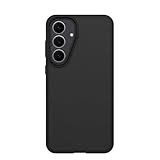
- Compatible with Samsung Galaxy S25 FE
- Ultra-thin and trendy case that’s DROP+ drop tested to military standard (MIL-STD-810G 516.6)
- Made with more than 50% recycled plastic and wireless charging compatible
- Hard case with a soft grip is easy to install and remove
- Trusted OtterBox Quality: With OtterBox, you're not just buying a case; you're investing in peace of mind.
Defaults can change after installing an app or restoring settings. Recheck them after migration, especially if you restored several browsers, messaging clients or launcher applications.
11. Protect the hardware and verify accessory fit
Before buying a protective case for the Galaxy S25 FE, match its cut-outs to the exact SM-S731 model. Check camera openings, side-button alignment, fingerprint interaction and wireless-charging behavior. Samsung’s accessory guidance means a cover can affect Wireless PowerShare and may interfere with another device being charged.
- Confirm the model suffix, not just the “S25 FE” name.
- Check that the case does not cover microphones, speakers or the camera flash.
- Test wired charging, wireless charging and Wireless PowerShare with the case fitted.
- Verify that buttons can be pressed without excessive force.
If an accessory causes charging or connectivity problems, remove it before changing system settings. That simple isolation step distinguishes a case problem from a phone problem.
Free tools Windows power users keep installed
One-click scans. No signup required.
12. Run a complete functional check before retiring the old phone
Perform this final checklist after updates, migration and accessory installation:
- Place and receive a call; check the earpiece, speakerphone and microphone.
- Test mobile data away from Wi‑Fi.
- Join Wi‑Fi and confirm the phone reconnects after leaving and returning to the network.
- Pair a Bluetooth accessory and verify audio or control functions.
- Turn on NFC and complete payment setup if you use contactless payments.
- Take photos and videos with the cameras, then open and share them.
- Lock and unlock with the fingerprint and confirm the primary PIN or password works.
- Charge by cable and, if applicable, wirelessly; test Wireless PowerShare with the intended case.
- Run or inspect a fresh backup and confirm the latest timestamp.
- Record the software build and security-patch date alongside the model number.
Only after these checks pass should you factory-reset or trade in the previous phone. Keep its SIM or eSIM information, recovery codes and authenticator access available until you are certain the S25 FE can receive calls, sign in to accounts and recover data without it.
Quick Recap
Quick priority map
| If your priority is… | Change first | Accept the trade-off |
|---|---|---|
| Security and privacy | Strong PIN or password, hidden lock-screen content, permission review, Play Protect and Samsung scanning | Some apps may require deliberate permission grants or an extra unlock |
| Battery endurance | Shorter timeout, adaptive or reduced brightness, background limits and power-saving automation | Less smooth motion, delayed background updates or reduced convenience |
| Fast, convenient access | Fingerprints, optional face recognition, longer timeout and carefully selected notification categories | Convenience features can expose more information or use more power |
| Charging longevity | Charging protection or a limit and sensible power-saving automation | Less charge available when you leave the phone unplugged for a long time |
Product prices and availability are accurate as of the date/time indicated and are subject to change. Any price and availability information displayed on Amazon at the time of purchase will apply.

