
Recommended Free Tools
iTechGuides is reader-supported. When you buy through links on our site, we may earn an affiliate commission. As an Amazon Associate I earn from qualifying purchases. Learn more
A Ring doorbell can appear to “miss” someone for three different reasons: it did not detect motion, it detected and recorded an event but did not notify your phone, or it sent an alert but no playable recording is available. Check Event History first, then follow the branch that matches what you find. This prevents changing motion zones when the real problem is a phone setting, or buying a replacement when the event was never eligible for recording.
Feature names and menu locations can vary by doorbell model and Ring app version. If you need model-specific instructions, open Device Health and note the Product Name before contacting support.
First identify what is missing
Open the Ring app, select the doorbell, and inspect Event History for the exact time someone should have appeared. The history determines which system failed.
The Tool Desk
Outbyte PC Repair FREEClear out junk files and repair common Windows errorsFree Scan →Outbyte Driver Updater FREEFix the driver behind crashes, sound loss and screen glitchesFind Drivers →| What Event History shows | What probably failed | Start with |
|---|---|---|
| An event is listed, but your phone was silent | Notification delivery | Motion Alerts, alert snooze or schedules, phone permissions, and Do Not Disturb or Focus settings |
| Your phone alerted, but the video will not play | Recording eligibility or access | Subscription status and the time the event occurred |
| There is no event and no alert | Detection, the configured area, connectivity, or the camera view | Motion settings, zones, online status, Wi-Fi, and placement |
Do not use Ring Alerts (doorbell-button presses) as a substitute for Motion Alerts. They are separate controls. Ring’s guidance on alert types and Event History is in its alert-management instructions.
#1 Best Overall
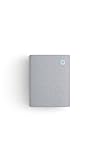
- Hear when someone's there — Receive notifications when motion is detected by your cameras or someone rings your doorbell.
- Real-time alerts, clear as a bell — With an upgraded speaker, get notified throughout your home with louder, clearer alerts.
- Set up in a snap — Simply plug Chime (3rd Gen) into a standard wall outlet for easy setup.
- Sleek, elegant design — Curved edges and slim profile create a modern look that fits your space.
- Customizable sound profiles — Personalize tones, volume, and snooze settings.
Check motion detection and the area being watched
Confirm the two motion switches
Open the doorbell in the Ring app and its motion settings. Make sure both Motion Detection and Motion Alerts are enabled. Motion Detection controls whether the device reacts to movement for events and alerts; Motion Alerts controls whether your phone receives a notification when that movement is detected. Turning on only one can create the impression that the other function is broken.
If the device records an event while Motion Alerts is off, the absence of a push notification is expected. Conversely, enabling Motion Alerts cannot help if Motion Detection is disabled or the scene is outside every active zone.
Adjust sensitivity for the type of movement
Review Motion Sensitivity. Ring describes the slider as controlling how much movement the device detects. A person walking across the edge of the view may require a different setting from a vehicle approaching the door head-on. Change the setting in a small increment, save it, and perform a repeatable walk test along the path that previously failed. Large changes make it harder to tell which adjustment helped.
Make sure the approach path is inside a Motion Zone
Motion Zones define the portions of the camera image that can trigger motion events. Draw a zone over the actual path a visitor uses, not merely over the center of the image. A zone that ends at the sidewalk, leaves a narrow gap near the gate, or excludes the lower part of the frame can omit a person even when that person is plainly visible in live view.
Ring permits up to three zones per device. Use separate zones when the approach comes from different directions, and remove or reshape zones that cover only irrelevant background. Ring’s Motion Zones guidance explains the controls and eligibility.
Some battery-powered devices require Advanced Motion Detection to use Motion Zones. If the zone controls are missing or behave differently from the instructions, check the model and power type rather than assuming the camera is defective.
Account for range, frequency, and schedules
Ring describes 30 feet as the standard maximum detection range for its devices. That is not a promise that every person will be detected at 30 feet: a small, distant person can be harder to detect than a larger object, and the direction and speed of movement matter. Ring notes that larger objects farther away, such as vehicles, may still trigger an alert.
Check Motion Schedules. A schedule can suppress alerts during recurring periods even though the device remains online. Also review Motion Frequency and Advanced Motion Detection where those options are available; they can change how often the device reacts after a recent event. Test outside the scheduled or reduced-frequency period so the result is unambiguous.
Rank #2
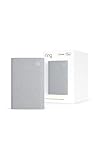
- Sound the alarm on all your devices — Sync Chime Plus with Ring sensors built on Amazon Sidewalk, cameras, and doorbells for comprehensive security you can hear from anywhere. (Coverage may vary by location and is subject to change or interruption.) (Chime Plus is designed to integrate with Ring Sensors connected to Amazon Sidewalk. Please verify your Ring device compatibility before purchase.)
- Set custom schedules for Chime audio alerts and lighting — Control when you hear alerts and when the night-light activates to match your daily routine.
- Personalized tones. Precision audio alerts. — Set a custom tone for each of your Ring devices so you know exactly which one was triggered the moment your Chime Plus sounds.
- Enhanced audio for true sound — Hear every alert no matter where you are with improved audio for crisp clarity and loudness.
- A guiding light that’s easy on the eyes — Illuminate hallways, rooms, and more with the built-in night-light.
When an event exists but your phone stays silent
Verify Motion Alerts, not just Ring Alerts
If Event History contains the missed movement, detection worked. In the doorbell’s settings, turn on Motion Alerts. The separate Ring Alerts switch applies to presses of the doorbell button, so changing it will not restore movement notifications.
Check Alerts Snooze and Motion Schedules
Alerts Snooze temporarily silences motion notifications for a subscribed camera or doorbell. During snooze, the device continues recording events; doorbell rings and Priority Alerts remain on. Check whether a snooze timer is active before changing sensitivity or zones. Likewise, inspect Motion Schedules for a quiet period that covers the time of the missed alert.
After disabling snooze or editing a schedule, trigger one controlled motion event and wait for the result. This confirms notification delivery without relying on a past event that may have occurred under different settings.
Remove phone-level notification blocks
Ring specifically advises turning off Do Not Disturb on the phone or tablet while troubleshooting missing alerts. Also check the operating system’s notification permission for the Ring app and any active Focus mode. A phone can suppress a notification even when Ring has generated the event correctly.
Keep the doorbell online while testing. If Event History updates but the phone remains silent after Motion Alerts and phone permissions are corrected, sign out of other notification profiles or devices only if they are known to be filtering alerts; do not alter motion zones for a problem already proven to be notification-only.
When an alert exists but no video will play
Confirm recording eligibility
Ring states that reviewing recorded video on Ring cameras and doorbells requires a Ring subscription. The requirement is separate from whether the doorbell can detect motion or send an alert. A device can therefore notify you about movement while no playable cloud clip is available.
Only events that occur after the subscription begins are recorded under that subscription. Activating a subscription now will not create video for an earlier event that was not recorded.
Crashes, No Sound, or Screen Glitches?
Random freezes, missing sound and display glitches usually trace back to one bad driver. Find and replace yours safely.Free scan · under a minutePC Slower Than It Used to Be?
A free scan shows the junk files, broken settings and background clutter dragging Windows down - then fixes them in one click.Free scan · Windows 10 & 11Check the event date against retention
Ring’s FAQ says cloud motion-event videos are stored for up to 180 days. That is a stated maximum in the FAQ, not a guarantee that every current plan or region has identical retention terms; verify the terms shown for your account. If an event is older than the applicable retention period, it may remain referenced in history without a playable clip.
Rank #3

- 1. Wide Compatibility - Works seamlessly with most eufy video doorbells, offering reliable ringing and notifications throughout your home. For a detailed compatibility list, please refer to the FAQ.
- 2. Multiple Chime Options - Comes with 10 pre-installed tones that suit various preferences and occasions, so you can find the right one for you.
- 3. Stable Dual-Band Connection - Enjoy faster speeds, reduced network congestion, and smooth performance at all times with advanced 2.4 GHz and 5 GHz dual-band Wi-Fi connectivity.
- 4. Quick and Easy Setup - Supports auto-discovery and effortless network integration with Bluetooth auto-pairing, allowing fast installation within minutes.
- 5. Loud and Reliable Alerts - Volume can be adjusted to up to 80 dB for powerful and dependable alerts, letting you hear visitor notifications clearly even from the second floor or across larger spaces.
Ring also says past events may appear in history but cannot be viewed or recovered if they were not recorded. Do not promise yourself that changing a setting or starting a subscription will restore an absent file. The recording and retention information appears in Ring’s product and service FAQ.
Understand Smart Alerts separately
Smart Alerts are an additional, subscription-dependent feature. If person or other smart-alert options are missing, check whether the device and subscription are compatible using Ring’s Smart Alerts setup guidance. Do not treat the absence of a Smart Alert label as proof that basic motion detection has failed.
Check connectivity before blaming the sensor
Use Device Health to establish the connection state
Open Device Health for the doorbell and check whether it is online and whether the reported Wi-Fi signal is adequate at its installed location. An offline device cannot reliably upload events or deliver alerts, even if its motion settings are correct.
Quick wins for a faster PC:
Clear out junk files and repair common Windows errorsFree Scan →Scan for outdated or missing drivers - takes under a minuteDriver Scan →Device Health also displays the Product Name. Record it before seeking model-specific help because feature availability, battery behavior, and menu labels vary across models and app versions.
Remember the network requirement
Ring products require an existing home Wi-Fi network. Ring’s FAQ says they do not work with a mobile-phone hotspot, so switching the doorbell to a hotspot is not a valid recovery step. Restore a supported home Wi-Fi connection instead.
Improve signal only when signal is the problem
If Device Health shows a weak connection or the doorbell repeatedly goes offline, move the device or the Wi-Fi access point closer if installation constraints allow. Ring identifies Chime Pro as a possible aid for Wi-Fi signal strength. Treat it as a connectivity option, not as a fix for disabled Motion Detection, phone permissions, a schedule, or subscription eligibility. Ring’s support material discusses signal and placement together in its positioning guidance.
After improving signal, wait for Device Health to show the doorbell online and repeat a known walk test. If the event now appears, the earlier fault was connectivity rather than a motion-zone boundary.
Do these 3 things before closing this tab:
1Clear out junk files and repair common Windows errors2Fix the driver behind crashes, sound loss and screen glitches3Repair Windows errors before they cause bigger problemsInspect the camera’s view and installation
Use the recommended mounting height
Ring recommends mounting a doorbell 48 inches (1.22 meters) from the ground for optimal motion detection. A substantially higher or lower installation changes the angle at which a person enters the frame and can reduce the useful portion of a zone. Measure from the ground to the relevant doorbell position, not from the top of a step or porch rail.
Rank #4
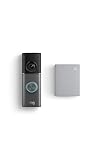
- This bundle contains 1 Wired Doorbell Pro (3rd Gen) and 1 Chime (2nd Gen), White.
- Capture it all with Retinal 4K video —See your home or business in the ultimate clarity with Retinal 4K.
- Zoom in up to 10x — Catch details at a distance and inspect faces or license plates with wide-angle up to 10x Enhanced Zoom.
- True color, even in low light — With Low-Light Sight, just a little ambient light gives you true color video. In total darkness, your camera switches to crisp black-and-white to keep details sharp.
- See in the near-dark — With Low-Light Sight on both your doorbell and camera, get a full-color view in the near-dark. Nearby street lighting is all you need.
Walk the real approach, not just the center of the frame
Stand where a visitor actually approaches: along the sidewalk, from the driveway, through a gate, and beside the door. Confirm that the person is visible early enough and that the path crosses an active Motion Zone. A visitor who walks straight toward the camera may produce a different result from one who crosses the frame, so test the direction that matters to you.
Remove or account for obstructions and changing light
Moving trees, direct sunlight, reflections, and shadows can produce unwanted alerts or make a scene difficult to interpret. Reflective surfaces in the camera view can also affect detection. Trim or reposition obstructions where practical, and review the scene at the time of day when the missed event occurred. A zone that works in daylight may include a bright reflection or deep shadow at another hour.
Do not solve unwanted alerts by shrinking the zone until the desired approach disappears. First identify whether the false trigger comes from foliage, glare, a reflective wall, or a passing object, then reshape the zone around the important path.
Free tools Windows power users keep installed
One-click scans. No signup required.
A controlled test that isolates the fault
Once settings, connectivity, and placement have been reviewed, run one deliberate test instead of relying on an unrepeatable missed visitor.
- Choose a path that should be inside an active Motion Zone and a time outside any Motion Schedule.
- Confirm Motion Detection and Motion Alerts are on, Alerts Snooze is off, and the phone’s Do Not Disturb or Focus mode is disabled.
- Check Device Health and wait until the doorbell reports an online connection.
- Walk through the scene at a normal visitor pace, then check Event History.
- If an event appears, compare the phone notification and the video separately: a missing notification is a delivery problem, while an unavailable clip is a recording-eligibility problem.
- If no event appears, repeat once from a different direction within the zone. Then revisit sensitivity, zone boundaries, range, and the physical view before escalating.
This test creates a timestamp and a known path, making it easier to tell whether a later change fixed detection, notification delivery, or recording access.
Common mistakes that waste time
- Changing sensitivity when the phone is filtering alerts: An event already in Event History proves that detection occurred; adjust phone permissions, snooze, schedules, or Do Not Disturb instead.
- Assuming a silent phone means no recording: Alerts Snooze can silence motion notifications while the subscribed device continues recording.
- Expecting a new subscription to recover old video: Only events after subscription activation are recorded, and unrecorded past events cannot be recovered.
- Adding a signal accessory to a settings problem: A Wi-Fi aid helps only when Device Health shows weak connectivity or offline behavior.
- Declaring hardware failure from one missed person: First test the zone, approach direction, range, schedule, network state, and lighting under controlled conditions.
- Replacing the doorbell without identifying the model: Use Device Health’s Product Name for any model-specific support or compatibility question.
When to escalate for model-specific support
Escalate after a controlled test still produces no event while the doorbell is online, Motion Detection is enabled, the path is inside a valid zone, the schedule is inactive, and the scene is unobstructed. Include the Product Name from Device Health, the test time, the approach direction, and whether Event History changed. That information distinguishes a configuration issue from a possible device or service fault.
Any repositioning or recording configuration should also respect local privacy and recording laws. Ring states that users are responsible for configuring recording devices in compliance with applicable law.
Source guidance
The operational settings and limits above are documented in Ring’s support pages for Motion Zones, alerts, the product FAQ, Smart Alerts, and doorbell positioning. Menu labels and feature access can change, so use the version shown in your app and verify current subscription terms in your account.
Quick Recap
Product prices and availability are accurate as of the date/time indicated and are subject to change. Any price and availability information displayed on Amazon at the time of purchase will apply.

