
Free tools Windows power users keep installed
One-click scans. No signup required.
iTechGuides is reader-supported. When you buy through links on our site, we may earn an affiliate commission. As an Amazon Associate I earn from qualifying purchases. Learn more
x16, x8, and x4 describe the number of PCIe data lanes, not necessarily the length of the connector. At the same PCIe generation, an x16 link has twice the lane capacity of x8 and four times that of x4. However, PCIe 4.0 x8 has roughly the same theoretical bandwidth as PCIe 3.0 x16, and a graphics card in an x8 slot often loses only a few percent of gaming performance. The actual result depends on the PCIe generation, the electrical wiring of the motherboard slot, CPU lane topology, shared M.2 connections, and the workload.
What PCIe x16, x8, and x4 actually mean
A PCI Express lane is a bidirectional data path. The “x” number is the lane count negotiated for a link:
- x16: 16 lanes
- x8: 8 lanes
- x4: 4 lanes
At one PCIe generation, lane counts scale bandwidth linearly. An x8 link carries half as many lanes as x16, while x4 carries one quarter as many. The lane count is independent of the connector’s physical length. A slot that is long enough to accept an x16 card may be wired electrically for x8 or x4.
The Tool Desk
Outbyte Driver Updater FREEFix the driver behind crashes, sound loss and screen glitchesFind Drivers →Outbyte PC Repair FREEClear out junk files and repair common Windows errorsFree Scan →Motherboard specifications often use names such as “PCIEX16” for a full-length connector. That label can describe the connector shape rather than its operating width. The manual or block diagram is the authority for whether that connector is electrically x16, x8, or x4, and whether its width changes when other devices are installed.
#1 Best Overall

- Compatible with all of the PCI-E Device and Graphics Cards: Includes the new RTX series such as RTX4090, RTX4070ti, RTX3090ti, RTX3090 , and MORE. 🔺it is 90 Degree 200mm/7.8inch, Please check the length and angle you need before purchasing!🔺
- PCIe 4.0 compatible: The PCIE 4.0 riser cable delivers double PCIe 3.0 bandwidth, fully supporting backward compatibility, and transfer rates of over 64Gb/s (bi-directional) with PCIe 4.0 devices at 16GT/s bit rate.
- Plug and play, no BIOS setup required. Featuring a unique cable protector that effectively enhances the durability of the extender as well as prevents cable damage, even if the extender is folded or twisted, this gpu extension cable provides the best connectivity and lifespan.
- 5U Gold-Plated Pin Connections: Gold-plated PCI pins offer maximum durability, improved signal transmission and stability, longer plug-in lifespan, reliable electrical performance, and enhanced work efficiency.
- Ultra-Flexible Cable Sleeves: The revised TPE cable sleeves offer Max flexibility and durability, perfect for the tightest cable routing jobs.
Physical size versus electrical width
There are two separate questions when you inspect a slot: will the card physically fit, and how many lanes will actually connect? A full-length, x16-shaped slot may have only eight or four active lanes. Conversely, a short connector can be electrically x4 even though it cannot accept a long card without an open-ended design or an adapter. Never infer the negotiated width from the plastic length or from the word “x16” printed beside a connector.
Bandwidth: generation matters as much as lane count
PCIe generations increase the transfer rate per lane. PCI-SIG cites approximately 1 GB/s per lane in each direction for PCIe 3.0. PCIe 4.0 doubles that to about 2 GB/s per lane in each direction. Multiplying by lane count gives the following theoretical link-transfer figures:
| PCIe generation | Approximate rate per lane, each direction | x4 | x8 | x16 |
|---|---|---|---|---|
| PCIe 3.0 | ~1 GB/s | ~4 GB/s | ~8 GB/s | ~16 GB/s |
| PCIe 4.0 | ~2 GB/s | ~8 GB/s | ~16 GB/s | ~32 GB/s |
PCI-SIG also describes PCIe 3.0 x16 as approximately 32 GB/s aggregate bandwidth when both directions are counted. These are signaling or link-transfer figures, not guaranteed application throughput. Protocol overhead, transaction sizes, software behavior, and the device’s own limits reduce delivered bandwidth.
Do these 3 things before closing this tab:
1Scan for outdated or missing drivers - takes under a minute2Clear out junk files and repair common Windows errors3Fix the driver behind crashes, sound loss and screen glitchesWhat “per direction” and “aggregate” mean
PCIe can transmit and receive at the same time. A table that says 16 GB/s for PCIe 3.0 x16 is describing one direction; counting traffic in both directions gives the roughly 32 GB/s aggregate figure cited by PCI-SIG. A benchmark that only reads from a device will not automatically deliver the two-way aggregate number. The useful figure depends on whether the workload is sending data, receiving it, or doing both concurrently.
The useful generation-and-width shortcut
When both endpoints support the stated generations, doubling the generation rate can compensate for halving lane count:
- PCIe 4.0 x8 is approximately equal to PCIe 3.0 x16 in theoretical per-direction bandwidth.
- PCIe 4.0 x4 is approximately equal to PCIe 3.0 x8.
Do not apply that shortcut from the slot label alone. The card, motherboard slot, CPU, and any riser cable must all negotiate the newer generation for the comparison to hold. A PCIe 4.0 card that falls back to PCIe 3.0 because of the board or cable has the lower-generation bandwidth, even if the product box advertises PCIe 4.0.
How PCIe compatibility and link negotiation work
PCIe generations preserve software and mechanical compatibility. A card normally operates in a compatible-generation slot with an equal-or-larger physical connector. During initialization, the two endpoints negotiate the highest generation and lane width that both support and that the platform can provide.
The resulting link is limited by the smallest common capability:
- A PCIe 4.0 graphics card in a PCIe 3.0 slot runs at PCIe 3.0 speed.
- An x16 card in an electrically x8 slot runs at x8 width.
- A PCIe 4.0 x8 card in a PCIe 4.0 x16 slot still uses only eight lanes because the card has eight lanes.
- A riser cable cannot create lanes that the card, slot, or CPU does not provide.
Physical fit is not a guarantee of full performance. Before installing an adapter, check the card’s generation and lane requirement, the slot’s electrical width, and the platform’s lane allocation.
Why a link may negotiate below the advertised maximum
The maximum printed in a specification is a capability, not a promise that every configuration will use it. A CPU may expose fewer graphics lanes than another processor in the same socket family. A motherboard may reserve lanes for an M.2 connector or a second expansion slot. A riser may be unable to maintain the signal rate and cause the link to train at an older generation. Power-saving behavior can also make a utility show a reduced state while the device is idle. Verify the link while the card is busy before concluding that a component is defective.
Rank #2

- 300MM FOR FULL-TOWER & CUSTOM LOOPS – Long-run length for full-tower builds, custom water-cooled rigs and angled GPU mounts that need generous slack from the CPU-direct PCIe 4.0 x16 slot without stretching the cable tight.
- FULL PCIE 4.0 x16 BANDWIDTH – Delivers up to 32GB/s in a CPU-direct PCIe 4.0 x16 slot; backward compatible with PCIe 3.0 slots and GPUs at Gen3 speed. No drivers, no BIOS settings, no external power required.
- SHIELDED FOR A STABLE SIGNAL – Every differential signal pair is individually foil-wrapped for EMI protection, built on 30AWG silver-plated copper with Teflon insulation, so 4K/8K output and sustained frame rates stay stable over the whole run.
- CHECK YOUR HARDWARE FOR GEN4 SPEED – CPU: Intel 11th Gen / Ryzen 5000 or newer; GPU: GeForce RTX 40/30 or Radeon RX 7000/6000; slot: direct CPU-connected PCIe 4.0 x16. Older setups still work, just at PCIe 3.0 speed.
- EASY INSTALL, LIFETIME SUPPORT – Slide-on installation with no drivers (hot swapping not supported). Ships in an anti-static bag – avoid touching the gold fingers. Backed by GLOTRENDS lifetime tech support and a length-selection guide.
Why an x16 slot can run at x8 or x4
Motherboard designers divide the CPU’s and chipset’s PCIe lanes among expansion slots, M.2 sockets, storage controllers, and other onboard devices. That allocation is platform-specific.
Slot wiring can be x8 or x4 despite an x16-length connector
A full-length connector may be wired with only eight or four active lanes. A documented example is the Z590 AORUS PRO AX motherboard manual, which lists x16-length connectors operating at x16, x8, or x4. Its table distinguishes the physical connector from the electrical link width.
M.2 sockets can share CPU lanes
Some M.2 sockets connect directly to CPU PCIe lanes. Populating a specified CPU-connected M.2 socket can reallocate those lanes and reduce the primary graphics slot from x16 to x8. The same board may leave other M.2 sockets or chipset-connected devices unaffected. The exact socket and consequence must be taken from the motherboard manual, not inferred from the number of M.2 connectors.
Second expansion cards and bifurcation can change the allocation
A second graphics card, capture card, storage adapter, or a motherboard setting for lane bifurcation can divide an x16 CPU link into x8/x8 or another supported arrangement. Some platforms expose these choices in firmware; others use a fixed wiring scheme. Intel processor documentation illustrates that supported CPU configurations can include x4, x8, and x16 links, so the processor model is part of the lane-topology decision.
CPU lanes versus chipset lanes
Two slots with the same connector length may have different paths. A slot fed directly by CPU lanes usually has a dedicated connection to the processor. A chipset-fed slot shares the chipset’s uplink with other devices such as USB, networking, and storage. The motherboard diagram identifies the path. This distinction matters most when several devices transfer data simultaneously: a nominally adequate x4 link can still contend with other chipset traffic.
Can you put a GPU in an x8 or x4 slot?
Usually, a graphics card designed for an x16 connector can operate in an x8 electrical slot if the slot is physically open at the rear or otherwise accepts the card. It will negotiate an x8 link and remain functional, subject to the motherboard’s slot support and firmware.
An x4 slot is also electrically possible on some boards, but it is a more consequential compromise for a high-end GPU. The card receives one quarter of the lanes of x16 at the same generation, and the link may be connected through the chipset rather than directly to the CPU. Chipset routing can add contention with USB, storage, networking, or other devices.
Check the card’s edge connector and the motherboard’s mechanical design before attempting an x4 installation. A card may be electrically compatible yet blocked by a closed-ended short slot, adjacent heatsinks, or a slot that the firmware does not initialize for graphics. The manual’s supported-device list and slot notes resolve those cases.
Best placement for one graphics card
Install a single GPU in the primary full-bandwidth slot identified by the motherboard manual. A manual from Gigabyte explicitly instructs users installing one graphics card to use the PCIEX16 slot for optimum performance. On many boards this is the uppermost full-length slot, but the printed slot name and manual take precedence over that convention.
Does PCIe x8 reduce gaming FPS?
It can, but the loss is often small when a modern GPU runs at PCIe 4.0 x8. A Club386 summary of TechPowerUp testing with an RTX 4090 reported approximately a 2% performance reduction moving from PCIe 4.0 x16 to x8 at 1920×1080. Moving to x4 caused an additional loss of roughly 4% in that test set.
Rank #3

- PCI-E 3.0 16X Male to Female 90 Degree Right Angle PCIE 16X Riser Cable adopts a flat and segmented design to reduce operating temperature and improve overall system performance; Connect the PCI-E 3.0 plug to the GPU PCIe PCB panel as a GPU extension cable
- GPU extension cable is plug and play. When using it, please enable PCIe 3.0 in the BIOS system settings before using the PCIE 16X extension cable to directly connect to the service area or motherboard interface
- PCI-E plug connector adopts a gold-plated plug and a 30AWG tinned pure copper wire core cable, which enhances conductivity and signal integrity, and prevents poor contact, blue screen and other phenomena
- High Speed PCI-E 3.0 16x Riser Cable GPU vertical mount features high-quality wires with extreme shielding, enhancing signal integrity through advanced EMI shielding and minimizing interference to the greatest extent possible
- PCI Express Port GPU Extension Card is compatible with most GPU/motherboard components, supports RTX3060, and is backward compatible with PCIE 2.0/1.0. It is suitable for PC chassis, AI applications, servers, and extreme gaming
Tom’s Hardware’s older platform analysis found approximately 2% to 4% loss from x16 to x8 in its tested gaming configurations. At higher resolutions, the GPU itself became more of the bottleneck, so the relative slot-width penalty was generally smaller. Those figures are test-specific rather than a universal FPS guarantee.
| Situation | Likely interpretation |
|---|---|
| PCIe 4.0 x16 to x8 with a single modern GPU | Often a modest gaming difference; the cited RTX 4090 test measured about 2% at 1080p. |
| PCIe 4.0 x8 to x4 | More likely to expose a measurable loss; the cited test found roughly another 4%. |
| Older-generation x16 to x8 | Can be more restrictive because the total link bandwidth is lower; older testing measured about 2%–4% loss. |
| High resolution or heavily GPU-bound rendering | Slot-width effects may be less visible because the GPU is already the dominant bottleneck. |
Performance can be more sensitive when a workload repeatedly transfers large datasets between system memory and the device, uses multiple GPUs that communicate frequently, captures or processes high-rate video, or performs storage and compute operations that approach the link limit. A small gaming loss does not establish that every transfer-heavy workload will behave similarly.
How to interpret a benchmark result
Compare identical hardware and software while changing only the negotiated link. Record frame rates at more than one resolution and include a repeatable workload. A difference near the run-to-run variation may not be meaningful, whereas a consistent drop in a transfer-heavy test deserves attention even if average game FPS looks unchanged. Also record minimum or percentile frame rates if the workload is sensitive to streaming data rather than only the average.
Quick wins for a faster PC:
Fix the driver behind crashes, sound loss and screen glitchesFind Drivers →Repair Windows errors before they cause bigger problemsFix Now →Scan for outdated or missing drivers - takes under a minuteDriver Scan →What happens when an M.2 SSD “steals” GPU lanes?
An M.2 SSD does not literally remove lanes from a graphics card after installation; the motherboard reallocates a finite pool of lanes according to its wiring. If the SSD uses CPU lanes that are shared with the primary graphics slot, the firmware may renegotiate the GPU link from x16 to x8. If the SSD uses chipset lanes or a separate CPU connection, the GPU may remain at x16.
Read the motherboard’s lane-sharing table for the exact M.2 socket. Look for wording such as “PCIEX16 operates at x8 when M2_CPU is populated,” or for a diagram showing the CPU lanes divided between the first expansion slot and a particular M.2 connector. Socket labels alone do not reveal the outcome.
If adding the drive changes the link, the trade-off is configuration-specific rather than automatically harmful. PCIe 4.0 x8 has approximately the same nominal per-direction bandwidth as PCIe 3.0 x16, and the cited RTX 4090 gaming result showed about a 2% x16-to-x8 difference at 1080p. A workload that streams large buffers or shares the chipset uplink may justify moving the drive, changing slots, or accepting a measured GPU reduction.
How to verify the link your system is actually using
Do not rely only on the slot name. Verify both the negotiated generation and width after assembly.
What’s actually slowing this PC down?
Pick the symptom - the matching free tool is one click away.
- Check the motherboard manual first. Record which slot is primary, which M.2 sockets share CPU lanes, and what happens when a second expansion slot is populated.
- Install the card in the documented primary slot. Seat it fully, secure it, and connect any required auxiliary power.
- Enter firmware setup. Open the board’s PCIe, chipset, or hardware-information page and look for the current link speed and width. Firmware labels differ by manufacturer.
- Check from the operating system. Use a hardware-information utility that reports the GPU’s current link state. On Linux,
lspci -vvdisplays PCIe capabilities and the current “LnkSta” speed and width for supported devices. - Check under load. Some tools show a reduced power-saving link state at idle. Start a game or compute workload, then confirm the active width and generation while the device is busy.
- Investigate an unexpected result. Power down and reseat the card, remove or relocate a shared M.2 device, check the riser setting, and re-read the lane-sharing diagram before changing firmware options.
Common reasons a healthy card reports x8
- The second full-length slot is populated and the board intentionally switches to x8/x8.
- A particular CPU-connected M.2 socket is occupied.
- The processor model supplies fewer graphics lanes than the board’s maximum configuration.
- The card itself is an x8 design.
- A riser or firmware setting has trained the connection at a different capability.
- The utility is displaying an idle power-saving state rather than the loaded state.
Riser cables: what they can and cannot change
A PCIe 4.0 x16 riser cable can relocate a GPU while preserving an x16-capable physical link, provided the motherboard, card, and cable all support the negotiated signal rate and lane count. The cable does not upgrade an x4 slot to x16, add CPU lanes, or override motherboard lane sharing.
Match the riser’s advertised generation and x16 signal requirement to the system. A marginal cable can force a lower generation, produce link errors, or prevent reliable startup. If a system works directly in the motherboard slot but falls back to a lower link through the riser, test the cable at a lower generation in firmware and verify stability before accepting the trade-off.
Independent reader supportYour contribution helps us test, update, and keep practical guides available for everyone.Choosing between x16, x8, and x4 in practical builds
| Use case | Preferred link | Reasoning |
|---|---|---|
| One graphics card | Primary slot at its documented maximum, ideally x16 | Provides the most headroom and avoids accidental chipset routing or shared-lane reductions. |
| One modern GPU that negotiates PCIe 4.0 x8 | Usually acceptable for gaming | Theoretical bandwidth is about the same as PCIe 3.0 x16, and cited gaming tests found a modest x8 penalty. |
| High-end GPU forced to x4 | Investigate alternatives | The narrower link is more likely to affect transfers and performance; move the card, change the M.2 population, or choose a different slot if the manual permits. |
| Capture, storage, or compute adapter | Use the width required by its sustained workload | Large or continuous transfers can be more link-sensitive than ordinary gaming. |
| Two expansion devices | Follow the board’s x8/x8 or x8/x4 allocation | The platform may intentionally divide CPU lanes; measure the workload impact rather than assuming the label tells the whole story. |
Decision rules for upgrades
For a single GPU, prioritize the documented primary slot before adding storage or expansion hardware. If the board drops that slot to x8 when an M.2 socket is filled, compare the drive’s location with the workload: a game-focused system may tolerate the change, while a system that constantly moves large buffers may benefit from preserving x16 or moving the device to a chipset-connected socket. If the only available path is x4, confirm the generation, CPU-versus-chipset routing, and measured application impact before buying a new board.
Rank #4
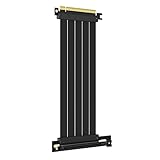
- 250MM FOR FULL-TOWER CASES – Extra length for full-tower chassis and layouts where the vertical GPU bracket sits far from the CPU-direct PCIe 4.0 x16 slot, leaving routing room for thick air coolers, radiators and cable combs.
- FULL PCIE 4.0 x16 BANDWIDTH – Delivers up to 32GB/s in a CPU-direct PCIe 4.0 x16 slot; backward compatible with PCIe 3.0 slots and GPUs at Gen3 speed. No drivers, no BIOS settings, no external power required.
- SHIELDED FOR A STABLE SIGNAL – Every differential signal pair is individually foil-wrapped for EMI protection, built on 30AWG silver-plated copper with Teflon insulation, so 4K/8K output and sustained frame rates stay stable over the whole run.
- CHECK YOUR HARDWARE FOR GEN4 SPEED – CPU: Intel 11th Gen / Ryzen 5000 or newer; GPU: GeForce RTX 40/30 or Radeon RX 7000/6000; slot: direct CPU-connected PCIe 4.0 x16. Older setups still work, just at PCIe 3.0 speed.
- EASY INSTALL, LIFETIME SUPPORT – Slide-on installation with no drivers (hot swapping not supported). Ships in an anti-static bag – avoid touching the gold fingers. Backed by GLOTRENDS lifetime tech support and a length-selection guide.
A concise installation checklist
- Read the motherboard block diagram and lane-sharing table.
- Use the primary full-bandwidth slot for a single GPU.
- Check whether each M.2 socket uses CPU or chipset lanes.
- Check how a second expansion card changes the first slot.
- Match any riser cable to the required generation and lane signaling.
- After installation, verify negotiated generation and width under load.
- Treat x8 as commonly workable for gaming, but investigate x4 for high-end or transfer-heavy devices.
Bottom line for PCIe slot decisions
Lane count and generation must be considered together. PCIe 4.0 x8 is not automatically slower than PCIe 3.0 x16, while an x16-length connector is not automatically an x16 electrical link. For one GPU, use the manual’s primary slot, account for M.2 and second-card sharing, and verify the live link state. An x8 result is often a reasonable operating point; an x4 result deserves a workload-specific check before you accept it.
Frequently Asked Questions
What is the difference between PCIe x16, x8, and x4?
They are lane counts: x16 has 16 lanes, x8 has eight, and x4 has four. At the same PCIe generation, x8 provides half the nominal bandwidth of x16 and x4 provides one quarter.
Can I put an x16 graphics card in an x8 slot?
Usually, yes, if the motherboard’s slot is mechanically open and supports the card. The link will negotiate at x8, limited by the slot, card, CPU, and generation.
Can a GPU run in an x4 slot?
Some systems support it, but check the slot’s mechanical design, firmware support, and routing. At the same generation, x4 supplies one quarter of x16’s lanes and is more likely to constrain high-end or transfer-heavy workloads.
Why does my x16 slot show x8?
Common causes include a second expansion card, a CPU-connected M.2 socket that shares lanes, a processor with fewer available graphics lanes, an x8 GPU, a riser limitation, or an idle power-saving state. Check the manual and verify the link under load.
Recommended Free Tools
Will an M.2 SSD reduce my GPU from x16 to x8?
Only if that specific M.2 socket shares CPU lanes with the graphics slot. Other sockets may use chipset lanes or separate connections. The motherboard lane-sharing table gives the exact result.
Does PCIe 4.0 x8 equal PCIe 3.0 x16?
Approximately, in theoretical per-direction bandwidth: both are about 16 GB/s. The equivalence applies only when both endpoints and the platform actually negotiate those generations and widths.
Does PCIe x8 reduce FPS?
It can, but typical gaming losses are often modest. An RTX 4090 test summary reported about a 2% drop from PCIe 4.0 x16 to x8 at 1920×1080; older platform testing found roughly 2% to 4%. Results vary by game, resolution, GPU, and generation.
How do I check my current PCIe width and speed?
Use the motherboard firmware’s hardware or PCIe page and an operating-system utility. On Linux, lspci -vv reports the current LnkSta speed and width. Check while the GPU is under load because idle power management can show a reduced state.
Outdated Drivers Are Slowing You Down
One free scan finds every outdated or missing driver and matches the right update for your exact hardware.Free scan · exact hardware matchWindows Errors? Fix Them Before They Spread
Repair common Windows errors and clear accumulated junk for a smoother, more stable PC - no reinstall needed.Free scan · no reinstallCan a PCIe riser cable turn x4 into x16?
No. A riser relocates the connection and must support the required generation and lane signaling, but it cannot add lanes or override the motherboard’s allocation.
The Bottom Line
Choose by negotiated generation and electrical width, not connector length alone. Use the motherboard’s primary slot for one GPU, check M.2 and second-slot lane sharing, match any riser to the required signal rate, and verify the live link under load. PCIe 4.0 x8 is commonly acceptable for gaming; x4 warrants a workload-specific check.
Quick Recap
Product prices and availability are accurate as of the date/time indicated and are subject to change. Any price and availability information displayed on Amazon at the time of purchase will apply.

