
iTechGuides is reader-supported. When you buy through links on our site, we may earn an affiliate commission. As an Amazon Associate I earn from qualifying purchases. Learn more
OpenAI’s Batch API can reduce API processing costs by 50% compared with synchronous requests, but it does not promise better or equivalent invoice-summary accuracy. Batch is an asynchronous, file-based workflow with a documented processing window of up to 24 hours. It is a fit when delayed results are acceptable and the savings justify extra handling; quality must be checked on your own invoices.
What changes when invoice requests use Batch
A synchronous request is handled as a direct API call, which suits workflows that need a response immediately. Batch instead takes requests in an uploaded JSONL file, processes them asynchronously, and makes results available through output files. OpenAI documents a 24-hour processing window for Batch; it does not give a universal latency guarantee for synchronous calls. Batch also does not support streaming. OpenAI’s Batch API FAQ describes these differences.
For invoice summarization, that means Batch changes scheduling and delivery—not the facts the model can infer from an invoice. The reviewed official material does not establish that submitting the same request through Batch changes summary quality. Do not treat the lower price as evidence of equal accuracy; measure accuracy for the model, prompt, and invoice mix you intend to use.
Do these 3 things before closing this tab:
1Clear out junk files and repair common Windows errors2Scan for outdated or missing drivers - takes under a minute3Repair Windows errors before they cause bigger problemsHow Batch affects token cost
OpenAI states that Batch API requests receive a 50% discount relative to synchronous API processing. This is a percentage discount, not a single price per invoice: API usage is billed at the selected model’s input and output token rates, and token use varies with the invoice, prompt, and generated summary. The OpenAI API pricing page lists model rates; check it when estimating because prices and supported models can change.
#1 Best Overall

- Our Most Advanced Receipt Scanner — AI-ready scans²; color touchscreen; fast double-sided scanning at up to 45 ppm⁵; 100-sheet Auto Document Feeder; Wi-Fi
- Epson ScanSmart¹ AI PRO Technology — Intelligently extracts and converts your receipts and documents into smart, AI-ready data², optimized for use by the latest AI applications
- Easy Financial Integration — Turn receipts and invoices into categorized data that syncs directly with QuickBooks, TurboTax, Excel and more³
- Large 4.3" Color Touchscreen — For ScanWay computer-free scanning directly to email accounts⁷, cloud storage⁶ or connected USB flash drives⁸
- 12x Faster Double-Sided Scanning⁴ — Single-step technology quickly captures both sides of a document in a single pass at up to 45 ppm⁵
Build an estimate from observed token counts rather than assuming every invoice costs the same. For a useful estimate, record:
- The model and the date you checked its input and output rates.
- Invoice count and representative document lengths and formats.
- Prompt and schema size, plus the expected summary length.
- Whether invoices are text-based or scanned and require image input.
- Failed requests, retries, and the number of summaries that pass validation.
Compare both cost per invoice and total cost for the batch size you expect to submit. Cost per accepted summary is more informative than cost per API call when some records fail or need retries. Batch usage fields include input, output, and total token counts for batches created after September 7, 2025, according to the Batch API reference. That date applies to availability of those fields, not to a change in the discount.
Rank #2
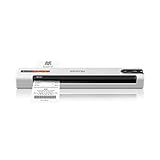
- ScanSmart AI PRO Technology — Intelligently convert and extract scanned information into smart digital data – making your documents AI-ready
- Quickly Organize Receipts and Invoices — Turn stacks of receipts and invoices into automatically categorized digital data
- Export to Financial Software² — Easily integrate organized receipt and invoice details into financial applications, such as QuickBooks and TurboTax
- Smallest and Lightest in Its Class³ ― USB-powered; weighs under 10 oz
- Fast Scanning — Scan up to 10 pages per minute⁴ in Automatic Feeding Mode
Does the lower cost affect summary quality?
No invoice-specific comparative quality result is established in the official sources cited here. Quality depends on the chosen model, instructions, invoice contents, and validation—not on the discount itself. A dependable decision requires a controlled comparison on invoices representative of your actual workload.
What’s actually slowing this PC down?
Pick the symptom - the matching free tool is one click away.
Run a fair comparison
- Select a representative invoice set and create adjudicated reference summaries. Include the layouts, vendors, currencies, and edge cases your application will encounter.
- Use the same model, prompt, schema, input formatting, and inference settings for synchronous and Batch requests.
- Score factual fields and narrative claims separately. Check vendor identity, totals, dates, payment terms, omissions, and unsupported statements as applicable.
- Track malformed outputs, refusals, failed requests, and retries alongside semantic accuracy.
- Compare accuracy and completeness with token use and cost per accepted summary. Keep the test configuration and results so that later model or pricing changes can be assessed consistently.
This method tests whether the overall workflow meets your requirements; it is not evidence that Batch inherently improves or degrades model quality.
Rank #3

- ScanSmart AI PRO Technology — Intelligently convert and extract scanned information into smart digital data – making your documents AI-ready
- Export to Financial Software² — Turn stacks of receipts and invoices into categorized digital data that easily integrates into financial applications, such as QuickBooks and TurboTax
- Compact Desktop Design — Saves 60% of desk space³ in virtually any environment, ideal for hybrid and remote workers
- TrueFeed Technology — Robust 20-page document feeder with paper skew and staple protection easily feeds stacks of various sized documents
- Fast 2-Sided Scanning — Single-Step technology quickly captures both sides of a document in one pass up to 30 pages per minute⁴
What Structured Outputs can—and cannot—guarantee
Structured Outputs can constrain a response to a supported schema, making it easier to process predictable fields such as vendor, invoice date, total, and summary. OpenAI documents support for Structured Outputs with Batch on supported models. The feature controls response structure; it does not verify that extracted values match the invoice. OpenAI cautions that “Structured Outputs doesn’t prevent all kinds of model mistakes.” See Introducing Structured Outputs in the API.
Validate both layers: first, confirm that each response conforms to the expected schema; then check the values against the source document or a trusted validation process. A response can be valid JSON and still contain an incorrect total or date.
Rank #4

- ScanSmart AI PRO Technology — Intelligently convert and extract scanned information into smart digital data – making your documents AI-ready
- Export to Financial Software² — Turn stacks of receipts and invoices into categorized digital data that easily integrates into financial applications, such as QuickBooks and TurboTax
- Lightest in Its Class³ ― USB or battery-powered; weighs under 11 oz
- Fast Scanning — Scan up to 15 pages per minute⁴ in Automatic Feeding Mode
- Wireless Scanning — Wirelessly scan directly to the cloud, smartphones, tablets, Windows PC or Mac⁵
What a Node.js Batch workflow needs
The OpenAI Node.js SDK reference lists methods to create, retrieve, list, and cancel batches. The API uses uploaded JSONL request files and provides output and error file IDs, request counts, and usage information when available. Consult the current Batch API reference and openai-node API reference for supported methods and current request details; SDK and endpoint support can change.
The Tool Desk
Outbyte Driver Updater FREEFix the driver behind crashes, sound loss and screen glitchesFind Drivers →Outbyte PC Repair FREERepair Windows errors before they cause bigger problemsFix Now →- Prepare requests. Create a JSONL record for each invoice request using the supported endpoint and request format. Include a stable invoice identifier, such as a custom ID, so results can be matched back to source records.
- Upload and submit. Upload the JSONL input file and create the batch. Check current endpoint support and account batch limits before choosing the file size.
- Track state. Retrieve batch status until processing completes or ends. Use the returned counts and file IDs to determine which requests completed and where output or errors are available.
- Reconcile results. Match each output to its invoice identifier, validate the schema and values, and account for missing or failed rows instead of assuming the output file represents every input.
- Handle exceptions deliberately. Decide how to retry failed records, prevent duplicate summaries, and record completed work if a batch is canceled or expires.
Batch has separate rate limits, including limits on enqueued input tokens for many API usage tiers. Check your account’s current limits before sizing a job. A canceled or expired batch can still return completed work, and completed requests are charged. These operational details are covered in the Batch API FAQ.
Best Value

- Up to 255 customize favorite scan file setting with "Single Touch" , Support Windows 7/8/10
- Turn paper documents into searchable, editable files - save scans as searchable PDF files; OCR function included
- Info Barcode function - automatic categorization of complicate documentation and data with 1D or 2D Barcode page.
- Intelligent color and image adjustments — Auto Rotate, Crop, Deskew and blank page remove with Plustek Image Processing Technology
- Easy send scanned files to FTP server or personal NAS (FTP) with PDFs , Jpeg , TIFF or Png format. User can download scanner driver from Plustek website
When Batch is—and is not—a sensible choice
| Consideration | Synchronous requests | Batch requests |
|---|---|---|
| Delivery | Direct per-request flow; appropriate when the application needs an immediate response. | Asynchronous file workflow; OpenAI documents a 24-hour processing window, with no streaming. |
| API price | Standard selected-model input and output token rates. | 50% discount relative to synchronous API processing, according to OpenAI. |
| Output format | Structured Outputs can constrain responses for supported models. | Structured Outputs are also available for supported models. |
| Quality evidence | Must be evaluated on the intended invoice workload. | No cited invoice-specific evidence establishes a quality change from Batch scheduling. |
| Operational work | Direct request handling; details depend on application design. | JSONL preparation, file management, status checks, output reconciliation, and exception handling. |
Choose Batch if the application can wait, the lower token cost matters at your workload’s scale, and you can support file-based processing and validation. Prefer synchronous calls where invoices must be summarized in an interactive flow or delayed delivery would disrupt the process. In either case, base the decision on measured quality and cost for accepted summaries, not the API mode’s name.
Invoice privacy and retention
Invoices may contain financial and personal information. OpenAI says Batch files and artifacts are governed by configured Batch, File Service, and Sediment retention policies, and that zero data retention does not apply to Batch files and artifacts. Review the current Batch retention information alongside your organization’s data-handling requirements before uploading invoice documents.
Quick Recap
Product prices and availability are accurate as of the date/time indicated and are subject to change. Any price and availability information displayed on Amazon at the time of purchase will apply.
Recommended Free Tools

