
iTechGuides is reader-supported. When you buy through links on our site, we may earn an affiliate commission. As an Amazon Associate I earn from qualifying purchases. Learn more
Motherboard USB headers can connect compatible internal devices—not just the case’s front-panel ports. Common documented uses include an AIO cooler’s LCD module or system hub and fan or lighting controllers. The exact header type, pinout, available connections, and device requirements vary, so check both manuals before plugging anything in.
What else can you plug into a motherboard USB header?
Internal USB headers provide USB connectivity inside the PC. They can link the motherboard to compatible internal accessories, often so software can detect or manage a device. They are not interchangeable with the board’s fan, pump, RGB, or power connectors, and a USB data cable does not necessarily supply all the power a device needs.
The available documentation supports these examples; it does not establish eight separate device categories. Treat each connection as product-specific and verify it against the exact device and motherboard manuals.
Quick wins for a faster PC:
Repair Windows errors before they cause bigger problemsFix Now →Scan for outdated or missing drivers - takes under a minuteDriver Scan →AIO cooler LCD modules
Corsair’s iCUE LINK AIO LCD Screen Module instructions connect its USB 9-pin cable to a motherboard USB 2.0 header. The LCD also requires its USB Type-C connection, and Corsair instructs users to install it with the system powered off. Follow the module’s full wiring instructions rather than assuming the USB header is the only connection it needs. Corsair iCUE LINK AIO LCD Screen Module instructions
#1 Best Overall
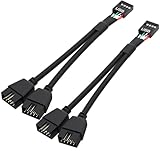
- USB2.0 9Pin Header Splitter: the USB2.0 1 to 2 splitter can solve the lack of your interface USB ports of your motherboard. Convert a USB2.0 9 Pin on motherboard to dual 9Pin ports.
- Shielded Cable Design: the shielded cbale has 3 functions: 1. Prevent interference, 2. Protect your USB device, 3. Improve transmission speed. In short,USB with a shielded cable has many beneficial effects, for users who have high requirements for speed and stability of USB transmission, the use of USB devices with a shielded cable can better meet their needs.
- Premium Material: the cable is made of 24AWG tinned coppre wire and premium aluminum foil, braided wtih tinned copper and nylon woven, the USB2.0 header use integrative injection mold process, make the splitter is better quality than normal splitters.
- Mistake Proofing Design: Using a standard USB header with a misatek proof design, as long as it can be inserted, it can be used (with a blocking hole design to prevent incorrect plug in ).
- Package included: 2 PCS USB2.0 Splitter 6.3inch black
AIO system hubs
An AIO’s system hub may also use an internal USB connection. Corsair documents an optional splitter for combining the AIO and System Hub cables onto one USB 2.0 header. That is guidance for the documented Corsair setup, not approval to use any splitter with any devices. The iCUE LINK H100i, H150i, and H170i LCD AIO manual lists the System Hub, USB cables, splitter cable, and display module among the system components. Corsair iCUE LINK AIO LCD instructions and manuals
Fan controllers
Some internal fan controllers connect to a motherboard USB 2.0 header. NZXT’s H6 Series build guide identifies internal USB 2.0 connections from fan controllers. The controller may still need separate power and fan connections; use its wiring diagram to identify each cable’s purpose. NZXT H6 Series build guide
Rank #2
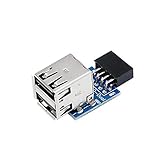
- 9pin USB 2.0 Female Pin Dual .Connect devices designed to plug into 9 pin motherboard header connection to an standard USB 2.0 type A connector,Backwards compatible with USB1.1
- Expand two USB2.0 A Female Ports from your 9pin USB2.0 pin header.There are times you may when using two devices at the same time, such as keyboard,Mouse .SinLoon 9pin USB 2.0 Female Pin Dual Adapter can easily help you solve the problem
- A cost-effective solution for any application requiring internal USB 2.0 female ports, e.g. wireless Lan card OR wireless receiver OR Bluetooth OR using a bootable USB flash drive as a SSD cd-rom , floppy drive panel etc.
- USB nternal connectivity design, Ample space is provided to install two devices in it.Let your device no longer stick out of the front of the chassis,So 9pin USB 2.0 Female Pin Dual is a good way to hide it. works fantastic.Easy to use and install
- USB 2.0 to 9 Pin Header adapter Support system:Window2000/WindowXP/Window7/Window8/Window10
Lighting controllers
Lighting controllers can also use internal USB 2.0 for a motherboard connection. NZXT’s H6 guide includes lighting controllers among devices that connect this way. Do not confuse that USB lead with a 12 V RGB or 5 V addressable RGB cable: those use different connectors and have different electrical requirements. NZXT H6 Series build guide MSI’s guide to motherboard headers
Free tools Windows power users keep installed
One-click scans. No signup required.
How many internal USB connections does a motherboard provide?
There is no universal count. For example, MSI lists two USB 2.0 connectors supporting four additional USB 2.0 ports on its B450 GAMING PRO CARBON MAX WIFI specification page. Gigabyte’s A520 AORUS ELITE manual lists two USB 2.0/1.1 headers and four ports available through internal headers. These are model-specific figures, not a standard for all motherboards.
Rank #3
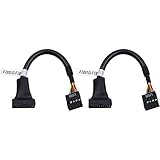
- 19 pin USB 3.0 motherboard adapter offers a throughput of up to 4.8Gbps when used with a USB 3.0 host and device , which astounding the capability of USB 2.0 (480Mbps).
- usb 3.0 header to usb 2.0 adapter cable use molded-strain relief construction for flexible movement, durability, and fit.
- USB 3.0 to USB 2.0 motherboard adapter cable complies with fully rated cable specification using braid-and-foil shield protection.
- USB3.0 technology of USB 3.0 motherboard adapter is similar to PCI Express 2.0(5 Gbit/s) It uses 8 B10B encoding,linear feedback shift register (LFSR) scrambling for data, spread spectrum.
- Let your USB 3.0 motherboard adapter 19 pin device connected the USB 2.0 9 pin motherboard.
Check the board’s manual for the number and type of internal headers, then count the plugs required by your devices. A USB 2.0 9-pin header, a USB 3.x 19/20-pin header, and an internal Type-C header are different connections; do not treat them as interchangeable. MSI B450 GAMING PRO CARBON MAX WIFI specifications Gigabyte A520 AORUS ELITE manual
Independent reader supportYour contribution helps us test, update, and keep practical guides available for everyone.What if you have more devices than motherboard USB headers?
First, check whether a device’s manual includes an approved splitter or hub for the exact connection. Corsair’s documented AIO setup, for example, allows its AIO and System Hub cables to share one USB 2.0 header using the included splitter. That does not make the splitter suitable for unrelated devices.
Rank #4

- 【Type C Front Panel Cable】Motherboard 9pin USB2.0 to Type C Cable, expands a front panel type C header from a motherboard 9pin USB 2.0 header. Total length 17cm/6.6inches approx.
- 【Enjoy USB-C technology】With this front panel cable, you can enjoy USB-C technology easily on the old motherboard.
- 【USB2.0 Spec.】High speed USB2.0 Spec., support maximum data transfer speed 480Mbps.
- 【Plug and Play】No drivers required, just plug and play.
- 【Note】 Does NOT compatible with 19pin USB 3.0 header. Not USB3.0 speed. Not support video/audio output.
If you need another connection, consider an internal USB 2.0 header hub only after checking its connector type, power input, motherboard compatibility, and the requirements of every attached device. Some hubs need SATA power. A hub or splitter adds connections, but it does not replace separate fan, pump, lighting, or device power wiring.
Quick Recap
Best Value

- 『USB 2.0 to USB 3.2 Gen 1 Header Adapter』Save money by keeping your old motherboard and simply plugging in our USB 2.0 Internal adapter, which is fully compatible with USB 3.1/3.2 Type-C (20-Pin) A-Key Mainboard Headers.
- 『180-degree & Slim Design』It features the 180-degree and slim design, which avoids assembly interference caused by the position of the motherboard connector or the internal structure of the chassis. Dimension(L*W*H): 0.94*0.51*0.19in(24*13*5mm).
- 『Compatibility』Upgrade your computer's USB capabilities with our TYPE E KEY-A FEMALE FRONT PANEL SOCKET TO 9PIN MAINBOARD HEADER EXTENSION ADAPTER, which is designed to be simple, effective, and affordable.
- 『Plug and Play』Enjoy plug-and-play convenience with our USB 3.1/3.2 Type-C (20-Pin) A-Key Mainboard Header adapter, perfect for upgrading your internal USB connections, making it easy to install and use.
- 『Data Transfer』Experience lightning-fast data transfer speeds with our USB 3.1/3.2 Type-C (20-Pin) A-Key Mainboard Header adapter, perfect for those who demand the best.
Check these details before connecting an internal USB device
- Header and pinout: Match the device plug to the exact header type shown in the motherboard manual. Never force a connector that does not fit.
- Device instructions: Confirm that the device is designed to connect to an internal USB header and follow its wiring diagram.
- Power and other cables: Check for SATA power or separate fan, pump, or lighting connections. USB may provide data without being the device’s only power source.
- Header availability: Count the board’s usable headers and the plugs required by your accessories before installation.
- Clearance and cable reach: Check whether nearby components obstruct the header and whether the cable can reach without strain.
- Safe installation: Follow the device maker’s shutdown and installation guidance; Corsair specifically says to install its cited LCD module with the system powered off.
Product prices and availability are accurate as of the date/time indicated and are subject to change. Any price and availability information displayed on Amazon at the time of purchase will apply.

