
Windows Errors? Fix Them Before They Spread
Repair common Windows errors and clear accumulated junk for a smoother, more stable PC - no reinstall needed.Free scan · no reinstallCrashes, No Sound, or Screen Glitches?
Random freezes, missing sound and display glitches usually trace back to one bad driver. Find and replace yours safely.Free scan · under a minuteiTechGuides is reader-supported. When you buy through links on our site, we may earn an affiliate commission. As an Amazon Associate I earn from qualifying purchases. Learn more
Choose OLED for the cleanest motion, perfect blacks and halo-free HDR in a dim room. Choose Mini LED for higher sustained brightness, clearer desktop text and lower concern about permanent image retention in a bright room or static-content workload. Panel type does not determine input lag, so the individual monitor’s measurements, firmware and settings still matter.
The short answer: which is better for gaming?
Neither technology wins every gaming setup. OLED is usually the better gaming panel when fast motion, dark-room contrast and cinematic image quality are the priorities. Each pixel emits its own light, so it can switch off completely. That produces true black, no backlight haloing and almost instantaneous pixel transitions.
Mini LED is usually the better practical choice for a bright room, long desktop sessions, full-screen HDR brightness or games with persistent HUD elements. It is an LCD panel illuminated by thousands of small LEDs arranged into local-dimming zones. The backlight can stay bright across much more of the screen than an OLED can, and Mini LED has no OLED-style organic-emitter burn-in mechanism.
The most important caveat is that “OLED” and “Mini LED” describe the display architecture, not a complete monitor specification. An OLED model can have higher input lag than another OLED model, and a Mini LED monitor can have excellent or mediocre motion depending on its IPS or VA panel, overdrive tuning and firmware. Compare measured performance for the exact model you intend to buy.
#1 Best Overall
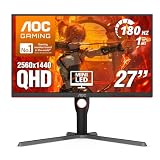
- Witness virtual worlds come to life on a stunning VA panel equipped with state-of-the-art Mini-LED backlight technology and 336 individual dimming zones that produce true blacks and brighter whites
- With Panel resolution 2560x1440, this monitor boasts a pixel density that delivers brilliantly sharp images with the finest details
- Lightning-fast 180Hz (overclocked, via DP1.4) refresh rate and rapid 1ms GtG response time lets you target moving opponents with precision, putting you ahead of the game. Fast-moving action and dramatic transitions will be rendered smoothly without the effects of ghosting
- Adaptive-Sync ensures ultra-smooth, tear-free team fights for flawless skill shots and stutter-free loading times
- The 3-sided frameless display with calibrated color gamut provides true-to-life images. Impressive 134% sRGB color gamut and VESA DisplayHDR 1000 brings characters to life and creates stunning imagery with rich details and diverse contrast
How the two display technologies work
OLED: independently lit pixels
An OLED monitor uses organic light-emitting pixels. Every pixel controls its own luminance, and a pixel displaying black can turn off. There is no separate backlight and no need to dim a large area just to darken one object.
- Black level: an unlit pixel produces effectively black output in a dark room.
- Local contrast: a bright star, muzzle flash or subtitle can sit directly beside black without lighting neighboring pixels.
- Motion: pixel transitions are near-instantaneous on both WOLED and QD-OLED monitors in RTINGS testing.
- Trade-off: OLED brightness can fall when a larger percentage of the screen is bright, and static elements can eventually cause permanent image retention.
Mini LED LCD: a dense zoned backlight
Mini LED is still an LCD display. The difference is its backlight: thousands of smaller LEDs are grouped into independently controlled local-dimming zones behind an IPS or VA liquid-crystal layer. The LCD controls each pixel’s color, while the zones control groups of pixels’ light level.
- Brightness: the backlight can sustain high output over a large bright area.
- Contrast: dimming zones improve blacks substantially compared with ordinary edge-lit LCDs.
- Motion: response depends on the underlying IPS or VA panel and its overdrive behavior.
- Trade-off: one zone may cover many pixels, so a small bright object can illuminate nearby dark areas, creating blooming.
HDR brightness: peak highlights versus sustained screen brightness
HDR performance has two different questions: how bright a small highlight can become and how bright the monitor can remain when much of the image is bright. Those measurements should not be treated as interchangeable.
ViewSonic’s 2026 gaming comparison lists representative OLED peak brightness of 400–1,000 nits and Mini LED peak brightness of 1,000–1,400+ nits. These are typical ranges from that comparison, not a guarantee for every monitor, and peak-window size, test mode, thermal limits and firmware can change the result.
| HDR characteristic | OLED | Mini LED LCD |
|---|---|---|
| Small specular highlights | Strong, with precise pixel-level control | Often brighter, depending on zone count and model tuning |
| Large bright scenes | Brightness may reduce as more of the panel becomes bright | Usually sustains higher brightness across a larger portion of the screen |
| Bright-room visibility | Can be harder to see when ambient light washes out dark detail | Generally easier to see because of higher sustained output |
| Dark-room HDR | Excellent contrast with no haloing around highlights | Very good contrast, but dimming zones can produce visible halos |
In a sunlit room, Mini LED’s sustained output makes bright skies, snowfields and explosions easier to see. In a dark room, OLED often looks more convincing because black stays black immediately beside those highlights. A Mini LED monitor can dim the zone behind a dark sky, but if a bright cursor or star shares that zone, some light remains around it.
Brightness numbers also depend on the display mode. A monitor may reserve its highest output for a small HDR window, then reduce it for a full-screen white image or after sustained operation. Check independent measurements that identify the test window and whether brightness is sustained, rather than comparing one manufacturer’s peak figure with another’s full-screen result.
Response time and motion clarity
OLED has the clearest advantage in pixel response. ViewSonic lists representative OLED gray-to-gray response of 0.01–0.03 ms and IPS Mini LED response of 1–4 ms in its 2026 comparison. Those figures are representative specifications, not universal results; measurement methods and overdrive settings differ.
Free tools Windows power users keep installed
One-click scans. No signup required.
RTINGS reports near-instantaneous response on both WOLED and QD-OLED monitors. A fast-moving object therefore leaves less visible trailing, and a 240 Hz or higher refresh rate is more fully realized. This is particularly noticeable in first-person shooters, racing games and other scenes with rapid camera movement.
Mini LED does not have one fixed response-time behavior. The LCD panel underneath may be IPS or VA, and its slowest transitions can produce dark smearing or overshoot even when the headline response number looks fast. Overdrive can reduce trailing at one refresh rate while creating bright inverse trails at another. Look for response-time plots across refresh rates, not only the best quoted value.
| Motion factor | OLED | Mini LED LCD |
|---|---|---|
| Pixel transition speed | Near-instantaneous in tested WOLED and QD-OLED monitors | Typically slower and more variable because it depends on IPS or VA LCD behavior |
| Dark-scene trailing | Minimal pixel-response blur | VA-based models can show dark smearing; IPS models vary by tuning |
| Overdrive dependence | Usually less critical for response speed | Important; aggressive settings can cause overshoot |
| Best fit | Competitive games and high-refresh motion | Still suitable for gaming, with model-specific testing essential |
Input lag is separate from response time
Pixel response describes how quickly a pixel changes after receiving a new image. Input lag is the delay between your input and the image appearing. Signal processing, scaling, frame-rate conversion, the monitor’s firmware and its selected mode determine input lag more than the OLED or Mini LED label.
Rank #2

- 27" QHD MINI-LED IPS DISPLAY Experience sharp 2560×1440 QHD resolution on a 27-inch mini-LED IPS panel with 1152 local dimming zones, delivering vivid colors, deeper contrast, and detailed visuals for immersive gaming.
- 320HZ REFRESH RATE & 1MS RESPONSE TIME Dominate fast-paced gameplay with an ultra-smooth 320Hz refresh rate via HDMI 2.1 or DisplayPort 1.4 and fast 1ms GtG response time, minimizing blur and ghosting.
- DISPLAYHDR 1000 CERTIFIED Enjoy lifelike HDR visuals with DisplayHDR 1000 certification, featuring 700 nits HDR brightness and 1200 nits peak brightness for stunning highlights and enhanced contrast.
- ADAPTIVE SYNC & EYE COMFORT FEATURES Stay smooth and tear-free with Adaptive Sync, while Flicker-Free technology helps reduce eye strain during extended gaming sessions.
- WHITE GAMING DESIGN WITH FULL ERGONOMICS Stand out with a sleek white finish and fully ergonomic stand featuring height adjustment, tilt, swivel, and pivot for personalized comfort and setup flexibility.
Do not assume every OLED is lower-lag than every Mini LED. Use measured results for the exact model at the resolution and refresh rate you will use. Check whether a test was made with adaptive sync enabled, HDR active or a special low-latency mode, because those settings can alter processing.
- Check input-lag measurements at your target refresh rate, not only at the monitor’s maximum.
- Verify that the low-latency or “instant” mode does not disable useful image controls you need.
- Confirm that your graphics card can deliver enough frames to benefit from the advertised refresh rate.
- Check variable-refresh-rate behavior separately; flicker or brightness pulsing can affect perceived smoothness even when input lag is low.
Burn-in, image retention and long-term risk
Why OLED can develop permanent retention
OLED’s organic emitters age with use. If a toolbar, health bar, taskbar or other fixed element remains in the same position for long periods, those pixels can age differently from surrounding pixels. The resulting uneven wear can become permanent burn-in. Running the display at maximum brightness and showing static content increases the risk.
Pixel-shifting, screen savers, logo dimming and automatic panel-care cycles reduce uneven wear, but they do not eliminate the underlying mechanism. A monitor used primarily for varied full-screen games has a different risk profile from one used eight hours a day for a static desktop, spreadsheet or broadcast dashboard.
What Mini LED avoids—and what it does not
Mini LED has no OLED-style organic-emitter burn-in mechanism. A static HUD does not permanently age individual light-emitting pixels in the same way. That makes it the safer choice when you cannot vary interface content or when the display will be used as a workstation for many hours.
Mini LED is not immune to failure. LCD panels, LED backlights, power supplies and control electronics can fail, and a backlight zone can develop a fault. Those failures are different from gradual OLED image retention and should be covered by the monitor’s warranty.
What’s actually slowing this PC down?
Pick the symptom - the matching free tool is one click away.
What long-term testing shows
RTINGS’ long-running television longevity study found permanent burn-in eventually appeared on all OLED televisions in that test, while LED televisions developed other failure modes. The study demonstrates that OLED burn-in is a real long-term possibility, but it was conducted on TVs and should not be read as a precise lifespan prediction for every gaming monitor. Panel generation, heat, brightness limits, compensation cycles and usage pattern all matter.
Black levels, blooming and local dimming
OLED can switch each pixel fully off, so a bright object against black has no surrounding backlight glow. This is especially visible in dark games, letterboxed video and star fields. There is no zone-size compromise because the pixel itself is the light source.
Mini LED improves LCD black levels by dimming zones behind dark regions. Its result depends on zone count, zone size and the algorithm that decides when to dim. When a small bright object sits inside or near a zone that also covers dark pixels, light can spread beyond the object. This halo is called blooming. It is easier to notice off-axis, in a dark room and with high-contrast subtitles or mouse pointers.
More zones generally reduce the area of a halo but do not guarantee its absence. A monitor can also raise the backlight around a bright object to preserve highlight detail, trading deeper blacks for less clipping. Test local dimming with the games and applications you actually use rather than relying only on a specification.
Quick wins for a faster PC:
Repair Windows errors before they cause bigger problemsFix Now →Fix the driver behind crashes, sound loss and screen glitchesFind Drivers →Text clarity and desktop productivity
Mini LED monitors generally use a conventional RGB LCD subpixel arrangement, so desktop text is usually sharp at the same pixel density. This matters for browsers, code editors, spreadsheets and long documents where fine vertical and horizontal strokes remain on screen for hours.
Rank #3

- Mini-LED – Improves HDR with full-array local dimming and 1,152 zones for deeper blacks and brighter highlights
- AI Dual Mode – Auto-adjusts to the optimal refresh rate when changing resolution for smooth transitions, no manual setup needed
- AI Menu – Customizes your display settings with AI features, activating automatically when you launch a game, and lets you share profiles easily
- Rapid IPS – Ensures the intensity and purity of colors when gaming
- 0.5ms (GtG, Min.) Response Time – Eliminates screen tearing and choppy frame rates
OLED text rendering depends on the panel’s subpixel layout and density. WOLED and QD-OLED structures can produce colored fringing around high-contrast text, particularly at lower pixel densities or when the operating system’s font smoothing is not optimized for that layout. Some users do not notice it in games, while others find it distracting on a desktop.
- Compare text at the physical size and viewing distance you will use, not only from a showroom distance.
- Check the monitor’s subpixel arrangement and whether the operating system identifies it correctly.
- Use a higher pixel density if text clarity is a priority; density can matter as much as panel type.
- Remember that glossy OLED coatings can improve perceived contrast while also reflecting room lights more strongly.
Which panel fits your room and games?
Choose OLED when these conditions describe you
- You play mostly in a dim or controllable-light room.
- Fast competitive motion and minimal response blur matter more than sustained full-screen brightness.
- You want true black in dark games and no halo around bright objects.
- Your desktop and game HUDs are varied, and you can allow pixel-care cycles and a screen saver.
- You accept a real, managed burn-in risk in exchange for OLED motion and contrast.
Choose Mini LED when these conditions describe you
- Sunlight or strong room lighting makes displays look washed out.
- You want bright skies, snow, explosions and other large HDR scenes to remain intense.
- The monitor will spend long periods showing static toolbars, spreadsheets, code or a fixed game HUD.
- Clear conventional RGB text is important for productivity.
- You prefer to avoid OLED burn-in risk, even if some blooming is visible.
| Priority | Better starting point | Reason |
|---|---|---|
| Dark-room contrast | OLED | Pixels switch off individually; no haloing |
| Bright-room gaming | Mini LED | Higher sustained brightness is easier to see |
| Competitive motion | OLED | Near-instantaneous pixel response |
| Static desktop use | Mini LED | No OLED-style burn-in mechanism and generally clean RGB text |
| HDR highlight precision | OLED | Pixel-level control beside black |
| Full-screen HDR impact | Mini LED | Usually maintains more brightness across the image |
| Lowest concern about permanent retention | Mini LED | Uses LCD and LED backlights rather than organic emitters |
How to compare specific monitors before buying
Use the following sequence rather than selecting by the panel label alone:
- Confirm the panel and resolution. Identify whether the Mini LED model uses IPS or VA, and whether the OLED is WOLED or QD-OLED. Check pixel density for your intended viewing distance.
- Check measured HDR behavior. Look for both peak-window and full-screen brightness, the number or behavior of local-dimming zones, and whether brightness changes after sustained operation.
- Read response-time plots. Check transitions at several refresh rates and overdrive modes. Look for dark smearing, overshoot and whether the monitor remains consistent with adaptive sync enabled.
- Verify input lag. Use measurements at your target resolution and refresh rate. Do not substitute the manufacturer’s response-time claim for an input-lag result.
- Inspect VRR behavior. Check for flicker, brightness pulsing, minimum refresh-rate limits and compatibility with your graphics card or console.
- Check text and coating. Read the subpixel layout, pixel density and surface-finish notes, then inspect text at normal desktop scale.
- Read the warranty carefully. Confirm whether OLED burn-in is covered, for how long, and which usage conditions or brightness limits apply. For Mini LED, check coverage for backlight-zone defects and dead pixels.
- Match ports and bandwidth. Verify that the HDMI and DisplayPort versions support the resolution, refresh rate, HDR and adaptive-sync features you plan to use.
RTINGS identifies HDR brightness, response time, VRR motion and console compatibility among its formal monitor tests. Those categories are useful because they expose differences that a resolution or refresh-rate specification cannot.
Practical setup advice
If you buy OLED
- Keep pixel-shift, logo-dimming and panel-care features enabled unless you have a specific reason to change them.
- Set a short screen-saver or display-off timer for the desktop.
- Hide or auto-hide static taskbars and vary windows when the monitor is not showing games.
- Use the lowest brightness that is comfortable, especially for long static sessions.
- Do not interrupt a compensation cycle when the monitor requests one after extended use.
If you buy Mini LED
- Test local dimming in both dark games and desktop applications; blooming can be more visible with white text on black.
- Try the manufacturer’s different dimming modes, because one may prioritize black level while another protects highlight detail.
- Adjust overdrive at the refresh rate you actually use; the fastest setting is not always the cleanest.
- Position the monitor to reduce reflections and view it near the center axis, where halos are often less distracting.
Common mistakes and how to avoid them
Comparing peak nits as if they were the whole HDR experience
A small-window peak number does not tell you how bright a mostly white game scene remains. Check sustained or full-screen measurements and the test conditions.
Assuming Mini LED has OLED-level blacks
Local dimming can be excellent, but zones are larger than pixels. Blooming remains possible around small bright objects.
Assuming every OLED is automatically lag-free
Fast pixel response does not remove processing delay. Verify model-specific input-lag results and low-latency settings.
Treating a quoted response time as a guaranteed result
Representative 0.01–0.03 ms OLED and 1–4 ms IPS Mini LED figures come from ViewSonic’s 2026 comparison. They are not guarantees for every panel, refresh rate or overdrive mode.
The Tool Desk
Outbyte PC Repair FREERepair Windows errors before they cause bigger problemsFix Now →Outbyte Driver Updater FREEFix the driver behind crashes, sound loss and screen glitchesFind Drivers →Ignoring the static-content workload
A competitive player who occasionally browses has a different risk profile from someone who leaves a fixed productivity layout visible all day. Choose for the hours the monitor will actually spend outside varied gameplay.
Verdict
For a gaming-first setup in a dim room, OLED is the stronger all-around image technology: it combines near-instantaneous response with true black and halo-free contrast. For a bright room, HDR-heavy games with large bright scenes, productivity or static interfaces, Mini LED is the more forgiving choice because it sustains higher brightness, keeps conventional text rendering and avoids OLED-style burn-in risk.
Whichever technology you choose, buy on measured model performance. Compare HDR peak and full-screen brightness, response-time behavior, input lag, VRR flicker, local-dimming behavior, refresh rate, resolution, ports and warranty coverage rather than treating the panel category as a guarantee.
Quick Recap
Product prices and availability are accurate as of the date/time indicated and are subject to change. Any price and availability information displayed on Amazon at the time of purchase will apply.
Recommended Free Tools

