
iTechGuides is reader-supported. When you buy through links on our site, we may earn an affiliate commission. As an Amazon Associate I earn from qualifying purchases. Learn more
There is no universal winner. Choose a MacBook when every essential app and peripheral you use supports macOS and Apple’s ecosystem fits your workflow. Choose a Windows laptop when your work, school, games, specialist hardware, or organization requires Windows—or when a Windows configuration better matches your preferred screen, ports, processor architecture, or budget.
The reliable way to decide is to check compatibility first, then compare specific configurations. “MacBook” and “Windows laptop” each describe a large range of devices; brand-level assumptions cannot tell you whether one particular model will meet your needs.
Start with the software and hardware you cannot replace
Write down the applications, services, accessories, and workflows you must use for the next several years. Include work and school software, creative tools, accounting or line-of-business programs, virtual-machine requirements, accessibility software, printers, scanners, security keys, specialist instruments, external displays, docks, and games. A platform that cannot run one essential item is the wrong choice regardless of its processor or battery claims.
Recommended Free Tools
Check each application’s operating-system support
Look for a current macOS version before buying a MacBook. For Windows software, verify that the exact edition and licensing arrangement work on Windows 11 and on the processor architecture in the laptop you are considering. Browser-based software is not automatically equivalent: confirm that required plug-ins, local file tools, security components, and offline features are available on your chosen platform.
#1 Best Overall

- AN AMAZING MAC AT A SURPRISING PRICE — With an incredibly portable and durable aluminum design, up to 16 hours of battery life,* and the A18 Pro chip, MacBook Neo is ready to go wherever school takes you.
- FOUR STUNNING COLORS. ONE DURABLE DESIGN — Choose from four beautiful colors — Silver, Blush, Citrus, or Indigo — each with a color-coordinated keyboard. And MacBook Neo is made with a durable recycled aluminum enclosure that helps it reach 60 percent recycled content by weight — the most ever in any Apple product.*
- FLY THROUGH EVERYDAY ASSIGNMENTS — Whether you’re cramming for finals, using Apple Intelligence* to summarize class notes, creating presentations, or even playing the latest Apple Arcade game,* MacBook Neo delivers the performance and AI capabilities you need to get things done.
- UP TO 16 HOURS OF BATTERY LIFE — MacBook Neo delivers all day battery life, so you can power through from early morning classes to late night study sessions without worrying about plugging in.
- A VIBRANT 13-INCH DISPLAY* — The gorgeous Liquid Retina display on MacBook Neo supports 1 billion colors, so photos and videos pop and text is crisp for easy reading.
Keep a written list with three labels: required, preferred, and replaceable. A required application should have a documented version for the target platform, or a tested alternative that your employer or school permits. Treat “it probably runs” as a question to resolve, not as a buying assumption.
Check peripherals, drivers, and installers
Printers, scanners, audio interfaces, laboratory equipment, security software, assistive technology, and other specialist devices may depend on platform-specific drivers or installers. Microsoft specifically warns that some peripherals and installers may not support Windows on Arm. Confirm support with the device maker for the exact model and Windows processor architecture before choosing an Arm-based laptop: Microsoft’s Windows Arm-based PCs FAQ.
Do the same for a MacBook. Check the manufacturer’s macOS driver, firmware utility, and connection requirements, especially if the device uses a dock, a display adapter, or a security component. A USB connector that physically fits does not guarantee that the software behind it works.
What’s actually slowing this PC down?
Pick the symptom - the matching free tool is one click away.
What the documented MacBook Air M4 offers
Apple’s specification page identifies the 13-inch MacBook Air with M4 as a 2025 model. It is a useful reference point, not a claim that every MacBook or every workload should use this configuration.
| Specification | 13-inch MacBook Air with M4 (Apple’s listed configuration options) |
|---|---|
| Operating system | macOS |
| Display | 13.6-inch display, 2560-by-1664 resolution, 500 nits |
| Memory | 16 GB unified memory, configurable to 24 GB or 32 GB |
| Storage | 256 GB SSD, configurable to 512 GB, 1 TB, or 2 TB |
| Ports | Two Thunderbolt 4 USB-C ports, MagSafe 3, and a headphone jack |
| Weight | 2.7 lb |
| Apple battery claim | Up to 18 hours of video streaming and up to 15 hours of wireless web |
See the complete specifications at Apple’s MacBook Air (13-inch, M4, 2025) technical-specifications page. The memory and storage choices are configuration options, so verify the exact SKU rather than assuming that every 13-inch M4 Air includes the highest capacity.
What those MacBook specifications mean for a buyer
The 13.6-inch screen and 2.7-pound weight suit people who carry a laptop frequently, but a smaller display may be less comfortable for a large timeline, spreadsheet, codebase, or side-by-side documents. Plan for an external monitor if your work requires more workspace. The two Thunderbolt 4 USB-C ports can connect modern accessories and displays, while MagSafe 3 preserves the USB-C ports for other uses during charging. Older USB-A devices, wired networking, card readers, and some display setups may require a compatible adapter or dock.
Rank #2
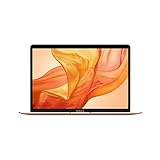
- Stunning 13.3-inch Retina display
- Touch ID and the latest Apple-designed keyboard
- Dual-core 8th-generation Intel Core i5 processor with Intel UHD Graphics 617
- Fast SSD storage and 8GB memory
- Stereo speakers with wider stereo sound
Sixteen gigabytes of unified memory is the listed starting point. If you keep large creative projects, many browser tabs, virtual machines, or development environments open for years, compare the 24 GB and 32 GB options before purchase; memory is a configuration decision rather than an upgrade assumption. Storage follows the same logic. A 256 GB SSD can be quickly consumed by media libraries, local development environments, games, and cached files, while moving large files to external storage adds another device to your workflow.
What “Windows laptop” actually covers
Windows laptops span different manufacturers, screen sizes, designs, processor families, memory capacities, storage types, and ports. Start by selecting the device class that fits your work, then evaluate the exact model. A thin-and-light, a workstation-style laptop, a convertible, and a gaming-oriented machine can all run Windows while offering very different displays, cooling, battery behavior, connectivity, and weight.
Standard Windows 11 and Copilot+ are not the same category
Microsoft distinguishes ordinary Windows 11 PCs from Copilot+ PCs. Microsoft’s published Copilot+ requirements include a compatible processor, a neural processing unit (NPU) capable of at least 40 trillion operations per second (TOPS), 16 GB of DDR5 or LPDDR5 memory, and at least 256 GB of SSD or UFS storage, in addition to Windows 11 minimum requirements. The current requirements are documented at Microsoft’s Windows 11 specifications and system-requirements page.
| Copilot+ requirement listed by Microsoft | Minimum published threshold |
|---|---|
| NPU | 40+ TOPS |
| Memory | 16 GB DDR5 or LPDDR5 |
| Storage | 256 GB SSD or UFS |
| Other conditions | Compatible processor and Windows 11 minimum requirements |
Copilot+ features can have additional requirements, and availability can depend on the device, region, and language. Microsoft can change the requirements or feature availability, so check the live page for the model and market you are buying in. A Windows 11 laptop is not automatically a Copilot+ PC.
Understand Windows on Arm before choosing it
Some current Windows laptops use Arm-based processors. Microsoft says most Windows applications can run on Windows on Arm, and several Microsoft 365 applications and third-party applications have native Arm64 versions. Applications without a native build may run through Prism emulation on supported devices. Native Arm64 applications generally provide the best performance and compatibility; emulation is a fallback, not proof that every workflow will behave identically.
Use this Arm compatibility checklist
- Identify the exact processor architecture. Confirm whether the laptop is Arm-based or uses a traditional x86-64 processor.
- Check for a native Arm64 build. Prefer the software publisher’s current Arm64 release where one exists.
- Test essential plug-ins and extensions. A main application may run while a plug-in, macro tool, security module, or driver does not.
- Confirm peripheral support. Check printers, scanners, audio devices, specialist equipment, assistive technology, and their installers with the manufacturer.
- Check games and anti-cheat components. Verify the particular title and its launcher or anti-cheat software, not just Windows compatibility in general.
- Get an exit option. Buy from a seller with a return policy that lets you test required software and hardware during the allowed period.
Microsoft’s detailed guidance, including examples of native Arm64 applications and emulation behavior, is available in the Windows Arm-based PCs FAQ. Developers evaluating NPU hardware can also consult Microsoft’s Copilot+ PCs developer guide.
Rank #3

- BUILT FOR COLLEGE. AND BEYOND — MacBook Air with the M5 chip packs blazing speed and powerful AI capabilities into an incredibly portable design. And with up to 18 hours of battery life,* this thin and light powerhouse is ready to take on almost any major, just about anywhere.
- TEAR THROUGH TOUGH ASSIGNMENTS — With its faster CPU and unified memory, the M5 chip delivers even more performance and fluidity across apps, making multitasking and creative workflows smooth and responsive. A powerful Neural Engine and next-generation GPU with Neural Accelerators give you a powerful platform for AI.
- MAKE QUICK WORK OF YOUR TO-DO LIST — Apple Intelligence helps you write, express yourself, and get things done effortlessly — whether it’s for school or everyday life. With groundbreaking privacy protections, it gives you peace of mind that no one else can access your data — not even Apple.*
- UP TO 18 HOURS OF BATTERY LIFE — MacBook Air delivers incredible battery life with amazing performance, so you can power through a full day of classes without worrying about plugging in.
- A BRILLIANT 13.6-INCH DISPLAY* — The gorgeous Liquid Retina display on MacBook Air supports 1 billion colors, making photos and videos pop with rich contrast and sharp detail, and text appears supercrisp. So everything — from class presentations to movies to games — looks truly stunning.
Compare the factors that change your daily experience
Applications and organizational requirements
If an employer, university, or client mandates a Windows-only application, Windows is the practical requirement. Ask the organization whether remote access, virtualization, or a supported web version is acceptable; do not assume that an unofficial workaround meets its security or support rules. Conversely, if your required software has a supported macOS release and your existing workflow is built around macOS, a MacBook may reduce friction. The deciding evidence is the software’s current support statement, not a reputation for one platform.
Apple devices and ecosystem workflows
The MacBook Air runs macOS. If you already use Apple devices and rely on platform-specific synchronization or handoff features, list those workflows and confirm that they are important enough to influence the decision. Ecosystem convenience is personal: it is a reason for a particular reader to choose a MacBook, not evidence that macOS is universally faster or easier.
Display, size, ports, and external monitors
Choose the screen size and aspect ratio that fit your work before comparing processor names. A compact laptop can be easier to carry, while a larger panel can reduce scrolling and window switching. Count the connections you need at the same time: charging, display output, wired networking, storage, audio, cameras, and specialist equipment. The cited 13-inch M4 Air has two Thunderbolt 4 USB-C ports, MagSafe 3, and a headphone jack; Windows models differ widely, so inspect the exact port list and display-output capabilities.
Quick wins for a faster PC:
Scan for outdated or missing drivers - takes under a minuteDriver Scan →Clear out junk files and repair common Windows errorsFree Scan →Memory and storage for the ownership period
Estimate what you will keep locally, not just what fits on the day you buy. Include operating-system space, applications, project files, photos and video, game installations, virtual machines, local databases, and free space needed for updates. Compare like-for-like memory and storage capacities: the base 16 GB/256 GB MacBook Air configuration should not be compared with a Windows laptop carrying substantially more or less memory and storage without acknowledging that difference. Also check whether memory and storage are user-replaceable on the particular Windows model; this varies by model and is not a universal Windows characteristic.
Battery claims
Apple reports up to 18 hours of video streaming and up to 15 hours of wireless web for the 13-inch M4 MacBook Air. These are Apple’s manufacturer test results and retain the words “up to”; they are not an independent average or a controlled contest against a Windows laptop. Different screen brightness, browsers, applications, wireless conditions, processor settings, and test loops can produce very different results.
For a Windows comparison, look for independent testing of the specific model under similar conditions. If the tests are not matched, use them to understand each model’s behavior rather than declaring a cross-platform battery winner. Your own workload—video calls, compiling, gaming, external displays, and high brightness—usually consumes more power than a light web or video test.
Rank #4

- BUILT FOR COLLEGE. AND BEYOND — MacBook Air with the M5 chip packs blazing speed and powerful AI capabilities into an incredibly portable design. And with up to 18 hours of battery life,* this thin and light powerhouse is ready to take on almost any major, just about anywhere.
- TEAR THROUGH TOUGH ASSIGNMENTS — With its faster CPU and unified memory, the M5 chip delivers even more performance and fluidity across apps, making multitasking and creative workflows smooth and responsive. A powerful Neural Engine and next-generation GPU with Neural Accelerators give you a powerful platform for AI.
- MAKE QUICK WORK OF YOUR TO-DO LIST — Apple Intelligence helps you write, express yourself, and get things done effortlessly — whether it’s for school or everyday life. With groundbreaking privacy protections, it gives you peace of mind that no one else can access your data — not even Apple.*
- UP TO 18 HOURS OF BATTERY LIFE — MacBook Air delivers incredible battery life with amazing performance, so you can power through a full day of classes without worrying about plugging in.
- A BRILLIANT 13.6-INCH DISPLAY* — The gorgeous Liquid Retina display on MacBook Air supports 1 billion colors, making photos and videos pop with rich contrast and sharp detail, and text appears supercrisp. So everything — from class presentations to movies to games — looks truly stunning.
Match the platform to common use cases
Office, school, and general productivity
Begin with the applications your institution requires. If the web, documents, communication, and cloud storage tools you use are supported on both systems, weigh keyboard comfort, display size, ports, weight, battery testing, and ecosystem preferences. A Windows laptop may be preferable if a school or employer distributes Windows-only utilities. A MacBook may fit well when your required tools have current macOS versions and you value a compact Apple laptop, but confirm every specialized add-on first.
Free tools Windows power users keep installed
One-click scans. No signup required.
Creative and media work
List your exact editing, audio, photography, 3D, font, plug-in, capture, and color-management tools. Check project interchange with collaborators and the availability of hardware drivers. Then choose memory and storage for the size of your active projects rather than selecting a base configuration by habit. The M4 Air’s documented 16 GB, 24 GB, and 32 GB memory options and 256 GB through 2 TB storage options provide a concrete configuration range, while Windows machines offer many other combinations.
Programming and technical work
Verify language runtimes, container tools, virtual machines, database engines, device SDKs, terminal utilities, and corporate security software. On Windows Arm, check whether each tool is native Arm64 or relies on emulation, and test any kernel-level driver or hardware-debugging device. On macOS, confirm that required development kits and deployment targets are supported. The right choice is the platform that supports the complete toolchain, not merely the editor.
Gaming
Make a list of the games you actually play, their launchers, anti-cheat systems, controller software, and required accessories. Some games and organizational workflows require Windows, making a Windows laptop necessary. Do not infer gaming suitability from the Windows label alone: compare the exact model’s graphics hardware, cooling design, display, ports, and game support. If a game is essential, verify it before buying an Arm-based Windows machine or a MacBook.
Accessibility and specialist equipment
Confirm support for screen readers, speech tools, switch devices, medical or laboratory instruments, security tokens, printers, and other assistive or specialist hardware with the vendors. Microsoft specifically calls out possible Arm compatibility differences for peripherals and installers. For either platform, obtain written support information when the device is essential to work or study.
PC Slower Than It Used to Be?
A free scan shows the junk files, broken settings and background clutter dragging Windows down - then fixes them in one click.Free scan · Windows 10 & 11Crashes, No Sound, or Screen Glitches?
Random freezes, missing sound and display glitches usually trace back to one bad driver. Find and replace yours safely.Free scan · under a minuteA practical decision process
- Make the must-have list. Record every required application, service, peripheral, driver, game, and organizational policy.
- Eliminate incompatible platforms. Remove a platform if a required item lacks a supported version or an approved alternative.
- Choose processor architecture. For Windows, decide whether an x86-64 model or an Arm model fits your compatibility tolerance. Check native Arm64 support and emulation for every essential tool.
- Set the physical requirements. Choose a screen size, maximum weight, minimum port count, external-display plan, keyboard layout, and camera or audio needs.
- Set memory and storage floors. Size them for your ownership period and active files, not only today’s applications.
- Compare specific configurations. Use the same memory, storage, display class, and included accessories when comparing a MacBook Air M4 laptop with a Windows 11 laptop.
- Validate battery evidence. Prefer independent tests conducted under comparable conditions; keep manufacturer “up to” claims in their proper context.
- Check local price and return terms. Prices and inventory vary by country, date, model, and configuration. Compare current listings in your market and make sure you can test essential software and peripherals within the return period.
Common buying mistakes and how to avoid them
Choosing a brand before checking one required app
Make compatibility the first gate. A platform preference cannot compensate for a missing driver, unsupported plug-in, or prohibited workaround.
Best Value

- AN AMAZING MAC AT A SURPRISING PRICE — With an incredibly portable and durable aluminum design, up to 16 hours of battery life,* and the A18 Pro chip, MacBook Neo is ready to go wherever school takes you.
- FOUR STUNNING COLORS. ONE DURABLE DESIGN — Choose from four beautiful colors — Silver, Blush, Citrus, or Indigo — each with a color-coordinated keyboard. And MacBook Neo is made with a durable recycled aluminum enclosure that helps it reach 60 percent recycled content by weight — the most ever in any Apple product.*
- FLY THROUGH EVERYDAY ASSIGNMENTS — Whether you’re cramming for finals, using Apple Intelligence* to summarize class notes, creating presentations, or even playing the latest Apple Arcade game,* MacBook Neo delivers the performance and AI capabilities you need to get things done.
- UP TO 16 HOURS OF BATTERY LIFE — MacBook Neo delivers all day battery life, so you can power through from early morning classes to late night study sessions without worrying about plugging in.
- A VIBRANT 13-INCH DISPLAY* — The gorgeous Liquid Retina display on MacBook Neo supports 1 billion colors, so photos and videos pop and text is crisp for easy reading.
Treating every Windows laptop as equivalent
Windows covers many hardware classes. Record the processor architecture, NPU capability if Copilot+ features matter, memory, storage, display, ports, and graphics hardware for each exact model.
Assuming Copilot+ describes all Windows 11 computers
Copilot+ is a higher-hardware class with Microsoft’s published 40+ TOPS NPU, 16 GB memory, and 256 GB storage thresholds, plus other Windows 11 requirements. Check the live requirements and feature availability for your region and language.
Comparing battery numbers as if they were laboratory matches
Apple’s 18-hour video-streaming and 15-hour wireless-web figures are Apple test claims for the 13-inch M4 Air. Do not place them beside a Windows vendor’s number and call the result a fair head-to-head without matched testing.
The Tool Desk
Outbyte PC Repair FREEClear out junk files and repair common Windows errorsFree Scan →Outbyte Driver Updater FREEScan for outdated or missing drivers - takes under a minuteDriver Scan →Buying the cheapest memory and storage configuration
Consider the files, applications, virtual machines, and free space you will need throughout ownership. Confirm the exact configuration before checkout, because the same product family can have materially different capacities.
Forgetting adapters and docks
Count the ports on the laptop and the connectors on your existing devices. Budget space and cost for a compatible dock or adapter when the built-in ports do not cover your simultaneous needs.
Bottom-line decision
Buy the MacBook that meets your needs when its required applications and peripherals have confirmed macOS support, its screen, ports, memory, and storage fit your workflow, and Apple’s ecosystem is valuable to you. Buy the Windows laptop when Windows-only software, games, organizational rules, or specialist hardware make it necessary, or when a specific Windows configuration better matches your physical and technical requirements.
Do not make the decision at the logo level. Verify the exact software and devices first, distinguish Windows on Arm from x86-64 compatibility, separate Copilot+ requirements from ordinary Windows 11, and compare equal configurations at current local prices.
Do these 3 things before closing this tab:
1Repair Windows errors before they cause bigger problems2Scan for outdated or missing drivers - takes under a minute3Clear out junk files and repair common Windows errorsQuick Recap
Product prices and availability are accurate as of the date/time indicated and are subject to change. Any price and availability information displayed on Amazon at the time of purchase will apply.

