
iTechGuides is reader-supported. When you buy through links on our site, we may earn an affiliate commission. As an Amazon Associate I earn from qualifying purchases. Learn more
Choose the Mac mini when your work happens at one desk and you already have (or deliberately want to buy) a good monitor, keyboard and mouse. Choose a MacBook when you need to move between rooms, travel, or work during a power outage and want a built-in screen and battery. Neither is universally better: compare the complete workstation, the exact configuration and your working pattern rather than the computer alone.
Apple’s Mac comparison identifies the Mac mini as a desktop whose display is sold separately. Apple’s notebook comparison lists both MacBook Air and MacBook Pro families, with battery estimates that vary by configuration (Apple India comparison). Use those pages to verify the model you intend to buy before ordering.
The decision in one minute
A Mac mini is a compact desktop computer. It becomes a usable home-office system only after you connect a display and input devices. It is the logical choice for a permanent desk, a multi-monitor arrangement, or a buyer who already owns compatible accessories.
A MacBook is a notebook computer with an integrated display, keyboard, trackpad and battery. It is ready to work as soon as you open the lid, while still supporting a desk setup with a dock, external display and full-size peripherals.
#1 Best Overall

- Apple-designed M1 chip for a giant leap in CPU, GPU, and machine learning performance
- 8-core CPU packs up to 3x faster performance to fly through workflows quicker than ever*
- 8-core GPU with up to 6x faster graphics for graphics-intensive apps and games*
- 16-core Neural Engine for advanced machine learning
- 8GB of unified memory so everything you do is fast and fluid
- Pick Mac mini for one main workstation, an existing monitor and peripherals, or a preference for replacing individual components over time.
- Pick MacBook for commuting, room-to-room flexibility, travel, meetings away from your desk or work that must continue when mains power is unavailable.
- Pause and calculate if you need several displays, unusual ports, a high-end professional workload or a strict budget. The exact Mac mini or MacBook configuration changes what is possible.
The rest of this guide shows how to make that choice without treating a family name such as “MacBook” as one uniform specification.
What each product actually includes
Mac mini: the computer at the center of a desk
The Mac mini supplies the desktop computer but not a conventional desktop’s screen. Apple’s comparison page states that displays are sold separately. You also need a keyboard and pointing device; speakers, webcam, microphone and other accessories depend on your existing equipment and the way you work.
That separation is useful when your office is already equipped. A single Mac mini can share a quality monitor, ergonomic keyboard, mouse, webcam or audio interface that you would otherwise buy again with a notebook. It also lets you replace one component—for example, the monitor—without replacing the computer.
The trade-off is setup responsibility. You must confirm cable types, display resolution and refresh requirements, available ports, desk space, power outlets and the Mac mini configuration’s display limits before purchase. Apple’s product comparison is the authoritative starting point, but support can differ by generation and configuration.
MacBook: a complete portable workstation
“MacBook” describes a family rather than one specification. Apple’s current comparison lists MacBook Air and MacBook Pro options. Their screens, ports, battery estimates, memory and storage choices are not interchangeable, so identify the exact model and configuration before comparing it with a Mac mini.
Every MacBook includes its own display, keyboard, trackpad and battery. You can therefore open it on a kitchen table, use it in a meeting or pack it for a trip without transporting a monitor and desktop accessories. At your main desk, an external monitor, keyboard, mouse and dock remain optional additions rather than requirements.
The integrated parts are convenient but less modular. If the built-in screen, keyboard or battery no longer suits you, replacing that one component is not equivalent to swapping an accessory on a desktop. A notebook also occupies desk space when connected to an external screen unless you close the lid or place it beside the display.
Do these 3 things before closing this tab:
1Clear out junk files and repair common Windows errors2Scan for outdated or missing drivers - takes under a minute3Repair Windows errors before they cause bigger problemsRank #2
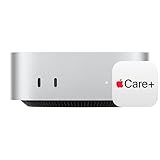
- WHY APPLECARE+ — Get protection, service and support direct from Apple. AppleCare+ covers unlimited repairs for accidental damage, like a cracked display, and includes coverage for the hardware and battery. Get convenient service at Apple Stores and Apple Authorized Service Providers around the world or schedule a pickup at your home or office with Onsite Service. Help is easy with 24/7 priority tech support from Apple experts.
- SIZE DOWN. POWER UP — The far mightier, way tinier Mac mini desktop computer is five by five inches of pure power. Built for Apple Intelligence.* Redesigned around Apple silicon to unleash the full speed and capabilities of the spectacular M4 chip. With ports at your convenience, on the front and back.
- LOOKS SMALL. LIVES LARGE — At just five by five inches, Mac mini is designed to fit perfectly next to a monitor and is easy to place just about anywhere.
- CONVENIENT CONNECTIONS — Get connected with Thunderbolt, HDMI, and Gigabit Ethernet ports on the back and, for the first time, front-facing USB-C ports and a headphone jack.
- SUPERCHARGED BY M4 — The powerful M4 chip delivers spectacular performance so everything feels snappy and fluid.
Mac mini versus MacBook: the practical differences
| Decision axis | Mac mini | MacBook |
|---|---|---|
| Primary environment | Fixed desk or workstation | Desk, rooms away from the desk, commuting or travel |
| Screen | Separate display required for a conventional desktop setup; Apple says displays are sold separately | Integrated notebook display; an external display is optional |
| Keyboard and pointing device | Separate accessories required | Built-in keyboard and trackpad; external devices optional |
| Battery | No built-in battery proposition; it is a mains-powered desktop setup | Built-in battery; runtime depends on the exact model, configuration and workload |
| Existing equipment | Most attractive when a suitable monitor and peripherals are already available | Immediately usable without a monitor; desk accessories can be added later |
| Desk expansion | Designed around the display and accessories you choose | Can become a desktop setup with a monitor, dock and peripherals |
| External-display planning | Verify the selected Mac mini configuration’s supported displays and connections | Verify the selected MacBook configuration’s supported displays and connections |
| Price comparison | Computer price alone excludes the display and input devices you still need | Computer price includes the basic screen and input devices; optional desk equipment is extra |
The table describes the product roles, not a performance ranking. The available evidence consists of Apple specifications, not independent workload testing, so do not infer that one family is faster for your particular applications without model-specific tests.
Start with where and how you work
Choose the Mac mini for a genuinely fixed office
Mac mini makes sense when you sit at the same desk for most workdays and the desk can remain assembled. It is especially practical when you already own a monitor that meets your resolution and connectivity needs, plus a keyboard and mouse you like. The desktop format also suits an office where a webcam, speakers, Ethernet connection or other peripherals stay permanently plugged in.
Measure the desk before buying. Account for the monitor stand, cable routing, power strip, laptop or document space and ventilation around the computer. If the desk is shared, verify that the display has the inputs you need and that switching between devices is convenient; the Mac mini does not provide a built-in fallback screen.
Choose a MacBook when the desk is only one of several locations
A MacBook is the safer choice if you work in a second room, move between home and an office, attend meetings in different locations or travel. The built-in display means a forgotten cable or unavailable monitor does not stop you from working. The battery also gives you operating flexibility during short power interruptions, although actual runtime depends on what you are doing.
Recommended Free Tools
Portability has value even if the computer spends most of its life on a desk. You can take the same files, apps and settings to a client visit or a quiet room instead of maintaining a second computer. Weigh that convenience against the cost and complexity of adding a dock, monitor and desk peripherals if you want a desktop-like experience.
Choose based on access, not an imagined “average” user
Ask how often you will work away from the primary monitor. “Once a year” usually does not justify giving up a permanent desktop setup; “several times each week” often does. Consider accessibility as well: a preferred monitor size, keyboard, mouse or screen height may make a Mac mini with dedicated accessories more comfortable, while a MacBook can provide a second, adjustable screen position away from the desk.
Calculate the complete setup cost
A computer-only price comparison can reverse the apparent bargain. Build two shopping lists with equivalent memory and storage, then include every item required to reach the same working experience.
Rank #3

- AN AMAZING MAC AT A SURPRISING PRICE — With an incredibly portable and durable aluminum design, up to 16 hours of battery life,* and the A18 Pro chip, MacBook Neo is ready to go wherever school takes you.
- FOUR STUNNING COLORS. ONE DURABLE DESIGN — Choose from four beautiful colors — Silver, Blush, Citrus, or Indigo — each with a color-coordinated keyboard. And MacBook Neo is made with a durable recycled aluminum enclosure that helps it reach 60 percent recycled content by weight — the most ever in any Apple product.*
- FLY THROUGH EVERYDAY ASSIGNMENTS — Whether you’re cramming for finals, using Apple Intelligence* to summarize class notes, creating presentations, or even playing the latest Apple Arcade game,* MacBook Neo delivers the performance and AI capabilities you need to get things done.
- UP TO 16 HOURS OF BATTERY LIFE — MacBook Neo delivers all day battery life, so you can power through from early morning classes to late night study sessions without worrying about plugging in.
- A VIBRANT 13-INCH DISPLAY* — The gorgeous Liquid Retina display on MacBook Neo supports 1 billion colors, so photos and videos pop and text is crisp for easy reading.
| Cost item | Mac mini setup | MacBook setup |
|---|---|---|
| Computer | Selected Mac mini configuration | Selected MacBook Air or MacBook Pro configuration |
| Primary display | Required for a conventional desktop setup; current price varies by model and region | Included integrated display; external monitor is optional |
| Keyboard and pointing device | Required unless you already own compatible devices | Built-in keyboard and trackpad; external devices optional |
| Dock, hub or adapters | Only if your chosen peripherals require them | Often useful for a monitor and desk peripherals, depending on ports |
| Webcam, microphone and speakers | Buy or reuse according to your meeting and audio needs | Built-in components cover basic portable use; desk upgrades are optional |
| Second display | Optional, subject to the configuration’s display support | Optional, subject to the configuration’s display support |
| Current price evidence | Not stated in the cited comparison; pricing is market-, configuration- and date-dependent | Not stated in the cited comparison; pricing is market-, configuration- and date-dependent |
Apple’s comparison pages use market-specific, dynamically rendered pricing, and the available comparison does not establish matched prices in one market. Check the current local price for the exact memory and storage configuration. Treat a promotional price, tax-inclusive price or education price as a separate condition rather than a universal value.
Use an equivalent configuration
Do not compare an entry configuration of one family with a more generously equipped configuration of the other. Match memory and storage first, then list the accessories. If one option requires a monitor you already own and the other would require a new monitor, record that difference explicitly rather than calling it “free.”
Value the equipment you already own
A monitor and peripherals you already trust have a replacement cost of zero in your immediate purchase, even though they are not worthless. Conversely, a low-cost display that causes scaling, color, webcam or connection problems can create more expense later. Include likely upgrades in your worksheet if the current equipment is near the end of its useful life.
Display and port planning
Mac mini display checklist
- Identify the monitor’s input ports, supported resolution and refresh rate.
- Check the exact Mac mini generation and configuration on Apple’s comparison page.
- Confirm how many external displays that configuration supports and at what resolutions and refresh rates.
- Choose direct cables or a compatible adapter; do not assume a hub supports every monitor mode.
- Allow for a webcam, microphone, storage, network connection and charging needs for other devices.
The Apple Mac mini comparison is the source for the supported-display information, but the page can show different products as generations change. Recheck it immediately before ordering rather than relying on a specification copied from an older model.
MacBook display checklist
- Decide whether the built-in screen is your only display, a second screen or a temporary screen when travelling.
- Check the exact MacBook Air or MacBook Pro configuration’s external-display support.
- Count the ports needed for the monitor, power, storage, network and accessories.
- Determine whether a dock is necessary and whether it passes the monitor’s required resolution and refresh rate.
- Plan where the notebook will sit so the external display, camera and microphone remain usable.
Do not assume that every MacBook supports the same number of external displays. Apple’s comparison lists support by model; consult the entry for the configuration you are buying.
Free tools Windows power users keep installed
One-click scans. No signup required.
Battery and power expectations
The Mac mini is a desktop setup without a built-in battery. A brief power interruption stops the computer unless you provide an uninterruptible power supply, and moving to another room means shutting down or transporting the entire desk arrangement.
MacBook includes a battery, but a published maximum is not a promise for every workload. Apple’s comparison lists model-specific estimates, including figures of up to 18 hours for some notebook configurations, with explanatory footnotes. The estimate depends on the exact model and Apple’s test conditions; video playback, web use, brightness, peripherals, conferencing and demanding applications can change runtime substantially. Verify the footnote for the configuration you are considering at Apple’s comparison.
Rank #4

- BTO Mac Mini Desktop Computer - Power Cord - Apple 1 Year Limited Warranty with 90 Day Free Technical Support
- Apple M1 chip with 8-core CPU and 8-core GPU
- 16-core Neural Engine
- 16GB unified memory
- 1TB SSD storage
If your work is sensitive to interruption, consider both battery capacity and charging access. A MacBook can continue temporarily during an outage, but it still needs charging eventually. A Mac mini can be paired with backup power, adding another item and cost to the fixed setup.
Match the computer to the work, without inventing a performance winner
For ordinary office tasks, the more important decision is often location and equipment rather than the family name. Email, browser-based applications, documents, video meetings and remote systems should be evaluated against the exact memory, storage and software requirements of your workload.
Quick wins for a faster PC:
Scan for outdated or missing drivers - takes under a minuteDriver Scan →Clear out junk files and repair common Windows errorsFree Scan →Fix the driver behind crashes, sound loss and screen glitchesFind Drivers →| Work pattern | Starting point | Questions to verify |
|---|---|---|
| Single-desk writing, spreadsheets and web work | Mac mini if you have a monitor; MacBook if you need mobility | Is your current display comfortable for long sessions? Do you need a webcam away from the desk? |
| Frequent video meetings in different rooms | MacBook | Will the built-in camera, microphone and battery cover your meeting routine? |
| Two-screen desk workflow | Either, subject to exact display support | How many displays, at what resolutions and refresh rates, does the selected configuration support? |
| Specialized or professional applications | Configuration-dependent | Check the application’s macOS version, memory, storage, graphics and accessory requirements; seek workload-specific testing. |
| Long sessions with an ergonomic keyboard and large monitor | Mac mini or MacBook with a dock | Compare the complete cost and decide whether you need the notebook’s screen at the desk. |
| Travel or work during short outages | MacBook | What runtime does Apple publish for your exact configuration, and how often can you recharge? |
Neither source establishes an independent performance comparison, and no hands-on testing is available here. Avoid statements such as “the Mac mini is faster” or “the Pro is always better” unless you have evidence for the specific applications and configurations.
Configuration checklist before you buy
- Write down the exact model: Mac mini generation, or MacBook Air/Pro model and configuration.
- Choose memory and storage for the next few years: compare like with like; do not let a lower starting price hide a different specification.
- List every connection: display, power, network, storage, camera, microphone, audio and charging for other devices.
- Verify display support: use Apple’s current comparison entry for the exact configuration.
- Record your work locations: primary desk, second room, travel and outage scenarios.
- Price the complete setup locally: computer, monitor, peripherals, dock, adapters and any replacement equipment.
- Check software requirements: confirm that essential applications and services support the macOS version and hardware you select.
- Plan data and backup: decide where working files, backups and authentication devices will live before moving from an existing computer.
A simple decision scorecard
Give each statement a “yes” or “no,” then use the pattern rather than a numerical score to guide the purchase:
- I already own a suitable monitor and peripherals.
- My work happens at one desk at least 90 percent of the time.
- I want to choose or replace the display independently of the computer.
- I can tolerate the setup being unavailable during a power interruption.
- I prefer a permanently connected webcam, audio system or wired network.
Mostly “yes” points toward Mac mini. Now test the notebook case:
- I work away from my desk several times a week.
- I travel, commute or regularly change rooms.
- I need a screen and keyboard even when no accessories are available.
- I value battery operation during short power interruptions.
- I would use the same computer both at the desk and away from it.
Mostly “yes” points toward MacBook. If both lists are strongly positive, price both complete setups and decide whether mobility or modularity has greater day-to-day value.
Step-by-step setup plans
Build a Mac mini home office
- Confirm the configuration: open Apple’s Mac comparison and record the generation, memory, storage and supported displays.
- Inventory your desk: test the monitor’s inputs, cables, webcam, keyboard, mouse, speakers, network and power locations.
- Buy only missing essentials: include a display and input devices if you do not already have them.
- Connect the display directly first: establish a working picture before adding hubs, docks or adapters.
- Attach input and network devices: connect the keyboard, pointing device, Ethernet or Wi-Fi, audio and camera.
- Update macOS and peripherals: install available system and accessory updates, then verify display resolution, camera, microphone and audio output.
- Create a backup routine: configure the backup method you use for documents and settings before the computer becomes your only working copy.
Build a MacBook home office
- Select the family and configuration: compare the exact MacBook Air or MacBook Pro entry, not a generic “MacBook” label.
- Test portable use first: set up Wi-Fi, essential applications, notifications, camera, microphone and battery-management habits.
- Plan the desk connection: identify the monitor, power connection, keyboard, mouse, network and storage you want attached.
- Verify external-display support: check Apple’s specification for the selected configuration before buying a dock or second monitor.
- Connect one accessory at a time: confirm charging, display, network and storage separately so a faulty cable or dock is easy to identify.
- Set the working arrangement: choose whether the notebook remains open as a second screen or is closed with the external display as the primary screen.
- Keep a travel kit: carry the required power adapter and any indispensable cable rather than assuming the desk dock will be available.
Common mistakes and fixes
“The Mac mini is cheaper because the sticker price is lower.”
Fix: add the monitor, keyboard, pointing device, webcam, speakers, dock and adapters you actually need. Compare that total with a similarly configured MacBook.
Best Value

- LITTLE DO-IT-ALL — Mac mini packs pure power into a small, five-by-five-inch desktop as the M6 chip delivers next-level AI capabilities. Mac mini features 2.5Gb Ethernet with support for Wi-Fi 7* and Bluetooth 6, with ports on the front and back.
- M6 CHIP — Everything you do on Mac mini feels more responsive with the M6 chip and its next-generation CPU. Fly through AI workflows with up to 4.8x faster AI performance,* thanks to a Neural Accelerator in each GPU core, faster unified memory, and a Dual 16-core Neural Engine.
- CONNECT IT ALL — Features three Thunderbolt 4 ports, an HDMI port, and a 2.5Gb Ethernet port in the back, and two USB-C ports and a headphone jack in front. Supports up to three external displays. With the Apple-designed N1 wireless chip for Wi-Fi 7* and Bluetooth 6.
- A POWERFUL PLATFORM FOR AI — Apple silicon is designed to run demanding AI workflows like using huge LLMs, directly on device. And Apple Intelligence* helps you write, express yourself, and get things done effortlessly, while Siri AI* is your profoundly capable assistant — all with groundbreaking privacy protections.
- A POWERFUL PLATFORM FOR AI — Apple silicon is designed to run demanding AI workflows like using huge LLMs, directly on device.
“Every MacBook has the same battery and ports.”
Fix: identify Air versus Pro and the exact configuration. Read Apple’s model-specific battery estimate and display/port information; do not transfer a figure from another notebook.
“Any USB-C hub will run my monitor.”
Fix: match the hub and cable to the display’s resolution, refresh rate, power and data requirements. Test a direct connection before adding the hub.
“A monitor I already own will work at its best setting.”
Fix: check its input, cable, resolution and refresh requirements against the selected Mac’s supported display modes. A picture appearing on screen does not prove that every desired mode is supported.
Outdated Drivers Are Slowing You Down
One free scan finds every outdated or missing driver and matches the right update for your exact hardware.Free scan · exact hardware matchPC Slower Than It Used to Be?
A free scan shows the junk files, broken settings and background clutter dragging Windows down - then fixes them in one click.Free scan · Windows 10 & 11“Published battery hours equal my workday.”
Fix: treat Apple’s number as a test-condition estimate. Plan charging for meetings, high brightness, many browser tabs, external devices and demanding applications.
“The more expensive family is automatically the right professional choice.”
Fix: list the applications, files, memory, storage, displays and peripherals your work actually requires. Seek evidence for that workload instead of relying on the family label.
“I can compare prices from different countries.”
Fix: use one market, one currency and one date. Taxes, configuration availability, promotions and exchange rates can make a cross-market comparison misleading.
How to make the final choice
Mac mini is the better fit when
- Your office is a stable desk rather than a set of locations.
- You already own a suitable monitor and input devices, or you want to select those components separately.
- You value a permanent cable, camera, audio and network arrangement.
- You accept that the computer depends on mains power and a functioning external display.
- Your chosen configuration’s display support matches your monitor plan.
MacBook is the better fit when
- You regularly work away from the main desk.
- You want a usable computer without buying a monitor first.
- Battery operation and an integrated screen reduce disruption during travel or short outages.
- You are willing to add a dock, monitor and desk peripherals for a more comfortable fixed setup.
- The exact Air or Pro configuration meets your memory, storage, software and display needs.
When neither answer is obvious
Build two complete bills of materials, verify display support, and write down how often you will use the computer away from the desk. If the notebook’s mobility would be occasional but the desk setup would be daily, favor the setup that improves every workday. If the fixed desk is temporary or shared, pay more attention to the value of a self-contained battery-powered system.
The Tool Desk
Outbyte Driver Updater FREEFix the driver behind crashes, sound loss and screen glitchesFind Drivers →Outbyte PC Repair FREEClear out junk files and repair common Windows errorsFree Scan →Bottom line
For a permanent home office with a suitable monitor and peripherals, Mac mini is the natural desktop choice. For work that moves, MacBook’s integrated display and battery justify its all-in-one design. Compare equivalent configurations and the complete setup cost in your local market, then verify Apple’s current display and battery specifications for the exact model before purchasing.
Quick Recap
Product prices and availability are accurate as of the date/time indicated and are subject to change. Any price and availability information displayed on Amazon at the time of purchase will apply.

