
Recommended Free Tools
iTechGuides is reader-supported. When you buy through links on our site, we may earn an affiliate commission. As an Amazon Associate I earn from qualifying purchases. Learn more
“Why is my laptop mouse not working Lenovo?” First check whether you mean the built-in touchpad or a separate mouse: each has different fixes. Use the keyboard, a working external mouse, or your laptop’s TrackPoint (if it has one) to navigate Windows settings while troubleshooting.
First, identify which pointing device has stopped working
Test the built-in touchpad and any separate mouse independently. If an external mouse or TrackPoint works but the touchpad does not, start with the touchpad settings and driver steps below. If a separate mouse also fails, follow the USB or Bluetooth steps for that device.
If you do not have a working pointer, press Windows key + I to open Settings. Use Tab, the arrow keys, and Enter to move through controls.
Fix a Lenovo laptop touchpad that does not respond
Turn the touchpad on in Windows
In Windows 11, open Settings > Bluetooth & devices > Touchpad and turn on Touchpad. In Windows 10, search Windows for Touchpad settings and check that the touchpad is enabled. Lenovo documents using Windows key + I, searching for “touchpad,” then navigating the results with the keyboard when the touchpad is unusable. Lenovo’s touchpad troubleshooting guide covers these settings.
#1 Best Overall

- Ergonomic Wireless Mouse: The Lenovo WL310 Bluetooth Silent Mouse fits perfectly in your hand, reducing wrist strain and offering comfort for extended use on laptops or desktops
- Silent Clicks for Any Space: Enjoy noiseless clicks with this wireless mouse, ideal for quiet workspaces, late-night projects, or shared environments
- Customizable DPI Settings: Switch between 1000, 1200, and 1600 DPI for precision control, perfect for gaming, designing, or everyday computer tasks
- Bluetooth 5.0 Connectivity: Stable, lag-free wireless performance for Windows PCs, MacBooks, Chromebooks, and Lenovo laptops. No USB receiver required
- Portable & Stylish Design: Compact and lightweight, this grey mouse is easy to carry in your laptop bag, making it a great travel companion for professionals and students
Check the model-specific keyboard shortcut
Some Lenovo laptops have a function key that toggles the touchpad. The key differs by model; Lenovo’s examples include F6, F8, or a function key used with Fn. Check the user guide for your exact laptop rather than trying to apply one universal shortcut. If the touchpad stops only when a mouse is connected, look in Touchpad settings for an option such as “Leave touchpad on when a mouse is connected.” Its availability and wording depend on the model and driver. Lenovo’s IdeaPad instructions describe the model-specific toggle examples.
Check whether Windows can see the touchpad
If Touchpad settings are missing or greyed out, or the touchpad remains unavailable, check its entry in Device Manager. On IdeaPads, look under Human Interface Devices and Mice and other pointing devices. If you cannot find it, select View > Show hidden devices. If a touchpad entry appears greyed out, try updating it; available controls depend on the device and its driver.
Rank #2

- Enhance Your On-the-Go Productivity: Introducing the Lenovo 300 Wireless Compact Mouse – your ultimate travel companion designed for professionals on the move. Ideal for business travelers, presenting executives, and individuals seeking heightened control and flexibility, this compact mouse is a must-have accessory to elevate your work style.
- Pocket-Friendly Portability: Experience unmatched convenience with the Lenovo 300 Wireless Compact Mouse's compact design. Slip it effortlessly into your pocket or laptop bag, ensuring that wherever you go, enhanced control and precision are right at your fingertips. Embrace a clutter-free, organized lifestyle while maintaining top-notch productivity.
- Precision at Your Command: Boasting an optical sensor with 1000 DPI resolution, this compact mouse delivers precision like never before. Seamlessly navigate through documents, presentations, and creative projects with unparalleled accuracy, enhancing your overall work efficiency and control.
- Battery Life That Lasts: Bid farewell to battery concerns with the Lenovo 300 Wireless Compact Mouse. Equipped with a single AA battery, this powerhouse ensures a remarkable battery life of up to 12 months. Say goodbye to the hassle of frequent battery replacements and stay focused on what truly matters – your tasks, presentations, and projects.
- Versatile Performance Anywhere: No matter where your journey takes you, the Lenovo 300 Wireless Compact Mouse adapts seamlessly to your needs. Its ergonomic design ensures comfort during prolonged use, while its wireless capabilities grant you freedom from tangled cords. Experience a responsive and intuitive interface, ensuring that precision and control are always within reach.
Get the touchpad or mouse driver from Lenovo’s support page for your exact product and selected Windows version, or use Lenovo System Update. Avoid installing a driver for a different model. Restart Windows after an update. If the problem began immediately after a driver update, Device Manager may offer a Roll Back Driver option; it is not available for every device or driver. See Lenovo’s driver and touchpad guidance.
Do these 3 things before closing this tab:
1Clear out junk files and repair common Windows errors2Fix the driver behind crashes, sound loss and screen glitches3Repair Windows errors before they cause bigger problemsFix a wired or USB-receiver mouse
- Reconnect it. Unplug the mouse or wireless receiver, wait about ten seconds, then reconnect it. For a mouse or receiver with a reset control, use that control as directed by its manufacturer.
- Try another port. Connect directly to a different laptop USB port. If the mouse is connected through a hub, check the hub’s power and test without it.
- Check the mouse itself. Inspect the cable, battery, and sensor; replace or recharge the battery if needed and clear any obstruction from the sensor.
- Test another computer, if available. If the mouse also fails there, the problem may be with the mouse rather than the Lenovo laptop. Microsoft’s Windows mouse and keyboard troubleshooting steps include checking the connection and trying another USB port.
Fix a Bluetooth mouse that will not connect
- Check power and pairing. Make sure the mouse is switched on, charged or has a working battery, and is in pairing mode. Keep it within range of the laptop.
- Check Bluetooth in Windows. Confirm Bluetooth is on. If the mouse is listed but will not connect, remove it from Bluetooth settings, then add it again.
- Restart the connection. Turn Bluetooth off and back on, restart Windows, and check Windows Update.
- Investigate missing Bluetooth. If Bluetooth is missing or greyed out in Windows, Microsoft notes that this can indicate a Bluetooth hardware error. Check Lenovo’s Bluetooth driver and model-specific firmware guidance before drawing a conclusion. See Microsoft’s Bluetooth troubleshooting guide.
When basic checks do not solve it
Use Safe Mode to check for software conflicts
If the touchpad works in Safe Mode, an application or driver may be interfering during normal startup. This is a way to isolate a software cause, not proof that the hardware is fine. Lenovo includes Safe Mode in its touchpad troubleshooting guidance.
Rank #3

- Slim and Comfortable Design: The Lenovo 100 Wired USB Mouse boasts a slim grip full-size mouse with an ambidextrous design, ensuring a comfortable fit in your hand, whether you're left or right-handed.
- Built to Last: Rest assured about durability with the Lenovo 100 Wired USB Mouse. It's engineered for a 3 million clicks button life, delivering long-lasting performance that stands the test of time.
- Reliable Wired Connection: Enjoy an easy and reliable connection to your PC via a 1.7-meter USB-A cable. No need to worry about signal drop-offs or battery replacements; this mouse is always ready for action.
- Precision and Smooth Movement: The Lenovo 100 Wired USB Mouse offers precise movement with its 1000 DPI resolution and red optical sensor. Glide smoothly from window to window, ensuring accurate and efficient navigation.
- Plug-and-Play Convenience: This hassle-free mouse is designed for productivity. It features a straightforward plug-and-play connection to PCs with a USB-A cable, making it a practical choice for users seeking a reliable and efficient pointing device.
Consider a restore point or BIOS defaults only when appropriate
If the problem began after a Windows change, a restore point from before the issue may help. Lenovo also describes loading BIOS defaults in an IdeaPad troubleshooting flow. Treat that as a later, model-specific step: BIOS entry keys and settings vary, so follow your laptop’s user guide and avoid changing unrelated firmware settings.
Get model-specific help if the device is still absent
If the touchpad remains missing or unresponsive after checking its setting, shortcut, and driver, consult Lenovo support or a qualified repair provider. These symptoms alone do not establish that the touchpad hardware has failed.
Quick Recap
Best Value
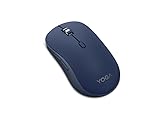
- Crafted for quiet control: From morning meetings to moonlit edits, this mouse is your trusted companion. Crafted for long hours and seamless workflows, it combines beauty with utility—think programmable buttons and a noise-free experience. Designed for those who crave both style and power, this mouse complements a demanding professional life
- One mouse, three devices: Equipped with convenient Bluetooth 5.3, this mouse connects to three devices simultaneously—ideal for multitaskers. Whether you’re in a crowded café or office, it performs reliably across all major operating systems, with Swift pairing for non-Yoga devices and tap-to-pair for Yoga PCs
- Quality you can feel: Wrapped in soft-touch coating and made to last over 1,000 days on a single battery, this mouse redefines quality and comfort. It’s been tested and trusted to uphold Lenovo’s uncompromising standards because you deserve technology that’s as incredible as you
- Connectivity: Bluetooth Battery Type: 1 x AA Battery Battery Life : 36 Months
Rank #4

- Reliable Wireless Connectivity: The Lenovo 530 Wireless Mouse offers a dependable connection no matter where you are. Its advanced nano USB receiver utilizes robust 2.4 GHz wireless technology, ensuring seamless performance without the hassle of cords. Stay productive and focused without the constraints of wired setups.
- Precision Tracking at Your Fingertips: Elevate your user experience with the 1200 DPI resolution optical sensor featured in this wireless mouse. Experience responsive and clear tracking that enhances your navigation, whether you're browsing the web, creating presentations, or engaging in detailed design work. Precision is now at your fingertips.
- Durability That Lasts: With the Lenovo 530 Wireless Mouse, longevity is a guarantee. Boasting a remarkable lifespan of up to 8 million clicks for both left and right buttons, this mouse is built to withstand the rigors of daily use. Enjoy reliable performance for years to come, making it an ideal companion for your computing tasks.
- Ergonomic Comfort for Extended Use: Experience unparalleled comfort during long work sessions with the unique and contoured design of the Lenovo 530 Wireless Mouse. Crafted for maximum ergonomics, this mouse fits perfectly in your hand, ensuring all-day comfort. The durable soft touch finish adds a premium feel to your interactions, making productivity a breeze.
- Versatility and Portability: Whether you're left-handed or right-handed, the Lenovo 530 Wireless Mouse accommodates your preference. Its ambidextrous design ensures functionality and comfort for all users. Weighing just 65g (2.29 oz), it's the ultimate travel companion. Slip it into your laptop bag or pocket and enjoy its lightweight portability wherever you go. Plus, with an impressive battery life of up to 12 months (actual duration may vary based on usage), you can confidently use it without worrying about frequent recharges. Choose the Lenovo 530 Wireless Mouse for unparalleled performance, comfort, and convenience.
Product prices and availability are accurate as of the date/time indicated and are subject to change. Any price and availability information displayed on Amazon at the time of purchase will apply.

