
iTechGuides is reader-supported. When you buy through links on our site, we may earn an affiliate commission. As an Amazon Associate I earn from qualifying purchases. Learn more
Yes. You can keep many old PC environments usable after the original machine fails by running the old operating system as a guest in a virtual machine (VM) or by emulating the older computer in software. The best fit depends on what the program needs: a familiar operating-system environment, a particular CPU architecture, or period-specific PC hardware and peripherals. Neither approach guarantees that every old application or device will work unchanged.
How a virtual machine keeps an old operating system available
A host is the physical computer and operating system running virtualization software. A guest is the older operating system running inside the VM. The virtualization application presents virtual hardware to the guest, which can help it run without the original PC’s motherboard and other components.
Oracle’s VirtualBox 7.2 documentation explains how to configure virtual hardware for older operating systems and states that VMs can be saved, copied, exported, and transferred between hosts. This makes a VM a practical way to preserve a usable software environment, rather than tying it to one physical computer.
Portability is not the same as identical behavior. A new host or virtual-device configuration may affect old drivers, peripherals, or applications. Check what the particular software expects before assuming a VM will replace the original machine completely.
#1 Best Overall

- HP Proliant DL360 G9 4-Bay LFF Server | 2x E5-2695v4 2.10GHz 18-Core CPU (36-Cores Total)
- 256GB DDR4 RAM | 4x 4TB 7.2K SATA 3.5" HDD
- Smart Array P440ar w/ 2GB FBWC | 4x1Gbe NIC
- 2x 500W PSU | Windows Server 2019 Standard Evaluation
Choose virtualization or emulation based on what the software needs
Start with the program’s dependencies, not its age. If it mainly needs an old operating system that can run on the virtual hardware offered by the VM application, virtualization may be the simpler route. If it depends on a different CPU architecture or on specific older PC hardware, system or low-level PC emulation may be a closer fit.
| Approach | Useful when | Trade-offs |
|---|---|---|
| Virtualization, such as VirtualBox | The guest OS can use the virtual hardware, and the main goal is to preserve a usable OS environment. | VMs can be moved between hosts, but virtual-device compatibility and software support are not universal. |
| System emulation, such as QEMU | The software needs a CPU architecture or computer system different from the host, or explicit system emulation. | QEMU supports many architectures, but the guest system, configuration, and software images still have to match the use case. |
| Low-level PC emulation, such as 86Box | The software depends on older IBM PC-compatible hardware or period-style peripherals. | It offers choices of emulated processors and devices; performance depends on the host and guest configuration. |
QEMU’s documentation describes emulation across many architectures. The 86Box documentation focuses on low-level x86 PC emulation and lists DOS, older Windows, and OS/2 among supported systems. The 86Box project describes coverage from 8086-based processors through Mendocino-era Celeron systems; that range describes its emulation capabilities, not a promise that every program for those systems will work.
Rank #2
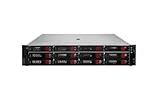
- HPE Proliant DL380 G11 12-Bay LFF Server | 2x Gold 6430 2.1GHz 32-Core CPU (64-Cores Total)
- 32GB DDR5 RAM | 4x 8TB 7.2K SAS 3.5" HDD
- MR408i-o Raid Controller | 12Gb/s SAS Expander | 4x1GbE NIC
- 2x 800W PSU | Windows Server 2019 Standard Evaluation
Check the old program’s dependencies before choosing
Write down what must work, then match the approach to those requirements. An old operating system booting successfully is not proof that its games, applications, or connected hardware will behave as they did on the original PC.
Quick wins for a faster PC:
Repair Windows errors before they cause bigger problemsFix Now →Fix the driver behind crashes, sound loss and screen glitchesFind Drivers →Clear out junk files and repair common Windows errorsFree Scan →- Operating system and CPU: Identify the OS and whether the software expects a particular processor or architecture.
- Graphics and sound: Check whether the program relies on specific video or audio behavior that a virtual device may not reproduce.
- Storage: Consider the disk format and how the old system expects its files to be presented.
- Peripherals: Note any required controller, printer, or other device and whether the chosen setup can expose or emulate it.
- Network: Determine whether the software truly needs networking. Avoid connecting an obsolete OS to the public internet as a casual setup step.
- Host and setup effort: Confirm that the chosen application supports your host platform and allow time to configure and test the guest or emulated system.
VirtualBox, QEMU, and 86Box expose different virtual or emulated hardware. The right choice therefore depends on the exact OS, application, host, and peripherals—not simply whether a machine is described as old.
Rank #3

- HP Apollo 4200 G10 24-Bay LFF Server | 2x Gold 6130 2.1GHz 16-Core CPU (32-Cores Total)
- 256GB DDR4 RAM | 24x 4TB 7.2K SAS 3.5" HDD
- Smart Array P816i-a SR | 2x10GbE NIC
- 2x 800W PSU | Windows Server 2019 Standard Evaluation
Preserve the VM files and protect your working copy
VM portability is most useful when the files and configuration that make up the environment stay together. VirtualBox documents workflows for copying and transferring VMs, as well as snapshots. Treat snapshots as a way to retain a state, not as a substitute for an independent backup.
- Keep the VM’s files and configuration together. Record where they are stored so you can locate the full environment later.
- Make a separate backup before changing anything. Keep it apart from the working VM so a problem with one copy does not take out both.
- Test a copy before experimenting. Boot the copied VM or emulated setup on the intended host before relying on it, and avoid making changes to the only preserved version.
- Check available storage and memory. These limit how many VMs you can run and how comfortably you can use them. An external SSD can be optional storage for VM files, but no particular drive or capacity is required by the documentation.
Know where compatibility and support stop
Virtualization and emulation extend access; they do not guarantee indefinite preservation. A guest may fail to boot, a device may not be reproduced closely enough, or an application may behave differently. The documentation describes capabilities and configuration options, not a universal compatibility rate or a verified result for every old PC image.
Rank #4
- HP Proliant DL360 G9 4-Bay LFF Server | 2x E5-2695v4 2.10GHz 18-Core CPU (36-Cores Total)
- 768GB DDR4 RAM | 4x 4TB 7.2K SATA 3.5" HDD
- Smart Array P440ar w/ 2GB FBWC | 4x1Gbe NIC
- 2x 500W PSU | Windows Server 2019 Standard Evaluation
Support policies also need to be read narrowly. Microsoft’s support policy for Microsoft software running in non-Microsoft virtualization software covers supported versions of Windows Server and says that, except as described in the policy, Microsoft does not test or support Microsoft software running with third-party virtualization software. That policy should not be generalized to every consumer version of Windows.
Quick Recap
Best Value

- HP Proliant DL380 G10 8-Bay SFF Server | 2x Platinum 8164 2.0GHz 26-Core CPU (52-Cores Total)
- 768GB DDR4 RAM | 2x 1.92TB SATA III 2.5" SSD
- Smart Array S100i SR | 2x10GbE NIC
- 2x 500W PSU | Windows Server 2019 Standard Evaluation
Product prices and availability are accurate as of the date/time indicated and are subject to change. Any price and availability information displayed on Amazon at the time of purchase will apply.

