
What’s actually slowing this PC down?
Pick the symptom - the matching free tool is one click away.
iTechGuides is reader-supported. When you buy through links on our site, we may earn an affiliate commission. As an Amazon Associate I earn from qualifying purchases. Learn more
An 8-bay NAS is worth considering when your household needs a large, expandable archive, several simultaneous users or services, and enough capacity to keep a separate backup. It is usually poor value when you only need a few terabytes, have one light workload, or would struggle to fund backup drives and ongoing maintenance.
Eight bays describe the number of drive positions, not the amount of protected storage you will actually have. Drive sizes, RAID layout, network equipment, power, noise, software support and an independent backup determine whether the system fits your home.
What an 8-bay NAS actually gives you
An eight-bay network-attached storage enclosure can hold up to eight internal drives. The bays let you combine disks into one or more storage pools, serve files to computers and phones, run backup jobs, and sometimes host media servers, containers or virtual machines. The enclosure itself is only the starting point: a diskless unit has no usable capacity until you buy compatible drives.
Crashes, No Sound, or Screen Glitches?
Random freezes, missing sound and display glitches usually trace back to one bad driver. Find and replace yours safely.Free scan · under a minuteWindows Errors? Fix Them Before They Spread
Repair common Windows errors and clear accumulated junk for a smoother, more stable PC - no reinstall needed.Free scan · no reinstallThe extra bays mainly buy three things:
- More protected capacity: you can install more drives while reserving space for parity or mirrors.
- Expansion room: an initially partial population can leave bays for later purchases, subject to the exact model’s expansion rules.
- Workload separation: some systems can place different services or pools on different drives, although the software and processor must support that design.
Those benefits matter most when your data is growing. A photography archive, several years of video, local computer backups, surveillance footage, a media library and shared household files can outgrow a two- or four-bay chassis. If your data fits comfortably on one or two external drives and you do not need network services, an 8-bay NAS adds cost and administration without solving a real problem.
#1 Best Overall

- Note: When using this product, please first confirm that the hard drive loaded into this product is normal, otherwise it will lead to not out of the drive, such as loading more than one hard drive, it will only show one, can not confirm which one is bad, please load a hard drive, power on, out of the drive a, confirm that it is normal, turn off, and then load the second, in the power on, out of the drive two, to confirm that it is normal, and so on, one by one to load, until you find the The problematic hard drive. For example, if there is a problem with one of the 8 hard drives, only one drive will come out.If you have any questions, please contact me promptly.
- 【Reliable External Storage System for Individuals】The 3.5 hard drive enclosure supports 2.5/3.5inches HDD and SSD , max capacity up to 160TB( 20TB for each hard driveit's a ideal external hard drive enclosure for personal or enterprise using.
- 【No heat】The 8 bay hard drive reader built in Aluminum-Alloy materials and two 2.9 inch Fans.Maximize the security of your data. NOTE:Fan noise is around 40-50 decibels, not recommended if you are very sensitive to noise.
- 【Up to 5Gbps】This 8 bay enclosure equips with advanced chips and USB 3.0 output interface, Max 5Gbps under UASP control.Transfer 1G movie in 3-5 seconds with USB 3.0 Ports, which is 10 times faster than USB 2.0.
- 【Stable power supply】Equipped with DC 12V20A power adapter to provide stability for high-speed transmission.
How much usable storage will you get?
Usable capacity is calculated from the installed drive sizes and the selected RAID layout. It is not the sum printed on the drive labels. Storage systems also reserve space for parity, metadata and system functions, so a manufacturer’s capacity calculator is the authoritative figure for a planned model and drive set.
| Layout | Typical minimum | Capacity rule before system overhead | What a drive failure means |
|---|---|---|---|
| RAID 1 | Two drives | About one drive’s capacity because data is mirrored | The mirror can continue operating after one drive fails |
| RAID 5 | Four or more drives is a common starting point | Roughly the total of all drives minus one drive for parity | Designed to tolerate one failed drive; rebuild time and risk depend on drive size and system |
| RAID 6 | Model-dependent | Roughly the total minus two drives for dual parity | Designed for two simultaneous drive failures, with less usable capacity |
| RAID 10 | Four drives | About half of the raw total because data is mirrored and striped | Can tolerate failures in separate mirror pairs; the exact outcome depends on which drives fail |
RAID 1 and RAID 5 are described by UGREEN’s official FAQ as general starting points for two-bay and four-or-more-bay systems respectively. That is a manufacturer’s general guidance, not a universal rule. Choose the layout your NAS supports after considering drive size, rebuild exposure, performance and the importance of each dataset.
For a purchase comparison, calculate each candidate with the same drive size and redundancy. For example, compare the usable result of four drives in a smaller chassis with the result of six or eight drives in the larger one, then reserve matching capacity for backup. A partially populated eight-bay chassis may spread purchases over time, but the model may require particular expansion sequences or matching drive groups. Confirm those rules before assuming you can add a disk whenever convenient.
Quick wins for a faster PC:
Repair Windows errors before they cause bigger problemsFix Now →Fix the driver behind crashes, sound loss and screen glitchesFind Drivers →Clear out junk files and repair common Windows errorsFree Scan →Is RAID a backup?
No. RAID is an availability and capacity technology, not a complete backup. UGREEN’s official FAQ explicitly says, in Japanese, “ただし、RAIDはバックアップの代替にはなりません。” (“However, RAID is not a substitute for backup.”)
Rank #2
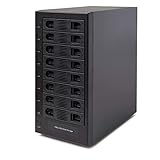
- Support All Brands Of 2.5 Inch And 3.5 Inch Sata Hard Disk Drive Up To 24TB Per Drive. (Does Not Support Raid And Nas Function)
- Smart Fan Function With Built-In Thermal Sensor Support Auto & Manual Mode With 3 Level Of Fan Speed
- Super Speed Usb3.0 5Gbps Connection Transfer Your Files In A Breeze. Supports Sata I/Ii/Iii(6Gb/S), Uasp And Usb 3.0(5Gb/S)
- Independent Control Switch For Each Drive Allows Drives To Be Powered Off Individually. Dissipates Heat Efficiently With Steel Housing & Quiet Fan
RAID can keep a volume online when a supported number of disks fail. It does not restore a file that was deleted, overwritten or encrypted by malware. It also does not protect against a failed NAS motherboard, theft, fire, flood, a bad update, or an administrator deleting the whole storage pool.
| Incident | What RAID may do | What you need in addition |
|---|---|---|
| One failed disk within the layout’s tolerance | Keep the volume available while you replace and rebuild the disk | A tested backup is still prudent in case another failure occurs during rebuild |
| Accidental deletion or overwriting | Replicate the deletion across the array | Versioned snapshots or backups with retention |
| Virus or ransomware infection | Store the encrypted files redundantly | Offline, immutable or otherwise protected historical copies |
| NAS hardware failure | Usually cannot make the enclosure itself operational | A second device or service and a documented restore process |
| Fire, theft or site loss | Does not help if the array is lost | An off-site copy |
A practical home design is a primary NAS plus at least one independent destination, with versions or retention that let you recover an earlier state. Seagate’s 8-Bay Rackmount NAS manual gives one concrete option: direct-attached storage can connect to the enclosure’s external ports for NAS backup. That demonstrates a capability, not proof that one attached disk is a complete backup strategy.
Buffalo describes local-server, rsync-based and cloud routes for its TeraStation family. A synchronized copy is not automatically safe from deletion or compromise; verify whether the destination keeps versions, how long it retains them, and how you would perform a full restore. Test a few representative files before trusting the system with irreplaceable data.
What does an 8-bay NAS cost beyond the enclosure?
The enclosure is often only one part of the initial bill. Include the drives required now, a backup destination with enough capacity, network upgrades, electricity, a compatible UPS and replacement drives. A cheaper diskless chassis can become the more expensive choice if it needs premium networking or leaves no budget for backup.
Rank #3

- 8 Hot-Swap Drive Bays: This 8-bay NAS case supports both 3.5" HDD and 2.5" SSD hard drives. Featuring a convenient hot-swap function, you can add or replace hard drives anytime without shutting down the whole system. Ideal for photographers building media libraries, household video storage, and small businesses for file archiving.
- Dual Cooling Quiet System: Adopting an upper and lower separated independent air duct design, the heat generated by hard drives and the mainboard is dissipated separately without mutual interference. Equipped with 3 temperature-controlled silent fans, it maintains low temperature and low noise even under non-stop running.
- Wide Compatibility DIY Flexible Assembly: Most NAS enclosures come with strict limitations on motherboards, power supplies and CPU coolers. Our case is widely compatible with Mini-ITX & Micro-ATX motherboards, 1U / FLEX small power supplies, and CPU coolers with a maximum height of 58mm. It works perfectly with all mainstream low-power NAS mainboards, bringing you extremely high freedom for customized DIY assembly.
- Sturdy Steel Chassis With Indicator Lights: Made of full thick steel chassis for solid shockproof performance to protect your precious stored data. Each hard drive bay is equipped with dedicated power and read/write indicator lights, letting you monitor disk working status in real time. Front-panel USB 3.0 port plus power button are designed for easy daily peripheral plug-and-play and quick power control.
- You will get: A network attached storage Enclosures with accessories including 3 x mute back fans, 2 x back panel, 8 x hard disk stands, SATA data cable, various screws. ( Motherboard CPU and other accessories are not included )
Power estimates from one manufacturer’s Japanese storefront
UGREEN’s Japan storefront publishes maximum-use electricity-cost estimates at ¥35 per kilowatt-hour, assuming 24-hour full operation. These are manufacturer estimates for the listed models and Japanese tariff, not independent measurements or a universal household bill.
| Model | Manufacturer estimate per month | Qualification |
|---|---|---|
| DH2300 | About ¥327 | 24-hour full operation at ¥35/kWh |
| DXP4800 Plus | About ¥1,058 | 24-hour full operation at ¥35/kWh |
| DXP8800 Plus | About ¥1,772 | 24-hour full operation at ¥35/kWh |
Your actual bill varies with drive count, drive type, sleep settings, workload, electricity rate and local taxes. An eight-bay system populated with eight disks generally has more idle and active hardware than a lightly populated four-bay unit, so compare measured or manufacturer power data for the exact configuration.
UPS and outage planning
UGREEN recommends considering a UPS so the NAS has time to shut down safely during an outage. Select a UPS only after checking compatibility, supported signaling, the NAS’s power draw, attached USB devices and the runtime you want. A UPS reduces abrupt shutdown risk; it does not replace an independent backup.
Which home workloads justify eight bays?
Before buying, list the services you will run and estimate concurrent users. Eight bays are easier to justify when several of these apply:
Rank #4
- !!!NOTE:When the 8-bay enclosure being used, there is at least one hard drive must be inserted into HDD1-HDD4, same goes for HDD5-HDD8, 2 HDDs is a minimun quantity to be inserted.Please read the instructions carefully before trying!!!Be sure to save a good backup of your data before setting up RAID, which will format your hard drive after setting up RAID!!!!!!
- NOTE: When using this product, please first confirm that the hard drive loaded into this product is normal, otherwise it will lead to not out of the drive, such as loading more than one hard drive, it will only show one, can not confirm which one is bad, please load a hard drive, power on, out of the drive a, confirm that it is normal, turn off, and then load the second, in the power on, out of the drive two, to confirm that it is normal, and so on, one by one to load, until you find the The problematic hard drive. For example, if there is a problem with one of the 8 hard drives, only one drive will come out.
- 【Reliable External Storage System for Individuals】The 3.5 hard drive enclosure supports 2.5/3.5inches HDD and SSD , max capacity up to 160TB( 20TB for each hard drive), Not compatible with WD 20TB hard drives, but supports Seagate 20TB hard drives.it's a ideal external hard drive enclosure for personal or enterprise using.Save space on your desktop or laptop.
- 【8 Raid Modes】This external raid enclosure supports CLONE, LARGE/ LARGE*2, NORMAL, RAID0*2, RAID5*2, RAID50, RAID00. NOTE:When replacing RAID, you need to go back to NORMAL/PM10 and set the desired RAID mode.Designing RAID may result in data loss. !!!Raid Mode Switching Method!!! Disconnect the power, use a screwdriver, toggle the paddle to the corresponding mode, press and hold the reset button, turn on the power, hold reset for ten seconds, the raid mode will be successfully switched.
- 【No heat】The 8 bay hard drive reader built in Aluminum-Alloy materials and two 2.9 inch Fans.Maximize the security of your data. NOTE:Fan noise is around 40-50 decibels, not recommended if you are very sensitive to noise.
- A large photo, video or project archive that is growing every year.
- Automated backups for several computers and mobile devices.
- Multiple household users accessing files at the same time.
- A media library that must remain online while backups run.
- Containers or virtual machines that need CPU, memory and fast storage in addition to disk capacity.
- A requirement to keep a second pool or spare capacity for future projects.
Bay count does not guarantee performance. Check processor and memory limits, supported file-sharing protocols, backup software, media-server support, container or virtual-machine features, and whether the NAS can use SSDs or faster cache. UGREEN says its DXP-series NAS devices support Docker and virtual machines; verify that the local model, firmware and current software licensing provide the functions you need.
Network speed, noise and placement
A fast NAS port helps only if the rest of the path can carry that traffic. Check the NAS port, switch, router, cabling and client adapters as a set. A 10GbE interface can be useful for large transfers between a workstation and the NAS, but a gigabit client, Wi-Fi link or slow disk pool may remain the bottleneck. Buffalo’s TeraStation material mentions 10GbE on supported products, and a 2025 Android Central review excerpt notes 10GbE on the Synology DiskStation DS1823xs+; neither establishes a universal home performance result.
Eight spinning disks also produce heat and acoustic noise. Place the unit where ventilation is adequate and the sound is acceptable, rather than in a sealed cabinet or bedroom. Confirm drive compatibility, vibration guidance, warranty coverage and replacement availability for your country. A supported NAS-rated drive is not automatically a guarantee of longer life, so maintain backups regardless of the label.
Free tools Windows power users keep installed
One-click scans. No signup required.
8-bay versus a smaller NAS
| Question | Choose an 8-bay system when… | Choose a smaller system when… |
|---|---|---|
| Capacity | Your protected archive and backup plan need more drives now or soon | Your data fits within a smaller protected pool with room for growth |
| Expansion | You want unused bays and accept the model’s expansion rules | You prefer a lower initial cost and can replace drives later |
| Workloads | Several users, backups and services run concurrently | You mainly share files or back up one or two computers |
| Budget | You can fund the enclosure, all required drives and an independent backup | Buying eight bays would consume money needed for backup or networking |
| Space and noise | You have a ventilated location away from living areas | Noise, heat or electricity make a smaller system more practical |
How to decide before you buy
- Inventory current data. Measure documents, photos, video, backups and application data separately. Identify which files are irreplaceable and how quickly each category is growing.
- Set a planning horizon. Estimate capacity for the next three to five years rather than filling the array on day one. Include temporary working space and room for rebuilds.
- Choose a redundancy level. Decide how many drive failures you need to tolerate and how much capacity you are willing to trade for that protection. Confirm the model supports the layout and expansion path.
- Price the complete system. Add the enclosure, drives, backup destination, network equipment, UPS and expected electricity. Use the manufacturer’s calculator for usable capacity instead of relying on raw disk labels.
- Match the network. If large files must move quickly, verify that switches, cables and client devices support the NAS’s fastest port. Otherwise, do not pay solely for a port your network cannot use.
- Verify software and support. Check file sharing, computer backup, snapshots, media services, containers, virtual machines, drive compatibility, firmware support and warranty terms for your region.
- Plan recovery. Select a backup destination, retention policy and off-site method before storing important data. Write down how to restore a folder and how to rebuild the NAS if the enclosure fails.
Setup and maintenance practices that prevent avoidable loss
Initial setup
- Install only drives listed as compatible for the NAS model, and record each drive’s serial number and warranty.
- Update the NAS firmware before creating the final storage pool, unless the vendor’s instructions require another order.
- Create the pool with the intended RAID layout and confirm the displayed usable capacity.
- Turn on administrator multi-factor authentication if supported, disable unused services, and restrict remote access rather than exposing the management interface directly to the internet.
- Create separate user accounts and permissions for household members and applications.
- Configure computer backups, snapshots or versioning, then run a restore test.
- Connect and schedule the independent backup target. Confirm that the job records successful completion and that older versions remain available.
Ongoing checks
- Review storage-pool health, drive alerts and available free space regularly.
- Keep enough free capacity for normal operation and a rebuild; a nearly full pool is harder to manage and expand.
- Apply firmware and application updates during a maintenance window, with a current backup first.
- Test restoring files periodically instead of assuming a green backup status proves recoverability.
- Replace a failing drive with a compatible model, monitor the rebuild, and avoid treating the array as fully protected until the rebuild completes.
Common mistakes and how to avoid them
- Buying bays instead of capacity: compare usable protected terabytes and backup capacity, not the number printed in the product name.
- Filling every bay immediately: leave a growth plan and verify whether the NAS supports adding drives to an existing pool.
- Using RAID as the only copy: maintain an independent, versioned or off-site backup.
- Ignoring rebuild exposure: larger disks can take longer to rebuild; choose redundancy and monitoring accordingly.
- Assuming a cloud sync is a backup: check retention, version history and deletion behavior for the exact service.
- Paying for 10GbE without a matching network: upgrade the switch, cabling and clients or select a less expensive interface.
- Putting the NAS in an unsuitable room: provide ventilation and accept that multiple hard disks make noise and heat.
- Relying on retired or old product information: Buffalo states that its TeraStation 5010 products have been retired, and the Seagate 8-Bay Rackmount NAS manual describes an older 1U product. Use such material to understand capabilities, then verify current availability, specifications and support before buying.
What the available product examples do—and do not—prove
UGREEN identifies the DXP8800 Plus as an eight-bay model in its Japan storefront and says DXP-series devices support Docker and virtual machines. Local availability, firmware features and specifications can differ, so treat those details as a starting point for verification.
Best Value

- Massive 8+2 Bay Storage Capacity: 8 hot‑swappable 3.5‑inch HDD bays + 2 dedicated 2.5‑inch SSD slots, paired with dual SATA backplanes, ideal for high‑capacity home NAS, media server and data backup builds.
- Motherboard Compatibility: Supports Micro‑ATX (245×245mm) and Mini‑ITX (170×170mm) motherboards, with 4 full‑height PCIe slots (GPU max 240mm length) for network cards and expansion hardware.
- Flexible Power & Cooling Design: Compatible with ATX PSU (≤170mm length, downward‑compatible with SFX/FLEX PSU with adapter); supports CPU coolers up to 55mm tall, with 4×12025 fan positions for strong heat dissipation.
- Sturdy & User‑Friendly Construction: Built with 0.8mm galvanized steel inner frame and cold‑rolled steel outer frame; magnetic front panel enables easy access, laser‑cut ventilation panels ensure long‑term stable operation.
- Complete DIY Package – The 8-bay NAS Case comes with all necessary accessories (HDD handles, screws, cable ties), allowing flexible DIY configuration. At 300mm (W) x 270mm (D) x 270mm (H), this mini tower fits comfortably on a desk or server shelf.
The Seagate manual documents an eight-drive 1U enclosure with hot-swappable 3.5-inch drives, RAID-protected volumes and direct-attached storage for NAS backup. It illustrates the category; it is not a current home-buying recommendation.
Buffalo’s TeraStation 5010 page describes NAS-grade drives, shipment RAID configuration, backup functions and partially populated eight-bay options, while also stating that the 5010 products are retired. A 2025 Android Central review excerpt describes the reviewer’s own media and utility use of the Synology DiskStation DS1823xs+ and mentions 10GbE, but that experience is not an independent comparison or a current value ranking.
No neutral break-even price, current independent ranking or universal noise and performance result is established by these examples. Check present-day pricing, regional stock, drive compatibility, warranty and support on the date you purchase.
Recommended Free Tools
Quick Recap
Product prices and availability are accurate as of the date/time indicated and are subject to change. Any price and availability information displayed on Amazon at the time of purchase will apply.

