
What’s actually slowing this PC down?
Pick the symptom - the matching free tool is one click away.
iTechGuides is reader-supported. When you buy through links on our site, we may earn an affiliate commission. As an Amazon Associate I earn from qualifying purchases. Learn more
On Nintendo Switch 2, highlight Pokémon Pokopia on the HOME Menu, press + or − to see the installed version, then choose Software Update followed by Over the Internet to request an update. Nintendo’s North American support page lists Ver. 2.0.1, released September 7, 2026, as the latest version shown there as of October 13, 2026.
This distinction matters if you are trying to use an internet feature, join another player, or confirm that a reported bug fix is installed. The number shown under the game title is the game-software version, not the Switch 2 system-software version.
What you need before updating
The procedure applies to the Nintendo Switch 2 version of Pokémon Pokopia. You do not need to launch the game to check its version or request an update. The console must be connected to the internet for the manual update check to work.
- Have the game installed on the console or on the storage location where you normally run it.
- Connect the Switch 2 to a working wireless network.
- Close the game before starting. The version and update commands are accessed by highlighting the title on the HOME Menu, not from inside active gameplay.
- If you are checking a multiplayer problem, ask the other player to check their displayed version as well. Nintendo says players must use the same software version to play together.
- Make a note of the complete version number before you begin. This makes it easier to tell whether the update changed the installed build.
A game update and a console system update are different things. The instructions below update the Pokopia software only; they do not change the Switch 2 system software. Updating the console firmware is a separate process and should not be substituted for the game-specific steps here.
#1 Best Overall

- Shape the world and build a cozy new life with Pokémon as a Ditto transformed to look like a human.
- Use other Pokémon’s moves, like Bulbasaur’s Leafage, to revitalize and navigate the world around you.
- Meet and befriend more Pokémon as you help nature flourish.
- Gather materials to create items and furniture, till the fields to grow delicious crops, build homes for the Pokémon you meet, and more—there’s so much to do!
- Experience a world with varied weather, real-time days and nights, and other surprises.
How to check your installed Pokopia version
- Press the HOME button to open the HOME Menu.
- Move the cursor over the Pokémon Pokopia icon. Do not press A to start the game.
- Press the + or − button on the controller.
- Look under the game title in the software information screen. The installed version is displayed there, using a format such as Ver. 2.0.1.
Write down the complete version number, including every digit. “2.0” and “2.0.1” are not the same software version for the purpose of coordinating play. Checking the number before and after an update also gives you a simple way to confirm that the installation changed the game.
If another player is helping you troubleshoot, report the number exactly as it appears, including the “Ver.” label and the final digit. Saying only that you are on “version 2” or “2.0” leaves out information Nintendo uses when matching software versions.
Do not confuse this with the console version
The number shown under the Pokopia title is the game’s version. A separate number in System Settings describes the Switch 2 system software. Nintendo’s game-update instructions use the HOME Menu entry for the title, so use that screen when you need to report which version of Pokémon Pokopia is installed.
How to update Pokémon Pokopia over the internet
- Return to the HOME Menu and highlight Pokémon Pokopia without launching it.
- Press + or − to open the software options.
- Select Software Update.
- Select Over the Internet.
- Let the console check Nintendo’s update service and follow the on-screen instructions if an update is offered.
After the download and installation finish, repeat the version-check procedure. The number under the title should identify the newly installed release. If the console reports that no update is available, the installed version is already the newest one recognized by the update service for that console and region at that moment.
Do not close the software-options screen until you have selected the internet check. Selecting a different menu item will not request the game update. The route Nintendo documents is specifically Software Update, then Over the Internet.
Why you should start from the HOME Menu
Nintendo’s documented route is attached to the highlighted software icon. Starting the game first can leave you looking for an in-game update command that is not part of this procedure. Press HOME, highlight the title, and use the software options instead.
If the Switch 2 is not connected to the internet
Use Nintendo’s network setup path before trying the software update:
Outdated Drivers Are Slowing You Down
One free scan finds every outdated or missing driver and matches the right update for your exact hardware.Free scan · exact hardware matchPC Slower Than It Used to Be?
A free scan shows the junk files, broken settings and background clutter dragging Windows down - then fixes them in one click.Free scan · Windows 10 & 11Rank #2
![Pokémon Pokopia Standard - Nintendo Switch 2 [Digital Code]](https://m.media-amazon.com/images/I/51Dr2-tvabL._SL160_.jpg)
- Shape the world and build a cozy new life with Pokémon as a Ditto transformed to look like a human.
- Use other Pokémon’s moves, like Bulbasaur’s Leafage, to revitalize and navigate the world around you.
- Meet and befriend more Pokémon as you help nature flourish.
- Gather materials to create items and furniture, till the fields to grow delicious crops, build homes for the Pokémon you meet, and more—there’s so much to do!
- Experience a world with varied weather, real-time days and nights, and other surprises.
- Open System Settings from the HOME Menu.
- Select Internet.
- Select Internet Settings.
- Choose your wireless network from the list.
- Enter the network password when the console asks for it.
- Return to the HOME Menu, highlight Pokémon Pokopia, press + or −, and choose Software Update then Over the Internet.
Nintendo suggests placing the console within 10 feet of the wireless router for a strong signal. That is support guidance rather than a guarantee that every wireless problem is solved by distance; walls, interference, router settings, and service outages can still affect the connection.
What to check when the network is visible but the update will not start
- Open Internet Settings again and verify that the console is connected to the intended network, not merely that the network name appears in the list.
- Re-enter the wireless password if the connection test does not complete.
- Move the console closer to the router, using Nintendo’s 10-foot suggestion as a starting point.
- After the connection succeeds, return to the game’s HOME Menu options and run the manual check again.
- If other online functions also fail, treat that as a network issue rather than evidence that the game version number is wrong.
If the console can see a network but cannot complete the connection, do not keep repeating the game-update command first. Recheck the Internet Settings connection, then run the software check after the console reports a successful connection. This separates an unavailable network from a game that is already current.
Automatic updates versus a manual check
Nintendo says the console can download and install a game update automatically when it is connected to the internet and automatic software updates are enabled. Automatic updating is convenient when you do not need to play immediately, but it does not replace checking the displayed version when two players are trying to match versions.
For a deliberate update, use Software Update > Over the Internet from the highlighted game icon. That manual path gives you a clear point at which to request the check and a version number to verify afterward.
Do these 3 things before closing this tab:
1Fix the driver behind crashes, sound loss and screen glitches2Repair Windows errors before they cause bigger problems3Scan for outdated or missing drivers - takes under a minuteAn automatic update may mean that two consoles reach different versions at different times. One player may already have the newest software while another still needs to run the check or complete the download. Comparing the complete displayed number is therefore more reliable than assuming that both consoles updated because they are connected to the internet.
What is the latest Pokopia version?
Version information is time-sensitive and regional. As of October 13, 2026, the Nintendo support pages reviewed list Ver. 2.0.1 as the newest release, but the two regional pages assign it different calendar dates.
| Region and source | Latest version listed | Release date shown | How to interpret it |
|---|---|---|---|
| Nintendo North America | Ver. 2.0.1 | September 7, 2026 | Latest version listed on the North American support page as of October 13, 2026. |
| Nintendo UK | Ver. 2.0.1 | September 8, 2026 | The same software release, dated one calendar day later on the UK page. |
The one-day difference is a regional date-label difference, not evidence of two different game builds. When documenting the update for someone else, state the territory with the date. If Nintendo publishes a newer entry after October 13, 2026, that later regional support page takes precedence over this dated snapshot.
Rank #3

- Pokémon Pokopia Expansion Pass
Use the version number, rather than the date alone, when checking your console. A player in North America and a player in the UK can both be on Ver. 2.0.1 even though their regional support pages show September 7 and September 8, respectively.
Brazil-specific rating note
Nintendo’s North American update history includes a note that rating settings for Brazil were changed. The page marks that item as updated October 1, 2026. It is a Brazil-specific ratings change, not a general gameplay feature that every player should expect to see.
What Ver. 2.0.1 fixes
Nintendo lists the following conditional problems as fixed in Ver. 2.0.1:
- Under certain conditions, Ho-Oh and Lugia could repeatedly descend and reappear.
- Under certain conditions, Pokémon could not be found with the Pokédex search function.
- Under certain conditions, the relocation kit could not be picked up.
- Under certain conditions, sound effects could play repeatedly, the game could freeze, or the game could become stuck on the loading screen.
The wording “under certain conditions” matters: the notes identify situations Nintendo corrected, but they do not say that every player experienced each symptom. Updating is still important because the release also establishes the software version required for internet features and coordinated play.
If you saw one of these symptoms on an earlier build, first confirm the installed number rather than assuming the fix is present. A repeated sound effect, a freeze, or a loading-screen problem can have more than one possible cause, while Nintendo’s notes identify only the listed conditional issues. The version check tells you whether Ver. 2.0.1 is installed; it does not diagnose every problem by itself.
Quick wins for a faster PC:
Clear out junk files and repair common Windows errorsFree Scan →Scan for outdated or missing drivers - takes under a minuteDriver Scan →What the update changes for online and internet features
Internet features require the game update
Nintendo says the game update must be applied to use Pokémon Pokopia’s internet features. If those features are unavailable, check the displayed game version first and run the manual update route before treating the problem as a membership or account issue.
Online features require Nintendo Switch Online
The update requirement and the membership requirement are separate. Nintendo says a Nintendo Switch Online membership is required for the game’s online features. Nintendo’s online-safety information also states that the membership is sold separately and used with a Nintendo Account. Installing Ver. 2.0.1 does not itself provide a membership.
Rank #4

- Pokémon Pokopia Bundle (Game + Expansion Pass)
In practical terms, installing the current software addresses the game-version requirement; it does not replace the separate Nintendo Switch Online requirement. Check both conditions when an online feature remains unavailable after every player has matching software.
Players need matching software versions
Nintendo’s support wording is direct: “All players must be using the same version of the software to play together.” Before troubleshooting a group session, have every player open the HOME Menu options and compare the number shown under the game title. A console that has updated automatically can therefore be on a different version from one that has not yet completed the download.
Your save data remains available
Nintendo says save data remains available after downloading the update. The update procedure is therefore intended to update the game software while retaining the existing save data, although you should still allow the installation to finish normally rather than interrupting power or the network connection during the process.
A practical troubleshooting sequence
Use this order when the version does not change, an online session will not connect, or a reported fix appears absent.
- Read the installed number. Highlight the game, press + or −, and record the version under the title.
- Confirm the network. Go to System Settings > Internet > Internet Settings and verify that the Switch 2 is connected.
- Run the documented check. From the same software options, choose Software Update > Over the Internet.
- Check the result. After the process ends, open the options again and compare the displayed version with the release listed for your region.
- Compare with the other player. If online play is the problem, make sure every participant has the same number, not merely the same major version.
- Separate access requirements. If everyone has the same current version but an online feature remains unavailable, check whether the Nintendo Switch Online membership and Nintendo Account requirements apply to that feature.
- Escalate with precise details. When contacting Nintendo support, provide the region, the exact displayed game version, whether the console completed the internet connection test, and the symptom you encountered. Those details distinguish a software-version mismatch from a network or service problem.
Keep the troubleshooting sequence in this order because each check answers a different question. The version screen answers which game build is installed. Internet Settings answers whether the console can reach the network. The software-update command answers whether Nintendo offers a newer build. Comparing players’ numbers answers whether a group is synchronized. Membership and account checks come after those software checks, not instead of them.
Common mistakes to avoid
- Launching the game first: the version command is on the HOME Menu’s software options.
- Updating the console instead of the game: a system-software number does not tell you which Pokopia build is installed.
- Comparing only “2.0”: multiplayer compatibility depends on the complete displayed version, including the final digit.
- Assuming a membership installs updates: Nintendo Switch Online is tied to online features; the game update is requested separately.
- Using the release date without a territory: North America lists September 7, 2026, while the UK lists September 8, 2026, for Ver. 2.0.1.
- Expecting every bug note to apply to every save: Nintendo describes the listed fixes as conditional issues.
- Assuming an automatic update completed: open the software options and read the displayed version instead of relying on the console’s internet connection alone.
- Moving to third-party update utilities: Nintendo’s documented method is built into the Switch 2 HOME Menu, so a separate PC utility is not part of this workflow.
Where Ver. 2.0.0 fits in the update history
Nintendo’s previous listed release, Ver. 2.0.0, added Dive, underwater house building, new items, and other changes and bug fixes. It is useful context if you are returning from an older build, but it is not the current version listed by the regional pages cited above. For the complete chronology and any later releases, use the update history on the Nintendo support page for your territory and compare it with the number shown on your console.
Recommended Free Tools
Knowing that Ver. 2.0.0 preceded Ver. 2.0.1 can help explain why an older console may show a different number, but it does not change the update route. Highlight the game, open the software options, and choose Software Update followed by Over the Internet regardless of which earlier version is installed.
Best Value
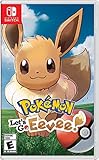
- Don the role of a Pokémon Trainer as you travel through Kanto
- Discover a new species of Pokémon with the Pokémon Lets Go series
- Catch Pokémon in the wild using a gentle throwing motion with either a Joy-Con controller or a Poké Ball Plus accessory, which will light up, vibrate, and make sounds to bring your adventure to life
- See the world in style by customizing Pikachu and your Trainer with a selection of outfits
- Connect to Pokémon GO* to transfer caught Kanto-region Pokémon, including Alolan and Shiny forms, as well as the newly discovered Pokémon, Meltan, from that game to this one
Fast reference
| Task | Exact action | Expected result |
|---|---|---|
| Check the installed game version | HOME Menu > highlight Pokémon Pokopia > press + or − | The version appears under the title. |
| Request an update | Software Update > Over the Internet | The console checks for and, when available, installs the game update. |
| Connect the console | System Settings > Internet > Internet Settings > select the network | The Switch 2 joins the selected wireless network after any required password entry. |
| Confirm compatibility for playing together | Each player checks the number under the title | All players use the same complete software version. |
| Check the current release | Compare the displayed number with your territory’s Nintendo support page | You can account for regional date labels while matching the actual version number. |
Frequently Asked Questions
How do I update Pokémon Pokopia on Nintendo Switch 2?
From the HOME Menu, highlight Pokémon Pokopia without launching it, press + or −, choose Software Update, and then choose Over the Internet. Follow any on-screen instructions and check the displayed version again when the process finishes.
How do I check which Pokopia version I have?
Highlight Pokémon Pokopia on the HOME Menu and press + or −. The installed game version appears under the title in the software information screen, such as Ver. 2.0.1.
What is the latest Pokémon Pokopia version?
As of October 13, 2026, Nintendo’s North American and UK support pages list Ver. 2.0.1. North America shows a September 7, 2026 release date; the UK page shows September 8, 2026 for the same version.
Free tools Windows power users keep installed
One-click scans. No signup required.
Do I need Nintendo Switch Online to install the update?
The update is requested through the console’s internet connection. Nintendo Switch Online is a separate, sold-separately membership required for the game’s online features, and installing the update does not provide that membership.
Will updating Pokopia erase my save data?
Nintendo says save data remains available after downloading the update. Let the download and installation finish normally rather than interrupting the console during the process.
Why can’t I play with another Pokopia player after updating?
Nintendo says all players must use the same software version to play together. Have each player highlight the game, press + or −, and compare the complete number, including the final digit. If the numbers match, check the applicable Nintendo Switch Online and Nintendo Account requirements for online features.
What does Ver. 2.0.1 fix?
Nintendo lists conditional fixes for Ho-Oh and Lugia repeatedly descending and reappearing, Pokémon not being found by Pokédex search, the relocation kit not being pickable, repeated sound effects, freezes, and loading-screen problems. The notes do not say that every player experienced each issue.
The Tool Desk
Outbyte PC Repair FREERepair Windows errors before they cause bigger problemsFix Now →Outbyte Driver Updater FREEFix the driver behind crashes, sound loss and screen glitchesFind Drivers →What should I do if my Switch 2 is offline?
Open System Settings, choose Internet, choose Internet Settings, select your wireless network, and enter its password if requested. Nintendo suggests placing the console within 10 feet of the router for a strong signal, then returning to the game’s software options and choosing Software Update followed by Over the Internet.
Is the console system version the same as the Pokopia version?
No. The number under the Pokémon Pokopia title in the HOME Menu software information screen is the game version. A separate number in System Settings identifies the Switch 2 system software.
The Bottom Line
To update Pokémon Pokopia, highlight it on the Switch 2 HOME Menu, press + or −, and choose Software Update > Over the Internet. The same screen shows your installed version. Nintendo lists Ver. 2.0.1 as the latest release in its North American and UK support pages as of October 13, 2026; compare the complete number with every player before using online features.
Quick Recap
Product prices and availability are accurate as of the date/time indicated and are subject to change. Any price and availability information displayed on Amazon at the time of purchase will apply.

