
What’s actually slowing this PC down?
Pick the symptom - the matching free tool is one click away.
iTechGuides is reader-supported. When you buy through links on our site, we may earn an affiliate commission. As an Amazon Associate I earn from qualifying purchases. Learn more
To disable an unwanted Moto Action, open the Moto app, select Features, open Moto Actions and switch off the individual action. Some phones label the area Actions or Gestures (Actions); other controls are under Settings > Gestures. The exact choices depend on your Motorola model and software version.
This guide shows which setting to use, how to avoid accidentally disabling Android navigation, and how to block conflicting actions only while gaming.
What Moto Actions control
Motorola describes Moto Actions as gesture shortcuts for common tasks. They detect a movement, button gesture or handling action and then perform a specific command, such as taking a screenshot, shrinking the screen, silencing a ring or enabling Do Not Disturb. Each action normally has its own switch, so you can remove one shortcut without turning off the others.
Moto Actions are not a single master feature with identical contents on every phone. Motorola states that a phone may not have all features, and its help pages cover different device generations and software arrangements. An action shown in a guide for one model may be absent, renamed or placed in a different menu on yours.
#1 Best Overall
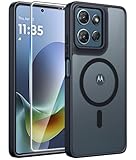
- Compatibility: This case Fit for Moto G Play 2026 / G 2026 / G 2025 (6.7 inch, 2025). Please confirm your phone moderl before purchasing
- Strong Magnetic Attraction: The Moto G Play 2026 Phone Case has built-in 38 super N52 magnets. Its magnetic attraction reaches 2400 gf, which is almost 7X stronger than ordinary. Provide a strong connection to all magnetic accessories—wallets, car mounts, ring holders. Enjoy a safer and more convenient experience
- Translucent Matte Back: This Moto G 2026 Phone Case crafted from high-quality matte TPU and translucent PC, this case reveals the phone logo with an elegant, refined finish. The frosted texture delivers a comfortable, non-slip grip, while the nano antioxidant layer effectively resists stains, sweat, and minor scratches—keeping your case clean and clear longer
- Tempered Glass Screen Protector: Includes 1× premium tempered glass screen protector that preserves original touch sensitivity and HD clarity. Offers reliable scratch and drop defense for your Moto G 2025 Phone Screen, without compromising responsiveness or display quality
- 14FT Military Grade Drop Protection: Phone Case Moto G Play 2026 has rigid polycarbonate backplate paired with flexible, shock-absorbing TPU bumpers around the edges, plus 4 built-in corner airbags. Provides comprehensive protection against accidental drops, bumps, and impacts
Choose the right way to disable it
| What you want to change | Where to look first | Scope of the change |
|---|---|---|
| One shortcut, such as Quick Screenshot or Flip for Do Not Disturb | Moto app > Features > Moto Actions | Only that selected action |
| A control documented under Android settings, such as three-finger screenshot or a power-key gesture | Settings > Gestures | The selected system or Moto gesture |
| Android navigation behavior | Settings > Gestures > System navigation, where available | Navigation mode, not every Moto Action |
| Gestures that interfere with a supported game | Game toolkit > Settings > Block Moto Actions | Selected actions while the game is running |
Use the narrowest scope that solves the problem. If a flip gesture is the nuisance, turn off that action rather than changing navigation. If the problem happens only inside a game, use the game-specific block instead of disabling a shortcut for the whole phone.
Turn off an individual action in the Moto app
- Open the Moto app from the app drawer or your home screen.
- Tap Features. Depending on the software version, the menu may instead say Actions or Gestures (Actions).
- Tap Moto Actions and review the list of available shortcuts.
- Open the action that is causing the problem and turn its control off. The change applies to that action; other enabled actions remain available.
- Perform a simple test that would normally trigger the shortcut. For example, do not shake the phone near your face when testing Fast flashlight; use the documented movement deliberately and confirm that nothing happens.
The list is model-dependent. Motorola examples include Quick Screenshot, Swipe to Shrink Screen, Pick up to stop ringing and Flip for Do Not Disturb. Your phone can show additional items or omit some of these.
What the commonly reported actions do
- Quick Screenshot: a configured physical movement captures the screen. Disable it if accidental screenshots are occurring.
- Swipe to Shrink Screen: a swipe gesture reduces the usable display area for one-handed use. Turn it off if the screen keeps entering a smaller layout.
- Pick up to stop ringing: lifting the phone can silence an incoming ring. Disable it when you need the ringtone to continue after picking up the device.
- Flip for Do Not Disturb: placing the phone face down can activate Do Not Disturb. Switch it off if the phone is being silenced unintentionally.
- Fast flashlight: a configured motion toggles the flashlight. Its presence and exact movement vary by model.
- Quick capture: a shortcut opens or captures something using a physical gesture or button action, depending on the phone.
- One-handed mode: a gesture changes the display for easier reach. It is separate from Android’s overall navigation mode.
These descriptions identify the purpose, not a universal trigger. Read the explanation shown on your phone before testing, because Motorola can change the movement or button combination between models.
Recommended Free Tools
Use Settings when the control is not in Moto
Motorola documents several controls in Settings > Gestures rather than in the Moto app. Open the Settings app, select Gestures, and look for the gesture named in the problem. On some software versions, a category may be nested under another gesture heading, so scroll through the page rather than stopping at the first list.
Rank #2

- Compatibility: Engineered exclusively for Motorola Moto G 2026/G Play 2026/G 2025/G Power 2025 with precision cutouts that give full access to ports, speakers, and buttons without interfering with wireless charging. Our 24/7 dedicated support team resolves any model or quality concerns instantly.
- Military-Grade Protection: A shock-absorbing TPU interior with reinforced corner airbags and a heat-dissipating honeycomb core is wrapped in a hard polycarbonate outer shell. Certified 14ft drop protection guards your phone against high-impact falls onto concrete warehouse floors and rocky hiking terrain.
- 360 Screen Defense with Tempered Glass: Each case includes a separate HD tempered glass protector that delivers full edge-to-edge coverage while preserving original touch sensitivity and clarity. It shields against pocket-key scratches and face-down drops on gym tiles or concrete floors.
- Practical Design for Secure Grip: Textured side panels and a non-slip matte back provide a confident hold during sweaty gym workouts, one-handed texting, and fast-paced daily commutes. The fingerprint-resistant finish stays clean, and soft-touch buttons deliver crisp, responsive feedback.
- All-Scenario Versatility: The minimalist, low-profile matte design blends effortlessly into any environment, from business commutes to weekend hikes. It pairs rugged durability with everyday pocketability for heavy-duty protection without the bulk.
Motorola’s examples for this route include three-finger screenshot and several power-key or navigation gestures. If you cannot locate a named item, use the Settings search field and enter the action’s wording, such as three-finger screenshot, flashlight, one-handed or navigation. Search results can reveal the correct page even when the category labels differ.
Three-finger screenshot controls
Three-finger screenshot has an individual on/off control on supported models. Some phones also let you define exceptions for selected apps. That means a screenshot gesture can remain enabled generally while being blocked in an app where it causes accidental captures, or it can be disabled entirely if you never use it. The exception interface is model-specific, so follow the wording on the device.
Moto Actions are separate from Android navigation
Turning off a Moto Action does not automatically change Android’s navigation system. Motorola presents gesture navigation and three-button navigation as separate choices. A phone can therefore have gesture navigation enabled while one or more Moto shortcuts are disabled, or use three-button navigation while retaining selected Moto Actions.
If swipes that move between apps or return to the home screen are the issue, inspect the System navigation setting under Settings > Gestures (the exact label can vary). Choose the navigation mode offered by your phone. Do not use this setting as a substitute for turning off a single shortcut: it changes how you operate the whole Android interface.
Rank #3
![for Motorola Moto G 2025 / Moto G 2026 / Moto G Play 2026 Case, with Slide Camera Cover HD Screen Protector [Military Grade 16ft. Drop Tested] Ring Holder Kickstand Protective Phone Case, Black](https://m.media-amazon.com/images/I/41-AGmcSyAL._SL160_.jpg)
- 【Perfect protection】This Compatible with Motorola Moto G 2025 / Moto G 2026 / Moto G Play 2026 (PLEASE NOTE!!! Not fit for Motorola Moto G 5G 2024 and Motorola Moto G Play 2024) case Shock absorption soft TPU & hard PC 2-in-1 combination,Prevent shock impacts、scratches、drops and other collisions,comfortable hand feels.⚠️ Notice: Due to the metal ring on the back,the case will NOT work with wireless Charging function.
- 【360° Rotable Kickstand Design】 Metal kickstand can rotate 360°, easy to rotate and sturdy on the case. This Compatible with Motorola Moto G 2025 / Moto G 2026 / Moto G Play 2026 case Built in kickstand gives you the convenience to watch videos and movies hands-free with desired comfort and stability. Besides, built-in metal magnetic sheet for stable adsorption, which can be directly adsorbed to the magnetic car mount holder. (Not includes the magnetic car mount holder).
- 【PRECISE CUTOUT】All buttons and interface user-friendly design to avoid frequent disassembly. And the case perfect cutouts for speakers, camera and charging hole allow you to easy access to all features and convenient for charging your phone without take off the Compatible with Motorola Moto G 2025 / Moto G 2026 / Moto G Play 2026 case.
- 【Screen and Camera Protection】Sliding camera cover protect the Motorola Moto G 2025 / Moto G 2026 / Moto G Play 2026 case camera lens from getting scratched and scuffed. Subtly enhanced 1.8 mm screen lips and screen protector provide the screen extra and comprehensive protection.Ensuring every aspect of your phone is protected with uniquely!
- 【WHAT YOU GET】 Our products come with 60 days warranty. If you have any questions or anything you feel unsatisfied, please feel free to contact us by E-mail. PUSHIMEI will happy to solve for you within 12 hours.
Conversely, changing from gesture navigation to three-button navigation will not necessarily remove a separate screenshot, flashlight, pickup or flip action. Check the individual control responsible for the behavior.
Block Moto Actions only during a game
Some Motorola phones with the Signature gaming help provide a game-specific option for gestures that conflict with controls. This is not the general device-wide switch.
- Start the game and open the phone’s game toolkit.
- Tap the toolkit’s Settings.
- Choose Block Moto Actions.
- Turn on the gestures you want blocked while that game is active.
- Close the toolkit and test the game control. Leave the block disabled for actions that do not interfere.
The setting is useful when a game interprets a flashlight shake, screenshot movement or other gesture as an unintended command. It preserves the shortcut for normal phone use and limits the block to the supported gaming context. If your phone does not offer this toolkit or menu, use the regular Moto or Settings control instead.
Outdated Drivers Are Slowing You Down
One free scan finds every outdated or missing driver and matches the right update for your exact hardware.Free scan · exact hardware matchPC Slower Than It Used to Be?
A free scan shows the junk files, broken settings and background clutter dragging Windows down - then fixes them in one click.Free scan · Windows 10 & 11Troubleshoot a missing switch or a gesture that still works
The labels do not match the instructions
Do not assume the feature was removed simply because the words differ. Motorola uses labels such as Moto Actions, Actions and Gestures (Actions) across software versions. Start in the Moto app’s feature area, then search Settings for the gesture’s name. The model’s built-in wording is the authority for that phone.
Rank #4

- Compatibility: Engineered exclusively for Moto G Play 2024 with precision cutouts that give full access to ports, speakers, and buttons without interfering with wireless charging. Our 24/7 dedicated support team resolves any model or quality concerns instantly.
- Military-Grade Protection: A shock-absorbing TPU interior with reinforced corner airbags and a heat-dissipating honeycomb core is wrapped in a hard polycarbonate outer shell. Certified 14ft drop protection guards your phone against high-impact falls onto concrete warehouse floors and rocky hiking terrain.
- 360 Screen Defense with Tempered Glass: Each case includes a separate HD tempered glass protector that delivers full edge-to-edge coverage while preserving original touch sensitivity and clarity. It shields against pocket-key scratches and face-down drops on gym tiles or concrete floors.
- Practical Design for Secure Grip: Textured side panels and a non-slip matte back provide a confident hold during sweaty gym workouts, one-handed texting, and fast-paced daily commutes. The fingerprint-resistant finish stays clean, and soft-touch buttons deliver crisp, responsive feedback.
- All-Scenario Versatility: The minimalist, low-profile matte design blends effortlessly into any environment, from business commutes to weekend hikes. It pairs rugged durability with everyday pocketability for heavy-duty protection without the bulk.
The action is not listed anywhere
Motorola explicitly notes that phones do not all include the same features. An absent item can therefore be a model limitation rather than a hidden switch. Confirm that you are looking for the actual behavior, not a similarly named Android command. For example, a navigation swipe belongs to system navigation, while a flip-to-silence behavior belongs to a separate action. If neither search nor the Gestures page shows the control, your software may not support it or may expose it under a different description.
The shortcut appears to be off but still triggers
First identify the exact behavior and the exact action associated with it. A screenshot can be produced by more than one configured method, so disabling one screenshot shortcut may leave another enabled. Likewise, navigation swipes can continue because they are controlled by system navigation, not by the Moto Action switch. Check the remaining relevant entries in both the Moto feature list and Settings > Gestures.
It happens only inside one app
For a game, check the game toolkit’s Block Moto Actions controls. For a non-game app, look for the three-finger screenshot exceptions if that is the gesture involved. An app-specific exception can explain why a shortcut appears to work in one place but not another.
The Tool Desk
Outbyte Driver Updater FREEScan for outdated or missing drivers - takes under a minuteDriver Scan →Outbyte PC Repair FREEClear out junk files and repair common Windows errorsFree Scan →The phone was updated and the path changed
Software updates can rearrange labels and categories. Use the Settings search field with the action’s plain-language name, then open the result and verify the switch. If the Moto app still contains the feature but under a new heading, use the on-device label rather than an older online instruction.
Best Value

- 【Only Compatible with Moto G 5G 2026/Moto G 5G 2025/Moto G Play 5G 2026】【Not fit Moto G 5G 2024/Moto Power 5G 2026/Moto G Stylus 5G 2026】.Package includes Soft HD Screen Protector and install them according to the instructions.【Note that】wireless charging is not supported!
- 【Camera Lens Protection】 This Phone case use lens slide design, it easy to slide and not to loose, and enhance protective of your phone camera from scratches, collision, scuffs and impact, not only improve safety, protect your privacy but also has a sense of fashion.
- 【360° Rotable Magnetic Kickstand】 Advanced Ring Metal kickstand can rotate 360°, easy to rotate and sturdy on the case. Built in kickstand gives you the convenience to watch videos and movies hands-free with desired comfort and stability.
- 【Full Body Protection】The phone case is made of anti-scratch hard rigid PC bumper and shock resistance soft TPU, with Air-Cushion Technology for all corners and the raised TPU bezel design, provide all around double protection of your phone from drops, scratches and bumps.
- 【High quality after sales service】SunStory provides 180 days warranty. If there is any problem with Your product, please feel free to contact us by email,we will provide you with the most Reasonable solution.
You changed navigation by mistake
If the phone’s back, home or app-switch behavior changed after troubleshooting, return to Settings > Gestures and inspect System navigation. Restore the navigation mode you normally use, then handle the separate Moto Action from its own switch. This two-step check prevents a navigation change from being mistaken for a gesture shortcut failure.
Independent reader supportYour contribution helps us test, update, and keep practical guides available for everyone.Decide what to disable without losing useful shortcuts
Most people do not need to disable every action. Review the trigger, frequency and consequence of the unwanted behavior:
- Accidental screenshots: disable the screenshot action that responds to your movement. Keep other shortcuts enabled if they do not create captures.
- Unwanted silencing: disable Pick up to stop ringing or Flip for Do Not Disturb, depending on which event changes the sound profile.
- Screen shrinking: disable Swipe to Shrink Screen while leaving flashlight or capture controls available.
- Game interference: use the game-specific block when available, so normal phone shortcuts continue working outside the game.
- Confusing swipes: determine whether the movement is a Moto Action or Android navigation before changing either setting.
This approach also makes recovery easier: you can re-enable one switch later without reconstructing a complete gesture configuration.
Quick wins for a faster PC:
Clear out junk files and repair common Windows errorsFree Scan →Fix the driver behind crashes, sound loss and screen glitchesFind Drivers →Repair Windows errors before they cause bigger problemsFix Now →How model and software differences affect the instructions
There is no universal Moto Actions screen. The available actions, menu names and placement can vary by Motorola model and software version. Official Motorola help pages themselves cover different phone generations and show more than one route. Treat the paths in this guide as decision points, not as a promise that every screen will look identical.
When asking for model-specific help, record the phone model and software version shown in Settings, plus the exact wording of the gesture. A description such as “the phone silences when I pick it up” is more useful than “gestures are broken,” because it identifies the action to search for. If the phone lacks the feature entirely, no amount of menu searching will create that switch.
Safe testing after you change a setting
- Leave the Settings or Moto page after switching the control.
- Reproduce the original movement once in a controlled situation, away from an important call, game or unsaved document.
- Confirm that the unwanted result no longer occurs.
- Test any shortcut you intentionally kept, such as the flashlight or one-handed mode, so you know it was not altered accidentally.
- If the behavior remains, classify it as a different action, a system-navigation command or a context-specific gaming setting and follow that branch above.
Because the actions are independently configurable, a controlled one-feature test is more reliable than turning off several settings at once.
Quick Recap
Product prices and availability are accurate as of the date/time indicated and are subject to change. Any price and availability information displayed on Amazon at the time of purchase will apply.
Free tools Windows power users keep installed
One-click scans. No signup required.

