
Windows Errors? Fix Them Before They Spread
Repair common Windows errors and clear accumulated junk for a smoother, more stable PC - no reinstall needed.Free scan · no reinstallCrashes, No Sound, or Screen Glitches?
Random freezes, missing sound and display glitches usually trace back to one bad driver. Find and replace yours safely.Free scan · under a minuteiTechGuides is reader-supported. When you buy through links on our site, we may earn an affiliate commission. As an Amazon Associate I earn from qualifying purchases. Learn more
An old tablet makes a useful smart-home control panel when it can still run the Home Assistant app or a modern browser, maintain a dependable connection to your home network, and stay powered and visible where you need it. Android and iPad use different kiosk approaches: Android can make the Home Assistant Companion app the device launcher, while iPad uses the app’s Kiosk mode and Apple Guided Access when you need to stop people leaving the app.
What an old tablet needs to become a control panel
You do not need a powerful tablet for a dashboard made of lights, scenes, thermostats and sensors. You do need a device that remains practical in the location you choose. Check these conditions before spending money on a mount or charger:
- App or browser support: The tablet must be able to install and run the Home Assistant Companion app or a browser that can load your Home Assistant server. Compatibility is model- and operating-system-dependent; there is no single published minimum specification that covers every old Android tablet.
- Network reachability: It must connect reliably to the same home network, or to a network route that can reach your Home Assistant server. A dashboard that works only intermittently is not a useful wall switch.
- Power access: Identify the connector (such as Lightning, USB-C or Micro-USB), cable length and outlet location. A wall mount must leave the charging port usable.
- Usable display: Check brightness, viewing angle, touch response and whether the screen can remain on without becoming distracting in the room.
- Physical fit: Measure the tablet, including any case, and compare those dimensions with the mount. A generic mount may cover buttons, cameras or the charging socket.
Use a separate Home Assistant account for the panel rather than your administrator account. Give it only the entities and services the household should be able to control. If somebody steals or removes the tablet, a restricted account limits what the device can expose.
Recommended Free Tools
Android or iPad: which route fits your tablet?
Both platforms can show a dedicated dashboard, but their kiosk behavior is different. Choose the platform whose software and physical installation match the way the panel will be used.
#1 Best Overall

- Stronger & Sturdy: Our tablet wall mount base and arm are high-strength aluminum alloy, and the bracket clamp is made of ABS materials. It makes the tablet wall mount holder stronger and more sturdy, ensuring your tablet remains securely anchored. Note: Please use the hexagonal screws in the accessories to lock the 3 shafts, which can strengthen the stability of the product.
- Adjustable & 360° Rotating: The wall tablet holder with 360 degree metal swivel ballhead, allow you to easily adjust the tablet phone to hotizontal or vertical screen. Adjust and personalize your viewing preference with 360° rotation capability, allowing you to choose between portrait and landscape modes.
- Easy Installation: Depending on the installation method. Our wall bracket tablet holder can be adjusted at any Angle on the wall from left to right or from top to bottom 180°. The design of the steering ball allows our wall mount holder to hover according to any 360° you like. (Our product packaging includes two packs of screws and a small wrench to help you install, and you need to prepare your drilling tools.)
- Universal: The aluminum tablet wall mount is compatible with 4.7-13 inch mobile phones and tablet devices, such as iPad, iPad Pro, iPad Air, iPad Mini, iPhone 11/12/13/14/15/ProMax, Samsung Galaxy, Surface, Surface pro, Amazon Fire, Kindle Fire HD, Kindle Paper White, Switch, e-Readers, and so on.
- Mounted Places: The tablet holder wall mount installation method, choose the most ideal place to install, and use a pencil to mark the empty space at the hole of the wall mount. Take out the complimentary screws and expansion screws.Align the hole and hammer the expansion screw into the hole, and finally tighten the screw with a Phillips screwdriver to complete the installation. Don't forget to use the Allen wrench to adjust your favorite stance.
| Question | Android tablet | iPad |
|---|---|---|
| How does the dashboard become the main screen? | The Home Assistant Companion app can be selected as the Android device’s default home app (launcher). Pressing Home returns to Home Assistant, and the app can open after a restart. | Home Assistant’s iOS Kiosk mode runs inside the Companion app. It does not replace the iPad’s system launcher. |
| Can a user leave Home Assistant? | The launcher arrangement changes normal navigation, but it is not the same as a complete device lock. Test the behavior on your Android version and use the device’s own screen-lock or pinning features if your household needs stronger restriction. | Kiosk mode cannot stop someone leaving the app or turning off the iPad. Enable Apple Guided Access separately when the panel must remain locked to Home Assistant. |
| Screen-on and idle behavior | The Companion app has a Keep screen on setting for an always-visible panel. | Kiosk mode can keep the screen on, reload a dashboard on a schedule and show a screensaver after inactivity. Its screensaver has clock, dim and blank modes. |
| After a reboot | When Home Assistant is the launcher, the app opens as the home interface after restart. | The iPad still starts in iPadOS; open or relaunch Home Assistant and use Guided Access if required. |
| Extra device controls | An optional Android kiosk browser, Fully Kiosk Browser, can expose battery, screen, brightness, motion-detection and screensaver controls to Home Assistant. Remote administration requires Fully Remote Admin and the paid Fully Plus license; the free trial shows a watermark. | No equivalent Android-specific Fully integration applies. |
| Documented software requirement | The documentation does not state one universal minimum Android version for every old device. Verify that your model can install the current Companion app or a suitable browser. | The documented Home Assistant iOS Kiosk mode requires iOS or iPadOS 2026.7.0 or later and the Companion app’s Kiosk mode Labs feature. |
For an Android tablet that will live on a wall and reboot unattended, the launcher behavior is convenient. For an iPad, the Kiosk mode is polished, but Guided Access is a separate step if physical access must not expose other apps.
Prepare Home Assistant before touching the tablet
Create a panel-specific account
In Home Assistant, create a user whose purpose is the wall panel. Avoid administrator privileges unless the tablet is in a private, supervised location. Give the account access to the areas and entities needed for lighting, climate, media or security status. A dedicated account also makes it easier to revoke the panel’s access without changing your personal login.
Build a focused dashboard
Design for a finger at arm’s length, not for a desktop browser. Put the most-used controls on the first view and group them by room or task. Large cards, clear labels and high contrast matter more than fitting every sensor on one screen.
The Tool Desk
Outbyte PC Repair FREEClear out junk files and repair common Windows errorsFree Scan →Outbyte Driver Updater FREEFix the driver behind crashes, sound loss and screen glitchesFind Drivers →- Place essential lights, locks, scenes and thermostat controls where they can be reached without scrolling.
- Use a second view for detailed sensors, history and rarely changed settings.
- Keep destructive or security-sensitive actions behind a confirmation or a less prominent view.
- Test the dashboard in portrait and landscape if the mount might allow either orientation.
- Remove cards that load slowly or depend on integrations unavailable when the server is starting.
Test network access at the intended location
Sign in to Home Assistant on the tablet while it is near the proposed mount. Walk it to the final room and leave it there for a while. Watch for Wi-Fi roaming, weak signal, captive-portal prompts and a server address that works only from outside the home. The panel should use the same reliable local path as the rest of your smart-home devices whenever possible.
Set up an Android tablet as a Home Assistant panel
1. Install and sign in
- Update Android as far as the tablet officially supports, then remove unused apps and downloads to free storage.
- Install the Home Assistant Companion app from the tablet’s supported app store, if the device can still access it. If the app is unavailable for that Android version, test a current browser before committing to the installation.
- Open the app, enter your Home Assistant server address, and sign in with the panel-specific account.
- Open the intended dashboard and verify that every control responds over the tablet’s Wi-Fi connection.
2. Make Home Assistant the launcher
The Android Companion documentation supports selecting Home Assistant as the device’s default home app. The exact wording varies by Android release, but the flow is generally:
Rank #2

- ✅Install on any surface: Place your tablet or mobile phone in the most convenient location you want, no need to consider whether the surface is flat to meet your location requirements.
- ✅360° Rotation: The ball head of the tablet wall holder has a 360° rotation function and can be adjusted to the best viewing angle. The anti-slip rubber pad of the iPad wall holder protects your tablet from scratches and sliding, keeping your device safe.
- ✅Universal: Tablet wall mount is compatible with 5-13 inch devices, such as iPad Pro 12.9, iPad Pro 11, iPad 10.9/iPad 10th generation, iPad Air 5/4, iPad Pro 10.5/9.7, iPad Mini 6/5, Galaxy Tab S8 /S7, Kindle, Fire HD, iPhone 17 Pro Max, 16, 15, and other smartphones and tablets. 🚗The clip sides are 0.78 in (20mm) thick, allowing use without removing the tablet case.
- ✅Sturdy Wall Mount Tablet Holder: Mounts with screws (included), can be mounted on all vertical surfaces, walls, tables, shelves, cabinets, etc. 🚗You need to prepare your own drilling tools.
- ✅Multi-functional use: This iPad wall mount can be installed in classrooms, conference rooms, recording studios, food delivery, restaurant takeout orders, medical institutions to provide user-friendly interaction, virtual offices, gyms and other places. It is very convenient for both commercial and personal use.
- Open the Home Assistant Companion app’s Android settings and choose the option to use it as the device’s home app or launcher.
- When Android asks which home app to use, select Home Assistant and choose the always-use option if it is offered.
- Set the focused dashboard as the default dashboard for this panel user.
- Press the Home button and confirm that it returns to Home Assistant rather than the normal launcher.
- Restart the tablet and verify that Home Assistant opens after the reboot.
Use a dedicated Home Assistant user for each kiosk device. That lets one kitchen panel open a kitchen dashboard while another tablet opens a bedroom or entry dashboard. It also prevents a dashboard change made for one location from becoming the default everywhere.
There is an important trade-off: when Home Assistant is the launcher, the usual app drawer is not available from the Home button. Keep a documented recovery method, such as the Android settings path for changing the default home app, before you hand the device to other household members.
3. Keep the Android display available
- In the Companion app settings, enable Keep screen on if the panel must always be visible.
- Set a comfortable brightness and Android system timeout. A permanently bright screen can be distracting in a bedroom or hallway, so use the lowest level that remains readable.
- Test the panel after the screen has been awake for the period you expect it to run. Watch for heat, sluggish touch response or an app that has been suspended by the tablet’s battery-saving settings.
Android versions and manufacturers expose additional battery-management controls under different names. If the dashboard stops updating while the screen is off, remove battery optimization for Home Assistant only when the device’s security and power conditions make that acceptable.
Set up an iPad as a Home Assistant wall panel
Check the documented software requirement
Home Assistant’s documented iOS Kiosk mode requires iOS or iPadOS 2026.7.0 or later and the Home Assistant Companion app with its Kiosk mode Labs feature. An older iPad that cannot reach that operating-system level may still display a dashboard in Safari or the app, but it will not meet this documented Kiosk-mode requirement.
Enable Kiosk mode in the Companion app
- Update the iPad to a supported iPadOS release and install or update the Home Assistant Companion app.
- Open the app’s Labs settings and enable Kiosk mode.
- Choose the Home Assistant server and dashboard the panel should open.
- Configure whether the screen stays on and select the controls that should be hidden.
- If desired, set a dashboard reload schedule and an inactivity screensaver.
- Leave the app running at the mount location for a test period, checking both touch controls and automatic reload behavior.
Kiosk mode can hide Home Assistant controls and the iPadOS status bar, reload the dashboard on a schedule and show a screensaver after inactivity. Those options make the display look more like an appliance than a general-purpose tablet, but they do not lock the iPad to Home Assistant by themselves.
Rank #3

- Tablet Wall Mount - Transform your tablet or phone into a mini TV by securely mounting it on the wall! This iPad wall mount meets all the requirements for convenient video viewing, saving space and effortlessly securing your tablet on the wall.
- Rotational & Adjustment - The ball head of the iPad wall holder offers a 360° rotation function, with both portrait and landscape modes available, allowing you to adjust the iPad wall mount holder to the viewing angle you want to meet your different needs.
- Universal - Compatible with 4.7-12.9-inch screen devices, including iPad Pro, iPad Air, iPad Mini, iPad, Galaxy Note Pro 12.2, Galaxy Tab 4, Galaxy Tab Pro 12.2, iPhone 17 Pro Max/ Pro/ air, 16 15 14 13 12 Pro Max/ Pro, iPhone 11, Galaxy S20, e-Readers, and more.
- Mount Anywhere - Tablet stand mount is designed with a 4-hole metal drilled base and uses screws for installation. It can be used for multifunctional installation in various locations such as walls, bathrooms, kitchens, conference rooms, warehouses, offices, gyms, etc.
- Sturdy Ipad Wall Mount Holder - The robust metal base provides a reliable foundation, and the non-slip, low-friction foam pads on the tablet holder ensure that your device stays securely in place.
Lock the iPad with Guided Access when necessary
If guests, children or passers-by must not open other apps, enable Apple Guided Access separately. Start Guided Access while Home Assistant is open, configure its passcode and restrictions, and end it only with the required hardware-button or passcode sequence for that iPad model. Test the exit procedure before mounting the device; otherwise a forgotten passcode or unfamiliar button combination can turn a simple maintenance task into a service call.
Choose an iOS screensaver mode
The Kiosk mode screensaver offers three documented choices:
- Clock: Displays time information while the dashboard is idle.
- Dim: Reduces the display’s presence without making it completely blank.
- Blank: Turns the display black. The documentation describes this as the most power-efficient choice and the best option for OLED screens.
Some iPads can use camera-motion wake because they have a front camera. Enabling it requires camera access and keeps the camera active while Kiosk mode runs. Treat that as a privacy and power decision, not as a guaranteed battery-saving feature. The screensaver settings do not eliminate battery aging or promise a particular energy reduction.
Use Fully Kiosk Browser only if you need its Android controls
Fully Kiosk Browser is an optional Android approach, not a requirement for a Home Assistant panel. It is useful when you want browser-based display control and Home Assistant to see tablet-specific information. Its Home Assistant integration can expose battery status and controls for the screen, brightness, motion detection and screensaver.
Remote administration has a specific cost and dependency: the integration requires Fully Remote Admin, which requires the paid Fully Plus license. The app’s free trial displays a watermark. Decide whether those controls justify the license before designing the installation around them. A basic dashboard can work without this software through the Home Assistant Companion app or an ordinary browser.
What’s actually slowing this PC down?
Pick the symptom - the matching free tool is one click away.
Rank #4
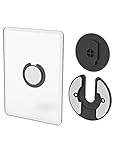
- Rotating Design: The tablet mount can rotate 90 degrees to adjust the angle according to your needs. Easily adjust the Angle of the screen to suit your vision.
- Broad Compatibility: ipad wall mount Compatible With E-reader/Kindle/iPad Air Mini Pro/WIFI Router /Cable Box/ tv box/ipad Accessories.
- Hidden Storage Mount: Backpack of iMac&laptop display hidden storage for hard drive/wi-fi router/power bank/cell phone&other device,or hidden the cable box/ wi-fi router on the back of the tv.
- Two Kinds of Installation Methods: screw and adhesive,the tablet holder that you can choose which way to install according to your requirements. Tips: If you choose to use adhesive to install the bracket, please wait for 24-48 hours after installation before using the bracket, the adhesive works best.
- Multiple Usage Scenarios: ipad accessories fits on kitchen/bathroom/bedroom/readingroom/living room and More. What do you get:Tablet wall mount*2(set), Round adhesive*3, Crescent shaped adhesive*6, Screw*4, Rubber plug*4, The bracket is made of plastic.
When this option makes sense
- You want motion detection to wake or dim the display.
- You need Home Assistant automations to read battery state or change brightness.
- You want browser-focused kiosk controls beyond the Companion app’s launcher behavior.
When to skip it
- The tablet is too old to install a current compatible browser or app.
- You only need a simple always-on dashboard.
- You do not want a paid remote-administration dependency.
Mount the tablet without creating a maintenance problem
Choose the mount around the exact device
Buy a mount category rather than assuming one model fits every tablet. Verify the tablet’s width, height, thickness and case dimensions against the mount’s published range. Check that the retaining arms do not press the screen, cover speakers or block the camera used for motion wake.
Preserve charging access
Before drilling or sticking anything, route the intended cable through the mount and plug it into the tablet. Confirm that the connector can be inserted and removed without taking the tablet off the wall. Leave enough slack for service, but secure the cable so it cannot pull on the port or become a snag.
Check viewing angle and heat
Stand where people will use the panel and check glare at different times of day. A tablet that is readable straight on may be unusable beside a window. Leave ventilation around the back and do not trap an already warm device against insulation or a sealed enclosure. The available documentation does not establish a universal charging limit or continuous-power arrangement, so follow the tablet manufacturer’s guidance and inspect the installation periodically.
Plan removal and recovery
Use a mount that allows you to remove the tablet for operating-system updates, account recovery and battery inspection. A permanent installation still needs occasional access. Label the cable at the power adapter and keep the panel account’s recovery details in a secure place rather than taped to the tablet.
Quick wins for a faster PC:
Fix the driver behind crashes, sound loss and screen glitchesFind Drivers →Clear out junk files and repair common Windows errorsFree Scan →Scan for outdated or missing drivers - takes under a minuteDriver Scan →Make the panel dependable for everyday use
Keep controls simple
A panel is successful when someone can use it without knowing how Home Assistant is built. Prefer a few large actions over a dense wall of tiny cards. Put status information where it helps a decision, such as whether a door is locked or a room is occupied, and move diagnostics to a separate view.
Best Value

- Universal Compatibility: Versatile tablet wall mount designed for devices from 4.7" to 12.9". Compatible with all iPhones, iPad Pro (12.9/11/10.5/9.7), iPad Air (5/4/3/2), iPad Mini (6/5/4), iPad (9th/10.2 generation), and Samsung tablets. This tablet wall mount holder is perfect for home, office, classroom, kitchen, or gym use.
- Fully Adjustable Viewing: This iPad wall mount features a 360° swiveling bracket and 30° horizontal/vertical tilt for optimal positioning. Ideal for video calls, recipe viewing, or as a digital display, enhancing your experience in any setting.
- Sturdy and Secure Design: This iPad wall mount holder is constructed with premium materials to ensure durability and stability. Firmly holds your device in place, providing safety for iPad Pro 12.9, iPad Air 2, iPad Mini 4, and other compatible models.
- Easy Installation: Experience a quick and hassle-free setup process. This practical wall mount for iPad allows for effortless installation, making it convenient to secure your tablet in any desired location.
- Enhance Your Space: Transform how you work, entertain, or display information with this versatile wall mount iPad holder. Suitable for various environments, it's the perfect solution to elevate your tablet usage and optimize your space.
Design for failure
- Include a visible indication when the server or an important integration is unavailable.
- Keep a physical fallback for essential lighting, heating and entry controls.
- Do not make the panel the only way to unlock a door or disable an alarm.
- Check that a rebooting Home Assistant server does not leave a misleading stale state on the screen.
Protect privacy and access
Place the panel account behind the minimum permissions it needs. Avoid displaying camera feeds, alarm codes, personal calendars or other information that should not be visible to everyone who can see the wall. Use Guided Access on iPad when app locking is required, and review Android launcher behavior after system updates.
Schedule maintenance
After a Home Assistant, Companion app or tablet operating-system update, test the panel rather than assuming it is unchanged. Verify login status, dashboard loading, touch actions, screen-on behavior, kiosk restrictions and the ability to exit for maintenance. Old hardware may lose app-store availability or compatibility even when it was working previously.
Troubleshoot the common failures
The dashboard will not load
- Confirm that the tablet is connected to the intended Wi-Fi network and has an IP address.
- Open the Home Assistant server from another device on that network to distinguish a server outage from a tablet problem.
- Check the server address saved in the app; a local address may not work when the tablet has moved to a guest network.
- Restart the app and then the tablet. If the old operating system cannot update the app or browser, reassess compatibility rather than repeatedly clearing data.
The screen turns off or the dashboard stops updating
- On Android, verify the Companion app’s Keep screen on setting and review manufacturer battery optimization.
- On iPad, check Kiosk mode’s screen setting and inactivity screensaver configuration.
- Inspect the cable and connector if the tablet is losing power. A loose connection can look like a software timeout.
- If you use camera-motion wake on iPad, remember that camera access is required and the camera remains active during Kiosk mode.
Users keep reaching the normal tablet interface
- On Android, confirm that Home Assistant is still selected as the default home app after a reboot or system update.
- On iPad, enable and start Guided Access; Kiosk mode alone cannot prevent leaving the app or turning off the device.
- Document the authorized exit method so household members do not improvise a reset.
The mount or cable does not work in practice
- Remove the case temporarily and re-measure; a case can exceed the mount’s thickness range.
- Turn the tablet in the mount to check every charging orientation.
- Move the cable and adapter before drilling new holes. A reliable power route is more important than hiding every centimeter of wire.
A practical decision checklist
Use this sequence to choose and deploy the panel without buying hardware first:
- Identify the tablet: Record its model, operating-system version, connector, dimensions and battery condition.
- Check software: Confirm that the Home Assistant Companion app or a suitable browser can install and load your server. For iPad Kiosk mode, confirm iPadOS 2026.7.0 or later and the Kiosk mode Labs feature.
- Test the network: Use the tablet at the exact planned location and verify stable dashboard access.
- Create the panel account and dashboard: Limit permissions and put large, high-value controls on the first view.
- Select the platform path: Use the Android launcher flow, the iPad Kiosk mode flow, or Fully Kiosk Browser only when its extra controls justify the paid remote-administration requirement.
- Choose the mount and power route: Match dimensions, viewing angle and connector clearance to the exact tablet.
- Test recovery: Reboot, disconnect and reconnect power, leave the screen idle, and confirm that an authorized person can exit kiosk restrictions for maintenance.
- Recheck after updates: Test the panel after Home Assistant, app or operating-system updates because older devices can lose compatibility.
The best result is not the oldest tablet that can display a web page. It is the device that starts reliably, shows a focused dashboard, has dependable network and power, and can be serviced without dismantling the installation.
Quick Recap
Product prices and availability are accurate as of the date/time indicated and are subject to change. Any price and availability information displayed on Amazon at the time of purchase will apply.

