
Quick wins for a faster PC:
Repair Windows errors before they cause bigger problemsFix Now →Fix the driver behind crashes, sound loss and screen glitchesFind Drivers →Clear out junk files and repair common Windows errorsFree Scan →iTechGuides is reader-supported. When you buy through links on our site, we may earn an affiliate commission. As an Amazon Associate I earn from qualifying purchases. Learn more
Start with T-Mobile’s T-Life diagnostic for the affected device: it can identify account-provisioning problems, recent tower outages or degradation, and whether the phone is connected to an impacted tower. Then restart the phone and verify signal, Airplane mode, cellular-data, roaming, and Wi-Fi settings before changing network settings or replacing a SIM. Use the symptom-specific checks below to separate a carrier outage from a phone, account, SIM, or messaging limitation.
1. Check T-Mobile’s network and your line first
A local tower problem can look exactly like a broken phone. T-Mobile’s T-Life app is the fastest way to check the carrier side before making disruptive changes.
Run the T-Life device check
- Open T-Life on the device that has the problem.
- Tap Manage.
- Select the affected device.
- Choose Troubleshoot this device.
- Select the symptom—data, calls, texts, signal, or another relevant option—and complete the suggested checks.
T-Life can inspect cellular-data settings, Wi-Fi Calling, 5G, roaming, Airplane mode, battery-saver settings, the time since the last restart, operating-system version, and account provisioning. It also checks recent outages and network degradation, including whether your phone is attached to an impacted tower. If the problem happened at another address, the app can check that location instead of only your current one.
Free tools Windows power users keep installed
One-click scans. No signup required.
What an outage notice does—and does not—tell you
If T-Mobile reports an outage, do not reset the phone repeatedly or replace a SIM as your first response. With a reliable Wi-Fi connection, enable Wi-Fi Calling as a temporary way to place calls and send texts. T-Mobile’s outage guidance says notification is usually within two days; that describes its notification practice, not a guaranteed repair time. After the outage is marked resolved, power-cycle the phone so it registers with the network again.
#1 Best Overall
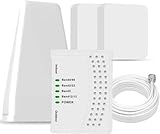
- 5G COMPATIBILITY:Cell phone signal booster is a newly designed signal boosters with intelligent functions, It can enhance indoor signal, such as voice, data in home and office etc, so as to reduce the problem of call interruption, poor signal, can help improve voice quality, faster internet speed and wider coverage, it can cover up to 7000sq.ft coverage, with 70dB Gain, Support all US and Canadian carriers U.S. Cellular, etc. Cover 3G, 4G LTE, and 5G compatible.
- 5G Compatible:Cell phone booster support 5G and deliver amazing speeds; Only 5G that carriers have deployed in large numbers in existing 4G brands through DSS (Dynamic Spectrum Sharing), the FCC has not yet allowed the new mmWave 600MHz cellular enhancers, so if you must use 5G, Make sure your area has 5G services in the existing 4G band before you purchase.
- Advanced Features: Cell signal booster comes with advanced features like Automatic Gain Control, Self-oscillation Elimination to detect the level of an incoming signal and adjusts itself for the best performance. With Good Looking and high quality LED screen, Wireless connects multiple devices, Automatic gain control, this booster has strong anti-interference and low noise characteristic function.
- FCC & IC Certified: :Cell booster complies with all FCC and IC guidelines and meet the requirements of application standards,does not interrupt or compromise any carrier's signal to and from the cell tower.
- If you have any installation or other problems with your item, please contact with us anytime.
2. Perform the safe basic checks before resetting anything
These checks take only a few minutes and often restore service without deleting network passwords or changing your plan.
- Look at signal strength. Move outdoors or near a window and wait for at least two bars. A zero- or one-bar reading can explain failed calls and slow data without indicating a handset fault.
- Restart the phone. A restart refreshes the radio connection and applies some pending carrier or operating-system changes.
- Confirm Airplane mode is off. If it was recently used, turn it on for about 10 seconds, then turn it off to force a fresh registration.
- Confirm cellular data is enabled. A phone can show bars while cellular data is disabled.
- Turn Wi-Fi off while testing mobile data. Otherwise an internet test may be measuring Wi-Fi rather than T-Mobile’s network.
- Check roaming when it applies. If you are roaming across cellular networks, data roaming may need to be enabled. Review your plan and expected charges before enabling it abroad.
- Disable battery-saving restrictions temporarily. Battery saver can limit background data or radio behavior; T-Life specifically checks this setting.
- Check for a software update over Wi-Fi. Install the update, restart, and test again. Menu names differ by device and operating-system version.
- Turn off a VPN for the test. A VPN app or system profile can block or distort data while the underlying cellular connection is healthy.
Record whether the failure occurs in one building, at one address, or everywhere. Also note whether another T-Mobile phone works in the same place. Those observations determine whether to investigate coverage, the handset, or the line.
3. Mobile data is not working or is unusually slow
Use a clean cellular-data test
- Move to a location with at least two bars.
- Turn Wi-Fi off.
- Confirm Airplane mode is off and cellular data is on.
- Restart the phone.
- Open a simple webpage or run a speed test while remaining on T-Mobile cellular service.
If data works with Wi-Fi on but not with Wi-Fi off, the issue is cellular service, the account, the SIM/eSIM, or the phone’s cellular settings—not the Wi-Fi network. If data fails only on one Wi-Fi network, troubleshoot that Wi-Fi connection separately instead of changing T-Mobile settings.
Interpret speed results carefully
T-Mobile’s published troubleshooting guidance lists 7–40 Mbps for 4G LTE device data and 2–6 Mbps for 4G. The carrier says actual speeds can reach twice those stated figures and that minimums can fall below 0.1 Mbps. These are carrier-published ranges, not a guaranteed speed at your address, on your plan, or at a particular time.
Run more than one test at different times and locations. A result that improves outdoors or late at night points toward building penetration or local congestion. A result that stays near zero everywhere, including where another T-Mobile phone works, warrants an account, SIM/eSIM, or handset investigation.
Rank #2

- 📶 𝐁𝐨𝐨𝐬𝐭 𝐒𝐢𝐠𝐧𝐚𝐥 - HiBoost cell phone signal booster for 2000 Sq.ft. Enjoy lag-free cell phone signal, faster internet connections for streaming, faster to download and upload. High power outside antenna, receive longer distance signal. (It requires at least one bar of signal for the cell phone booster to enhance the signal.)
- 📶 𝐖𝐨𝐫𝐤𝐬 𝐎𝐧 𝐀𝐥𝐥 𝐔.𝐒. 𝐂𝐚𝐫𝐫𝐢𝐞𝐫𝐬 - HiBoost cell phone booster for home works on all cellular service providers - Verizon, AT&T, Sprint, T-Mobile, Straight Talk, and U. S. Cellular. Supports bands of 700-750MHz (band 12, 13, 17), 800-850MHz (band 5), 1900MHz (band 2/25) and 1700~2100MHz (band 4).
- 📶 𝟓𝐆 𝐂𝐨𝐦𝐩𝐚𝐭𝐢𝐛𝐥𝐞 - HiBoost cell booster for home compatible with the latest 5G and 4G LTE technology, supports multiple devices simultaneously. The lte cell booster aid to eliminate weak signal areas, continuously provide you with a reliable cellular connection so that no more dropped calls when you at home
- 📶 𝐔.𝐒. 𝐋𝐨𝐜𝐚𝐥 𝐂𝐮𝐬𝐭𝐨𝐦𝐞𝐫 𝐒𝐮𝐩𝐩𝐨𝐫𝐭 - You can easily get help from installation to use. 30-Day Money Back, 3-Year Warranty - within 3 years of receipt of delievery, for any quality issue, simply reach us and we'll solve it. HiBoost cellular service booster meet all FCC guidelines, there is no need to ask the cellular provider for their consent, no monthly subscription fees required
- 📶 𝐋𝐂𝐃 𝐚𝐧𝐝 𝐀𝐏𝐏 𝐌𝐨𝐧𝐢𝐭𝐨𝐫 𝐇𝐞𝐥𝐩 𝐄𝐚𝐬𝐲 𝐈𝐧𝐬𝐭𝐚𝐥𝐥𝐚𝐭𝐢𝐨𝐧 - The color LCD screen on the cellular boosters clearly shows the real-time signal strength, you can cooperate with a partner to locate the best installation point of the outside antenna accurately, or you can achieve the same purpose through the HiBoost Signal Supervisor APP on your own, then place the booster with whip antenna on any desktop you want to get the ideal signal boost
Check plan allowance and congestion policy
Review the data allowance in your T-Mobile account. T-Mobile says that after 50 GB of use in a bill cycle, lower prioritization may apply during local congestion. That statement does not mean every customer is universally throttled at 50 GB; the effect depends on congestion and the applicable plan policy. Check the current plan details before assuming a network fault.
When an APN or VPN may be involved
A VPN can prevent apps from reaching the internet even when the cellular link is active, so test with the VPN disabled. On some bring-your-own-device configurations, incorrect APN settings can cause data failure. Use the device maker’s or T-Mobile’s current APN instructions for your exact model rather than copying values from an unrelated phone. If T-Life reports correct provisioning and data still fails after a restart, software update, and VPN check, contact T-Mobile before editing APN fields.
Do these 3 things before closing this tab:
1Clear out junk files and repair common Windows errors2Fix the driver behind crashes, sound loss and screen glitches3Repair Windows errors before they cause bigger problems4. Calls fail, drop, or show no service
Separate cellular calling from Wi-Fi Calling
Make one test call with Wi-Fi turned off in a location with at least two bars. Then, if available, make a second test over a reliable Wi-Fi connection with Wi-Fi Calling enabled. This comparison identifies whether the failure follows the cellular radio or the internet connection.
- Cellular call fails but Wi-Fi Calling works: weak coverage, tower degradation, or a cellular-registration problem is more likely.
- Both fail, including over known-good Wi-Fi: check T-Life for provisioning, account, device, and outage conditions.
- Only Wi-Fi Calling fails: test the Wi-Fi network, verify the E911 address, and confirm the device and account support the feature.
- Calls drop while moving: note the exact locations and direction of travel; a handoff or local coverage gap may be involved.
Use Wi-Fi Calling as a coverage workaround
T-Mobile describes Wi-Fi Calling as a way to call or text with your T-Mobile number over Wi-Fi, extending coverage where cellular signal is weak. It requires all of the following:
| Requirement | What to verify |
|---|---|
| Supported device | The handset must support T-Mobile Wi-Fi Calling; support varies by model and software version. |
| Active account | The line must be active and correctly provisioned. |
| Working internet | The Wi-Fi connection must provide at least 2 Mbps upload and 2 Mbps download, according to T-Mobile. |
| E911 address | Register an accurate emergency address and update it when you move. |
| Compatible connection | Satellite internet and cellular hotspots are not supported for this feature. |
Open your phone’s Wi-Fi Calling settings, enable the feature, and complete the address-registration prompts. Labels and menu locations vary by device. The registered E911 address may be transmitted to emergency services for a Wi-Fi call, but you may still need to state your location and callback information to the emergency operator.
Rank #3

- 【Boost Your Signal】-- The cell booster can be used without registering with the carrier. Enjoy fewer dropped calls, incredibly fast data speeds, better voice quality and worry-free streaming through ZORIDA signal booster with 72dB max gain. Enhance the signal in rural areas, home, cabin, shop, office, building, warehouse, basement or garage. Higher gain helps save your battery life of phones on standby mode. (Please ensure you have the 1-2 bars signal outside of your home before using)
- 【All US Carriers & 5G Compatible】-- ZORIDA cellular signal booster supports All US carriers from Verizon, AT&T, T-Mobile, US Cellular, and more. Works on various band 12/17, 13, 5, 4, 2/25. Boost 3G & 4G LTE, 5G signal. 5G technology allows you to experience ultra-fast and stable network connectivity at home.(Tips: If you want to use 5G, please make sure your area provides 5G service in the existing 4G frequency band before purchasing)
- 【Affordable & Effective】-- ZORIDA cell phone signal booster enhances cell signal for multiple devices simultaneously up to 2000 sq ft, and it offers an ideal solution for small homes, studios or a single room. No subscriptions or hidden fees. ZORIDA ACE 5S is an affordable yet effective way to solve your connectivity issues. (Note: the coverage range of the booster depends on your outdoor signal strength)
- 【Easy Installation & App Service】-- Cell phone signal booster for home features a compact indoor whip antenna that you can easily attach to the cellular booster, then place it on the wall or directly on the table. By registering ZORIDA APP, we provide online 1v1 technical support to guide installation. You can also find the best installation place of outdoor antenna, view step-by-step videos and instructions, and see your signal data before and after Installation.
- 【US-based Service & FCC IC Certified】-- FCC & IC Certified. ZORIDA cell booster for home promises 30-day money-back and a 3-year warranty. Lifetime US-based tech-support-online app chat, phone and email; Contact with us anytime anywhere when you need.
Understand international Wi-Fi Calling behavior
When traveling internationally, a Wi-Fi connection that drops can cause the phone to switch to cellular service. That change can create unexpected roaming charges. Keep cellular roaming disabled unless your plan and travel situation specifically require it, and verify the connection indicator before making long calls.
5. Texts are not sending or arriving
First identify the message type. A normal SMS text, a picture or group MMS, and a message to one particular recipient can fail for different reasons.
Test ordinary SMS separately
- Send a short text containing only words to one known contact.
- Check whether the recipient receives it and whether replies arrive.
- Repeat once with Wi-Fi Calling enabled and once with it disabled, if the feature is available.
- Try a second contact to rule out a recipient-specific problem.
If short SMS messages work but pictures or group messages fail, investigate MMS limits rather than treating the result as a total texting outage. If no SMS works anywhere, run T-Life’s diagnostic and check signal, Airplane mode, account status, and any outage notice.
Understand MMS size and recipient limits
T-Mobile’s messaging guidance lists these limits for MMS:
| Item | T-Mobile-published limit or behavior |
|---|---|
| Recipients per MMS | Up to 10 recipients |
| Maximum sending size | 1 MB |
| Maximum receiving size | 3 MB |
| Image dimensions | Under 3072 × 3072 pixels |
| Delivery time | May be slower than an ordinary text message |
Phones may resize an image automatically, yet the resulting attachment can still be too large. For a clean test, send one small picture to one recipient. If that succeeds, reduce the image size, remove extra recipients, or send separate messages. If the small one-recipient test fails everywhere, use T-Life and check the line’s messaging provisioning.
The Tool Desk
Outbyte PC Repair FREERepair Windows errors before they cause bigger problemsFix Now →Outbyte Driver Updater FREEScan for outdated or missing drivers - takes under a minuteDriver Scan →Rank #4

- 【Ready for 5G】- The booster is designed for the largest cell carriers - Verizon and AT&T, boosts 4G LTE and 5G signal for all cellular devices operating on band 12, band 13 and band 17. Note: The booster only supports 5G band that largely deployed in current bands 12, 17 and 13 by Dynamic Spectrum Sharing by carriers. If you need a 5G cell booster, please ensure that you have a 5G phone and your carrier has deployed 5G in the 4G band of 12,13 and 17 before purchase.
- 【Advanced Features & Smart Device】- The booster uses AGC(Automatic Gain Control) function, which can intelligently detect the existing signal strength, and adjust itself for best performance, then reflect its working condition through LED indicator. Buy it once, and boost for life.
- 【Better Data & VoLTE】- Enhances 4G LTE data speed signals and volte, enjoy faster uploads and downloads to stream videos smoothly in your house, office, cottage, cabin, camper, basement etc., get rid of expensive monthly internet fees. Supports multiple users simultaneously.
- 【Powerful Antennas & Large Coverage】-This booster comes with high gain directional antenna, allow you to point it to the nearest signal tower more accurate and get more signals, expanding the indoor coverage up to 4,500sq ft. DIY Installation.
- 【Reliable Service Guarantee】- FCC Certified, 30-day return, 3-month replacement, Up to 3-year manufacturer repair, lifetime professional technical Support.
Use another compatible T-Mobile phone as a diagnostic
Where available, placing the SIM in another compatible T-Mobile device can separate a handset problem from a network or account problem. If messaging works in the second phone, inspect the original phone’s software, messaging-app settings, or hardware. If it fails there too, keep the SIM in the working test device only long enough to diagnose and then contact T-Mobile for line or SIM assistance.
Independent reader supportYour contribution helps us test, update, and keep practical guides available for everyone.6. Decide whether the problem is the location, phone, account, or SIM
Use the pattern of failures rather than replacing parts at random.
| Pattern | Most useful next step |
|---|---|
| Data, calls, and texts fail at one address, and other T-Mobile phones are also affected | Check T-Life for an outage or degradation; wait for restoration and power-cycle afterward. |
| Only your phone fails while another T-Mobile phone works in the same place | Check device settings, software, VPN, SIM/eSIM, and hardware. |
| Your phone fails in several locations, but T-Life shows no outage | Check account provisioning and SIM/eSIM activation; contact T-Mobile if diagnostics do not correct it. |
| Data works on Wi-Fi but not cellular | Verify cellular data, roaming when applicable, signal, plan allowance, VPN, and APN on a BYOD device. |
| SMS works but picture or group messages fail | Test one small image to one recipient and stay within MMS size and recipient limits. |
| Calls fail on cellular but work over Wi-Fi Calling | Investigate local cellular coverage or tower conditions; keep Wi-Fi Calling enabled where appropriate. |
| Service follows the SIM to another compatible phone | The SIM, line provisioning, or account is more suspect than the original handset. |
7. SIM and eSIM troubleshooting
T-Mobile describes a physical SIM as the chip containing the information a device needs to connect to its network. Its support wording calls the SIM or eSIM your device’s “ticket to the T-Mobile network.” That makes activation relevant when changing devices, but it does not make SIM replacement the default fix for an outage or a disabled setting.
When activation is reasonable
- You upgraded to a device that came with a new physical SIM and the line has not been activated on it.
- You transferred service to a supported device and T-Life indicates activation or provisioning is incomplete.
- A physical SIM is visibly damaged, repeatedly loses registration, or fails in more than one compatible phone.
- A supported phone is ready for eSIM but the eSIM profile was never downloaded.
Existing customers may need to activate a new SIM after an upgrade. T-Mobile documents app-based activation and a postpaid SIM-purchase path, but the exact screens and eligibility can change. Follow the current prompts in T-Life or contact T-Mobile for the line-specific procedure.
What’s actually slowing this PC down?
Pick the symptom - the matching free tool is one click away.
eSIM considerations
On supported devices, an eSIM profile can be downloaded over Wi-Fi. Keep the phone connected to a stable Wi-Fi network during the download, and do not erase the existing profile until you know the new one is active. Device compatibility, account status, and transfer rules determine whether the download is offered.
Best Value

- [SUPPORTS ALL CARRIERS] Our booster enhances LTE and 5G signals for All Carriers on band 5, 12, 13 and 17, such as Verizon, AT&T and T-Mobile. Please CHECK YOUR BAND BEFORE PURCHASE and ensure that the frequency of your phone is band 5,12,13 or 17.
- [ANNTLENT APP HELP YOU INSTALL EASILY] No drills necessary while using the flat window cable route the cable from outside to inside. ANNTLENT APP helps you find the direction of the closest cell tower, so you can aim the outside antenna easily.
- [ADVANCED FEATURES KEEP STABLE SIGNAL] The booster is built in ALC detecting the existing signal strength and automatically adjusting itself for best performance, it prevents inconvenient shutdowns and downtime that keep you from doing what you need to do.
- [LARGE COVERAGE] The high gain directional outside yagi antenna focuses receiving signals in a particular direction and provides up to 4,500 square feet coverage, the more bars signal you get outside, the more coverage you get inside. If you only get 1 bar signal outside, you can choose it.
- [FCC APPROVED & RELIABLE SERVICE GUARANTEE] The cell phone boosters are FCC approved, and we offer 30-day money back, 3-month replacement and up to 3-year manufacturer repair.
Do not replace a SIM to solve the wrong problem
A tower outage, disabled cellular data, an incorrect E911 setup, an MMS size limit, or a VPN will not be repaired by a new SIM. Run T-Life’s checks and the symptom-specific tests first. If diagnostics point to activation or the SIM/device transfer, then request activation or replacement through T-Mobile.
8. When to contact T-Mobile support
Contact T-Mobile after you have recorded the symptom, location, time, signal level, and results of the clean tests. Include whether Wi-Fi works, whether another T-Mobile phone works nearby, whether SMS differs from MMS, and whether the issue follows the SIM to another device. This evidence lets support investigate provisioning, tower conditions, or device registration without repeating every basic step.
Escalate promptly when any of these conditions apply:
- T-Life reports an account or provisioning error.
- Service fails in multiple locations after a restart, update, and settings check.
- The line cannot register in two compatible T-Mobile devices.
- Emergency calling is unavailable or the Wi-Fi Calling E911 address cannot be registered.
- A reported outage is marked resolved, but a power cycle does not restore service.
- The phone shows physical damage, liquid exposure, or a persistent SIM/eSIM error.
Do not share an inaccurate emergency address or rely on Wi-Fi Calling without confirming that the connection and device meet T-Mobile’s requirements. For immediate emergencies, use any available method of contacting emergency services and state your exact location.
Quick Recap
9. A compact recovery checklist
- Run Manage → device → Troubleshoot this device in T-Life.
- Check for a location-specific outage or degradation.
- Restart the phone and verify signal, Airplane mode, cellular data, roaming, battery saver, software version, and VPN status.
- Test mobile data with Wi-Fi off.
- Test a short SMS to one contact, then a small MMS to one contact.
- Separate cellular calling from Wi-Fi Calling.
- Check plan allowance and the possibility of congestion-related lower prioritization after 50 GB in a bill cycle, as described by T-Mobile.
- Test the SIM in another compatible T-Mobile device only when that comparison is available and safe.
- Activate or replace a SIM/eSIM only when the evidence points to activation, damage, or a device transfer problem.
- Give T-Mobile support your test results if service remains unavailable.
Product prices and availability are accurate as of the date/time indicated and are subject to change. Any price and availability information displayed on Amazon at the time of purchase will apply.

