
iTechGuides is reader-supported. When you buy through links on our site, we may earn an affiliate commission. As an Amazon Associate I earn from qualifying purchases. Learn more
Start by identifying the exact extension, your GNOME Shell version, and your Linux distribution. GNOME weather extensions do not share one location system or forecast provider, so the correct fix depends on whether the failure is compatibility, location detection, network access, a companion application, or the provider itself.
What to check before changing anything
Write down these details from the affected computer:
- The extension’s exact name and installed version.
- Your GNOME Shell version, shown by running
gnome-shell --versionin a terminal or by checking your desktop’s system information. - Your Linux distribution and release.
- The city, saved coordinates, and weather provider currently selected in the extension.
- The exact symptom: a nearby but incorrect city, a blank panel, an old forecast, a loading spinner, or an explicit error.
These details matter because an extension that works on GNOME Shell 50 may not support Shell 43, and an extension that uses GeoClue2 behaves differently from one that stores a manually selected city. Do not assume that an extension named “weather” uses GNOME Weather, the same API, or the same location database as another extension.
1. Confirm that the extension supports your GNOME Shell version
Compatibility is the first branch in the diagnosis. Open the extension’s current GNOME Extensions listing or project page and compare its supported Shell releases with the version reported on your computer. Check the installed extension specifically; do not rely on another weather extension’s compatibility range.
#1 Best Overall

- Live Boot: Simply plug the USB drive into your computer, select the USB drive as your boot device, and experience Linux Mint without installation. This allows you to test the OS and its features before making any changes to your system.
- Install Option: Once you've tested and decided to keep Linux Mint, you can easily install it on your computer directly from the USB drive.
- Pre-installed software like LibreOffice for office tasks, a capable web browser (Firefox), email client (Thunderbird), and multimedia tools. This minimizes the need for additional downloads, saving you time and effort.
- Resource Efficiency: Designed to run efficiently on a variety of hardware configurations. It demands fewer system resources compared to some other operating systems, making it an excellent choice for older computers or devices with limited hardware specifications.
- Compatible with PC/Laptop/Desktop brands - Dell, HP, Sony, Lenovo, Samsung, Acer, Toshiba & more. Minimum system requirements 4 GB RAM Dual-Core Processor (2 GHz) 20 GB of free disk space
Compatibility tables are snapshots and can change. For example, the Weather or Not listing includes releases for GNOME Shell 45 through 51, while the inspected OpenWeather listing has active releases aimed at older Shell versions, including 43 and 44. Those examples do not establish support for every release of either project. The live listing for your exact extension is authoritative for the current support declaration.
Symptoms of a compatibility problem
- The extension disappeared after a GNOME upgrade.
- The panel item is present but its menu is empty or unresponsive.
- Preferences will not open, or changes are not saved.
- The extension worked before a Shell update and stopped without a location or network change.
- Shell logs show JavaScript errors when the extension loads.
A visible install button, an old copy that can still be enabled, or a manually altered compatibility setting does not prove that the code is safe on your Shell release. Do not edit extension files or bypass declared compatibility as a general repair. Such changes can hide the real incompatibility and may break again at the next update.
If the versions do not match
- Disable the extension from the Extensions application or the GNOME Extensions website.
- Look for a maintained release that explicitly lists your GNOME Shell version.
- If no supported release exists, use a different extension whose current listing covers your Shell version, or wait for the project to publish an update.
- After installing a supported release, configure the location again rather than importing an old configuration blindly.
2. Inspect the extension’s own location setting
For a wrong city, check the extension’s preferences before changing unrelated desktop or network settings. Open the extension’s settings through the Extensions application, then look for a city search field, a saved location list, latitude and longitude fields, or an “automatic location” switch.
What’s actually slowing this PC down?
Pick the symptom - the matching free tool is one click away.
Use a manual city or coordinate as a diagnostic
- Turn off automatic location if the extension provides that option.
- Search for the intended city using the extension’s own search control.
- If the search is ambiguous, choose the result that includes the correct country, region, or time zone.
- Save the setting and reload the extension or restart GNOME Shell as the project documents.
- Open the forecast and verify that the displayed city and current conditions correspond to the selected place.
Weather Prime documents both city search and direct latitude/longitude entry. Entering coordinates can distinguish a location-detection failure from a forecast-provider failure, but it is not proof that the provider has data for every location. A provider can lack coverage for a small settlement, reject a coordinate format, or be temporarily unavailable even when the coordinates are correct.
Why the map result can still look wrong
Many services attach a weather station or administrative area to a coordinate. The label may therefore be a neighboring municipality rather than the name you typed. Compare the latitude and longitude shown in the extension with the intended place, not just the display label. If the coordinates are correct but the name is unexpected, the issue may be provider naming rather than GNOME location detection.
When saved settings keep reverting
- Check whether the extension has separate settings for the panel and for a popup or desktop widget.
- Look for a city list in addition to a default city; the first item may be displayed automatically.
- After saving, close and reopen the preferences window to verify that the value persisted.
- If the value resets only after reboot, record that behavior and inspect Shell logs rather than repeatedly entering the same city.
3. Test automatic location and GeoClue2 only when they are relevant
Location services matter only when the extension is configured to detect your position automatically. A manually selected city does not normally need the system location service.
Rank #2

- 🚀Experience cutting-edge Linux with the newest Fedora release, featuring the latest kernel, GNOME desktop, and developer tools.
- 🔥 Latest Fedora Linux 44 Release: Enjoy the newest and most advanced version of Fedora Linux, built for speed, performance, and reliability — powered by cutting-edge open-source technology.
- 💻 Plug & Play Installation: Boot directly from the included USB drive — no setup or downloads required. Try Fedora live or install it permanently on your system with ease.
- 🔒 Secure & Trusted Build: Professionally prepared using the official Fedora 44 ISO, verified and tested to ensure authenticity, security, and stability.
- ⚙️ Ideal for Developers & Power Users: Fedora 44 includes the latest software packages, GNOME desktop, and developer tools — perfect for programming, testing, or daily computing.
Weather Prime’s documentation says its automatic location feature uses GeoClue2 and requires location services to be enabled. On a system using that design, enable location services in the desktop privacy settings, then restart the extension and test again. The exact label varies by GNOME release, but it is generally under Settings and Privacy, in a section named Location Services or similar.
Quick wins for a faster PC:
Repair Windows errors before they cause bigger problemsFix Now →Scan for outdated or missing drivers - takes under a minuteDriver Scan →Clear out junk files and repair common Windows errorsFree Scan →Automatic-location checklist
- Confirm that the extension’s automatic-location switch is actually enabled.
- Confirm that system location services are enabled.
- Allow the extension or its companion application to request location if GNOME displays a permission prompt.
- Check that GeoClue2 is installed and running when the extension’s documentation lists it as a requirement.
- Test outdoors or on a network where location estimation is plausible; IP-based estimates can identify the wrong town even when the service is functioning.
If automatic detection chooses the wrong place but a manually entered city works, leave automatic detection disabled and use the manual setting unless you specifically need location changes while traveling. This isolates the problem without changing the forecast provider.
4. Separate an empty forecast from a location error
A wrong location and a missing forecast are different failures. First verify the selected city or coordinates. Then test the data path that supplies forecast information.
Check basic connectivity
- Open another site or service from the same computer.
- If you use a captive portal, complete its sign-in before testing the extension.
- Temporarily test without a VPN, proxy, firewall rule, or DNS filter that could block the provider.
- Check the system clock; a badly incorrect time can cause secure connections to fail.
These checks show whether the computer can reach the internet, but they do not prove that the extension’s specific provider is reachable. A browser can load one site while a provider endpoint is blocked or unavailable.
Check for a required companion application
Weather or Not explicitly requires GNOME Weather to be installed and requires an active internet connection. If that is your extension, install and launch the supported GNOME Weather package, then restart the extension. Do not apply this step to every project: an extension that talks directly to a provider may not use GNOME Weather at all.
Do these 3 things before closing this tab:
1Clear out junk files and repair common Windows errors2Fix the driver behind crashes, sound loss and screen glitches3Repair Windows errors before they cause bigger problemsCheck provider configuration
Some extensions let you choose among weather providers or enter an API key. WeatherPanel documents provider alternatives, automatic fallback when a selected provider fails, and offline handling. If your extension offers those controls, verify that a provider is selected and that any required key is present, correctly copied, and accepted by the service.
Rank #3
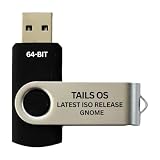
- PHYSICAL USB FLASH DRIVE – Contains the bootable Tails USB image for compatible 64-bit x86-64 desktop and laptop computers.
- GNOME DESKTOP – Provides the official GNOME desktop environment with access to applications, files, workspaces, and system settings.
- PORTABLE LIVE SYSTEM – Starts from the USB flash drive for installation or evaluation without replacing the computer’s existing operating system.
- HARDWARE REQUIREMENTS – Requires a computer capable of starting from USB; 3 GB RAM is recommended for smooth operation, and hardware support varies.
- OPEN-SOURCE INSTALLATION MEDIA – Debian-based open-source operating system supplied with printed initial-start instructions.
The OpenWeather README describes configurable providers and API-key settings, as well as coordinate support from version 29 onward. Its provider details may be dated, so treat the README as an explanation of the extension’s controls rather than as current information about third-party services, quotas, or pricing. Check the provider’s current documentation before changing an account or key.
Interpret the result
| Observed result | Most likely area to investigate | Next action |
|---|---|---|
| Manual city works; automatic location is wrong | Location service or geolocation estimate | Keep manual location or repair GeoClue2 and location permissions. |
| City is correct; forecast is blank | Network, companion application, provider, or API key | Check the extension’s documented data source and provider settings. |
| Only one provider fails | Provider endpoint or credentials | Select a documented alternative or correct the provider configuration. |
| Every extension fails after a Shell upgrade | GNOME Shell compatibility or shared system service | Check each extension’s supported Shell versions and inspect Shell logs. |
| Forecast appears only after reopening the menu | Refresh or startup behavior | Record when it loads and check for errors during extension startup. |
5. Compare extensions by the features that affect troubleshooting
If the current extension cannot support your Shell release or location workflow, compare alternatives by documented behavior rather than by the icon or name alone.
| Extension or project | Shell support noted in the documentation | Location controls | Data dependencies and failure handling |
|---|---|---|---|
| Weather or Not | Its listing includes releases for GNOME Shell 45–51; verify the live listing before installing. | Specific controls are not established in the available documentation. | Requires GNOME Weather and an active internet connection. |
| Weather Prime | Its documentation requires GNOME Shell 50. | Supports city search and direct latitude/longitude entry; automatic location uses GeoClue2 and enabled location services. | Depends on the location service when automatic detection is enabled; forecast-provider behavior is extension-specific. |
| WeatherPanel | Check its current project listing for your Shell release. | Provider and location choices are documented, but exact controls can vary by release. | Documents alternative providers, automatic fallback, and offline handling. |
| OpenWeather | The inspected active releases target older Shell versions, including 43 and 44; verify current support before use. | Its README describes provider and location configuration and coordinate support from version 29 onward. | Provider and API-key settings are documented; provider details in the README may be stale. |
| Weather | Its listing documents older Shell compatibility ranges; check the current range. | Supports displaying weather for multiple cities. | Specific provider and offline behavior are not established in the available documentation. |
“Not established” means the project information does not document that behavior clearly enough to use it as a troubleshooting assumption. Install only a release whose compatibility table includes your Shell version.
Free tools Windows power users keep installed
One-click scans. No signup required.
6. Collect useful logs and reproduction details
If the location and provider checks do not resolve the problem, give the maintainer a reproducible report instead of only saying that the forecast is broken.
Record the configuration
- Distribution and release.
- GNOME Shell version and session type, if known.
- Extension name, installed version, and installation source.
- Whether the extension uses automatic or manual location.
- City name and coordinates, with API keys removed.
- Selected provider and whether a companion application is installed.
- Exact error text, time of failure, and whether the problem happens after boot, after resume, or only on demand.
Follow GNOME Shell logs
WeatherPanel’s project documentation gives this example for following Shell messages:
journalctl -f /usr/bin/gnome-shellRun it in a terminal, reproduce the failure by opening the weather menu or saving the location, and copy only the relevant lines. Log access and filtering can differ by distribution, so the command may need adjustment. Remove usernames, tokens, coordinates you do not want to publish, and other private data before posting logs.
Rank #4

- BOOTABLE LINUX INSTALLER: Includes one USB flash drive containing the Debian 13.6 GNOME 64-bit installer for installation or evaluation on compatible computers
- GNOME DESKTOP ENVIRONMENT: Provides a clean and focused desktop with organized application access and straightforward navigation
- DEBIAN STABLE SERIES: Prepared with Debian 13.6 Trixie, the current stable Debian release for compatible 64-bit PC hardware
- 64-BIT HARDWARE SUPPORT: Intended for compatible Intel and AMD desktop and laptop computers that support startup from a USB device
- INSTRUCTIONS INCLUDED: Initial installation guidance is provided; verify compatibility and back up important files before installation
Classify the error
- Load or syntax error: usually points to an incompatible extension release or a broken update.
- Permission or GeoClue error: points to automatic-location configuration.
- Network, timeout, or HTTP error: points to connectivity, provider availability, or a blocked endpoint.
- Authentication or API-key error: points to provider credentials or an expired configuration.
- Parsing or unexpected-data error: can indicate a provider response change or a stale extension.
7. A clean recovery sequence
Use this order when you want a short, controlled repair rather than changing several variables at once:
- Record the extension name, version, Shell version, distribution, city, provider, and symptom.
- Check the extension’s live compatibility table.
- Open preferences and set a known city manually.
- Save, reload the extension, and test the forecast.
- If manual mode works, repair or disable automatic location; if it does not, continue with the data-path checks.
- Verify internet access and any required companion application.
- Review provider selection, API-key fields, and documented fallback or offline controls.
- Capture Shell logs while reproducing the failure.
- Only then reinstall or replace the extension, using a release that explicitly supports your Shell version.
Changing the city, provider, permissions, and extension version simultaneously makes the result impossible to interpret. One change at a time tells you which layer actually fixed the problem.
Common mistakes to avoid
- Assuming all weather extensions use GNOME Weather: only apply that requirement when the project documents it.
- Enabling location services for a manually configured city: it adds complexity without addressing a forecast-provider failure.
- Using an old extension because it still installs: installation does not establish compatibility with your Shell release.
- Changing provider keys based on an old README: confirm current provider requirements before modifying credentials.
- Editing metadata to force installation: bypassing compatibility can leave you with a panel that fails silently or breaks after updates.
- Reporting only “wrong weather”: include coordinates, provider, versions, and the exact error so the failure can be reproduced.
When replacing the extension is the sensible fix
Switch when the project has no release for your GNOME Shell version, when its required companion application is unavailable on your distribution, or when its documented location and provider controls cannot meet your needs. Favor an extension that supports a manual city or coordinate, clearly documents its provider, and explains what happens when the provider is offline.
Keep the current extension when its compatibility listing matches your Shell release and a manual location produces a valid forecast. In that case, automatic-location failure is a separate configuration issue, not a reason to replace a functioning forecast component.
What a maintainer needs in a support request
A concise, complete report should state: “Distribution and release; GNOME Shell version; extension name and version; automatic or manual location; city and coordinates; provider; companion application status; exact error; and the relevant log lines.” Mention whether entering a manual city changed the result and whether the issue began after a Shell or extension update. Never include an API key or password.
The Tool Desk
Outbyte PC Repair FREEClear out junk files and repair common Windows errorsFree Scan →Outbyte Driver Updater FREEFix the driver behind crashes, sound loss and screen glitchesFind Drivers →Quick Recap
Product prices and availability are accurate as of the date/time indicated and are subject to change. Any price and availability information displayed on Amazon at the time of purchase will apply.

