
Do these 3 things before closing this tab:
1Clear out junk files and repair common Windows errors2Scan for outdated or missing drivers - takes under a minute3Repair Windows errors before they cause bigger problemsiTechGuides is reader-supported. When you buy through links on our site, we may earn an affiliate commission. As an Amazon Associate I earn from qualifying purchases. Learn more
Short answer: an Xbox 360 save can move to Xbox Series X|S through Cloud Saved Games when you continue playing the supported backward-compatible Xbox 360 release. A separately sold remaster is a different port with its own save format, so the old save is not automatically available there. Upload the save from the Xbox 360, launch the same backward-compatible game on the Series console, and check the remaster publisher’s migration instructions before assuming an import is supported.
This distinction explains most failed transfers. Xbox’s general backward-compatibility guidance does not promise a direct 360-storage-to-Series transfer, while individual remasters may implement their own one-time migration tools or no migration at all.
| # | Preview | Product | Price | |
|---|---|---|---|---|
| 1 |

|
Xbox 360 250GB Slim Console - (Renewed) | $187.60 | Buy on Amazon |
| 2 |
|
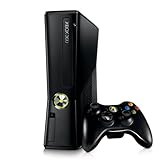
Xbox 360 4GB Console | $620.00 | Buy on Amazon |
| 3 |

|
Microsoft Xbox 360 S 250GB System (Renewed) | $184.99 | Buy on Amazon |
| 4 |

|
Microsoft Xbox 360 Elite System Console Only - Black (Renewed) | $135.99 | Buy on Amazon |
| 5 |

|
Xbox 360 500GB Console Bundle (Tomb Raider & Halo 4) | $249.99 | Buy on Amazon |
First identify which version you are trying to play
Before touching the save, determine whether the Series X|S is running the original Xbox 360 game through Xbox backward compatibility or a separately released remastered port. The two paths use different rules.
What’s actually slowing this PC down?
Pick the symptom - the matching free tool is one click away.
Backward-compatible Xbox 360 release
This is the original 360 game running under Microsoft’s compatibility program. If the title is supported, the documented bridge is Xbox 360 Cloud Saved Games. You upload the local save from the 360, then start that same backward-compatible release on the Series X|S with the account that owns the save.
#1 Best Overall
Separate remastered port
A remaster is a new Xbox release, even when it contains the same story or levels. It may use a different save schema, achievement set, edition identifier, or account entitlement. The cloud copy created for the backward-compatible 360 release is therefore not a guaranteed input for the remaster. Only the remaster’s publisher can establish whether an import exists, which editions qualify, and whether the migration is automatic or manual.
| Path | Save compatibility | What you must do |
|---|---|---|
| Backward-compatible Xbox 360 release | Covered by the Xbox cloud-save workflow when the title is supported | Upload the 360 save to Cloud Saved Games, then launch the same title on Xbox Series X|S |
| Separate remastered port | Depends on the publisher and the specific game | Read the port’s official migration or upgrade notes; do not assume the 360 cloud save imports |
What you need before starting
- A working Xbox 360 if the only copy of the save is still on that console’s local storage.
- The Xbox account that owns or created the save. Use that same account on the Series X|S.
- An Xbox 360 connection to Xbox network services so the console can upload the save.
- The supported backward-compatible release installed or available on the Series X|S, if that is the version you intend to continue.
- The remaster’s official support or migration information if you intend to play the newer port.
The cited Xbox workflow does not establish a need for a paid subscription. It does establish a need to sign in and connect the 360 to Xbox network services for the cloud-upload step. If the console cannot reach those services, a local save cannot be placed in Cloud Saved Games through this process.
Upload the Xbox 360 save to Cloud Saved Games
Do this on the original Xbox 360 before starting the game on the Series console. A save left only on the 360’s hard drive is not the cloud copy that the backward-compatible game can synchronize.
- Sign in on the Xbox 360. Use the account associated with the save. Do not upload from a different profile and expect the Series console to find the data under your account.
- Connect the console to Xbox network services. The 360 must be online for the cloud-storage operation. If it is offline, resolve the connection or account sign-in problem before proceeding.
- Open the 360 storage-management area. From the console dashboard, go to the storage controls and locate the profile or game-save entry. Dashboard wording can vary by system software, but the destination must be labeled Cloud Saved Games.
- Select the game save. Choose the exact title and profile containing the progress you want to keep. If several copies exist, check dates or progress indicators where the console provides them.
- Copy or move the save to Cloud Saved Games. Copying leaves the local copy in place as a fallback; moving removes it from the original storage location after the cloud operation completes. If you are uncertain which version is correct, copying is the safer choice because it preserves the local backup.
- Wait for the operation to finish. Do not shut down the 360 or disconnect it while the save is being uploaded. Return to the storage list and confirm that the save appears under Cloud Saved Games before leaving the console.
Rockstar Games Support states the requirement plainly for a backward-compatible 360 title: “To continue playing an Xbox 360 backward-compatible title on the Xbox One you must first save the Xbox 360 game in the cloud.” The same cloud-first principle applies when the destination is Xbox Series X|S.
Rank #2
- Sleek New Design
- 4GB internal memory.Built-in Wi-Fi
- Whisper Quiet
- Part Number: XBX4GBCNTRBUN
- This item is non returnable.
Open the backward-compatible game on Xbox Series X|S
- Sign in with the same Xbox account. The Series console must use the profile that uploaded the cloud save. A different account can launch the game but will not necessarily see your progress.
- Install or insert the supported backward-compatible release. Confirm that the title is the compatible 360 version, not a separately purchased remaster with a different product identity.
- Start the game and remain connected. Let the console contact Xbox services while the title checks for cloud data. Do not quit during the initial synchronization.
- Wait for the synchronization prompt to complete. The service compares the local data on the Series console with the cloud copy associated with your account. Depending on which copy is newer, it may upload the local save, download the cloud save, do nothing, or display a conflict that requires your choice.
- Load the game only after synchronization finishes. Check that your expected profile, campaign position, or other progress is present before creating a new save.
If you have never played that compatible release on the Series console, the cloud copy should be the available source. If you previously started the game there, the console may have a newer local save, which is why reading the conflict message matters.
Understand the four synchronization outcomes
Microsoft describes four possible results when cloud and local saves are compared:
| Prompt outcome | Meaning | Safe action |
|---|---|---|
| Upload newer local save | The Series console’s local copy has a later change than the cloud copy. | Choose this only if the local Series progress is the version you want to preserve. |
| Download newer cloud data | The cloud copy uploaded from the 360 is newer than the Series console’s local copy. | Choose the download to bring the 360 progress onto the Series console. |
| No action required | The local and cloud copies match. | Continue into the game; there is no difference to resolve. |
| Resolve a conflict | The service cannot silently choose between different local and cloud changes. | Read the dates, device names, or version details shown and keep the copy that contains the desired progress. |
A conflict decision can overwrite the other version. If the prompt offers no way to inspect which copy is newer, cancel rather than guessing, then preserve the preferred save on the 360 or another already-synchronized console before trying again.
The Tool Desk
Outbyte PC Repair FREEClear out junk files and repair common Windows errorsFree Scan →Outbyte Driver Updater FREEScan for outdated or missing drivers - takes under a minuteDriver Scan →Why the save may not appear in a remastered port
Xbox’s backward-compatibility rule and a publisher’s remaster migration policy are separate systems. Microsoft’s FAQ says that “game saves will not transfer to Xbox One or Xbox Series X|S” for the initial Xbox 360-to-new-console move under the general move process. The supported workaround is to place the 360 save in the cloud and run the backward-compatible game. That statement does not promise that a new remaster will read the same data.
A remaster may require one of several publisher-defined arrangements:
- An in-game “import” or “transfer” command that reads a compatible 360 cloud save.
- A one-time migration performed when the remaster is first launched.
- A qualifying upgrade path or edition, with progress transfer limited to specified versions.
- The same account on both products, sometimes with region or platform restrictions.
- No import support, requiring a new game even though the original title is backward compatible.
Do not infer support from a shared title name, identical achievement descriptions, or ownership of the 360 edition. Look for the remaster publisher’s support article for the exact game, edition, upgrade route, and account requirements.
A documented example: Resident Evil Village
Capcom’s support information for Resident Evil Village gives a specific example of title-level behavior: when an Xbox One owner upgrades to the Xbox Series X|S version, “save data will transfer automatically between them.” That is evidence for the Xbox One-to-Series version of that game. It is not a universal promise for Xbox 360 saves, other Capcom titles, or every remaster.
Free tools Windows power users keep installed
One-click scans. No signup required.
Use such instructions as the authority for the named port you own. If the page discusses only Xbox One and Series X|S, do not extend its automatic-transfer statement to an older 360 save unless the same page explicitly lists that route.
Troubleshoot a missing save on Series X|S
The save never appears in the game
- Quit the title and verify that the 360 upload completed under Cloud Saved Games.
- Sign out and back in with the exact account used for the upload.
- Confirm that you launched the backward-compatible 360 release rather than the remastered port.
- Restart the Series console while connected, then launch the compatible title again and wait for synchronization.
The console offers only a new-game option
This usually means the title has not found a matching cloud save or the account does not own the relevant profile data. Return to the 360 storage-management area and check the game’s entry under Cloud Saved Games. If the save exists there, launch the same compatible release on the Series console; a remaster will not necessarily list it.
The wrong progress appears
Stop before saving over it. Check whether the synchronization selected a newer local Series copy instead of the cloud copy from the 360. If the original 360 still has the desired progress, upload that copy again and, at the next prompt, choose the cloud version when the displayed details show it is the one you want.
A conflict prompt is confusing
Compare the dates, device labels, or other identifiers shown for local and cloud data. The copy created after your final 360 session is normally the one you intend to keep, but verify the actual progress rather than relying only on a timestamp. If the prompt cannot provide enough information, cancel and preserve the preferred copy on the source console before retrying.
The 360 cannot connect to Xbox services
Without a network connection and account sign-in, the documented cloud-upload path cannot complete. Test the console’s network connection, confirm the intended profile is signed in, and retry the storage operation. A generic USB drive or transfer cable is not part of the cited Xbox workflow for this move.
Best Value
- Xbox 360 E console
- Xbox 360 250GB Hard Drive
- Two amazing games included for Free
The remaster still starts without the old progress
Treat this as a compatibility question, not a failed cloud upload. First verify the save works in the backward-compatible release. Then consult the remaster publisher’s instructions for an import command, qualifying edition, or supported upgrade route. If those instructions do not list Xbox 360 migration, the remaster may require a fresh start.
Independent reader supportYour contribution helps us test, update, and keep practical guides available for everyone.Do you need Xbox Live to move a 360 save?
You need the Xbox 360 to connect to Xbox network services and the correct account to upload the save to Cloud Saved Games. The supplied Xbox guidance does not state that a separate paid subscription is required for this particular operation, so do not assume a subscription purchase is the fix for a missing save. The practical requirement is network access, authentication, and a supported title.
What happens if the save is only on local 360 storage?
The relevant physical item is a functioning Xbox 360 capable of signing in and reaching Xbox services. The Series X|S cannot generally read a save directly from the 360’s internal storage under the backward-compatibility rule. A transfer cable or ordinary USB-drive copy is not the documented bridge in the cited instructions.
If the 360 no longer powers on or cannot connect, the cloud-upload step may be impossible through this method. In that situation, check whether the save had already been synchronized to Cloud Saved Games under the same account. If it was never uploaded and no working 360 can access the local storage, the backward-compatible workflow has no source copy to download.
Common mistakes to avoid
- Launching the remaster first and expecting the 360 save to appear: the remaster may not implement an importer.
- Using the wrong account: cloud saves are associated with the profile that uploaded them.
- Assuming ownership equals compatibility: owning both editions does not prove that their save formats match.
- Choosing a conflict option without reading it: selecting the wrong direction can replace the progress you meant to keep.
- Deleting the local 360 copy immediately: keep a local fallback until the Series version has loaded and been checked.
- Copying files with unsupported hardware: the documented route is Cloud Saved Games, not a generic cable or USB transfer.
Decision checklist
- Is the Series game the original 360 release running through backward compatibility?
- If yes, is the save visible under Cloud Saved Games on the 360?
- Are both consoles using the same Xbox account?
- Did the Series console finish synchronization before the game was loaded?
- If a conflict appeared, did you choose the copy containing the intended progress?
- If the game is a remaster, does its publisher explicitly list Xbox 360 save import for your edition and upgrade path?
Why backward compatibility is not the same as remaster migration
Backward compatibility is an emulation or compatibility-layer commitment for a defined catalog of original games. Microsoft reported more than 500,000 hours of gameplay testing across that catalog in 2020, illustrating the scale of the compatibility work, but testing the original release does not certify every later port’s save conversion.
The safest mental model is therefore two linked but separate checks: first, make the 360 save available to the supported backward-compatible game through Cloud Saved Games; second, verify whether the remastered port has a documented importer. Passing the first check does not automatically pass the second.
Bottom line
For a supported backward-compatible Xbox 360 title, upload the local save to Cloud Saved Games on the 360, sign in with the same account on Xbox Series X|S, and let synchronization finish before loading the game. For a separately released remaster, assume nothing: use the publisher’s exact migration instructions, because the cloud save may not be readable by that new port.
Quick Recap
Product prices and availability are accurate as of the date/time indicated and are subject to change. Any price and availability information displayed on Amazon at the time of purchase will apply.

