
iTechGuides is reader-supported. When you buy through links on our site, we may earn an affiliate commission. As an Amazon Associate I earn from qualifying purchases. Learn more
There are three different ways to “transfer” FINAL FANTASY VII REMAKE INTERGRADE progress on Nintendo Switch 2. A save from the free Switch 2 demo can carry into the full game. An existing save on another compatible Nintendo console moves through Nintendo’s nearby-console Transfer Your Save Data tool. A Nintendo Switch Online member may also use Save Data Cloud when the software and region support it. PlayStation, Xbox, and PC save imports are not confirmed by the official information available.
Choose the transfer that matches your situation
Use the route below before changing anything on either console. The routes move different kinds of data and have different consequences.
| What you have | What moves | What you need | Important data behavior |
|---|---|---|---|
| Switch 2 demo progress | Demo save into the full FINAL FANTASY VII REMAKE INTERGRADE game | The demo and full game on Switch 2 | Square Enix confirms carryover, but its announcement does not publish an in-game button sequence |
| An existing save on another compatible Nintendo console | The selected game save from the source console to the target console | Both consoles updated, online, near each other, and users linked to the same Nintendo Account | The sent save is deleted from the source; accepting an overwrite on the target replaces its existing save |
| A Nintendo Switch Online cloud backup | The backed-up save through Nintendo’s Save Data Cloud service | An active Nintendo Switch Online membership and cloud support for the software in your region | Cloud availability must be confirmed in the eShop software details or the game’s Software Menu Options |
If your original save is from PlayStation, Xbox, or PC, stop at the compatibility check. The official materials currently available do not establish an import path into the Switch 2 version.
Crashes, No Sound, or Screen Glitches?
Random freezes, missing sound and display glitches usually trace back to one bad driver. Find and replace yours safely.Free scan · under a minuteWindows Errors? Fix Them Before They Spread
Repair common Windows errors and clear accumulated junk for a smoother, more stable PC - no reinstall needed.Free scan · no reinstallCarry a Switch 2 demo save into the full game
Square Enix says that the free FINAL FANTASY VII REMAKE INTERGRADE demo can carry its save data into the full game. The publisher’s January 23, 2026 release announcement describes the demo as available on both platforms and says players can carry demo save data to the full release. Read the announcement at Square Enix’s Final Fantasy Portal site; the same statement is also published in Square Enix’s announcement at square-enix.com.
#1 Best Overall
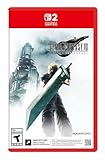
- The award-winning FINAL FANTASY VII REMAKE INTERGRADE* retells the original story up to the escape from Midgar, with breathtaking visuals, fast-paced gameplay, and additional story elements. This RPG delivers unforgettable characters, a powerful narrative, and a hybrid battle system that blends real-time action with strategic, command-based combat. It also includes FF7R EPISODE INTERmission, a side story starring Yuffie Kisaragi that offers a fresh perspective running in parallel to Cloud’s journey.
- STUNNING VISUALS - Explore Midgar like never before with stunning visuals and richly detailed environments that bring the city’s layered, industrial districts to life, all while staying true to the spirit of the original game.
- DYNAMIC COMBAT WITH STRATEGIC DEPTH -The innovative battle system combines strategic command-based gameplay with fast-paced action. Seamlessly switch between characters, harness the power of materia, summon iconic creatures, and unleash devastating limit breaks.
- ICONIC CHARACTERS, UNFORGETTABLE STORY - Follow Cloud Strife, an ex-SOLDIER turned mercenary, as he joins Avalanche to take on the Shinra Electric Power Company. Cloud and his allies Barret, Tifa, and Aerith are pulled into a battle that will decide the fate of the planet.
- EXPANDED CONTENT - FINAL FANTASY VII REMAKE INTERGRADE offers quests, mini-games, and missions set in expanded areas of Midgar. Encounter new characters and experience exciting content that adds even more depth to the story.
This is a game-level handoff, not Nintendo’s console migration tool. Your goal is to install or start the full Switch 2 release on the same system that contains the demo save, then use whatever carryover prompt the released game presents. Square Enix confirms the feature but does not document a menu-by-menu procedure in the cited announcement, so do not look for a Nintendo system-transfer screen to perform this particular handoff or rely on an invented in-game sequence.
Before you start the demo-to-full transition
- Keep the demo save on the Switch 2 where you played it.
- Use the full Switch 2 edition of FINAL FANTASY VII REMAKE INTERGRADE, rather than assuming a save from a different platform edition is interchangeable.
- When the full game offers a save-carryover prompt, read which demo save it identifies before confirming.
- If no carryover option appears, verify that the demo and full game are installed on the same Switch 2 and that the demo save still exists; the cited Square Enix announcement does not provide additional recovery steps.
Do not delete the demo until you have launched the full release and verified the imported progress. The announcement confirms the capability, but it does not promise that a deleted local demo save can be reconstructed from your Nintendo Account or from the game’s servers.
Move an existing Nintendo save from Switch to Switch 2
For a compatible Nintendo save, use Nintendo’s nearby-console transfer. Nintendo’s official guide is at How to transfer your save data to another console. This process is separate from the demo’s carryover feature: it sends a save file selected in the console’s system settings.
Do these 3 things before closing this tab:
1Scan for outdated or missing drivers - takes under a minute2Repair Windows errors before they cause bigger problems3Fix the driver behind crashes, sound loss and screen glitchesRequirements and preparation
- Update both consoles before beginning.
- Connect both consoles to the internet and keep them near each other during the operation.
- Make sure a user linked to the same Nintendo Account exists on both consoles. Nintendo restricts this transfer to users linked to the same account.
- Have the source console available. Nearby transfer is not a remote operation that can be started while the source is elsewhere.
- Inspect the target console’s existing save for this software. You may be offered a choice to cancel or overwrite it, and overwritten data cannot be recovered.
Also identify the correct user before opening the transfer screen. Nintendo associates save data with the user profile, so selecting another profile can make the expected file appear to be missing even when the save is still on the source system. If several people use the console, note the profile name that launched the game and choose that same account during the send step.
Nintendo Switch Online is not required for this nearby transfer. That distinction matters if you are moving consoles without a subscription: the consoles still need internet access for the transfer flow, but Nintendo says a Switch Online membership is not required.
Step-by-step: send the save from the source console
- On the source Nintendo Switch, open System Settings.
- Choose Data Management.
- Open Transfer Your Save Data.
- Select Send Save Data to Another Console.
- Choose the target system type when prompted.
- Select the user whose account owns the save.
- Select the FINAL FANTASY VII REMAKE INTERGRADE save file you want to send.
- Review the confirmation information. Do not confirm until you are certain that the selected user, title, and destination are correct.
These labels and the source-side sequence come from Nintendo’s transfer instructions. The operation is a move, not a duplicate: Nintendo states that the save file is deleted from the source system once it is sent.
Before the final confirmation, compare the title and user shown on screen with the profile you actually used in the game. This is the last safe point to cancel without sending anything. If the game is not listed, do not select a similarly named title; first verify the edition and user profile.
Recommended Free Tools
Rank #2

- Includes Final Fantasy VII Remake Intergrade with Yuffie’s Episode INTERmission. No physical cartridge, download license key only.
- Play Booster containing 15 random Magic: The Gathering Final Fantasy cards included.
- Hybrid real-time and command-based combat system with materia, summons, and limit breaks.
- Explore expanded Midgar environments, new quests, and mini-games.
- Fully remastered, orchestrated soundtrack that responds dynamically to the action.
Step-by-step: receive the save on Switch 2
- On the target Nintendo Switch 2, open System Settings.
- Choose Data Management.
- Open Transfer Your Save Data.
- Select Receive Save Data.
- Follow the on-screen prompt while the source console is completing its send operation.
- When Nintendo reports completion, launch the game on Switch 2 and check that the expected user and progress are present.
Nintendo’s guide provides the receive path and completion flow. Keep both systems powered and nearby until the consoles say the operation has finished. Once the send has been accepted, the source copy is removed, so avoid closing menus or powering down while the transfer is still in progress.
Verify the result immediately
- Start the game with the same Nintendo user that owned the source save.
- Check the newest save slot, chapter or story position, and any other visible progress you recognize.
- Only after verification should you reorganize, archive, or reset the old console.
If the target opens at an unexpected point, quit without saving over other slots and recheck which user and title were transferred. The system transfer cannot restore a target file that you deliberately overwrote.
Understand deletion and overwrite risks
The source save is removed
Nearby transfer does not create a safety copy. Nintendo’s wording is explicit: “This does not create a copy of your save data. Once sent, the save data file will be deleted from the source system.” If you intend to keep playing on the original Switch as well as Switch 2, this system-transfer route is not a duplication method. Consider whether a supported cloud backup is more suitable before confirming the send.
The target save can be replaced
If Switch 2 already has save data for the same software, Nintendo may let you cancel or overwrite it. Check the target save before accepting the overwrite. Data replaced by that action cannot be recovered through the transfer screen. A cautious sequence is to launch the target game first, identify which user has the existing progress, and cancel the transfer if that progress is the one you need to preserve.
The Tool Desk
Outbyte PC Repair FREERepair Windows errors before they cause bigger problemsFix Now →Outbyte Driver Updater FREEScan for outdated or missing drivers - takes under a minuteDriver Scan →Do not treat the overwrite warning as a routine confirmation. It may represent a completely different playthrough, including progress made after the target console was set up. If you are uncertain, cancel, record which profile contains each save, and decide whether cloud storage or a later transfer better protects the progress you want.
Use Save Data Cloud as an alternative
Nintendo Switch Online is required for Nintendo’s Save Data Cloud service. Nintendo explains how to identify cloud-supported software in its Save Data Cloud support guide: check the game’s eShop Software Details or the game’s Software Menu Options for cloud-backup support.
Nintendo’s UK listing for the Switch 2 edition of FINAL FANTASY VII REMAKE INTERGRADE displays Save Data Cloud support. You can review that listing at Nintendo UK. Store listings and service availability can vary by region, so confirm the cloud option on your own console before treating it as your only backup.
Rank #3

- Final Fantasy VII Remake Intergrade – The Ultimate Complete Strategy & Walkthrough Guide (New 2026 Edition) is the most comprehensive, up-to-date, and definitive companion every Final Fantasy VII Remake Intergrade player needs
How to decide whether cloud is available
- On the console, open the game’s eShop page and inspect Software Details, or open the game’s Software Menu Options.
- Look specifically for Save Data Cloud support; do not infer support merely from having Nintendo Switch Online.
- If the option is present, confirm that the Nintendo Account holding the membership is the account associated with the save.
- Use Nintendo’s cloud controls to back up or restore the title according to the prompts shown on your console.
The exact cloud buttons can vary with system software and region, so the official guidance establishes where to check rather than a universal upload-and-download sequence. Cloud is especially useful when the two consoles cannot be together, but it remains subject to Nintendo’s service rules and the individual game’s support status.
When cloud is the better route
- Use cloud storage when the source and target consoles cannot be together for Nintendo’s nearby transfer.
- Use it when you need a recoverable backup rather than a one-way move, subject to Nintendo’s cloud-service rules.
- Do not assume that a Switch Online subscription alone guarantees support. The individual game must show Save Data Cloud support in your region.
The official guidance establishes the membership requirement and how to check support. It does not change the separate demo-to-full carryover feature confirmed by Square Enix.
What is and is not confirmed about compatibility
Switch and Switch 2 console saves
Nintendo’s transfer tool is intended for compatible software. If your save is from a compatible Nintendo edition and the title appears in the source console’s selectable save list, the system flow is the relevant method. Compatibility of the transfer tool should not be read as proof that every edition, regional build, or unrelated platform save uses the same format.
Use the title shown by the console as your practical check. A listing for one Nintendo edition does not establish that a differently packaged release, a separate demo, or a different region’s build accepts the same file. When in doubt, preserve the source until the target game has opened and displayed the expected progress.
PlayStation, Xbox, and PC saves
The official materials cited here do not establish a way to import a PlayStation, Xbox, or PC save into the Switch 2 release. Do not spend time looking for a Nintendo Account setting that converts those files, and do not treat a demo carryover statement as a cross-platform transfer promise. Unless Square Enix publishes platform-specific instructions, regard those imports as unconfirmed.
Quick wins for a faster PC:
Repair Windows errors before they cause bigger problemsFix Now →Scan for outdated or missing drivers - takes under a minuteDriver Scan →Troubleshoot by symptom
The source and target do not find each other
- Confirm both consoles are connected to the internet.
- Move the consoles near each other.
- Install pending system updates on both devices.
- Verify that the user on each console is linked to the same Nintendo Account.
These are Nintendo’s stated prerequisites. If one condition is missing, correct it before retrying rather than selecting a different user or sending a save from an unrelated account.
The save is missing from the selection list
- Check that you selected the Nintendo user who owns the game progress.
- Confirm that you are looking for the Nintendo edition’s save, not a file created on PlayStation, Xbox, or PC.
- For demo progress, return to the full-game carryover path instead of the system-transfer menu.
If the title still does not appear after those checks, do not delete data or initialize either console while troubleshooting. The available transfer guidance does not provide a recovery method for a file that has already been removed.
Rank #4
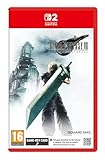
- STUNNING VISUALS - Explore Midgar like never before with stunning visuals and richly detailed environments that bring the city’s layered, industrial districts to life, all while staying true to the spirit of the original game.
- DYNAMIC COMBAT WITH STRATEGIC DEPTH - The innovative battle system combines strategic command-based gameplay with fast-paced action. Seamlessly switch between characters, harness the power of materia, summon iconic creatures, and unleash devastating limit breaks.
- ICONIC CHARACTERS, UNFORGETTABLE STORY - Follow Cloud Strife, an ex-SOLDIER turned mercenary, as he joins Avalanche to take on the Shinra Electric Power Company. Cloud and his allies Barret, Tifa, and Aerith are pulled into a battle that will decide the fate of the planet.
- EXPANDED CONTENT - FINAL FANTASY VII REMAKE INTERGRADE offers quests, mini-games, and missions set in expanded areas of Midgar. Encounter new characters and experience exciting content that adds even more depth to the story.
- ICONIC SOUNDTRACK - The epic soundtrack has been fully remastered, with re-arranged and orchestrated tracks that dynamically respond to the action, offering an immersive, emotionally charged musical experience.
The target warns about existing data
Stop and inspect which progress is already on Switch 2. Choose cancel if that data is more important. Choose overwrite only when you have deliberately accepted replacement, because Nintendo says overwritten target data cannot be recovered.
The full game does not show demo progress
Confirm that the demo and full game are on the same Switch 2 and that the demo save has not been removed. Square Enix confirms that demo data can carry into the full game, but its cited announcement does not specify the exact in-game menu or prompt timing. Avoid deleting the demo save while investigating.
Free tools Windows power users keep installed
One-click scans. No signup required.
You want both consoles to retain the same progress
Do not use nearby transfer expecting a duplicate. Nintendo defines it as a move and deletes the source file after sending. First check whether the title supports Save Data Cloud in your region and whether you have Nintendo Switch Online. If cloud support is absent, the official materials cited here do not describe another Nintendo method for cloning this save.
Release and regional details
Nintendo’s UK product page lists January 22, 2026 as the release date for the Switch 2 edition. Date formatting, storefront availability, and cloud-service presentation may differ in other regions, so use your local eShop listing for purchase and service-status decisions. The Square Enix release announcement cited above is dated January 23, 2026.
The different dates are not a transfer requirement; they simply identify the regional product listing and publisher announcement. They also explain why a feature or cloud label may appear at a different time in another storefront. Check the local listing rather than assuming that a UK page describes every region’s availability.
Independent reader supportYour contribution helps us test, update, and keep practical guides available for everyone.Recommended decision sequence
- Ask whether the progress came from the Switch 2 demo. If yes, use the full game’s demo-carryover feature.
- If the progress is on another Nintendo console, verify account, internet, proximity, updates, and software compatibility, then use Send Save Data to Another Console and Receive Save Data.
- If the consoles cannot be together, check the game’s eShop details or Software Menu Options for Save Data Cloud support and confirm that you have Nintendo Switch Online.
- If the save originated on PlayStation, Xbox, or PC, wait for platform-specific confirmation from Square Enix; the official information cited here does not confirm an import.
Following this order prevents the most common category error: trying to use Nintendo’s console migration menu for a demo-to-full-game handoff, or expecting a cloud or Nintendo transfer to convert a save from another platform.
Final pre-transfer checklist
- Identify whether you are moving demo progress, a Nintendo console save, or a cloud backup.
- Keep the demo save intact until the full game displays the expected progress.
- For console transfer, update both systems, connect them to the internet, place them nearby, and sign in with the same Nintendo Account-linked user.
- Inspect the target’s existing save before accepting any overwrite.
- Remember that nearby transfer deletes the source save and does not create a copy.
- For cloud, verify Save Data Cloud support in your own eShop details or Software Menu Options and confirm Nintendo Switch Online membership.
- Treat PlayStation, Xbox, and PC imports as unconfirmed unless Square Enix issues specific instructions.
Frequently Asked Questions
Can I transfer my Switch 2 demo save to the full game?
Yes. Square Enix says the free FINAL FANTASY VII REMAKE INTERGRADE demo can carry its save data into the full game. Keep the demo save on the same Switch 2 and follow the carryover prompt shown by the released game. Square Enix has not published a universal button-by-button sequence.
Best Value
![FINAL FANTASY VII REMAKE INTERGRADE Standard - Nintendo Switch 2 [Digital Code]](https://m.media-amazon.com/images/I/31pW3liTQ7L._SL160_.jpg)
- The award-winning FINAL FANTASY VII REMAKE INTERGRADE* retells the original story up to the escape from Midgar, with breathtaking visuals, fast-paced gameplay, and additional story elements. This RPG delivers unforgettable characters, a powerful narrative, and a hybrid battle system that blends real-time action with strategic, command-based combat. It also includes FF7R EPISODE INTERmission, a side story starring Yuffie Kisaragi that offers a fresh perspective running in parallel to Cloud’s journey.
- STUNNING VISUALS - Explore Midgar like never before with stunning visuals and richly detailed environments that bring the city’s layered, industrial districts to life, all while staying true to the spirit of the original game.
- DYNAMIC COMBAT WITH STRATEGIC DEPTH -The innovative battle system combines strategic command-based gameplay with fast-paced action. Seamlessly switch between characters, harness the power of materia, summon iconic creatures, and unleash devastating limit breaks.
- ICONIC CHARACTERS, UNFORGETTABLE STORY - Follow Cloud Strife, an ex-SOLDIER turned mercenary, as he joins Avalanche to take on the Shinra Electric Power Company. Cloud and his allies Barret, Tifa, and Aerith are pulled into a battle that will decide the fate of the planet.
- EXPANDED CONTENT -FINAL FANTASY VII REMAKE INTERGRADE offers quests, mini-games, and missions set in expanded areas of Midgar. Encounter new characters and experience exciting content that adds even more depth to the story.
How do I move my Nintendo Switch save to Switch 2?
Update both consoles, connect them to the internet, keep them nearby, and use System Settings > Data Management > Transfer Your Save Data. Choose Send Save Data to Another Console on the source and Receive Save Data on Switch 2, using users linked to the same Nintendo Account.
Do I need Nintendo Switch Online for the nearby transfer?
No. Nintendo says a Switch Online membership is not required for nearby console save transfer. Internet access, nearby consoles, current system software, and matching Nintendo Account-linked users are still required.
Does Nintendo’s transfer make a backup copy?
No. Nintendo states that the sent save is deleted from the source system. Nearby transfer is a move, not a duplicate, so use a supported cloud backup if you need a recoverable copy and the game supports it.
What happens if Switch 2 already has a save?
Nintendo may let you cancel or overwrite the target save. Check which progress is on Switch 2 before confirming. Data overwritten during the transfer cannot be recovered through the transfer screen.
Can I use Save Data Cloud for INTERGRADE?
Nintendo Switch Online is required, and the game must show Save Data Cloud support in your region. Check the eShop Software Details or the game’s Software Menu Options. Nintendo’s UK Switch 2 listing displays cloud support, but regional presentation can differ.
Can I import a PlayStation, Xbox, or PC save?
The official information currently available does not confirm imports from PlayStation, Xbox, or PC into the Switch 2 version. Do not assume that the demo carryover feature or Nintendo’s transfer tool converts cross-platform saves.
Why is my save missing from the transfer list?
Confirm that you selected the Nintendo user who owns the progress, that the title is the compatible Nintendo edition, and that you are not trying to move a PlayStation, Xbox, or PC file. Demo progress uses the full game’s carryover path rather than the system-transfer menu.
The Bottom Line
Use the full game’s own carryover prompt for a Switch 2 demo save. For a compatible Nintendo console save, use Send Save Data to Another Console and Receive Save Data with both systems online, nearby, updated, and linked to the same Nintendo Account; remember that the source save is deleted and a target overwrite is permanent. Save Data Cloud is a separate Nintendo Switch Online option that must be supported by the game in your region. PlayStation, Xbox, and PC imports remain unconfirmed.
Quick Recap
Product prices and availability are accurate as of the date/time indicated and are subject to change. Any price and availability information displayed on Amazon at the time of purchase will apply.

