
Free tools Windows power users keep installed
One-click scans. No signup required.
iTechGuides is reader-supported. When you buy through links on our site, we may earn an affiliate commission. As an Amazon Associate I earn from qualifying purchases. Learn more
Playing with friends? Godlike.Host runs hosted Euro Truck Simulator 2 servers from 10 data-center locations, with free DDoS protection.
In Euro Truck Simulator 2, use Quick Travel for a supported fast trip to a discovered city’s service station, or enable the PC developer console when you need camera-level placement anywhere on the map. Quick Travel is the safer, configuration-free option; developer teleport requires editing config.cfg, moving the free camera, and pressing Ctrl+F9.
Which teleport method should you use?
ETS2 has two different meanings of “teleport.” The built-in Quick Travel feature moves your truck through the normal game interface. The developer method first moves a debug camera with the goto command, then places the truck where that camera is positioned.
PC Slower Than It Used to Be?
A free scan shows the junk files, broken settings and background clutter dragging Windows down - then fixes them in one click.Free scan · Windows 10 & 11Crashes, No Sound, or Screen Glitches?
Random freezes, missing sound and display glitches usually trace back to one bad driver. Find and replace yours safely.Free scan · under a minute| # | Preview | Product | Price | |
|---|---|---|---|---|
| 1 |

|
Euro Truck Simulator 2, DVD-ROM | $18.46 | Buy on Amazon |
| 2 |
![Euro Truck Spezial: LKW Rangier-Simulator [German Version]](https://m.media-amazon.com/images/I/51HH-hKGmQL._SL160_.jpg)
|
Euro Truck Spezial: LKW Rangier-Simulator [German Version] | $8.75 | Buy on Amazon |
| 3 |
|
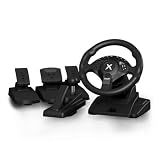
NBCP PC Steering Wheel with 6-Speed H-Pattern Shifter and Linear Pedal | $109.99 | Buy on Amazon |
| 4 |

|
UK Truck-Simulator (PC) | $8.87 | Buy on Amazon |
| What you need | Quick Travel | Developer teleport |
|---|---|---|
| Setup | No file changes | Edit config.cfg and enable two variables |
| Destinations | Discovered cities that have a service station; Garage Manager can target your garage | Any reachable map coordinate or city selected with the debug camera |
| Cost | Distance-based in normal use | No documented Quick Travel charge; uses debug features |
| Precision | Service-station or garage location | Camera-level positioning near a road or other safe ground |
| Online jobs | Subject to the normal Quick Travel rules | Vehicle teleport is unavailable during online jobs |
| Main risk | The destination may be ineligible | An elevated or poorly placed camera can make the truck fall or land badly |
For ordinary single-player progression, start with Quick Travel. Use the console method when the city is undiscovered, when you need a particular road position, or when you are troubleshooting a save and accept the risks of debug controls.
How to use Quick Travel
Quick Travel was introduced in update 1.41, released on July 15, 2021. It is the supported way to skip a long drive without changing configuration files.
#1 Best Overall
From the world map
- Open the World Map.
- Choose Quick Travel in the map interface.
- Select a city you have already discovered.
- Check that the city contains a service station. Cities without a service shop cannot be selected.
- Confirm the trip after the game displays the distance-based charge.
The game places the truck at the destination city’s service shop. Quick Travel is not a free choice of any road segment: the destination is the eligible service-station location supplied by the game.
From Garage Manager
- Open Garage Manager.
- Choose Quick Travel.
- Select the destination garage offered by the manager.
- Confirm the trip and its distance-based charge.
When Quick Travel starts from Garage Manager, the destination is your garage rather than the city service shop. This is useful when you want to move the player and truck back to a garage for upgrades, repairs, or a change of headquarters.
The Tool Desk
Outbyte Driver Updater FREEScan for outdated or missing drivers - takes under a minuteDriver Scan →Outbyte PC Repair FREEClear out junk files and repair common Windows errorsFree Scan →Why a city may not appear
- It has not been discovered: Quick Travel uses cities already revealed in your profile.
- There is no service station: A discovered city is still ineligible if it lacks a service shop.
- You opened the wrong menu: Garage Manager’s version targets a garage; the World Map version targets an eligible city service station.
Quick Travel does not require g_console, g_developer, a text editor, or a game restart. Its trade-off is limited destination choice and the normal distance-based payment.
How to teleport with the developer console on PC
The developer method is available on the PC version after two configuration switches are enabled. It uses the debug camera and is more precise than Quick Travel, but it is not a normal travel feature and requires careful placement.
Enable the console and developer mode
- Close ETS2 completely.
- Open the game’s user folder. On Windows, the normal location is
DocumentsEuro Truck Simulator 2. On macOS and Linux, use the platform-specific ETS2 support directory for your installation. - Open
config.cfgin a plain-text editor. - Find the console setting and make sure it reads
uset g_console "1". - Find the developer setting and make sure it reads
uset g_developer "1". - Save the file without changing its name or extension.
- Launch ETS2 again.
Both variables must be set to 1. If either remains 0, the console or its developer commands may not work. Edit the configuration belonging to the ETS2 installation and profile you actually launch, then restart the game after saving.
Open the console and move the camera
- Press the grave/tilde key (the key commonly shared by
`and~) to open the developer console. - Enter
goto <cityname>, replacing the placeholder with a city name, for examplegoto berlin. - Press Enter. You can also enter coordinates in the form
goto <x;y;z>. - Press the number-row
0to enter or return to free-camera mode. - Use the numpad movement controls to fly the camera to the intended location.
The goto command moves the debug camera; it does not move the truck by itself. This is the point at which many older instructions appear to fail: the camera has jumped, but the truck is still where it was.
Place the truck
- Move the free camera close to a drivable road or another broad, level patch of ground.
- Keep the camera near the truck’s intended height. Do not position it high above the terrain.
- Check that there are no barriers, buildings, traffic lanes, or steep edges immediately beneath the camera.
- Press
Ctrl+F9.
Ctrl+F9 places the vehicle at the camera location. The currently documented combination is Ctrl+F9; instructions that tell you to press only F9 are outdated for this procedure. Because placement is based on the camera, a technically valid coordinate can still produce a bad result if the camera is floating, underground, inside an object, or far above the road.
Using city names and coordinates with goto
City-name jumps
A city-name command is the quickest way to get the camera near a major destination:
goto berlinAfter the command executes, use 0 and the numpad controls to find a safe final position. The city jump is a camera shortcut, not a service-station selection and not an automatic truck teleport.
Coordinate jumps
Coordinates use three values separated by semicolons:
What’s actually slowing this PC down?
Pick the symptom - the matching free tool is one click away.
goto <x;y;z>The three values represent the map position used by the debug camera. Coordinates are useful for a precise area, a remote road, or a location that is not represented by an eligible Quick Travel destination. You still need to inspect the location visually and finish with Ctrl+F9.
What happens during jobs?
The developer-console reference states that vehicle teleportation does not work in online jobs. If you are carrying an online job, do not expect Ctrl+F9 to relocate the truck successfully. Finish or leave that job according to its own rules, then use a supported travel method in a suitable single-player state.
Quick Travel follows its normal eligibility and payment rules. The fact that the game can move you between discovered service stations does not turn every active job into a teleportable one, so check the job state before attempting to skip a route.
How to avoid a crash or a falling truck
The most important safety rule is to place the camera close to the road and near ground level before pressing Ctrl+F9. Teleporting from a height can leave the truck falling, suspended, or landing on an invalid surface.
- Approach the final location slowly with the free camera.
- Choose a visibly level area with enough room for the tractor and trailer.
- Avoid rooftops, bridges, water, cliffs, tunnel interiors, and dense scenery.
- Do not rely on the city label alone; inspect the actual camera view.
- If you are testing an unfamiliar coordinate, save first so you can recover if placement goes wrong.
A city-center coordinate is not automatically a legal parking location. The camera can be above a building, road divider, or decorative terrain even when the coordinate itself is valid.
Understanding the destination and cost rules
Quick Travel is deliberately less flexible than the developer camera. Its normal World Map flow ends at a service shop in an eligible, already discovered city. You cannot use that menu to select an arbitrary point halfway along a highway. If the goal is a specific road junction, depot area, or remote coordinate, the developer procedure is the only method described here that offers camera-level placement.
The normal Quick Travel confirmation shows a charge based on distance. The exact amount is not a universal flat fee, so check the amount displayed for the particular trip before accepting it. Garage Manager Quick Travel also displays its distance-based charge. By contrast, the developer procedure is a debug operation rather than a Quick Travel transaction; no Quick Travel fee is documented for pressing Ctrl+F9.
Destination eligibility and payment are separate questions. A city can be discovered yet still fail the service-station requirement, while a garage selected through Garage Manager follows the garage-specific route. This distinction explains why a destination may be visible on the map but absent from the Quick Travel list.
Rank #3
- 【Hall Magnetic Encoder Steering – Precision & Durability】 Contactless Hall magnetic sensing technology delivers precise, wear‑free steering control. No potentiometers to wear out – ensuring consistent accuracy and long‑term reliability for intense sim racing sessions.
- 【Complete Pedal Set: Linear Throttle, Brake & Clutch + 6-Speed H‑Pattern Shifter】 Linear pedals provide proportional control for precise throttle, braking, and clutch engagement. The 6‑speed H‑pattern shifter delivers authentic manual transmission shifting – perfect for sim racing, truck simulators, and realistic driving games.
- 【11.02" Large Diameter Wheel with Ergonomic Wave‑Style Grips】 Extra‑large 11.02" wheel face provides a realistic driving feel – closer to a real car than standard 10" wheels. The one‑piece ergonomic wave‑shaped handles with thickened non‑slip texture offer comfortable, fatigue‑reducing grip during long races.
- 【One-Key Angle Switching – 270°/450°/900°】 Instantly switch between 3 rotation angles with a single press. 270° for F1/arcade racing, 450° for truck/bus simulators, and 900° for realistic car driving. Adapts to different game genres without interrupting your gameplay.
- 【Dual Vibration Motors & Sturdy Desk Mount】 Dual vibration motors deliver realistic road feedback – feel every bump, curb, and collision. Tilt‑adjustable design lets you find your perfect driving posture. The 27.5cm chassis base and 3‑47mm universal clamp fit most desks securely. Compatible with PC, PS3, and Euro Truck Simulator 2 (ETS2).
A repeatable developer-teleport workflow
For a reliable PC jump, treat the process as two linked operations instead of one command:
- Prepare once: enable
g_consoleandg_developerinconfig.cfg, save the file, and restart ETS2. - Choose a camera target: open the console and run either a city-name command or a semicolon-separated coordinate command.
- Switch to inspection: press the number-row
0and use the numpad to look around the target. - Validate the surface: move down to a broad, level, road-adjacent area. A city label or valid coordinate is not proof that the surface below is safe.
- Commit the move: press
Ctrl+F9only after the camera is at the intended height and location. - Recover if needed: if the truck falls or lands badly, reload the earlier save and repeat with a lower, clearer camera position.
This sequence also makes troubleshooting easier: if the camera moved but the truck did not, the missing step is the final Ctrl+F9; if the truck moved badly, the problem is usually camera placement rather than the city or coordinate syntax.
Keyboard and configuration details that prevent mistakes
The number-row 0 and the numpad controls have different roles in the documented procedure. Use the number-row zero to enter or return to free camera, then use the numpad movement keys to fly. Pressing goto alone does not replace this inspection step.
Keep the configuration edits minimal. The two required lines are uset g_console "1" and uset g_developer "1"; do not rename config.cfg or save it with an additional extension. ETS2 must be closed while you edit and restarted afterward, otherwise the running session may continue using the old values.
Keyboard layouts can place the grave/tilde key in a different physical location. If the console does not appear after the restart, try the key that produces the grave or tilde character on your layout, then recheck both variables and the folder you edited.
Troubleshooting
The console will not open
- Close the game and verify
uset g_console "1"anduset g_developer "1". - Confirm that you edited the correct ETS2 user-folder
config.cfg. - Save the file as plain text and restart ETS2.
- Try the grave/tilde key again after the restart; keyboard layouts can place that key in a different physical position.
goto ran, but the truck stayed put
This is expected. goto moves only the debug camera. Press the number-row 0, fly the camera to a safe location, and then press Ctrl+F9.
The truck fell or appeared in the wrong place
Return to an earlier save if necessary. Repeat the operation with the camera close to level ground and near a road. A high camera position is the specific failure condition warned about in the free-camera guidance.
Do these 3 things before closing this tab:
1Fix the driver behind crashes, sound loss and screen glitches2Clear out junk files and repair common Windows errors3Scan for outdated or missing drivers - takes under a minuteTeleport does nothing during a job
Check whether the job is an online job. Developer vehicle teleportation is unavailable in that state. Use Quick Travel only when the game presents it as an allowed option, or complete the job normally.
Quick Travel has no destination I need
Verify that the city has been discovered and contains a service station. If it fails either test, it will not be offered by the built-in feature. The developer camera method is the alternative when you need a coordinate-level destination and are playing outside an online job.
Rank #4
Version history that affects teleporting
| Version | Date | Teleport-related change |
|---|---|---|
| 1.41 | July 15, 2021 | SCS Software introduced Quick Travel as a built-in gameplay feature. |
| 1.47 | 2023 | After an economy reset during loading, the game can offer a free Quick Travel to any service station instead of sending the player only to the headquarters garage. |
The 1.47 behavior is a recovery option tied to an economy reset. It is separate from the developer-console procedure and does not remove the need to enable the console variables for debug teleporting.
Choosing the right method for common situations
| Situation | Best fit | Reason |
|---|---|---|
| You want to skip a long trip in normal single-player play | Quick Travel | It needs no configuration edit and uses the supported interface. |
| You need to reach an undiscovered area | Developer teleport | goto can move the camera to a city or coordinate outside Quick Travel’s discovered-city list. |
| You want to return to your garage | Garage Manager → Quick Travel | This path targets the player’s garage rather than a service shop. |
| You need an exact roadside position | Developer teleport | The final location is set by the free camera, subject to safe placement. |
| You are currently in an online job | Do not use developer vehicle teleport | The documented developer teleport is unavailable during online jobs. |
| You want a free recovery trip after an economy reset | Use the 1.47 recovery prompt | The game may offer free Quick Travel to any service station during that loading event. |
Pre-teleport checklist
- Decide whether a service-station or garage destination is sufficient.
- If using Quick Travel, verify the city is discovered and has a service station.
- If using the console, close ETS2 before editing
config.cfg. - Confirm both developer variables equal
1. - Restart the game after saving the configuration.
- Remember that
gotomoves the camera only. - Use the number-row
0and numpad controls for free-camera positioning. - Keep the camera close to level ground and near the road.
- Press
Ctrl+F9, not the older F9-only combination. - Do not attempt developer vehicle teleport during an online job.
Key takeaway
For most players, Quick Travel is the correct answer: open the World Map or Garage Manager, select an eligible destination, and accept the distance-based charge. On PC, the developer route is more flexible but requires g_console and g_developer set to 1, a restart, the goto command, careful free-camera placement, and Ctrl+F9 to move the truck.
Quick wins for a faster PC:
Repair Windows errors before they cause bigger problemsFix Now →Scan for outdated or missing drivers - takes under a minuteDriver Scan →Frequently Asked Questions
Can I teleport to any city in ETS2 with Quick Travel?
No. The city must already be discovered and must have a service station. The World Map option places you at that service shop, while Garage Manager Quick Travel targets a garage.
What is the ETS2 teleport command?
Use goto <cityname> or goto <x;y;z> in the developer console. The command moves the debug camera; press 0, position the camera safely, and press Ctrl+F9 to move the truck.
Why did goto move the camera but not my truck?
That is normal. goto is the camera step only. Enter free camera with the number-row 0, fly to a safe road-level spot with the numpad, then use Ctrl+F9.
How do I enable the developer console?
Close ETS2, open the correct user-folder config.cfg, set uset g_console "1" and uset g_developer "1", save the plain-text file, and restart the game.
Recommended Free Tools
Does developer teleport work in online jobs?
No. The documented vehicle teleport does not work during online jobs. Use it only in a suitable single-player state.
Why did my truck fall after teleporting?
The camera was likely too high or positioned over an unsafe surface. Move it close to level ground and near a road before pressing Ctrl+F9; reload an earlier save if necessary.
Is Quick Travel free?
Normal Quick Travel applies a distance-based charge shown before confirmation. A separate 1.47 economy-reset recovery event can offer free Quick Travel to any service station.
Can I use the developer method to choose a precise roadside location?
Yes, on PC outside an online job. Use a city name or semicolon-separated coordinates to get the camera nearby, inspect the area in free camera, and place the truck only on a broad, level, safe surface.
The Bottom Line
Use Quick Travel for the supported, no-config jump to a discovered service station or garage. For precise PC placement, enable both developer variables, run goto, position the camera near safe ground, and press Ctrl+F9; it will not work for vehicle teleportation during online jobs.
Quick Recap
Product prices and availability are accurate as of the date/time indicated and are subject to change. Any price and availability information displayed on Amazon at the time of purchase will apply.

