
Free tools Windows power users keep installed
One-click scans. No signup required.
iTechGuides is reader-supported. When you buy through links on our site, we may earn an affiliate commission. As an Amazon Associate I earn from qualifying purchases. Learn more
To take a screenshot on a Samsung Galaxy A03s, press the Power/Side and Volume Down buttons together briefly, then release them. Samsung says the screen flashes when the capture succeeds. You can then use the preview to edit or share the image, or find it later in Gallery.
How do I take a screenshot on a Samsung Galaxy A03s?
- Open the screen you want to capture.
- Press the Power/Side button and Volume Down together for a brief moment, then release both. Do not hold them down for an extended time.
- Look for the screen flash that indicates the screenshot was taken.
- Use the preview to edit or share the screenshot, or open Gallery to view it later.
Samsung notes that button behavior and available options can vary by model, software version, and carrier. Its general instructions are available at Samsung Support.
How do I take a long screenshot?
First take a regular screenshot on a page that scrolls. If the Scroll capture control appears in the screenshot toolbar, tap its icon (two downward arrows) to extend the image. Tap it again if the control remains available and you need to capture more of the page.
Quick wins for a faster PC:
Repair Windows errors before they cause bigger problemsFix Now →Fix the driver behind crashes, sound loss and screen glitchesFind Drivers →Clear out junk files and repair common Windows errorsFree Scan →Scroll capture is not guaranteed in every app or software build. Google says scrolling screenshots work on Android 12 and later on most screens that allow scrolling; app restrictions and device software can affect availability. See Google’s Android screenshot instructions.
#1 Best Overall

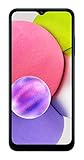
- 6.5 720 x 1600 (HD+) PLS TFT LCD Infinity-V Display, 5000mAh Battery, Fingerprint (side-mounted)
- Rear Camera: 13MP, f/2.2, (macro) + 2MP, F2.4, (depth) + 2MP, F2.4, Front Camera: 5 MP, f/2.2, Bluetooth 5.0
- 2G: 850/900/1800/1900MHz, 3G: 850/900/1700(AWS)/1900/2100, 4G LTE: B2(1900)/B4(AWS)/B5(850)/B12(700)/B14(700)
- Width: 2.99 inches; Length: 6.46 inches; Height: 0.36 inches; Cpu Model Family: Snapdragon
Can I use Palm swipe to capture?
Some Samsung software versions offer a gesture alternative. If it is available on your A03s, enable Palm swipe to capture in Settings under Advanced features, then swipe the edge of your hand across the screen. Samsung Canada lists the more specific path as Settings → Advanced features → Motions and gestures → Palm swipe to capture. Menu names and availability can vary by region and software version, so use the button shortcut if you cannot find the setting.
Where are screenshots saved?
Open Gallery → Albums → Screenshots to find saved captures. Samsung also describes editing and sharing a screenshot immediately after capture from its preview or later in Gallery. Some A03s software builds include a Screenshot toolbar setting for showing post-capture options; the exact setting path may differ. The A03s manual hosted by AT&T identifies this toolbar option: Samsung Galaxy A03s user manual.
Independent reader supportYour contribution helps us test, update, and keep practical guides available for everyone.What if the screenshot shortcut does not work?
- Press and release Power/Side and Volume Down together briefly; avoid a prolonged hold.
- Check that you are pressing the volume-down key and the side/power key.
- If only one app blocks the capture or displays a restriction message, the app may prohibit screenshots for privacy or security. That does not necessarily mean the phone is faulty.
- If Palm swipe is missing from Settings, it may not be supported by your model and software configuration. Use the button combination instead.
- If Scroll capture does not appear, the screen may not contain scrollable content, the app may prevent capture, or the option may not be available on that software build.
Samsung’s A03s support page identifies the device and its regional support options: Galaxy A03s support.
Recommended Free Tools
Quick Recap
Rank #4

- Fully tested with light signs of wear
- All-day power for calls, games, and more
- Expandable via microSD card (sold separately)
- Smooth everyday performance
- Ideal for browsing, video, and apps
Rank #3

- Immersive 6.7-inch Super AMOLED display with 120 Hz refresh rate, offering smooth scrolling, vibrant colors, and enhanced contrast for watching videos, gaming, or browsing social media. The large screen is ideal for multitasking, allowing apps and media to feel spacious and engaging even in a single glance.
Product prices and availability are accurate as of the date/time indicated and are subject to change. Any price and availability information displayed on Amazon at the time of purchase will apply.

