
iTechGuides is reader-supported. When you buy through links on our site, we may earn an affiliate commission. As an Amazon Associate I earn from qualifying purchases. Learn more
On a TCL tablet that supports NXTPAPER controls, switch modes with the tablet’s NXTPAPER Key or its on-screen NXTPAPER selector, then adjust the screen options your model exposes. TCL does not use one universal menu on every tablet, so identify the exact model and software first. A setting path that works on an NXTPAPER 11, another tablet generation, or a TCL phone may not exist on your device. The safest approach is to treat the names below as a guide to the kinds of controls available, then confirm the final steps in your tablet’s own menus and manual.
Identify the tablet before changing display settings
Start with the model name and software version. Open the tablet’s information page—the page may be labelled About tablet, Device information, or something similar—and record the model designation, such as NXTPAPER 11 or NXTPAPER 11 Gen 2. Also note the Android or TCL software version shown there.
This matters because TCL describes NXTPAPER features as product-specific. Two tablets can use different controls, offer different mode lists, or place the same option in different settings sections. If a control described below is missing, that is not by itself evidence that the tablet is defective. It may simply not be included in that model or software build.
The Tool Desk
Outbyte PC Repair FREEClear out junk files and repair common Windows errorsFree Scan →Outbyte Driver Updater FREEFix the driver behind crashes, sound loss and screen glitchesFind Drivers →Use the exact model manual
Search TCL Support for the manual matching the complete model name and region. TCL’s NXTPAPER 11 support page provides an English user manual for that model. Use that document when you need the exact key action, menu path, or list of supported modes. Do not substitute a phone quick guide or a manual for a different tablet generation when looking for a button sequence.
#1 Best Overall

- Tablet, Drawing Pad, Digital Notebook & Musician Tablet – All-in-One: The TCL NXTPAPER 14 combines creativity, productivity, and entertainment in a single device. Its 14.3" 2.4K screen and 4096-level T-PEN stylus make it easy for students, artists, musicians, and everyday users to draw, take notes, read, view sheet music, and enjoy media
- Paper-Like Display for Eye Comfort: Featuring NXTPAPER 3.0 technology, the display reduces glare, filters blue light, and supports DC dimming for comfortable, extended viewing. The Eye Care Assistant adjusts brightness and color temperature automatically and reminds breaks to reduce eye strain
- Seamless 3-in-1 Display Modes: With the NXTPAPER Key, the TCL NXTPAPER 14 tablet lets you switch display modes effortlessly. Standard Mode is crisp for everyday tasks, Color Paper Mode brings comics and digital art to life, and Ink Paper Mode provides a natural reading and writing experience
- Powerful Performance & Multi-Window Productivity: Powered by MediaTek Helio G99 and Android 15, TCL electronics tablets provide 256GB storage and 8GB RAM, plus 8GB expandable memory for smooth multitasking and study or creative apps. Supports screen mirroring, extended display, floating windows, and split-screen. Note: Built-in storage only; microSD not supported
- Large Battery with Fast & Reverse Charge: Power through your day with the TCL NXTPAPER 14 Android tablet’s 10,000mAh battery—fully recharged in about 2–3 hours under optimal conditions with 33W fast charging. Reverse charging lets you power your phone or earbuds anytime. Note: Charger not included
Before changing anything, make a quick inventory of what you can see:
- Look for an NXTPAPER entry in Settings and in the quick-settings shade.
- Check the tablet’s edges for a key labelled or identified in the manual as the NXTPAPER Key.
- Search Settings for brightness, eye comfort, color temperature, dark, and sleep.
- Note whether the tablet uses navigation buttons, gestures, or another navigation arrangement, since navigation controls are a separate system feature from the display mode.
Ways a supported TCL tablet can switch NXTPAPER modes
Supported products generally expose one of two control styles:
- NXTPAPER Key: TCL says its NXTPAPER Key can switch display modes on supported phones and tablets. On some tablet products, the key also has other customizable functions. The key is not fitted to every TCL tablet, and the action assigned to it can vary.
- On-screen mode selector: Some software builds place a selector in Display, NXTPAPER, or a similarly named settings area. The label and location are model-dependent.
Use the procedure that your manual or tablet actually shows:
- Wake and unlock the tablet.
- If the tablet has an NXTPAPER Key, use the action described in its manual to open or cycle the mode selector. Do not assume that a key on another TCL product behaves identically.
- If there is no physical key, open Settings and look for NXTPAPER, Display, or a display-mode entry. The Settings search field can help when the category is not obvious.
- Choose the mode presented by your tablet and wait for the screen to redraw. Some interfaces show a preview or confirmation; others apply the change immediately.
- Leave the selector and check a page with both text and colored graphics. This confirms that the change was applied rather than merely highlighted in a menu.
If your manual uses the phrase “Choose your preferred NXTPAPER mode,” it is referring to this selection step. The available choices are not guaranteed to match another TCL tablet. If pressing the key does nothing, check its current assignment in the tablet’s settings before concluding that the feature is unavailable.
A phone instruction that should not be copied to a tablet
A TCL T702D phone quick guide says: “Slide NXTPAPER switch up/down to turn NXTPAPER mode on/off.” That sentence is a phone-specific example. It does not establish that a TCL tablet has a sliding switch, or that its modes are enabled in the same way. The same phone guide lists an Ink Paper, Color Paper, and Max Ink presentation; a tablet may omit one or more of them. Treat the quotation as an illustration of how much TCL controls can differ across products, not as a tablet procedure.
What the documented NXTPAPER modes are for
TCL’s technology overview uses three mode examples. Think of them as presentation choices rather than universal presets:
| Mode | Color and presentation | Content TCL associates with it | What to check on your tablet |
|---|---|---|---|
| Regular | Vibrant, full-color display | General use where clear, saturated color is useful | Whether your model calls this “Regular” or uses another label |
| Ink Paper | Black ink on a white-paper style presentation | Black-and-white reading | Whether the mode is offered and whether images are intentionally subdued |
| Color Paper | Warm-toned color treatment | Magazines and comics | Whether your software includes the warm color profile |
Regular is the practical choice when you need TCL’s described full-color presentation. Ink Paper is the clearest fit for largely monochrome reading. Color Paper is intended for illustrated material where a warmer page-like appearance is preferable. These descriptions come from TCL; they are not a promise that every tablet exposes all three modes or that every app will render identically.
Recommended Free Tools
Rank #2
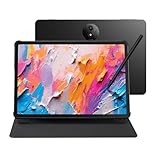
- Tablet, Drawing Pad, and Digital Notebook — All in One: Designed for artists, students, professionals, and entertainment users, the TCL NXTPAPER 11 Plus seamlessly fits into your daily routine. Equipped with an 11.5" 120Hz 2.2K display, it delivers smooth visuals and crisp clarity, while the TCL T-PEN stylus with 4096 pressure levels ensures precise and natural input for writing, sketching, or note-taking
- NXTPAPER 4.0 Display for Enhanced Eye Comfort: With upgraded NXTPAPER 4.0 technology, this tablet offers a more natural, paper-like viewing experience. TÜV-certified low blue light, anti-glare coating, and DC dimming work together to reduce eye strain and eliminate flicker. The built-in Eye Care Assistant intelligently adapts brightness and color temperature while reminding you to take breaks
- 3-in-1 VersaView Modes for Every Scenario: Easily switch between three display modes using the dedicated NXTPAPER Key on this TCL NXTPAPER 11 Plus tablet. Regular Mode delivers vivid visuals for streaming, video calls, and digital art, Ink Paper Mode turns the screen into an e-reader-like display for comfortable reading and note-taking, and Color Paper Mode offers soft, low-saturation tones ideal for comics and magazines
- AI-Powered Productivity & Communication: The TCL NXTPAPER 11 Plus note taking tablet integrates smart tools like voice memo, real-time bilingual subtitles, writing assist, text assist, and a smart translator. Effortlessly convert speech into text, generate and refine content, and translate text, images, or conversations with ease. With “Circle to Search with Google,” you can instantly find information with a simple gesture
- Ample Storage & Powerful Performance: Store your memories, apps, and large files effortlessly—TCL electronics tablets with 256GB built-in storage provide the space you need. Powered by the MTK Helio G100 processor, 8GB + 8GB RAM expansion, and TCL’s custom UI on Android 15, it delivers smooth multitasking with split-screen, floating windows, extended display, and screen mirroring. Note: Built-in storage only; microSD cards not supported
Compare modes using the same page rather than switching between unrelated content. A text-heavy document makes the Ink Paper treatment easier to judge, while a magazine cover, comic panel, photograph, or video reveals how much color the selected profile retains. If you use the tablet for several kinds of content, write down which mode you prefer for each task instead of expecting one profile to be best everywhere.
Adjust brightness and automatic brightness
Manual brightness
Use the brightness slider wherever your tablet places it—commonly in a quick settings shade or a Display section. Lower it until text remains easy to read without the screen feeling harsh; raise it when ambient light makes the page difficult to see. Make the adjustment after selecting the NXTPAPER mode you plan to use, because the mode’s presentation can change how bright the screen appears.
Judge brightness in the place where you normally read. A level that looks comfortable indoors may be inadequate beside a bright window, while a setting chosen in strong daylight can feel unnecessarily intense in a dim room. Move the slider in small steps and give your eyes a moment to adapt before making another change. Brightness and mode are separate controls, so changing one does not necessarily change the other.
Adaptive or automatic brightness
Some TCL software includes an Adaptive brightness or similarly named control. When available, it lets the tablet alter brightness in response to surrounding light. If you want a fixed level for a particular reading environment, turn the automatic option off and set the slider yourself. If the toggle is absent, your model or software build may simply provide manual brightness.
Free tools Windows power users keep installed
One-click scans. No signup required.
When automatic brightness is enabled, test it in more than one location. Walk from a darker room to a brighter one and observe whether the result suits you. If the screen keeps changing when you want a consistent page appearance, disable the automatic option and use a fixed value. This changes luminance only; it does not turn Ink Paper, Color Paper, or Regular on or off.
Use eye-comfort and color-temperature controls when offered
A TCL phone manual lists Eye comfort among its display controls. A tablet may provide the same type of feature under a different name, such as a blue-light filter, reading comfort, or color temperature. Open the option to see whether your tablet offers a schedule, intensity slider, or warm/cool adjustment, and follow the labels shown on that device.
Eye-comfort controls change the screen’s color balance; they do not select the NXTPAPER mode itself. If you combine a warm Color Paper profile with an additional warm eye-comfort filter, the result may look substantially more yellow than either setting alone. Use the preview, if provided, and adjust one control at a time so you can identify which setting produced the change.
Rank #3

- Tablet, Drawing Pad, and Digital Notebook – All in One: Whether you’re an artist, student, professional, or entertainment fan, the TCL NXTPAPER 11 Gen 2 fits seamlessly into your lifestyle. Equipped with a crystal-clear 11-inch 2K display that renders rich, lifelike colors and a 4096-pressure-level T-PEN stylus for smooth, precise input, it easily adapts to all your needs — from digital drawing and note-taking to reading and multimedia entertainment
- NXTPAPER 4.0 Display for Enhanced Eye Comfort: Featuring upgraded NXTPAPER 4.0 display technology, it offers an even more paper-like experience with TÜV-certified low blue light, anti-glare coating, and DC dimming, ensuring a flicker-free screen that reduces eye strain and enhances comfort during extended use. The Eye Care Assistant can automatically adjust brightness and color temperature based on your environment and remind you to take breaks
- AI-Powered Productivity & Communication: The TCL NXTPAPER 11 Gen 2 is equipped with a smart voice memo, real-time bilingual subtitles, writing and text assistants, and a smart translator — easily converting speech to text, polishing your writing, and translating conversations and images to break down language barriers. Plus, “Circle to Search with Google” lets you quickly look up information with a single tap, boosting productivity for both work and study
- 3-in-1 VersaView Modes for Every Need: The TCL NXTPAPER 11 Gen 2 tablet lets you switch between three display modes directly in Settings. Regular Mode offers crisp, vibrant visuals for streaming, video calls, and daily tasks. Ink Paper Mode transforms the screen into an e-reader-like display for extended reading and note-taking. Color Paper Mode delivers soft, low-saturation colors ideal for digital art, comics, and creative work
- Massive Storage & Powerful Performance: Capture memories, download videos, and save large files—TCL electronics tablets with 128GB built-in storage (expandable up to 1TB) make it all possible. Enjoy smooth performance for daily use and demanding tasks with the MediaTek Helio G80 processor and 8GB + 8GB RAM. Powered by Android 15 and TCL’s custom UI, it enhances productivity with features like screen mirroring, extended display, floating windows, and split-screen
For color-sensitive work, temporarily compare the same image with eye comfort disabled and enabled. Warmth can be useful for reading comfort, but it can also change how photographs, artwork, and comics appear. If your tablet offers scheduling, use the schedule shown in its own settings rather than assuming that another TCL device uses the same hours or intensity.
Quick wins for a faster PC:
Fix the driver behind crashes, sound loss and screen glitchesFind Drivers →Clear out junk files and repair common Windows errorsFree Scan →Choose a darker appearance if your model supports it
Darker display mode and dark theme are separate possibilities
The same TCL phone manual identifies both a darker display mode and a dark theme. Your tablet may expose one, both, or neither. A darker display mode can change the treatment of the system display, while a dark theme generally changes the colors used by the interface and compatible applications. The exact behavior depends on the software.
- In Settings, search for dark, theme, or display.
- Read the preview or description before enabling the option.
- Check several apps after changing it. Applications that do not support the selected theme may retain their own appearance.
Do not assume that dark theme replaces Ink Paper. Ink Paper is an NXTPAPER presentation mode; dark theme is an interface appearance setting. If both are available, they can be configured independently. A reading app may also have its own page or night setting, so check the app separately if its content does not change with the system theme.
Set the screen timeout
A sleep or screen-timeout control determines how long the display remains on after you stop interacting with it. TCL’s phone documentation calls this Sleep or sleep timeout; a tablet may use a different label.
Choose a shorter interval when the tablet is left unattended often, or a longer interval when you read without touching the screen for extended periods. If the tablet repeatedly turns off while you are reading, check this setting before assuming the NXTPAPER mode has reset. The timeout controls when the screen sleeps; it does not change the selected mode.
What’s actually slowing this PC down?
Pick the symptom - the matching free tool is one click away.
After changing the timeout, leave a text page open and wait without touching the display. This confirms that the interval is practical for your reading habits. If the screen sleeps sooner than expected, check for a separate battery or power-saving behavior in the tablet’s settings; do not use the NXTPAPER selector to solve a timeout problem.
A practical setup sequence for reading, comics, and general use
For black-and-white books or documents
- Select Ink Paper if your tablet lists it.
- Set brightness manually or leave Adaptive brightness enabled, depending on whether your lighting changes.
- Use Eye comfort only if the resulting color balance remains comfortable; Ink Paper is already designed as a paper-like monochrome presentation.
- Set a timeout long enough for your reading pattern.
- Read several pages, then check a page containing a diagram or image to make sure the subdued presentation is acceptable.
For magazines and comics
- Select Color Paper if available.
- Adjust brightness until illustrations retain detail without appearing overly bright.
- Check Eye comfort or color temperature cautiously, because an additional warm filter can make artwork look more yellow.
- Use the system theme only if you prefer a darker interface around the reading app; it may not alter the app’s own pages.
- Open a page with skin tones or other familiar colors and compare it with Regular if accurate color matters.
For mixed tablet use
- Start with Regular for TCL’s described vibrant full-color presentation.
- Enable Adaptive brightness if you move between lighting conditions, or set a fixed brightness for a controlled room.
- Use Eye comfort or a dark appearance setting only when you need that specific change.
- Choose a timeout that balances uninterrupted use with leaving the display on unnecessarily.
- Keep the NXTPAPER selector easy to reach so you can change presentation when moving from reading to color-heavy tasks.
When a mode or control is missing
Work through these checks before resetting the tablet:
Rank #4

- Paper-Like Comfort, Day or Night: Read reports in daylight or unwind with an eBook at night—the TCL TAB A1 Plus NXTPAPER tablet delivers a soft, paper-like view with reduced glare, reflections, blue light, and flicker. The display automatically adapts brightness and color temperature to your surroundings, while smart reminders support more comfortable viewing during long sessions
- Upgraded 3-in-1 VersaView for Every Moment: Jump from reading to note-taking to streaming without digging through settings. With the industry-exclusive NXTPAPER Key, the TCL TAB A1 Plus NXTPAPER tablet instantly turns into an E-Note with one tap and switches seamlessly between Ink Paper, Color Paper, and Regular Mode. Upgraded VersaView adds app-level control, so books stay paper-like while videos remain vivid in Regular Mode
- 12.2" 2.4K Screen Built for Real Productivity: Open notes beside a browser, review slides, or work through spreadsheets with room to spare. The TCL TAB A1 Plus NXTPAPER Android tablet pairs a 12.2" 2.4K display, 3:2 ratio, and up to 120Hz refresh with Magic Hub, Sidebar, Multi-window, Quick Split-screen, PC Mode, Mirror Mode, and Extend Mode to keep your study and work organized
- Natural Writing & Drawing with TCL Note + T-Pen 2: Whether you’re taking notes, recapping meetings, or sketching, the TCL TAB A1 Plus NXTPAPER gives you the freedom of a note-taking tablet and a drawing tablet in one. TCL Note delivers realistic pen-on-paper writing with AI-powered note organization, while T-Pen 2 offers 4096 pressure levels and two interchangeable tips—soft and hard—so every idea feels easier to capture
- AI Help When You Need It Most: When a deadline hits, the TCL TAB A1 Plus NXTPAPER tablets become your AI sidekick. Google Gemini, Circle to Search with Google and TCL AI support Writing Assist, Text Assist, Smart Translator, Smart Voice Memo, Real-time Subtitles and Instant Access via Copy—helping you draft, translate, summarize, and get more done with less effort
- Confirm the model: Recheck the complete model name, not just “TCL tablet.” Feature availability is product-specific.
- Check the software version: A different TCL software build can use different labels or expose different options.
- Look in more than one place: Check Display, NXTPAPER, quick settings, and the Settings search field. A physical NXTPAPER Key may also be the intended entry point.
- Read the matching manual: Use the manual for the exact tablet and region. Do not use the T702D phone switch instruction as a tablet procedure.
- Check whether the control is customizable: On some tablets, the NXTPAPER Key can have additional functions. Its current assignment may not be the default mode switch.
- Contact TCL support for unresolved differences: TCL’s NXTPAPER 11 support page is the appropriate starting point for that model; owners of other tablets should select their own model’s support page.
If navigation buttons disappear while you are working, TCL’s support materials identify that as a separate issue from choosing an NXTPAPER mode. Follow the navigation troubleshooting guidance for your exact model rather than changing display profiles at random. A missing navigation button does not prove that the NXTPAPER feature has failed.
Also check whether you are viewing a quick-settings edit screen, a restricted user profile, or an app-specific display menu. These contexts can expose fewer controls than the main Settings app. If the manual shows an option that remains absent after you confirm the model and software, record the exact wording on screen and provide it to TCL support.
What TCL says about NXTPAPER technology
TCL reports 106 patents, 10 certifications, and 143 awards for NXTPAPER, accurate as of July 2025 and based on the company’s internal statistics. TCL also states that blue-light reduction can reach 3.41 percent in an internal laboratory test. These are vendor-reported figures, and actual performance can vary with usage. They do not establish a guaranteed eye-health outcome, and selecting a particular mode should be based on the presentation you prefer and the controls your tablet actually provides.
The figures describe TCL’s technology program, not the number of modes on a specific tablet. They also do not mean that Ink Paper, Color Paper, or a darker theme will produce the same visual result on every model. For a purchase or support decision, give priority to the specifications and manual for the exact tablet in your hands.
Verify the result after changing settings
After configuring a mode and the screen controls, test three things:
- Open a mostly text page and confirm that the reading presentation matches your intention.
- Open a page with photographs, colored illustrations, or a video to see whether the color treatment is acceptable.
- Lock and wake the tablet, then revisit the NXTPAPER control to confirm whether your model preserves the selection.
Record the mode and brightness combination that works for your usual lighting. If an update later changes a label or moves a setting, your model number and software version will make the correct manual and support instructions easier to find. Recheck the selector after a major software update rather than assuming that a previous key action or menu path remains unchanged.
Frequently Asked Questions
How do I switch NXTPAPER modes on a TCL tablet?
On a supported tablet, use the NXTPAPER Key according to the exact model manual, or open Settings and look for NXTPAPER or Display. Select the mode shown on your device. TCL does not provide one universal tablet sequence.
Best Value
- Tablet, Drawing Pad, and Digital Notebook – All in One: Whether you’re an artist, student, professional, or entertainment fan, the TCL NXTPAPER 11 Gen 2 fits seamlessly into your lifestyle. Equipped with a crystal-clear 11-inch 2K display that renders rich, lifelike colors and a 4096-pressure-level T-PEN stylus for smooth, precise input, it easily adapts to all your needs — from digital drawing and note-taking to reading and multimedia entertainment
- NXTPAPER 4.0 Display for Enhanced Eye Comfort: Featuring upgraded NXTPAPER 4.0 display technology, it offers an even more paper-like experience with TÜV-certified low blue light, anti-glare coating, and DC dimming, ensuring a flicker-free screen that reduces eye strain and enhances comfort during extended use. The Eye Care Assistant can automatically adjust brightness and color temperature based on your environment and remind you to take breaks
- AI-Powered Productivity & Communication: The TCL NXTPAPER 11 Gen 2 is equipped with a smart voice memo, real-time bilingual subtitles, writing and text assistants, and a smart translator — easily converting speech to text, polishing your writing, and translating conversations and images to break down language barriers. Plus, “Circle to Search with Google” lets you quickly look up information with a single tap, boosting productivity for both work and study
- 3-in-1 VersaView Modes for Every Need: The TCL NXTPAPER 11 Gen 2 tablet lets you switch between three display modes directly in Settings. Regular Mode offers crisp, vibrant visuals for streaming, video calls, and daily tasks. Ink Paper Mode transforms the screen into an e-reader-like display for extended reading and note-taking. Color Paper Mode delivers soft, low-saturation colors ideal for digital art, comics, and creative work
- Massive Storage & Powerful Performance: Capture memories, download videos, and save large files—TCL electronics tablets with 128GB built-in storage (expandable up to 1TB) make it all possible. Enjoy smooth performance for daily use and demanding tasks with the MediaTek Helio G80 processor and 8GB + 8GB RAM. Powered by Android 15 and TCL’s custom UI, it enhances productivity with features like screen mirroring, extended display, floating windows, and split-screen
Does every TCL tablet have an NXTPAPER Key?
No. TCL says the key is available on supported products, and some tablets can assign it additional functions. If your tablet has no key, use its on-screen selector or manual.
What is the difference between Regular, Ink Paper, and Color Paper?
TCL describes Regular as vibrant full-color, Ink Paper as a black-ink-on-white-paper style for black-and-white reading, and Color Paper as warm-toned for magazines and comics. Your model may offer fewer choices or different labels.
Can I use dark theme and Ink Paper together?
They are separate kinds of controls. Ink Paper is an NXTPAPER presentation mode, while dark theme changes the interface and compatible apps. A particular tablet may offer one, both, or neither.
Do these 3 things before closing this tab:
1Fix the driver behind crashes, sound loss and screen glitches2Repair Windows errors before they cause bigger problems3Scan for outdated or missing drivers - takes under a minuteWhy is the NXTPAPER option missing?
First confirm the full model name and software version, then check Display, NXTPAPER, quick settings, and Settings search. Consult the exact regional manual. Feature availability is product-specific, and a missing option is not automatically a fault.
Is the T702D sliding-switch instruction valid for a TCL tablet?
No. “Slide NXTPAPER switch up/down to turn NXTPAPER mode on/off” is from TCL’s T702D phone guide. It is a phone example and does not verify that a tablet has a sliding switch.
Which setting should I use for reading comics?
If your tablet provides it, TCL associates Color Paper’s warm-toned treatment with magazines and comics. Compare it with Regular on a page containing familiar colors, and adjust brightness or eye comfort separately.
Do NXTPAPER modes guarantee an eye-health benefit?
No. TCL reports technology figures, including up to 3.41 percent blue-light reduction in an internal laboratory test, but those claims are not a guarantee of a health outcome. Choose settings for the presentation and comfort you prefer.
The Bottom Line
Identify the exact TCL tablet and software first. Then use that model’s NXTPAPER Key or on-screen selector, choose the presentation that fits your content, and adjust brightness, adaptive brightness, eye comfort, dark appearance, and timeout only where those controls are provided. If a mode or button is absent, check the matching manual and TCL support rather than copying instructions from another TCL device.
Quick Recap
Product prices and availability are accurate as of the date/time indicated and are subject to change. Any price and availability information displayed on Amazon at the time of purchase will apply.

