
iTechGuides is reader-supported. When you buy through links on our site, we may earn an affiliate commission. As an Amazon Associate I earn from qualifying purchases. Learn more
Start with a restart, install pending updates, and check storage before spending money on a replacement. A slow phone may be struggling because of a nearly full drive, one defective app, weak mobile data, an aging battery, or an extreme temperature. Those causes need different fixes, and no single “clean-up” action can return every older handset to new-phone performance.
Use the sequence below to separate reversible software problems from hardware wear. The menus differ between Android phones and iPhone, so follow the instructions for your platform.
1. Do the reversible checks first
Work in this order so you do not erase data or buy a battery unnecessarily. After each step, use the phone normally for a few minutes and note whether the symptom changed.
Recommended Free Tools
- Restart the phone. On most Android phones, hold the power button for about 30 seconds or until the restart option appears; the exact action varies by manufacturer. On iPhone, use the normal power-off slider, wait for the device to shut down, then turn it on again. A restart clears temporary processes and gives you a clean baseline.
- Install operating-system and app updates. On Android, open Settings > System > Software update (the label can differ by manufacturer). For apps, open the Play Store, select your profile, choose Manage apps & devices, and install available updates. On iPhone, open Settings > General > Software Update; update apps from the App Store profile page. An update may fix a bug, but it is not a promise that an older processor will become faster.
- Check available storage. Nearly full storage leaves less working room for the operating system and apps. Keep the platform-specific guidance in the table below in mind, then remove or move large files you no longer need.
- Identify whether the slowdown is local or online. If menus, the keyboard, and the camera are slow, the phone itself is involved. If only streaming, web pages, maps, or cloud services lag, test the same task on Wi-Fi or in another location before changing apps or resetting the phone.
Storage guidance by platform
| Platform | Where to check | Guidance | What to do |
|---|---|---|---|
| Android | Settings > Storage (wording varies) | Google says phones may begin having issues when less than 10% of storage is free. | Delete or move videos, downloads, offline media, and unused apps. Empty app-specific trash folders if your file manager has them. |
| iPhone/iPad | Settings > General > iPhone Storage (or iPad Storage) | Apple advises keeping at least 1 GB free. | Use Apple’s recommendations. Choose Offload App to remove the app while preserving its documents and data, or Delete App to remove the app and associated data. |
Do not confuse clearing storage with deleting every app. Keep the apps and files you actually use, then retest. A phone that remains sluggish with comfortable free space needs the next diagnostic steps.
#1 Best Overall
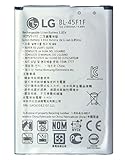
- COMPATIBILITY: Designed for LG Aristo MS210, Phoenix 3, Fortune M153, K8 2017, and other compatible LG models
- CAPACITY: Features a robust 2500mAh battery capacity for extended usage time between charges
- MODEL NUMBER: Direct replacement for BL-45F1F battery model, ensuring perfect fit and functionality
- BATTERY TYPE: Internal cell phone battery specifically designed for LG smartphones
- DEVICE SUPPORT: Works with multiple LG phone variants including M150, M151, M210, Risio 2, Fortune 2 LMX210CM, and LV3
2. Find out whether an app is responsible
Android: test with Safe Mode
Safe Mode temporarily disables downloaded apps while leaving the core system available. The exact button combination differs among manufacturers, but the usual method is to open the power menu, touch and hold Power off, and confirm the Safe Mode prompt. If the phone is noticeably faster in Safe Mode, a downloaded app is a likely cause.
- Use the phone in Safe Mode long enough to reproduce the lag: open the home screen, settings, camera, and the task that normally stutters.
- If the problem disappears, restart normally to exit Safe Mode.
- Remove recently downloaded or recently updated apps one at a time.
- Restart and test after each removal. The first app whose removal resolves the issue is your leading suspect; reinstall it only if you can confirm it was not the cause.
If Safe Mode is just as slow, downloaded apps are less likely to be the main cause. Continue with storage, battery, temperature, and network checks instead of uninstalling everything.
iPhone: stop only a misbehaving app
Force-closing an iPhone app is appropriate when it is frozen or clearly malfunctioning. It is not a routine speed-up technique. Apple states, “Force closing apps unnecessarily can slow down your device,” because reopening an app requires loading its data again. Close the specific unresponsive app, reopen it once, and update or remove it if the fault returns. Leave normally functioning apps alone.
The Tool Desk
Outbyte PC Repair FREEClear out junk files and repair common Windows errorsFree Scan →Outbyte Driver Updater FREEScan for outdated or missing drivers - takes under a minuteDriver Scan →Separate phone lag from a network problem
Apple notes that network congestion, movement between cell towers, and weak mobile data can make connected apps feel slow even when the phone’s processor is working normally. Try the same operation on a reliable Wi-Fi connection and in another location. If mobile data remains poor across locations while Wi-Fi is fine, investigate coverage, account limits, or a carrier fault rather than performing a factory reset.
3. Check settings that trade speed for battery life
iPhone Low Power Mode
Low Power Mode reduces power use by limiting background activity and other features. Some actions can therefore update less often or feel slower. Check Settings > Battery and temporarily turn Low Power Mode off while you assess full responsiveness. Re-enable it when longer runtime matters more than maximum background activity.
Android battery-saving controls
Android’s Battery Saver can limit background work, delay some visual effects, restrict connectivity or features, and affect individual apps. It is useful when you need the phone to last through the day, but it is not a performance mode. Check whether an aggressive battery profile is enabled before judging the hardware.
Rank #2
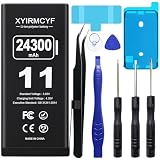
- 【Compatible Model】This Replacement battery compatible with iPhone 11 (Model: A2111, A2223,A2221). (Note: NOT compatible with other iPhone model). Before purchasing this battery, please make sure that the your Phone model number matches!
- 【New Upgraded Capacity】 24300mAh Super capacity compatible with iPhone 11, more power than original standard battery, same size but more capacity and more power life. New 0 Cycle, up to 2000 charging cycles. You will no longer have to worry about your Phone running out of battery quickly!
- 【Easy Installation】XYIRMCYF Battery for iPhone 11 with complete professional repair tool kits. If you want to replace the battery more easily, we highly recommend you to watch videos about 11 battery replacement on YouTube. Novices can easily install, complete. If you have any questions about the battery, please contact us.
- 【Safe and Quality】XYIRMCYF 11 Replacement Battery is made of A+ grade high quality batteries. Built-in smart chip to prevent over charging, over discharging and overheating protection, short circuit protection, high safety performance, long service life. Meanwhile, our batteries are tested under strict quality control standards and certified by CE, FCC, UL, PSE, ROHS. Ensures efficient and safe use.
- 【12 Months, Exchange or Refund Guaranteed】 We place a high value on customer experience. If you have any questions, whether before or after sales, please do not hesitate to contact us. We will do our best to solve it for you.
4. Treat temperature as a performance issue
Phones can reduce activity when they become too hot, and very cold conditions can reduce usable battery time. Apple says iPhone and iPad may run slower when too hot or too cold. Move the device to a moderate-temperature environment, remove a heat-trapping case temporarily, stop intensive use while it cools, and retest. Do not put a hot phone in a freezer or use an external heat source to warm a cold one.
Heat also accelerates chemical aging in lithium-ion batteries. Xiaomi’s guidance warns that prolonged heat, remaining fully charged for long periods, and frequent deep depletion can hasten aging. Xiaomi’s suggested 40–80% charging range is manufacturer-specific advice, not a requirement for every Android phone or iPhone. Follow the battery-care guidance for your exact model instead of applying one universal percentage rule.
5. Determine whether the battery is limiting performance
Lithium-ion batteries lose maximum capacity as they age. Their internal impedance can rise, and the battery may be less able to deliver the voltage and power the phone requests during demanding bursts. The result can be shorter runtime, unexpected shutdown protection, or performance management. Battery age alone does not prove that throttling is occurring.
iPhone: read Battery Health before deciding
- Open Settings > Battery > Battery Health (the wording may include “Battery Health & Charging” on some versions).
- Read Maximum Capacity and the Peak Performance Capability message.
- Look for a service recommendation or a notice that performance management has been applied.
- Use that message, your runtime symptoms, and the phone’s condition together when deciding whether to obtain a battery-service quote.
Apple says replacing an aged battery can improve performance in affected cases: “If you are impacted by this and would like to improve your device performance, replacing your device battery can help.” That statement supports a diagnosis-and-repair decision; it does not mean every old iPhone needs a new battery.
| Apple design figure | Capacity statement | Qualification |
|---|---|---|
| iPhone 14 and earlier models | 80% of original capacity at 500 complete charge cycles | Apple describes this as a model design specification under ideal conditions. |
| iPhone 15 models | 80% of original capacity at 1,000 complete charge cycles | Also an ideal-condition design specification; actual capacity depends on use and charging. |
These figures are not a universal replacement threshold and should not be applied to Android devices. Apple does not claim that every battery reaches exactly those values in everyday use.
Quick wins for a faster PC:
Fix the driver behind crashes, sound loss and screen glitchesFind Drivers →Clear out junk files and repair common Windows errorsFree Scan →Android: use the manufacturer’s battery information
Android menus and battery-health reporting vary by manufacturer and model. Open Settings > Battery and inspect battery usage, health information, and any service warning provided by the device maker. A single app with unusually high background use can explain rapid drain and heat without the battery itself being worn out. If the phone reports degraded health or shuts down during demanding tasks, ask the manufacturer or a qualified repair provider about model-compatible service.
Rank #3

- Voltage: 2.4V - Capacity: 800mAh - Type: AAA*2 . Connector Type:5264; Jack: Round. - (Tips: This battery model not suit for all cordless phone model, please kindly read our listing in details and confirm your old battery model, then select correct battery model.)
- Compatible Replacement for Batteries: BT183342 BT283342 BT166342 BT266342 BT162342 BT262342 2SN-AAA40H-S-X2 . This battery is not compatible with battery model - BT1021/BT1008/BT18433/BT17333/27910/BT183482.
- Compatible with Vtech Telephone Models: CS6114 CS61241 CS6199 CS6309 CS6319 CS6328 CS6329 CS6400 CS6409 CS6419 CS6429 CS6449 CS6509 CS6519 CS6529 CS6609 CS6619 CS6629 CS6649 CS6709 CS6719 CS6729 CS6829 CS6859 CS80100 CS81100 DS6151 DS6501 DS6511 DS6520 DS6521 DS6522 DS6601 DS6611 DS6621 DS6641 DS6642 IS7101 IS7121 LS6325 LS6375 IS6100 SN6107 SN1196 SN1197 SN6196 SN6197
- Compatible with AT&T Telephone Models: CL80100 CL81100 CL81200 CL81300 CL82100 CL82200 CL82250 CL82300 CL82350 CL82400 CL82450 CL82500 CL82550 CL82600 CL84100 CL84200 CL84250 CL84300 CL84100 CL84200 CL84250 CL84300
- Compatible with AT&T Telephone Models: CRL32102 CRL32202 CRL32302 CRL32352 CRL32452 EL52100 EL51100 EL51200 EL51250 EL52100 EL5220 EL52200 EL52210 EL52250 EL52251 EL52300 EL52350 EL52400 EL52450 EL52500 EL52510 TL30100 TL32100 TL32200 TL32300 TL90070 TL91270 TL91370 TL92220 TL92270 TL92320 TL92370 TL92420 TL92470 TL90071 TL92271 TL92371 TL92471 TL96271 TL96371 TL96471
6. Reduce background load without breaking important features
After identifying the cause, make targeted changes rather than installing a blanket “speed booster.” Remove unused apps, restrict background activity for apps that do not need it, reduce screen brightness, and shorten the screen timeout. Google specifically lists lower brightness, a shorter timeout, limiting high-battery-use apps, and keeping the phone cool as battery-saving measures. Some restrictions delay notifications or synchronization, so apply them only to apps where that trade-off is acceptable.
- Keep messaging, authentication, navigation, and safety-related apps unrestricted if delayed alerts would matter.
- Restrict background use for rarely opened shopping, video, or social apps if their battery activity is disproportionate.
- Review the list again after a day of normal use; a sudden change often points to one app update or setting rather than general phone age.
7. Factory-reset only after a verified backup
A factory reset removes installed apps and their associated data. It can resolve persistent software corruption, but it also creates the greatest risk of data loss and setup time. Treat it as a last resort, not as the next step after clearing a few files.
- Back up photos, contacts, messages, authenticator data, files, and app-specific content.
- Verify the backup by checking its date and opening important files from another device or the cloud.
- Record passwords, recovery codes, eSIM details, and two-factor authentication methods before erasing anything.
- On Android, use the reset option under the system settings; the exact path varies by manufacturer. On iPhone, use Settings > General > Transfer or Reset iPhone > Erase All Content and Settings.
- After the reset, install only essential apps first and test performance before restoring every app. If the clean phone is still slow, software clutter was not the main cause.
8. Decide between repair and replacement
Make the decision from evidence, not from the phone’s age alone. Compare the diagnosed cause, the phone’s remaining software and security support for your model, local service availability, the quoted battery or repair cost, and the performance you actually need. Current replacement prices and repair charges vary by region and model, so obtain a local quote rather than assuming a repair is automatically cheaper.
| What you observe | Most useful next action | Replacement signal |
|---|---|---|
| Storage is nearly full and the phone is otherwise responsive | Free space, offload or delete unused apps, then retest. | Only if adequate free space does not restore acceptable use. |
| Lag disappears in Android Safe Mode | Remove the problematic downloaded app and replace it with a trusted alternative if needed. | Not usually a hardware-replacement reason. |
| Only online tasks are slow | Compare Wi-Fi, another location, and carrier service. | Not a phone-replacement reason unless local tests also show device faults. |
| iPhone reports degraded battery capability or service | Request a model-specific battery-service quote. | Compare that quote with your needs and the cost of a new handset. |
| Phone remains slow after updates, adequate storage, app isolation, normal temperatures, and a verified reset | Have the device inspected for hardware wear. | Replacement becomes more reasonable if repair cost, support status, or required performance no longer fit. |
A generic repair tool kit is not a speed accessory. If you choose do-it-yourself battery work, identify the exact phone model first and follow its manufacturer or qualified-service safety directions. Battery puncture, incorrect adhesive removal, and damaged seals can create fire, injury, or water-resistance risks.
9. A maintenance routine that extends useful life
- Monthly: review storage, remove downloads you no longer need, and check which apps use the most battery.
- When a problem starts: note the first affected app, recent app or system updates, temperature, network type, and battery percentage. That history makes diagnosis faster.
- During heavy use: keep vents and the charging area clear, avoid leaving the phone in direct sun, and pause demanding games or video recording if the device becomes hot.
- Before service or reset: verify backups and save recovery codes, not just photographs.
- When evaluating an upgrade: compare the phone’s actual bottleneck and your required tasks with a repair quote and the replacement cost available in your region.
Following this process will not make an aging processor equal to a current flagship. It does, however, distinguish a fixable storage, app, network, setting, temperature, or battery problem from hardware limits that genuinely justify replacement.
Quick Recap
Product prices and availability are accurate as of the date/time indicated and are subject to change. Any price and availability information displayed on Amazon at the time of purchase will apply.

