
Do these 3 things before closing this tab:
1Clear out junk files and repair common Windows errors2Fix the driver behind crashes, sound loss and screen glitches3Repair Windows errors before they cause bigger problemsiTechGuides is reader-supported. When you buy through links on our site, we may earn an affiliate commission. As an Amazon Associate I earn from qualifying purchases. Learn more
To shoot more intentional video on an iPhone, choose settings that fit the scene, steady the phone, control focus and exposure, use Cinematic mode selectively, and check sound and recording options before you press Record. The right choices depend on your iPhone model and where the clip will be played; they can improve the result, but they do not make every phone clip equivalent to cinema-camera footage.
1. Choose resolution and frame rate for the shot
Open Camera or go to Settings > Camera > Record Video to see the options available on your iPhone. Supported devices may offer HD or 4K and frame rates such as 24, 25, 30, 60, or 120 frames per second; the exact choices depend on the model and region. Apple’s iPhone video recording guide explains how to select them.
- For a cinematic-style cadence: Try 24 fps if your iPhone offers it and the motion in the scene suits it. Treat it as a creative starting point, not a universal best setting.
- For fast movement: A higher frame rate can make motion appear smoother. Higher rates can also give you more flexibility for slow-motion treatment, depending on the recording and editing options available.
- For detail: Choose a higher resolution when you need it and have enough storage. Higher resolutions and faster frame rates create larger files.
Make the choice before filming rather than assuming every iPhone has the same controls. A resolution or frame rate that is unavailable on your model will not appear in its recording options.
2. Keep the camera steady and move with purpose
For handheld footage, hold the iPhone with both hands and move slowly. If the composition should stay still, rest the phone on a stable surface or use a tripod; support is especially useful for time-lapse capture. A tripod is optional, but it removes the need to hold a static shot by hand.
#1 Best Overall

- 【Universal Phone Cage 】Universal phone cage 2791B compatible with most mobile phones such as for iPhone 18 / 17 / 16 / 15 / 14 / 13 / 12 Pro / Pro Max, for Samsung Galaxy S24 / S23 / S22 Ultra, for Pixel 8/7/6/5 series, for Huawei Mate 60/50/40/P Series, and so on. The rugged one-piece aluminum alloy cage has multiple expansion interfaces for attaching a microphone, video light, side handles, top handle, tripod, and more!
- 【Double Handles Design 】Dual handle solution increase stability for dynamic shooting for video creators. It weighs 120g only and features with anti-slip silicone coverings to provide a comfortable and lightweight handheld shooting.
- 【Multiple Extension Ports】The aluminum portion of the handle features a shoe mount on top to add a light, microphone, monitor, mounting arm, or other accessories.
- 【Easy for Installation】Built-in Allen wrench allows us to change the direction of the handgrip and adjust the height. For other recommended solutions, please refer to ID: 3384B, 3591C, 4120.
- 【Professional Solution for Smartphone】The kit includes a universal phone cage 2791B, two side handles 2772 and other installation accessories. If you have any questions, please feel free to contact us.
When to use stabilization features
Action mode provides improved stabilization on supported iPhone models. Enhanced Stabilization is another model-dependent setting. Apple notes that Enhanced Stabilization zooms in slightly, so check the frame edges and leave room around your subject before recording. Find the controls available for your device in Apple’s guide to changing video recording settings.
Stabilization can help with movement, but it does not replace deliberate camera handling. If you want a locked composition, supporting the phone is usually the more direct approach.
Rank #2
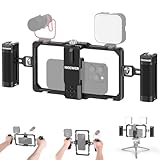
- Universal phone cage: 2.2–4 in (56–101.5mm) adjustable, the phone holder is compatible with iPhone 18 Pro 18 Pro Max 17 16 Samsung Galaxy S26 Ultra Google Pixel 9 and other Android smartphones for vlogging and streaming
- Ergonomic dual handles: Secure with a trapezoidal interface design for stability; the foam coating provides a stable and comfortable handheld use; use hex key to secure handles or adjust positions upwards or downwards for optimal grip
- Adequate accessory mounts: 1/4" threads connect ball head adapters and magic arms; two cold shoes connect microphone and LED fill lights; back slot is compatible with Rode wireless go 2 II transmitter
- Vertical/Horizontal Mounting: 1/4" threads mount the cage to a tripod, desktop tripod, monopod, and handgrip in vertical or horizontal orientations
- CNC aluminum alloy build: Resistant to scratches and shocks while remaining lightweight for YouTube/TikTok vlogging, live streaming, mobile video recording, videography, filmmaking, and photography
3. Direct focus and exposure instead of leaving them to chance
Tap the subject or point of interest on screen when you want to direct the camera’s attention. On supported controls, touching and holding can lock focus at a distance. This is useful when a subject is likely to move within the frame or when you want to avoid an unintended focus change during a take.
Exposure affects how bright the scene appears. Apple documents an adjustable Exposure control in Cinematic mode; available controls can vary by model and software version. Where the interface allows it, set exposure deliberately and keep it consistent across a take rather than letting brightness shifts distract from the action.
Rank #3
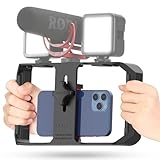
- Versatile Mounting Options: The Ulanzi NEW Version U Rig Pro offers 3 cold shoe mounts and is a top-selling product on Amazon, making it the perfect video rig for your smartphone.
- Lighting and Microphone Attachments: The new U Rig Pro comes with 3 standard shoe mounts and 2 universal 1/4"-20 threads, allowing you to mount LED lights and a video microphone on the rig. This is the ideal tool for mobile videographers and iPhone filmmakers.
- Filming on the Go with Your Phone: The U Rig Pro is designed for filming on the go with your smartphone, providing a smooth video and steady shots to capture unique life experiences.
- Professional Video Rig Cage: With a universal 1/4"-20 tripod thread at the bottom, the U Rig Pro can be mounted on a video tripod, slider, jib, and stabilizer, making it a must-have for professional videographers.
- Universal and Most Secure Phone Clip: The U Rig Pro's phone clip is compatible with iPhone 12, iPhone 12 Pro, iPhone 12 Pro Max, iPhone 12 Pro mini, Samsung, Huawei, and most smartphones with or without a case from 2 to 3.5 inches wide. It features both a spring clip and a secure screw for the safest rig for your phone.
4. Use Cinematic mode for selective focus changes
Cinematic mode creates a depth-of-field effect and can identify subjects and change focus automatically on compatible iPhones. You can tap a detected subject to select it, tap again to lock focus, or tap elsewhere when no person is detected. Touching and holding locks focus at a distance. See Apple’s Cinematic mode instructions for the controls available on supported devices.
Use the effect when shifting attention between subjects supports the scene. It is not a requirement for every shot, and artificial background blur may not suit a busy scene or every subject. Do not assume the effect will separate every edge perfectly.
Rank #4

- 【One-stop Professional Solution for Creator】SmallRig all-in-one quick release mobile video kit Pro edition 4704 provides a one-stop perfect solution for professional mobile phone video shooting, effectively allowing one person to operate like an entire team.
- 【Full Quick-release Phone Kit Includes】The kit includes universal QR phone cage 4299B, rotating quick release wireless control handle 4402B, rotating quick release handle 4403B, quick release tripod, microphone 3452C, P96 dual-color temperature LED light 3286B, power bank holder 4600, 2-in-1 USB-C PD fast charging cable, audio adapter and other accessories.
- 【Wide Compatibility】The phone cage is compatible with multiple mobile phone models, and is compatible with mobile phones with a width of 2.52~3.46 inches (64mm~88mm), such as for iPhone 18 / 17 / 16 / 15 / 14 / 13 Pro / Pro Max series, for Samsung Galaxy S24 / S23 / S22 series, for Huawei Mate 60 / 40 series, for Google Pixel 8 / 7 / 6 series, etc. The phone cage can fix the phone through for MagSafe magnetic suction, or through the included mobile phone clip. Supports the use of mobile phones with cases.
- 【Rotating Quick-Release Dual Handles】The two quick-release side handles included in the kit support quick-release connection and 360° rotation, which can be comfortably held at any angle, and switch between side handle and top handle mode in one second. The rotating quick release adapter is equipped with a 9.0 - 11.0kg (19.8 - 24.2lbs) damping adjustment ensuring stability, reliability, and flexibility.
- 【Rich interfaces for Ecological Expansion】The upgraded universal phone cage contains multiple 1/4-20” threaded holes, cold shoe ports and quick release interfaces, and adds expansion ports of 67mm filter, shoulder strap hole and expansion dock fixing port. Support the free collocation and combination of accessories, providing more possibilities for shooting and bringing more fun.
Review and adjust the clip afterward
On supported devices and clips, open the video in Photos to change focus points or revise or remove the Cinematic effect. Apple describes the editing controls in its guide to editing Cinematic videos. Reviewing the result gives you a chance to correct a focus choice without treating the effect as irreversible.
5. Check sound and recording settings before an important take
Before an interview, narration, or other planned recording, look over the settings your iPhone provides. Depending on the model, these can include HDR, audio recording choices, Auto FPS, white-balance lock, and stabilization controls. Apple’s video recording settings guide describes supported options; availability varies by device.
Best Value

- Native Tracking With Audio [4] & Lighting [1] – Level up your shots with a DJI gimbal that combines tracking, audio reception [4], and lighting. Stay sharply in focus, well-lit, and crystal clear.
- Seamless 360° Pan Rotation – Enjoy 360° horizontal rotation for immersive shots. Intelligent tracking lets you follow subjects freely, and the built-in tripod/selfie stick adds more flexibility.
- Direct Phone Connection for Tracking [2] – Instantly connect your phone to the foldable gimbal for quick setup and intelligent tracking. Portable and easy to use for on-the-go shooting.
- Ultra-Comfortable Grip with Built-in Tripod for Low-Angle Shots – This gimbal is ideal for capturing kids or pets in action, creative skateboarding shots, or new vlogging angles with a Selfie Stick, all without wrist strain.
- Built-in Extension Rod [5] & Tripod – No extra gear required! Capture group selfies or wide travel shots with this DJI gimbal. Set up anywhere—from city parks to family parties—for hands-free filming.
Match the recording to the playback destination
HDR can affect how a clip looks on devices or in software that do not support the relevant HDR playback path. In supported sharing cases, Apple says devices that cannot handle the HDR version receive an SDR version. If you know the clip will be edited or played on a particular system, choose a recording workflow that system can handle as intended.
Auto FPS can reduce the frame rate to 24 fps in low light. If motion cadence matters to your shot, check whether Auto FPS is enabled and consider the effect it may have before filming.
Make dialogue easy to hear
For speech, prioritize a quiet environment and place the recording source close to the speaker. An external microphone is optional, but its connector and any required cable or adapter must match both the microphone and your iPhone. Requirements differ between Lightning and USB-C devices; consult RØDE’s mobile compatibility guide when checking a USB-C microphone setup.
The Tool Desk
Outbyte Driver Updater FREEFix the driver behind crashes, sound loss and screen glitchesFind Drivers →Outbyte PC Repair FREERepair Windows errors before they cause bigger problemsFix Now →Quick Recap
A quick pre-recording checklist
- Confirm that your chosen resolution and frame rate are available and suit the motion in the scene.
- Check that you have enough storage for the selected recording settings.
- Decide whether to hold the phone, use stabilization, or support it on a stable surface or tripod.
- Tap to direct focus and check exposure before an important take.
- Use Cinematic mode only when its focus effect fits the shot.
- Check HDR, Auto FPS, and audio options against your recording and playback needs.
- For external audio, verify the microphone, iPhone port, cable, and adapter work together.
Product prices and availability are accurate as of the date/time indicated and are subject to change. Any price and availability information displayed on Amazon at the time of purchase will apply.

