
Recommended Free Tools
iTechGuides is reader-supported. When you buy through links on our site, we may earn an affiliate commission. As an Amazon Associate I earn from qualifying purchases. Learn more
On the Razer Basilisk V4 HyperSpeed, set up the 180-degree turn by opening Razer Synapse and mapping Razer’s Perfect 180 feature to a mouse control. Save or apply the mapping when Synapse prompts you, then test it in the game where you plan to use it. Razer’s documentation confirms the mapping action, but does not publish a verified click-by-click menu path.
What Perfect 180 does
Perfect 180 is Razer’s name for an instant 180-degree turn intended for low-sensitivity gaming. Instead of moving the mouse through a full half-turn manually, you press the control assigned to the feature.
The documented feature and setup instructions apply specifically to the Razer Basilisk V4 HyperSpeed. The available product documentation does not establish that every other Basilisk V4 variant has identical feature support or an identical setup process.
Free tools Windows power users keep installed
One-click scans. No signup required.
Razer describes the setup in its official FAQ as: “Simply map the feature to any control in Razer Synapse.” The same product page identifies Synapse as the software used for button mappings and other mouse settings: Razer Basilisk V4 HyperSpeed product page and FAQ.
#1 Best Overall
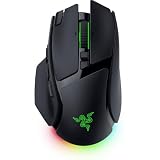
- IMMERSIVE CONTROL & SMART SCROLLING – Adapt every action to your workflow or gameplay with Razer HyperScroll Tilt Wheel Gen-2 featuring 24-step and 48-step tactile modes, free-spin scrolling, and Smart-Reel auto switching for gaming, productivity, and content creation
- PIXEL-PERFECT PRECISION FOR COMPETITIVE PLAY – Dominate FPS, battle royale, MOBA, and action games with the Focus Pro 50K Optical Sensor Gen-3 featuring 50,000 DPI, 930 IPS, 90G acceleration, and Frame Sync for ultra-low latency tracking
- LONG-LASTING WIRELESS PERFORMANCE – Play longer without interruptions with up to 200 hours of battery life at 1000Hz and ultra-responsive 8000Hz polling in both wired and HyperSpeed Wireless Gen-2 modes for esports-level responsiveness
- COMPLETE COMMAND AT YOUR FINGERTIPS – Execute advanced macros, push-to-talk commands, weapon swaps, profile cycling, and productivity shortcuts with 14 customizable controls including a multi-function trigger, M1 edge button, and 3 side buttons
- CUSTOMIZE YOUR DESKTOP EXPERIENCE – Personalize every session with 7-zone Razer Chroma RGB underglow, 16.8 million colors, dynamic lighting effects, and immersive game integrations across 300+ Chroma-enabled titles
What you need before mapping it
- A Razer Basilisk V4 HyperSpeed connected to the computer.
- Razer Synapse installed and running.
- A game in which you want to use the turn, ideally available for a quick practice or testing session.
- An unused or easily reachable mouse control that you are willing to dedicate to Perfect 180.
Keep the mouse connected while configuring it so Synapse can display and change its controls. If you own a different Basilisk model, confirm its product documentation before assuming that Perfect 180 is available.
How to map Perfect 180 in Razer Synapse
-
Open Razer Synapse
Start Razer Synapse with the Basilisk V4 HyperSpeed connected. Wait for Synapse to recognize the mouse before changing its controls.
-
Open the mouse’s control or button-mapping settings
In Synapse, select the Basilisk V4 HyperSpeed and go to the area used to configure its controls. Razer’s published instructions establish the mapping action, but they do not specify the exact menu names, tab order, or number of clicks. Labels can therefore differ by Synapse version or interface state.
Crashes, No Sound, or Screen Glitches?
Random freezes, missing sound and display glitches usually trace back to one bad driver. Find and replace yours safely.Free scan · under a minutePC Slower Than It Used to Be?
A free scan shows the junk files, broken settings and background clutter dragging Windows down - then fixes them in one click.Free scan · Windows 10 & 11Special offer. See more information about Outbyte and uninstall instructions. Please review EULA and Privacy policy.Rank #2
 Razer Basilisk V4 HyperSpeed Wireless Gaming Mouse, 140 Hr Battery, Black
- IMMERSIVE CONTROL — Switch seamlessly between tactile scrolling for weapon cycling and free-spin mode for rapid navigation with the 4-Way Razer HyperScroll Tilt Wheel, ideal for FPS, MMO, and productivity workflows
- PRECISION FOR EVERY PLAYSTYLE — Dominate competitive games with the Razer Focus X 33K Optical Sensor Gen-3 featuring 99.8% resolution accuracy, Smart Tracking, and precise 1-DPI adjustments even across glass surfaces
- LONG-LASTING WIRELESS PERFORMANCE — Play for up to 140 hours on Razer HyperSpeed Wireless or up to 225 hours on Bluetooth while enjoying responsive low-latency connectivity for gaming, work, and travel
- CUSTOMIZATION AT YOUR FINGERTIPS — Assign macros, push-to-talk, pings, shortcuts, and secondary commands across 12 customizable controls including the acclaimed multi-function trigger for faster execution
- CHROMA RGB IMMERSION — Customize from 16.8 million colors and dynamic lighting effects with Razer Chroma RGB underglow that reacts with 300+ integrated games for a more engaging gaming experience
-
Choose the control you want to press
Select the mouse button or other available control that should activate the turn. Pick a control you can reach reliably without disturbing your normal movement or aim. Check that it is not already needed for a more important in-game action.
-
Assign Perfect 180
For the selected control, choose Perfect 180 from the available functions and assign it. Use Razer’s exact feature name when searching the mapping options; “180-degree turn” is the descriptive behavior, while Perfect 180 is the documented software label.
-
Save or apply the change
Save or apply the mapping if Synapse presents such a command. The official FAQ does not document a particular save button, profile workflow, or confirmation dialog, so use the control shown by your current Synapse installation.
Rank #3
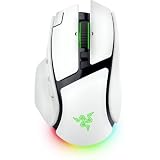 Razer Basilisk V4 Pro Wireless Gaming Mouse, 200 Hr Battery Life, White
- IMMERSIVE CONTROL & SMART SCROLLING – Adapt every action to your workflow or gameplay with Razer HyperScroll Tilt Wheel Gen-2 featuring 24-step and 48-step tactile modes, free-spin scrolling, and Smart-Reel auto switching for gaming, productivity, and content creation
- PIXEL-PERFECT PRECISION FOR COMPETITIVE PLAY – Dominate FPS, battle royale, MOBA, and action games with the Focus Pro 50K Optical Sensor Gen-3 featuring 50,000 DPI, 930 IPS, 90G acceleration, and Frame Sync for ultra-low latency tracking
- LONG-LASTING WIRELESS PERFORMANCE – Play longer without interruptions with up to 200 hours of battery life at 1000Hz and ultra-responsive 8000Hz polling in both wired and HyperSpeed Wireless Gen-2 modes for esports-level responsiveness
- COMPLETE COMMAND AT YOUR FINGERTIPS – Execute advanced macros, push-to-talk commands, weapon swaps, profile cycling, and productivity shortcuts with 14 customizable controls including a multi-function trigger, M1 edge button, and 3 side buttons
- CUSTOMIZE YOUR DESKTOP EXPERIENCE – Personalize every session with 7-zone Razer Chroma RGB underglow, 16.8 million colors, dynamic lighting effects, and immersive game integrations across 300+ Chroma-enabled titles
-
Test it in the intended game
Launch the game, enter a safe practice area, and press the assigned control once. Confirm that the view turns approximately 180 degrees and that the button does not also trigger an unwanted action. If the game has separate profiles or control contexts, test in the context where you will actually play.
PerformanceWindows Errors? Fix Them Before They SpreadDriversCrashes, No Sound, or Screen Glitches?PerformancePC Slower Than It Used to Be?Special offer. See more information about Outbyte and uninstall instructions. Please review EULA and Privacy policy.
Choosing a practical control
Perfect 180 is most useful when its control is easy to reach during movement. A side button can be convenient, but the best choice depends on your grip, sensitivity, and existing bindings. Avoid replacing a control that you need constantly for movement, communication, or a defensive action.
Before committing to the assignment, note the original function of the button. If you may need it later, record the old mapping so you can restore it in Synapse. Make one mapping change at a time; that makes it easier to identify whether the turn or another binding caused an unexpected result.
Rank #4

- IMMERSIVE CONTROL — Switch seamlessly between tactile scrolling for weapon cycling and free-spin mode for rapid navigation with the 4-Way Razer HyperScroll Tilt Wheel, ideal for FPS, MMO, and productivity workflows
- PRECISION FOR EVERY PLAYSTYLE — Dominate competitive games with the Razer Focus X 33K Optical Sensor Gen-3 featuring 99.8% resolution accuracy, Smart Tracking, and precise 1-DPI adjustments even across glass surfaces
- LONG-LASTING WIRELESS PERFORMANCE — Play for up to 140 hours on Razer HyperSpeed Wireless or up to 225 hours on Bluetooth while enjoying responsive low-latency connectivity for gaming, work, and travel
- CUSTOMIZATION AT YOUR FINGERTIPS — Assign macros, push-to-talk, pings, shortcuts, and secondary commands across 12 customizable controls including the acclaimed multi-function trigger for faster execution
- CHROMA RGB IMMERSION — Customize from 16.8 million colors and dynamic lighting effects with Razer Chroma RGB underglow that reacts with 300+ integrated games for a more engaging gaming experience
How to verify that the mapping is working
- Press the assigned control once while your character is stationary or in a low-risk area.
- Check that the view makes one half-turn rather than rotating repeatedly.
- Release the control and confirm that normal mouse movement still behaves as expected.
- Repeat the test while moving, if that is how you intend to use the feature.
- Try the game mode or profile in which you will play, because behavior may differ between game contexts.
The 180-degree figure is the feature’s stated turn, not a published laboratory accuracy measurement. Razer’s page does not promise identical behavior in every game.
Independent reader supportYour contribution helps us test, update, and keep practical guides available for everyone.Troubleshooting
Perfect 180 does not appear as an option
First confirm that Synapse has detected the Basilisk V4 HyperSpeed, not another connected mouse. The cited documentation covers this model specifically. If you are using another Basilisk V4 variant, do not assume its feature list is the same; check that model’s documentation.
The button still performs its old action
Return to the mouse’s mapping settings and verify that Perfect 180 is assigned to the intended control. Apply or save the change again if Synapse offers that option, then retest with the game focused.
Best Value
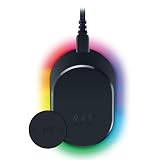
- MAGNETIC WIRELESS CHARGING – Recharge effortlessly between gaming sessions with a secure magnetic dock and wireless charging puck that keeps compatible Razer gaming mice powered and ready for continuous play
- TRUE 8000 HZ WIRELESS PERFORMANCE – Unlock ultra-low-latency Razer HyperSpeed Wireless Gen-2 connectivity with the integrated 8K Hz transceiver for maximum responsiveness in competitive FPS, MOBA, and esports gaming
- 8-ZONE CHROMA RGB UNDERGLOW – Customize eight lighting zones with 16.8 million colors and dynamic effects that sync with over 300 Chroma-integrated games for a more immersive gaming experience
- MULTI-DEVICE CONNECTIVITY – Keep your setup clean by pairing compatible Razer mice and keyboards through a single integrated transceiver, reducing cable clutter while maintaining reliable wireless performance
- CHARGE STATUS AT A GLANCE – Easily monitor battery levels through color-coded lighting indicators that show low, medium, and full charge status without opening software or interrupting gameplay
The turn does not happen in a particular game
Test the mapping outside a competitive or high-risk situation and then in the exact game mode you use. Razer’s published page does not provide game-specific settings, compatibility guarantees, or a troubleshooting procedure, so it cannot establish that every game will respond identically.
The turn is triggered accidentally
Choose a less frequently contacted control and retest your grip. Accidental activation usually means the selected button is too easy to press during ordinary movement; changing the assignment in Synapse is the documented way to use a different control.
What the official instructions do—and do not—specify
For this model, the official material establishes three points:
Quick wins for a faster PC:
Clear out junk files and repair common Windows errorsFree Scan →Scan for outdated or missing drivers - takes under a minuteDriver Scan →- The feature is called Perfect 180.
- It provides an instant 180-degree turn described for low-sensitivity gaming.
- You configure it by mapping it to a control in Razer Synapse.
It does not establish exact Synapse screen names, a universal click sequence, game-specific configuration, a required sensitivity value, or identical behavior across every game and Basilisk V4 variant. Those details should not be treated as official requirements.
Quick Recap
Quick checklist
- Confirm the mouse is the Razer Basilisk V4 HyperSpeed.
- Connect it and open Razer Synapse.
- Open the mouse control-mapping area.
- Assign Perfect 180 to the control you selected.
- Save or apply the mapping shown by your Synapse installation.
- Test once in a safe area of the intended game.
- Move the assignment if it conflicts with an existing action or triggers accidentally.
Product prices and availability are accurate as of the date/time indicated and are subject to change. Any price and availability information displayed on Amazon at the time of purchase will apply.

