
iTechGuides is reader-supported. When you buy through links on our site, we may earn an affiliate commission. As an Amazon Associate I earn from qualifying purchases. Learn more
Set up the Amazon Alexa Tablet 11 by choosing your language and accessibility options, connecting to Wi‑Fi, installing the initial update, signing in to Google and Amazon, and creating a screen lock. Once setup is complete, a long press on an empty part of the Home screen is the shortcut to wallpaper, Home settings, widgets, and app arrangement.
This walkthrough follows Amazon’s current setup and interface guidance. The Tablet 11 was announced with an 11-inch 2.5K display, 8GB RAM, 64GB storage, and a US starting price of $329.99; price, stock, and availability can change by country and date.
What you need before turning on the Tablet 11
Have these items ready:
- The tablet and its USB-C charging cable. Amazon includes the cable but not a power adapter; a suitable USB power adapter with a USB-C cable can charge it.
- Your Wi‑Fi network name and password.
- An Amazon account for Alexa and Amazon services.
- A Google account if you want Google Play, Google apps, and Google services.
- If transferring from another device, an Android phone with its transfer QR-code capability, or an iPhone/iPad and a USB-C cable.
The tablet can begin setup without Wi‑Fi, but internet access is needed for software updates, app downloads, and some features. If the battery is very low, charge it before troubleshooting a device that will not start.
The Tool Desk
Outbyte Driver Updater FREEFix the driver behind crashes, sound loss and screen glitchesFind Drivers →Outbyte PC Repair FREERepair Windows errors before they cause bigger problemsFix Now →Keep both account passwords available rather than assuming one login covers everything. Google and Amazon accounts are separate choices on this tablet, and each controls a different set of services. Also decide whether you want to copy settings from an existing device or start with a clean Home screen. A clean start takes longer to arrange, but avoids bringing over settings you no longer use.
#1 Best Overall
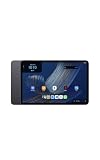
- Fast performance, all-day battery: Up to 15 hours of video playback. Quick performance with 8-core chip and 8GB RAM for smooth streaming, reading, and more. Wi-Fi 6, 8MP rear and front cameras.
- Stunning 2.5K resolution display: Watch, read, and create in sharp detail and vivid color. Smooth scrolling with 90Hz. Dual speakers powered by Dolby Atmos.
- Feels as good as it looks: Thin, light, and durable aluminum unibody design.
- Over a million apps on Google Play: From social media and streaming to fitness, finance, and gaming, find the apps you already love and discover new ones.
- Seamless and personalized: Amazon apps—Prime Video, Kindle, Audible, Amazon Music, Amazon Luna—are built-in and sync across devices with single sign-on and personalized content.
How to set up your Amazon Alexa Tablet 11
1. Turn it on
- Hold the power button on the top edge for about three seconds.
- Wait for the display and setup screen to appear. If nothing happens, connect the charger and try again after it has charged.
There is no need to hold the button for 20 seconds during a normal startup. That longer hold is a recovery step for an error or an unresponsive tablet, described below.
2. Choose a language and accessibility options
Select the language you want to use. Setup also lets you configure accessibility tools such as TalkBack, Magnification, and Display Size. Turn these on now if they make the initial screens easier to read or operate; they can be changed later in Settings.
Take a moment to read each prompt instead of tapping through automatically. The choices made here affect how transfer, account sign-in, and security screens behave. If another person will use the tablet, choose settings that make the display and touch controls comfortable for that user.
Free tools Windows power users keep installed
One-click scans. No signup required.
3. Select Get Started and choose how to transfer information
Tap Get Started. Amazon offers two transfer routes:
- From Android: scan the QR code shown during setup to transfer Wi‑Fi details, accounts, and settings.
- From iPhone or iPad: connect the device with a USB-C cable to transfer Wi‑Fi and other available settings.
If you prefer a clean start, skip transfer and select your Wi‑Fi network manually. Enter the network password exactly, including capitalization.
Transfer is optional. It can save time when the old device already has the correct network and account details, while manual setup is useful when the source device belongs to someone else or contains obsolete settings. Keep the source device unlocked and nearby while the QR-code or cable transfer is in progress. If transfer does not complete, you can continue by choosing the manual Wi‑Fi route rather than leaving the tablet at that screen.
4. Let the first software update finish
After the tablet reaches the internet, allow time for an initial software update. Keep it connected to Wi‑Fi and power when possible. Interrupting an update can leave setup incomplete, while waiting ensures that later menus and apps use the current software supplied for your device.
Quick wins for a faster PC:
Repair Windows errors before they cause bigger problemsFix Now →Fix the driver behind crashes, sound loss and screen glitchesFind Drivers →Update time depends on the connection and the size of the package. The display may restart, show a progress indicator, or return to a setup screen. Those behaviors do not necessarily indicate a fault. If the tablet remains unresponsive after an error, use the 20-second power-button restart rather than repeatedly tapping the screen.
5. Sign in to Google for Play Store access
When prompted, enter your Google account if you want the Google Play Store, Google apps, or other Google services. This sign-in is separate from your Amazon account. You can skip it if you do not need Google Play, but apps that depend on Google services may not be available without it.
Signing in later is possible through the tablet’s account controls, but doing it during setup means Play Store downloads and Google-powered features can be ready as soon as setup finishes. If a password is rejected, stop guessing and use Google’s password-recovery flow.
6. Sign in to Amazon for Alexa and Amazon apps
Sign in with your Amazon account to enable Amazon services and apps, including Alexa, Prime Video, Kindle, Audible, Amazon Music, and Amazon Photos. Use the account that owns any subscriptions or purchased content you want available on this tablet.
Do these 3 things before closing this tab:
1Fix the driver behind crashes, sound loss and screen glitches2Clear out junk files and repair common Windows errors3Scan for outdated or missing drivers - takes under a minuteRank #2
- Fast performance, all-day battery: Up to 15 hours of video playback. Quick performance with 8-core chip and 8GB RAM for smooth streaming, reading, and more. Wi-Fi 6, 8MP rear and front cameras.
- Stunning 2.5K resolution display: Watch, read, and create in sharp detail and vivid color. Smooth scrolling with 90Hz. Dual speakers powered by Dolby Atmos.
- Feels as good as it looks: Thin, light, and durable aluminum unibody design.
- Over a million apps on Google Play: From social media and streaming to fitness, finance, and gaming, find the apps you already love and discover new ones.
- Seamless and personalized: Amazon apps—Prime Video, Kindle, Audible, Amazon Music, Amazon Luna—are built-in and sync across devices with single sign-on and personalized content.
Amazon sign-in does not substitute for Google sign-in. You can use Amazon services without enabling Google Play, but software that relies on Google services may require the separate Google account. Confirm the email address shown on screen so purchases and subscriptions are associated with the intended account.
7. Create a screen lock
Choose a PIN, password, or pattern when setup asks for a screen lock. This primary credential protects the tablet and is required before fingerprint unlock can be enabled. Fingerprint is an additional unlock method, not a replacement for the PIN, password, or pattern; the tablet can request the primary credential after a restart or in other security-sensitive situations.
Choose a credential you can reliably remember. A fingerprint is convenient for routine unlocking, but it cannot recover a forgotten PIN, password, or pattern. Do not leave the tablet without a primary lock simply because you plan to use fingerprint access.
8. Finish setup and check the Home screen
Complete the remaining on-screen prompts. Once the Home screen appears, leave the tablet connected for a few minutes so pending app updates and account synchronization can complete. You are now ready to customize the layout.
If you need to start setup without Wi‑Fi
Amazon allows setup to begin offline, which is useful when a router is unavailable. Offline setup does not provide the complete tablet experience: software updates, app downloads, and some account-dependent features require an internet connection. Connect to Wi‑Fi when it becomes available, then allow the update and sign-ins to finish before judging whether an app or feature is missing.
How to set up fingerprint unlock
If you did not enroll a fingerprint during first-run setup, open the tablet’s security settings after creating a PIN, password, or pattern. Follow the on-screen enrollment prompts, lifting and repositioning the registered finger until the sensor has enough readings. Keep the primary screen-lock credential in a safe place: fingerprint unlock supplements it and cannot replace it entirely.
Fingerprint enrollment is best done with the finger in the position you normally use to unlock the tablet. If recognition is inconsistent, unlock with the primary credential and follow the enrollment controls again rather than deleting the credential itself. A restart or another security-sensitive event can require the PIN, password, or pattern even when fingerprint unlocking normally works.
Learn the Tablet 11 Home screen
The Home screen is divided into several functional areas. Knowing what each area does makes customization predictable.
Recommended Free Tools
| Area | What it contains | How to reach it |
|---|---|---|
| For You / Discover | Personalized content from services such as Kindle, Prime Video, Netflix, and Disney+. | Swipe right from the Home screen. |
| Up Next | Alexa suggestions, weather, reminders, recommended actions, and a Google-powered search bar. | Shown in the Home experience as you move through the main screen. |
| Apps Grid | Your customizable app and widget area. | Visible on the Home screen; long-press an empty area to edit. |
| Apps Dock | Quick-access pinned apps. | Persistent area at the bottom of the Home screen; supports up to six apps. |
| Apps Drawer | Every installed app. | Swipe up from the Home screen. |
Alexa is available hands-free when you say “Alexa,” provided the relevant voice features are enabled. For a text-first interaction, tap the Alexa button instead.
For You / Discover is a content surface, not another app folder. Up Next combines proactive suggestions with practical information such as weather and reminders. The Apps Grid is where your chosen shortcuts and widgets live, while the Apps Drawer is the complete list of installed apps. Keeping those roles separate helps explain why moving an icon does not change the Discover feed.
How do I change my tablet wallpaper?
- Go to the Home screen.
- Press and hold an empty area where there is no app or widget.
- Choose the wallpaper option from the editing controls.
- Select an available image or wallpaper category, preview it, and apply it to the Home screen when prompted.
Pressing an icon instead of empty space opens that app’s own shortcut menu, so move your finger to an unoccupied part of the grid before holding.
Rank #3
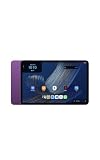
- Fast performance, all-day battery: Up to 15 hours of video playback. Quick performance with 8-core chip and 8GB RAM for smooth streaming, reading, and more. Wi-Fi 6, 8MP rear and front cameras.
- Stunning 2.5K resolution display: Watch, read, and create in sharp detail and vivid color. Smooth scrolling with 90Hz. Dual speakers powered by Dolby Atmos.
- Feels as good as it looks: Thin, light, and durable aluminum unibody design.
- Over a million apps on Google Play: From social media and streaming to fitness, finance, and gaming, find the apps you already love and discover new ones.
- Seamless and personalized: Amazon apps—Prime Video, Kindle, Audible, Amazon Music, Amazon Luna—are built-in and sync across devices with single sign-on and personalized content.
The same empty-space edit panel is the starting point for several Home tasks. If you see controls for wallpaper, widgets, an app list, or Home settings, you entered the correct editor. Press the system Home control or tap outside the panel if you want to leave without changing anything.
Open Home settings
Press and hold an empty area of the Home screen, then choose Home settings. This is the central place for Home-screen behavior and layout controls. The exact options shown can vary with the installed software version, so use the labels displayed on your Tablet 11 rather than looking for a setting that is not present.
Home settings are different from the general Settings app. Use the Home editor for launcher layout choices; use the main Settings app for display, system navigation, accounts, and other tablet-wide controls. If a setting is not in Home settings, back out and look in the relevant system category instead of repeatedly long-pressing an icon.
How do I add and arrange widgets?
Add a widget
- Press and hold an empty area on the Home screen.
- Choose the widget option in the customization controls.
- Browse the available widget list and select the widget you want.
- Place it in an open section of the Apps Grid and release when the outline fits.
Move or remove a widget
Press and hold the widget, drag it to another open position, and release. To remove it, press and hold it and choose the remove option shown by the editing controls. Removing a widget does not uninstall its app; the full app remains in the Apps Drawer.
Large widgets occupy more grid space. If a widget will not place, move another icon or widget first to create a sufficiently large uninterrupted area.
Arrange widgets according to how often you check them. Weather and reminders can sit near the first Home area, while less frequently used information can occupy a later position. A widget’s removal changes only the shortcut on the Home screen; it does not erase the underlying app or its account data.
Organize apps on the Home screen
Use the Apps Grid
The Apps Grid is the editable area for app shortcuts and widgets. Press and hold an app icon, drag it to a new position, and release. You can arrange frequently used apps near the first screen area and leave less-used shortcuts in the drawer.
When an icon will not land where expected, look for the placement outline and wait until the destination is open before releasing. A widget can occupy several positions, so rearranging a large widget may be necessary before an icon can fit.
Pin apps to the Apps Dock
Drag an app shortcut into the dock to keep it visible for quick access. The dock supports up to six pinned apps. If all six positions are occupied, remove one existing shortcut before adding another.
What’s actually slowing this PC down?
Pick the symptom - the matching free tool is one click away.
The six-app limit is a capacity limit, not a requirement to fill every slot. Leave a position empty if that makes the dock easier to scan. An app removed from the dock is still available in the Apps Grid or Apps Drawer.
Find an app in the Apps Drawer
Swipe up from the Home screen to open the Apps Drawer, which contains all installed apps, including apps that are not pinned or placed in the Apps Grid. Use the drawer when you want to launch an app without changing your Home-screen arrangement.
Rank #4
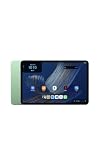
- Fast performance, all-day battery: Up to 15 hours of video playback. Quick performance with 8-core chip and 8GB RAM for smooth streaming, reading, and more. Wi-Fi 6, 8MP rear and front cameras.
- Stunning 2.5K resolution display: Watch, read, and create in sharp detail and vivid color. Smooth scrolling with 90Hz. Dual speakers powered by Dolby Atmos.
- Feels as good as it looks: Thin, light, and durable aluminum unibody design.
- Over a million apps on Google Play: From social media and streaming to fitness, finance, and gaming, find the apps you already love and discover new ones.
- Seamless and personalized: Amazon apps—Prime Video, Kindle, Audible, Amazon Music, Amazon Luna—are built-in and sync across devices with single sign-on and personalized content.
Keep content and shortcuts separate
For You / Discover is a content feed reached by swiping right; it is not the same as the Apps Grid. Use the Apps Grid and dock for shortcuts you open directly, and use Discover when you want personalized recommendations and media content.
Change gesture navigation to the three-button layout
Gesture navigation is the default on the Tablet 11. If you prefer visible Back, Home, and Recent buttons:
Crashes, No Sound, or Screen Glitches?
Random freezes, missing sound and display glitches usually trace back to one bad driver. Find and replace yours safely.Free scan · under a minuteWindows Errors? Fix Them Before They Spread
Repair common Windows errors and clear accumulated junk for a smoother, more stable PC - no reinstall needed.Free scan · no reinstall- Open Settings.
- Tap System.
- Tap Gestures.
- Tap Navigation mode.
- Select 3-button navigation.
The setting changes the system navigation controls; it does not alter the Apps Grid, dock, widgets, or Apps Drawer. If you switch modes and the controls feel unfamiliar, return to the same Navigation mode page and select the other option. Navigation mode is independent of the Home editor.
Change the display theme
Dark Theme is enabled by default. To switch it, open Settings > Display > Dark Theme and use the control on that page. Theme changes affect the system interface and supported apps, while an individual app may apply its own appearance setting.
Changing the theme does not change your wallpaper, widget positions, dock, or app drawer. If only one app remains light or dark, check that app’s own appearance control rather than changing the tablet-wide theme repeatedly.
Independent reader supportYour contribution helps us test, update, and keep practical guides available for everyone.Common setup problems and fixes
The tablet will not power on
- Connect the USB-C cable to a suitable power adapter and let the tablet charge.
- After it has charged, hold the power button again for about three seconds.
- If an error has left the tablet unresponsive, hold the power button for 20 seconds to restart it.
Because the box does not include a power adapter, verify that the adapter and cable are firmly connected and capable of supplying power. A depleted battery can make the first button press appear to do nothing.
Your Wi‑Fi network is missing or will not connect
- Confirm that the router is on and that the network name and password are correct.
- Move closer to the router and retry the connection.
- Restart the tablet with a 20-second power-button hold if setup is stuck after an error.
- Use Amazon’s Wi‑Fi troubleshooting guidance if the network still does not appear or authentication continues to fail.
You can begin setup offline, but do not expect app downloads, updates, or every account-dependent feature to work until the tablet is online.
An account sign-in fails
Check that you are using the intended Google or Amazon credentials. Google enables Play Store and Google services; Amazon enables Alexa and Amazon content. For a forgotten password, use the relevant provider’s password-recovery flow rather than repeatedly guessing during setup.
The update appears stuck
Keep the tablet connected to power and Wi‑Fi while the update is processing. If an error leaves the device unresponsive, hold the power button for 20 seconds to restart it, then resume setup. Do not assume that an app is unavailable until the update and account synchronization have finished.
A widget or icon will not move
Start the long press on an empty area to enter Home editing, then press and hold the widget or icon. If there is no room, move or remove another item first. A full dock also prevents a seventh pinned app from being added.
Alexa does not respond as expected
Try the Alexa button for a text-first interaction, or say “Alexa” for hands-free interaction when the relevant voice features are enabled. A voice response issue is separate from the Home-screen layout; changing wallpaper, widgets, or navigation mode will not reorganize your apps.
Best Value
- Fast performance, all-day battery: Up to 15 hours of video playback. Quick performance with 8-core chip and 8GB RAM for smooth streaming, reading, and more. Wi-Fi 6, 8MP rear and front cameras.
- Stunning 2.5K resolution display: Watch, read, and create in sharp detail and vivid color. Smooth scrolling with 90Hz. Dual speakers powered by Dolby Atmos.
- Feels as good as it looks: Thin, light, and durable aluminum unibody design.
- Over a million apps on Google Play: From social media and streaming to fitness, finance, and gaming, find the apps you already love and discover new ones.
- Seamless and personalized: Amazon apps—Prime Video, Kindle, Audible, Amazon Music, Amazon Luna—are built-in and sync across devices with single sign-on and personalized content.
Tablet 11 specifications and availability context
These are manufacturer-announced figures, not independent test results:
| Specification | Amazon-announced detail |
|---|---|
| Display | 11-inch, 2.5K resolution, 276 pixels per inch, 90Hz refresh rate |
| Processor | 8-core processor |
| Memory | 8GB RAM |
| Storage | 64GB configuration announced |
| Audio | Dolby Atmos speakers |
| Battery claim | Up to 15 hours of video playback, according to Amazon; not independently tested |
| Announced US starting price | $329.99 for the 8GB RAM/64GB configuration |
| Announced shipping | Beginning October 14, 2026, in the United States, Mexico, and Canada |
Prices, inventory, taxes, delivery dates, and regional configurations are time-sensitive. Confirm the live listing for your country before buying. Amazon’s setup material explicitly identifies its Pro Keyboard, Pro Pen, and Book Cover as compatible with the Alexa Tablet 12 Pro, not the Tablet 11. Check a current compatibility listing before purchasing a case, keyboard, pen, or other accessory for this model.
If you are comparing another tablet, use practical criteria rather than the brand name alone: screen size and aspect ratio, included or supported storage, input accessories, intended use, software and app access, and current price. The Tablet 11 runs Android with Google Play access alongside Amazon apps, so confirm that an alternative offers the services and accessories you actually need.
A practical first-day customization plan
- Finish the software update and both account sign-ins before arranging apps.
- Set the screen lock and enroll a fingerprint if you want faster everyday access.
- Switch Dark Theme or navigation mode if the defaults do not suit you.
- Choose a wallpaper by long-pressing empty Home-screen space.
- Add only the widgets you will check regularly, such as weather or reminders.
- Place up to six daily-use apps in the dock and keep the remaining shortcuts in the Apps Grid or Apps Drawer.
- Swipe right to review For You / Discover and check that Alexa suggestions, reminders, and weather are useful to you.
Revisit the layout after a few days. If the first screen feels crowded, remove widgets rather than deleting apps, and rely on the Apps Drawer for occasional tools. If navigation gestures are difficult to remember, switch to the three-button mode without changing the rest of your arrangement.
Frequently Asked Questions
Can I set up the Alexa Tablet 11 without Wi‑Fi?
Yes. Amazon allows setup to begin offline, but software updates, app downloads, and some account-dependent features require an internet connection. Connect to Wi‑Fi as soon as possible and let the initial update finish.
Do I need both a Google account and an Amazon account?
They serve different purposes. Google sign-in enables Google Play, Google apps, and Google services. Amazon sign-in enables Alexa and Amazon apps such as Prime Video, Kindle, Audible, Amazon Music, and Amazon Photos.
How do I change my tablet wallpaper?
Press and hold an empty area of the Home screen, choose the wallpaper control, select an image or category, preview it, and apply it. Holding an app icon instead opens that app’s shortcut menu.
How do I add widgets?
Press and hold an empty Home-screen area, choose the widget option, select a widget, and place it in an open section of the Apps Grid. Large widgets need a larger uninterrupted space.
How many apps fit in the Apps Dock?
The Apps Dock supports up to six pinned apps. If all six positions are occupied, remove one shortcut before adding another.
Why is my fingerprint not enough to unlock the tablet?
Fingerprint is an additional unlock method. You must first create a PIN, password, or pattern, and the tablet may request that primary credential after a restart or during other security-sensitive situations.
How do I switch from gestures to Back, Home, and Recent buttons?
Open Settings, select System, then Gestures, Navigation mode, and 3-button navigation.
Quick wins for a faster PC:
Fix the driver behind crashes, sound loss and screen glitchesFind Drivers →Repair Windows errors before they cause bigger problemsFix Now →Are the Alexa Tablet 12 Pro keyboard, pen, and book cover compatible with Tablet 11?
Amazon’s setup material identifies those accessories as compatible with the Alexa Tablet 12 Pro, not the Tablet 11. Check a current compatibility listing before buying accessories.
The Bottom Line
For a smooth Tablet 11 setup, connect to Wi‑Fi, complete the update, use the separate Google and Amazon sign-ins you need, and create a PIN, password, or pattern before enabling fingerprint unlock. To customize the Home screen, long-press empty space for wallpaper, widgets, and Home settings; use the Apps Grid and six-slot dock for shortcuts, and swipe up for every installed app.
Quick Recap
Product prices and availability are accurate as of the date/time indicated and are subject to change. Any price and availability information displayed on Amazon at the time of purchase will apply.

