
Free tools Windows power users keep installed
One-click scans. No signup required.
iTechGuides is reader-supported. When you buy through links on our site, we may earn an affiliate commission. As an Amazon Associate I earn from qualifying purchases. Learn more
Need a server to try this on? Antihost offers Linux VPS plans with NVMe storage, full root access and a 14-day free trial.
Run Home Assistant and Eclipse Mosquitto as two services in the same Docker Compose project. Attach both to one Compose network, persist their data directories, and configure Home Assistant to use mosquitto—the broker service name—as its hostname. Do not use localhost: inside the Home Assistant container, that address points back to Home Assistant itself.
This arrangement gives you a self-managed MQTT broker, predictable container-to-container networking, and recoverable configuration. The procedure below covers the Compose files, broker authentication, Home Assistant integration, MQTT discovery, message testing, security, backups, and common failures.
What you are building
MQTT is a lightweight publish/subscribe messaging protocol for machine-to-machine and Internet of Things communication. Devices publish messages to topics; clients subscribe to the topics they need. Home Assistant acts as an MQTT client, while Mosquitto routes messages between Home Assistant and sensors, switches, and other clients.
The deployment has two independent containers:
- Home Assistant Container: the automation platform and MQTT client.
- Eclipse Mosquitto: the MQTT broker that accepts connections and forwards messages.
Docker Compose creates a private network for the project. Docker’s Compose documentation describes the orchestration model, and Home Assistant documents its container installation method at Docker Compose and Home Assistant installation.
#1 Best Overall

- Supports Multiple Industry-Standard Communication Protocols: Modbus TCP, SNMP, BACnet, and MQTT. Our system is compatible with all these protocols and can deliver data in multiple formats simultaneously. Comprehensive support for SNMP v1/v2/v3 and SNMP Trap v2c/v3 with high security level.
- Can be integrated to AWS/Azure/Tuya loT cloud directly with low cost. Can be directly integrated into Home Assistant
- Proactive Alerts – Instant email notifications when thresholds are exceeded (fully customizable triggers). IFTTT Automation – Trigger smart actions (e.g., activate HVAC, log to Google Sheets, or Telegram alerts) via Webhook integration.
- PoE power supply: Centralized power supply: Simply provide uninterrupted power supply at the PoE switch to ensure power supply to the sensor.
- Easy to use: A graphical interface configuration tool supporting Windows, Linux, and macOS platforms with online remote upgrade capability for simplified product deployment and maintenance.
Use Mosquitto rather than an unsupported broker implementation. Home Assistant specifically says that ActiveMQ MQTT broker and the RabbitMQ MQTT Plugin are not supported and recommends a known-working broker such as Mosquitto. The broker must support MQTT protocol version 5; current Mosquitto releases do.
Prerequisites and layout
What you need
- A Linux server, NAS, or other Docker host with Docker Engine and the Compose plugin.
- Permission to create directories and run Docker commands.
- A stable hostname or IP address for devices that will connect from outside the Compose network.
- A plan for credentials and backups. The broker password file and Home Assistant configuration are persistent data, not disposable container state.
Create a project directory
Choose a directory for the Compose project and create persistent subdirectories:
Quick wins for a faster PC:
Repair Windows errors before they cause bigger problemsFix Now →Scan for outdated or missing drivers - takes under a minuteDriver Scan →Clear out junk files and repair common Windows errorsFree Scan →mkdir -p home-mqtt/homeassistant
mkdir -p home-mqtt/mosquitto/config
mkdir -p home-mqtt/mosquitto/data
mkdir -p home-mqtt/mosquitto/log
cd home-mqttThe resulting layout separates the two applications’ state:
home-mqtt/
├── compose.yaml
├── homeassistant/
└── mosquitto/
    ├── config/
    ├── data/
    └── log/
Persisting /config for Home Assistant and Mosquitto’s configuration, data, and log directories means a container replacement or image upgrade does not erase settings, retained messages, or logs.
Write the Compose file
Save this as compose.yaml. The example keeps MQTT inside the Compose network by default. Home Assistant’s web interface is published on port 8123. The optional MQTT port mapping is shown as a comment so you do not accidentally expose the broker more widely than necessary.
services:
  homeassistant:
    image: homeassistant/home-assistant:stable
    container_name: homeassistant
    restart: unless-stopped
    depends_on:
      - mosquitto
    volumes:
      - ./homeassistant:/config
      - /etc/localtime:/etc/localtime:ro
    ports:
      - "8123:8123"
    networks:
      - mqttnet

  mosquitto:
    image: eclipse-mosquitto:2
    container_name: mosquitto
    restart: unless-stopped
    volumes:
      - ./mosquitto/config:/mosquitto/config
      - ./mosquitto/data:/mosquitto/data
      - ./mosquitto/log:/mosquitto/log
    expose:
      - "1883"
    # Publish this only when LAN or host clients need to connect:
    # ports:
    #   - "1883:1883"
    networks:
      - mqttnet

networks:
  mqttnet:
    driver: bridge
Choose the correct network exposure
With only expose, Home Assistant and other containers attached to mqttnet can use Mosquitto, but clients on the Docker host or physical LAN cannot. If sensors, command-line clients, or another host must connect, add a ports mapping for 1883 and restrict access with the host firewall to the networks that need it. Do not publish an MQTT listener to the public internet without encryption and access controls.
When the port is published, use the Docker host’s address from LAN devices. Inside the Compose network, use mosquitto:1883. The service name is resolved by Docker’s internal DNS and remains stable even if the broker container is recreated.
Rank #2

- Precision Monitoring for Critical Environments: The server room temperature monitor is a professional temperature and humidity monitor built for continuous reliability in data centers, network closets, and industrial environments. Featuring a Swiss-grade external probe with ±0.2 °C and ±2 %RH typical accuracy, it delivers precise real-time measurements of temperature, humidity, and dew point — ensuring sensitive equipment stays within safe operating conditions.
- Real-Time Local Display and Easy Setup: With its bright 3.5-inch TFT color screen, this server room temperature monitor lets users instantly view live values and alarm status directly on the device — no PC required. Configure thresholds, network settings, and relay actions using simple front-panel buttons or through the integrated web interface. Perfect for on-site checks in IT rooms, labs, cold storage, or pharmaceutical facilities.
- Multi-Channel Smart Alerts & Automated Response: Stay protected from sudden changes with multi-channel notifications. The server rack temperature monitor supports email alerts via SMTP, SNMP trap, and MQTT messages, as well as visual and audible alarms. Use the onboard relay output to automatically activate fans, AC units, dehumidifiers, or warning lights — enabling true automated environmental control for your server room or warehouse.
- Powerful Network Integration & Open Protocols: Engineered for seamless system compatibility, this PoE server room temperature monitor supports Ethernet 10/100M, Modbus TCP, SNMP v1/v2, UDP, MQTT, DHCP, and RS-485 to Ethernet bridging. It easily connects with BMS, SCADA, DCIM, or custom IoT dashboards for centralized visibility. View and adjust MAC address, IP, and protocol settings directly from its browser-based interface.
- Local Data Logging & No Subscription Fees: Unlike cloud-dependent devices, the server room temperature monitor stores up to 100,000 records locally with a customizable sampling interval as low as 2 minutes. Historical logs can be exported in CSV format for compliance, audits, or trend analysis. Data stays secure on-site — no monthly fees, no forced cloud account, and no risk of lost records during network downtime.
Configure Mosquitto authentication and persistence
Create the broker configuration
Create mosquitto/config/mosquitto.conf with a listener, password file, persistence, and file logging:
listener 1883
allow_anonymous false
password_file /mosquitto/config/passwd
persistence true
persistence_location /mosquitto/data/
log_dest file /mosquitto/log/mosquitto.log
allow_anonymous false prevents unauthenticated clients from connecting. The persistent data directory stores broker state, while the log directory gives you a place to inspect connection and authentication failures.
Create a username and password
Start a one-off Mosquitto container to create the password file in the mounted configuration directory:
Outdated Drivers Are Slowing You Down
One free scan finds every outdated or missing driver and matches the right update for your exact hardware.Free scan · exact hardware matchWindows Errors? Fix Them Before They Spread
Repair common Windows errors and clear accumulated junk for a smoother, more stable PC - no reinstall needed.Free scan · no reinstalldocker compose run --rm mosquitto
mosquitto_passwd -c /mosquitto/config/passwd hauserEnter a strong password when prompted. The -c option creates a new file and should be used only for the first account. To add another account later, omit -c:
docker compose run --rm mosquitto
  mosquitto_passwd /mosquitto/config/passwd sensoruser
Keep the password file private and include it in your backup plan. In Home Assistant’s Mosquitto app documentation, usernames such as homeassistant and addons are reserved; avoid those names if you are reproducing that account convention. The app documentation is available at the Mosquitto broker documentation.
Start the services
docker compose up -dCheck that both containers are running and inspect the broker log if startup fails:
docker compose ps
docker compose logs --tail=100 mosquitto
docker compose logs --tail=100 homeassistant
A missing password file, an invalid configuration directive, or a host directory permission problem will normally appear in the Mosquitto log. Correct the file, then restart with docker compose restart mosquitto.
The Tool Desk
Outbyte Driver Updater FREEFix the driver behind crashes, sound loss and screen glitchesFind Drivers →Outbyte PC Repair FREERepair Windows errors before they cause bigger problemsFix Now →Rank #3
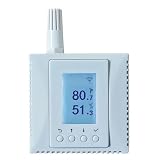
- Supports Multiple Industry-Standard Communication Protocols: Modbus TCP, SNMP, BACnet, and MQTT. Our system is compatible with all these protocols and can deliver data in multiple formats simultaneously. Comprehensive support for SNMP v1/v2/v3 and SNMP Trap v2c/v3 with high security level.
- A web service can be enabled to view sensor data directly through a browser. Support for the REST API protocol can also be enabled to return JSON data from the sensors. However, these two features are disabled by default for network security reasons, and can be enabled by configuration tool.
- Can be integrated to AWS/Azure/Tuya loT cloud directly with low cost. Can be directly integrated into Home Assistant.
- Wifi network. Provides reliable Wi-Fi connectivity with native support for WPA-Enterprise and 802.1X authentication, enabling seamless integration into enterprise-grade security architectures.
- Proactive Alerts – Instant email notifications when thresholds are exceeded (fully customizable triggers). IFTTT Automation – Trigger smart actions (e.g., activate HVAC, log to Google Sheets, or Telegram alerts) via Webhook integration.
Add the MQTT integration in Home Assistant
- Open Home Assistant at
http://<docker-host>:8123and sign in. - Go to Settings > Devices & services.
- Select Add Integration, search for MQTT, and choose it.
- For the broker address, enter
mosquitto. This is the Compose service hostname, notlocalhostand not the host machine’s IP address. - Enter port
1883, thehauserusername, and its password. - Submit the form and allow Home Assistant to create the MQTT connection.
Home Assistant’s MQTT integration documentation notes that the default keep-alive is 60 seconds and should be at least 15 seconds. Unless a device requires a different value, leave the default in place. The integration reference is Home Assistant MQTT.
Why localhost fails
Each container has its own network namespace. From inside Home Assistant, localhost:1883 means port 1883 in the Home Assistant container. Mosquitto is a different container, so the connection is refused or times out. Docker’s service discovery resolves mosquitto to the broker container on the shared mqttnet network.
Enable and use MQTT discovery
MQTT discovery is enabled by default in Home Assistant and uses the homeassistant prefix by default. A device publishes a JSON configuration payload to a discovery topic. Home Assistant reads that payload, creates the entity, and then uses the state and command topics named in the payload.
Switch discovery example
A documented switch pattern uses these topics:
| Purpose | Topic |
|---|---|
| Discovery configuration | homeassistant/switch/irrigation/config |
| State updates | homeassistant/switch/irrigation/state |
| Commands from Home Assistant | homeassistant/switch/irrigation/set |
A minimal configuration payload could identify those state and command topics:
{
  "name": "Irrigation",
  "unique_id": "irrigation_switch",
  "state_topic": "homeassistant/switch/irrigation/state",
  "command_topic": "homeassistant/switch/irrigation/set",
  "payload_on": "ON",
  "payload_off": "OFF",
  "state_on": "ON",
  "state_off": "OFF"
}
Publish the configuration with the MQTT retain flag so Home Assistant can reconstruct the entity after a restart. Retaining the discovery message is especially important when the device does not republish its configuration automatically.
Use Home Assistant’s birth message instead
Devices that do not retain discovery configuration can subscribe to homeassistant/status. When Home Assistant announces online, the device republishes its discovery payload and current state. This birth-message approach avoids stale retained configuration while still allowing entities to return after a Home Assistant restart.
Test publishing and subscribing before adding devices
Test from the Docker host
If you published port 1883 to the host, use the official command-line pattern with the host loopback address:
Rank #4
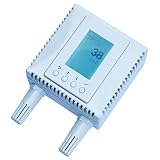
- 4-in-1 Environmental Monitor (TVOC, CO₂,Temperature,Humidity). High accuracy:Temperature measurement accuracy: ± 0.3° C; Humidity measurement accuracy: ±3%;CO₂ measuring range: 0-2000ppm.
- Supports Multiple Industry-Standard Communication Protocols: Modbus TCP, SNMP, BACnet, and MQTT. Our system is compatible with all these protocols and can deliver data in multiple formats simultaneously. Comprehensive support for SNMP v1/v2/v3 and SNMP Trap v2c/v3 with high security level.
- Can be integrated to AWS/Azure/Tuya loT cloud directly with low cost. Can be directly integrated into Home Assistant
- Proactive Alerts – Instant email notifications when thresholds are exceeded (fully customizable triggers). IFTTT Automation – Trigger smart actions (e.g., activate HVAC, log to Google Sheets, or Telegram alerts) via Webhook integration.
- PoE power supply: Centralized power supply: Simply provide uninterrupted power supply at the PoE switch to ensure power supply to the sensor.
mosquitto_pub -h 127.0.0.1 -t homeassistant/switch/1/on -m "Switch is ON"
mosquitto_sub -h 127.0.0.1 -v -t "homeassistant/#"
The subscriber prints matching topic names and payloads. Start the subscriber first when you want to observe a message that is not retained.
Recommended Free Tools
Test from another container
A client running on the Compose network must use the broker service name:
docker run --rm --network home-mqtt_mqttnet eclipse-mosquitto:2
  mosquitto_pub -h mosquitto -p 1883
  -u hauser -P 'YOUR_PASSWORD'
  -t test/compose -m 'hello from Compose'
Compose normally names the network after the project directory and network key. Confirm the actual name with docker network ls if your directory or project name differs. Replace the placeholder password only in your local command; do not commit credentials to source control.
Test in the Home Assistant interface
Open the MQTT integration’s Configure controls. Use the publish function to send a packet to a test topic, then use the listen function to subscribe to that topic or to homeassistant/#. This separates broker connectivity from a device’s firmware, payload format, or discovery implementation.
Security decisions for a real installation
Authentication
Require a username and password for every client. Use separate accounts where practical so revoking one device does not require changing every client. Store credentials in a password manager and protect the Mosquitto password file and Home Assistant configuration directory.
TLS for untrusted networks
Port 1883 is plain MQTT. If the broker is reached across an untrusted network, add TLS and use certificate-related settings appropriate to your certificate authority and clients. Keep the unencrypted listener limited to a trusted local network or the private Compose network. Do not infer that a Docker bridge network protects clients that connect through a published host port.
Limit the published port
Omit the ports mapping when only Home Assistant and other containers need MQTT. If LAN devices require it, publish 1883 only on the host interfaces and firewall rules that serve those devices. A published port is reachable according to host networking and firewall policy, not merely according to the Compose file.
Best Value

- Smart WiFi Control: Monitor indoor thermometer data anytime, anywhere. The gateway can be connected through WiFi via the app, pairing up to 10 humidity temperature sensors. Boasts a 2-year battery life (Supports 2.4GHz Wifi networks only)
- High-Precision Readings: The Swiss-made WiFi temperature sensor provides precise readings, measuring temperatures with ±0.54°F / ±0.3℃ accuracy and humidity within ±3% RH. Data is refreshed every 2s, ideal for wine cellars.
- Remote Alarm: You can preset temperature and humidity values via the app. When the hygrometer thermometer sensor detects a change, you'll receive a notification via app and email, offering enough time to react through the alarm function.Only support gateway H5151/H5042.
- Data Storage & Export: This humidity monitor uploads data to the app via WiFi and Bluetooth. View the temperature and humidity trend chart from the past 20 days and export data from the past 2 years. Ideal for greenhouses, farms, etc.
- Compact & Portable Design: This indoor thermometer adopts a compact and stylish design equipped with a lanyard, suitable for any corner of the room, such as drawers, wine cabinets, guitar cases, etc.
Backups, upgrades, and operational ownership
Back up the persistent directories
Back up homeassistant/, mosquitto/config/, and Mosquitto’s data directory. Include the password file and certificate material if you use TLS. Test that a backup can be restored to a separate Compose project before relying on it.
Upgrade deliberately
Pull new images and recreate containers without deleting the mounted directories:
docker compose pull
docker compose up -d
Review the broker log and Home Assistant’s MQTT integration after an upgrade. Never use docker compose down -v for routine maintenance when your data is stored in named volumes; in this example, bind-mounted directories remain outside the container lifecycle, but deleting or replacing them still destroys state.
Understand who owns what
With this design, you own the Docker host, Compose file, broker configuration, credentials, firewall, certificates, and backups. Home Assistant manages its integration and entities; Mosquitto manages MQTT sessions, retained messages, and broker logs. An external broker changes the networking and maintenance boundary, but it does not remove the need to configure authentication, discovery, and backups for Home Assistant’s configuration.
Same-Compose broker versus an external broker
Both arrangements can work. Choose based on where you want the network and operational boundary.
| Decision axis | Mosquitto in the same Compose project | Broker on another host |
|---|---|---|
| Broker hostname | mosquitto on the shared Compose network |
The external host’s DNS name or IP address |
| Network exposure | Can remain internal; publish 1883 only for clients outside Compose | Requires a routed connection and firewall rules between Home Assistant and the broker |
| Authentication and TLS | Configured in the Mosquitto container and its mounted files | Configured on the external broker; Home Assistant still needs matching credentials and TLS settings |
| Persistence and backup | Back up the Compose bind mounts for Mosquitto and Home Assistant | Back up each system according to its separate ownership and storage policy |
| Discovery behavior | Unchanged; Home Assistant still uses the homeassistant prefix by default |
Unchanged if the broker can carry the discovery and state topics reliably |
| Operational ownership | One Compose project controls both services | Broker upgrades, availability, and access controls belong to another host or team |
The official documentation does not provide a benchmark or cost estimate for either option. The practical difference is control and network placement, not a documented performance guarantee.
Do these 3 things before closing this tab:
1Fix the driver behind crashes, sound loss and screen glitches2Clear out junk files and repair common Windows errors3Scan for outdated or missing drivers - takes under a minuteQuick Recap
Troubleshooting by symptom
Home Assistant cannot connect
- Confirm both services are running with
docker compose ps. - Use
mosquittoas the hostname and1883as the port from Home Assistant. - Check that both services list the same
mqttnetnetwork. - Verify the username and password against the mounted
passwdfile. - Read
docker compose logs mosquittofor authentication, listener, or permission errors.
A host or LAN client cannot connect
- Ensure the 1883
portsmapping is enabled;exposealone is not a host-port publication. - Connect to the Docker host’s LAN address, not the service name, from a physical device.
- Check the host firewall and any upstream network firewall.
- Confirm that the broker listener is bound to the expected interface and that TLS settings match the client.
Discovery creates no entity
- Subscribe to
homeassistant/#and verify the configuration topic and JSON payload. - Check that the topic begins with the configured
homeassistantprefix. - Retain the configuration message, or have the device republish after the
homeassistant/statusbirth message reportsonline. - Verify that state and command topics in the payload exactly match the topics the device publishes and subscribes to.
Messages appear to vanish
- Start a subscriber before publishing a non-retained test message.
- Use
-vwithmosquitto_subso the topic and payload are both visible. - Check credentials and topic spelling; MQTT topic names are case-sensitive.
- Inspect broker logs and confirm that the client is connected to the intended broker, especially when both an internal and external broker exist.
Final deployment checklist
- Home Assistant and Mosquitto run as separate Compose services.
- Both services share a Compose network, and Home Assistant uses
mosquittoas the broker hostname. - Home Assistant’s
/configand Mosquitto’s configuration, data, and log directories are persistent. - Anonymous MQTT access is disabled and credentials are stored securely.
- Port 1883 is published only when clients outside the Compose network need it.
- TLS protects MQTT traffic that crosses an untrusted network.
- The MQTT integration is added through Settings > Devices & services.
- Discovery configuration is retained or republished after Home Assistant’s birth message.
- A publish/subscribe test succeeds before device-specific troubleshooting begins.
- Backups include broker credentials, configuration, retained data, and Home Assistant’s configuration.

