
Outdated Drivers Are Slowing You Down
One free scan finds every outdated or missing driver and matches the right update for your exact hardware.Free scan · exact hardware matchWindows Errors? Fix Them Before They Spread
Repair common Windows errors and clear accumulated junk for a smoother, more stable PC - no reinstall needed.Free scan · no reinstalliTechGuides is reader-supported. When you buy through links on our site, we may earn an affiliate commission. As an Amazon Associate I earn from qualifying purchases. Learn more
To use ClickUp for project management, build a workspace structure that reflects how your team groups work, make tasks and statuses consistent, then choose views for execution, scheduling, dependencies, and capacity. Add project context in Docs and automate routine routing or labeling. The setup should fit your team’s governance and terminology—not force every project into one template.
1. Organize the workspace around your projects
Start with the ClickUp hierarchy and decide where your team will group projects and the work that supports them. ClickUp’s project-management guidance covers hierarchy, Custom Fields, views, Docs, templates, Automations, and integrations (ClickUp for project management). Its examples place project-management views at Space, Folder, and List levels (Create views for project management).
For example, a team might organize a project portfolio with a Folder for each project, Lists for phases or workstreams, and a shared place for project Docs. Other teams may need separate Spaces or a different structure. Use the levels that make work easy to find and ownership clear; adapt examples such as roadmaps, status reports, risks and issues, and project-team tasks to your own governance and vocabulary.
Custom Fields can capture information the team uses to prioritize, automate, report, or share knowledge. Choose fields that support real decisions—such as project phase or health—rather than adding fields that nobody will maintain.
#1 Best Overall

- Easily Stay On Track & Make The Most of Your Time: ZICOTOs’ daily planner makes it easier than ever for you to stay organized, reduce stress & enjoy more free time! Arrange your schedule, priorities, to do’s and jot down plans & ideas on the daily notes section
- Smartly Plan Ahead & Boost Your Productivity: Absolutely clever & efficient! With the planner notebook you can break down your daily tasks into half-hourly focus blocks and map out priorities & follow-up duties to keep your day on track and enhance productivity
- Plenty Of Space For Efficient Planning: Stay focused & manage your time wisely! The 9.3x6.3” (inner pages) work planner & organizer notebook offers ample space for 80 days of life-changing planning with each day being spread across 2 pages - set yourself up for purposeful days
- Now Is The Best Time To Start: The daily planner is undated so you can start to add structure to your schedule and cultivate new planning habits right away! Beat procrastination, boost happiness & make each day count with the hourly planner
- Adds Beauty To Daily Planning: A gorgeous champagne pink cover, chic gold foil letters, a golden ring wire and a clean, easy-to-use layout - enjoy the gorgeous and modern minimalist design of the undated daily planner!
2. Define tasks, statuses, and ownership
Use tasks for actionable work. Every task must belong to at least one List and can include an assignee, status, priority, start date, due date, and duration. If a task belongs to multiple Lists, its home List determines its status and Custom Fields (Intro to tasks). Decide which List is the home for shared tasks so that people understand where their status and field values come from.
Choose statuses that reflect the work
ClickUp’s default status groups are Active, Done, and Closed. Statuses can be configured at Space, Folder, Subfolder, or List level (Manage task statuses). Keep the workflow small enough to use consistently, but specific enough to show meaningful progress. Define what each status means and who is responsible for updating it; otherwise, a status view can look orderly while failing to reflect actual work.
Rank #2
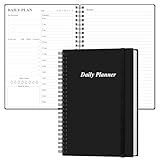
- UNDATED DAILY PLANNER - The daily planner is undated, if you miss a day or you are off of work that day you don’t need to waste a page, start use this schedule planner any time.
- Work Smarter with Daily Task Management - This daily planner undated each page includes space for 5 top priorities, 9 to do list,daily schedule from 6am-8pm, notes&ideas and water intake.Break your day into hours and help you work effective.
- A5 SIZE - This undated daily organizer size of 8.5 x 5.8 inch, perfect size to fit in your bag.1 quick reference page, contact pages, important dates page, and 75sheet (150 page) daily plan & notes,8 dotted grid pages, Undated appointment planner makes it easy for you to start the planner at any time.
- SUPERIOR QUALITY - This to do list planner with 100gsm thick paper to reduce ink leakage, erase fraying and shade issues. Sturdy and flexible PP cover to protect the inner pages well. Strong metal and lay-flat twin-wire binding, Planner with inner pocket to store loose items, like tickets, cards etc and elastic closure to protect your planner.
- PERFECT FOR - This day planner features flexible structures that allow you to keep track of goals, tasks, appointments, project, works, habbits etc. Perfect for planner, organizer or academic agenda for school, work or home or makes a great gift for your family members, relatives or friends
Make task records usable
Agree on when a task needs an assignee, priority, or date, and create Custom Fields only for information that the team needs across the project. If one task appears in multiple Lists, avoid assuming each List can maintain an independent status or set of Custom Fields: the home List controls those values.
Free tools Windows power users keep installed
One-click scans. No signup required.
3. Select views for the work people need to do
Views are different working perspectives on project tasks. Choose them based on the question a team member needs answered, rather than creating every available view. ClickUp’s view guide documents use cases and plan-dependent availability and limits (Views feature availability and limits).
Rank #3

- Easily Stay On Track & Make The Most Of Your Time: ZICOTOs’ daily planner makes it easier than ever for you to stay organized, reduce stress & enjoy more free time! Arrange your schedule, priorities, to do’s and jot down plans & ideas on the daily notes section
- Smartly Plan Ahead & Boost Your Productivity: Absolutely clever & efficient! With the planner notebook you can break down your daily tasks into half-hourly focus blocks and map out priorities & follow-up duties to keep your day on track and enhance productivity
- Plenty Of Space For Efficient Planning: Stay focused & manage your time wisely! The 9.3x6.3” (inner pages) work planner & organizer notebook offers ample space for 80 days of life-changing planning with each day being spread across 2 pages - set yourself up for purposeful days
- Now Is The Best Time To Start: The daily planner is undated so you can start to add structure to your schedule and cultivate new planning habits right away! Beat procrastination, boost happiness & make each day count with the hourly planner
- Adds Beauty To Daily Planning: A gorgeous terracotta cover, chic gold foil letters, a golden ring wire and a clean, easy-to-use layout - enjoy the gorgeous and modern design of the undated daily planner!
| View | Best suited to | How to use it |
|---|---|---|
| List | Organizing tasks | Group, sort, and filter work to inspect a project or workstream. |
| Board | Tracking status flow | Move tasks through workflow stages so the team can see what is progressing or waiting. |
| Calendar | Scheduling | Review tasks by date and coordinate upcoming work. |
| Gantt | Timelines and sequencing | See deadlines and dependencies across a project timeline. |
| Team or Workload | Work distribution and capacity | Review how work is distributed across team members. |
View availability and usage limits vary by plan, so check ClickUp’s current availability table before making a limited-use view essential to your workflow. The cited help page says List view loads up to 5,000 tasks at a time; that is a loading limit, not a recommendation to keep a project list that large.
4. Connect tasks with dependencies
Use dependencies when a task must wait for another task or when it blocks subsequent work. ClickUp supports creating task dependencies in List, Board, Calendar, and Gantt views; Gantt displays dependencies as arrows. The cited ClickUp guide says dependencies are available on all plans but not in the ClickUp mobile app (Create Dependency Relationships in views).
Rank #4

- Undated and Flexible – Start using this planner any day of the year without wasting a single page. Whether you're goal-setting in January or regrouping mid-year, it adjusts to your flow. Great for students, professionals, or anyone building routines on their own terms.
- Two-Page Daily Layout – Each day is thoughtfully spread across two pages with space to plan hourly schedules, set priorities, check off to-dos, and jot down ideas. It’s a layout that gives you room to breathe, reflect, and take action – one day at a time.
- Hourly Scheduling Made Easy – Use the dedicated time-blocking column to structure your entire day, from early meetings to evening workouts. Ideal for time-sensitive goals, appointment tracking, and productivity planning without digital distractions.
- Clean and Spacious Design – Includes clearly marked spaces for priorities, task checklists, notes, and follow-ups. The open layout keeps you visually organized so you can focus on what matters, without flipping back and forth or feeling boxed in.
- Thick Paper, Elegant Finish – Features 100gsm paper that resists bleed-through, paired with soft pinstripes and a sturdy gold spiral binding. A pleasure to write on and beautiful enough to leave out on your desk or bring on the go.
Link only genuine sequencing constraints. A dependency should tell the team what cannot proceed yet, not serve as a general note about related work. Use the Gantt view when seeing relationships alongside deadlines and timelines helps people understand the sequence.
Quick wins for a faster PC:
Scan for outdated or missing drivers - takes under a minuteDriver Scan →Repair Windows errors before they cause bigger problemsFix Now →5. Keep project context in Docs
Use ClickUp Docs for material people need to understand or run the project, such as a charter, brief, decision record, or shared project knowledge. Keep the relevant Docs alongside project work in the workspace structure so the context is easy to find. ClickUp’s project-management examples include project Docs as part of the project setup (Create views for project management).
Best Value

- [START ANY MONTH] This undated monthly planner includes 12 open dated monthly layouts, allowing you to begin planning at any time of year. Each month offers a clear, spacious overview for tracking events, appointments, and goals
- [120 LINED NOTEBOOK PAGES] Designed as a planner notebook hybrid, this planner features 120 lined pages ideal for note taking, journaling, and meeting notes. A great choice for students, teachers, professionals, and anyone needing a daily planner with extra writing space
- [SNAP IN BOOKMARK] Easily keep your place with the included snap in bookmark, designed for quick navigation between monthly calendars and notes
- [YEARLY OVERVIEW] Includes full year reference calendars for 2027 and 2028 along with a dedicated yearly goals checklist to help you plan ahead, track progress, and stay focused
- [REFERENCE SECTIONS] Stay organized with dedicated pages for contacts and important dates, plus clearly listed holidays for 2027-2028 and a helpful states and capitals reference page
6. Automate repeatable routing and labeling
Automations are useful when a recurring condition should trigger the same action each time. ClickUp’s project-management examples include routing status-report tasks to a Project Health List and setting a Project Phase Custom Field when a task is created in a phase List (ClickUp for project management; Automations for project management).
Before automating a process, make sure the triggering status, List, or field has a clear meaning and is used consistently. Start with a small, predictable workflow, then confirm that tasks land in the intended place or receive the expected label. Automation should reinforce the project’s working conventions, not conceal unclear ownership or status definitions.
Quick Recap
7. Check the setup before the team relies on it
- Can team members tell where a project and its work belong in the hierarchy?
- Does every task have a home List, with the team aware that it controls status and Custom Fields for tasks in multiple Lists?
- Are status names and update responsibilities clear?
- Does each view answer a distinct need: organizing work, tracking flow, scheduling, sequencing, or reviewing capacity?
- Have you confirmed the current plan limits for any view the workflow depends on?
- Can people who need to manage dependencies access a supported view, given the mobile limitation stated in ClickUp’s guide?
- Do Docs hold the context people need, and do Automations route or label work in a predictable way?
Product prices and availability are accurate as of the date/time indicated and are subject to change. Any price and availability information displayed on Amazon at the time of purchase will apply.

