
Quick wins for a faster PC:
Fix the driver behind crashes, sound loss and screen glitchesFind Drivers →Clear out junk files and repair common Windows errorsFree Scan →Scan for outdated or missing drivers - takes under a minuteDriver Scan →iTechGuides is reader-supported. When you buy through links on our site, we may earn an affiliate commission. As an Amazon Associate I earn from qualifying purchases. Learn more
On a vivo foldable, start with the general vivo controls for themes, wallpapers, and Always On Display, then verify whether your exact model and software expose separate cover-screen options. vivo documents the path Settings > Lock screen & wallpaper > Theme or Wallpaper, but that path does not prove that a wallpaper is assigned independently to the outer display. The vivo X Fold5, used here as the current example, has a 6.53-inch cover screen; menu names and available controls can vary by model, carrier, country, and software version.
What you can safely configure
vivo’s public documentation establishes two broad customization areas that are relevant to a foldable’s displays:
- Theme and wallpaper: the general vivo guide places these under Settings > Lock screen & wallpaper > Theme or Wallpaper. This is a device-wide vivo interface path, not a confirmed X Fold5-only cover-screen procedure. vivo’s Overview and Quick Start guide also warns that features can vary by device, carrier, and region.
- Always On Display (AOD): a later vivo guide describes enabling AOD and selecting an AOD style and display mode, with notification-related choices. The guide is general and does not establish which AOD choices appear on every foldable’s cover screen. The vivo user guide covering theme, wallpaper, and AOD provides that general guidance.
Controls such as cover-screen widgets, a separate outer-display home layout, independent inner- and outer-screen wallpapers, app continuity, or a chosen action when you fold or unfold are not confirmed by a model-specific X Fold5 manual in the available official material. Do not assume that a setting seen on another foldable is present on your vivo device.
Identify your model and software before changing anything
Foldable settings are more dependent on model and regional software than ordinary wallpaper instructions suggest. Before following a menu path, record the exact model shown in Settings under the phone information section and note the software version. The X Fold5 is one documented example, not a template for every vivo foldable.
#1 Best Overall

- Compatible with Vivo X Fold 5
- High-end hard PC material: Made of polycarbonate material, it provides a smooth, scratch-resistant surface with a delicate, skin-friendly texture that is smooth and fingerprint-resistant.
- Lens Protection : The 0.3mm raised edge protects the screen and camera from scratches caused by direct contact with the surface.
- with magnetic adsorption, such as wireless charger, magnetic car mount, magnetic battery pack, magnetic wallet, etc. You just need to put the cell phone You only need to put your cell phone on the charger, no need to remove the case. The perfectly aligned magnetic field attraction makes wireless charging faster and more stable. (Must have wireless charging on the phone itself)
- Precise cutouts are designed for easy access to all ports, buttons and camera. The buttons are soft, responsive and easy to press, and are easy to install and remove.
The vivo Global X Fold5 specification page lists a 6.53-inch cover display. If your phone is a different model, its cover-screen size, aspect ratio, supported modes, and menu labels may differ even when the operating-system wording looks similar.
For the X Fold5, the same product listing says the box includes a phone case and protective film. That is product information for the listed package, not a guarantee that every country’s bundle is identical. Software customization does not require buying a separate physical accessory.
Change a theme or wallpaper with vivo’s documented path
Use this procedure when you want to change the visual treatment applied by vivo’s standard theme and wallpaper controls. It is the most defensible starting point for a cover-screen setup because it comes from vivo’s general documentation.
- Open Settings.
- Tap Lock screen & wallpaper.
- Choose Theme or Wallpaper, depending on what you want to change.
- Select the available theme or image and follow the on-screen confirmation controls.
- After applying the change, close or lock the phone and check both displays. Confirm which display changed rather than assuming that the outer screen received a separate image.
The exact labels may be different on your model or software build. If you do not see Lock screen & wallpaper, use Settings search for wallpaper or theme. vivo’s guide gives the path above as general guidance; it does not promise that every foldable presents identical screens or that one selection creates independent cover- and inner-screen wallpapers.
How to tell whether the wallpaper is cover-screen-specific
After applying a wallpaper, test the result while the phone is in the state in which you normally use the cover display. Look for an explicit choice that names the outer, cover, or inner display. If no such choice appears, treat the setting as a general lock-screen or system wallpaper control.
- If both displays use the same image and there is no display selector, the software has not exposed a separately documented cover-screen assignment in that menu.
- If a selector appears, read its wording carefully and apply the change only after confirming whether it refers to the lock screen, home screen, or both.
- If the image appears cropped differently on the two panels, that can result from their different shapes; it is not proof that separate wallpaper profiles are supported.
Do not infer support for separate wallpapers merely because the phone has two physical displays. The available official material does not verify an X Fold5-specific procedure for that feature.
Customize Always On Display information
Always On Display is separate from an ordinary wallpaper. It can show a low-power clock or other permitted information while the screen is otherwise idle, but the options available on a cover display depend on the model and software build.
Rank #2
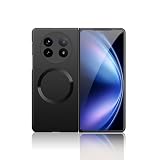
- Compatible with Vivo X Fold 5
- High-end hard PC material: Made of polycarbonate material, it provides a smooth, scratch-resistant surface with a delicate, skin-friendly texture that is smooth and fingerprint-resistant.
- Lens Protection : The 0.3mm raised edge protects the screen and camera from scratches caused by direct contact with the surface.
- with magnetic adsorption, such as wireless charger, magnetic car mount, magnetic battery pack, magnetic wallet, etc. You just need to put the cell phone You only need to put your cell phone on the charger, no need to remove the case. The perfectly aligned magnetic field attraction makes wireless charging faster and more stable. (Must have wireless charging on the phone itself)
- Precise cutouts are designed for easy access to all ports, buttons and camera. The buttons are soft, responsive and easy to press, and are easy to install and remove.
- Open Settings.
- Use Settings search for Always On Display if you do not immediately see it in the display or lock-screen categories.
- Enable Always On Display.
- Choose an available AOD style.
- Select the available display mode and review any notification-related options shown on your phone.
- Lock the device and observe the display you intend to use. Check whether the AOD appears on the cover screen, the inner screen, both, or only under a particular display mode.
This sequence follows vivo’s general user-guide description rather than an X Fold5-specific menu map. A missing AOD option, a different category name, or a mode that behaves differently on the cover display is a model, carrier, region, or software-version difference—not a reason to substitute instructions from another manufacturer.
Theme, wallpaper, and AOD: choose the right control
These controls overlap visually but do different jobs. A theme changes the broader visual treatment offered by vivo. A wallpaper changes an image assigned through the lock-screen or wallpaper controls. AOD governs the idle display style and its available display and notification modes. Changing one does not necessarily change the others.
For a simple appearance change, begin with Wallpaper. Choose Theme when you want the phone’s broader preset treatment, if your model offers one. Choose AOD when the phone is locked and you want to alter the information style shown during idle viewing. Test each change separately so you can identify which setting affected the cover panel.
Check for cover-screen controls without assuming they exist
Once the general wallpaper and AOD settings are configured, inspect your own Settings app for controls that explicitly identify the cover display. The safe workflow is discovery, not assumption:
Recommended Free Tools
- Search Settings for wallpaper, theme, and Always On Display using the exact terms supported by your software.
- Read each result’s description and look for an explicit reference to a cover, outer, or inner screen.
- Open only the controls that your device actually presents; do not follow a menu sequence copied from a different vivo model.
- Apply one change at a time, then check the cover display and the inner display separately.
- Record the result and the software version if you need to contact vivo support.
This approach matters because a setting can be present in a general guide yet omitted from a particular regional build. vivo’s documentation specifically cautions that app support and available features may vary by device, carrier, and country or region.
A practical decision tree for setup
If your goal is simply a new image, open Wallpaper first. If you want a coordinated preset appearance, inspect Theme. If you want to change what remains visible while the phone is idle, use AOD. After every change, lock the phone and check the cover display in its normal closed position, then unfold it and check the inner display.
If the setting offers a named cover, outer, or inner destination, that is the strongest indication that the software supports a display-specific choice. If it offers only lock-screen, home-screen, or both, use those labels literally. If it offers no destination at all, do not describe the result as a cover-screen-only customization.
Rank #3

- Full hinge protection. The automatic magnetic hinge protector is very convenient to use, making your phone more beautiful. Not afraid of falling, truly anti falling. 360 degree protects your expensive phone from damage.
- Made of high-quality leather. Durable and wear-resistant, fingerprint and scratch resistant, good feel. Its quality is far superior to other non cowhide PU shells and inexpensive plastic shells. Leather outer layer does give a sense of elegance.
- The front housing is equipped with a 9H tempered glass screensaver film, so there is no need to install another layer of screensaver film. Anti peeping tempered glass can prevent others from peeping into your phone content within 40°
- The bracket function makes the phone use like a tablet, making viewing and reading easier. The raised border protects the screen and camera from flat scratches.
- Fashionable and beautiful, comfortable to grip. The humanized design, the elegance of high-quality cowhide. Note that the integrated anti peeping glass of this phone case does not support screen fingerprint unlocking, and the fingerprint sensor is not available.
For a support query, take note of the exact wording, not just the feature you expected. “Wallpaper changed on the inner panel but not the cover panel” is more useful than “cover screen is wrong,” because it identifies which display and setting are involved.
The Tool Desk
Outbyte Driver Updater FREEScan for outdated or missing drivers - takes under a minuteDriver Scan →Outbyte PC Repair FREERepair Windows errors before they cause bigger problemsFix Now →Which cover-screen features are confirmed?
The following table separates documented general controls from features for which an X Fold5-specific procedure was not established.
| Feature | What the official material establishes | What to do on your phone |
|---|---|---|
| Theme selection | General vivo guide places themes under Settings > Lock screen & wallpaper > Theme. | Open that path, or search Settings for “theme”; verify which display changes. |
| Wallpaper selection | General vivo guide places wallpapers under Settings > Lock screen & wallpaper > Wallpaper. | Apply an image, then check whether the software offers a display selector. |
| Always On Display | General vivo guide documents enabling AOD, choosing a style and display mode, and reviewing notification options. | Search Settings for “Always On Display” and test the resulting mode on the cover screen. |
| Separate cover and inner wallpapers | X Fold5-specific support for this behavior is not stated. | Use only an explicit selector if your own software provides one. |
| Cover-screen widgets | X Fold5-specific support and setup steps are not stated. | Do not install or rearrange widgets based on instructions for another device. |
| Separate cover-screen home layout | X Fold5-specific support and setup steps are not stated. | Check your model’s manual or support page for an explicit feature description. |
| App continuity or fold/unfold behavior | No qualifying X Fold5-specific procedure is established. | Do not assume an app will mirror, move, or remain active across displays in a particular way. |
What is included, and what customization costs
Changing a theme, wallpaper, or AOD is a software operation and does not require a special accessory. vivo’s global X Fold5 listing identifies a phone case and protective film among the listed in-box contents. Treat that as confirmation for the listed product package only: regional bundles can differ, and the listing does not establish a separate accessory requirement for cover-screen settings.
There is no documented need to purchase a replacement case, film, or other hardware merely to change the cover-screen appearance. If a film is damaged, bubbling, or lifting, handle replacement as a separate service question. The X Fold3 Pro support material describes a special, high-adhesion film on that model’s inner flexible screen and recommends official service-center handling. That advice does not set a price, procedure, or requirement for an X Fold5 cover screen.
Troubleshoot a missing or unexpected option
The menu path is missing
Search Settings for wallpaper, theme, or Always On Display. Compare the result with the exact model and software version recorded earlier. If the control remains absent, consult the manual or support page for that model and region; do not treat the general guide as proof that the control must be present.
The wallpaper changed, but not on the cover screen
Return to the wallpaper menu and look for an explicit display choice. If none exists, the available software may apply the image only to a particular lock or home-screen context. The official material does not establish a universal X Fold5 method for assigning a separate cover-screen image.
AOD appears on a different display than expected
Reopen AOD settings and inspect the selected display mode and notification options. Test again with the phone locked. If there is no control naming the cover display, the behavior is model- or software-dependent and should be verified in the device-specific documentation.
Rank #4
![linsuyu Case Compatible with Vivo X Fold5 [Hard PC] Foldable Phone Case Blue](https://m.media-amazon.com/images/I/41sNnncDykL._SL160_.jpg)
- Compatible with Vivo X Fold5
- Made of hard polycarbonate with a matte finish, it features an ultra-thin front cover and back panel to preserve the phone’s original design and provide a comfortable grip.
- Charge easily without removing the case, and it supports wireless charging while the case is on.
- Precise cutouts ensure a perfect fit for all buttons and ports, making operation convenient.
- The raised bezel design effectively protects the flip screen and camera from scratches.
The wording changed after a software update
Use Settings search instead of relying on an old path, then check the updated user guide for your exact model and country. vivo’s own documentation allows for feature and label differences across devices and regions.
You are considering a screen-film replacement
Do not use general foldable-film advice as a cover-screen customization step. vivo India’s support material for the X Fold3 Pro discusses a special, high-adhesion film on that model’s inner flexible screen and recommends official service-center handling. That is model- and screen-specific guidance, not X Fold5 cover-screen advice. See vivo India’s folding-screen support topics before handling any film, and confirm that the article applies to your exact model.
Common pitfalls to avoid
- Confusing the cover screen with the lock screen: a lock-screen wallpaper control may not be a cover-only control.
- Copying another brand’s foldable instructions: Samsung, Oppo, and other interfaces use different menus and should not be treated as evidence for vivo.
- Assuming two panels mean two profiles: physical displays do not prove that independent wallpapers, widgets, or layouts are supported.
- Changing several settings at once: one-at-a-time testing makes it clear whether Theme, Wallpaper, or AOD caused the visible change.
- Ignoring regional software: carrier and country variations can remove or rename controls documented in a general guide.
- Applying inner-screen film advice to the outer panel: film construction and service guidance can be model- and screen-specific.
What to document when contacting support
If a cover-screen option is unavailable or behaves unexpectedly, provide support with information that distinguishes a software variation from a hardware issue:
- The exact vivo model name and regional variant.
- The software version and carrier, if applicable.
- Whether the problem affects the cover display, inner display, or both.
- The complete Settings path you followed and the final screen label you saw.
- Whether the issue concerns a theme, wallpaper, AOD style, display mode, or notification setting.
These details are more useful than describing the phone simply as “a vivo foldable,” because vivo does not claim that every foldable exposes the same customization controls.
Practical setup checklist
- Confirm the exact model and software version.
- Use Settings > Lock screen & wallpaper > Theme or Wallpaper as the documented general starting point.
- Search Settings for Always On Display, enable it if desired, and choose only the styles and display modes your phone lists.
- Look for an explicit cover/outer-display selector before assuming a setting is cover-specific.
- Test the result on both displays after each change.
- Use your model- and region-specific manual or support page when a menu is absent.
- Do not generalize X Fold3 Pro inner-screen film instructions to an X Fold5 cover screen.
Bottom line for vivo foldable owners
The reliable way to begin is with vivo’s documented theme, wallpaper, and Always On Display controls, followed by a direct check of what your own foldable exposes for its cover display. The X Fold5 provides a 6.53-inch outer screen, but official material does not establish universal procedures for cover-only wallpapers, widgets, independent layouts, or fold/unfold app behavior. Treat those as model- and software-specific capabilities, verify them on the device, and use vivo’s exact support documentation when the controls are not visible.
Frequently Asked Questions
How do I change the wallpaper on a vivo foldable cover screen?
Start at Settings > Lock screen & wallpaper > Wallpaper. Apply the image, then check the closed phone and the inner display. Use it as a cover-only wallpaper only if your software explicitly offers a cover or outer-screen selector.
Free tools Windows power users keep installed
One-click scans. No signup required.
Does the vivo X Fold5 support a separate cover-screen wallpaper?
The general vivo guides document wallpaper controls, but the official material does not establish an X Fold5-specific procedure for assigning an independent cover-screen wallpaper. Check your own software for an explicit display selector.
Best Value

- Compatible with Vivo X Fold 5 5G V2436A(Back cover + hinge protection; does not include front cover or screen protector)
- High-end hard PC material: Made of polycarbonate material, it provides a smooth, scratch-resistant surface with a delicate, skin-friendly texture that is smooth and fingerprint-resistant.
- Lens Protection : The 0.3mm raised edge protects the screen and camera from scratches caused by direct contact with the surface.
- Compatible with MagSafe .with magnetic adsorption, such as wireless charger, magnetic car mount, magnetic battery pack, magnetic wallet, etc. You just need to put the cell phone You only need to put your cell phone on the charger, no need to remove the case. The perfectly aligned magnetic field attraction makes wireless charging faster and more stable. (Must have wireless charging on the phone itself)
- Central Hinge Protection: Built-in magnetic plates snugly adhere to the hinge, providing superior wear resistance. The hinge cover freely extends and retracts, enabling unimpeded folding and 180° opening and closing at will.(does not include front cover or screen protector)
How do I customize Always On Display on a vivo foldable?
Open Settings, search for Always On Display, enable it, choose an available style and display mode, and review notification options. Lock the phone to see whether the selected mode appears on the cover screen, inner screen, or both.
Can I add widgets to the vivo foldable cover screen?
No model-specific X Fold5 widget setup is established here. Do not assume that widget support or a separate cover home layout exists; consult the manual for your exact model and software region.
Why is the wallpaper menu different on my vivo phone?
vivo warns that features and labels can vary by device, carrier, country or region, and software version. Use Settings search for wallpaper, theme, or Always On Display and consult the model-specific support page if needed.
PC Slower Than It Used to Be?
A free scan shows the junk files, broken settings and background clutter dragging Windows down - then fixes them in one click.Free scan · Windows 10 & 11Outdated Drivers Are Slowing You Down
One free scan finds every outdated or missing driver and matches the right update for your exact hardware.Free scan · exact hardware matchDo I need to buy an accessory to customize the cover screen?
No separate accessory is required for the documented software settings. The X Fold5 listing includes a case and protective film, although packages can vary by market.
Can I use X Fold3 Pro screen-film instructions for an X Fold5?
No. vivo’s X Fold3 Pro guidance concerns a high-adhesion film on that model’s inner flexible screen and recommends service-center handling. It is not cover-screen advice for the X Fold5.
What should I tell vivo support if a cover-screen option is missing?
Provide the exact model and regional variant, software version, carrier, affected display, the Settings path and label you saw, and whether the issue involves Theme, Wallpaper, AOD style, display mode, or notifications.
The Bottom Line
Use vivo’s general Theme, Wallpaper, and Always On Display controls, then verify every cover-screen-specific behavior on your exact model and software build. The X Fold5 has a 6.53-inch cover display, but separate wallpapers, widgets, layouts, and fold/unfold behavior are not universally documented.
Do these 3 things before closing this tab:
1Scan for outdated or missing drivers - takes under a minute2Clear out junk files and repair common Windows errors3Fix the driver behind crashes, sound loss and screen glitchesQuick Recap
Product prices and availability are accurate as of the date/time indicated and are subject to change. Any price and availability information displayed on Amazon at the time of purchase will apply.

