
Recommended Free Tools
iTechGuides is reader-supported. When you buy through links on our site, we may earn an affiliate commission. As an Amazon Associate I earn from qualifying purchases. Learn more
Before following any menu path, check the software installed on your phone: open Settings and look under About Phone or About Device for the ColorOS version. The India-market OPPO F35 5G (model CPH2931) is currently listed with ColorOS 16.0, but software, labels and features can differ by region, model build and later updates.
Use the version-specific instructions below to complete initial setup, change the wallpaper, apply a theme, check for updates and avoid the most common customization problems. Do not assume that instructions for another F-series phone or another country’s F35 build are identical.
Confirm your F35 model and ColorOS version first
OPPO’s India specification page identifies the covered handset as the OPPO F35 5G, model CPH2931. It lists ColorOS 16.0, while also noting that specifications and software information can change. The same model name may not represent an identical configuration in every market, so check your own device rather than relying only on the box or a web listing.
- Open Settings.
- Scroll to About Phone or About Device. The wording depends on the installed build.
- Record the ColorOS version and, if shown, the model number.
- Use the matching menu path in this guide. If a label is missing, search Settings for terms such as wallpaper, theme or update instead of selecting a similarly named option at random.
This check matters because OPPO’s own theme and wallpaper instructions use different paths for different ColorOS generations, and the company warns that paths can also vary by model.
#1 Best Overall

- 6.82 inches, LTPO AMOLED, 1B colors, 1440 x 3168 pixels
- 1TB Storage, 16GB RAM
- Android 16, Qualcomm SM8850-AC Snapdragon 8 Elite Gen 5 (3 nm), Octa-core (2x4.6 GHz Oryon V3 Phoenix L + 6x3.62 GHz Oryon V3 Phoenix M)
- Rear: 200 MP, f/1.5, 23mm (wide), 1/1.12", PDAF, OIS, 200 MP, f/2.2, 70mm (periscope telephoto), 1/1.28", PDAF (15cm - ∞), OIS, 3x optical zoom, 50 MP, f/3.5, 230mm (periscope telephoto), 1/2.75", PDAF, OIS, 10x optical zoom, 50 MP, f/2.0, 14mm, 123˚ (ultrawide), 1/1.95", PDAF, Front: 50 MP, f/2.4, 21mm (wide), 1/2.75", PDAF
- 163.2 x 77.0 x 8.7 mm or 9.1 mm
Quick pre-setup checklist
Have the phone, the SIM or eSIM information you intend to use, a trusted Wi-Fi connection and any account credentials you actually need nearby. You do not need to purchase extra accessories to begin setup. OPPO lists a charger, USB data cable, SIM ejector tool, protective case and Quick Guide in the F35 5G box, although the contents can vary by market. If your package differs, that alone does not indicate a problem with the phone.
Keep the original packaging or note the CPH2931 model number until setup is complete. This makes it easier to check a case or screen protector later, because another F-series device may have different openings or dimensions.
Complete first-time setup without assuming a fixed screen sequence
OPPO’s general new-phone guidance says that the initial setup experience can vary by model and software version. There is no verified, F35-specific first-boot script that guarantees the same screen order for every owner. Follow the prompts displayed by your handset and treat optional services as optional; OPPO does not establish that every account or service must be enabled.
PC Slower Than It Used to Be?
A free scan shows the junk files, broken settings and background clutter dragging Windows down - then fixes them in one click.Free scan · Windows 10 & 11Crashes, No Sound, or Screen Glitches?
Random freezes, missing sound and display glitches usually trace back to one bad driver. Find and replace yours safely.Free scan · under a minuteRecommended first-run sequence
- Select language and region. Choose the language you can read comfortably and the country or region that matches your use. Region selection can affect available services, legal notices and later feature availability.
- Connect to the internet. Join a trusted Wi-Fi network when possible, or continue with mobile data if your plan allows it. Keep the phone connected while it checks account status or downloads setup components.
- Sign in only to accounts you use. Add the accounts needed for your apps, contacts, backups or other services. Read each prompt so you do not enable a service merely because it is presented during setup.
- Review privacy and permission requests. Decide whether each app or service should access items such as location, contacts, camera or notifications. You can revisit many permissions later in Settings.
- Choose a screen lock when offered. Use a method you can reliably remember. If the setup wizard offers additional security or convenience options, read the explanation before accepting.
- Allow the phone to finish its preparation. Keep it powered on and connected while system components or account data are being prepared. The exact wording and order can differ from one build to another.
Some phones present optional services, account sign-in or permission requests at different points, while others defer them until an app is opened. Do not interpret a missing prompt as a failed setup. You can generally revisit the relevant setting later if the control is available on your build.
If the wizard stops, loops or fails to connect, restart the F35, verify the Wi-Fi password and try again. A setup screen that does not appear on your phone is not necessarily an error; it may simply be omitted by that software build. If you are using mobile data, check that your plan allows the connection before retrying.
Install offered software updates before deep customization
For ColorOS 12 and later, OPPO’s OTA instructions place the update check under the device-information page. The route is:
- Open Settings.
- Tap About device.
- Select the top update card.
- Read the version, size and instructions shown on the phone, then choose the available update if you want to install it.
Use only the update offered by the F35’s own system screen. OPPO does not publish a universal schedule that guarantees a particular update for every region, and the absence of an update card does not prove that your handset is defective. Rollouts can depend on region, model configuration and the software currently installed.
Prepare for an update
- Charge the phone sufficiently and keep it connected to a stable network.
- Make sure you have enough free storage for the package and installation process.
- Do not power off the phone while the update is being installed.
- After the restart, check About Phone/About Device again if you need to confirm the installed ColorOS version.
Customization can be done before an update, but checking the offered software first gives you a cleaner baseline. A major update may rename a personalization menu or change which wallpapers and themes are shown. If you set a favorite image before updating, keep a copy in Photos so you can select it again if the appearance resets.
Rank #2

- 6.82 inches, LTPO AMOLED, 1B colors, 1440 x 3168 pixels
- 512GB Storage, 12GB RAM
- Android 16, Qualcomm SM8850-AC Snapdragon 8 Elite Gen 5 (3 nm), Octa-core (2x4.6 GHz Oryon V3 Phoenix L + 6x3.62 GHz Oryon V3 Phoenix M)
- Rear: 200 MP, f/1.5, 23mm (wide), 1/1.12", PDAF, OIS, 200 MP, f/2.2, 70mm (periscope telephoto), 1/1.28", PDAF (15cm - ∞), OIS, 3x optical zoom, 50 MP, f/3.5, 230mm (periscope telephoto), 1/2.75", PDAF, OIS, 10x optical zoom, 50 MP, f/2.0, 14mm, 123˚ (ultrawide), 1/1.95", PDAF, Front: 50 MP, f/2.4, 21mm (wide), 1/2.75", PDAF
- 163.2 x 77.0 x 8.7 mm or 9.1 mm
Change the wallpaper using the path for your version
The correct wallpaper menu depends on ColorOS. Use the table after checking your version; the labels below are the routes given in OPPO’s support documentation.
| ColorOS version | Wallpaper route |
|---|---|
| ColorOS 16 and above | Settings > Home screen, Lock screen & style > Wallpapers |
| ColorOS 15 | Settings > Wallpapers & style > Wallpapers |
| ColorOS 13–14 | Settings > Wallpapers & style > Wallpapers |
| ColorOS 11–12 | Settings > Personalizations > Wallpapers |
The table is a version guide, not a promise that every F35 has every row. A regional build can use a slightly different label, and an update can move a control. If the listed route does not open, search Settings for wallpaper and read the surrounding section names before changing anything.
Apply a built-in or downloaded wallpaper
- Open the version-appropriate wallpaper page.
- Choose a supplied image or another image shown by the installed software.
- Preview it and select whether it should apply to the lock screen, home screen or both, when those choices are offered.
- Confirm the change and return to the home screen to check the crop and readability of icons.
Some wallpaper collections, motion effects or download choices may not appear on every build. Availability is controlled by the installed software, not by the instructions alone. If a download option is present, allow it to finish before leaving the picker; an incomplete item may not appear in the selection list.
Quick wins for a faster PC:
Clear out junk files and repair common Windows errorsFree Scan →Scan for outdated or missing drivers - takes under a minuteDriver Scan →Set a photo directly from Photos
On versions that expose the option, open a picture in Photos, tap the three-dot menu, choose Set as wallpaper, and select the lock screen, home screen or both. If that command is absent, use the Settings route in the table instead. A very tall or wide image may be cropped during preview, so inspect the framing before confirming.
Check both screens after applying a photo. Text and icons can be easy to read on the home screen but difficult to see over a busy lock-screen image. If the preview offers repositioning, move the important part of the image away from the clock and notification area before saving.
Apply a theme and understand what it changes
A theme changes the phone’s general visual treatment, such as colors and icon styling. It is an appearance choice, not a replacement for the operating system and not a guarantee that an app will gain new functions. A theme also may not restyle every third-party app, so a mixed appearance can be normal.
Find My Themes in Settings
OPPO’s support guide places theme controls under Settings > Personalizations or Settings > Wallpapers & style > My Themes across the documented ColorOS 11 through newer generations. The exact label on the F35 depends on its build. Open the section available on your phone, select a theme and apply it after reviewing the preview.
The Tool Desk
Outbyte PC Repair FREERepair Windows errors before they cause bigger problemsFix Now →Outbyte Driver Updater FREEFix the driver behind crashes, sound loss and screen glitchesFind Drivers →If you see separate controls for wallpaper, icons or colors, change them one at a time. That makes it clear which setting produced the result and lets you undo a single choice without resetting the entire appearance.
Rank #3

- 6.57 inches, AMOLED, 1B colors, 1080 x 2372 pixels
- 256GB Storage, 8GB RAM, microSDXC
- Android 16, ColorOS 16, Mediatek Dimensity 7300 Energy (4 nm), Octa-core (4x2.5 GHz Cortex-A78 & 4x2.0 GHz Cortex-A55)
- Rear: 50 MP, f/1.8, 26mm (wide), 1/2.0", 0.8µm, PDAF, OIS, 50 MP, f/2.8, 92mm (telephoto), 1/3.13", 0.56µm, PDAF, OIS, 3.5x optical zoom, 8 MP, f/2.2, 15mm, 116˚ (ultrawide), 1/4.0", 1.12µm, AF, Front: 50 MP, f/2.0, 18mm, 100˚ (ultrawide), 1/2.88", 0.61µm, AF
- 158.2 x 74.5 x 8.4 mm or 8.6 mm, 194 g or 196 g (6.84 oz)
Use the Theme Store app
The separate Theme Store app may provide free downloads, trials and purchases. Catalog contents, pricing, trials and even the app’s availability can vary by market and software version. Read the listing and any renewal or purchase information before confirming a paid option. If Theme Store is not installed or cannot be opened, use the built-in personalization controls that your F35 provides rather than installing an unrelated package.
A free label does not mean every element is free, and a trial can have separate terms. Review the price and duration shown on your phone at the moment you confirm. OPPO’s documentation does not establish one universal catalog or price for all F35 owners.
When a theme does not fully apply
- Restart the phone once after applying it if icons or colors appear unchanged.
- Check whether the theme is still downloading or waiting for a network connection.
- Return to My Themes and verify that the theme is marked as applied.
- If only some elements change, the theme may not support every app or system surface on your ColorOS build.
- If the theme disappears after an update, reopen My Themes and check whether the system reverted to a default appearance.
Personalize safely without assuming every advertised feature exists
The F35 product material describes ColorOS features, but OPPO explicitly qualifies availability by region, device configuration, software version, network conditions and OTA rollout. Some features may not be present at launch. Treat the controls visible on your own F35 as the authority.
Use the controls your build actually exposes
- Open Settings > Home screen, Lock screen & style on newer builds, or the similarly named personalization section on older builds.
- Change only one visual setting at a time, then check the home screen and lock screen before making another change.
- If a guide mentions a control that is not present, search Settings by keyword and check for a pending update; do not install an unofficial package to force the option.
- Keep a note of your preferred wallpaper and theme so you can restore them after a reset or major software update.
- Use the phone’s own preview and apply controls instead of assuming that a screenshot from another ColorOS version represents your interface.
This approach avoids promising a feature that your region or build does not supply and makes it easier to identify which change caused an unexpected result. A feature advertised for the F35 may also require a particular network condition or later OTA, so absence from the current menus is not proof that you missed a hidden switch.
Choose a screen protector that does not cover the hidden light sensor
OPPO’s F35 specifications warn that some colored or darkened protectors with poor light transmission can obstruct the hidden light-sensor opening at the top of the display and affect normal operation. This is a compatibility issue, not a claim that every screen protector is harmful.
- Confirm that the listing explicitly fits the OPPO F35 5G CPH2931.
- Inspect the protector’s cut-outs or transparent sensor area before installation.
- Keep the sensor opening clear of adhesive, dust and dark material.
- If automatic display behavior becomes unreliable after fitting a protector, remove it temporarily and test the phone before blaming the software.
Exact fit matters because a protector made for another F-series model can place its openings in the wrong positions. Do not choose solely by a similar product name or screen-size claim. Check the model number and the top-edge opening in the seller’s compatibility information.
What is included in the box
OPPO lists a charger, USB data cable, SIM ejector tool, protective case and Quick Guide for the F35 5G, while warning that included accessories can vary by market. These items are not additional setup requirements. Check the contents of your own package and use compatible equipment if an item is absent.
Free tools Windows power users keep installed
One-click scans. No signup required.
The included case or charger should not be treated as proof that every regional package is identical. If you buy a replacement case or protector, use the CPH2931 designation rather than assuming an accessory for another F-series phone will align correctly.
Rank #4
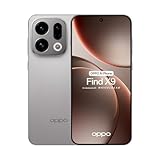
- 6.59 inches, AMOLED, 1B colors, 1256 x 2760 pixels
- 512GB Storage, 12GB RAM
- Android 16, Mediatek Dimensity 9500 (3 nm), Octa-core (1x4.21 GHz C1-Ultra & 3x3.5 GHz C1-Premium & 4x2.7 GHz C1-Pro)
- Rear: 50 MP, f/1.6, 23mm (wide), 1/1.4", 1.12µm, multi-directional PDAF, OIS, 50 MP, f/2.6, 73mm (periscope telephoto), 1/1.95", 0.61µm, 3x optical zoom, multi-directional PDAF, OIS, 50 MP, f/2.0, 15mm, 120˚ (ultrawide), 1/2.76", 0.64µm, multi-directional PDAF, Front: 32 MP, f/2.4, 21mm (wide), 1/2.74", 0.8µm
- 157 x 73.9 x 8 mm (6.18 x 2.91 x 0.31 in)
Troubleshoot the common setup and customization problems
The menu in this guide is not on my phone
Return to Settings > About Phone/About Device and verify the ColorOS version. Then use the corresponding row in the wallpaper table or search Settings for the function name. OPPO’s documentation itself notes that names and paths can vary by version and model, so a different label is expected on some builds.
Do not install a third-party settings replacement just to reproduce a menu shown in a screenshot. First check for alternate wording such as Personalizations, Wallpapers & style or Home screen, Lock screen & style.
The update card is missing
Confirm that you are using the ColorOS 12-or-later route: Settings > About device > top update card. Connect to a reliable network, restart the phone and check again later. OPPO does not guarantee a simultaneous rollout in every country, so do not treat a delayed offer as proof of a hardware fault.
What’s actually slowing this PC down?
Pick the symptom - the matching free tool is one click away.
If your labels differ, search Settings for update and open the system update result supplied by the phone. Install only an official OTA shown there. Avoid downloading an update package from an unverified listing simply because another region received it first.
A wallpaper looks blurry or is cropped badly
Reopen the preview and reposition the image before applying it. Try the original photo rather than a compressed copy. If the built-in wallpaper picker continues to reject the image, use the Photos method when available or choose another image from the Settings picker.
Inspect the final image on both the home and lock screens. The same crop can place the subject under the clock on one screen but not the other, so use the separate apply choices when the phone offers them.
A theme is unavailable or asks for payment
Theme Store catalogs differ by market. Check whether the item is a free download, trial or purchase, and verify that the store is signed in and connected. If the item is not offered in your region, select another theme or use the built-in appearance controls.
Pricing and trial terms are those displayed by your current Theme Store catalog. Do not assume a theme shown in an online video is still available, free or offered in your country.
Best Value

- 6.57 inches, AMOLED, 1B colors, 1080 x 2372 pixels
- 256GB Storage, 8GB RAM, microSDXC
- Android 16, ColorOS 16, Qualcomm SM6450 Snapdragon 6 Gen 1 (4 nm), Octa-core (4x2.2 GHz Cortex-A78 & 4x1.8 GHz Cortex-A55)
- Rear: 50 MP, f/1.8, 26mm (wide), 1/1.95", 0.8µm, PDAF, OIS, 8 MP, f/2.2, 16mm, 112˚ (ultrawide), 1/4.0", 1.12µm, 2 MP (macro), Front: 50 MP, f/2.0, 100˚, 18mm (ultrawide), AF
The phone behaves differently after installing a protector
Check the top-of-screen sensor area for an obstruction and verify the protector’s CPH2931 fit. Remove the protector for a short test if necessary. If behavior returns to normal, replace it with a model that leaves the sensor area unobstructed.
A practical order for setting up your F35
- Verify the model and installed ColorOS version.
- Complete the on-screen language, network, account and privacy choices.
- Install any official update offered through the device’s update card.
- Set the wallpaper using the path for your version.
- Apply a theme from My Themes or Theme Store after checking availability and cost.
- Review the resulting home and lock screens, then change additional controls one at a time.
- Before fitting a screen protector, confirm exact CPH2931 compatibility and a clear light-sensor opening.
This sequence leaves the phone on its current official software, keeps version-specific instructions separate and makes it easier to undo a single customization if something looks wrong. Recheck the ColorOS version after a substantial update because a new build can move a menu or alter which themes and wallpapers are available.
Frequently Asked Questions
How do I check the ColorOS version on an OPPO F35?
Open Settings and look under About Phone or About Device. The exact label varies by build. The India-market F35 5G CPH2931 is listed with ColorOS 16.0, but verify the version installed on your own phone before using a menu path.
Do these 3 things before closing this tab:
1Scan for outdated or missing drivers - takes under a minute2Clear out junk files and repair common Windows errors3Fix the driver behind crashes, sound loss and screen glitchesHow do I change the wallpaper on my OPPO F35?
Use the route matching your version: ColorOS 16 and above uses Settings > Home screen, Lock screen & style > Wallpapers; ColorOS 15 and 13–14 use Settings > Wallpapers & style > Wallpapers; ColorOS 11–12 uses Settings > Personalizations > Wallpapers. You may also open a photo in Photos, tap the three-dot menu and choose Set as wallpaper when that option appears.
Where are themes in ColorOS 16?
Look in Settings under Home screen, Lock screen & style or the available Wallpapers & style section, then open My Themes. The Theme Store app may also provide themes. Names and availability can differ by region and software build.
How do I check for an update on the F35?
On ColorOS 12 and later, open Settings > About device and select the top update card. Follow the version and installation instructions shown by the phone. OPPO does not guarantee that every region receives an update at the same time.
Why is a ColorOS feature missing from my F35?
OPPO says feature availability can depend on region, device configuration, software version, network conditions and OTA rollout. Check for an official update and search Settings by the feature name, but do not assume that an advertised feature is present on every build.
Can I use any OPPO F-series screen protector?
No. Confirm an exact OPPO F35 5G CPH2931 fit and make sure the protector leaves the hidden light-sensor opening clear. Dark or low-transmission material over that area can affect normal operation.
Does the F35 box always include a charger and case?
OPPO lists a charger, USB data cable, SIM ejector tool, protective case and Quick Guide, but says included accessories may vary by market. Check your own package rather than treating the list as universal.
Are ColorOS themes free?
Theme Store may offer free downloads, trials and purchases. Catalog contents, prices and terms vary by market and software version, so review the listing shown on your phone before confirming.
The Bottom Line
Start by checking the F35 5G CPH2931 model and installed ColorOS version, then follow the phone’s first-run prompts and install only updates offered through its own update screen. Use the version-specific wallpaper and theme paths, expect regional differences, and verify that any screen protector leaves the hidden light sensor unobstructed.
The Tool Desk
Outbyte PC Repair FREEClear out junk files and repair common Windows errorsFree Scan →Outbyte Driver Updater FREEFix the driver behind crashes, sound loss and screen glitchesFind Drivers →Quick Recap
Product prices and availability are accurate as of the date/time indicated and are subject to change. Any price and availability information displayed on Amazon at the time of purchase will apply.

