
iTechGuides is reader-supported. When you buy through links on our site, we may earn an affiliate commission. As an Amazon Associate I earn from qualifying purchases. Learn more
The reliable way to build a UniFi homelab is to choose the control plane first, bring the gateway and management application online, adopt switches and access points, create only the VLANs you need, map SSIDs to those VLANs, and then apply isolation rules at the correct layer. For most new installations, Ubiquiti recommends a UniFi Cloud Gateway because it combines the gateway, security functions, and UniFi Network management in one device. A self-hosted controller is workable when you already administer routed networks, firewalls, and server infrastructure.
1. Choose how UniFi will be managed
Every UniFi deployment needs a control plane: the place where UniFi Network runs and from which devices are adopted and configured. Your choice affects cabling, maintenance, remote access, and how much networking administration you must do yourself.

Ubiquiti states: “For the best UniFi experience, we strongly recommend starting with a Cloud Gateway, which integrates networking, security, and UniFi management software into a single device.” That is a vendor recommendation, not an independent performance test. The current guidance is documented in Choosing the Right UniFi Control Plane.
| Control-plane option | What it includes | Best fit | Important trade-offs |
|---|---|---|---|
| UniFi Cloud Gateway | Gateway, routing and security functions, UniFi OS, and UniFi applications in one appliance | Most new homelabs and anyone who wants the shortest setup path | Model choice still depends on WAN speed, port count, form factor, and the applications you intend to run |
| Self-hosted UniFi Network Server | UniFi Network software on Windows, macOS, or Linux; routing remains on your chosen gateway | Administrators comfortable maintaining a server and troubleshooting routed controller-to-device communication | You must maintain the host and account for third-party firewalls, VLANs, and network equipment that can block management traffic |
| Standalone access-point mode | Individual AP configuration without the full UniFi management experience | A small number of APs where advanced management is unnecessary | No seamless roaming, wired AP connections are required, and remote management is not provided in the same manner as a managed UniFi deployment |
A Cloud Gateway does not remove the need to plan VLANs or firewall policy, but it keeps the gateway and controller in one supported workflow. A self-hosted server can be useful when you already have a preferred router or virtualisation platform; it is not the simpler choice for a first deployment.
#1 Best Overall

- Create a reliable wireless business network with this wireless access point that features a high-speed data transfer rate
- 3 Gbit/s wireless transmission speed provides high and efficient communication with maximum efficiency
- IEEE 802.11 a/b/g/n/ac/ax wireless LAN standard ensures trouble-free and convenient connectivity
- Gigabit Ethernet port for ultra-fast wired network speeds
- PoE+ port to receive data and power of up to 25.5W through a single cable in places where a power outlet is not available
Decide what your gateway must handle
- Internet speed: Select a gateway that can route and secure your actual WAN speed. The title alone does not provide enough information to select a model.
- Ports and uplinks: Count WAN, LAN, switch-uplink, and any higher-speed links needed for servers or storage.
- Form factor: A desktop appliance and a rack-oriented unit solve the same control-plane problem but fit different lab layouts.
- Applications: Confirm which UniFi applications you need and whether the chosen console supports them.
- Operations: If you self-host, plan for the server’s availability, backups, firewall rules, and upgrades.
2. Plan the homelab before connecting equipment
Draw the traffic boundaries you actually need before creating networks. A small lab may work with one LAN; segmentation becomes useful when servers, IoT devices, guests, and trusted administrator devices should not all share the same broadcast and security boundary.
Use a VLAN ID and subnet range that do not overlap the existing LAN, remote-access VPNs, or networks used elsewhere in your environment. The following is an illustrative plan, not a UniFi default. Replace every ID and subnet with values that fit your addressing scheme.
| Illustrative segment | Example VLAN ID | Typical purpose | Questions to answer before enabling it |
|---|---|---|---|
| Trusted clients | 10 | Administrator laptops and normal personal devices | Which management interfaces should these clients reach? |
| Lab servers | 20 | Virtualisation hosts, services, and test machines | Which trusted clients or shared services need access? |
| IoT | 30 | Less-trusted appliances and sensors | Do devices need internet only, or must they reach a local controller? |
| Guest | 40 | Visitors’ wireless clients | Should guests be restricted to internet access? |
A VLAN assignment is not a complete security policy. Decide whether each segment may reach other segments, the internet, gateway management pages, DNS, storage, or specific lab services. Router defaults differ, so verify the actual routing and firewall behaviour rather than assuming that creating a VLAN blocks everything.
3. Connect and configure the UniFi console
- Install the appliance or controller host. For a Cloud Gateway, connect the WAN port to the internet-facing connection and connect a LAN port to your switching infrastructure. For a self-hosted controller, install UniFi Network on the supported Windows, macOS, or Linux host and connect that host to a reachable management network.
- Power on and wait for the first-boot process. Check link lights and use known-good Ethernet cables. A console that has power but no network link cannot complete discovery or download required components.
- Open the setup wizard. Ubiquiti documents setup through the UniFi mobile app or a browser pointed at the console’s local address. Follow the prompts to create the local configuration and administrator access. The workflow is described in How to Set Up UniFi.
- Choose whether to use a UI account. A UI account is optional for local operation. Linking one enables remote management, account-linked automatic backups, and email notifications; it is not required simply to manage the network locally.
- Check internet reachability if setup stalls. Confirm the console’s WAN or uplink cable, DHCP or static addressing, DNS, and default route. If you are using a non-gateway console such as a self-hosted server or CloudKey, do not place it on a VLAN whose firewall rules prevent the internet or the required device-management traffic.
Do not begin by changing every security option. Complete the basic console setup first, then create the network structure and policies in a controlled order.
Rank #2
4. Adopt UniFi switches and access points
Adoption registers each device with the UniFi Network application so you can manage firmware, port profiles, radios, and configuration from one interface.
- Connect one device at a time. Power the switch or AP, connect it to the LAN, and wait for it to obtain an address. Use PoE only when the switch or injector is rated for the AP’s requirements.
- Open UniFi Network and inspect the Devices view. A device on the same network as the Cloud Gateway and UniFi Network application is normally discovered automatically.
- Click Adopt and wait for provisioning. Allow the device to finish provisioning before changing its uplink or moving it to another VLAN. An AP may reboot during this process.
- Repeat for the remaining switches and APs. Record each device’s physical location and uplink so a later VLAN or port change can be traced.
Ubiquiti’s UniFi – Device Adoption guide notes that discovery is simplest when the devices and UniFi Network application share a network. A self-hosted controller or CloudKey on another VLAN or subnet may need additional connectivity configuration. That is a routing and firewall problem, not a reason to add port forwarding to an ordinary same-network Cloud Gateway deployment.
If a device does not appear
- Verify that the device has power and an active Ethernet link.
- Check that the device received an address in the expected subnet and that the controller is reachable from it.
- Temporarily connect the device and controller to the same management network to distinguish discovery problems from routing-policy problems.
- Inspect firewall rules between VLANs and any host firewall on a self-hosted controller.
- Reset and re-adopt only after confirming cabling and reachability; a reset erases the device’s current configuration.
5. Create the wired networks and VLANs
UniFi Network can define virtual networks with a VLAN ID, subnet range, DHCP behaviour, DNS settings, and isolation-related options. The exact menu wording can change between UniFi Network releases, but the workflow is the same: open the Networks section, create a network, and assign its addressing and VLAN parameters.
The Tool Desk
Outbyte PC Repair FREEClear out junk files and repair common Windows errorsFree Scan →Outbyte Driver Updater FREEFix the driver behind crashes, sound loss and screen glitchesFind Drivers →- Open the Networks configuration. In current layouts this is generally under Settings > Networks; use the equivalent Networks page if your release labels it differently.
- Create one network for each real requirement. Give it a descriptive name such as “Lab Servers” or “IoT,” select a unique VLAN ID, and enter a non-overlapping subnet.
- Choose address service settings. Enable DHCP when the UniFi gateway should lease addresses for that segment. If another router or server supplies DHCP, document that design and avoid running two DHCP servers on the same VLAN.
- Set DNS and isolation options deliberately. Decide which resolver clients should use and whether the network should be isolated from other routed networks. Do not enable a blanket block before listing the services the lab must still reach.
- Save and verify the gateway interface. Confirm that the gateway has an interface and route for the new subnet and that a test wired client receives the expected address.
When the gateway is not UniFi, create the corresponding VLAN, interface, DHCP scope, and routing or firewall policy on that third-party gateway first. Then enter the matching VLAN ID in UniFi so switches and APs tag traffic consistently. The UniFi procedure and this third-party-gateway caveat are covered in Creating Virtual Networks (VLANs).
Rank #3

- Four stream 802.11AC Wave2 technology
- Supports 200+ concurrent users
- 802.3af PoE compatibility
- Optional covers (sold separately) allow the Unifi nanohd AP TO discreetyly blend into its setting
Keep the first design small
Every additional network creates another DHCP scope, firewall decision, and troubleshooting path. Start with the segments that have a clear boundary or operational purpose. You can add a dedicated build network, storage network, or management network later when a specific requirement justifies it.
6. Carry VLANs from the gateway to each AP
Wireless segmentation works only when the VLAN can travel across the complete path from the gateway to the AP. An SSID can be assigned to a network in software, but a missing or incorrectly tagged VLAN on an uplink prevents clients from joining or leaves them without a usable address.
- Create the SSID. Open Settings > WiFi, choose to create a Wi-Fi network, enter the SSID and security settings, and select the UniFi network/VLAN that should serve it.
- Choose broadcast locations. Select the APs that should advertise the SSID. Do not broadcast every lab SSID everywhere if a device only needs coverage in one room.
- Check the AP uplink. The switch port feeding an AP normally needs to carry every VLAN assigned to the SSIDs that AP broadcasts. Treat that link as a trunk carrying the management network plus the required client VLANs.
- Check intermediate links. If the AP connects through multiple switches, each uplink must permit the same VLANs. A single untagged or blocked segment breaks the path.
- Apply and test one SSID first. Connect a test device, verify its IP address and default gateway, and then add the remaining SSIDs.
Ubiquiti’s Creating UniFi WiFi SSIDs guide says UniFi switches permit all traffic by default in the relevant workflow, while third-party switches require explicit trunk configuration. If a client cannot join, inspect upstream VLAN tagging before changing the wireless password or encryption mode.
Free tools Windows power users keep installed
One-click scans. No signup required.
Choose wireless security with older clients in mind
UniFi defaults are intended to balance compatibility and roaming, but some older or IoT devices do not support the default WPA2/3 Personal mode. A separate IoT SSID or a compatibility-oriented security setting can help. Selecting WPA2 Personal can remove 6 GHz support, so make that change only on the SSID that needs it and check the current options for your UniFi Network version and AP model.
Rank #4

- Model: UAP-NanoHD-US UniFi nanoHD Wave-2 Access Point Discretely install the UniFi nanoHD 4x4 MU-MIMO 802.11ac Wave-2 Access Point from Ubiquiti Networks into nearly any building environment, thanks to the optional skins which come in a variety of designs including camouflage, concrete, marble, wood, black and fabric. This Ubiquiti Networks AP also comes equipped with a single Gigabit Ethernet 802.3af PoE-compliant network port and includes mounting kits for easy installation to either the wal
- Deploy the UniFi nanoHD AP in high-density environments requiring maximum wireless performance and minimal footprint.
- Our Smallest UniFi Access Point Available On the Market. UAP nanoHD is 30% smaller than UAP AC Pro version.
- Supports 200+ Concurrent Users
7. Apply isolation at the layer that matches the threat
“Isolation” describes several different controls in UniFi. They are not interchangeable, and enabling the wrong one can break legitimate homelab traffic.
| Control | Where it acts | Use it when | What it does not replace |
|---|---|---|---|
| Gateway firewall or Network Isolation | Between routed networks and their interfaces | You need to control traffic between trusted, server, IoT, guest, or management VLANs | It does not automatically solve client-to-client traffic on the same AP |
| Switch ACLs | At switch ports or switch forwarding policy | You need switch-level controls for particular networks or devices | It does not replace a complete gateway policy when traffic is routed elsewhere |
| AP Client Isolation | Between wireless clients associated with one AP | Guest or untrusted clients should not communicate directly with one another over that AP | It does not block traffic between VLANs or stop a client from reaching routed services unless those policies also deny it |
Ubiquiti explains these distinctions in Implementing Network and Client Isolation in UniFi. Write a communication matrix before creating rules: for example, allow administrator devices to reach the hypervisor, allow IoT devices to reach only the required controller, and deny guests from all private subnets. Then implement the narrowest rules that produce that matrix.
A practical policy sequence
- Confirm that every VLAN receives an address and can reach its intended default gateway.
- Allow required infrastructure services such as DHCP and DNS.
- Allow explicitly required application flows, such as a management workstation reaching a lab dashboard.
- Deny unnecessary inter-VLAN access and test from both directions.
- Enable AP Client Isolation only on SSIDs where peer-to-peer blocking is intended.
- Document exceptions for discovery protocols, casting, printing, storage, or monitoring before users report that they are broken.
8. Verify the finished homelab
Test from real clients, not only from the UniFi dashboard. Use one wired device and one wireless device in each segment where practical.
- Addressing: The client receives an address from the intended subnet, the expected DNS servers, and the correct default gateway.
- VLAN identity: A client on each SSID lands in the VLAN selected for that SSID; it does not merely receive an address from the native or management network.
- Internet access: Networks intended to reach the internet can resolve names and open a test site, while intentionally restricted networks behave as designed.
- Inter-network policy: Allowed application flows work, and denied flows fail from both the client and server sides.
- Management: The controller can still reach every adopted switch and AP after trunk and firewall changes.
- Roaming: Move a client between AP coverage areas and confirm that the SSID remains usable; do not assume roaming if you selected standalone AP mode.
- Failure logging: Record the switch port, AP, SSID, VLAN, client address, and timestamp for any failure. Those details identify whether the fault is wireless authentication, VLAN transport, DHCP, routing, or policy.
9. Troubleshoot the common failure patterns
The console setup page never appears
Check power, link lights, the WAN or LAN cable, and whether the client is on the same local network as the console. If the console is a non-gateway controller, verify that its VLAN permits the internet and the management traffic it needs. Try the mobile app and the browser-based local address rather than assuming that one discovery method will work in every topology.
Best Value
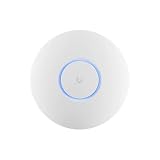
- Ubiquiti U6+ AP WiFi6 access point for network expansion
- Features 1xGbE PoE connection with dual-display support
- 2x2 dual-band technology for optimal wireless coverage
The switch or AP stays pending adoption
Place the device and controller temporarily on the same network, verify DHCP, and check host and network firewalls. If adoption succeeds there but fails after moving the device to another VLAN, restore the required routed connectivity before attempting another reset.
An SSID is visible but clients cannot connect
First verify the password and security mode, then inspect the AP’s switch port and every upstream trunk for the SSID’s VLAN. On a third-party switch, explicitly permit the VLANs; on a UniFi switch, review any custom port profile that replaced the normal all-traffic behaviour. A missing VLAN path is more likely than a wireless-radio fault when multiple SSIDs fail in the same way.
A client connects but receives the wrong subnet
Check the SSID’s selected network, the AP uplink’s allowed VLANs, and the switch’s tagging or native-network setting. Then check for a second DHCP server on that VLAN. A client that receives a valid address from the wrong scope usually indicates tagging or DHCP topology, not an incorrect Wi-Fi password.
Isolation blocks a required service
Identify which layer denied the flow. Gateway isolation affects routed networks, switch ACLs affect switch forwarding, and AP Client Isolation affects peers on one AP. Remove the broad rule, add the narrow service exception, and retest from the actual client VLAN.
10. Select supporting hardware by requirements, not by a fixed shopping list
The title does not specify your WAN rate, floor plan, number of wired endpoints, PoE demand, client density, or rack space, so no single gateway, switch, or AP model can be selected responsibly. Use these comparison axes when you evaluate equipment.
| Component | Specifications to compare | Why the choice matters |
|---|---|---|
| Cloud Gateway or other gateway | Integrated controller, supported UniFi applications, WAN throughput, LAN ports, form factor, and routing/security capability | It determines whether the control plane and gateway are one appliance and whether the device can handle your internet and inter-VLAN traffic |
| Managed switch | VLAN support, port count, port speeds, PoE standard and budget, uplink speed, and compatibility with the gateway and APs | It carries the VLANs to wired clients and APs; insufficient PoE or uplink capacity can limit the design |
| UniFi access point | Coverage area, expected client density, supported Wi-Fi bands, wired-backhaul availability, and PoE requirement | It determines radio capacity and where SSIDs can be broadcast; wireless performance depends on placement and backhaul, not only the AP name |
UniFi Cloud Gateway is the central product category for the integrated setup, while a managed VLAN-capable switch and UniFi AP are natural companions. Choose exact models only after measuring those requirements and confirming current availability through an authorized sales channel.
Quick Recap
Final build checklist
- Choose Cloud Gateway, self-hosted UniFi Network, or the limited standalone AP approach based on your administration skills and topology.
- Connect and complete the console setup through the mobile app or browser; remember that a UI account is optional for local management.
- Adopt switches and APs while they are reachable from the controller.
- Create only the VLANs that serve a documented purpose, with unique IDs and non-overlapping subnets.
- Configure matching VLANs, DHCP, routing, and firewall behaviour on a third-party gateway before entering those networks in UniFi.
- Map each SSID to its intended network and carry that VLAN across every AP uplink and intermediate switch.
- Use gateway policies, switch ACLs, and AP Client Isolation for their respective layers instead of treating them as synonyms.
- Test addressing, DNS, internet access, inter-VLAN permissions, management reachability, and roaming from real clients.
Product prices and availability are accurate as of the date/time indicated and are subject to change. Any price and availability information displayed on Amazon at the time of purchase will apply.

