
iTechGuides is reader-supported. When you buy through links on our site, we may earn an affiliate commission. As an Amazon Associate I earn from qualifying purchases. Learn more
Outlook has different selection controls depending on whether you use new Outlook for Windows, classic Outlook, or Outlook in a browser. First check the ribbon: if you see Settings, you are using new Outlook; if Settings is absent, follow the classic Outlook instructions.
For the most reliable results, click a message in the message list before using keyboard shortcuts. Selecting messages in the reading pane, folder pane, search box, or browser controls can make the same keys perform a different action.
How to Select Multiple Emails at Once in Outlook: A Quick Guide
Select adjacent emails with the keyboard
This is the quickest method when the messages you need are next to each other in the list. Microsoft documents it for both new and classic Outlook for Windows.
Quick wins for a faster PC:
Repair Windows errors before they cause bigger problemsFix Now →Fix the driver behind crashes, sound loss and screen glitchesFind Drivers →- Click the first email you want to select in the message list.
- Hold Shift and press Down Arrow to extend the selection to the next message or messages.
- Hold Shift and press Up Arrow to extend the selection toward the previous messages.
For example, select the first message in a run and press Shift+Down Arrow four times to include the next four messages. You can then delete, move, archive, flag, or apply another available command to the selected messages.
#1 Best Overall

- Complete 4-in-1 Desk Mat Set – Everything in One Box: Includes a 35.4" x 15.7" large desk pad, an ergonomic mouse pad with gel wrist rest, a memory foam keyboard wrist rest (17.3" x 3.15"), and a matching coaster. Unbox and your workspace is ready—perfect for home office, gaming setup, or dorm room. A complete desk accessories set that brings both style and comfort to your desk
- Icy Blue Inspiration – "Stay Positive, Work Hard, Make It Happen": A shimmering ice blue gradient with soft white light spots and a delicate sparkle finish, paired with elegant black cursive script reading "Stay Positive Work Hard Make It Happen" with vintage arrow accents. The cool, translucent effect creates a refreshing, uplifting atmosphere. Perfect for anyone who needs daily motivation—ideal for home office, study space, or work-from-home setup
- All-Day Comfort – Gel & Memory Foam Support: The soft gel wrist rest on the mouse pad conforms to your hand, reducing pressure and fatigue during long work or gaming sessions. The memory foam keyboard rest cushions your wrists while typing, promoting a natural hand position. Ideal for remote workers, gamers, students, and anyone who spends long hours at a computer
- Non-Slip, Water-Resistant & Built to Last: The large desk pad features a water-resistant surface (spills wipe clean), non-slip rubber base (stays firmly in place), and stitched edges (prevents fraying). The ergonomic mouse pad has a PU non-slip bottom that grips the desk firmly. The large desk pad is machine washable for easy care
- A Motivational Gift for Coworkers, Grads & Goal-Setters: Perfect for coworkers, graduates, students, teachers, friends, and family. Great for birthdays, graduations, new job celebrations, Christmas, or just because. A daily reminder to stay positive and keep going—practical, uplifting, and guaranteed to inspire
If you need to start at the beginning of a folder, press Home or Ctrl+Home in new Outlook to select the first message, then use Shift+Down Arrow.
Select non-adjacent emails with the keyboard
Use this method when the messages you want are separated by emails you do not want to include. Microsoft lists the same procedure for new Outlook and classic Outlook for Windows.
- Make sure focus is in the message list.
- Press Ctrl+Down Arrow or Ctrl+Up Arrow to move to a message without expanding the selection.
- Press Spacebar to select that message.
- Repeat the arrow-key and Spacebar combination for each additional message.
The selected messages remain selected as you move through the list. Pressing Spacebar on a selected message toggles its selection, so you can use it to remove an item from the group.
The Tool Desk
Outbyte Driver Updater FREEScan for outdated or missing drivers - takes under a minuteDriver Scan →Outbyte PC Repair FREEClear out junk files and repair common Windows errorsFree Scan →Select multiple emails with the mouse in classic Outlook
In classic Outlook for Windows, the standard mouse method is useful for both nearby and separated messages:
Rank #2

- Wrist Rest: Mouse pad with wrist support made from memory foam to relieve the pressure and fatigue of the wrist
- Precise Mouse Control: Texture is denser to make the pad track the mouse more accurately during working and gaming. Works well with wireless, wired, optical, and mechanical mice
- Smoother Mouse Pad: Double-layer design to prevent wear, and make the mouse pad more durable
- Non-slip PU Base: The rubber base can prevent sliding and offer you stable operation, allowing you to freely move your mouse without interruption
- Non-toxic, No Chemical Odor: Made of environmentally friendly materials with ROHS certificate to ensure safety. You can use it with confidence
- Select one email in the message list.
- Hold Ctrl.
- Click each additional email you want to include.
- Release Ctrl after making the selection.
Microsoft specifically documents this approach for selecting more than one email before dragging them to a folder. It can also be used before choosing another command, such as Delete or Move.
To select a continuous block with the mouse in classic Outlook, select the first message, hold Shift, and select the last message. The messages between the two are selected as a range. If that behavior does not work as expected, use the documented Shift+arrow method instead.
New Outlook versus classic Outlook
| Task | New Outlook for Windows | Classic Outlook for Windows |
|---|---|---|
| Adjacent messages | Shift+Up Arrow or Shift+Down Arrow | Shift+Up Arrow or Shift+Down Arrow |
| Non-adjacent messages | Ctrl+arrow to move, then Spacebar on each message | Ctrl+arrow to move, then Spacebar on each message |
| Mouse selection | Use the controls shown in your current message-list view | Click one message, hold Ctrl, and click additional messages |
Microsoft separates its shortcut tables by Outlook product and version. A shortcut that works in new Outlook should not automatically be assumed to work in every desktop or web edition.
Why Ctrl+A may not select every email
Ctrl+A is often suggested as an “select all emails” shortcut, but it should not be treated as universal in Outlook. Microsoft’s current shortcut reference lists Ctrl+A for selecting all contacts and all task items, while its mail-list selection instructions use Shift+arrow and Ctrl+arrow followed by Spacebar.
Rank #3
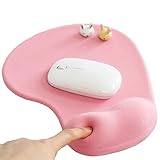
- ✔ ♛ Optimized Ergonomic Comfort ♛ ➤ Elevate your desk experience with our precisely engineered mouse pad, featuring a gel-filled wrist rest sculpted to cradle your wrist in an - [ anatomically favorable position ] -. This thoughtful design - [ reduces wrist strain ] - and enhances comfort, - [ mitigating the risk ] - of - [ repetitive strain injuries ] - like - [ carpal tunnel syndrome ] - during extended use.
- ✔ ♛ Seamless Movement Experience ♛ ➤ Glide effortlessly with our mouse pad surfaced in - [ premium Lycra ] - , celebrated for its - [ incredibly smooth texture ] -. This choice material ensures that every mouse movement is - [ seamless and precise ] -, - [ enhancing workplace productivity ]
- ✔ ♛ Unyielding Grip Stability ♛ ➤ Securely designed with a - [ robust] -, - non-slip base] -, this mouse pad remains staunchly in place, offering a - [ steadfast platform] - that - [ resists shifts and slides] - under the most vigorous mouse movements. Ensuring - [ uninterrupted operation ] - and reliability.
- ✔ ♛ Superior Quality and Safety ♛ ➤ Our mouse pad is meticulously crafted from - [ advanced ] -, - [ eco-friendly materials ] - that are durable and - [ free from harsh chemical odors ] -, - [ promoting a healthy ] -, - [ sustainable workspace ] -. It’s - [ designed to endure ] -, resisting common wear and tear such as surface wear or base detachment.
- ✔ ♛ Buy Risk Free ♛ ➤ Encounter any issues with compatibility, gel leaks, or wrist support dissatisfaction? Contact us for a - [ Money Back ] - and - [ FREE REPLACEMENT ] -(no return required). Enjoy an 18-month - [ 100% satisfaction MONEY-BACK guarant ]
If you need every message in a folder, do not assume that Ctrl+A will select the intended set. Check the commands and selection behavior in your specific Outlook version first.
Using Outlook.com or Outlook on the web
Outlook.com and Outlook on the web run in a browser, so their keyboard behavior is not identical to the Windows desktop applications. Microsoft’s folder documentation says that commands appear on the Outlook.com command bar after you select a message, but it does not establish one universal Select all button or one mouse-and-keyboard procedure for every web version.
Do not rely on a desktop shortcut without checking the web interface. Microsoft also notes that browser-based Outlook uses Ctrl+F6, rather than F6, to move in and out of commands. Browser shortcuts such as F1 and Ctrl+O belong to the browser, not Outlook on the web.
When selection shortcuts appear not to work
Focus is in the wrong area
Selection shortcuts apply to the message list. If the cursor or focus is in the search box, reading pane, folder pane, or browser chrome, the arrow keys may navigate that area instead. Click a message in the list and try again.
Rank #4

- PROTECT YOUR DESK: Made of durable PU leather material, which protects your desk from scratches, stains, spills, heat and scuffs. It also gives your office a modern and professional atmosphere when you put it on your desktop. Its smooth surface will make you enjoy writing, typing and browsing. It is perfect for both office and home
- MULTIFUNCTIONAL DESK PAD: 23.6 x 13.7 Inch Size is large enough to accommodate your laptop, mouse and keyboard. Its comfortable and smooth surface can be work as a mouse pad,desk mat,desk blotters and writing pad
- SPECIAL NON-SLIP DESIGN: Special suede design for back side,increase friction resistance with the desktop,Non slip.The friction resistance is increased by 70% than that of double-sided leather
- WATERPROOF AND EASY TO CLEAN: Made of water-resistant and durable PU leather, this desk pad protects your desktop from spilled water, drinks, ink and the other liquid. Easy to clean, just wipe with a wet cloth or paper
- ONE YEAR WARRANTY: We are dedicated to providing our customers with high quality products and superior service.. If you are dissatisfied with our product, we can offer you a new one or 100% money back. A good gift choice for your family, friends and yourself
You are using the wrong Outlook edition
New Outlook and classic Outlook have separate instructions. Look for Settings on the ribbon: its presence indicates new Outlook; its absence indicates classic Outlook according to Microsoft’s version guidance.
Conversation or message groups are collapsed
Classic Outlook has commands for expanding and collapsing message groups. A selection can therefore act on the messages currently visible inside a collapsed or expanded group rather than every message represented by that group. Expand the group if you need to inspect or select individual messages.
Outlook seems frozen after selecting many messages
Outlook may be busy with another mailbox operation, such as AutoArchive, sending or receiving a very large attachment, or another mailbox tool. Check the status bar at the bottom of the Outlook window and wait briefly before clicking repeatedly or force-closing the program.
Your keyboard layout is different
Microsoft’s shortcut reference uses a U.S. keyboard layout. On another layout, the key positions or displayed names can differ. If a shortcut is not recognized, use the mouse selection method or check the shortcuts for your installed version.
Best Value

- ✔ ♛ Enhanced Ergonomic Support ♛ ➤ Experience unparalleled comfort with our ErgoComfort Gel Wrist Rest Mouse Pad, designed to conform precisely to the natural curve of your wrist and hand for optimal ergonomics. This design helps maintain proper wrist alignment, - [reducing fatigue] - and the risk of - [repetitive strain injuries] - like - [carpal tunnel syndrome] - during prolonged use.
- ✔ ♛ Superior Glide Surface ♛ ➤ Our mouse pad features a - [premium Lycra surface] - , renowned for its smooth, low-friction characteristics that ensure - [seamless and precise] - mouse movements. Whether you're gaming or managing office tasks, enjoy enhanced cursor accuracy without sacrificing speed.
- ✔ ♛ Stable Non-Slip Base ♛ ➤ Stay anchored with a - [robust anti-slip PU base] - that firmly grips any desktop surface, preventing the mouse pad from sliding during intense work or play. This stable foundation supports consistent mouse operation and enhances overall control.
- ✔ ♛ Durable and Safe Materials ♛ ➤ Crafted from - [eco-friendly materials] - , our mouse pad is built to last while ensuring safety and comfort. It is - [free from harsh chemical odors] - and designed for sustainability, making it a smart choice for your health and the environment.
- ✔ ♛ Risk-Free Purchase ♛ ➤ Confident in our product's quality, we offer a hassle-free purchase experience. Should you encounter any issues with compatibility or support, reach out for a - [Money Back and free replacement] - , no returns required, under our 18-month - [satisfaction guarant] - .
Quick selection reference
| What you want to do | Action |
|---|---|
| Select a consecutive range | Select a message, then press Shift+Down Arrow or Shift+Up Arrow. |
| Select separated messages | Move with Ctrl+arrow and press Spacebar on each message. |
| Select separated messages with the mouse in classic Outlook | Hold Ctrl while clicking each message. |
| Begin at the first message in new Outlook | Press Home or Ctrl+Home, then extend with Shift+Down Arrow. |
FAQ
What is the shortcut to select consecutive emails in Outlook?
Click the first message in the message list, then press Shift+Down Arrow to extend the selection downward or Shift+Up Arrow to extend it upward.
How do I select several non-adjacent emails?
In the message list, use Ctrl+Up Arrow or Ctrl+Down Arrow to move between messages. Press Spacebar on each message you want to select.
Why does Ctrl+A not select all my Outlook emails?
Ctrl+A is not a universal mail-list selection shortcut across Outlook editions. Use the version-specific selection controls instead, and verify what is selected before applying an action.
Recommended Free Tools
How can I tell whether I have new Outlook or classic Outlook?
Check the ribbon for Settings. Microsoft’s guidance says that Settings indicates new Outlook; if Settings is absent, use the classic Outlook instructions.
Why do the arrow keys move around instead of selecting messages?
Focus is probably outside the message list. Click a message in the list first, then use the selection shortcut. In Outlook on the web, browser focus and browser shortcuts can also affect keyboard behavior.
The Bottom Line
For a consecutive block, select one message and use Shift+arrow. For separated messages, move with Ctrl+arrow and press Spacebar on each one. In classic Outlook, holding Ctrl while clicking is the simplest mouse method. Confirm your Outlook edition and keep focus in the message list before applying a bulk action.
Quick Recap
Product prices and availability are accurate as of the date/time indicated and are subject to change. Any price and availability information displayed on Amazon at the time of purchase will apply.
Do these 3 things before closing this tab:
1Scan for outdated or missing drivers - takes under a minute2Clear out junk files and repair common Windows errors3Fix the driver behind crashes, sound loss and screen glitches
