
iTechGuides is reader-supported. When you buy through links on our site, we may earn an affiliate commission. As an Amazon Associate I earn from qualifying purchases. Learn more
You cannot run a macOS application natively in Windows. The dependable solution is to run the app on a Mac—either a Mac you own or a hosted Mac—and use your Windows laptop as the remote screen, keyboard, and mouse. The Mac, not the Windows laptop, performs the installation and runs the application.
Before paying for hardware or a cloud service, check the app developer’s current macOS version, Apple-silicon or Intel requirement, graphics and peripheral needs, account policy, and license terms. The exact app matters: no universal compatibility result can be inferred from its name alone.
How the setup works
The arrangement has two computers with different jobs:
- Mac host: runs macOS, installs the Mac-only application, stores its files, and does the processing.
- Windows laptop: connects to the Mac, displays its desktop, and sends keyboard and mouse input.
Apple documents this kind of remote control as Mac screen sharing. In Apple’s screen-sharing guide, Control Mode lets you operate the shared screen, while Observe Mode only lets you watch it. Apple also documents adaptive quality for slower connections and full quality for faster ones.
#1 Best Overall

- Apple-designed M1 chip for a giant leap in CPU, GPU, and machine learning performance
- 8-core CPU packs up to 3x faster performance to fly through workflows quicker than ever*
- 8-core GPU with up to 6x faster graphics for graphics-intensive apps and games*
- 16-core Neural Engine for advanced machine learning
- 8GB of unified memory so everything you do is fast and fluid
That documentation covers sharing a Mac screen; it does not, by itself, establish a particular Windows client workflow. Choose a remote-access application that explicitly supports connecting from your Windows version to your Mac host, and test it before depending on the arrangement.
Option 1: Use a Mac you own as the host
What you need
- A Mac model that supports the macOS version required by the application. Apple’s Mac User Guide includes Mac mini among the Mac models.
- An Apple account and any application account or subscription required by the developer.
- Enough storage, memory, graphics capability, and compatible ports for the application and its peripherals.
- A network connection between the Windows laptop and the Mac.
- A Windows-compatible remote-access client that you have verified for your chosen Mac setup.
A Mac mini is often convenient because it can remain at home or in an office with a monitor attached when you need local maintenance, while the Windows laptop remains your everyday mobile computer. It is still a Mac host; buying one does not make the application run inside Windows.
Rank #2
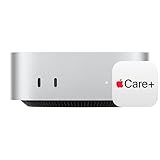
- WHY APPLECARE+ — Get protection, service and support direct from Apple. AppleCare+ covers unlimited repairs for accidental damage, like a cracked display, and includes coverage for the hardware and battery. Get convenient service at Apple Stores and Apple Authorized Service Providers around the world or schedule a pickup at your home or office with Onsite Service. Help is easy with 24/7 priority tech support from Apple experts.
- SIZE DOWN. POWER UP — The far mightier, way tinier Mac mini desktop computer is five by five inches of pure power. Built for Apple Intelligence.* Redesigned around Apple silicon to unleash the full speed and capabilities of the spectacular M4 chip. With ports at your convenience, on the front and back.
- LOOKS SMALL. LIVES LARGE — At just five by five inches, Mac mini is designed to fit perfectly next to a monitor and is easy to place just about anywhere.
- CONVENIENT CONNECTIONS — Get connected with Thunderbolt, HDMI, and Gigabit Ethernet ports on the back and, for the first time, front-facing USB-C ports and a headphone jack.
- SUPERCHARGED BY M4 — The powerful M4 chip delivers spectacular performance so everything feels snappy and fluid.
Set up the Mac
- Confirm requirements first. Record the application’s minimum macOS release, whether it supports Apple-silicon Macs, whether it requires an Intel Mac or a translation layer, recommended memory and graphics, supported peripherals, and any limit on the number of activated devices.
- Install macOS updates that remain compatible. Do not upgrade past the application’s supported range without checking the developer’s compatibility notes.
- Install the application on the Mac. Sign in with the account and license that the developer permits for this computer. Download installers only from the developer or an authorized store.
- Prepare the Mac for remote use. In macOS, open System Settings → General → Sharing and review the Screen Sharing setting. Apple’s sharing documentation explains how to allow access and choose who can control or observe the Mac; follow the labels shown by your macOS release.
- Keep the Mac available. Set sleep and automatic-lock behavior so the host does not become unreachable during a work session, while retaining a password and lock screen for security. A display can remain connected for applications that expect a graphical session.
- Install and test the Windows client. Use the remote-access product’s documented Windows installer and sign in to the same host. Confirm that keyboard shortcuts, clipboard behavior, file transfer, audio, and any required USB or camera redirection work as expected.
- Test the real workload. Open the Mac application from Windows and perform the tasks you actually need: opening a project, importing media, using plug-ins, printing, connecting peripherals, and saving to the intended location.
Advantages and limitations
- Control: You own the hardware, operating-system account, storage, and physical network path.
- Predictable availability: There is no hosted-session quota, but the Mac must remain powered, connected, and maintained.
- Upfront expense: The sources do not establish a current purchase price for a suitable Mac. Budget separately for the Mac, storage, peripherals, and your remote-access software.
- Maintenance: You are responsible for macOS updates, backups, security, application updates, and recovering the host if it becomes unavailable.
Option 2: Rent a hosted Mac desktop
A hosted Mac service runs macOS in a provider’s data center and delivers the desktop to your Windows laptop. MacStadium describes a hosted Mac VDI based on Apple-silicon hardware and accessed through Citrix Workspace. Its page says the service can provision a macOS virtual machine in minutes, but that wording is the provider’s claim rather than an independent performance measurement.
Do these 3 things before closing this tab:
1Repair Windows errors before they cause bigger problems2Scan for outdated or missing drivers - takes under a minute3Clear out junk files and repair common Windows errorsWhat the cited offer includes
- MacStadium lists a starting price of $50 per Mac per month on its VDI page, checked October 13, 2026.
- The page says Citrix licensing is managed separately through the customer’s existing agreement. Treat both the price and licensing arrangement as changeable; confirm the current quote, region, taxes, contract term, and included resources before subscribing.
- The provider describes golden images, on-demand provisioning, and hosted or on-premises deployment for managed environments.
- MacStadium describes SSO and multifactor authentication through Citrix and says source code and intellectual property remain on company-managed data-center hardware. Those are provider statements; an organization must validate them against its own security and data-residency requirements.
Hosted-Mac setup procedure
- Check application compatibility. Ask the provider which macOS release, Apple-silicon configuration, memory, storage, graphics acceleration, audio, USB, and display features are available on the plan.
- Confirm licensing. Verify that your application license permits a hosted or virtualized Mac, how many users may sign in, and whether the provider’s Citrix entitlement is included or must be supplied separately.
- Choose a region and service level. Place the host near the people and data that need it when the provider offers regional choices. Confirm backup, persistence, support hours, and deletion behavior in writing.
- Provision the Mac desktop. Create the instance or request an image from the provider. If your team uses a standard configuration, build and maintain a controlled image rather than installing every tool manually for every user.
- Install the application and test peripherals. Sign in through the provider’s Citrix Workspace workflow, install the Mac app, and test licenses, plug-ins, audio, cameras, USB devices, printers, and external storage.
- Measure your real connection. Test the application at the times and locations where you will work. A desktop that feels acceptable for documents may be unsuitable for timeline editing, 3D work, live audio, or any task that reacts badly to latency.
- Document shutdown and recovery. Record who can restart a host, restore an image, rotate credentials, and retrieve data if a user loses access or a subscription ends.
Advantages and limitations
- Lower initial commitment: You avoid purchasing and physically maintaining a Mac, but pay a recurring service fee.
- Central administration: Managed images, provisioning, identity controls, and data-center operations can help teams standardize multiple Macs.
- Internet dependency: If the connection fails, the hosted desktop and the application are unavailable from the Windows laptop.
- Variable total cost: The advertised $50 starting rate does not establish the final price for your hardware tier, storage, support, Citrix licensing, taxes, or usage.
- Provider dependency: Availability, geographic eligibility, acceptable-use rules, and exit procedures are controlled by the service agreement.
Local Mac or hosted Mac: which fits?
| Decision factor | Mac you own | Hosted Mac VDI |
|---|---|---|
| Where the app runs | Your physical Mac | Provider-hosted macOS hardware or virtual machine |
| Payment model | Upfront hardware purchase plus your maintenance costs; a current price is not stated in the available sources | Recurring service; MacStadium lists $50 per Mac per month as a starting price, with Citrix licensing separate |
| Administration | You manage hardware, macOS, accounts, updates, and backups | Provider supplies hosting and may offer images, provisioning, and centralized controls |
| Physical control | You control the machine and its local storage | Provider operates the data-center infrastructure; validate security and residency terms |
| Network requirement | Required for remote control unless you are physically using the Mac | Required for every Windows session |
| Best initial fit | One person who wants long-term control and can maintain a Mac | People or teams that prefer managed capacity and a recurring bill |
| Main risk | Host failure, maintenance, or an inaccessible home/office network | Latency, service availability, changing terms, and separate licensing costs |
For graphics-heavy, audio/video, or latency-sensitive work, neither route should be selected from specifications alone. Trial the exact application, project files, peripherals, and connection before committing.
Rank #3

- AN AMAZING MAC AT A SURPRISING PRICE — With an incredibly portable and durable aluminum design, up to 16 hours of battery life,* and the A18 Pro chip, MacBook Neo is ready to go wherever school takes you.
- FOUR STUNNING COLORS. ONE DURABLE DESIGN — Choose from four beautiful colors — Silver, Blush, Citrus, or Indigo — each with a color-coordinated keyboard. And MacBook Neo is made with a durable recycled aluminum enclosure that helps it reach 60 percent recycled content by weight — the most ever in any Apple product.*
- FLY THROUGH EVERYDAY ASSIGNMENTS — Whether you’re cramming for finals, using Apple Intelligence* to summarize class notes, creating presentations, or even playing the latest Apple Arcade game,* MacBook Neo delivers the performance and AI capabilities you need to get things done.
- UP TO 16 HOURS OF BATTERY LIFE — MacBook Neo delivers all day battery life, so you can power through from early morning classes to late night study sessions without worrying about plugging in.
- A VIBRANT 13-INCH DISPLAY* — The gorgeous Liquid Retina display on MacBook Neo supports 1 billion colors, so photos and videos pop and text is crisp for easy reading.
Check compatibility before you spend money
The phrase “Mac-only app” is not enough to choose a host. Use this checklist with the application’s current documentation:
- macOS version: What is the minimum supported release, and does the developer list a maximum or known problem with newer releases?
- Processor architecture: Does the app support Apple silicon, Intel Macs, or both? If it relies on Intel-only components, ask whether the developer supports running it through Apple’s compatibility technology.
- Memory and storage: Include the application, plug-ins, caches, libraries, project files, and free space needed for updates.
- Graphics: Check GPU, display, hardware-acceleration, and external-monitor requirements. Remote display protocols may reduce visual quality or responsiveness even when the Mac meets the local specification.
- Peripherals: Verify support for cameras, microphones, MIDI devices, scanners, drawing tablets, USB dongles, printers, and other hardware. Remote USB or audio redirection is not automatic.
- Accounts and licensing: Confirm activation limits, subscription sign-in, offline use, organization accounts, and whether a hosted Mac is allowed.
- Data and plug-ins: Check file-path assumptions, cloud-storage clients, fonts, codecs, extensions, and plug-ins that may need separate Mac versions.
Make remote use responsive and reliable
Connection quality
Remote control sends screen updates from the Mac to Windows and input events back to the Mac. Distance, congestion, packet loss, and local Wi-Fi can make pointer movement feel delayed or cause visual artifacts. Use a wired connection for the host when practical, place the Windows laptop on a stable network, and test during the busiest period in which you expect to work.
Rank #4

- BTO Mac Mini Desktop Computer - Power Cord - Apple 1 Year Limited Warranty with 90 Day Free Technical Support
- Apple M1 chip with 8-core CPU and 8-core GPU
- 16-core Neural Engine
- 16GB unified memory
- 1TB SSD storage
Apple’s screen-sharing guide describes adaptive quality for slower networks and full quality for faster networks. Start with the adaptive setting when responsiveness matters, then increase quality only if the connection remains stable. A setting that improves image detail can consume more bandwidth and increase delay.
What’s actually slowing this PC down?
Pick the symptom - the matching free tool is one click away.
Workload-specific testing
- Office and developer tools: Check keyboard shortcuts, clipboard, multiple monitors, terminal access, and file synchronization.
- Design, video, and 3D: Test scrubbing, zooming, color, frame rates, GPU effects, and export times with a representative project.
- Audio: Test round-trip monitoring, microphone input, sample rates, plug-ins, and whether audio redirection introduces unacceptable delay.
- Security-sensitive work: Confirm where project files, caches, credentials, and backups are stored and who can administer the host.
Security, privacy, and account controls
Enable only the remote-access accounts that need control, use strong unique credentials, and require multifactor authentication where the chosen service supports it. Remove former users promptly. Keep macOS, the application, and the remote-access client updated according to their vendors’ supported versions.
Best Value

- LITTLE DO-IT-ALL — Mac mini packs pure power into a small, five-by-five-inch desktop as the M6 chip delivers next-level AI capabilities. Mac mini features 2.5Gb Ethernet with support for Wi-Fi 7* and Bluetooth 6, with ports on the front and back.
- M6 CHIP — Everything you do on Mac mini feels more responsive with the M6 chip and its next-generation CPU. Fly through AI workflows with up to 4.8x faster AI performance,* thanks to a Neural Accelerator in each GPU core, faster unified memory, and a Dual 16-core Neural Engine.
- CONNECT IT ALL — Features three Thunderbolt 4 ports, an HDMI port, and a 2.5Gb Ethernet port in the back, and two USB-C ports and a headphone jack in front. Supports up to three external displays. With the Apple-designed N1 wireless chip for Wi-Fi 7* and Bluetooth 6.
- A POWERFUL PLATFORM FOR AI — Apple silicon is designed to run demanding AI workflows like using huge LLMs, directly on device. And Apple Intelligence* helps you write, express yourself, and get things done effortlessly, while Siri AI* is your profoundly capable assistant — all with groundbreaking privacy protections.
- A POWERFUL PLATFORM FOR AI — Apple silicon is designed to run demanding AI workflows like using huge LLMs, directly on device.
For a local Mac, protect the physical machine and its backups; a remote user may be able to access every file available to the signed-in Mac account. For a hosted Mac, read the provider’s data-location, administrator-access, retention, backup, and deletion terms. A provider’s statement that data remains on managed hardware is not a substitute for your organization’s own review of compliance, residency, and incident-response requirements.
Do not assume that a remote desktop changes the application’s license. The license still applies to the Mac installation and the user or organization operating it. Obtain written clarification from the application developer when the terms do not explicitly cover remote or hosted use.
Common problems and fixes
The app will not install
- Recheck the required macOS release and processor architecture.
- Confirm that the host has enough free storage and that your account is allowed to install the software.
- Ask the developer whether a required plug-in, driver, or hardware component is unavailable on Apple-silicon or hosted systems.
The Windows laptop cannot connect
- Confirm that the Mac is powered on, awake, online, and reachable from the network you are using.
- Verify the remote-access account, host address, permissions, and any organization firewall or VPN requirement.
- Use the remote client’s documented Windows version and update it if the host software has changed.
- If you are using a hosted service, check whether the instance is stopped, suspended, or outside the service region you selected.
The desktop is visible but feels slow
- Test the same session on a wired or less congested network.
- Lower display quality or select the adaptive-quality mode described by Apple.
- Close unnecessary applications and background transfers on both computers.
- For demanding workloads, compare a local Mac host with the hosted service using the same project and peripherals; do not infer performance from a specification sheet.
Keyboard, audio, or USB devices do not work
Remote protocols differ in the features they redirect. Check the chosen client’s support for keyboard layouts, modifier keys, clipboard, sound, microphones, cameras, printers, and USB. If a device is essential, test it before purchasing the host or committing to a subscription; a Mac application may require the peripheral to be physically attached to the Mac.
What Windows remote tools do—and do not—prove
Microsoft’s Windows App documentation describes connecting from Windows to remote PCs and lists network connectivity, a user account, and supported Windows versions as requirements. It also covers services such as Azure Virtual Desktop and Windows 365. This demonstrates that Windows has remote-client capabilities, but it is not evidence that Windows App directly connects to macOS. For a Mac host, follow the documentation for the specific Mac-compatible remote-access product you select.
A practical decision sequence
- Write down the exact Mac application, version, plug-ins, files, peripherals, and number of users.
- Check the developer’s current macOS, processor, graphics, account, and licensing requirements.
- Choose a local Mac if you want physical control, can maintain the host, and expect to use it for a long period.
- Choose a hosted Mac if avoiding hardware ownership and centralizing administration are worth an ongoing service cost.
- Validate the remote client on Windows, then run a representative trial with your real workload.
- Document backups, account recovery, security controls, and how you will retrieve data if the host or service is unavailable.
The result is a Windows-based way to access a Mac application, not a way to convert Windows into macOS. Keeping that distinction clear prevents incompatible hardware purchases, unexpected licensing problems, and disappointing remote performance.
Quick Recap
Product prices and availability are accurate as of the date/time indicated and are subject to change. Any price and availability information displayed on Amazon at the time of purchase will apply.

